
Fusion Project Portal
A clearer customer project portal where customers follow progress, approve work and add tasks.
Show project cards with task completion counts, allocated hours and logged hours. Let customers create tasks and sub-tasks through inline portal forms.
- Odoo 19
- Version 19.0.4.1.1
- Newly listed
Fusion Project Portal, step by step
3 workflows, 6 steps. Every screen is real, from a demo company with invented data.
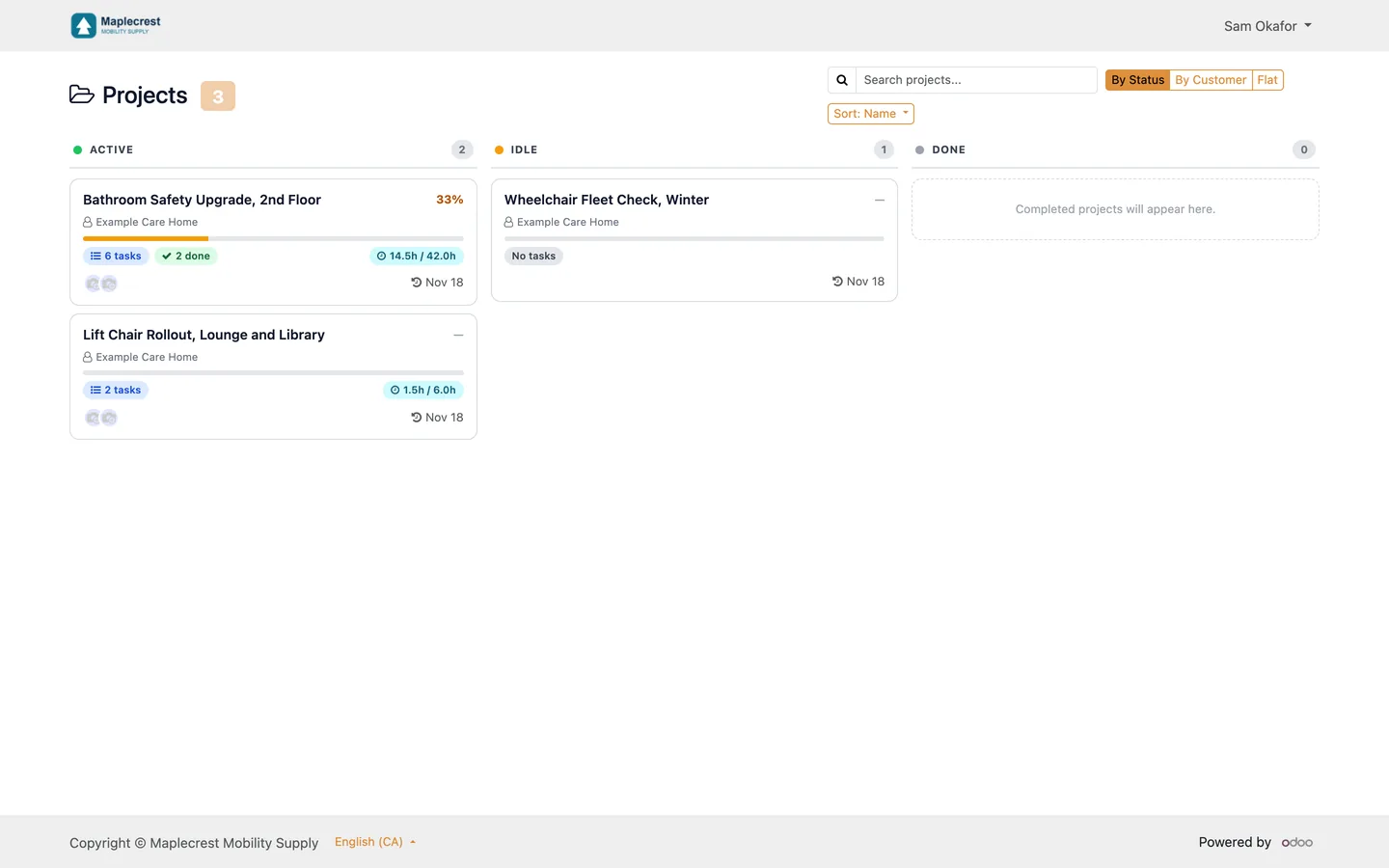
Customers see where every project stands
Customers open the portal and see their projects, tasks and sub-tasks with progress and hours.
-
My Projects
Each project is a card in Active, Idle or Done, with the percent done, task counts, hours logged against hours allocated and the last activity.
Customer portal > Projects
-
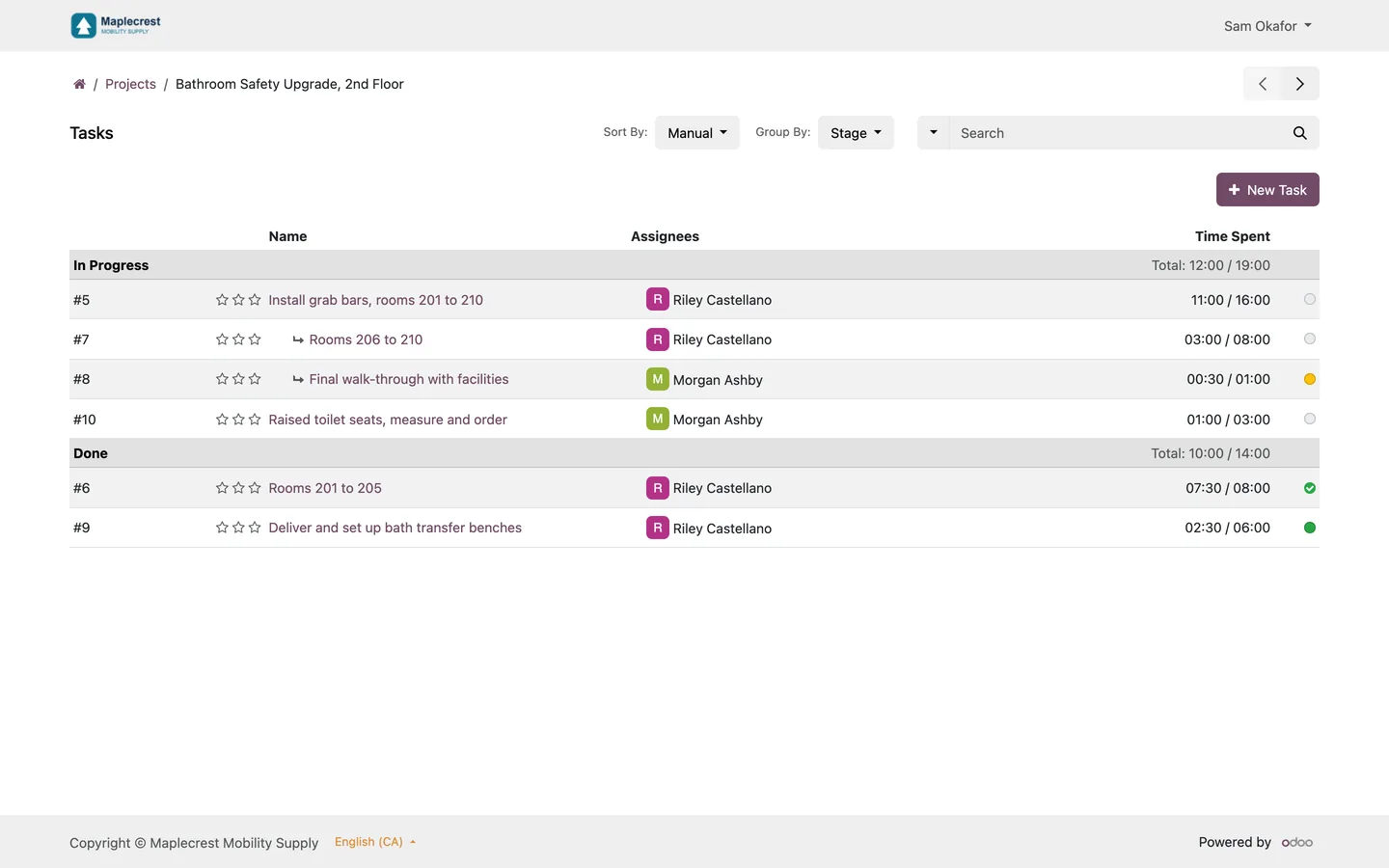
The task list
The project's tasks list each sub-task indented under its parent, with time spent against time allocated.
-
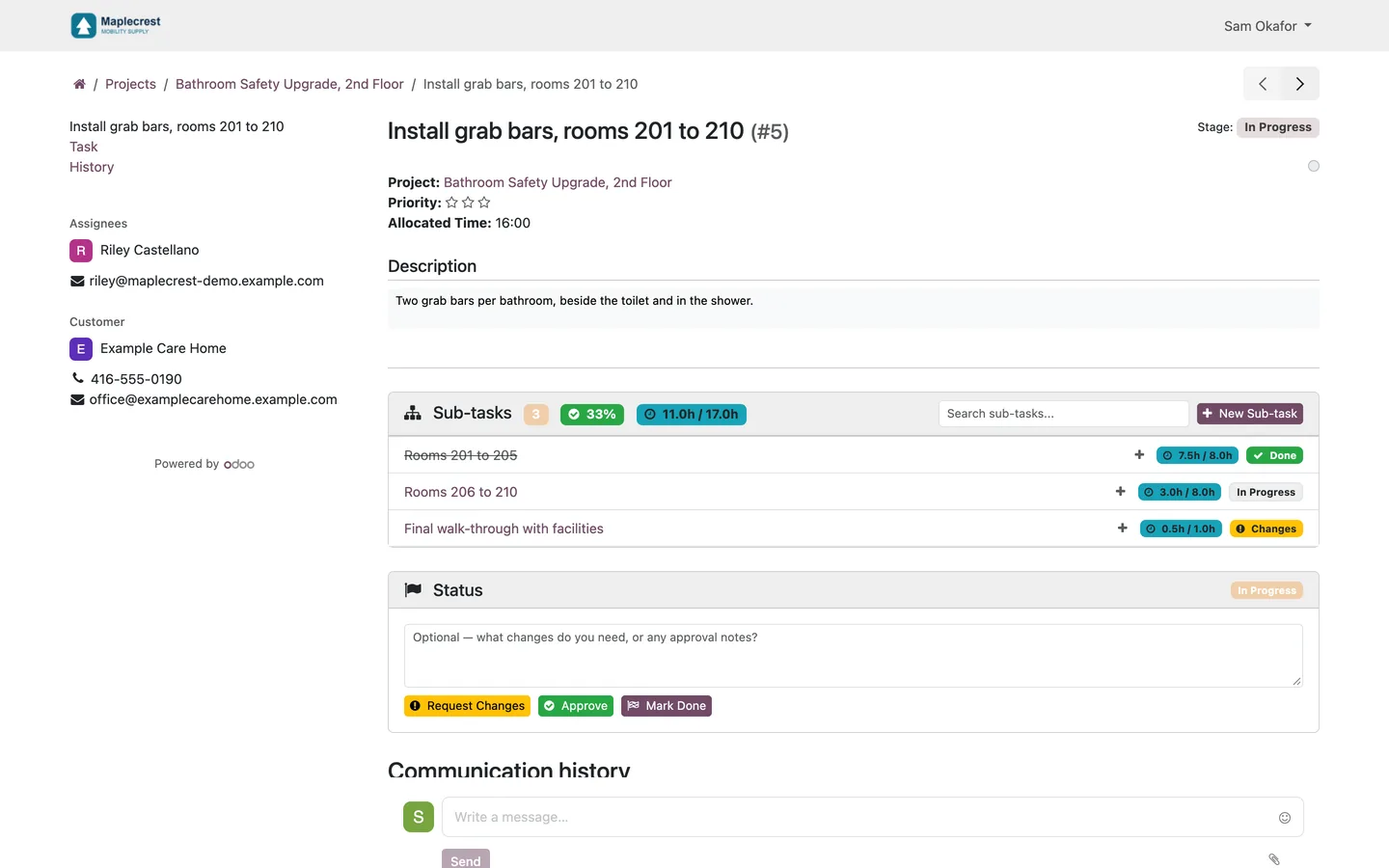
A task and its sub-tasks
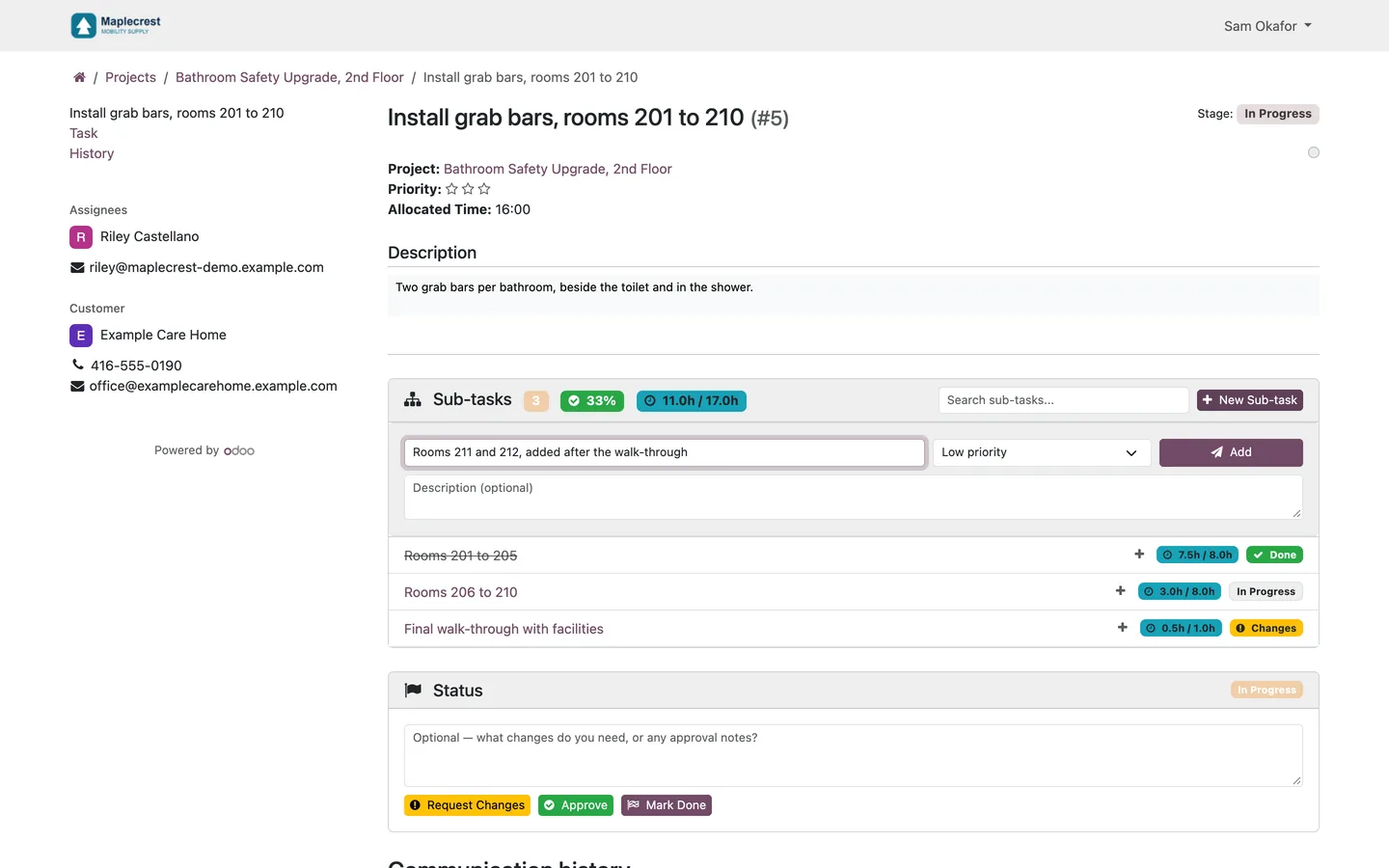
The task page shows how many sub-tasks are done, the percent complete, hours logged against allocated and the status of each.
Customers act on a task
Customers approve work, ask for changes and add new requests themselves.
-
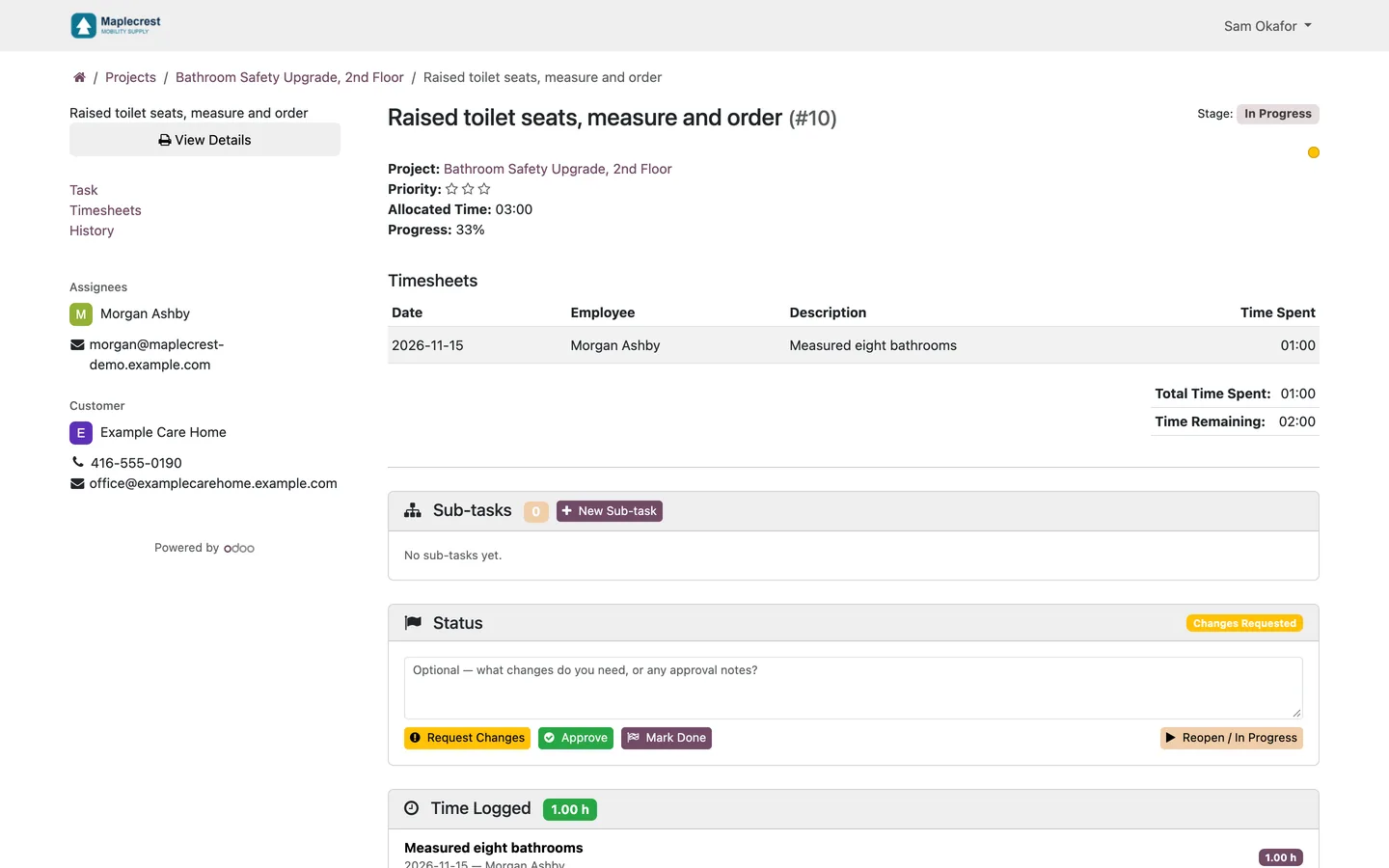
Request changes or approve
Add an optional comment and press Request Changes, Approve, Mark Done or Reopen. The status changes and the comment is posted on the task.
-
Add a sub-task or task
"New Sub-task" opens a short form for the title, priority and description, and "New Task" on the project opens a full form.
Your team logs time with a note
Every timer session your team stops carries a description your customer can read.
-
Stop the timer
Stopping the timesheet timer asks what was done, and the description is required.
What it does
 Projects page
- Show project cards with task completion counts, allocated hours and logged hours.
- My Projects sorts the cards into Active, Idle and Done columns and shows each project's customer, percent of tasks done, assignees and last activity.
- Customers search the cards, group them by status or customer or in one list, and sort them by name, percent complete, task count or last activity, without reloading the page.
 Tasks and sub-tasks
- The project's task list shows each sub-task indented under its parent task.
- A task page lists its sub-tasks at every level with how many are done, the percent complete, hours logged against hours allocated, each one's status and a search box.
- Show logged timesheets on the customer task page.
 What customers can do
- Let customers create tasks and sub-tasks through inline portal forms.
- On a task, the customer can request changes, approve, mark it done or reopen it, with an optional comment that is posted on the task.
- A task added from the portal is filed for the project's customer, the person who added it follows it, and a note says it came from the portal.
- Only people from the project's customer company or project followers can add tasks.
 For your team
- Require a description when a user stops the standard timesheet timer.


See Fusion Project Portal on your own Odoo.
Book a call and tell us how your team works today. We'll show you the module and what it would take to set it up. Prefer the phone? Call 905-792-0000.