
Fusion Clock
Time and attendance with geofenced clock-ins, shifts and payroll export.
Every clock-in and clock-out is checked against your clock locations by GPS distance inside a radius you set, with a list of allowed office IP addresses as a fallback. Plan the week in a spreadsheet-style Shift Planner grouped by department, typing shifts such as 9-5 or OFF or picking one of your shift templates.
- Odoo 19
- Version 19.0.7.0.2
Fusion Clock, step by step
4 workflows, 19 steps. Every screen is real, from a demo company with invented data.
Set up clocking and post the week's schedule
Clock locations and shift templates come first, then the week is built in the Shift Planner and posted to employees.
-
Add a clock location
A location gets an address, its map position, a radius in metres, the employees who may use it, and optionally a list of office IP addresses and a photo requirement.
Fusion Clock > Configuration > Locations
-
Shifts and roles
Shift templates hold the start, end, break, working days and optional Saturday hours. Each employee's Fusion Clock tab sets their shift, overtime limit, default location and kiosk PIN, and Employee Roles sets the roles they may work.
Fusion Clock > Scheduling > Shifts
-
Build the week
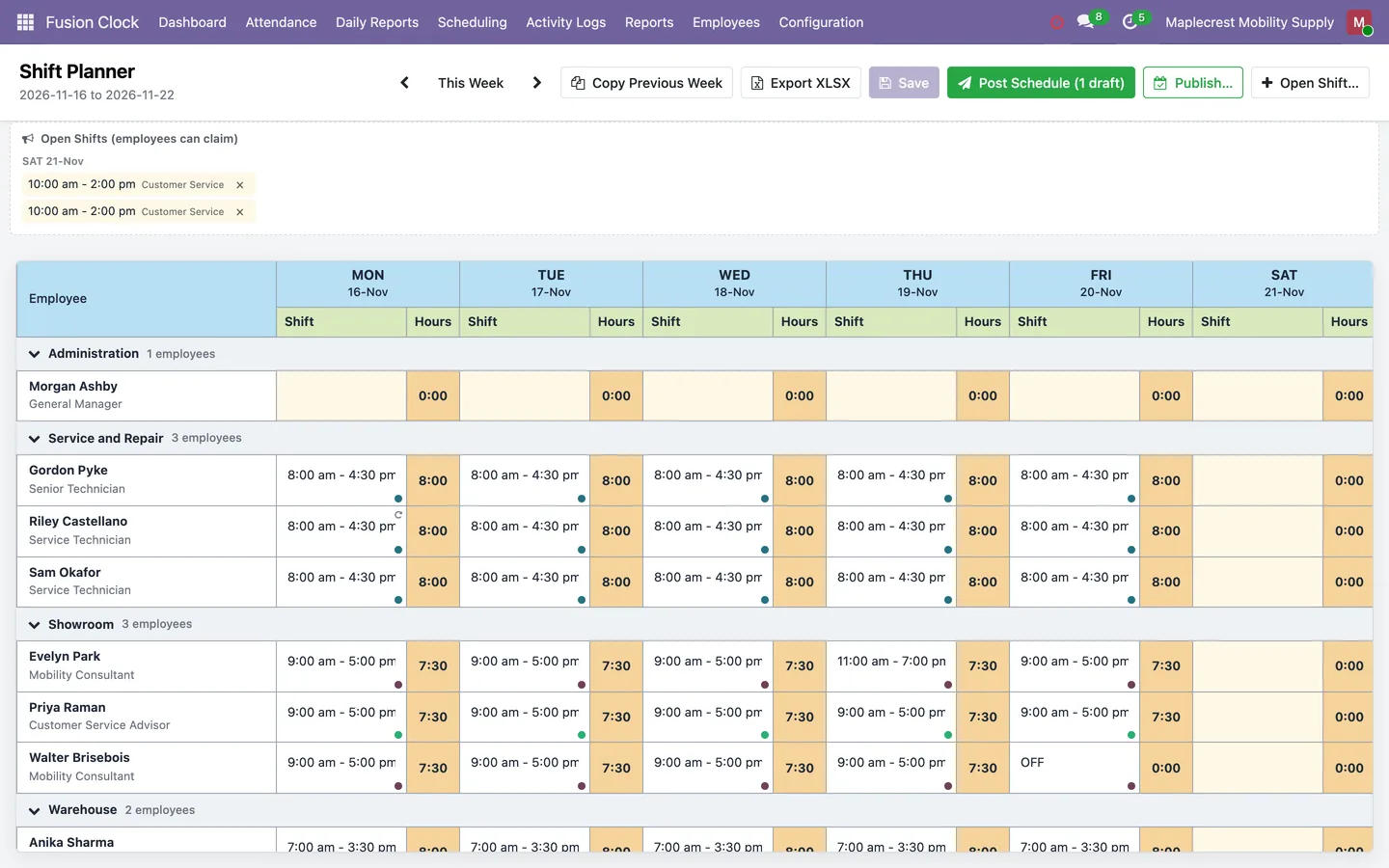
The Shift Planner shows a week grid grouped by department. A cell takes typed text such as 9-5 or OFF, a shift template, a repeat or "Apply to dept", and open shifts can be added for anyone allowed that role to claim.
Fusion Clock > Scheduling > Shift Planner
-
Post the schedule
Draft cells become posted, so reminders, absence checks, penalties and time alignment start using them, and each employee is emailed their shifts. "Publish" posts any date range with an optional message.
-
Employees see their shifts
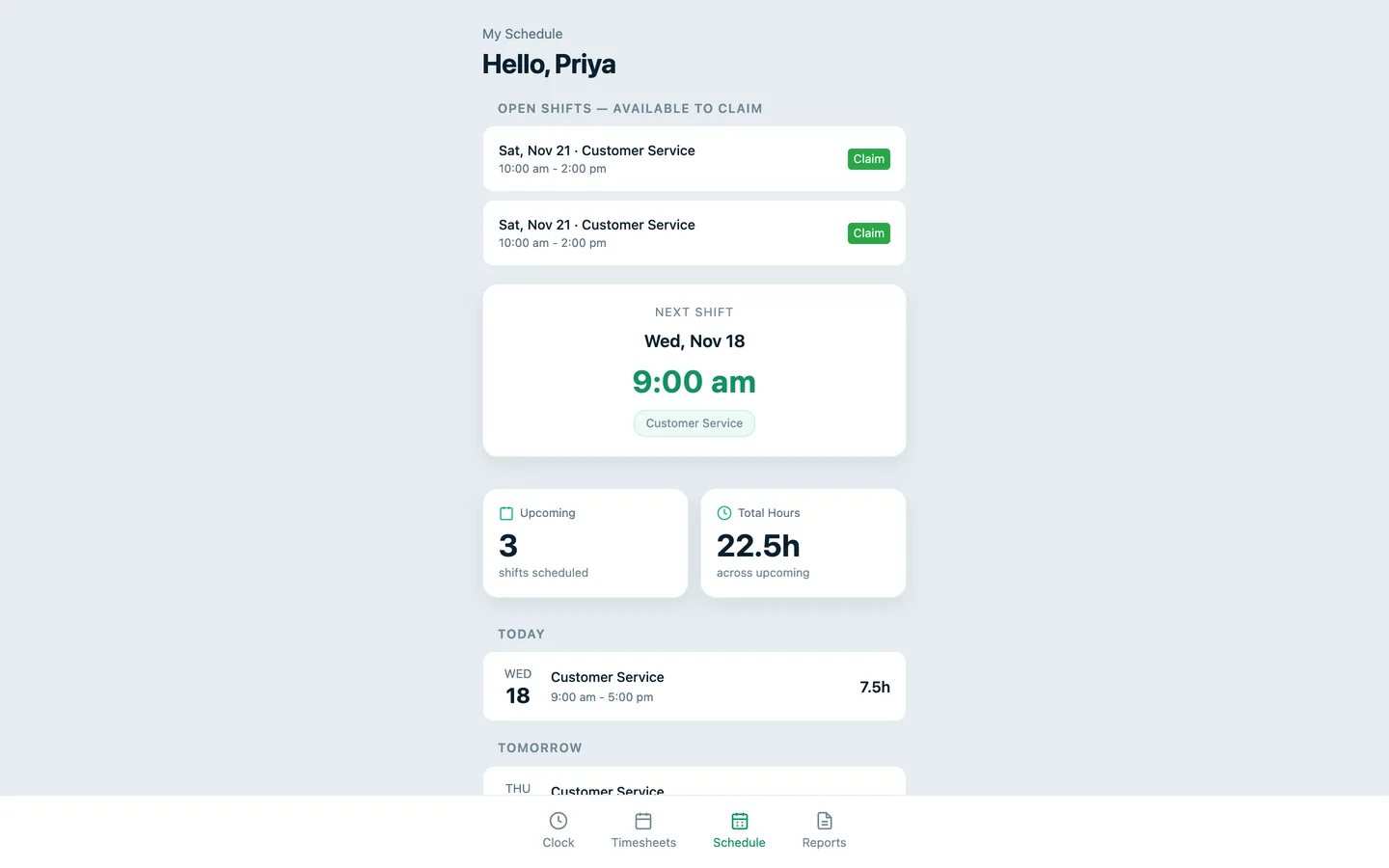
The portal schedule lists the posted shifts ahead with a Next Shift card and total hours, and offers the open shifts the employee may claim. A claimed shift can be released while outside the cutoff.
Portal > Clock > Schedule
An employee's day on the clock
Clock in from a phone, a shared kiosk or the Odoo top bar, with every tap checked against your locations.
-
Clock in
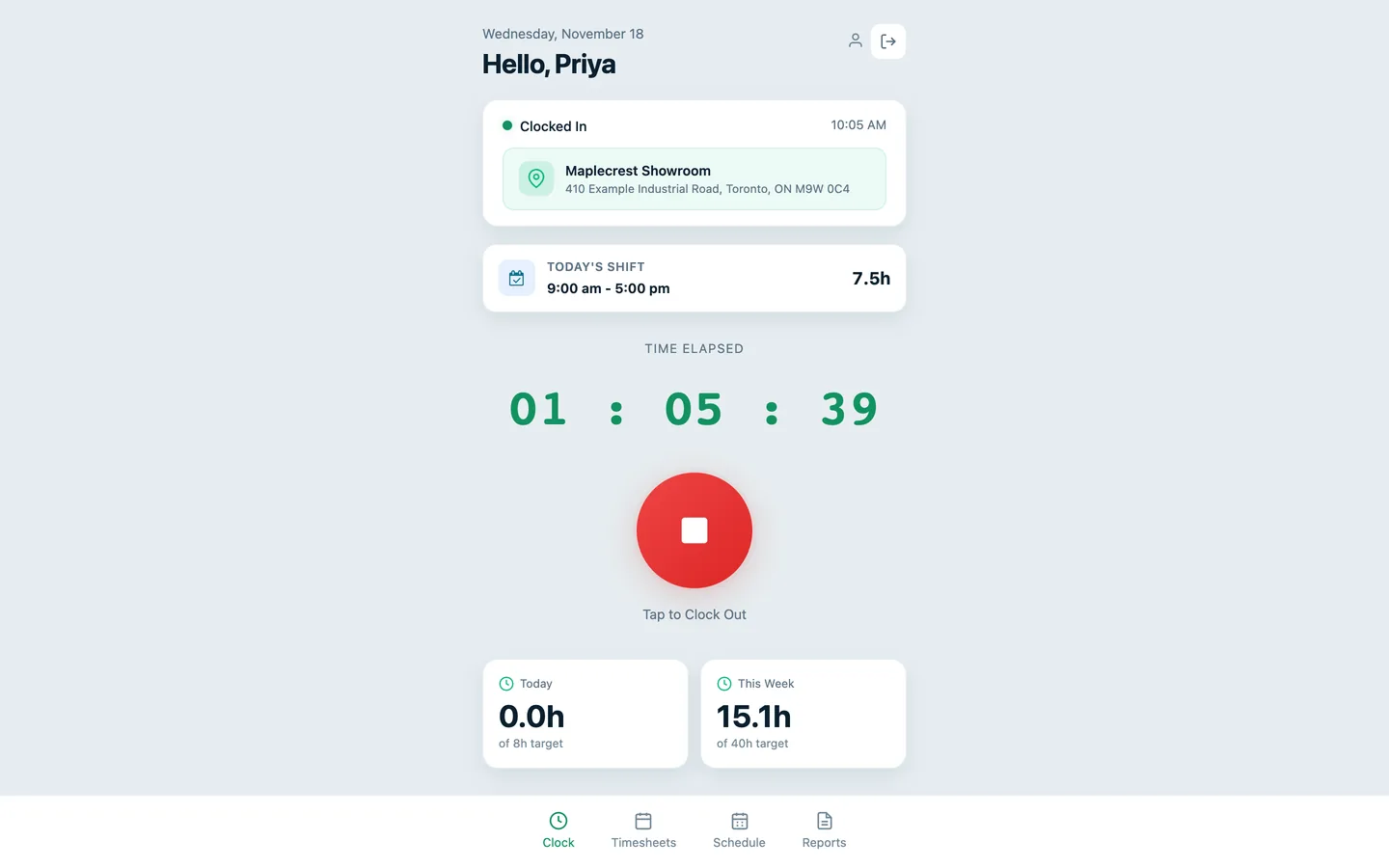
The phone sends its position and the server checks the location radius, then the allowed IP addresses. The attendance records the location and distance, an early tap is aligned to the scheduled start, and a late one past the grace period creates a penalty.
Portal > Clock
-
Or use a kiosk
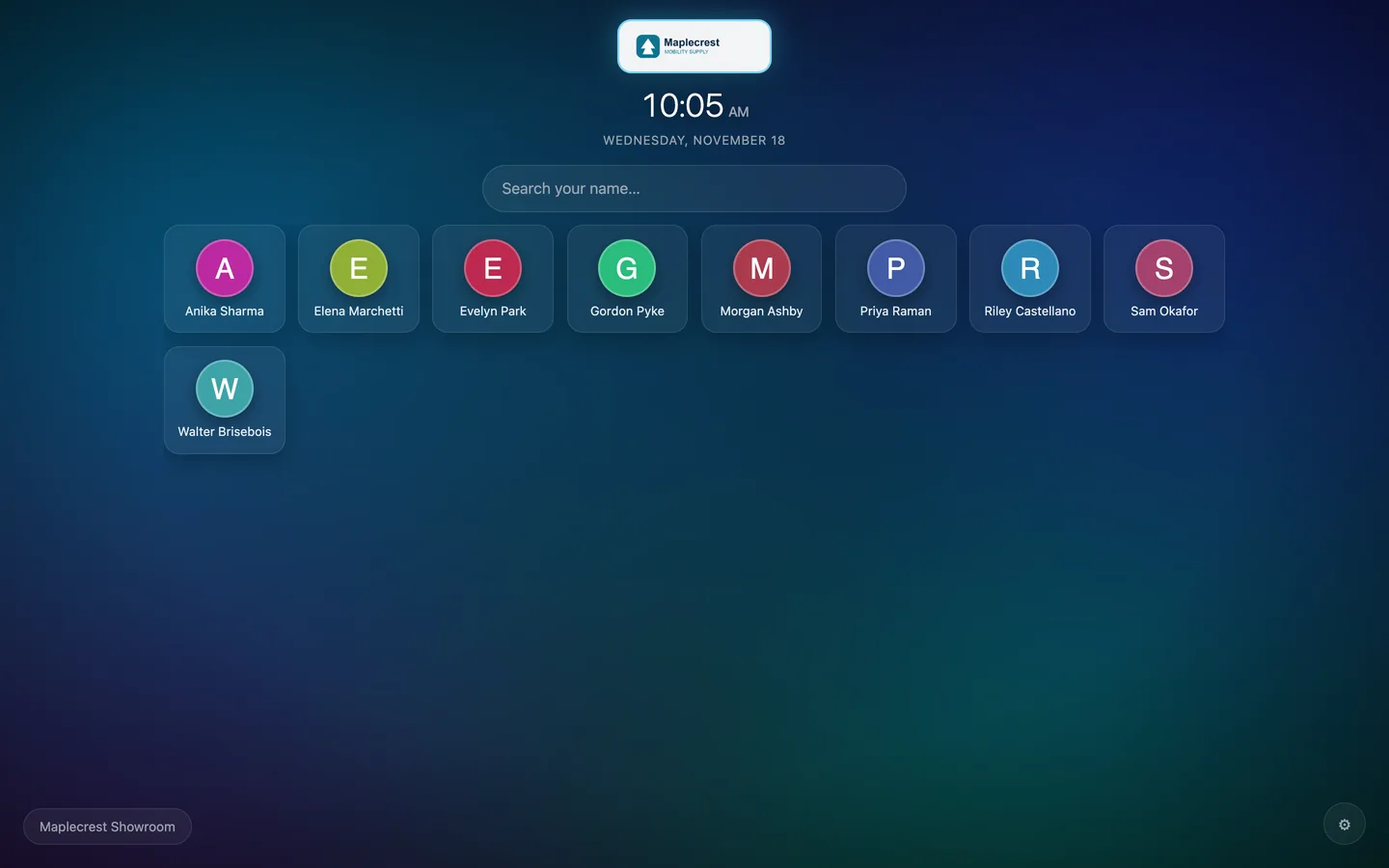
At a PIN kiosk the employee taps their tile and enters or first creates a PIN, and is clocked in at the kiosk location. Office staff can use the clock in the Odoo top bar, which runs the same location check.
Fusion Clock PIN Kiosk
-
Clock out
A confirm dialog shows the clock-in time and duration. The location is checked again, an early departure creates a penalty when due, and the net hours and any overtime are logged.
-
A forgotten clock-out
Every 15 minutes a scheduled job closes any shift open longer than the maximum shift length at the scheduled end and emails the employee and manager. At the next clock-in the employee is asked for a reason and the time they really left.
-
The manager watches the day
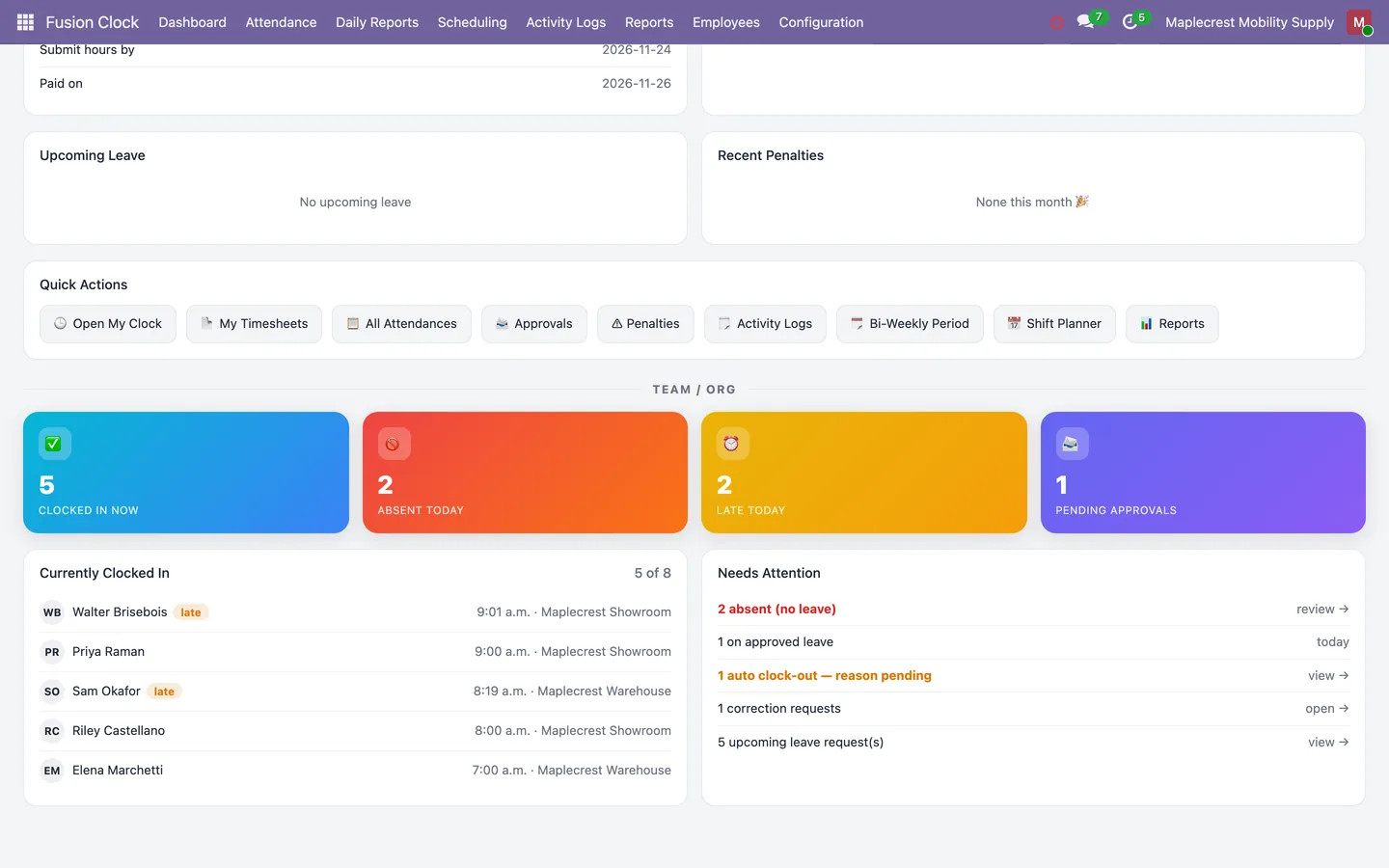
The Dashboard shows who is clocked in now, who is absent or late today and what waits for approval, with a list of everyone on the clock and their location.
Fusion Clock > Dashboard
Leave from request to calendar
Employees ask for time off from the Clock page, a manager decides, and approved leave lands on the calendar.
-
Ask for time off
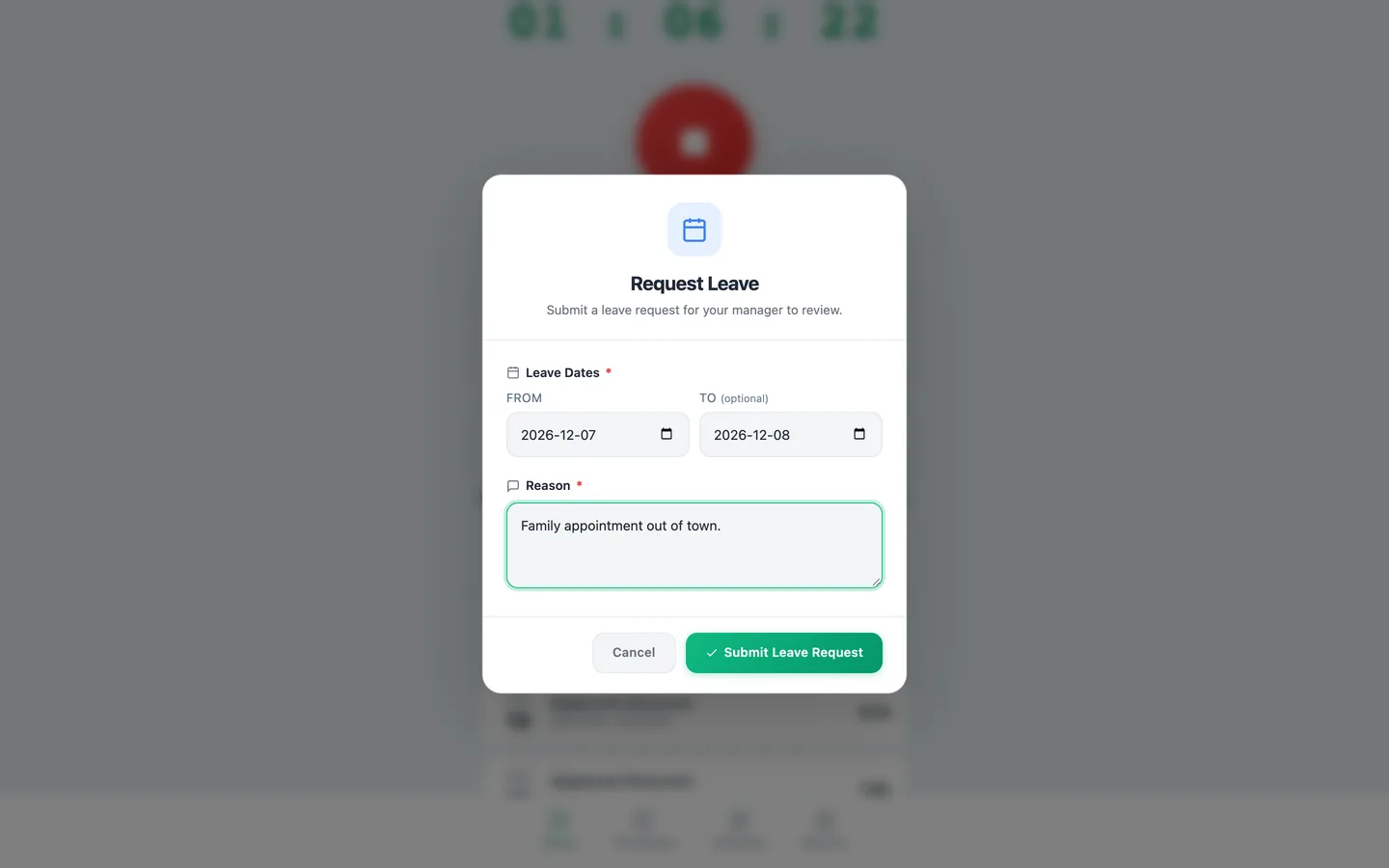
"Request Leave" takes a from date, an optional to date and a reason. Overlapping open requests are refused, and the request arrives as Requested and Unpaid.
Portal > Clock > Request Leave
-
Review it
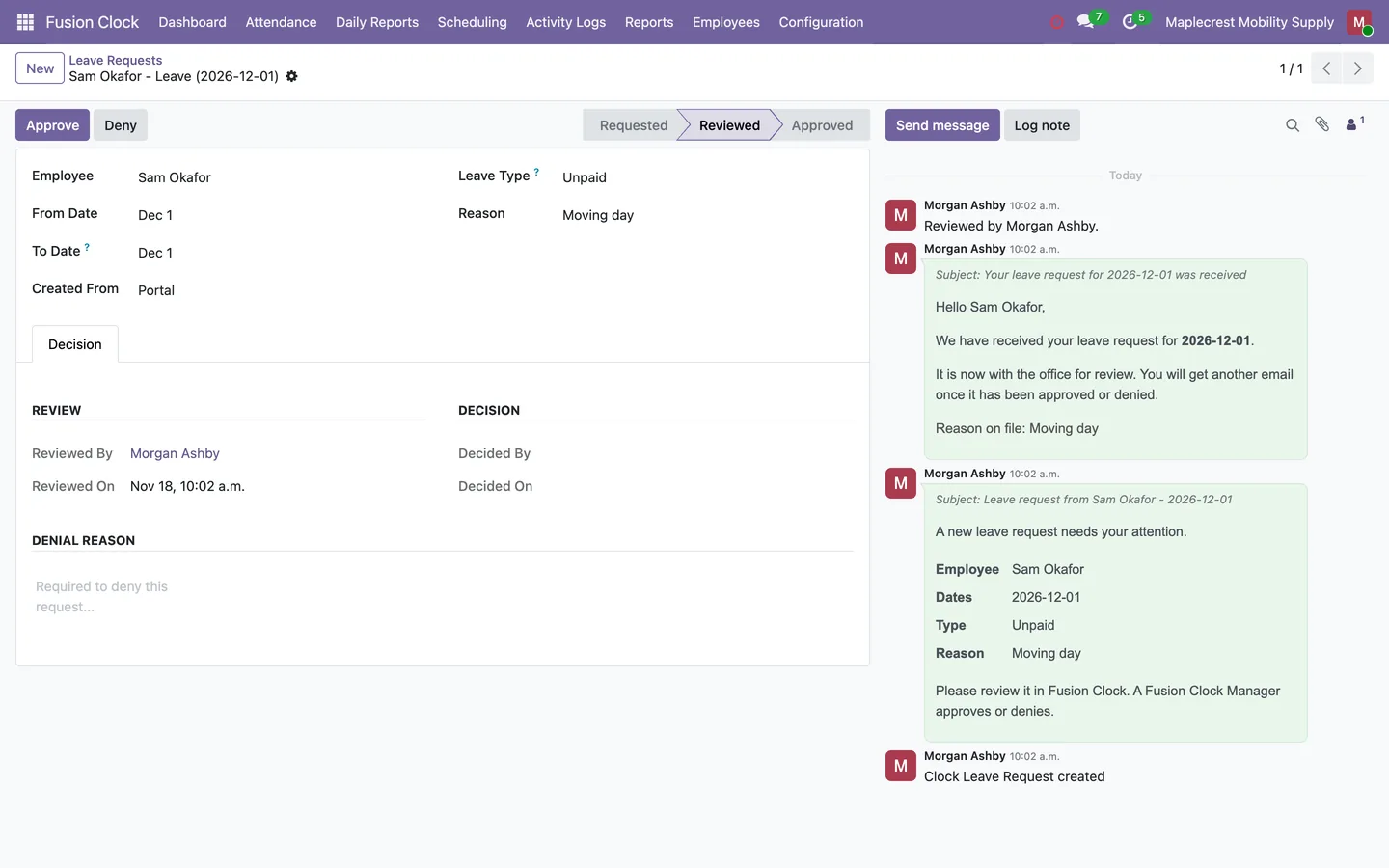
The reviewers you choose are emailed, the request waits in Leave Requests under "Awaiting Decision", and a reviewer marks it Reviewed.
Fusion Clock > Attendance > Leave Requests
-
Decide
The manager sets the leave type, vacation, sick, personal or unpaid, and approves, or types a reason and denies. Only a Fusion Clock manager can decide.
-
Calendars follow
Approval puts a busy all-day event on the employee's Odoo calendar and a heads-up on chosen managers' calendars, clears absences already logged for those days and emails the employee.
Close the pay period
Attendance is reviewed by pay period, corrections are settled, and a report per employee goes to payroll as a PDF and a CSV file.
-
Review the attendance
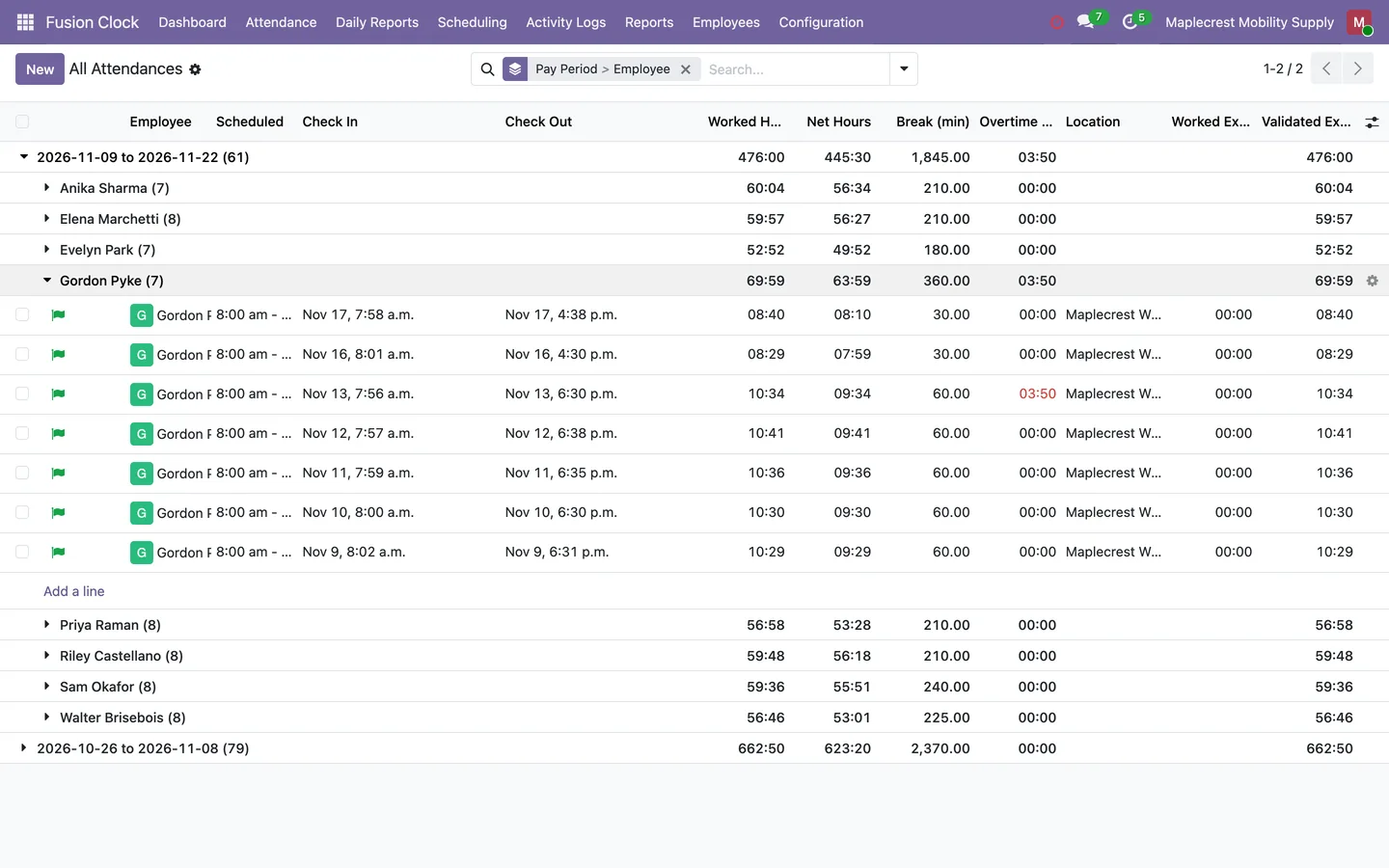
All Attendances opens grouped by pay period and employee, with a flag on each row, the scheduled shift, net hours, break, overtime in red and location. Managers fix a time in the list and the totals recompute.
Fusion Clock > Attendance > All Attendances
-
Settle corrections
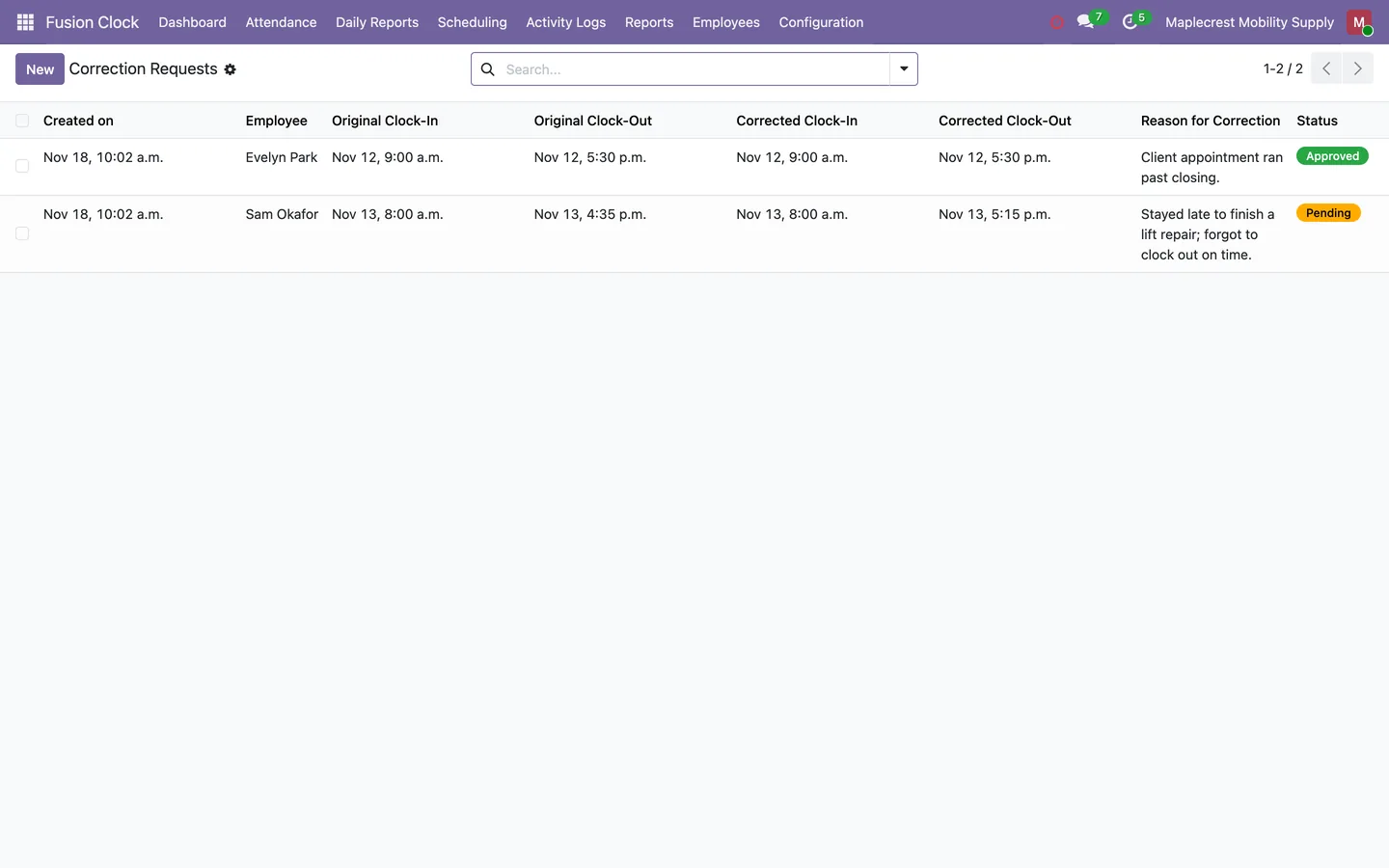
Correction requests list the original and corrected times side by side, and approving one writes the corrected times to the attendance.
Fusion Clock > Attendance > Correction Requests
-
Reports at period end
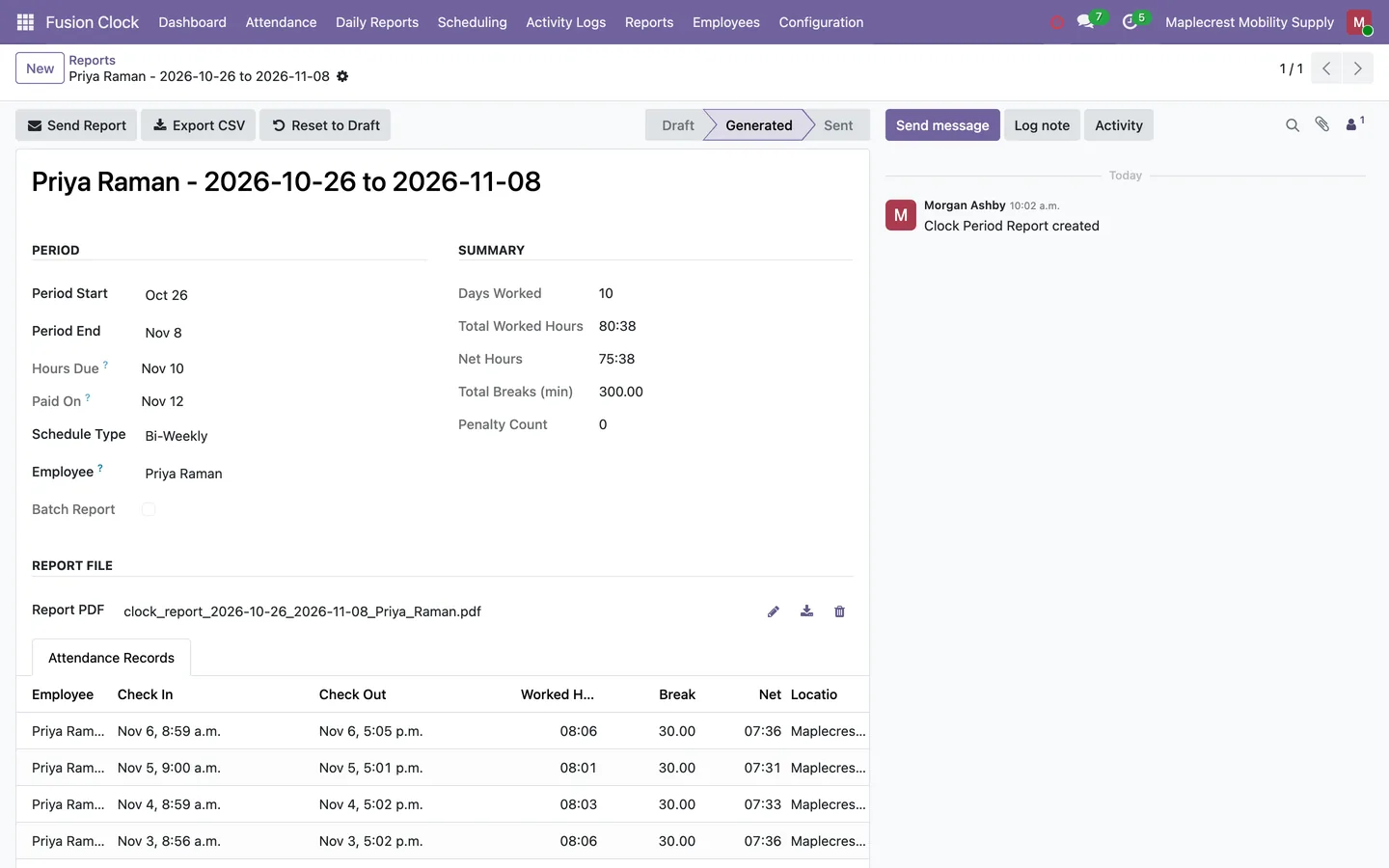
A daily job makes a PDF report for each employee and a company summary for the last completed period, and gives the office a to-do with the hours-due and payroll dates.
-
Send and export
The report shows the period, when hours are due, payday, the totals, the PDF and the attendance lines. The manager emails it or exports a CSV file for payroll with column names you choose.
Fusion Clock > Reports > All Reports
-
Employees download theirs
The portal Reports tab lists the employee's own reports for download.
What it does
 Clocking in and out
- Employees clock in and out from a phone-friendly Clock page that shows today's shift, a running timer, and their hours for today and the week.
- Every clock-in and clock-out is checked against your clock locations by GPS distance inside a radius you set, with a list of allowed office IP addresses as a fallback.
- Someone outside every location is told how far away the nearest one is, and the refused attempt is kept in the activity log.
- Office staff can clock in and out from a clock button in the Odoo top bar, which takes the place of the standard attendance button.
- A shared tablet can run a PIN kiosk where staff tap their photo and enter a 4 to 6 digit PIN, or an NFC kiosk where they tap a card or fob.
- An employee who forgot to clock out must give a reason, and can give the time they really left, before the next clock-in goes through.
 Shifts and scheduling
- Plan the week in a spreadsheet-style Shift Planner grouped by department, typing shifts such as 9-5 or OFF or picking one of your shift templates.
- Copy last week, apply one shift to a whole department, and export the week to an Excel file.
- Shifts stay in draft until you post them, and posting emails each employee their shifts for the week or for a date range you pick, with an optional message.
- Post open shifts that employees can claim from their portal schedule, and let them release a claimed shift up to a cutoff you set.
- Give each employee a default role and the roles they may work, so new shifts pick up the role colour and open shifts are offered only to people allowed that role.
- Shift templates set the working days and break, and can carry shorter Saturday hours every Saturday, every other Saturday or on the first Saturday of each pay period.
- Every change to a planned shift is recorded with the old and new value, who made it and when.
 Hours, breaks and overtime
- Unpaid meal breaks are taken off worked hours automatically by province rule, with up to three breaks per shift and an Ontario rule included.
- Overtime is counted weekly once net hours pass your weekly limit, 44 hours unless you change it, and each employee can have their own limit.
- Late clock-ins and early clock-outs beyond a grace period can deduct a set number of minutes, and only on days the employee was scheduled.
- An early arrival can be paid from the scheduled start and a late departure only to the scheduled end, with the real arrival and departure times kept on the record.
- A forgotten clock-out is closed at the scheduled end once the maximum shift length has passed, the employee and their manager are emailed, and the employee is asked to explain.
- Coming back from lunch or an errand on the same day is not counted as late, and the earlier early clock-out penalty is removed.
 Leave, absences and corrections
- Employees request a day or a range of days off from the Clock page, and the request arrives as unpaid until the office sets it to vacation, sick, personal or unpaid.
- Leave requests move from Requested to Reviewed to Approved or Denied, only a Fusion Clock manager can approve or deny, and a reason is required to deny.
- An approved leave becomes a busy all-day event on the employee's Odoo calendar and a short heads-up on chosen managers' calendars for each scheduled day.
- A daily check logs anyone who was scheduled but did not clock in and had no approved leave, and approving a leave later clears those absences.
- Managers fix a clock-in or clock-out time straight from the attendance list, and every edited or hand-entered row is flagged in its own colour.
- Correction requests show the original and corrected times side by side, and approving one updates the attendance record.
 Dashboards, alerts and payroll
- A dashboard shows each person their hours, on-time streak, shift and pay period, and shows team leads and managers who is clocked in, absent, late and waiting for approval.
- Team leads see only their direct reports, while managers see everyone.
- The office user gets to-do activities for very late arrivals, unscheduled shifts, automatic clock-outs, leave requests and correction requests.
- Attendance is grouped by weekly, every-two-weeks, twice-monthly or monthly pay period, with filters for the current, previous and next period.
- At the end of each pay period a PDF attendance report is made for every employee and a summary for the whole company, each showing when hours are due and payday.
- Any report exports to a CSV file for payroll with column names you choose, and employees can download their own reports from the portal.
 End-of-day work report
- An optional end-of-day report asks employees, as they clock out, to tick off their assigned tasks and say what they did with each hour.
- Each report gets a score out of 100 from tasks done, productive hours and being on time, using weights you set.
- Managers assign one-day or weekly tasks to people or a whole role, as tick boxes or number targets that earn part marks.
- The Daily Reports dashboard shows who has reported, their scores, hours accounted for and flags, and lets a manager add a note, mark a report reviewed or send a reminder.
- Employees see their own scores and a team leaderboard for today or the week on the portal.
What's new
Recent changes to Fusion Clock, newest first.
-
- An optional end-of-day report lets employees account for their tasks and each hour on the clock before they clock out, with a Daily Reports dashboard for managers.
- Employees can see their own report scores and a team leaderboard on a new Scores page in the portal.
- Coming back from lunch or an errand on the same day no longer counts as a late clock-in or an early clock-out.
- Fusion Clock managers and team leads can now review attendance without needing separate HR access rights.
-
- Employees can update their own phone, personal email and emergency contact from the portal.
-
- Shift templates can carry shorter Saturday hours that apply every Saturday, every other Saturday or on the first Saturday of each pay period.


See Fusion Clock on your own Odoo.
Book a call and tell us how your team works today. We'll show you the module and what it would take to set it up. Prefer the phone? Call 905-792-0000.