
Fusion Digitize
Odoo document digitization answered by your own OpenAI key instead of Odoo credits.
Once a key is set, documents that Odoo would send to its own digitization service are read by Fusion Digitize instead, so no Odoo digitization credits are used. Text in a digital PDF is pulled out on your own Odoo server first, and only that text is sent to OpenAI to fill the fields.
- Odoo 19
- Version 19.0.1.0.0
Fusion Digitize, step by step
3 workflows, 7 steps. Each picture is a diagram of how the step works.
Set up digitization
Odoo Enterprise decides when a document is sent for digitization; Fusion Digitize answers it with your own OpenAI key.
-
Turn on Odoo's digitization
Odoo's Enterprise settings decide whether vendor bills are digitized automatically, on demand or not at all. Fusion Digitize only answers when Odoo sends a document.
Accounting > Configuration > Settings, Digitization block
-
Enter the key and choose documents
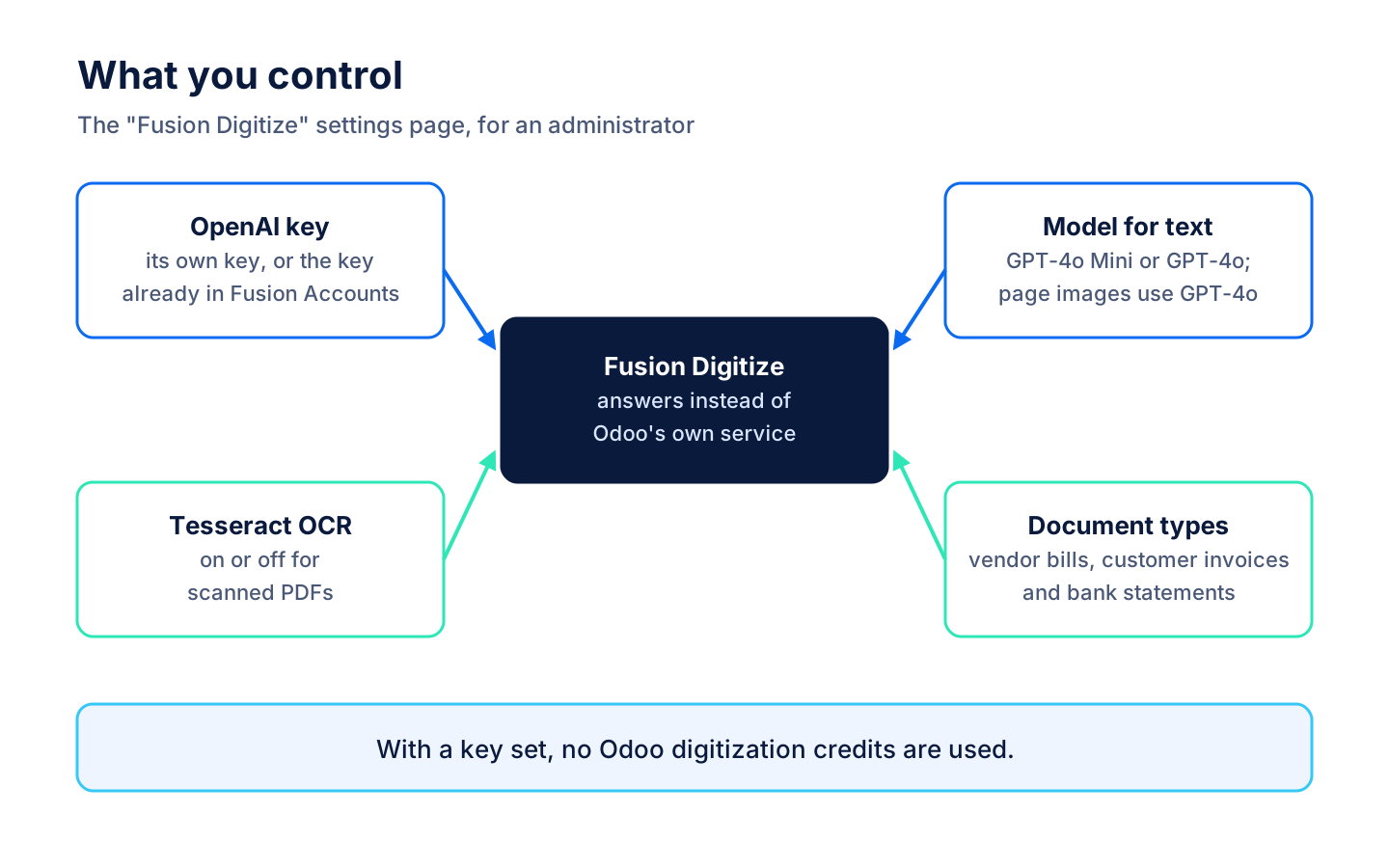
An administrator sets the OpenAI key, or relies on the key in Fusion Accounts, the model, the Tesseract switch and the switches for vendor bills, customer invoices and bank statements.
Settings > Fusion Digitize
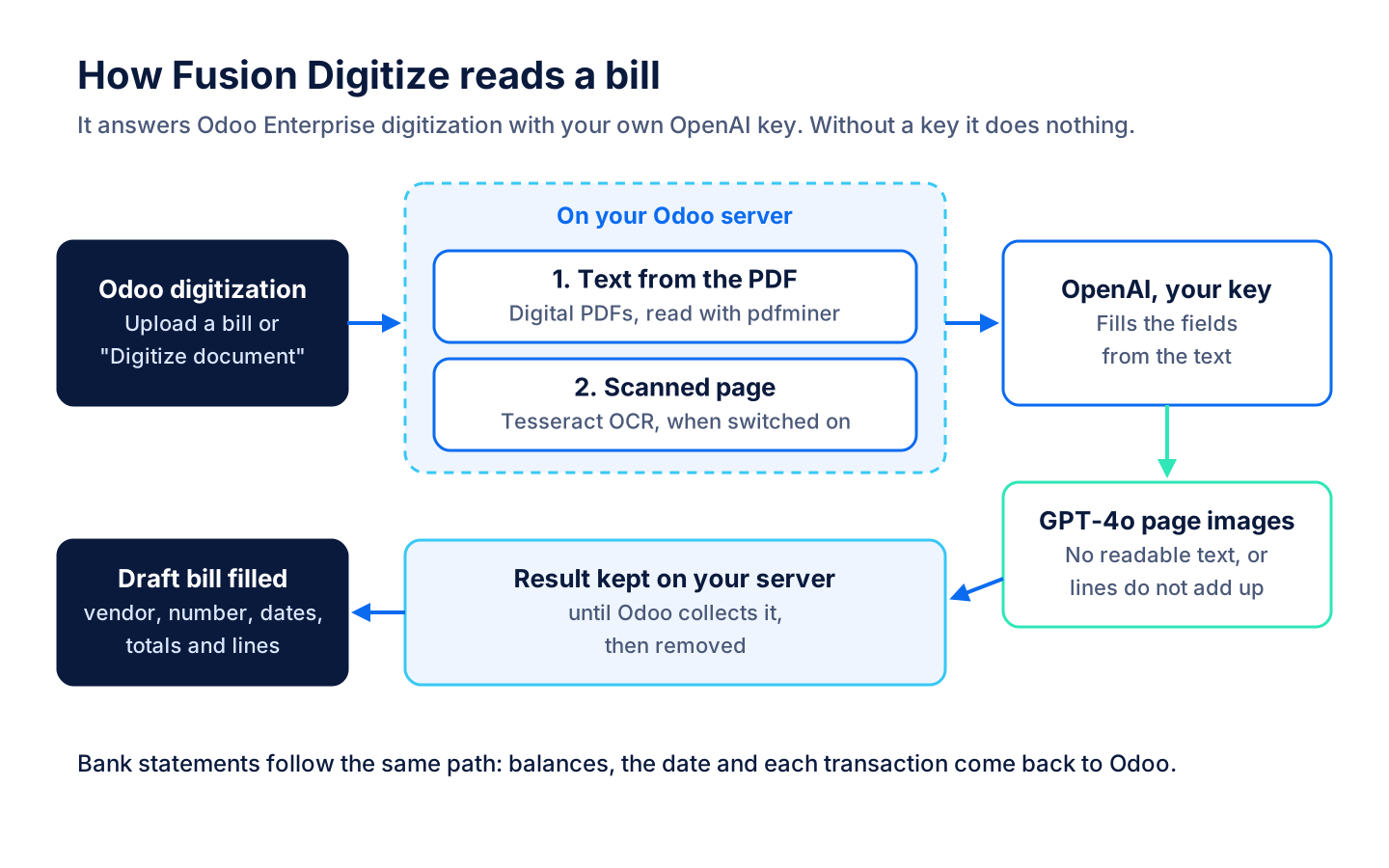
A vendor bill PDF is read
The text is pulled from the PDF on your server first, OpenAI fills the fields, and Odoo fills the draft bill.
-
Upload the bill
"Upload" creates a draft bill with the PDF. In automatic mode Odoo sends it for digitization at once, otherwise "Digitize document" sends it.
Accounting > Vendors > Bills
-
Fusion Digitize reads it
The text is pulled from the PDF on your server, Tesseract reads a scan when it is switched on, and the text goes to OpenAI for the fields. When there is no text, or the lines do not add up, the page images go to GPT-4o.
-
Odoo fills the bill
Odoo collects the result, Fusion Digitize removes its copy, and the draft bill is filled with the vendor, dates, totals and lines.
A bank statement PDF is read
Bank statements follow the same path when the bank statements switch is on.
-
Upload the statement
A PDF uploaded on a bank journal becomes a statement that Odoo sends for digitization, and Fusion Digitize answers it.
-
Balances and lines come back
The opening and closing balances, the statement date and each transaction's date, description and amount are returned in the shape Odoo expects.
What it does
 Reading documents
- Text in a digital PDF is pulled out on your own Odoo server first, and only that text is sent to OpenAI to fill the fields.
- A scanned PDF is read on your server with Tesseract OCR before anything else is tried, when Tesseract is installed and switched on.
- When a PDF has no readable text, its first three pages are sent to OpenAI as images instead.
- When the lines read from a bill do not add up to its subtotal, the bill is read again from the page images.
 What comes back
- For a bill or invoice it returns the vendor, customer, number, dates, currency, tax number, payment reference, bank account, country, totals and every line with quantity, unit price and tax rate.
- For a bank statement it returns the opening and closing balances, the statement date and each transaction's date, description and amount.
 Settings and keys
- Once a key is set, documents that Odoo would send to its own digitization service are read by Fusion Digitize instead, so no Odoo digitization credits are used.
- A "Fusion Digitize" settings page holds the OpenAI key, the model, the Tesseract switch and switches for vendor bills, customer invoices and bank statements.
- It can use its own OpenAI key or reuse the key already entered in Fusion Accounts, and the settings page says which key is in use.
- Choose GPT-4o Mini or GPT-4o for reading text, while page images are always read with GPT-4o.
- Extracted results are kept on your server only until Odoo collects them, then removed.
Related modules
 Fusion Accounts
Vendor bill emails turned into draft bills, with the sender matched to a vendor.
 Fusion Accounting
New
Accounting for Odoo Community: bills, bank, invoicing, reports, Canadian tax and assets in one suite.
 Fusion Accounting AI
An accounting co-pilot that proposes and waits for your approval.
See Fusion Digitize on your own Odoo.
Book a call and tell us how your team works today. We'll show you the module and what it would take to set it up. Prefer the phone? Call 905-792-0000.