
Fusion Notes
Dictate a note on any record and log it as tidy English text.
Record a voice note from an Odoo chatter window. Translate recorded speech into an English note through OpenAI Whisper.
- Odoo 19
- Version 19.0.1.0.2
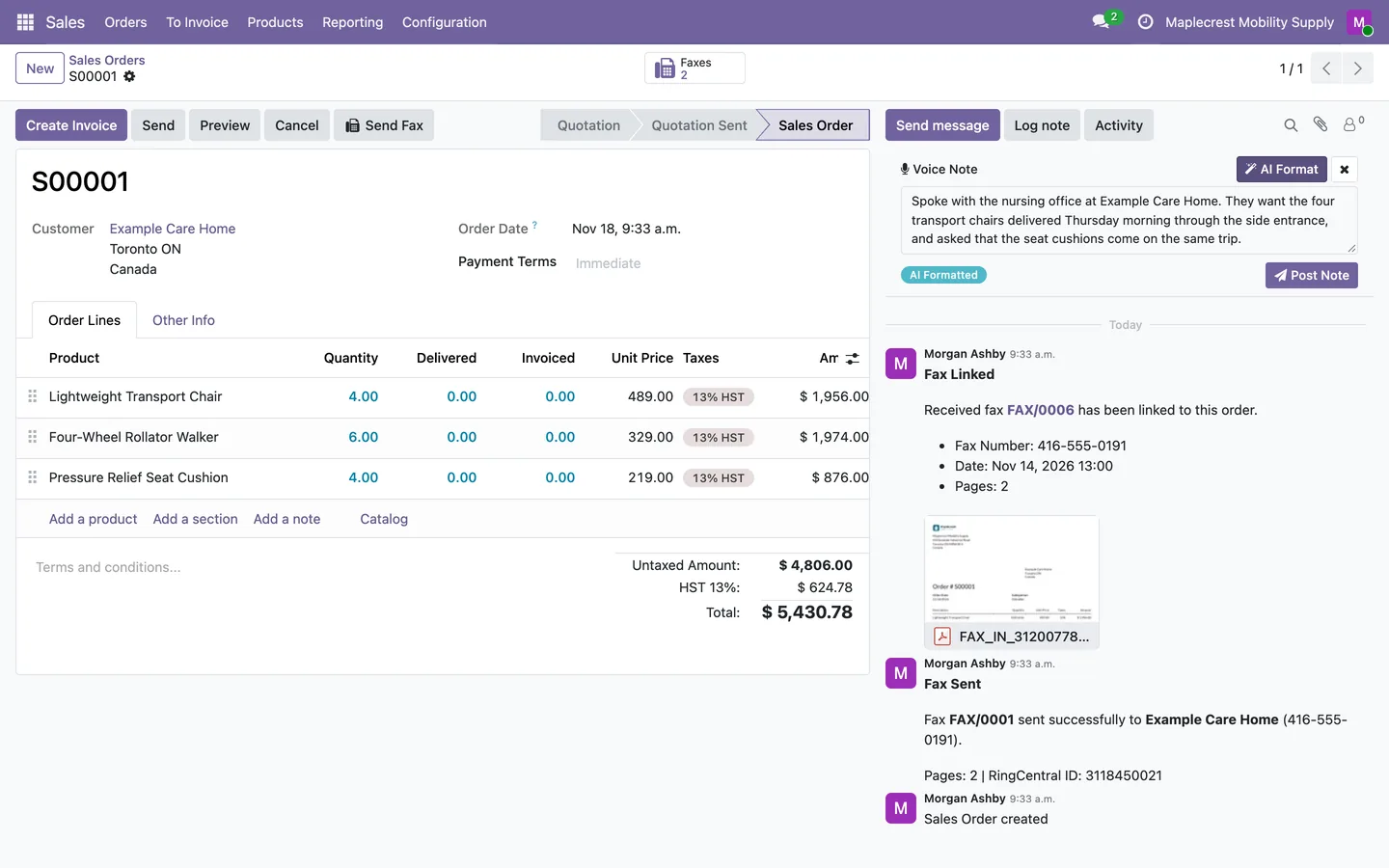
Fusion Notes, step by step
2 workflows, 6 steps. Every screen is real, from a demo company with invented data.
Dictate a note on any record
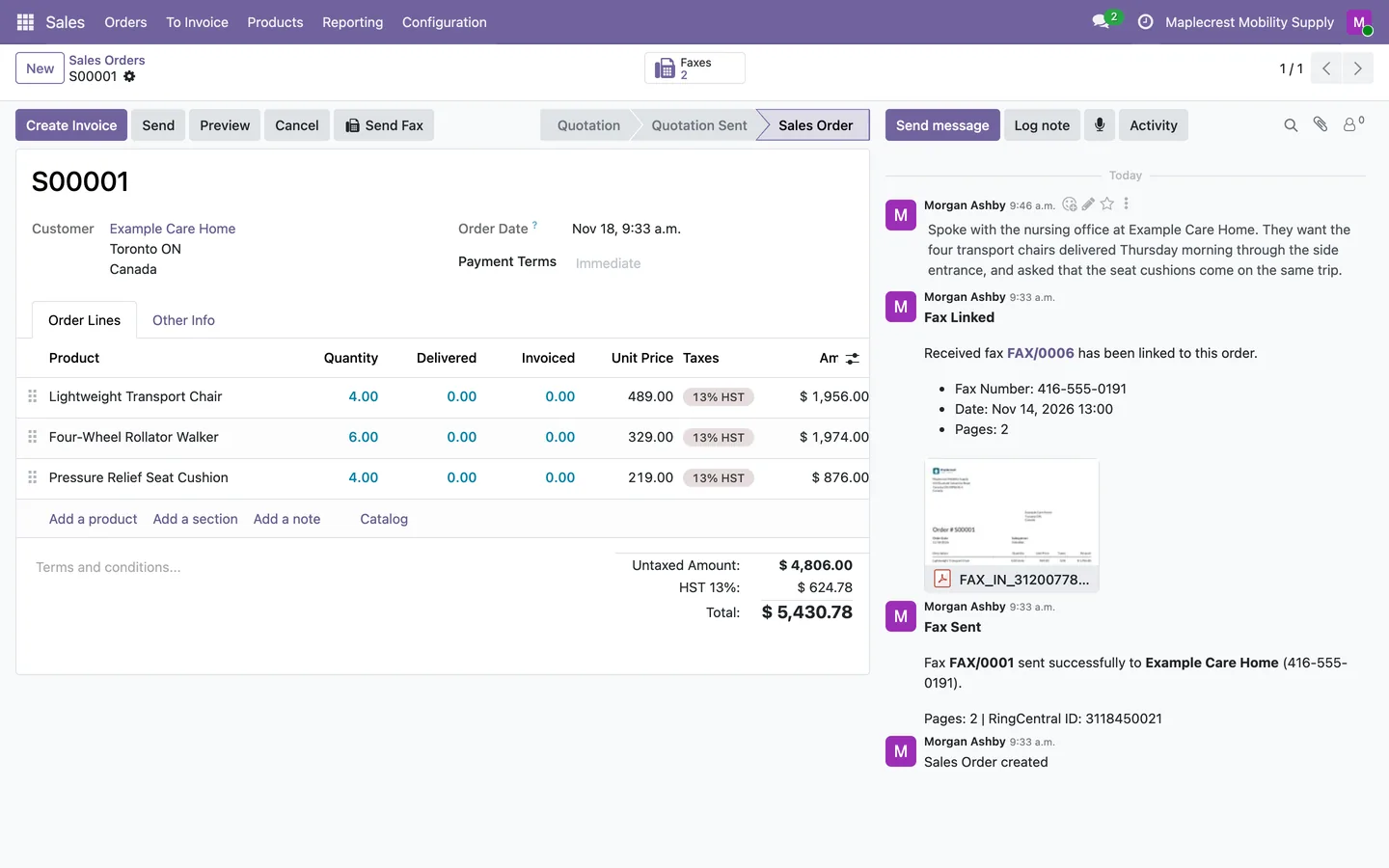
Speak instead of typing: the note is transcribed, tidied if you like, and logged on the record.
-
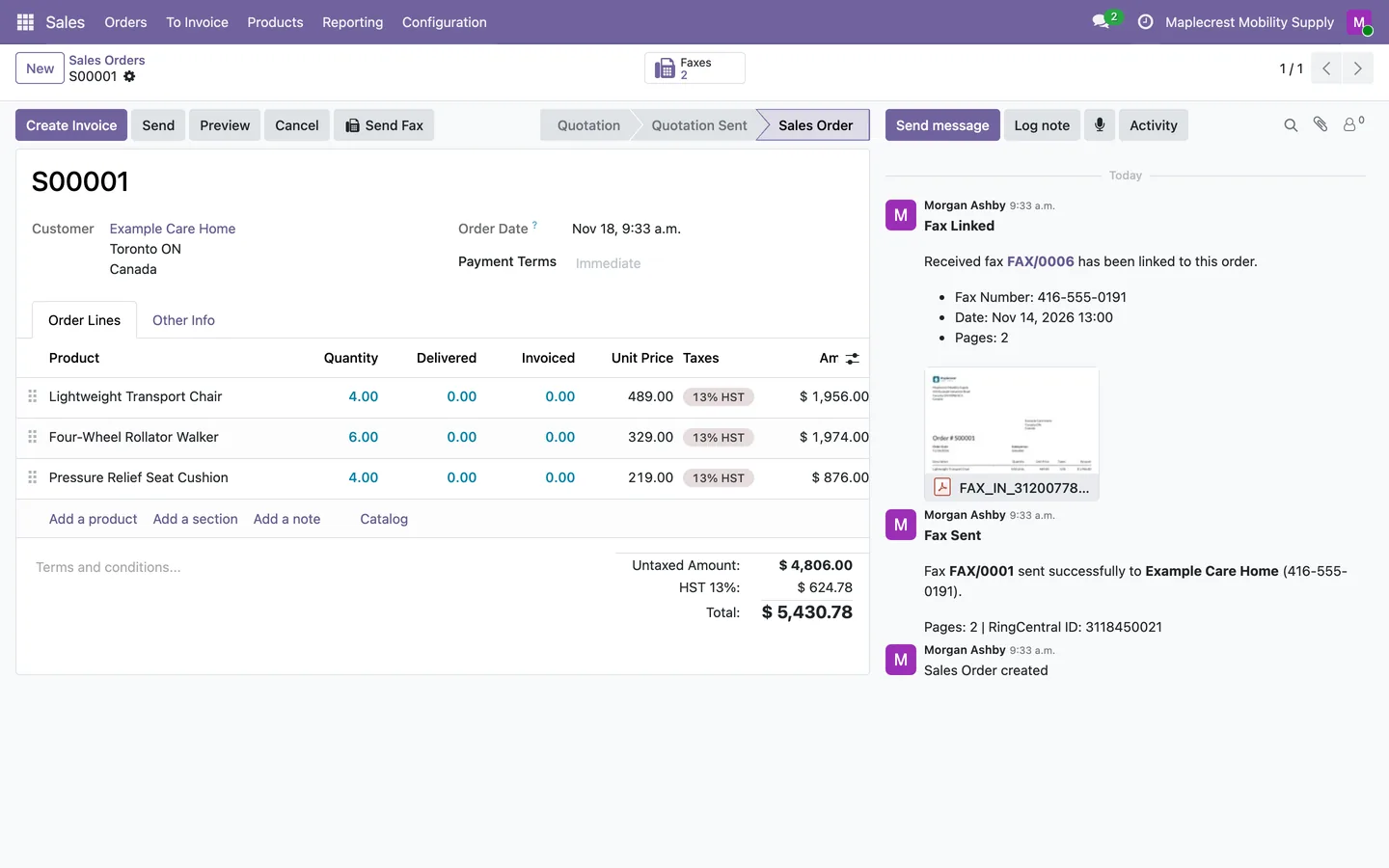
Start recording
The microphone button next to "Log note" starts recording on any record with a chatter.
Any record > Chatter
-
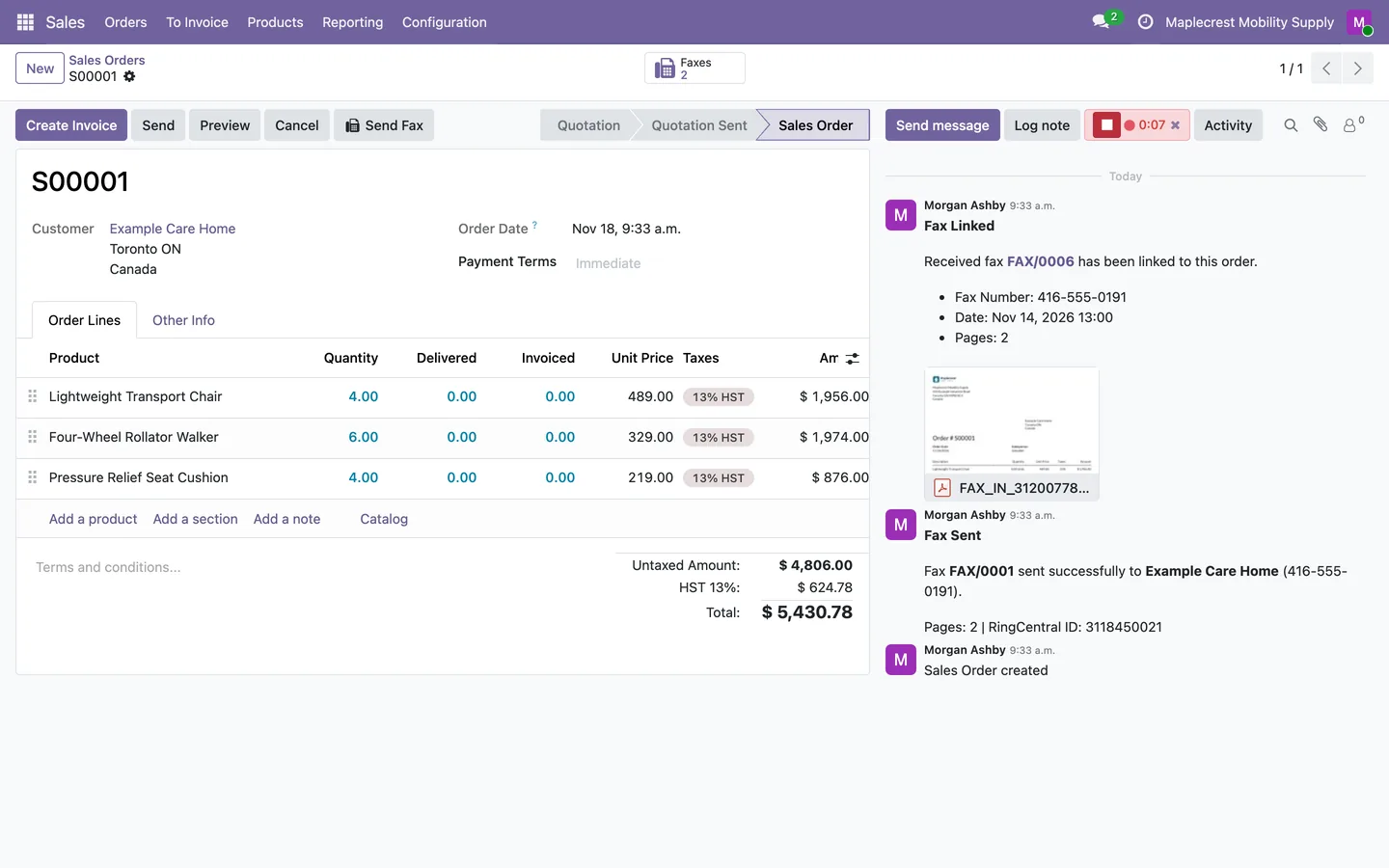
Speak
A stop button and a timer show while you speak. Recording stops by itself at the maximum length.
-
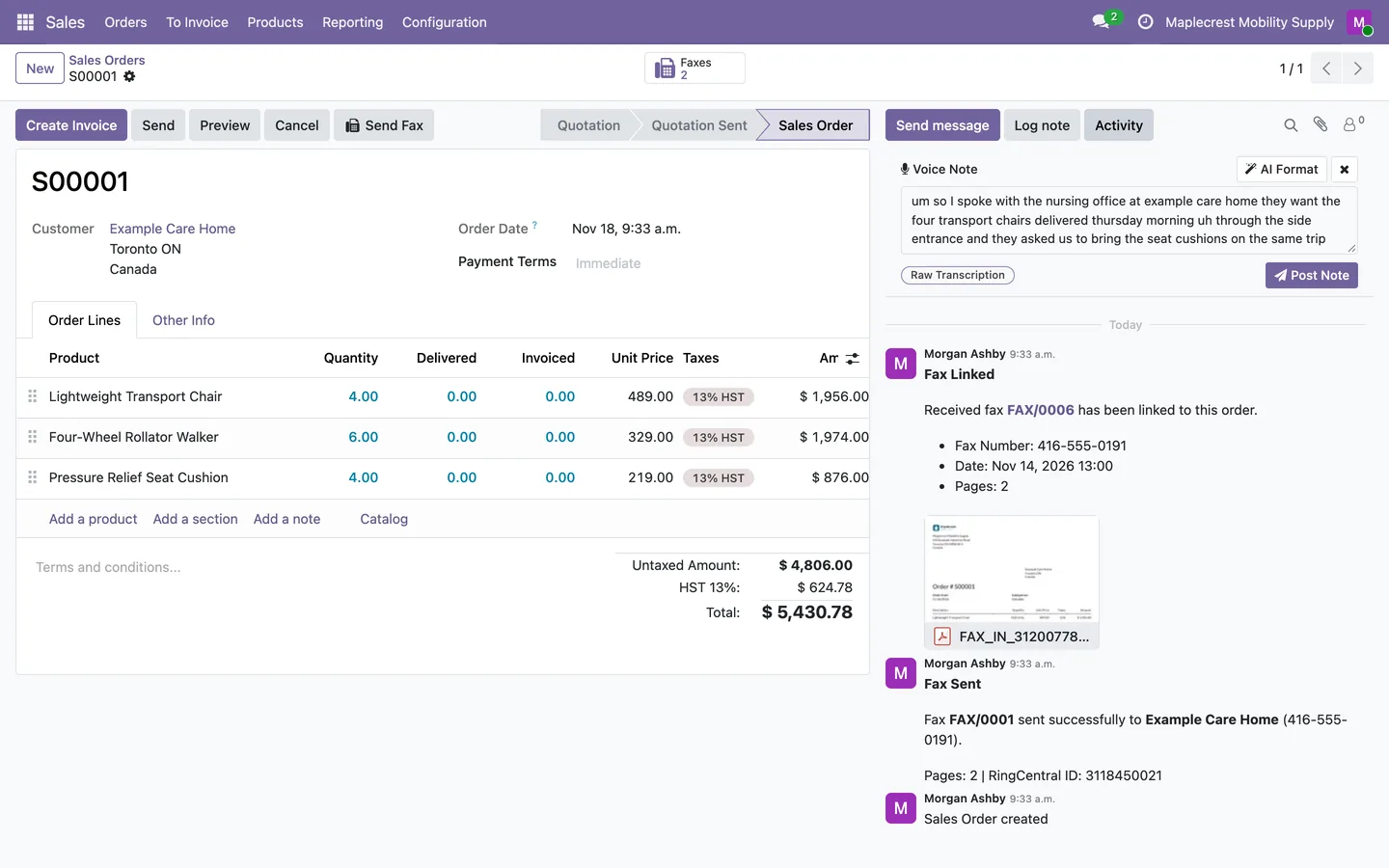
Review the text
Whisper's English text appears in a panel you can edit, marked as the raw transcription.
-
Clean it up
"AI Format" fixes grammar and removes filler words while keeping every fact, name and date. Press it again to go back to the raw text.
-
Post it
"Post Note" adds the text to the record as an internal log note.
Set it up once
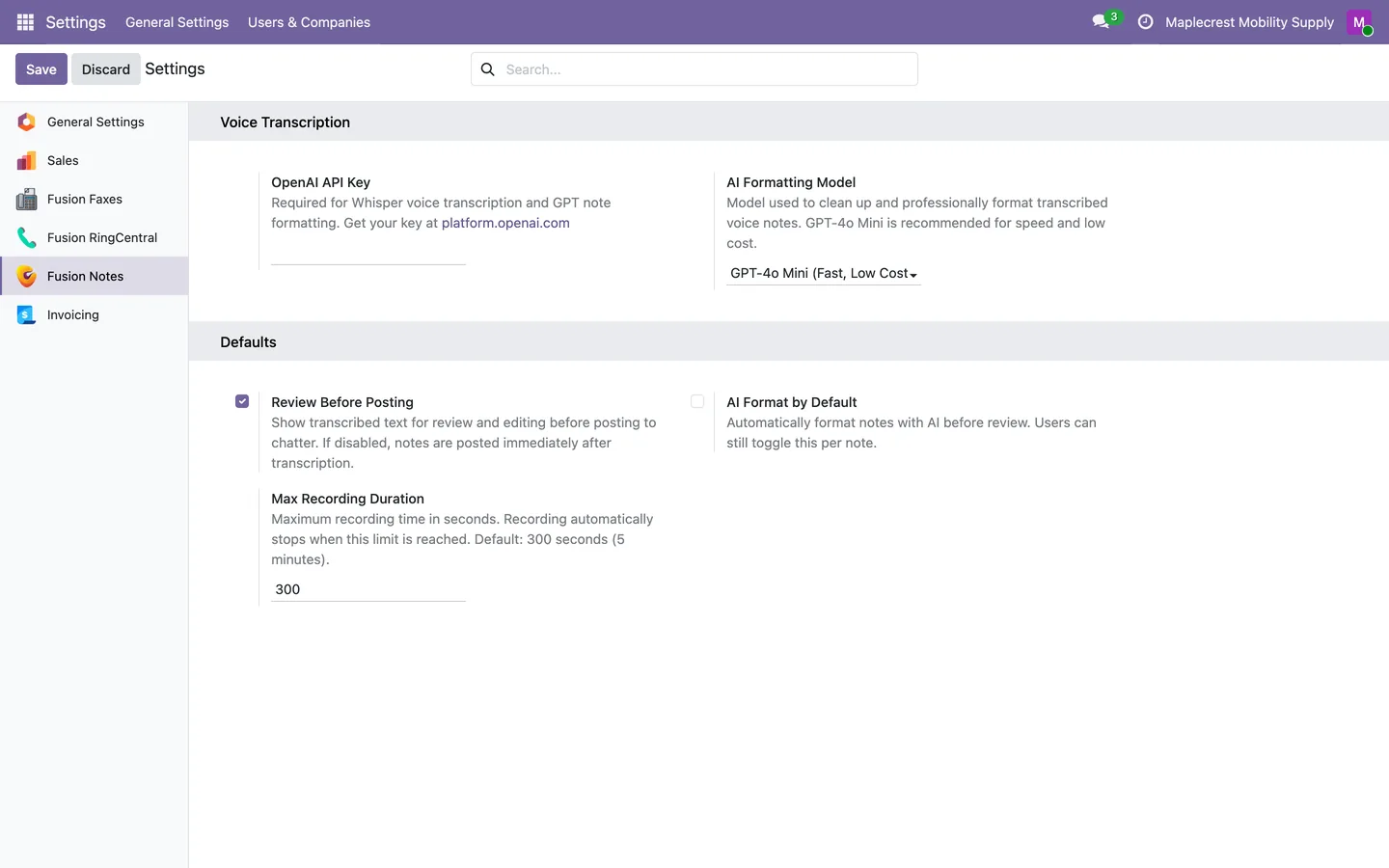
An administrator adds the OpenAI key and chooses how notes are handled.
-
Settings
Enter the OpenAI key, pick the formatting model, and choose review before posting, AI formatting by default and the maximum length. With review off, notes post straight after transcription.
Settings > Fusion Notes
What it does
 Recording
- Record a voice note from an Odoo chatter window.
- A microphone button sits next to "Log note" in the chatter, and while recording it shows a stop button and a running timer.
- Recording stops by itself at the maximum length, 300 seconds unless an administrator sets another value between 5 and 600.
- When the browser cannot record audio, its own speech recognition is used instead and needs no API key.
 Transcription
- Translate recorded speech into an English note through OpenAI Whisper.
- Optionally clean up the transcription with AI formatting.
- AI formatting fixes grammar, removes filler words and keeps every fact, name and date, without adding anything.
- The recording is sent to OpenAI for transcription and is not saved in Odoo; only the text is posted.
 Review and post
- Review the resulting note before posting or use quick-post mode.
- The review panel lets you edit the text, shows whether it is the raw transcription or AI formatted, and posts it with "Post Note".
- A posted voice note is an internal log note on the record.
 Set-up
- Settings hold the OpenAI API key, the formatting model, review before posting, AI formatting by default and the maximum recording length.
- The formatting model can be GPT-4o Mini, GPT-4o, GPT-4.1 Mini or GPT-4.1.
Related modules
 Fusion Chatter Enhance
Free
A resizable chatter with filters, search, pins, ZIP downloads and email defaults.
 Fusion Connect
A RingCentral phone inside Odoo, with call history, voicemail, recordings and transcripts.
 Fusion Helpdesk Reporter
New
Report an issue or request a feature from inside Odoo, and follow it to the fix.
See Fusion Notes on your own Odoo.
Book a call and tell us how your team works today. We'll show you the module and what it would take to set it up. Prefer the phone? Call 905-792-0000.