
Fusion Rental
Rental agreements, deposits, renewals and returns in one workflow.
When a rental order is confirmed, the customer is emailed a secure link to review and sign the rental agreement online. Confirming a rental creates two invoices, one for the rental charges, delivery and services and a separate one for the security deposit.
- Odoo 19
- Version 19.0.2.19.0
Fusion Rental, step by step
4 workflows, 23 steps. Every screen is real, from a demo company with invented data.
Quote, sign and charge a rental
A rental quotation becomes a signed agreement with the rental charges and the security deposit on separate invoices.
-
Set the deposit on the product
On top of the rental prices, each rental product carries a security deposit as a fixed amount or a percentage of the rental price.
Rental > Products
-
Build the quotation
For every rental item with a deposit, a refundable security deposit line is added to the order, and it is removed again with its rental line.
Rental > Orders > Orders > New
-
The customer confirms online
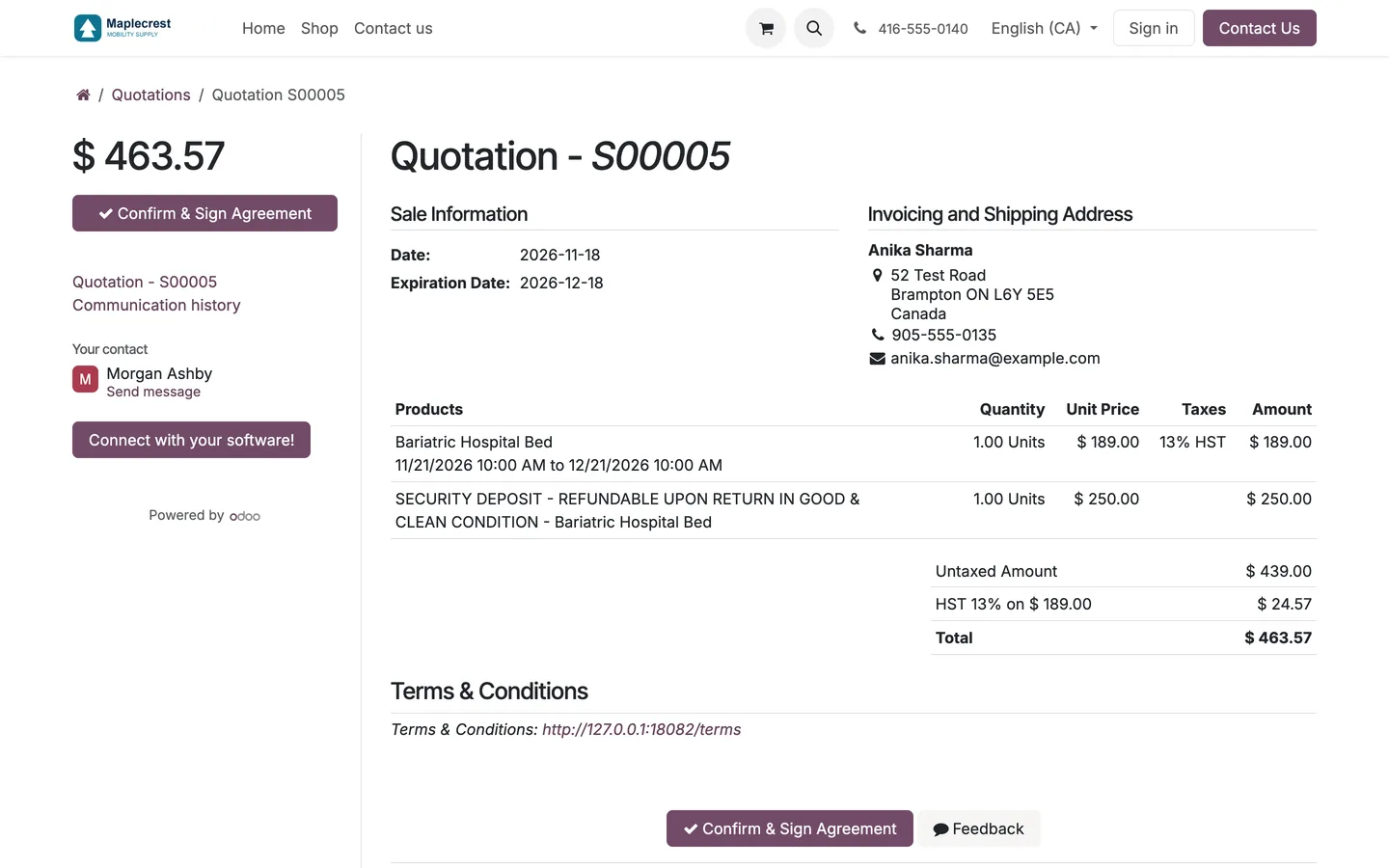
In the customer portal the quotation offers "Confirm & Sign Agreement" instead of the usual sign and pay buttons. Confirming creates the rental charges invoice and the deposit invoice and emails the agreement link.
Customer portal > Quotations
-
The customer signs
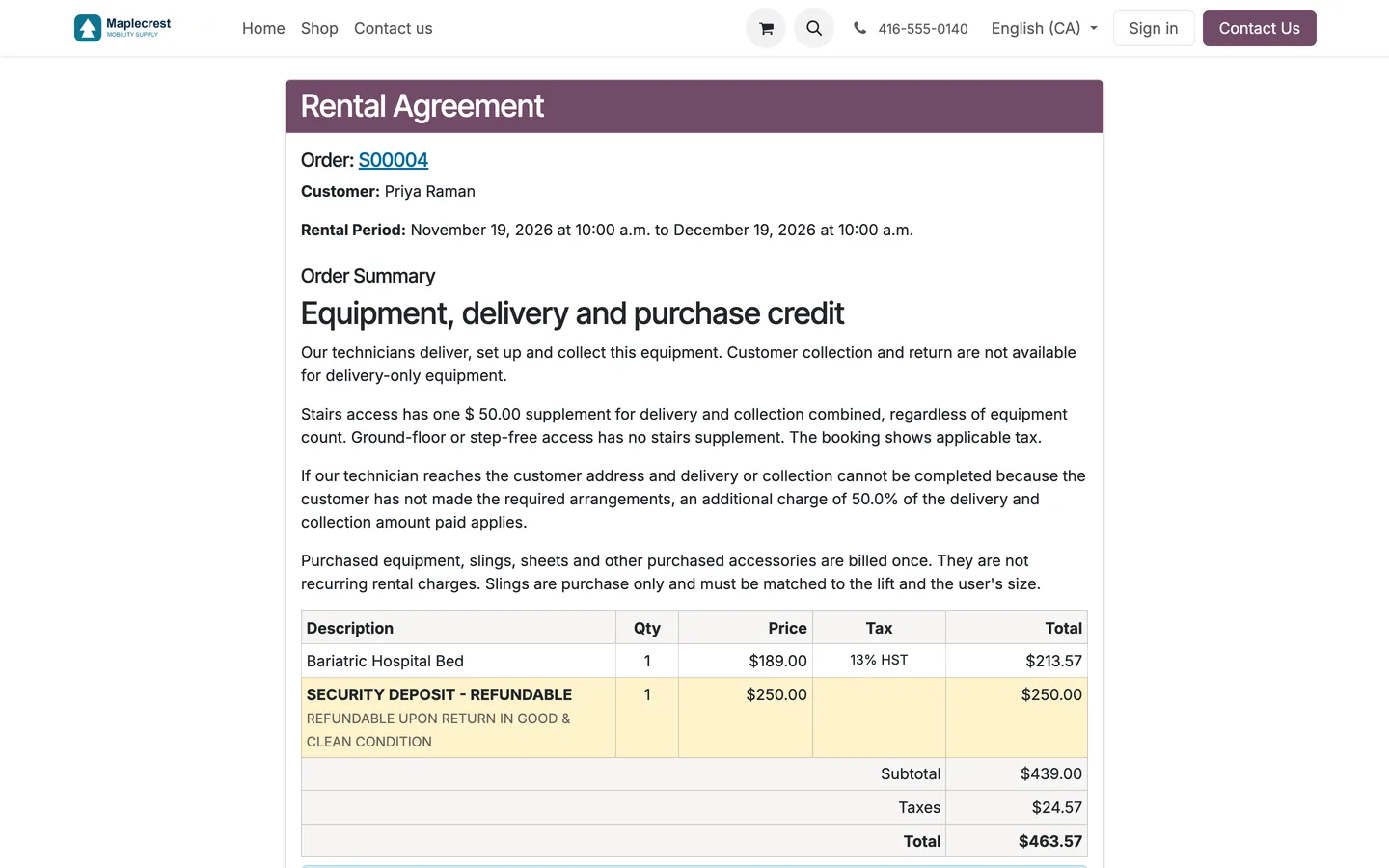
The signing page shows the order summary with the refundable deposit, the agreed delivery terms, the agreement, the card form and a signature pad. Signing saves the signed PDF on the order and emails it to the customer.
-
Charges are collected
After signing, both invoices are charged to the card on file and each receipt is emailed. With no card or a failed charge, the salesperson gets a to-do to collect the payment another way.
-
Staff review the order
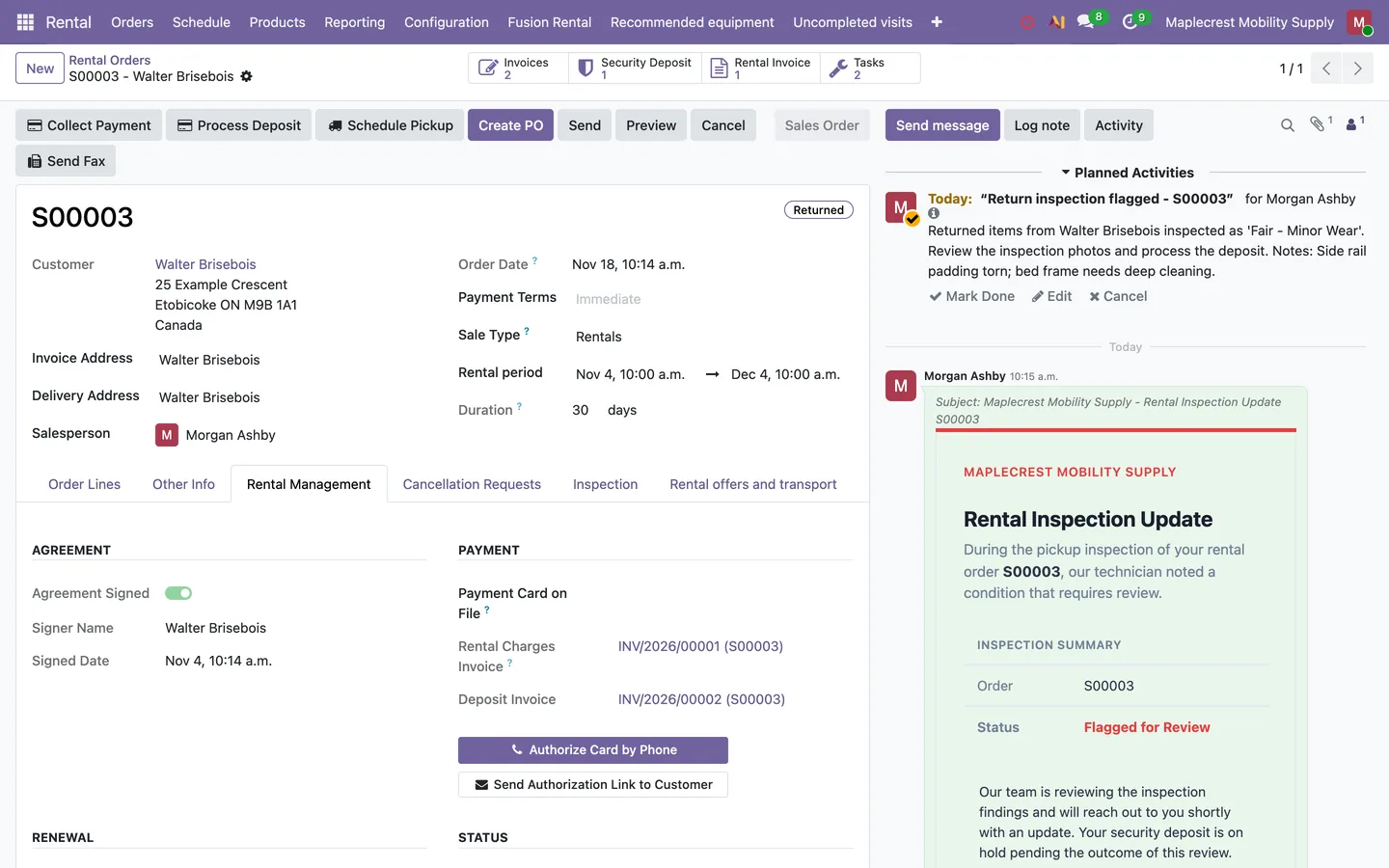
The Rental Management tab shows the signed agreement, the card on file, both invoices, the renewal settings and the deposit and inspection status, with buttons to preview or resend the signed agreement.
Rental > Orders > Orders > Rental Management
Renew, or end with a pickup
Before each period ends the customer is reminded, and the rental either renews or the customer asks for a pickup.
-
Renewal settings
Auto-renew is on by default with a monthly period. A limit on renewals can be set, and switching auto-renew off needs a reason.
Rental order > Rental Management > Renewal
-
The reminder goes out
At the reminder point the customer is emailed that the rental continues soon, with a link to schedule a pickup instead.
-
The customer asks for a pickup
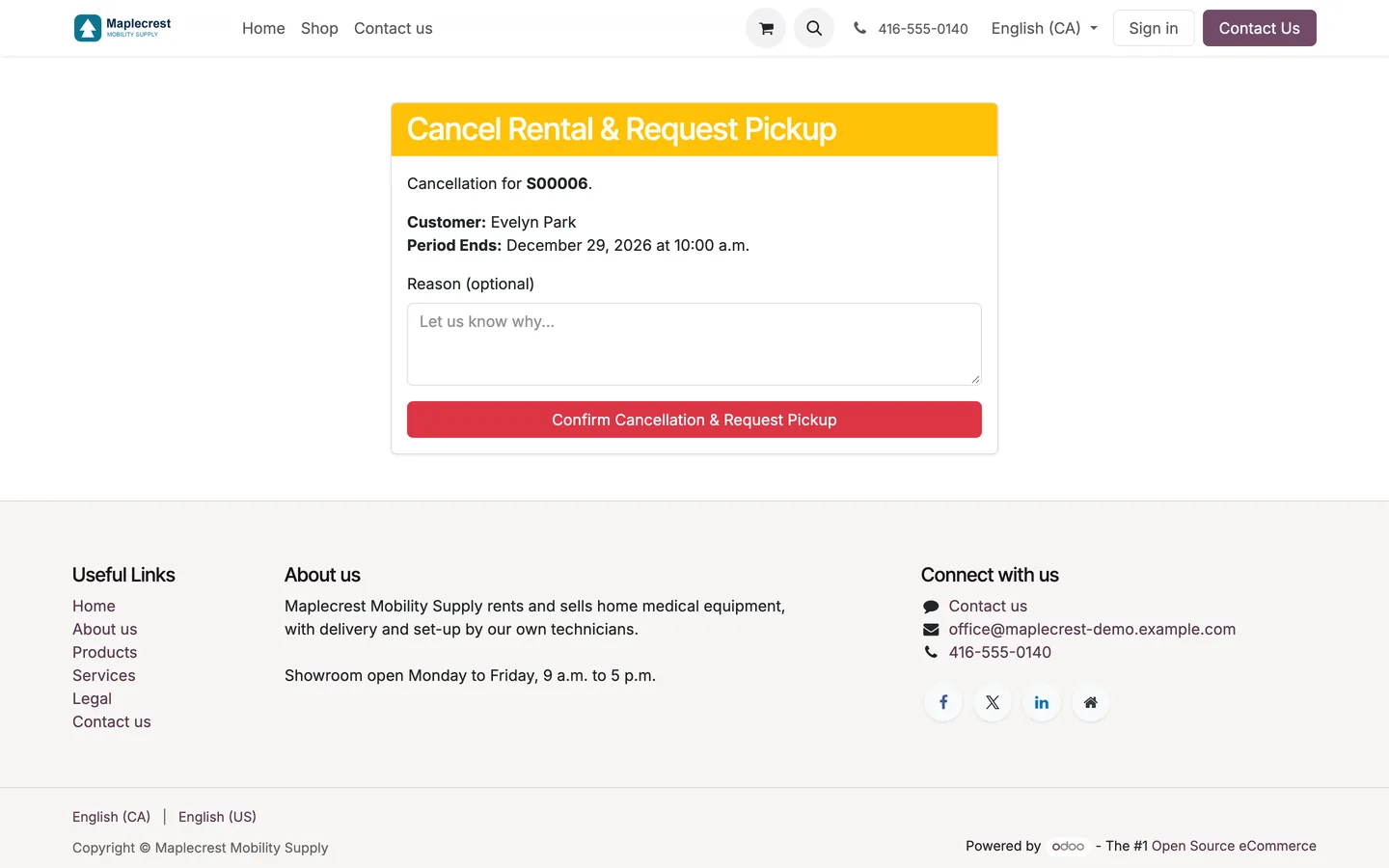
The cancellation page shows the order and the period end and asks for an optional reason. Submitting stops auto-renewal, gives staff a to-do to book the pickup and emails a confirmation.
-
The office books the pickup
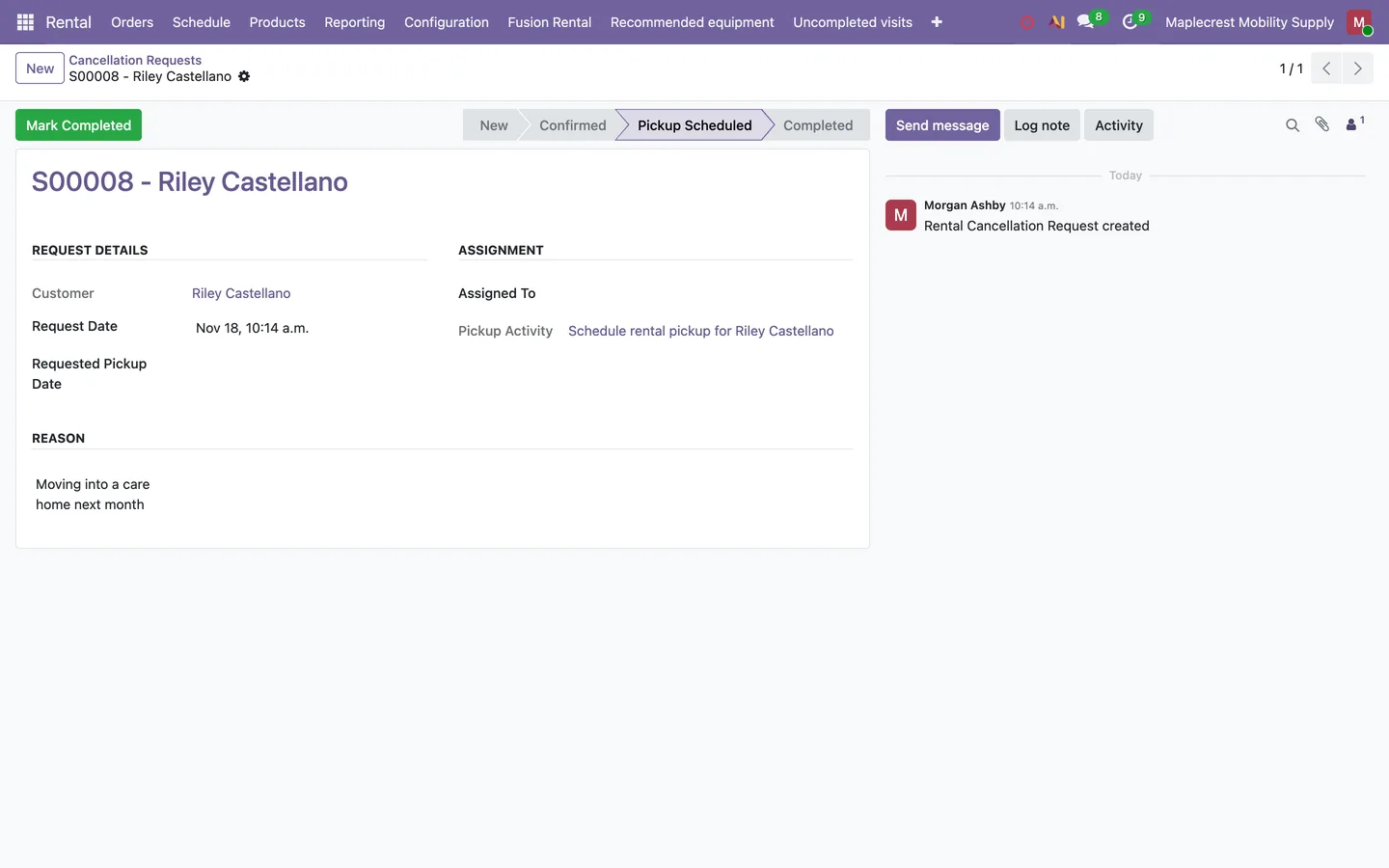
The request moves through New, Confirmed, Pickup Scheduled and Completed. "Schedule Pickup" opens a technician task, and "Mark Completed" is refused until the equipment is back.
Rental > Fusion Rental > Cancellation Requests
-
Or the rental renews
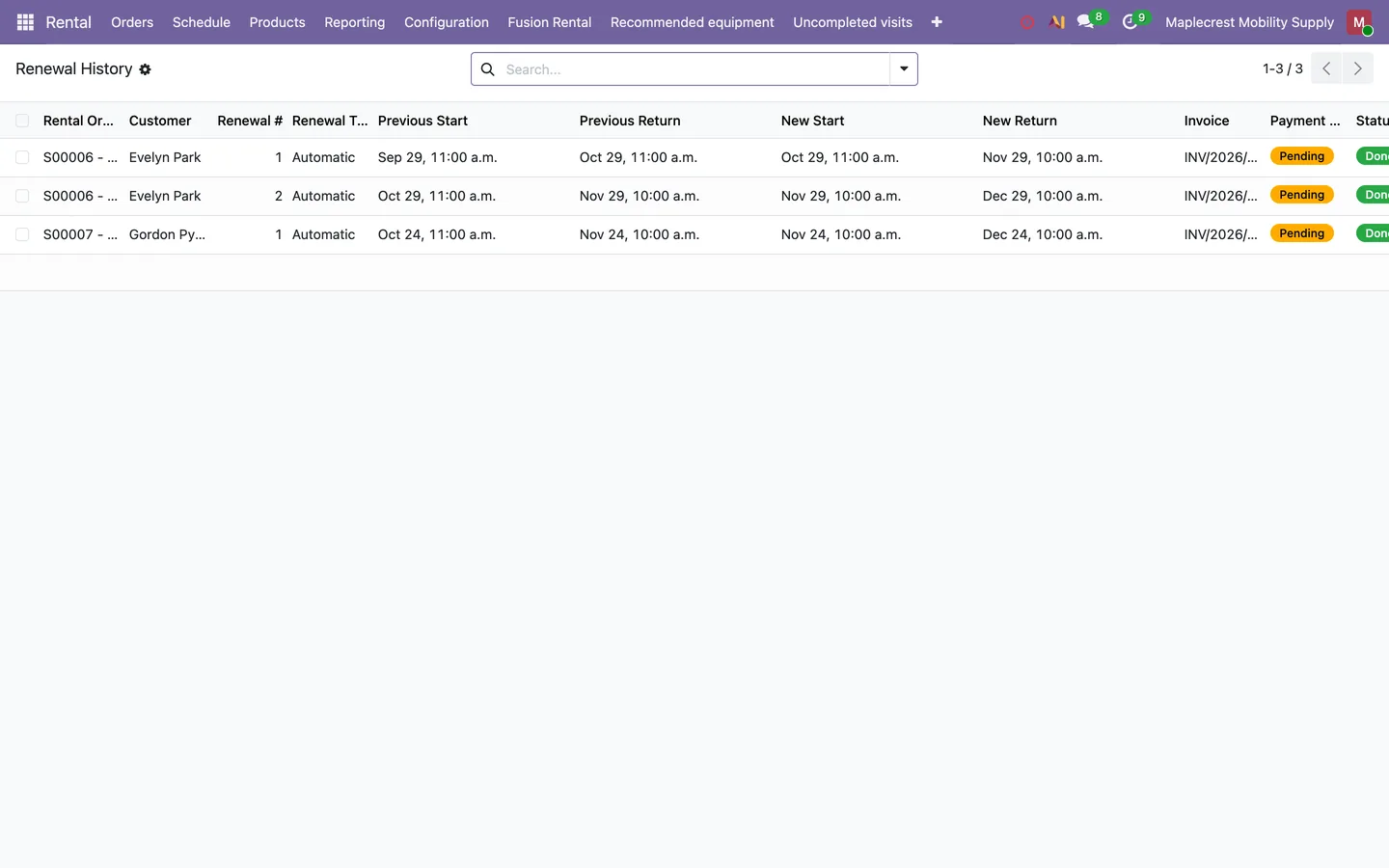
Renewal moves the dates on by one period and posts a renewal invoice for the rental items only, never the deposit or delivery. Every renewal is listed in Renewal History with its invoice and payment status.
Rental > Fusion Rental > Renewal History
-
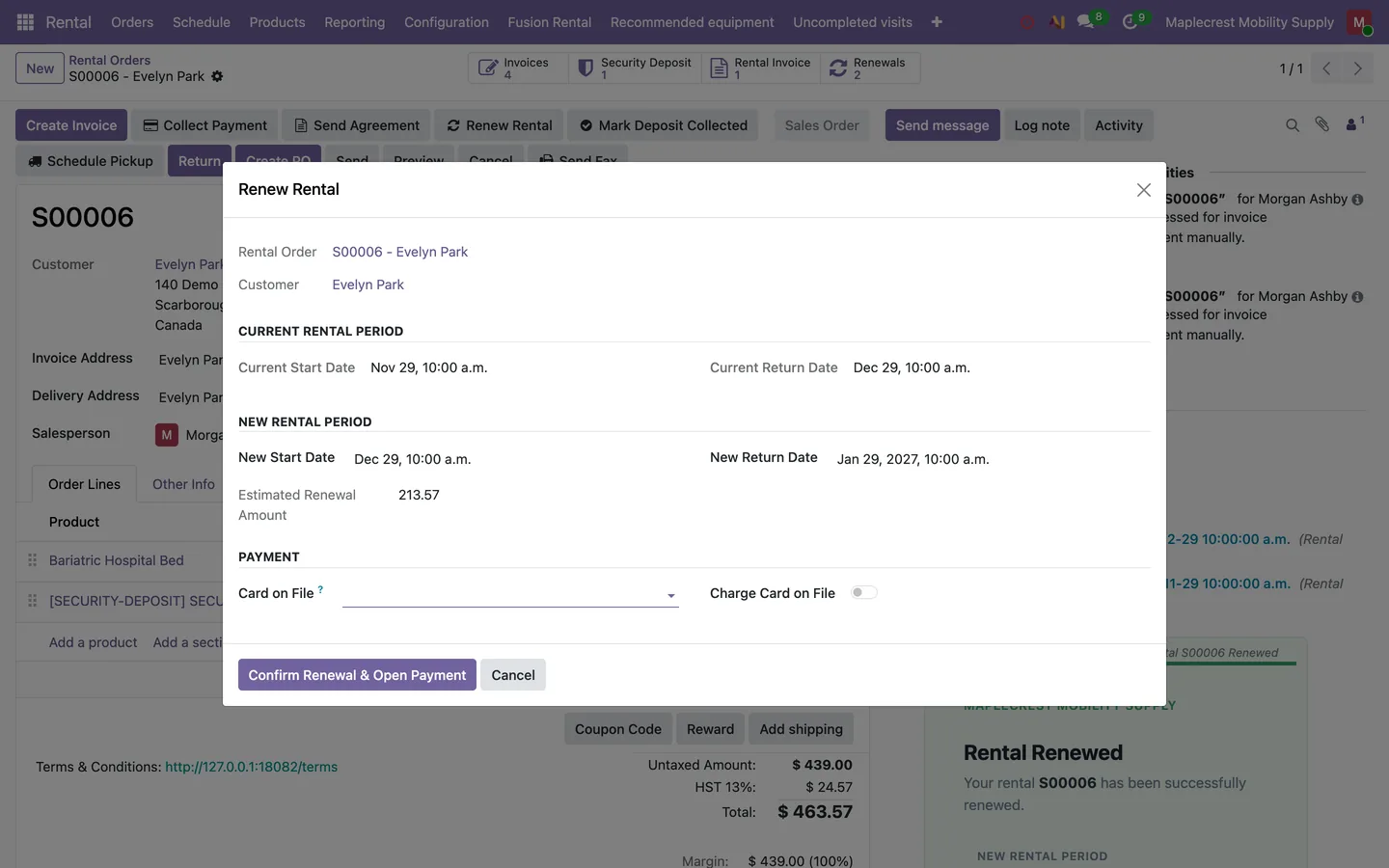
Renew by hand
"Renew Rental" on the order shows the current and new periods and the amount before the renewal is confirmed.
Bring the equipment back and settle the deposit
A technician pickup or an office return records the condition, and the deposit is refunded or charged for any damage.
-
Book the pickup
"Schedule Pickup" opens a technician task with the order and customer filled in, and a second click reopens the task already booked.
-
The technician checks the equipment
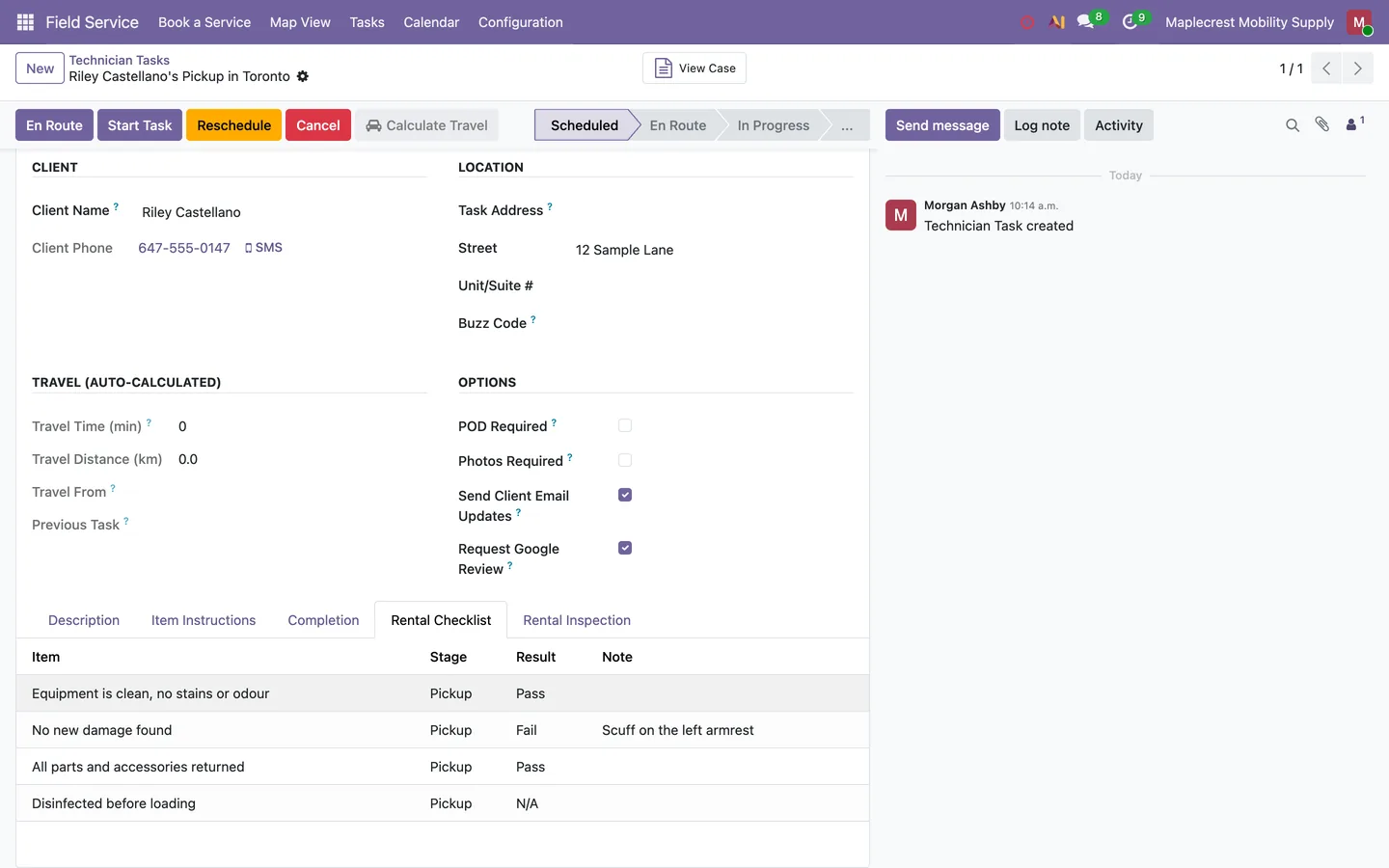
The technician answers the pickup checklist with Pass, Fail or N/A, with a note for every failed item, and the office sees the answers on the task.
Field Service > Tasks > Rental Checklist
-
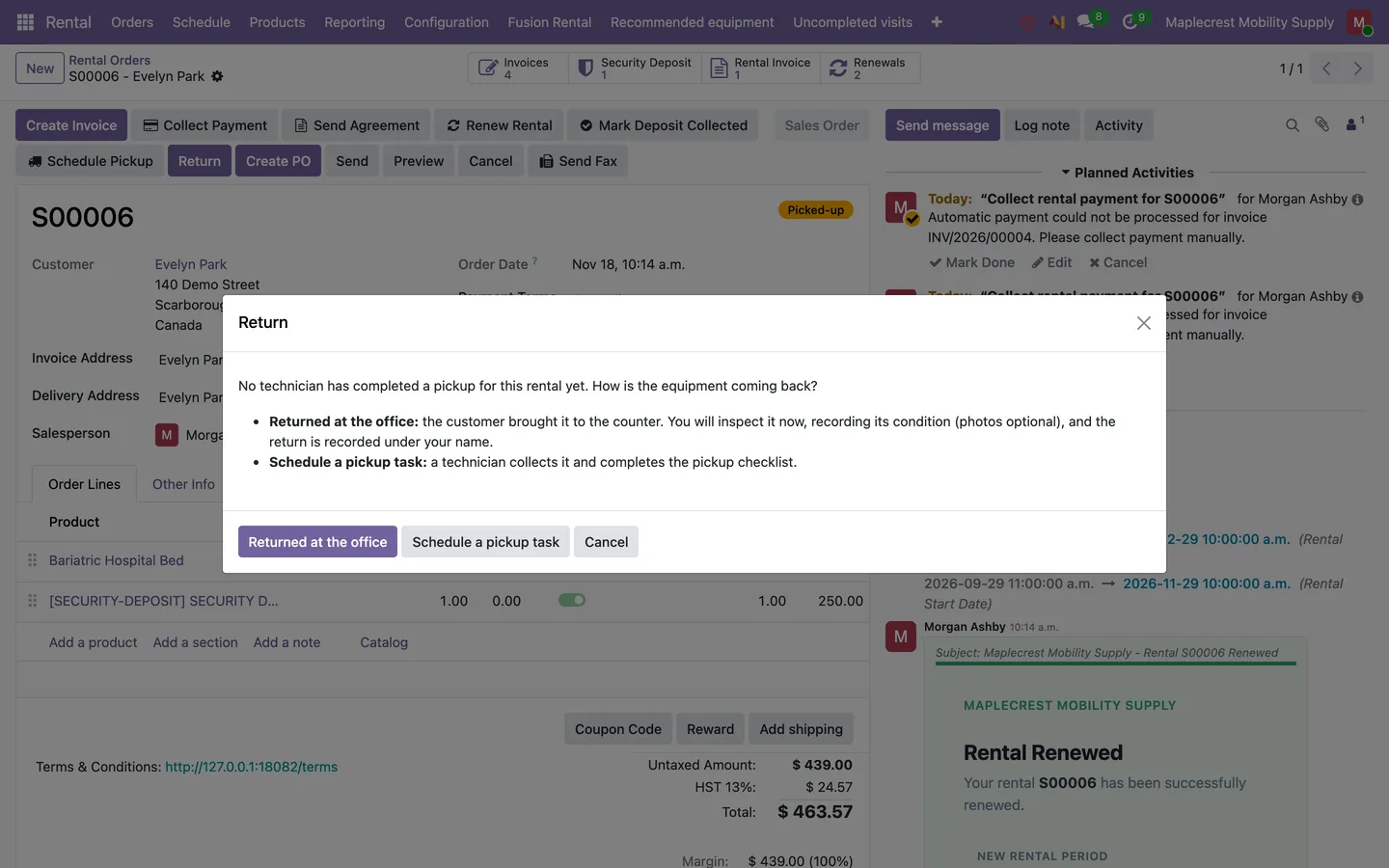
Office or pickup
The Return button asks whether the equipment came back at the office or needs a pickup, and refuses a return for an order that was never delivered.
-
Record the condition
The return records the equipment as good, fair, damaged or missing, with notes and optional photos. A fair or damaged return creates a review to-do and emails the customer an inspection update.
-
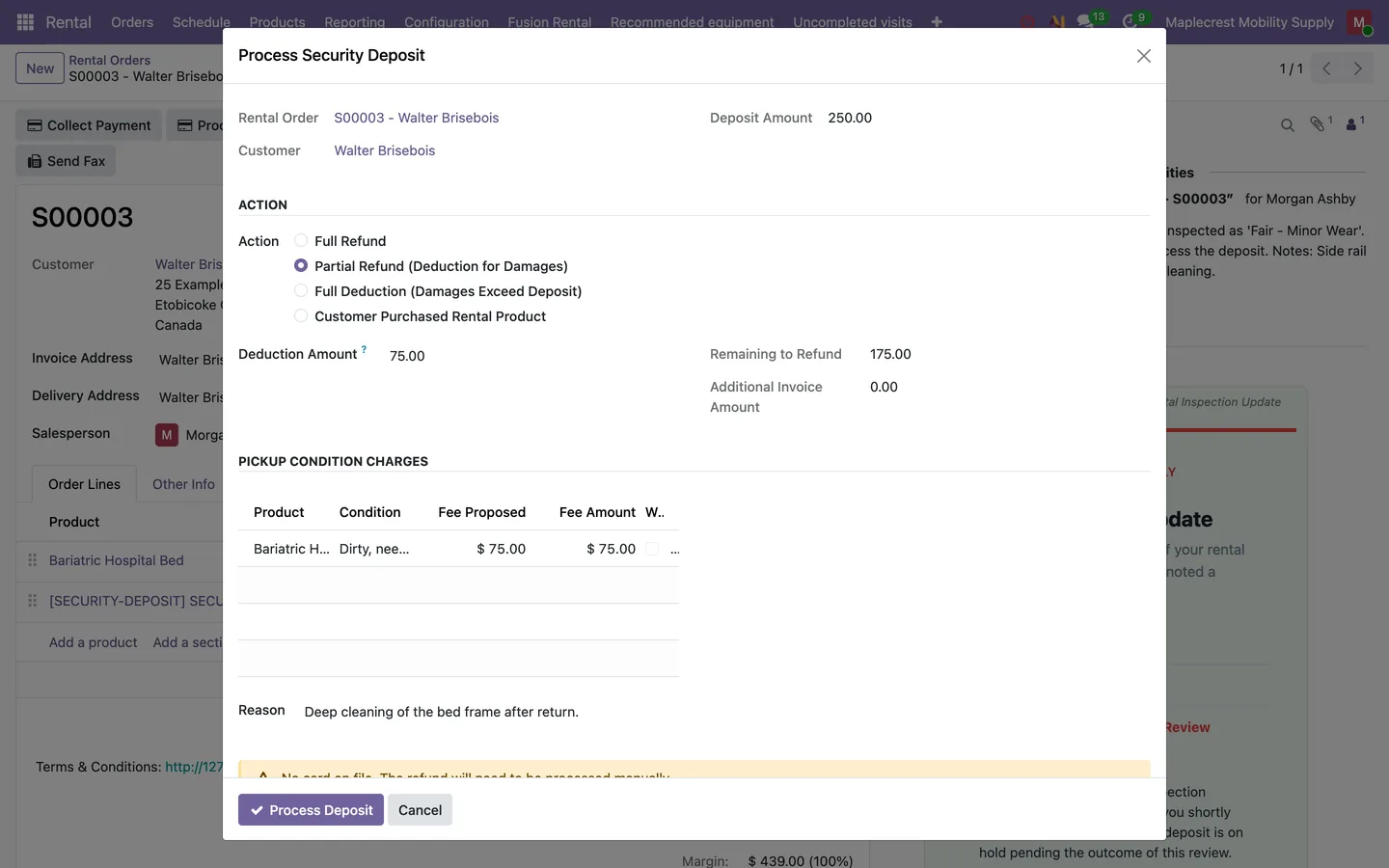
Settle the deposit
"Process Deposit" offers a full refund, a partial refund for damages, a full deduction or a refund when the customer buys the equipment. Charges found at pickup arrive here to charge or waive.
-
Close the rental
Closing the rental retires the stored card and sends a thank-you email with a Google review link.
Delivery charges and equipment offers
Rental quotations add one delivery and collection charge based on distance and stairs, and suggest related equipment.
-
Set the rental policy
The company sets the stairs supplement, the included one-way distance, the rate per extra kilometre, the charged travel legs, the default store and the uncompleted-visit percentage.
Settings > Rental offers
-
Set up the products
Each product gets its equipment family, transport rule, delivery cost and recommended equipment, and items such as slings can be marked purchase only.
-
Add recommendations
Managers choose which equipment to suggest with which products, as an extra rental, a separate purchase, an upgrade or a seating configuration.
Rental > Recommended equipment
-
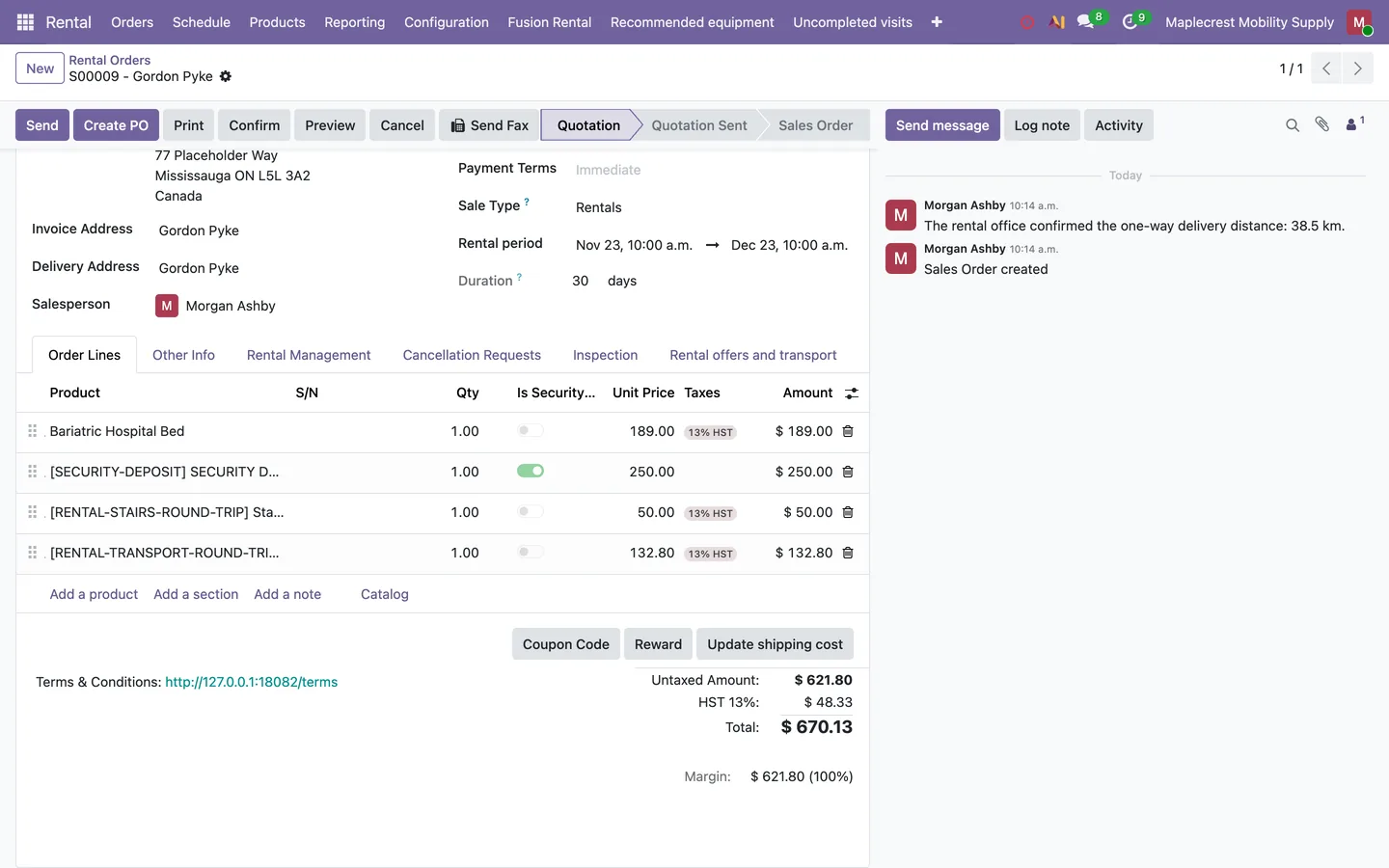
Quote delivery
On the quotation the office confirms the travel distance and stairs, and one delivery line is written with the base charge and the extra travel, plus a single stairs supplement.
Rental order > Rental offers and transport
-
Charge an uncompleted visit
When a technician reaches the address but cannot deliver or collect, a manager prepares one charge at the policy percentage of the delivery charge already paid.
Rental > Uncompleted visits
What it does
 Agreements and signing
- When a rental order is confirmed, the customer is emailed a secure link to review and sign the rental agreement online.
- The signing page shows the order summary with the refundable security deposit, a preview of the full agreement, the card authorization form and a signature pad on one page.
- Once the customer signs, a PDF of the agreement with the signature is saved on the order, posted to its history and emailed to the customer.
- Staff can preview the signed agreement or resend it to the customer from the order with one click.
- In the customer portal, a rental quotation offers a Confirm and Sign Agreement button in place of the usual sign and pay buttons, so every rental goes through the agreement.
 Invoices and deposits
- Confirming a rental creates two invoices, one for the rental charges, delivery and services and a separate one for the security deposit.
- Each rental product can carry a fixed or percentage security deposit, and a matching deposit line is added to the order for every rental item.
- After signing, both invoices are posted and charged to the card on file, and each receipt is emailed with its invoice.
- When there is no card on file or a charge fails, the salesperson gets a to-do to collect the payment another way.
- Rental managers settle the deposit as a full refund, a partial refund for damages, a full deduction with an extra invoice for any overage, or a refund when the customer buys the equipment.
- Pickup findings that are not clean arrive in the deposit screen for a manager to charge or waive, and approved charges are invoiced against the deposit.
 Renewals
- Rentals renew automatically when the period ends, and monthly or yearly renewals always land on the same calendar day.
- Each renewal invoice bills only the rental items still out, never the deposit, delivery or other one-time charges.
- Auto-renewal can be limited to a set number of renewals or switched off with a recorded reason.
- Staff can renew a rental by hand with new dates, and every renewal is listed in Renewal History with its invoice and payment status.
 Cancellations, pickups and returns
- The customer's cancellation link asks for a reason and requests a pickup, which stops auto-renewal and gives staff a to-do to book the pickup.
- Cancellation requests move through New, Confirmed, Pickup Scheduled and Completed, and staff can also reject them.
- Schedule Pickup books a technician pickup task for the rental and reopens the one already booked rather than creating a duplicate.
- The Return button asks whether the equipment came back at the office or needs a pickup, and refuses a return for an order that was never delivered.
- The return inspection records the equipment as good, fair, damaged or missing, with notes and optional photos.
- A good return starts the deposit refund, while a fair or damaged return creates a review to-do and emails the customer an inspection update.
 Technician checklists
- Technicians answer a delivery or pickup checklist with Pass, Fail or N/A, and any failed item needs a short note.
- A failed delivery check emails the office while the technician is still on site.
- A rental delivery or pickup task cannot be completed until every required checklist item for that visit is answered.
- A technician can refuse to collect dirty or damaged equipment once the problem is recorded, which cancels the pickup without a client email and asks the office to call the client.
- Office staff see the technician's checklist answers on the task in a Rental Checklist tab.
 Equipment offers and delivery charges
- Rental quotations suggest related equipment, such as an extra rental, an upgrade, a seating configuration or an item to buy, and staff add it to the quotation with one click.
- Products can be marked purchase only, so items such as patient slings are never rented.
- One combined delivery, setup and collection charge uses the highest base charge of the rented items plus extra travel beyond the included distance from the fulfilling store.
- The office can confirm the travel distance or waive the extra travel with a recorded reason, and the charge cannot change once the rental is agreed.
- A single stairs supplement is added when the delivery address has stairs, however many items are delivered.
What's new
Recent changes to Fusion Rental, newest first.
-
- Rental quotations now suggest related equipment and add one combined delivery and collection charge based on travel distance and stairs access.
-
- Technicians now answer a pass, fail or not applicable checklist on each rental delivery and pickup, and a failed delivery check alerts the office.
- A technician can now refuse to collect dirty or damaged equipment, leaving it with the client and asking the office to follow up.
- The Return button now asks whether equipment came back to the office or needs a technician pickup, and office returns no longer require photos.
-
- Pickups are now booked as technician tasks, and approved cleaning or damage charges from the pickup are billed against the security deposit.
Related modules


See Fusion Rental on your own Odoo.
Book a call and tell us how your team works today. We'll show you the module and what it would take to set it up. Prefer the phone? Call 905-792-0000.