
Fusion Rental Website
Online rentals from checkout to signed agreement and delivery window.
A cart with only rental items skips the online payment step and goes straight to the rental agreement, where the customer signs and authorizes a card. The booking page shows only windows with room, from two business days out and up to four weeks ahead, and marks a window with one place left as the last opening.
- Odoo 19
- Version 19.0.2.0.5
- Newly listed
Fusion Rental Website, step by step
4 workflows, 15 steps. Every screen is real, from a demo company with invented data.
A visitor finds equipment and checks out
Visitors pick rental dates on the website, see the price and availability for those dates, and go from the cart straight to the rental agreement.
-
Find rentals by date
The visitor enters pickup and return dates in the shop sidebar or a Rental Search block, and the shop lists the rental equipment with the period beside each price.
Website > Shop
-
Pick dates on the product
The product page shows the rate per period, Pickup and Return, the total and a price table. Changing a date reprices the page and checks stock for those dates.
-
Review the cart
The cart keeps one rental period with "Update dates", shows each rental line with its billed duration, and bills any paid option as its own line.
-
Straight to the agreement
Rental-only carts get delivery and pickup included at no charge and skip the online payment step, going straight to the rental agreement.
Review the card fee and sign
The customer sees the final total for their card type before signing, and the confirmation page says whether payment was received.
-
Open the agreement
The agreement page shows the order summary and the agreement, and asks for the card type before signing.
-
See the final total
The page lists the rental, services and tax, the card processing fee and the final total to authorize.
-
Sign
The customer enters billing details, signs and accepts the terms. The server checks the total and the card fee again and adds the fee once to the draft invoices.
-
Confirmation
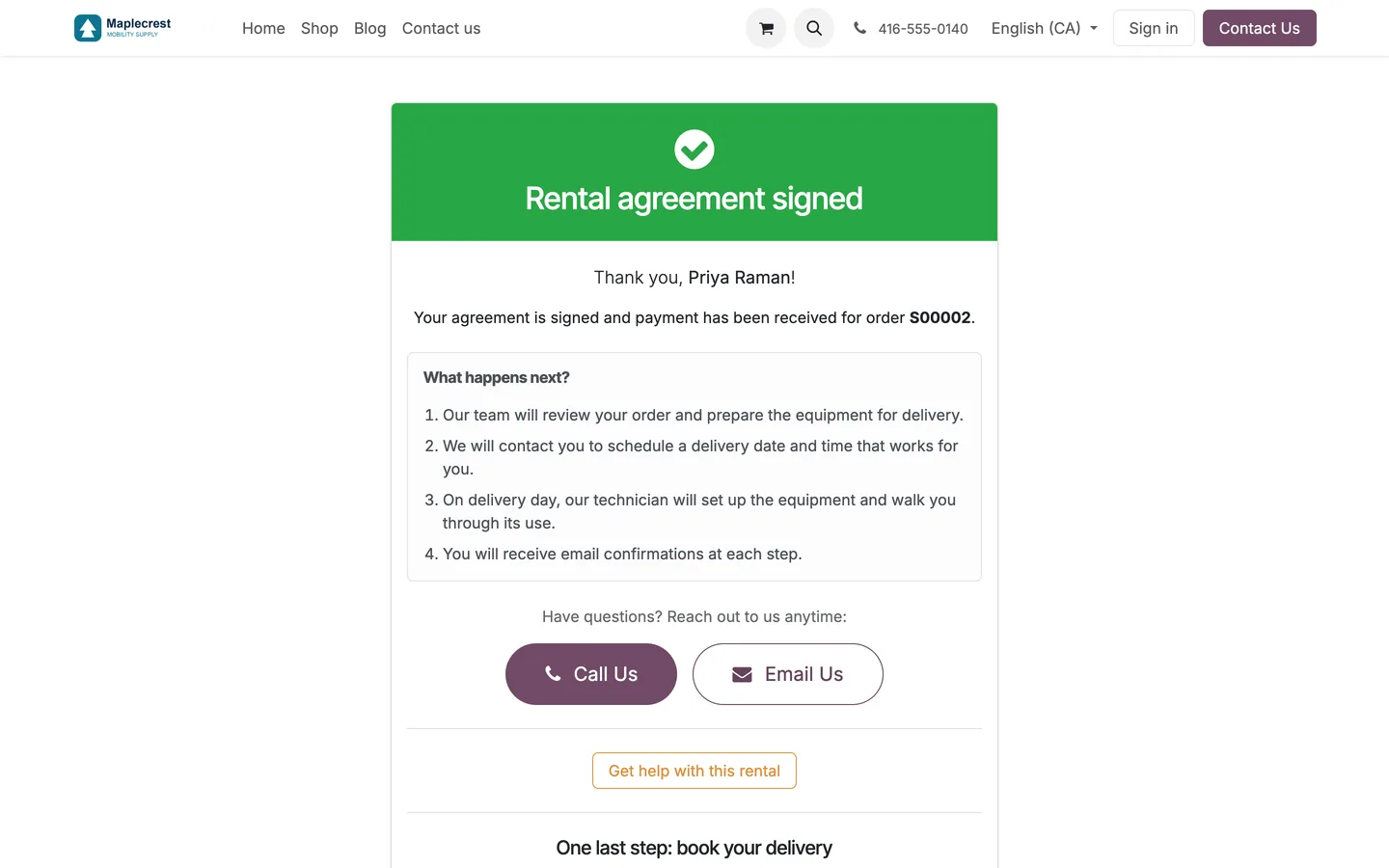
The confirmation page says the agreement is signed and whether payment was received, and invites the customer to book delivery.
The customer books a delivery window
After signing, the customer picks a morning or afternoon delivery window that still has room, and a technician task is created.
-
Invitation
After signing, the customer is emailed a link to book a delivery window.
-
Pick a window
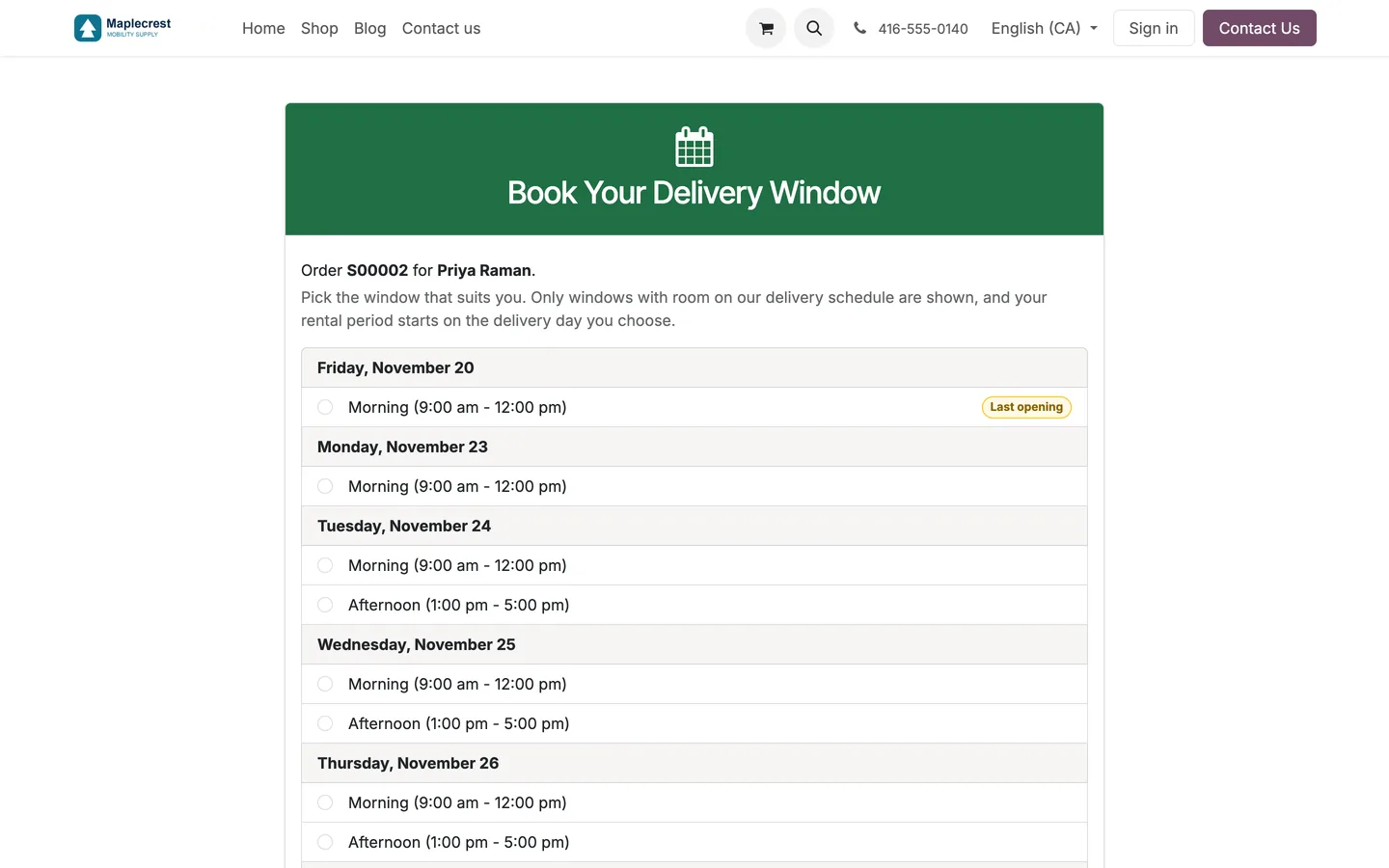
The booking page lists only windows with room, from two business days out and up to four weeks ahead, and marks a window with one place left as the last opening.
-
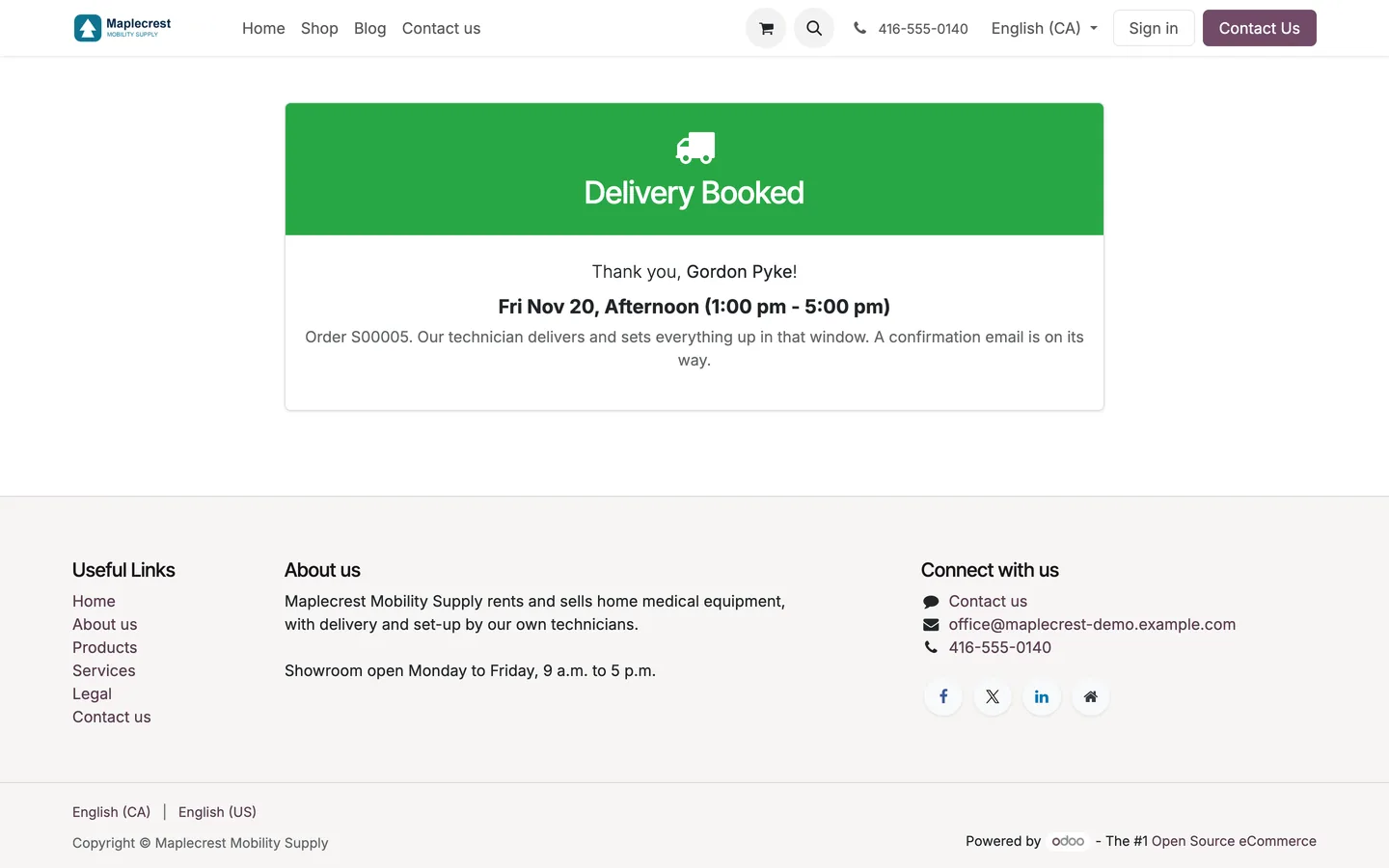
Booking recorded
The rental now starts on the delivery day with the same length, the delivery date is set, a delivery task is created for the technician, and the customer is emailed a confirmation.
-
A window just filled
If the last place went to someone else a moment earlier, the page asks the customer to pick another window.
The office manages delivery capacity
Windows are created automatically, and staff adjust capacity or block a window from one list.
-
Windows created each day
A scheduled action keeps morning and afternoon windows, Monday to Friday, about five weeks ahead.
-
Adjust or block
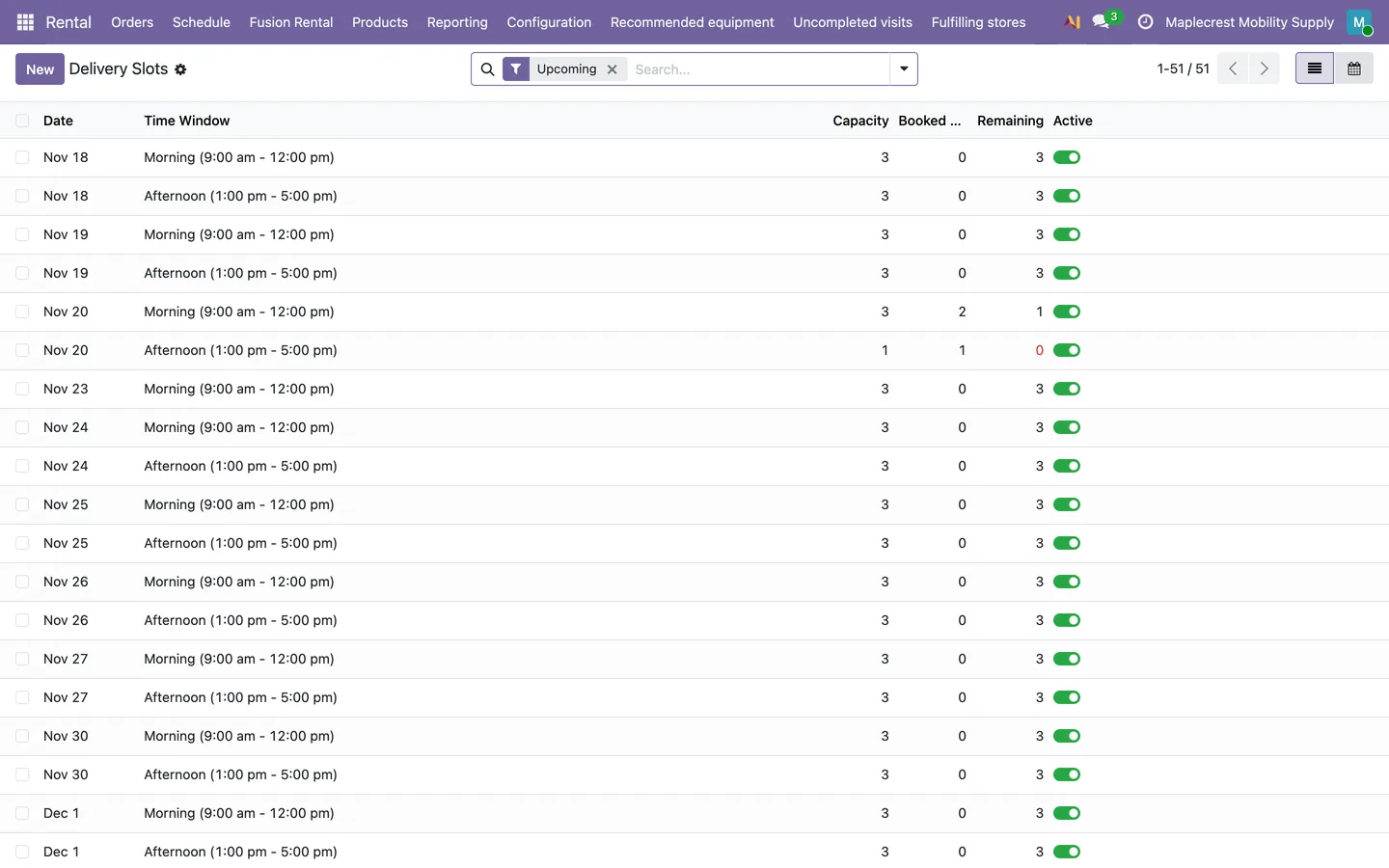
Staff change a window's capacity in the list, see how many are booked and how many places remain, and switch a window off to block it.
Rental > Fusion Rental > Delivery Slots
-
The order and its task
The rental order shows the delivery window and its delivery task, and the task sits in Field Service for the technician.
What it does
 The rental shop
- Equipment that can only be rented appears in the shop and site search next to items for sale, and visitors can open it without signing in.
- The product page shows the rental rate for its period, Pickup and Return date fields, and the total for the dates chosen, which updates as the dates change.
- A price table on the product page lists each rental period offered, such as one week or one month, with its price.
- The date pickers follow the company's rental rules and explain the problem under the dates when a pickup is in the past, a return comes before the pickup, a day is closed or the period is shorter than the minimum.
- The cart keeps one rental period for all its rental items, and the customer can change it with Update dates and see every line repriced.
- Website rentals are billed at the advertised tier for the dates picked, because the return day never adds an extra billable day.
 Availability for the dates picked
- The product page reads stock for the chosen dates, counts units already booked on other rental orders, and warns when only a few are left for those dates.
- The cart will not rent out more units than are free for the period and tells the customer how many can be rented.
- Units already out on rent are never shown as free, whether the rental stock location sits inside the warehouse or outside it.
- The out-of-stock ribbon stays off rental equipment, because a unit that is out today may be free for the dates a visitor picks.
 Checkout to a signed agreement
- A cart with only rental items skips the online payment step and goes straight to the rental agreement, where the customer signs and authorizes a card.
- Rental-only carts get a single delivery option at no charge, delivery and pickup included with the rental, with a note that the customer picks a delivery window after signing.
- Automatic loyalty and promotion programs do not apply to rental-only carts, so customers pay the advertised rental rates.
- Paid rental options, such as an upgraded mattress, are billed as their own order lines that follow the rental's quantity and leave the cart with it.
- The agreement cannot be signed until the rental invoice is ready and the terms are accepted, and the server checks both.
- After signing, the confirmation page says plainly whether payment was received or needs attention, and asks the customer not to pay again while the team checks.
 Card fee review
- Before signing, the customer picks a card type and sees the rental, services and tax, the card processing fee and the final total to authorize.
- Signing is refused when the card used carries a different fee than the one reviewed or the booking changed since the review, and the customer is asked to review the total again.
- The reviewed card fee is added once to the draft rental and deposit invoices before payment is taken, and never to an invoice already posted.
 Delivery windows
- Morning (9 am to noon) and afternoon (1 pm to 5 pm) delivery windows are created automatically each day, Monday to Friday, about five weeks ahead.
- Each window has a capacity, three by default, and staff see how many are booked and how many places remain.
- Staff can change the capacity of any window or archive it to block it, from a list or a calendar.
- After signing, the customer gets an email inviting them to book a delivery window, and once payment is received the confirmation page shows a button to book it.
- The booking page shows only windows with room, from two business days out and up to four weeks ahead, and marks a window with one place left as the last opening.
- Booking a window moves the rental start to the delivery day while keeping its length, sets the delivery date on the order, and emails the customer a confirmation.
- Each booking creates a delivery task for the default technician in field service, with the order, the items and the booked window.
- Two customers cannot take the last place in the same window, and the booking page opens only after the agreement is signed.
What's new
Recent changes to Fusion Rental Website, newest first.
-
- Units out on rent are no longer counted as free stock when the rental location sits inside the warehouse.
- Discontinued products stay out of the shop and site search while rent-only equipment is still listed.
-
- Rental dates are read in the website's local time, so bookings no longer land a day early and a same-day pickup and return counts as one day.
- The rental shop, date pickers and availability for the picked dates now run in this module on Fusion Rental, without the Odoo Enterprise eCommerce Rental app.
-
- Rental product pages and the cart can show recommended equipment, delivery or showroom collection choices and the rental service terms.
-
- Customers choose their card type and see the card fee and final total before they sign the rental agreement.


See Fusion Rental Website on your own Odoo.
Book a call and tell us how your team works today. We'll show you the module and what it would take to set it up. Prefer the phone? Call 905-792-0000.