
Fusion SO to PO
Purchase orders for each vendor, raised straight from the sales order and linked back to it.
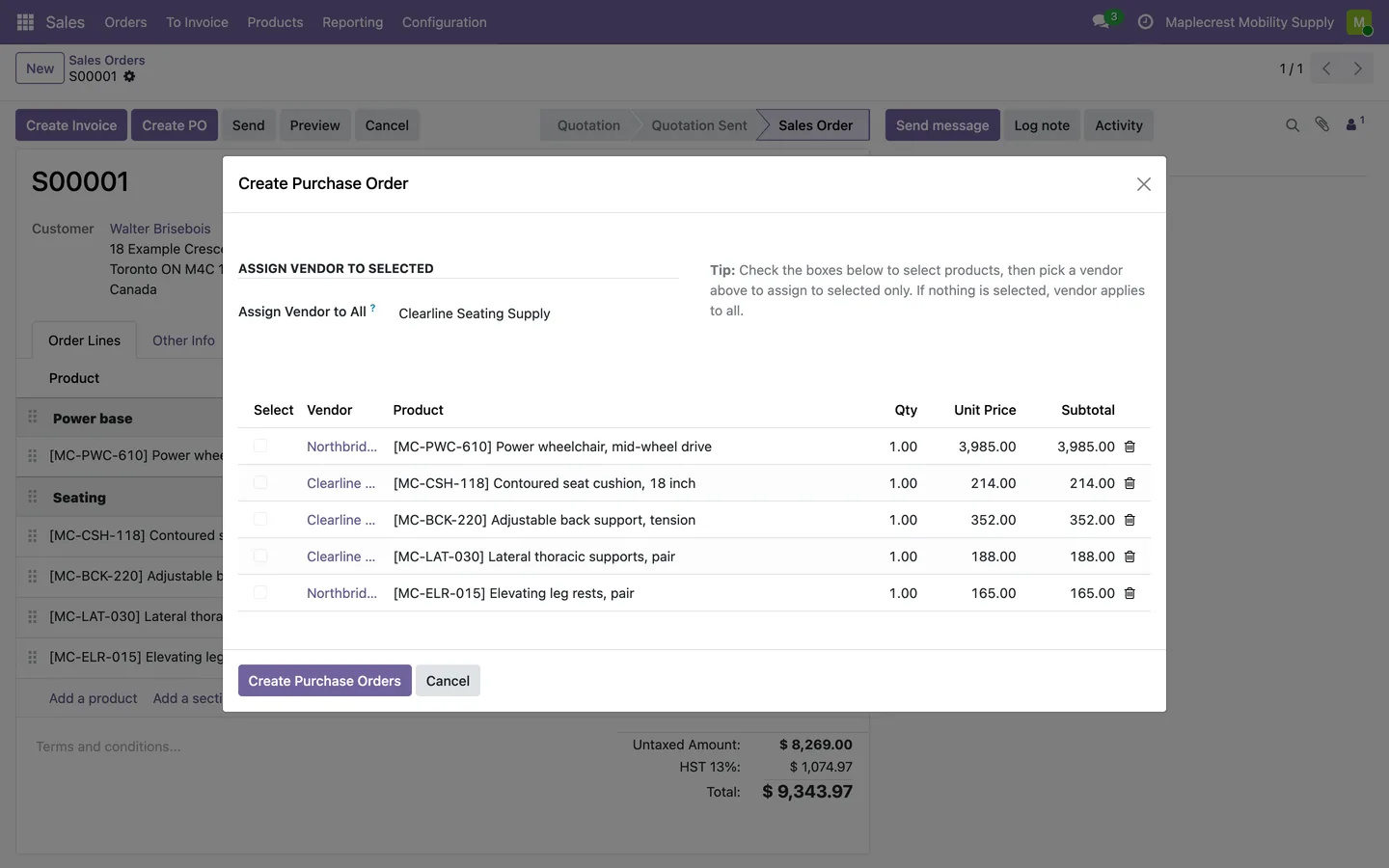
"Create PO" on a sales order opens a window that lists every product line with its quantity, cost price and subtotal, leaving out section and note lines. Staff pick a vendor on each line, or tick lines and pick one vendor for all of them at once; with nothing ticked, the vendor goes on every line.
- Odoo 19
- Version 19.0.1.0.0
- Free
Fusion SO to PO, step by step
3 workflows, 9 steps. Every screen is real, from a demo company with invented data.
Raise purchase orders from a sales order
Order the equipment a customer bought from the right vendors in one pass, with one purchase order per vendor.
-
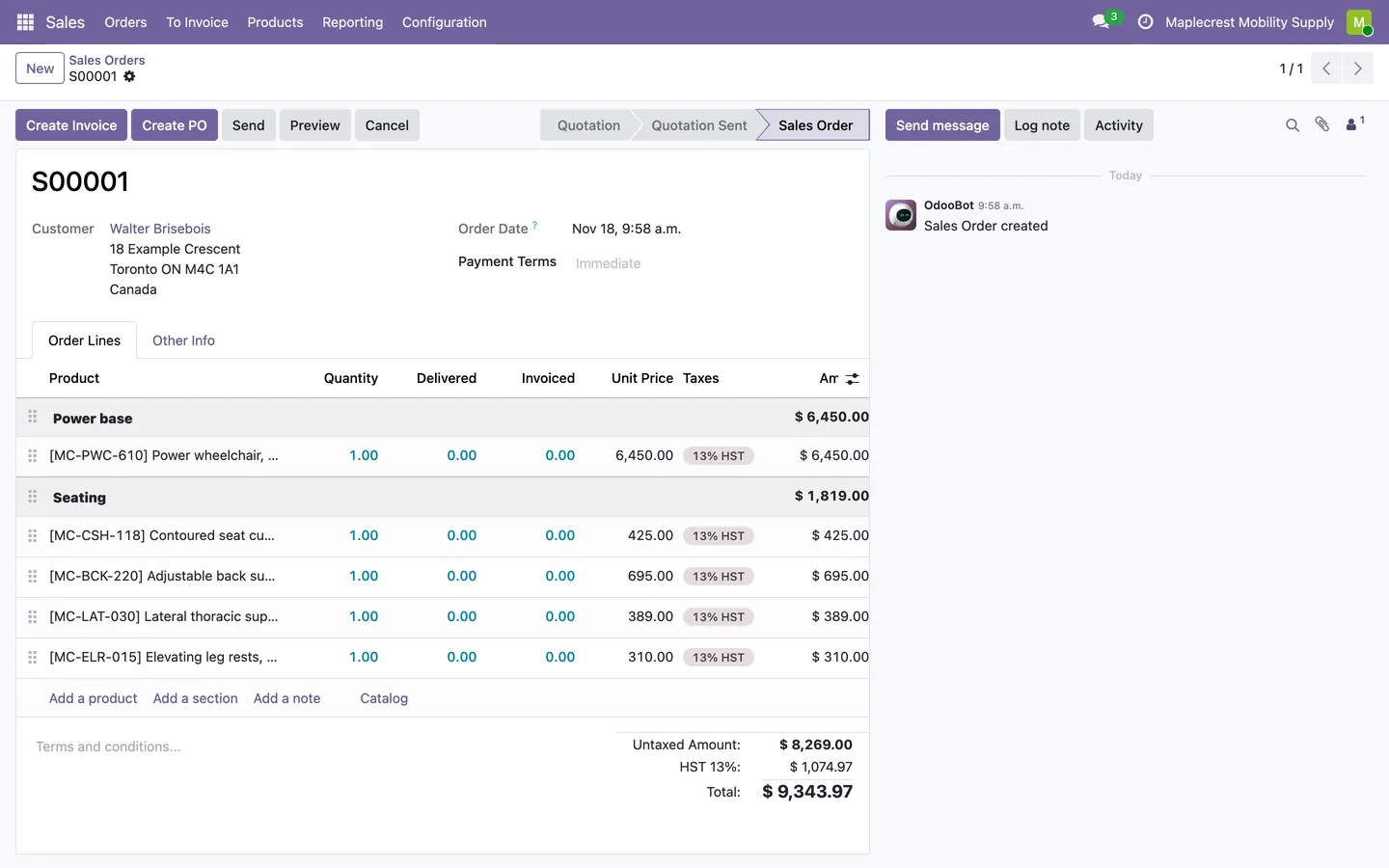
Start from the order
A sales order has "Create PO" in its header.
Sales > Orders > Orders
-
See the lines to buy
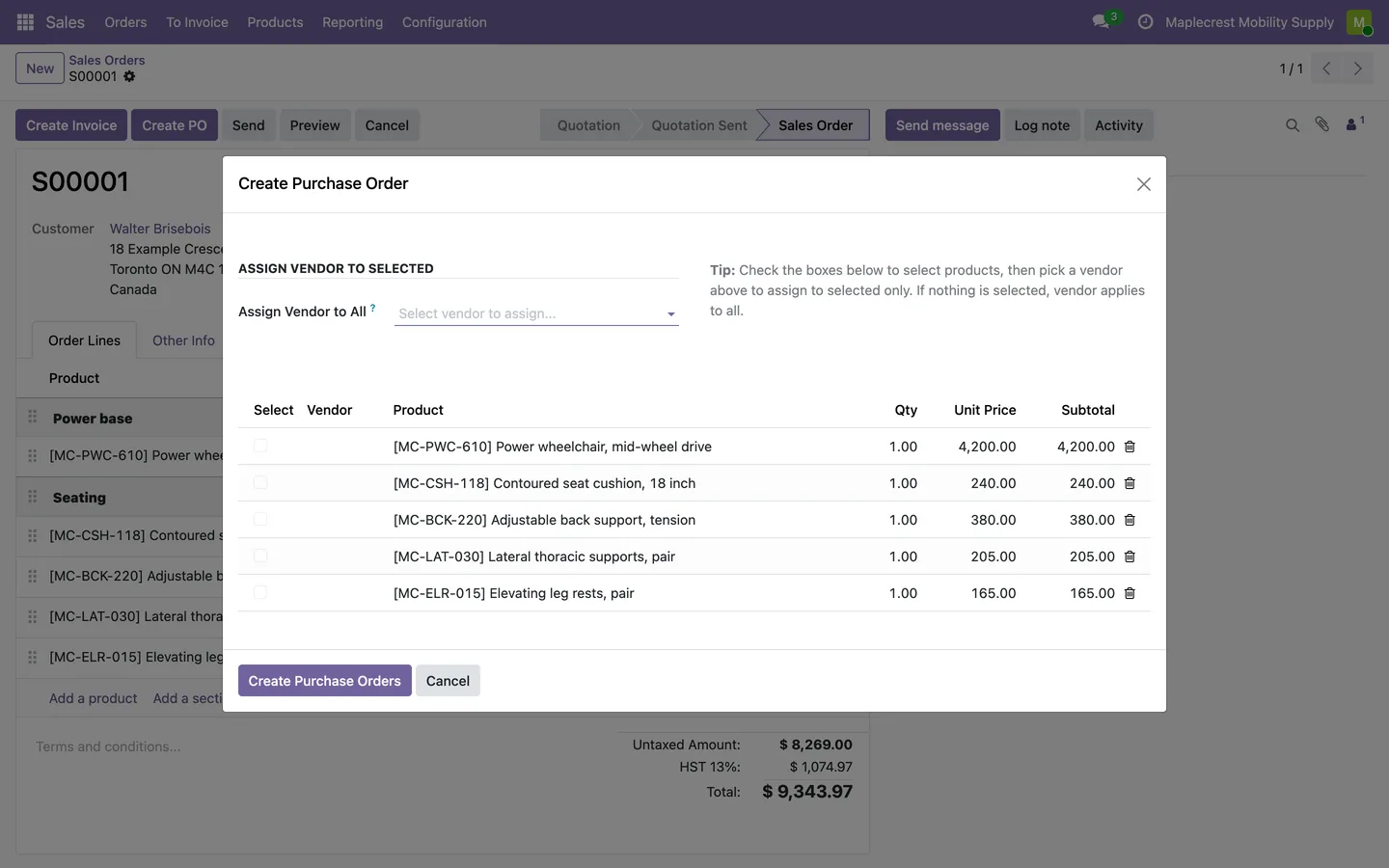
The window lists every product line with its quantity, cost price and subtotal, leaving out section and note lines.
Sales order > Create PO
-
Assign vendors
Pick one vendor for every line, then tick some lines and pick another vendor for those. Prices switch to each vendor's price, or stay at cost when the vendor has none.
Create PO > Assign Vendor to All
-
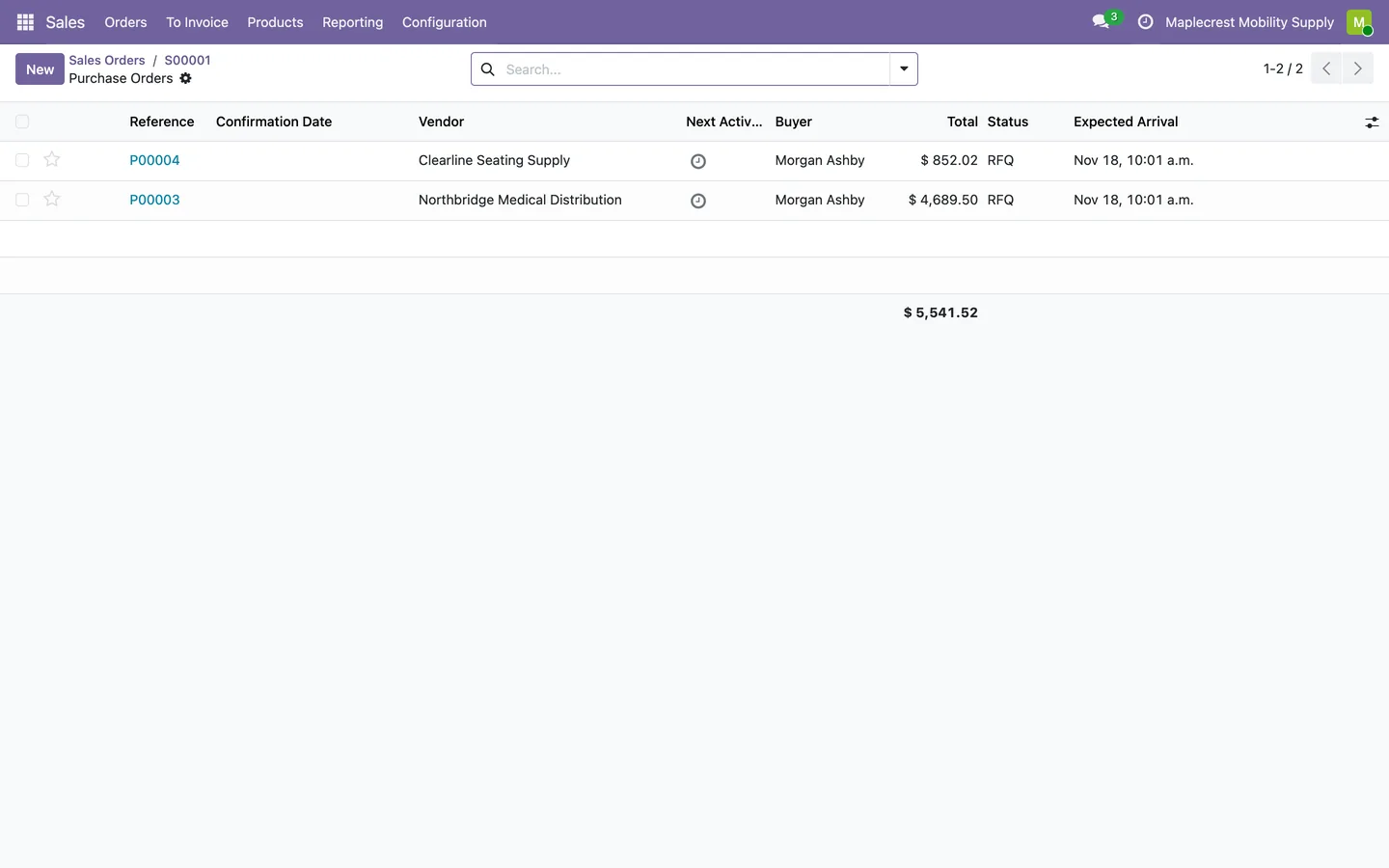
One order per vendor
"Create Purchase Orders" makes one request for quotation for each vendor.
Create PO > Create Purchase Orders
Follow the links both ways
Every purchase order knows the sales order and customer it is for, and the sales order knows its purchase orders.
-
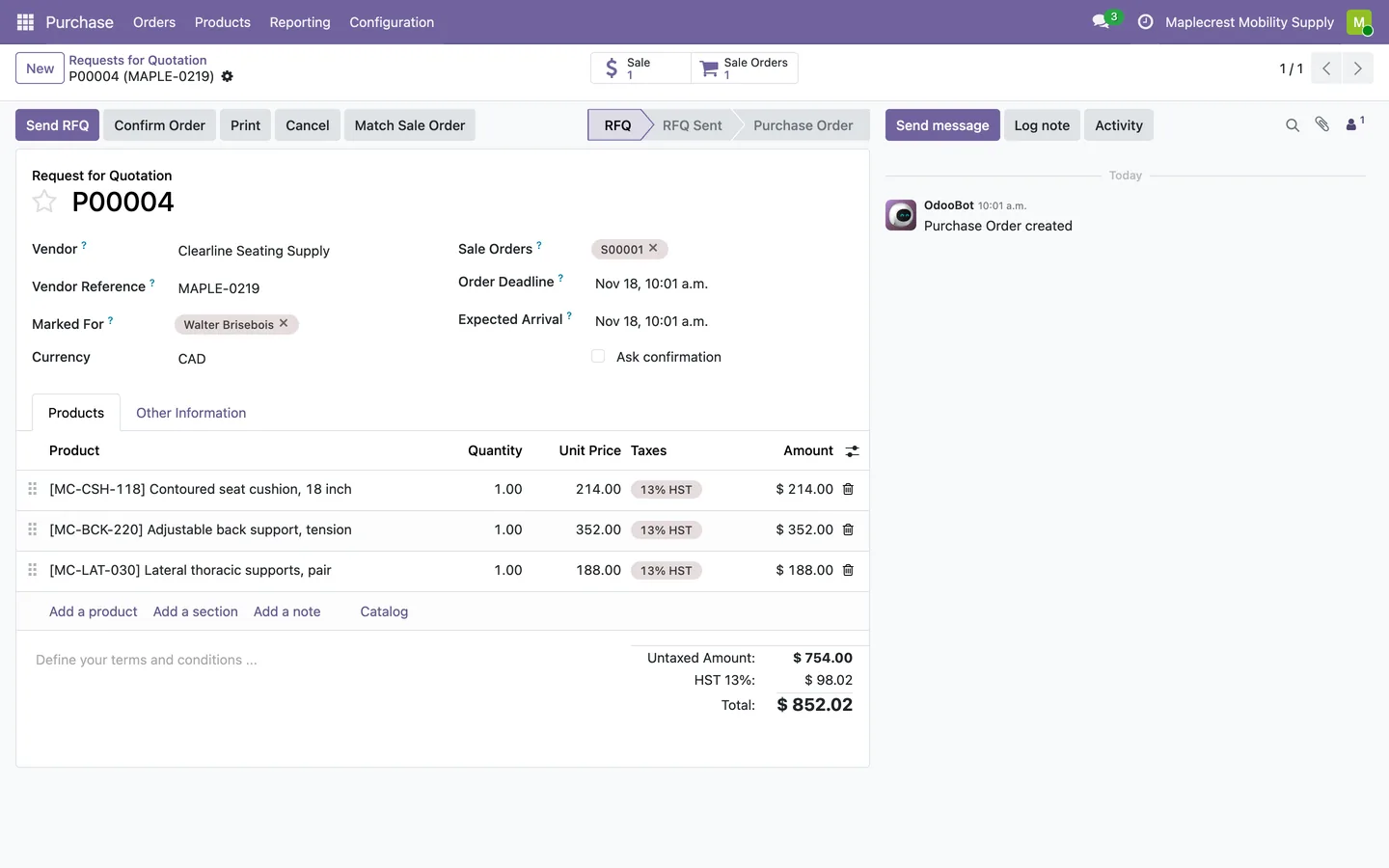
The purchase order
The purchase order shows its sales order, the customer it is marked for and the vendor's reference, with a "Sale Orders" button back.
Purchase > Orders > Requests for Quotation
-
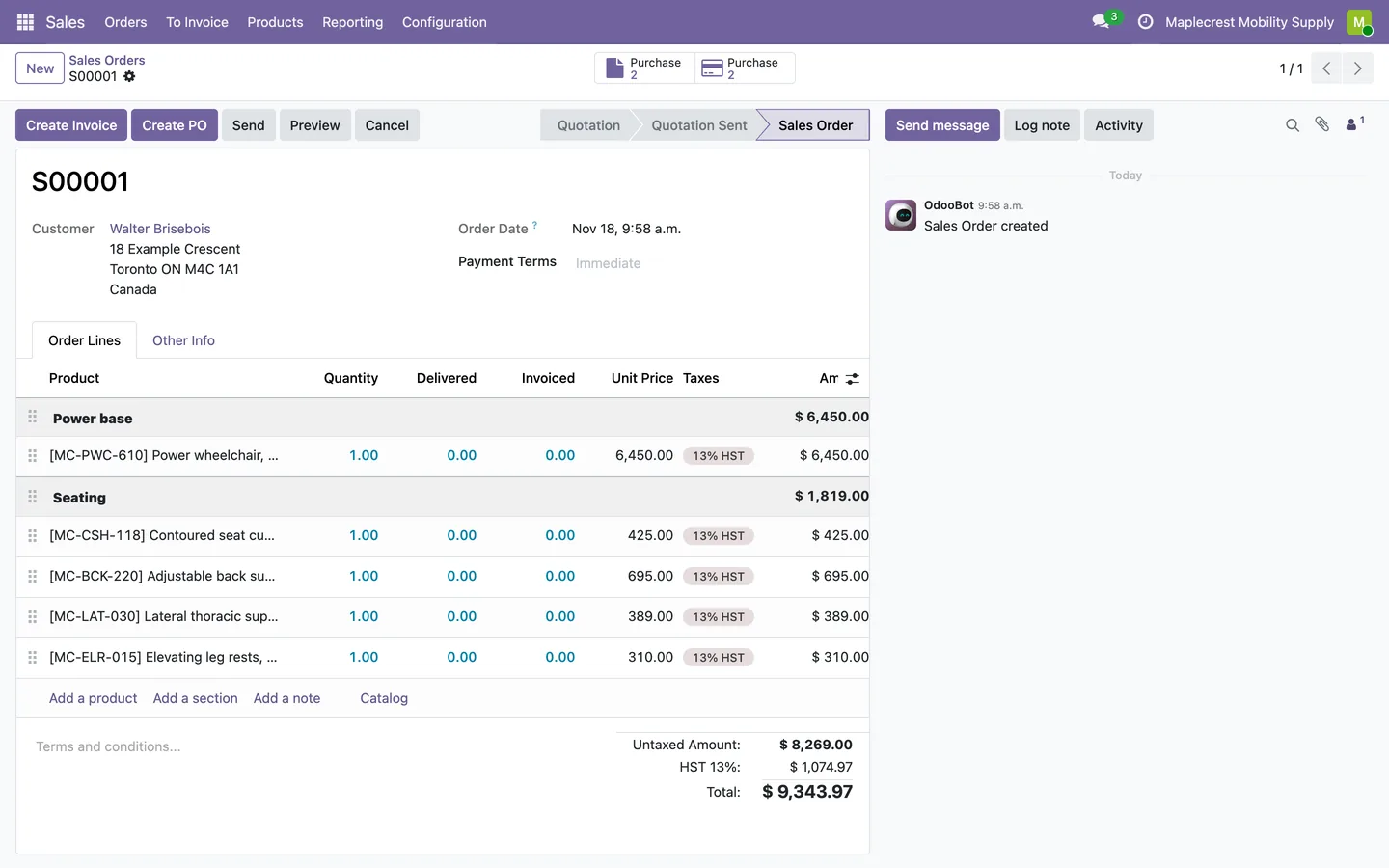
Back on the sales order
The sales order shows a "Purchase" button with the number of purchase orders raised for it.
Sales > Orders > Orders
-
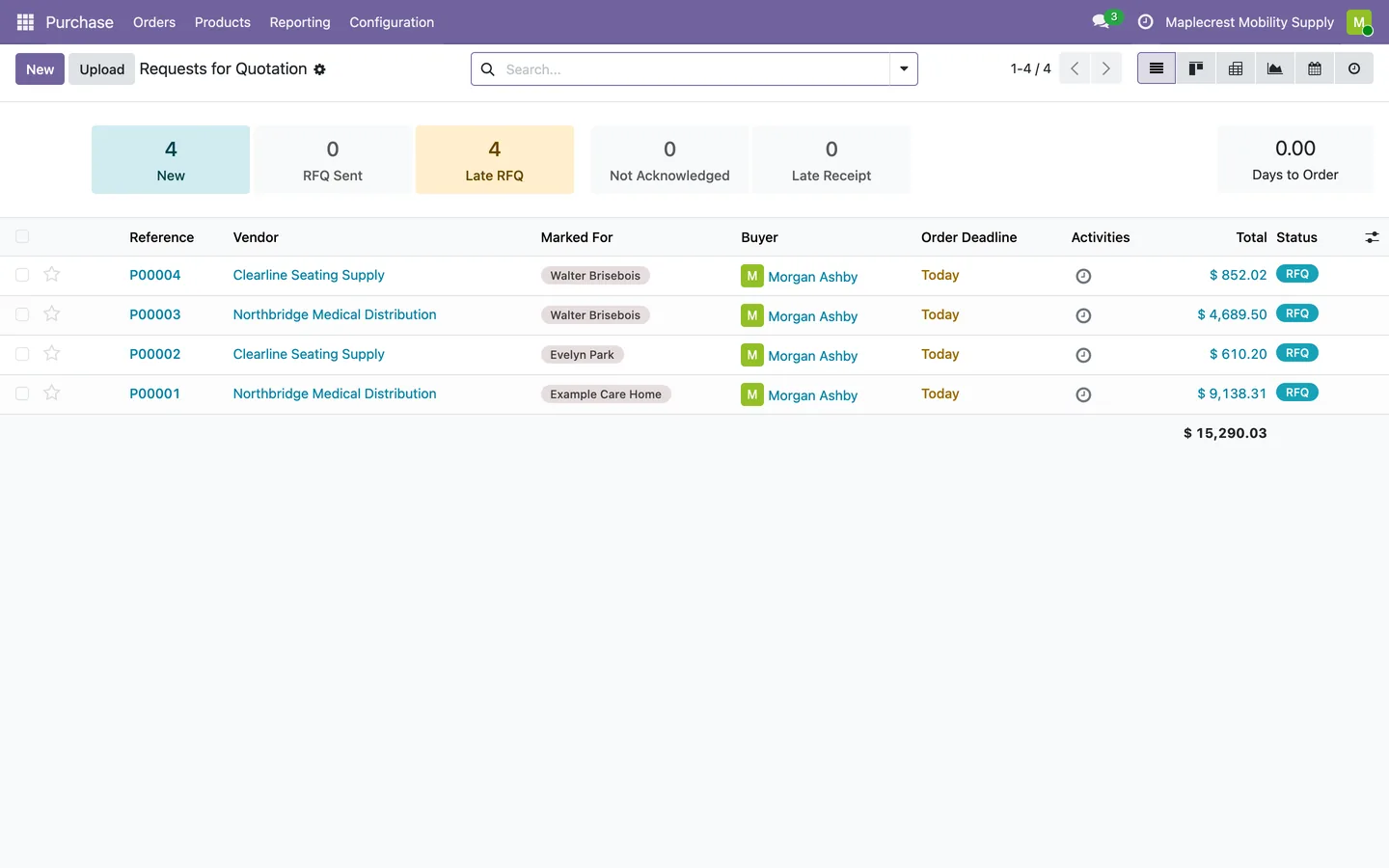
Who each order is for
The requests for quotation list shows the customer each order is marked for, beside the vendor.
Purchase > Orders > Requests for Quotation
Link a purchase order raised by hand
A purchase order created directly in Purchase can still be tied to the sale it serves.
-
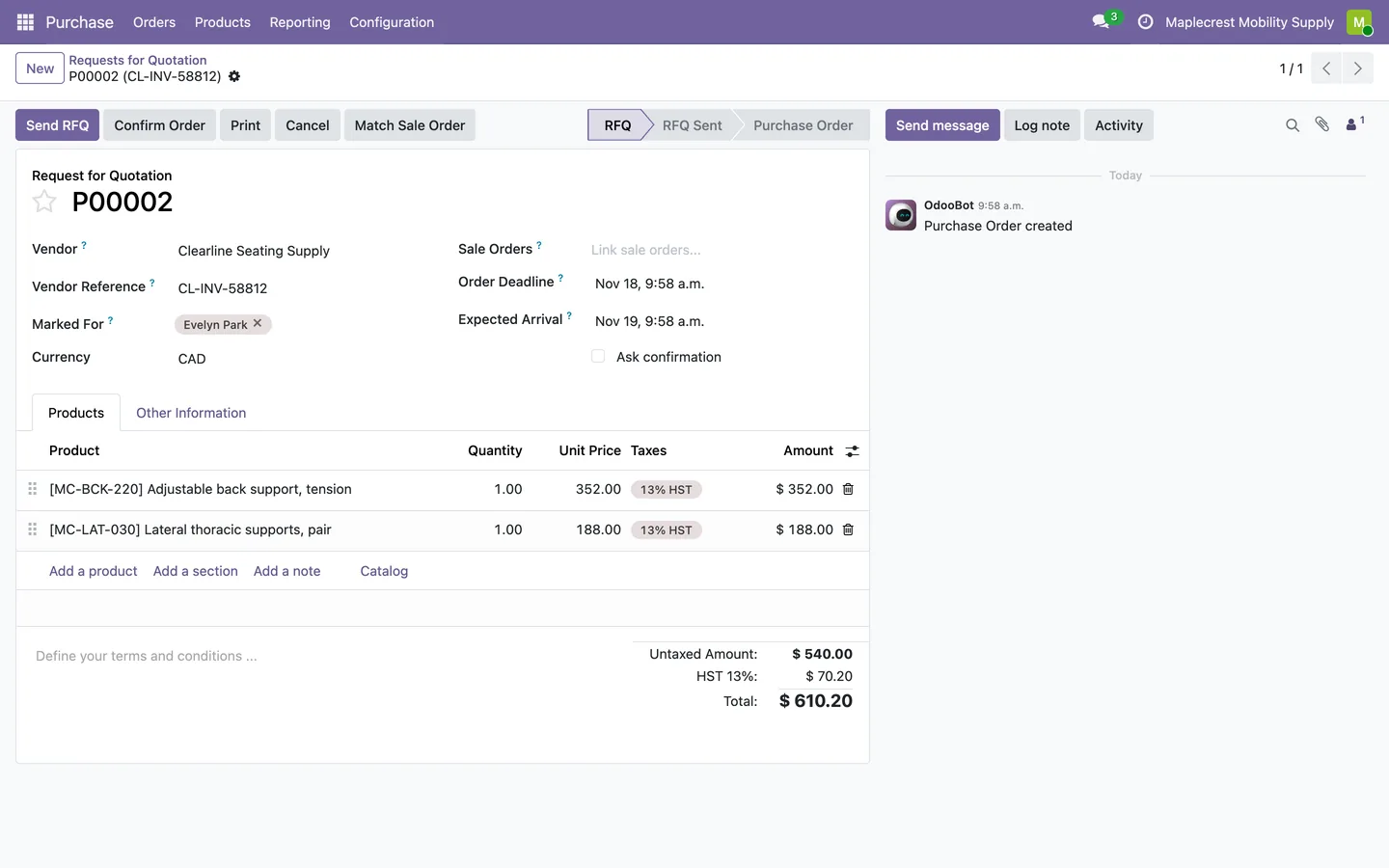
Mark it for a customer
Choose the customer under "Marked For" on the purchase order.
Purchase > Orders > Requests for Quotation
-
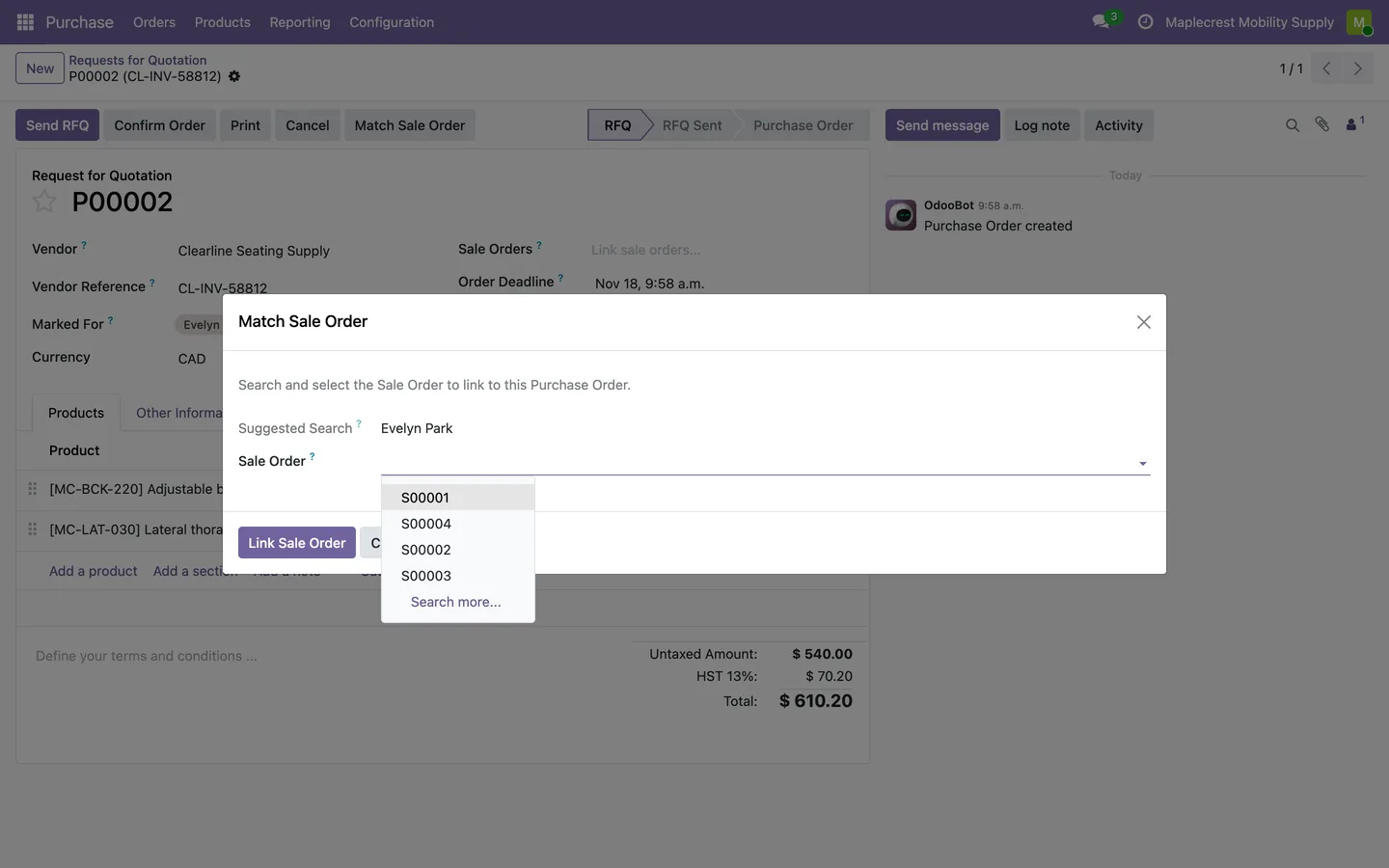
Match Sale Order
"Match Sale Order" links the customer's sales order when there is only one. Otherwise a window opens with the customer's name as the suggested search and "Link Sale Order".
Purchase order > Match Sale Order
What it does
 Creating purchase orders
- "Create PO" on a sales order opens a window that lists every product line with its quantity, cost price and subtotal, leaving out section and note lines.
- Staff pick a vendor on each line, or tick lines and pick one vendor for all of them at once; with nothing ticked, the vendor goes on every line.
- The unit price switches to the chosen vendor's price when the product has one for that vendor, and to the product cost when it does not.
- "Create Purchase Orders" makes one purchase order per vendor, then opens it, or the list when there are several.
- Each purchase order takes the vendor's payment terms, fiscal position and reference, names the sales order as its source and marks it for the customer.
- Purchase lines carry the product, quantity, unit of measure and description from the sales order, with the product code in front.
- When Odoo's sales and purchase link is installed, each purchase line records the sales line it serves, so a vendor bill traces back to it.
 Keeping them linked
- A sales order shows a "Purchase" button with the number of purchase orders raised for it.
- A purchase order lists its sales orders, with a "Sale Orders" button back to them.
- Purchase orders and requests for quotation show who each order is marked for, on the form and as a list column.
- "Match Sale Order" links a purchase order to the sales order of its "Marked For" customer when there is exactly one, and otherwise opens a window to pick it, with the customer's name as the suggested search.
- Linking a sales order this way also marks the purchase order for that customer.
What's new
Recent changes to Fusion SO to PO, newest first.
-
- Purchase lines raised from a sales order record the sales line they serve, so a vendor bill traces back to it.
Related modules
 Fusion Claims
ADP, March of Dimes and other funding claims from quote to payment inside Odoo.
 Fusion Templates
Free
Save a sales order as a quotation template, sections and notes included.
 Fusion Inventory
Margins, brand pricing, a portal stock sheet for reps and stock shared between two Odoo databases.
See Fusion SO to PO on your own Odoo.
Book a call and tell us how your team works today. We'll show you the module and what it would take to set it up. Prefer the phone? Call 905-792-0000.