
Fusion SR&ED
SR&ED claims built from your books, evidence and timesheets as the year happens.
Each company keeps one SR&ED claim per fiscal year, with its province, overhead method (proxy or traditional) and claimant type. An entry is sealed 24 hours after it is logged by default, or straight away with "Seal", and the seal stores a SHA-256 fingerprint of its content and attachment checksums on the record and in the chatter.
- Odoo 19
- Version 19.0.24.0.1
- Newly listed
Fusion SR&ED, step by step
5 workflows, 17 steps. Every screen is real, from a demo company with invented data.
Set up the claim year
One claim per company and fiscal year, with its projects, deadline and a readiness score that shows what is missing.
-
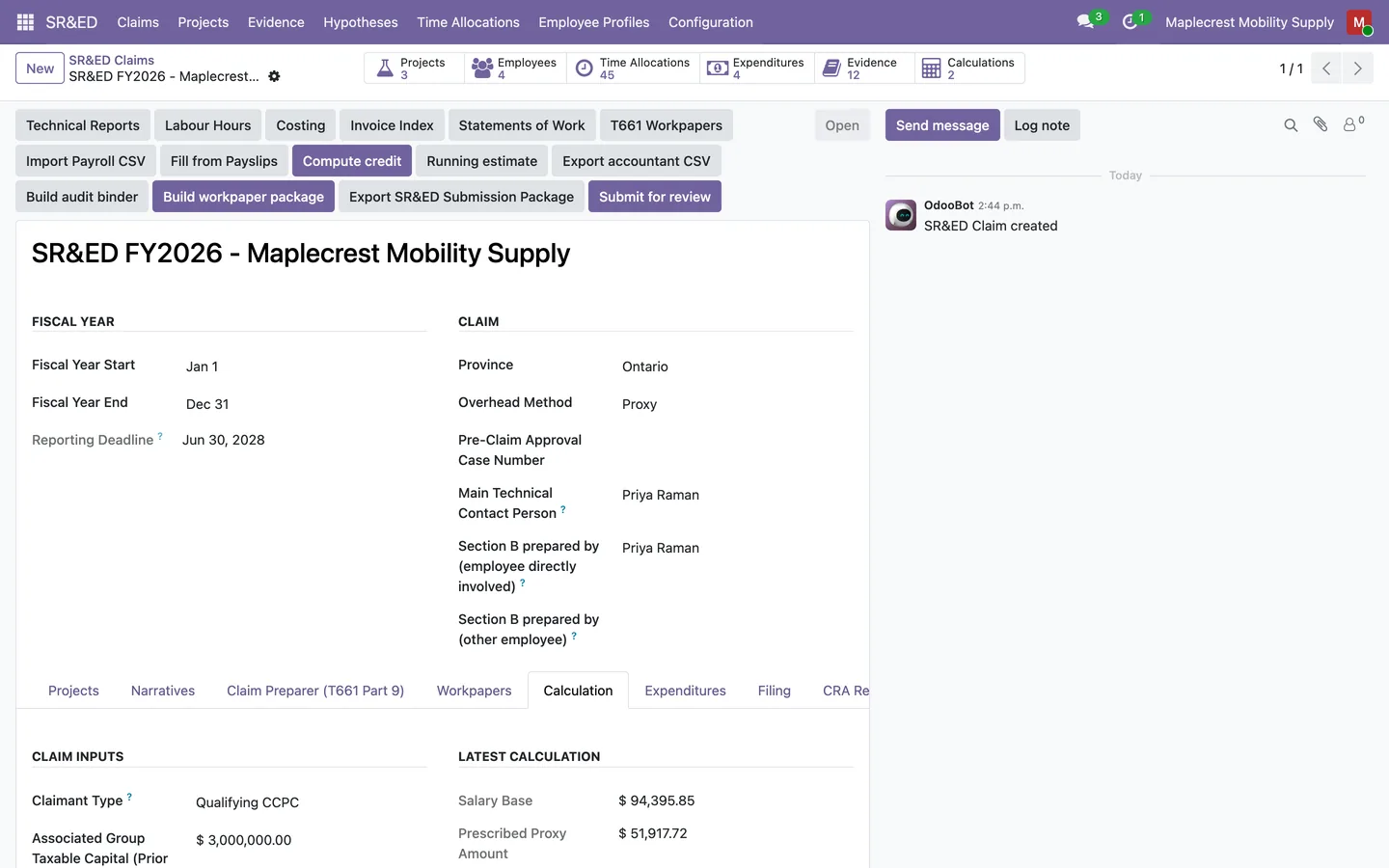
Open the claim
Each company keeps one SR&ED claim per fiscal year with its province, overhead method and claimant type. The reporting deadline is worked out from the fiscal year end.
SR&ED > Claims
-
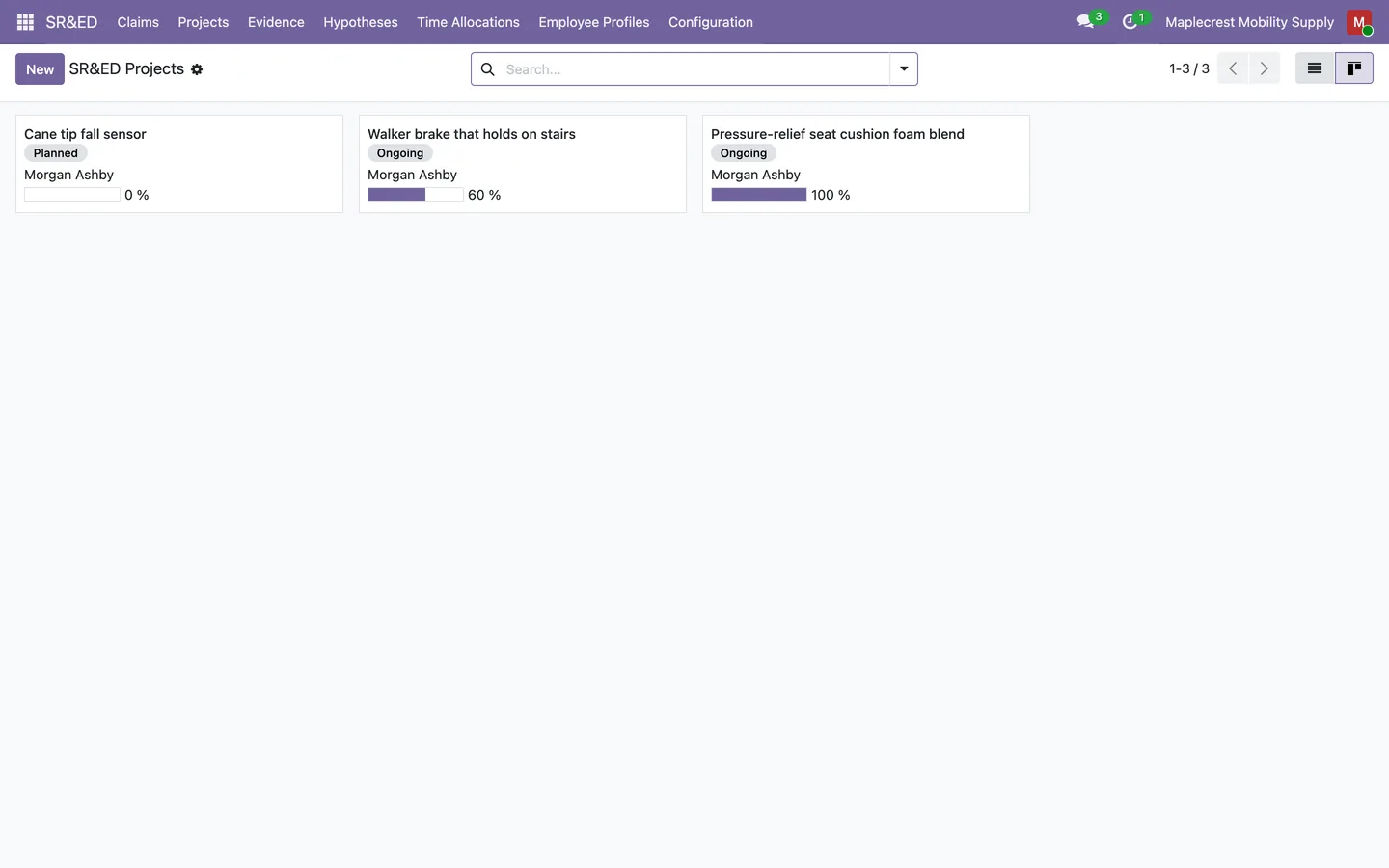
Add the projects
Each project carries its T661 project ID, dates and key individuals, and gets its own analytic account so costs can be tagged to it.
SR&ED > Projects
-
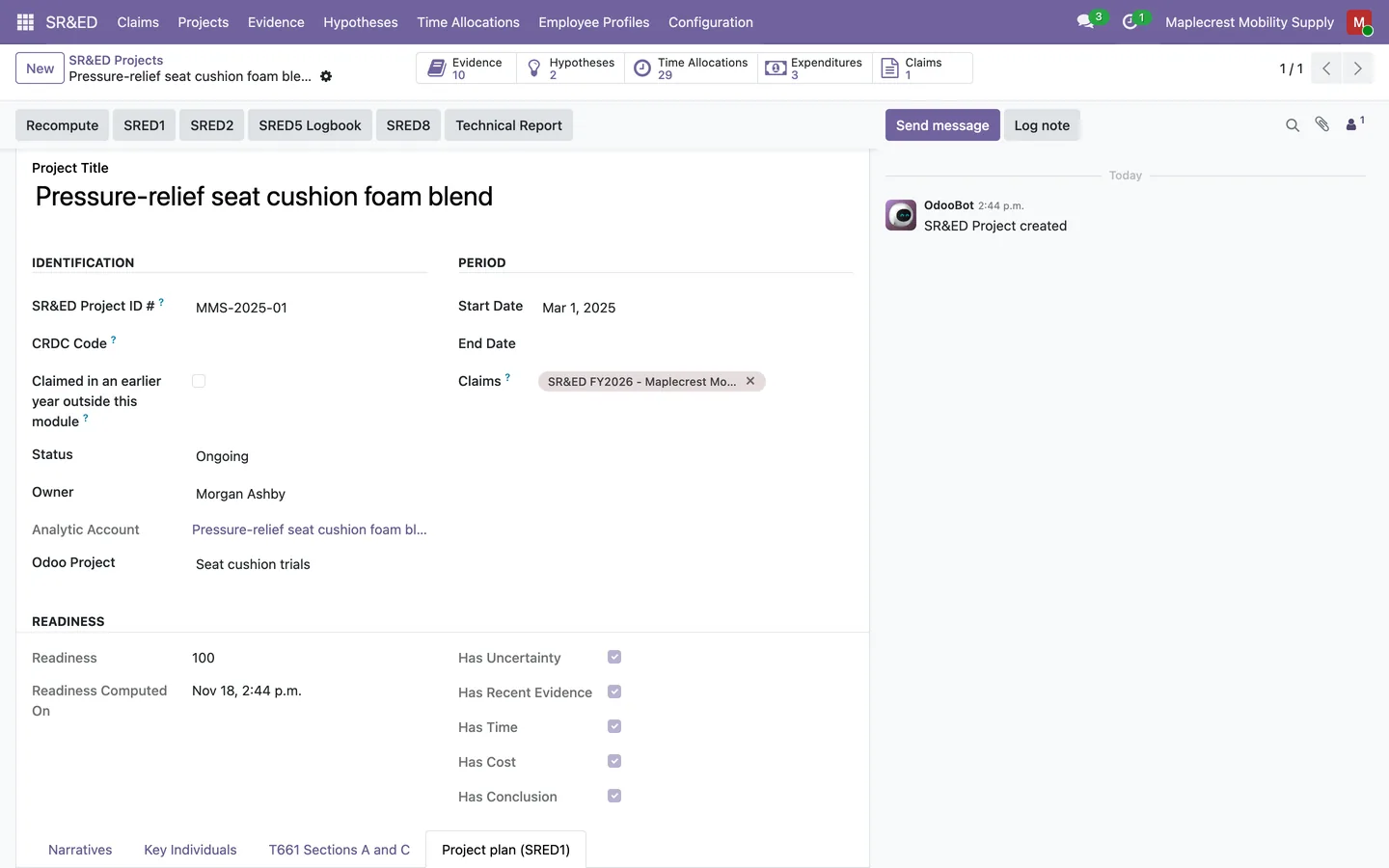
Watch readiness
A daily readiness score out of 100 checks each project for an open uncertainty, recent evidence, time this year, tagged costs and a conclusion.
Record and seal the evidence
State each uncertainty, log the work as it happens, and seal every entry so it can be checked later.
-
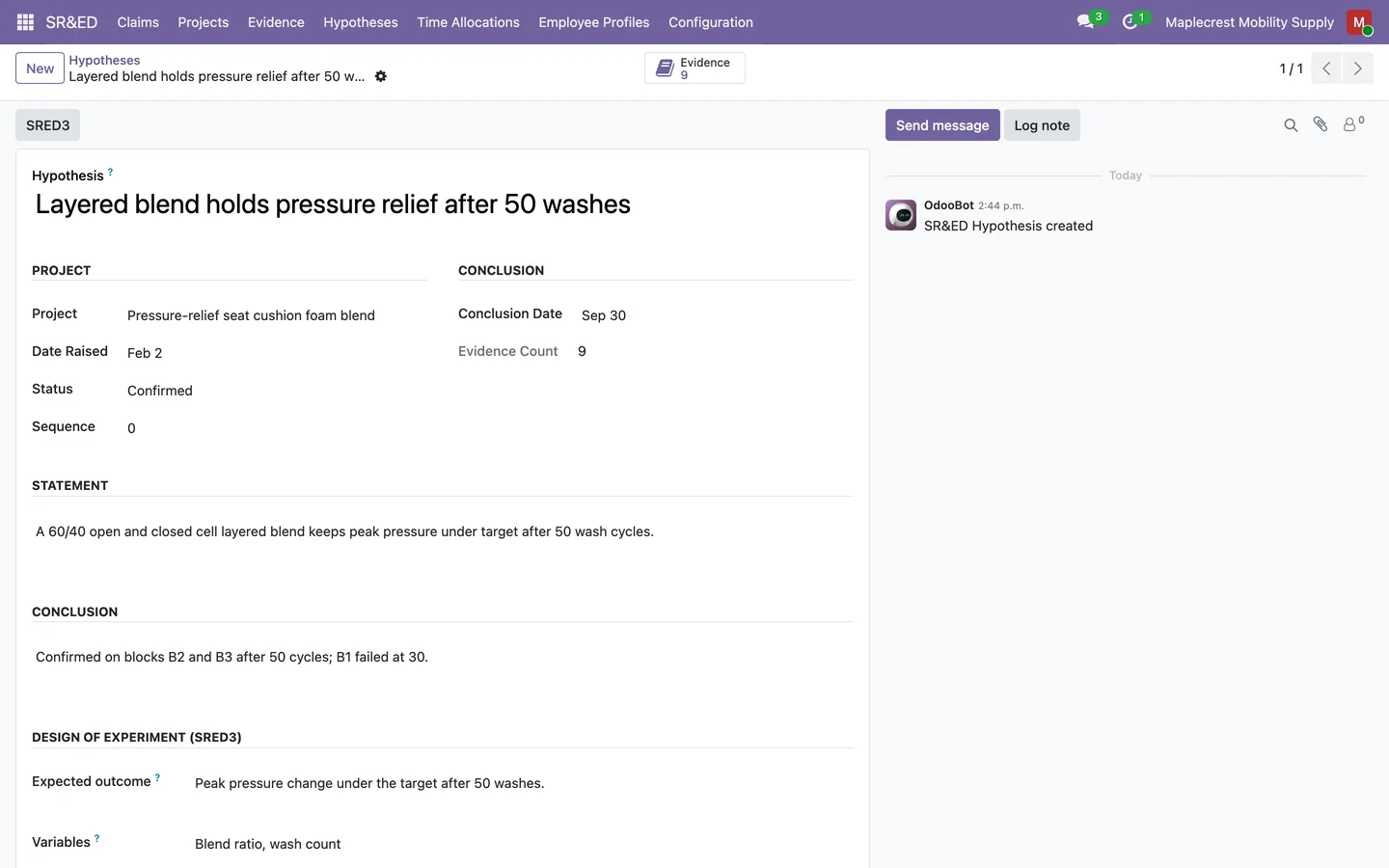
State the uncertainty
A hypothesis records the uncertainty, the expected outcome and an SRED3 design of experiment, and moves from Open to Confirmed, Rejected or Abandoned.
SR&ED > Hypotheses
-
Log the work
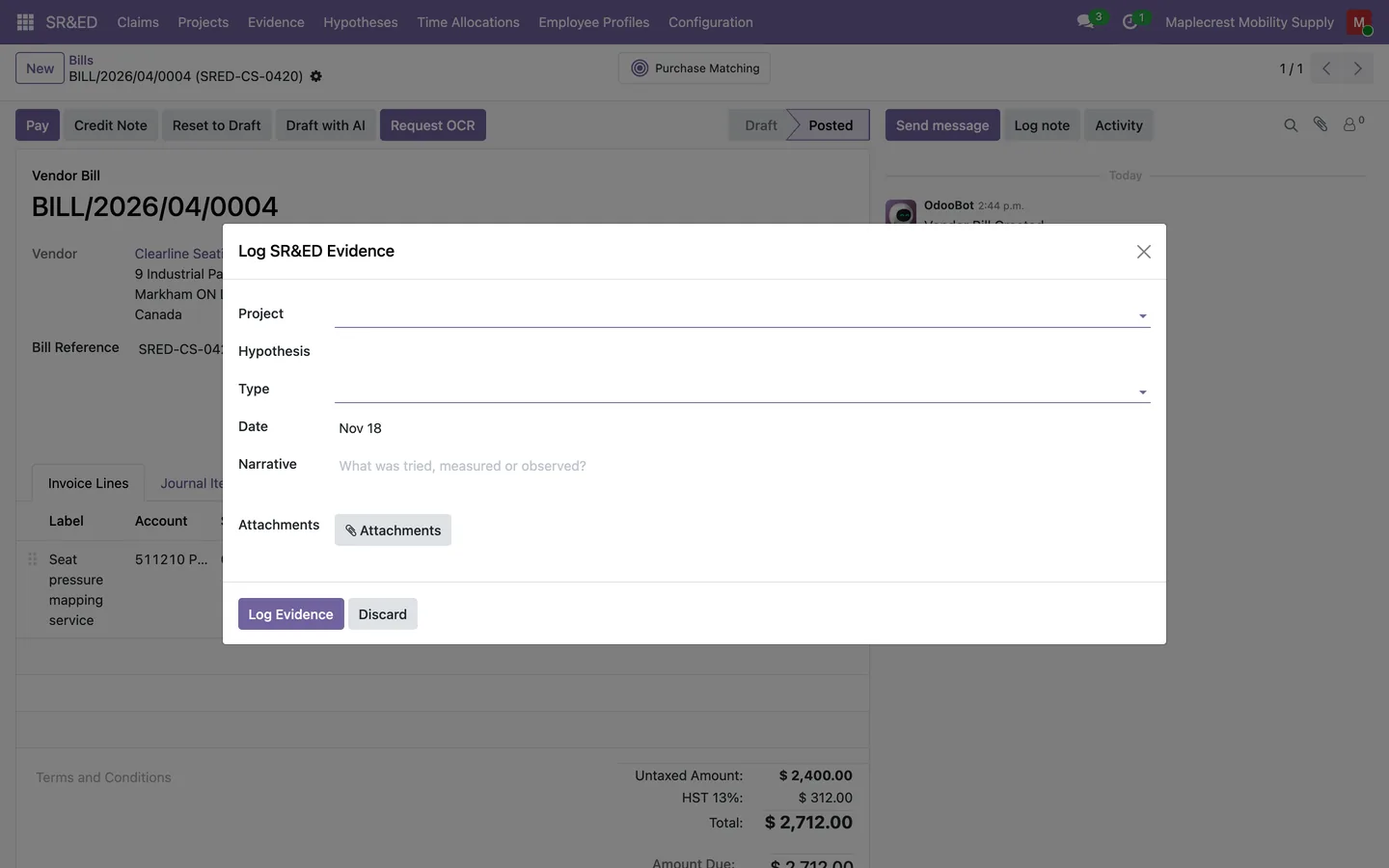
"Log SR&ED Evidence" in the Action menu of a vendor bill opens a short form with that bill linked as the source.
Vendor bill > Action > Log SR&ED Evidence
-
Seal, revise, verify
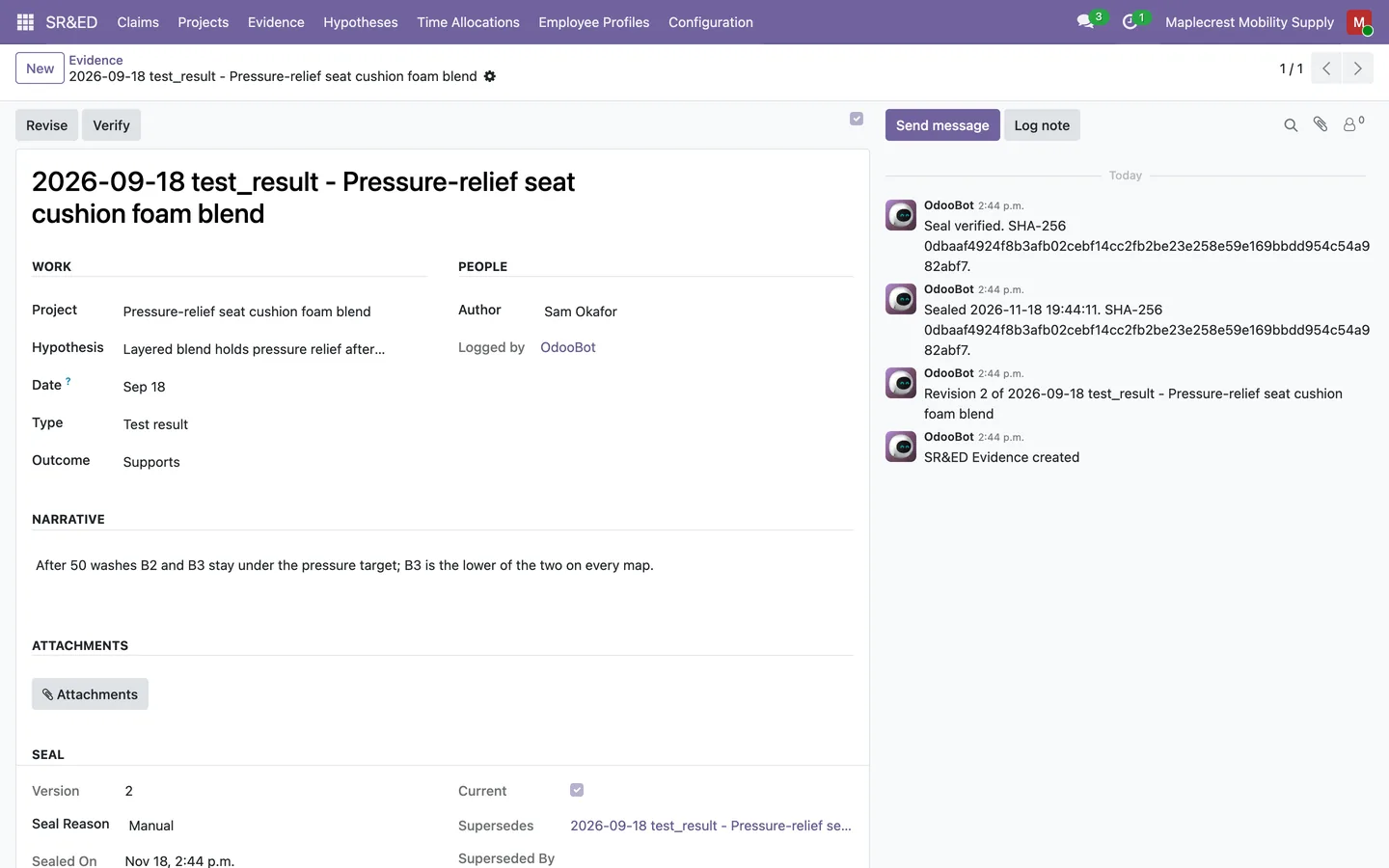
An entry is sealed with a SHA-256 fingerprint and can no longer be edited. "Revise" makes a new version linked to the old one, and "Verify" checks it still matches its seal.
SR&ED > Evidence
Time, people and salaries
Time is recorded as each person's share of a month on each project, and salaries come from a payroll export.
-
Timesheets roll up
Once a month, timesheet hours on the project linked to an SR&ED project become approved time allocations.
SR&ED > Time Allocations
-
Attest time
The "Attest Time" screen suggests each month's time from timesheets or last month, and records who attested, when and the statement they confirmed.
-
Import a payroll export
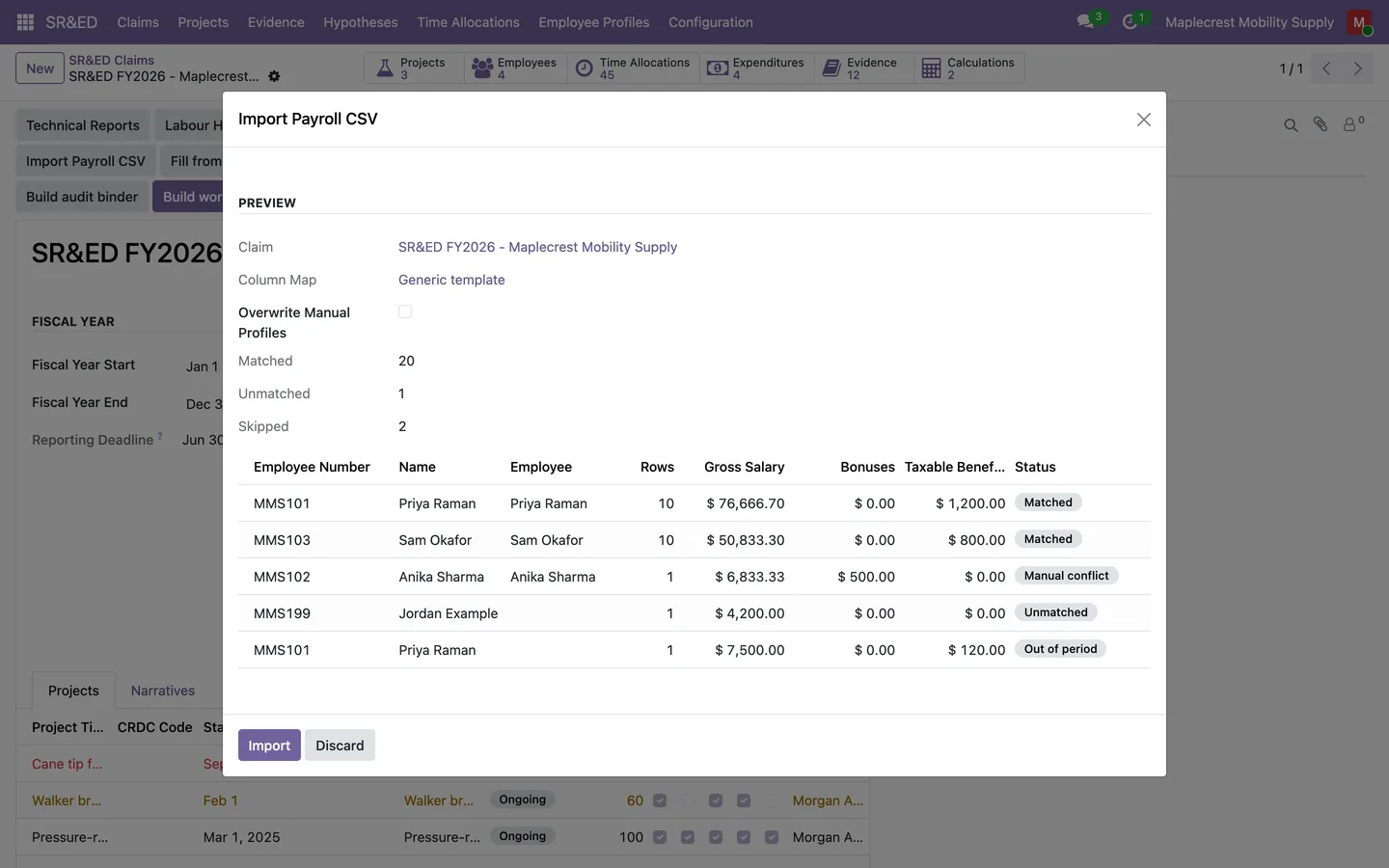
"Import Payroll CSV" previews each person as Matched, Unmatched, Out of period or Manual conflict, and fills salaries only on the matched profiles.
SR&ED > Claims > Import Payroll CSV
Costs, credit and narratives
Tag the bills to projects, compute the credit from the year's rate tables, and draft the T661 lines from the sealed evidence.
-
Tag the bills
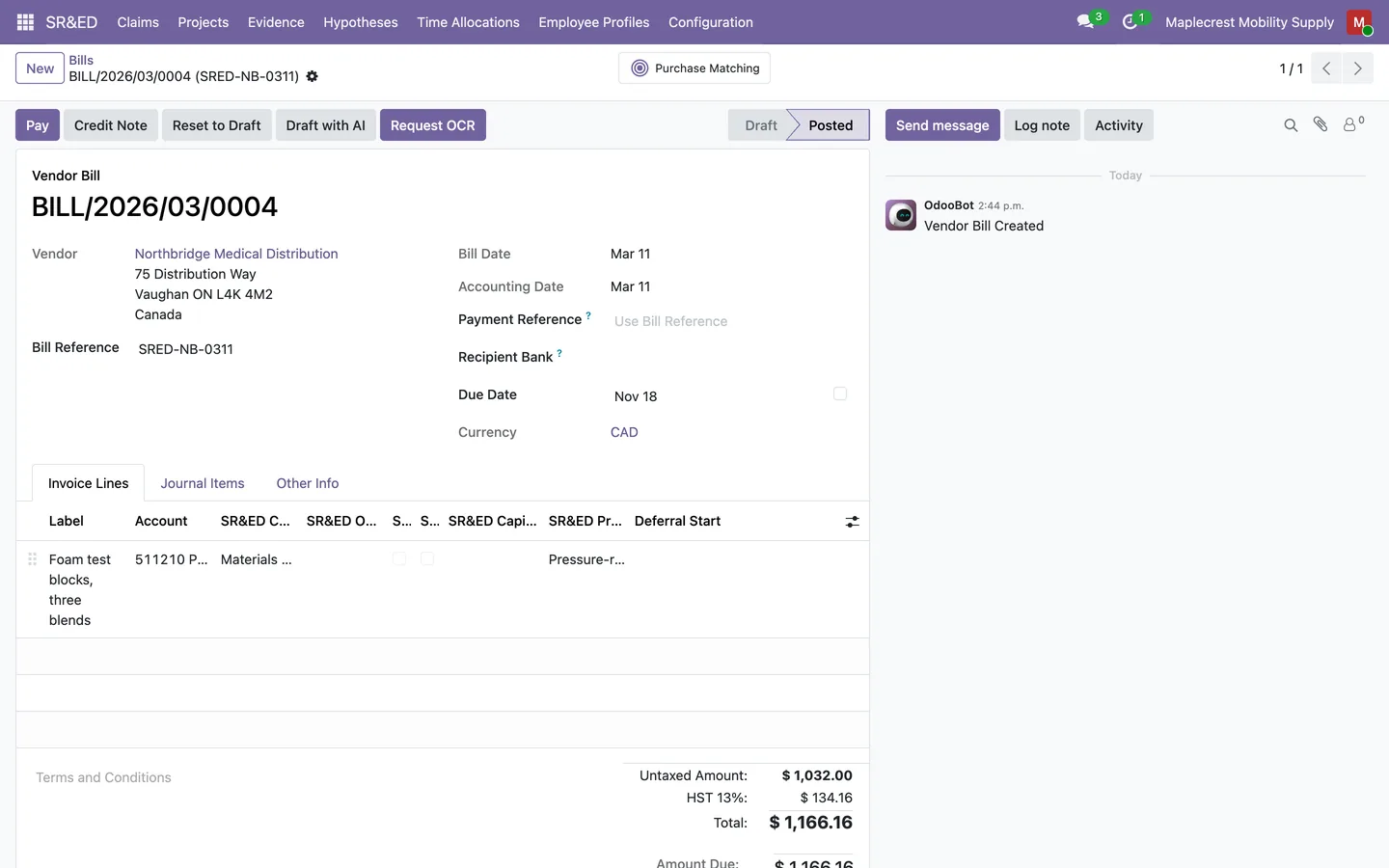
Vendor bill lines carry an SR&ED category and the SR&ED project read from the line's analytic distribution, and the category fills in from the vendor.
Invoicing > Vendors > Bills
-
Compute and review the credit
"Compute credit" rebuilds the expenditures from posted, tagged bill lines and saves a numbered calculation with the federal and provincial credits, which a manager reviews.
SR&ED > Claims
-
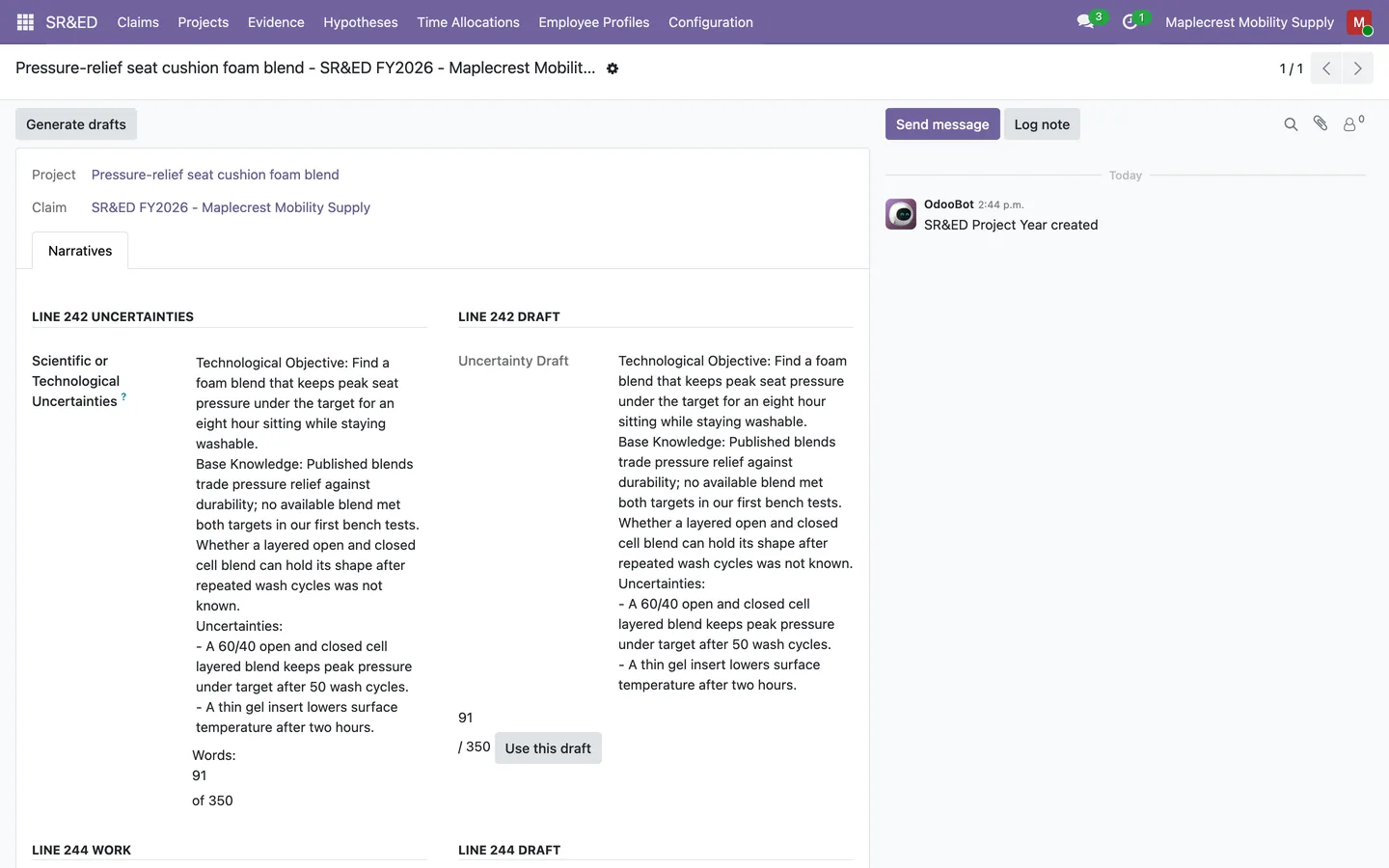
Draft the narratives
"Generate drafts" writes T661 lines 242, 244 and 246 from the project plan, the hypotheses and the sealed evidence, without any AI service, inside the word limits.
SR&ED > Claims > Narratives
-
Clear the reviewer checks
The "Reviewer checks" tab lists open questions such as trials without an outcome or contractors without a business number.
Approve, file and track the refund
A manager approves the claim, the files for the accountant are built, and filing, assessment and refund are recorded.
-
Submit and approve
Submitting a claim seals every open entry. "Approve" needs a reviewed calculation, a complete preparer section and narratives within their limits, and posts the refundable credits to an ITC receivable.
SR&ED > Claims
-
Build the files
"Export accountant CSV", "Build workpaper package", "Build audit binder" and "Export SR&ED Submission Package" produce the files for the accountant and the filing.
-
Mark as filed
"Mark as filed" records the filing date, and the Filing tab keeps the e-file confirmation number and who filed.
-
Assessment and refund
"Record assessment" stores the notice of assessment amounts, and "Record refund" matches the refund to a bank line and clears the receivable.
What it does
 Claims, projects and deadlines
- Each company keeps one SR&ED claim per fiscal year, with its province, overhead method (proxy or traditional) and claimant type.
- The reporting deadline is worked out from the fiscal year end and the federal rate table, and the claims list and kanban mark each claim On track, Approaching, Urgent or Passed.
- Each project carries its T661 project ID, field code, dates, key individuals and Section A and C answers, and gets its own analytic account in the SR&ED analytic plan when it is created.
- A project plan tab records the technological objectives, existing knowledge, challenges, work plan and documentation plan in the shape of the SRED1 worksheet.
- A daily readiness score out of 100 checks each project for an open uncertainty, recent evidence, time this year, tagged costs and a conclusion, and a "Needs attention" filter lists the weak ones.
- Once a month the project owner gets a to-do when an ongoing project has no evidence in 30 days, no time for last month or a readiness score below 100.
 Evidence and experiments
- Evidence entries record the project, hypothesis, date of the work, author, type, outcome and attachments, with types for trials, test results, observations, design changes, meetings, photos, outside references and conclusions.
- An entry is sealed 24 hours after it is logged by default, or straight away with "Seal", and the seal stores a SHA-256 fingerprint of its content and attachment checksums on the record and in the chatter.
- A sealed entry cannot be edited or deleted, and "Revise" creates a new version that links back to the one it replaces.
- "Verify" recomputes the fingerprint and says whether the sealed entry still matches it.
- "Log SR&ED Evidence" in the Action menu of a vendor bill, and of a manufacturing order when Manufacturing is installed, opens a short form with that record linked as the source.
- Hypotheses track each uncertainty as Open, Confirmed, Rejected or Abandoned, with the expected outcome and an SRED3 design of experiment covering variables, controls, the plan and duplicate samples.
- The evidence binder PDF lists each current entry with its narrative, outcome, seal date, seal fingerprint and attachment checksums, for one project or for every project on a claim.
 Time, people and salaries
- Time is recorded as each employee's share of a month on each project, and one employee's effective total for a month cannot go over a full month.
- Once a month, timesheet hours on the Odoo project linked to an SR&ED project become approved time allocations, counted against a default of 160 hours a month.
- The "Attest Time" screen suggests each month's time from timesheet hours or last month's attestation, locks lines already covered by timesheets, and records who attested, when and the statement they confirmed.
- Employee profiles on each claim hold the role, personnel category, qualification, salary, bonuses, taxable benefits and salary unpaid after 180 days, and work out each person's SR&ED share from their time allocations.
- Owners are flagged as specified employees from their recorded ownership, with a manual override and manager-only fields for associated corporations.
- "Import Payroll CSV" reads a payroll export through a saved column map, previews each person as Matched, Unmatched, Out of period or Manual conflict, and fills salaries only on the matched profiles.
 Costs and the credit
- Vendor bill lines carry an SR&ED category, overhead details and the SR&ED project read from the line's analytic distribution.
- "Compute credit" rebuilds the claim's expenditures from posted, tagged bill lines in the fiscal year at their analytic share, and keeps the building and new-property decisions already made on each row.
- Each calculation is saved as a numbered version with the federal, Ontario and other provincial credits, a fingerprint of its inputs, the line-by-line results and a written trace.
- "Running estimate" works out the credit to date during the year, and an estimate can never be marked reviewed.
- Rates, limits and the deadline come from rate tables keyed by tax year start for federal, Ontario, British Columbia, Manitoba, New Brunswick, Newfoundland and Labrador, Nova Scotia, Saskatchewan, Yukon and Quebec credits, with YMPE values from 2020 to 2026.
 Narratives and output files
- "Generate drafts" writes T661 lines 242, 244 and 246 for a project and claim year from the project plan, the hypotheses and the sealed evidence dated in that year, citing each entry by number, without any AI service.
- Drafts stay inside the 350, 700 and 350 word limits and say how many entries were left out, and "Use this draft" copies a draft only into an empty field.
- The "Reviewer checks" tab lists open questions such as trials without an outcome, key individuals without qualifications, contractors without a business number and a missing technical contact.
- "Export accountant CSV" downloads a zip with the T661 lines, employees and projects as CSV files plus one Excel workbook.
- "Build audit binder" zips the workpapers, the CSV files, the calculation trace, each project's evidence PDF and time allocations, and every evidence attachment.
- "Export SR&ED Submission Package" builds one zip with technical reports, labour hours and costing workbooks, a filing summary, copies of the supporting vendor bills with an index, and the SRED forms for each project, with a PDF beside every Word and Excel file.
 Approval, filing and after
- A claim moves through Open, In Review, Approved, Filed, Assessed, Paid and Closed, and only an SR&ED manager can move it.
- "Approve" refuses a claim without a reviewed calculation, a complete T661 Part 9 preparer section, narratives within their word limits and the company's SR&ED accounts.
- Approval posts the refundable credits to an SR&ED ITC receivable from the Receiver General for Canada, shown as other income or as a reduction of the related expense, and records the carryforwards.
- "Mark as filed" records the filing date and notes in the chatter when it is past the reporting deadline, and the Filing tab keeps the e-file confirmation number and who filed.
- "Record assessment" stores the notice of assessment amounts, interest and the notice file, and posts any difference against the receivable.
- "Record refund" matches the refund to a bank statement line or a direct deposit, takes amounts CRA applied to other accounts, and clears the receivable with any difference posted.
What's new
Recent changes to Fusion SR&ED, newest first.
-
- A new payroll or payslip column map now starts empty instead of failing when it is created.
-
- Printed SRED2 answers now say when nothing is recorded, and SRED5 amounts print as money.
-
- The Ontario R&D tax credit is now worked out on the Ontario base less the same year's Ontario innovation tax credit.
- Print buttons on the claim, project, hypothesis and evidence forms produce each package document as a laid-out PDF, and the submission package carries a PDF beside every Word and Excel file.
- The new "Export SR&ED Submission Package" button builds the technical reports, workbooks, filing summary, invoices and SRED forms in one zip.
- Claims now keep the e-file confirmation number, who filed and a log of CRA reviews.
Related modules
 Fusion Payroll - Canada
Canadian payroll that runs inside Odoo, from pay run to T4.
 Fusion CRA Account Ledger
New
Your CRA payroll, GST/HST and corporate accounts, line by line, matched to your bank and your books.
 Fusion Accounting
New
Accounting for Odoo Community: bills, bank, invoicing, reports, Canadian tax and assets in one suite.
See Fusion SR&ED on your own Odoo.
Book a call and tell us how your team works today. We'll show you the module and what it would take to set it up. Prefer the phone? Call 905-792-0000.