
Fusion WooCommerce
Orders, products, prices and stock kept in step between WooCommerce and Odoo.
Import WooCommerce orders into Odoo sales orders and match or create the customer. Map products and synchronize product prices in either direction.
- Odoo 19
- Version 19.0.3.0.0
Fusion WooCommerce, step by step
3 workflows, 9 steps. Every screen is real, from a demo company with invented data.
Connect the store
Each WooCommerce store is an instance in Odoo with its keys, what to sync and how often.
-
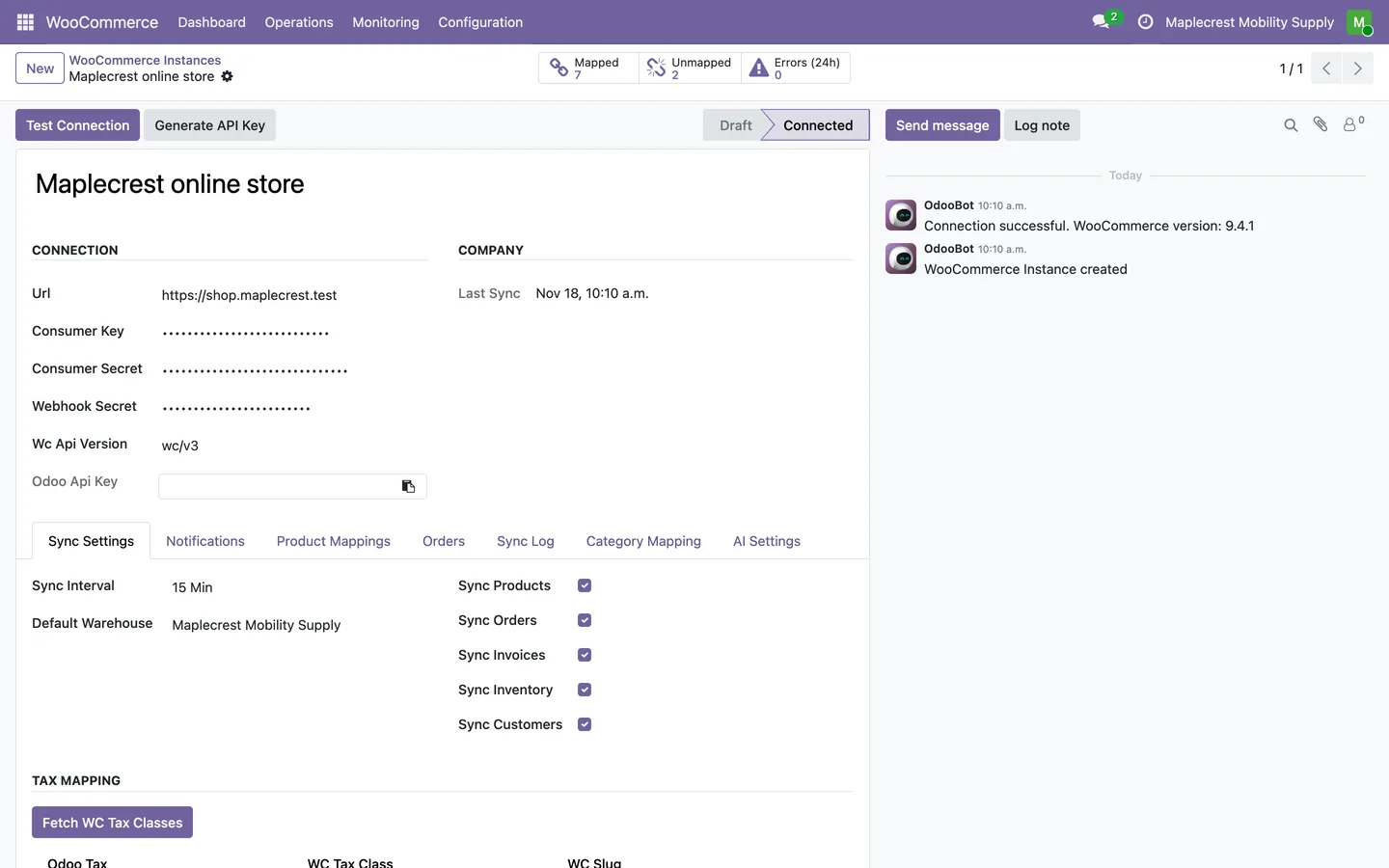
Add the store
An instance holds the store address, the WooCommerce keys and webhook secret, the sync interval, the warehouse for web orders and which kinds of data sync. Test Connection marks it Connected.
WooCommerce > Configuration > Instances
-
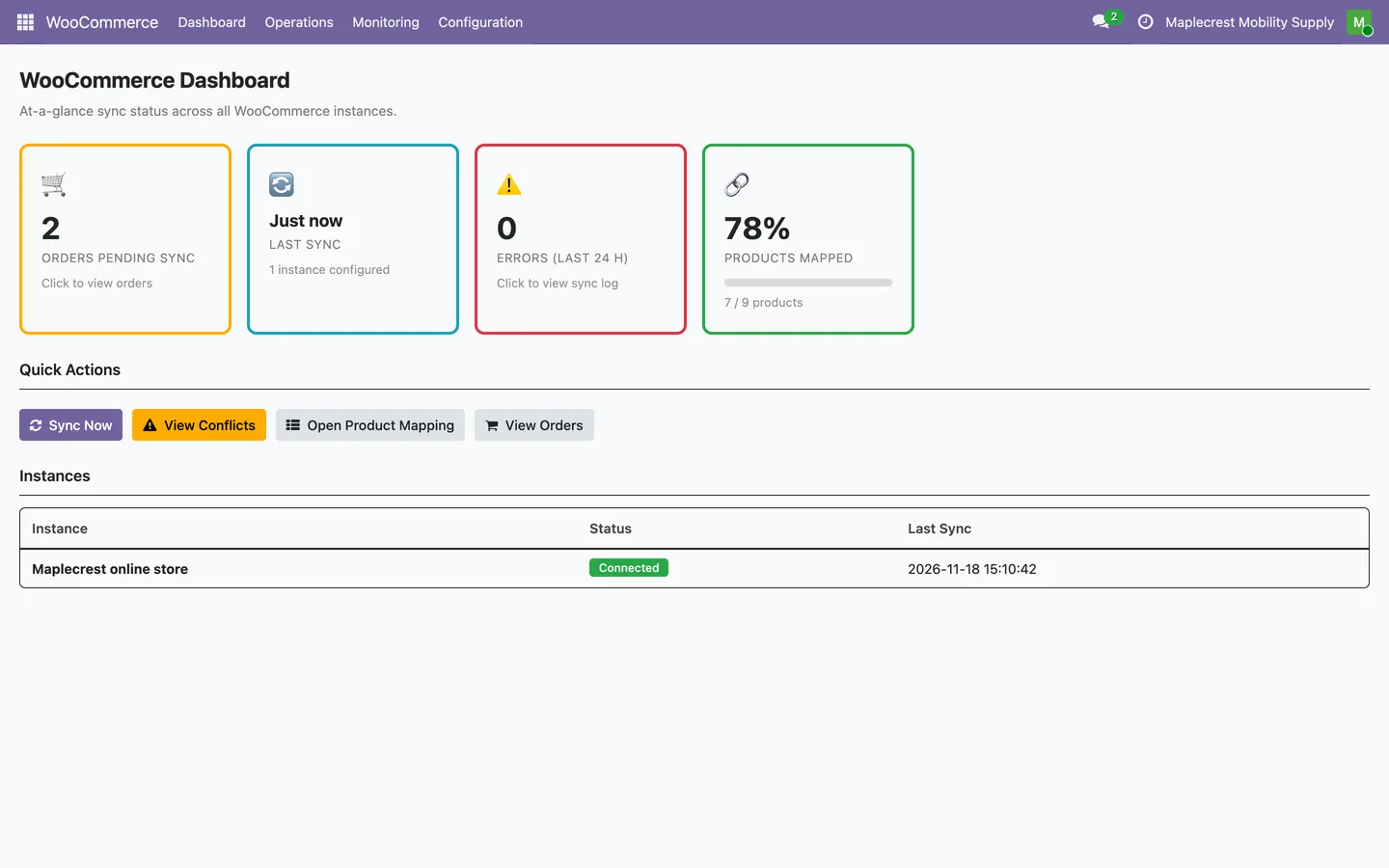
Watch it from the dashboard
The dashboard shows orders waiting, the last sync, errors in the last 24 hours and how many products are mapped, with Sync Now and quick links.
WooCommerce > Dashboard
Keep products and prices in step
Store products are matched to Odoo products by SKU, prices are compared side by side, and a price changed on both sides waits for a person.
-
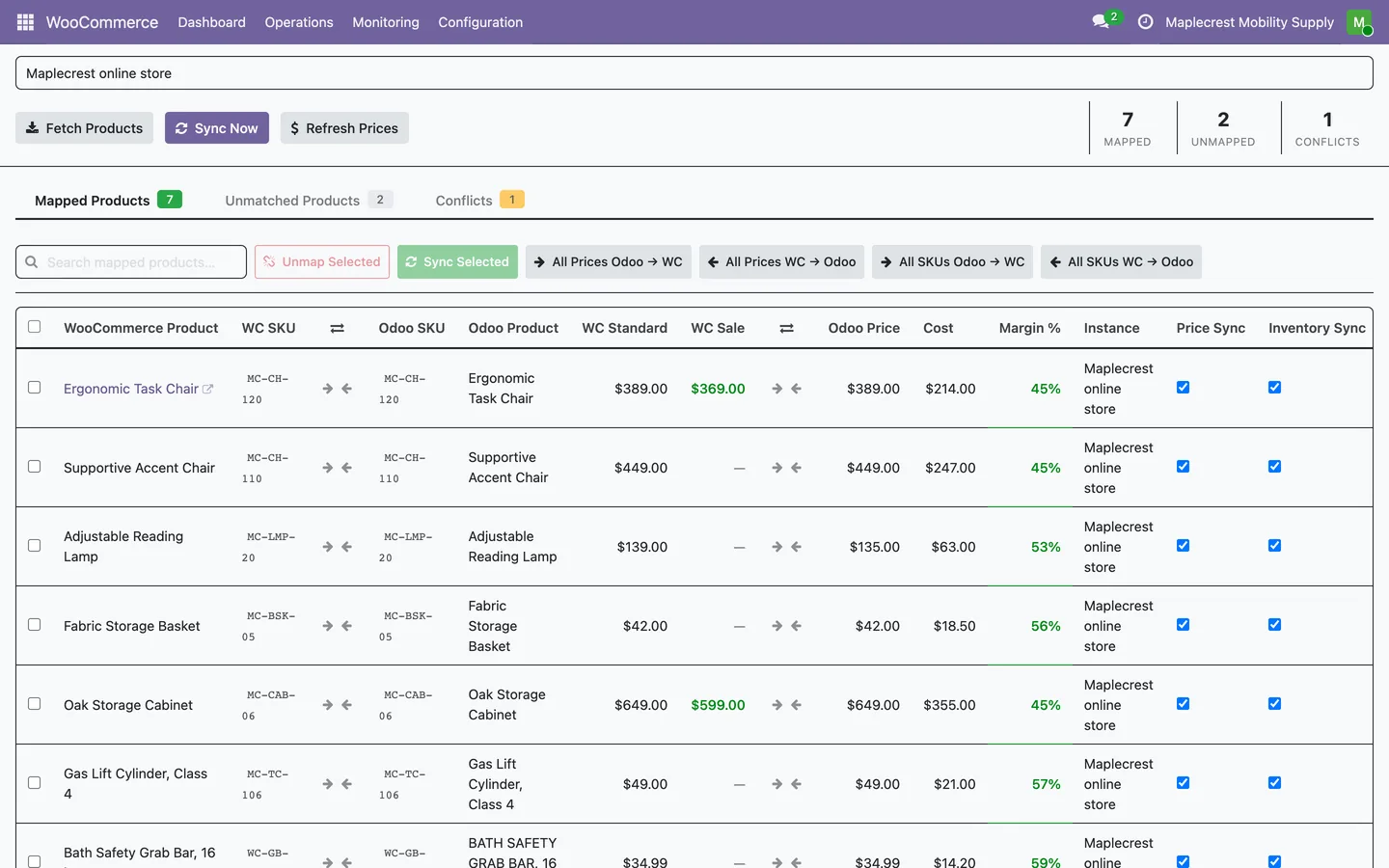
Products matched by SKU
Fetch Products matches the store's products to Odoo by SKU. The mapping screen shows the store's regular and sale price beside the Odoo price, cost and margin.
WooCommerce > Operations > Product Mapping
-
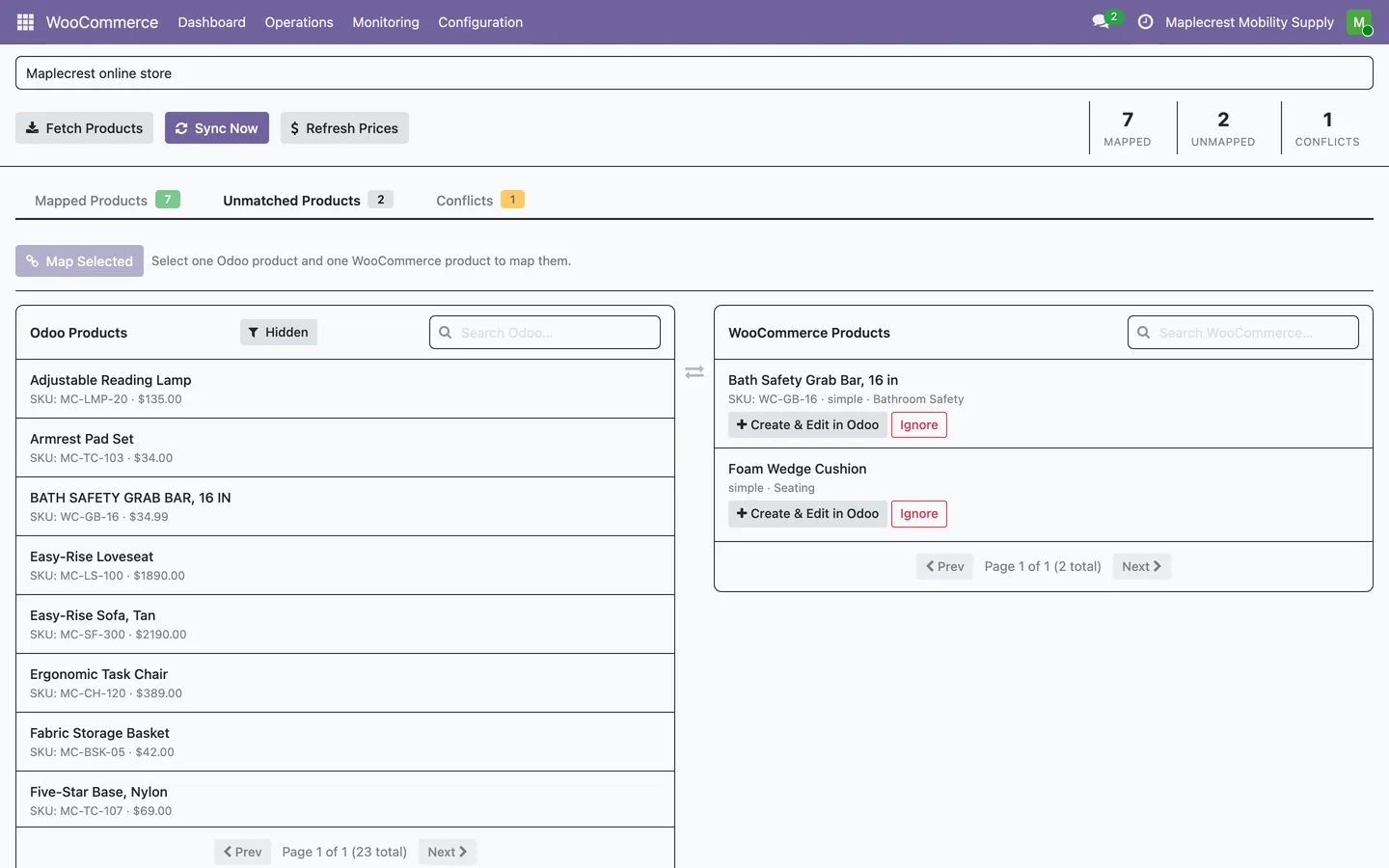
Map the rest by hand
Store products without a matching SKU wait beside the Odoo products. Pick one of each and Map Selected, create it in Odoo, or ignore it.
Product Mapping > Unmatched Products
-
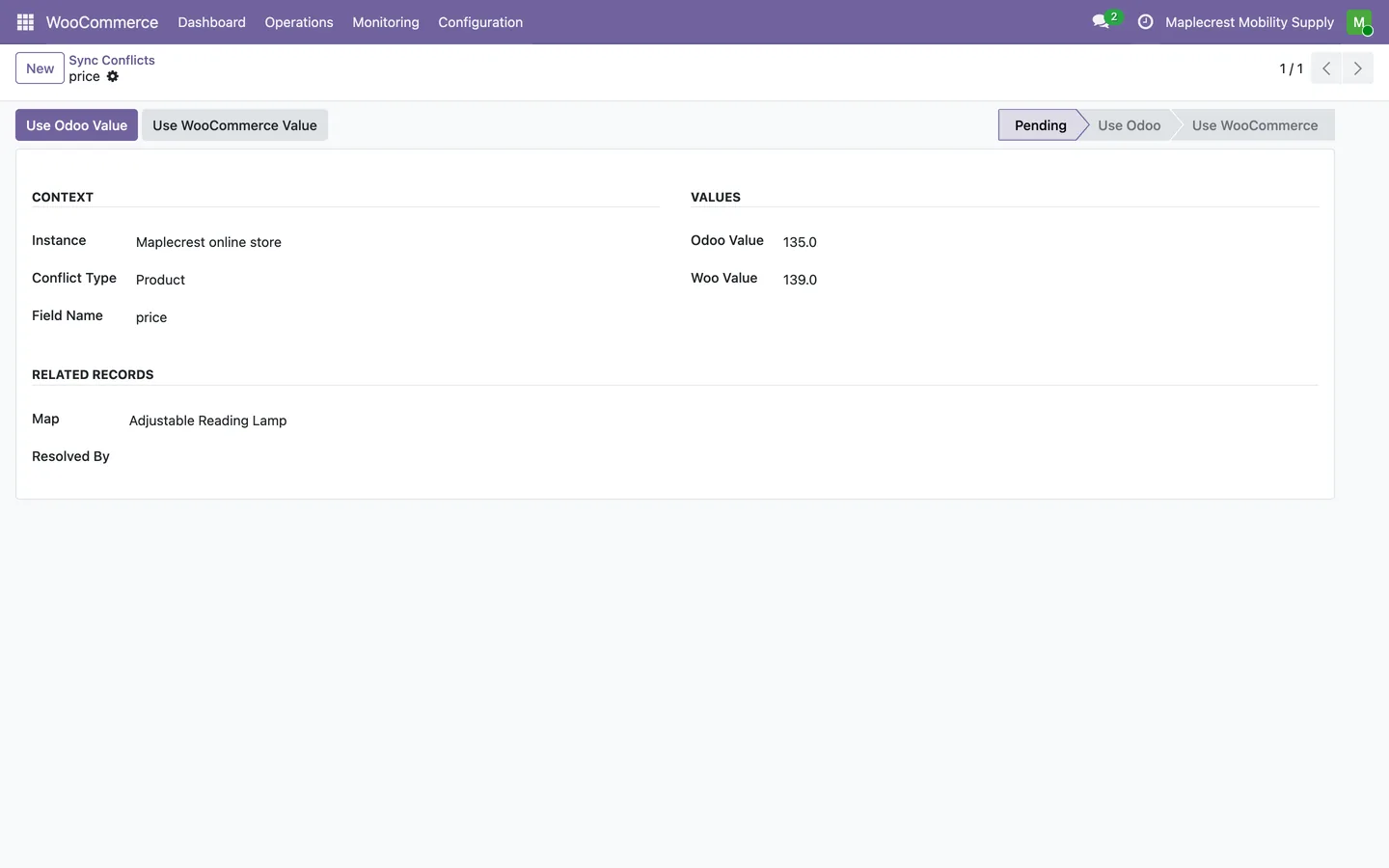
Settle a price conflict
A price changed in Odoo and in the store since the last sync becomes a conflict instead of being overwritten. Use Odoo Value or Use WooCommerce Value settles it.
WooCommerce > Monitoring > Conflicts
A web order from cart to doorstep
A store order becomes a confirmed Odoo sales order with a draft invoice, and the tracking number goes back to the store when it ships.
-
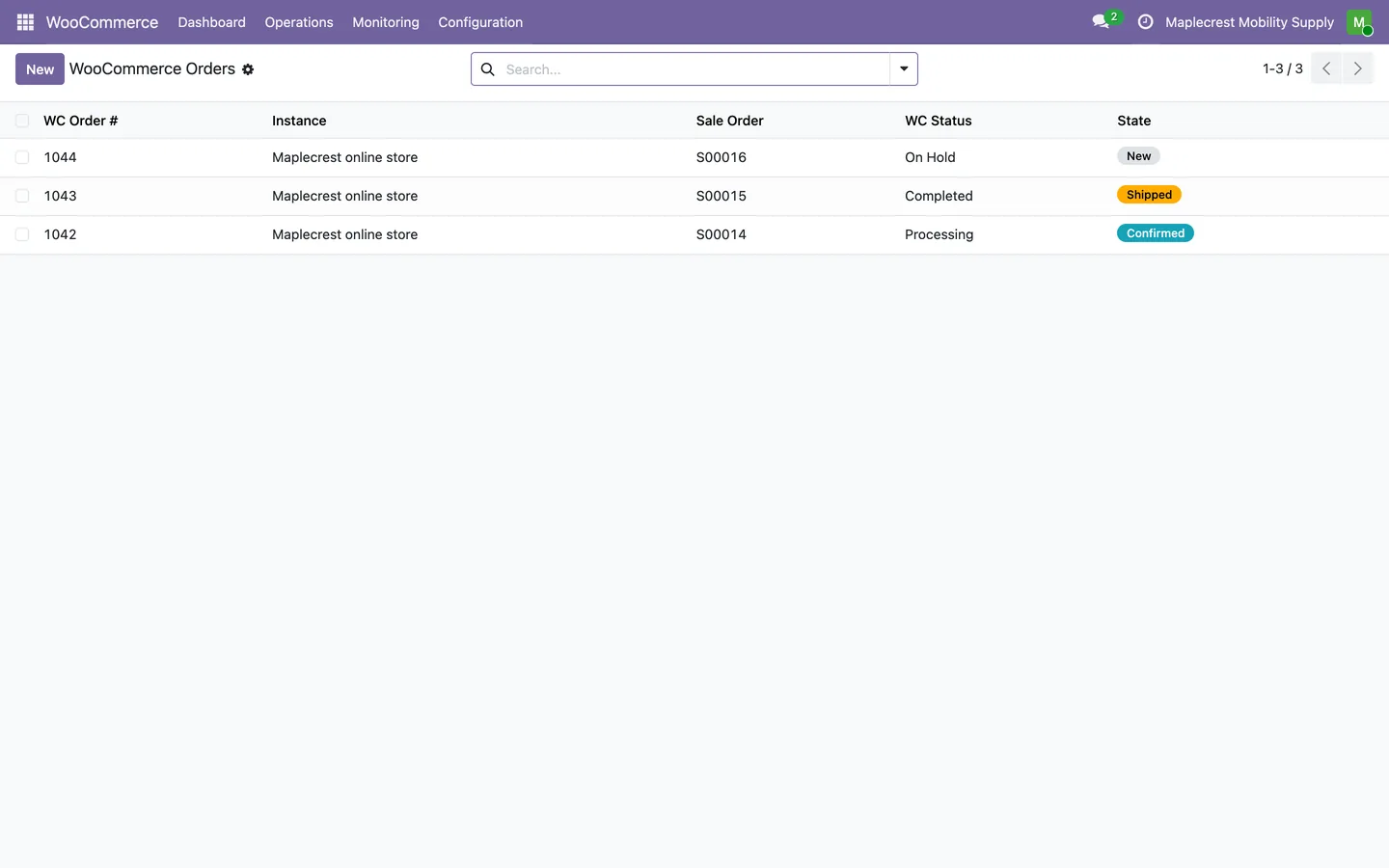
Orders arrive
Each store order becomes a record linked to its Odoo sales order, with the WooCommerce status and an Odoo state.
WooCommerce > Operations > Orders
-
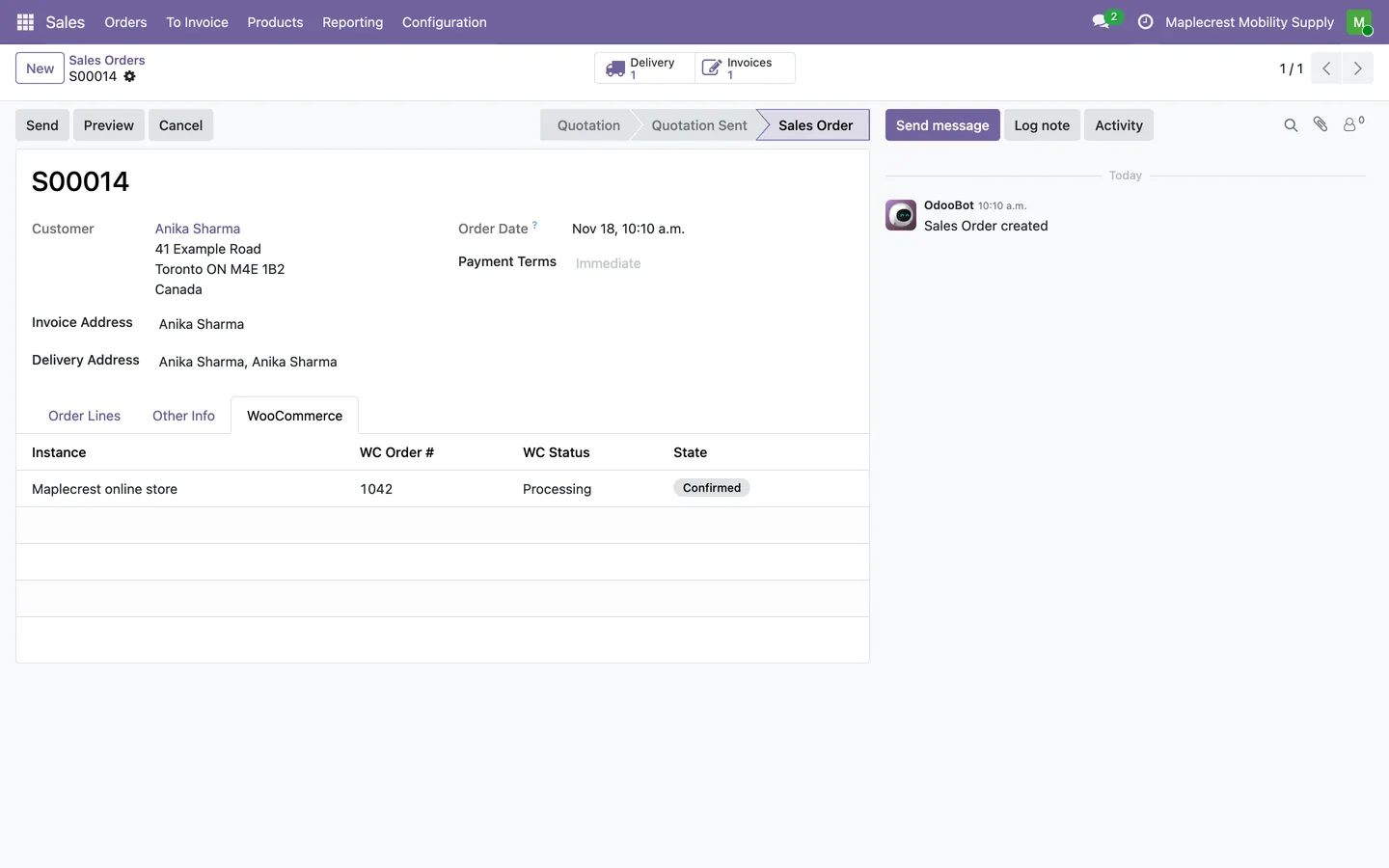
A normal Odoo sales order
The customer is matched by email or created with their address, the order is confirmed with its shipping line and gets a draft invoice.
Sales > Orders > Orders
-
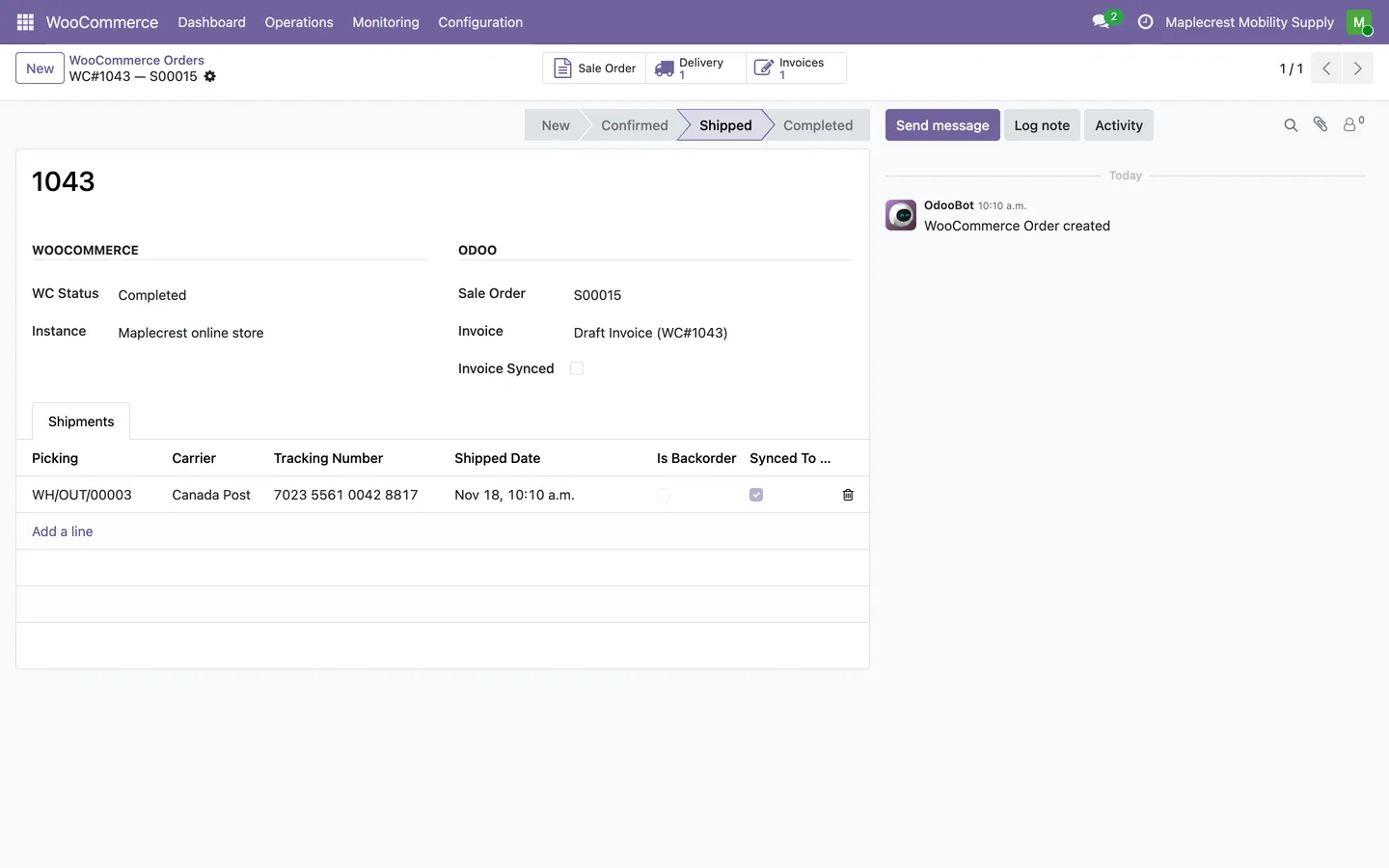
Shipped, and the store is told
Validating the delivery with a carrier and tracking number sends the tracking to the store and marks the order Completed there and Shipped in Odoo.
WooCommerce > Operations > Orders
-
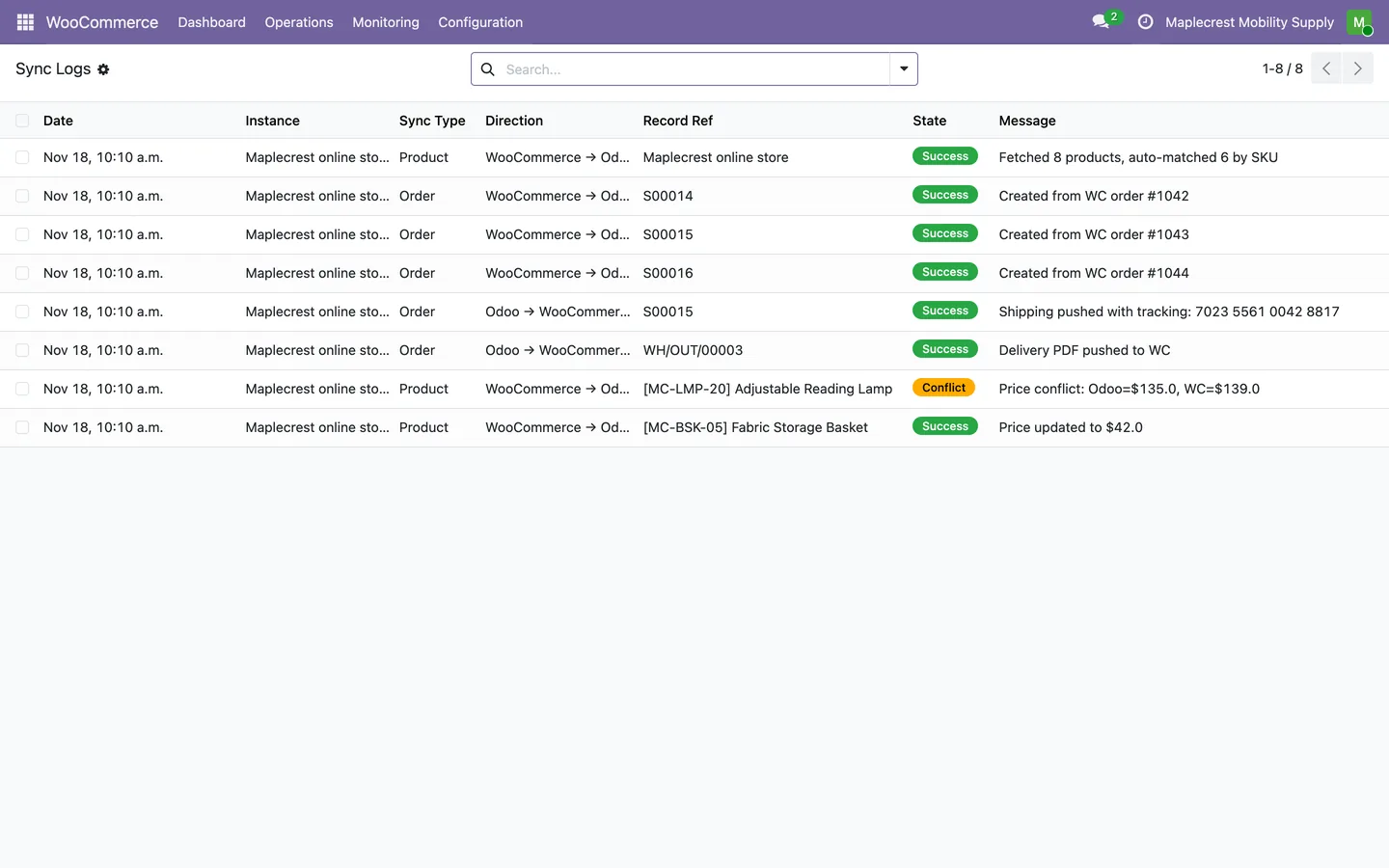
Every step in the sync log
The sync log lists each fetch, order, shipping push, price update and conflict with its direction and result.
WooCommerce > Monitoring > Sync Logs
What it does
 Connecting a store
- Each store is an instance with its address, WooCommerce API keys and a webhook secret, all hidden on screen, and a Test Connection button that marks it Connected.
- Choose per store what syncs (products, orders, invoices, inventory, customers), how often, and which warehouse ships web orders.
- WooCommerce tells Odoo about new orders, product changes and customers straight away through signed webhooks, and scheduled jobs catch up every 5 to 30 minutes.
- A dashboard shows orders waiting, the last sync, errors in the last 24 hours and the share of products mapped, with Sync Now and quick links.
- Every sync step is written to a sync log with its direction and result, and chosen users get an email when a sync fails.
 Products and prices
- Map products and synchronize product prices in either direction.
- Fetch Products brings in the store's products and matches them to Odoo products by SKU; the rest wait under Unmatched Products to be mapped by hand or created in Odoo.
- The mapping screen shows the store's regular and sale price beside the Odoo price, cost and margin, with per-product and bulk buttons to push prices or SKUs either way.
- Resolve conflicting values by choosing the Odoo or WooCommerce version, individually or in bulk.
- A price changed on both sides since the last sync becomes a conflict instead of being overwritten.
- Publish Odoo stock quantities to connected WooCommerce stores.
- Create WooCommerce variations from Odoo product variants.
- A four-step wizard creates a WooCommerce product from an Odoo product (basic info, images, content and SEO, review), and can draft the titles and descriptions with Claude or OpenAI when an AI key is set.
 Orders, shipping and returns
- Import WooCommerce orders into Odoo sales orders and match or create the customer.
- An imported order brings its shipping and fee lines, is confirmed, gets a draft invoice and carries the WooCommerce order number as its reference.
- Send shipment tracking and order completion status back to WooCommerce.
- Share invoice and delivery PDFs with WooCommerce through its companion endpoint.
- Process approved returns, receive returned items and create refund credit notes.
- Keep linked customer addresses in sync between Odoo and WooCommerce.
Related modules
 Fusion Shipping
Canada Post, UPS, FedEx and DHL Express set up in one Shipping app, with box-by-box Canada Post quotes.
 Fusion Inventory
Margins, brand pricing, a portal stock sheet for reps and stock shared between two Odoo databases.
 Fusion Bundles
New
Product options on your online store: choices, priced add-ons and conditions.
See Fusion WooCommerce on your own Odoo.
Book a call and tell us how your team works today. We'll show you the module and what it would take to set it up. Prefer the phone? Call 905-792-0000.