
Fusion Bundles
Product options on your online store: choices, priced add-ons and conditions.
Offer product choices as radio cards, pill buttons, dropdowns or checkboxes. Price options from a percentage of live component prices or a fixed add-on amount. Keep selected options as separate linked lines on carts, quotations and invoices.
- Odoo 19
- Version 19.0.1.1.0
- Newly listed
Fusion Bundles, step by step
2 workflows, 9 steps. Every screen is real, from a demo company with invented data.
Set up the choices
Each product gets its own option groups: fabrics, sizes, add-on products or delivery, priced the way you sell them.
-
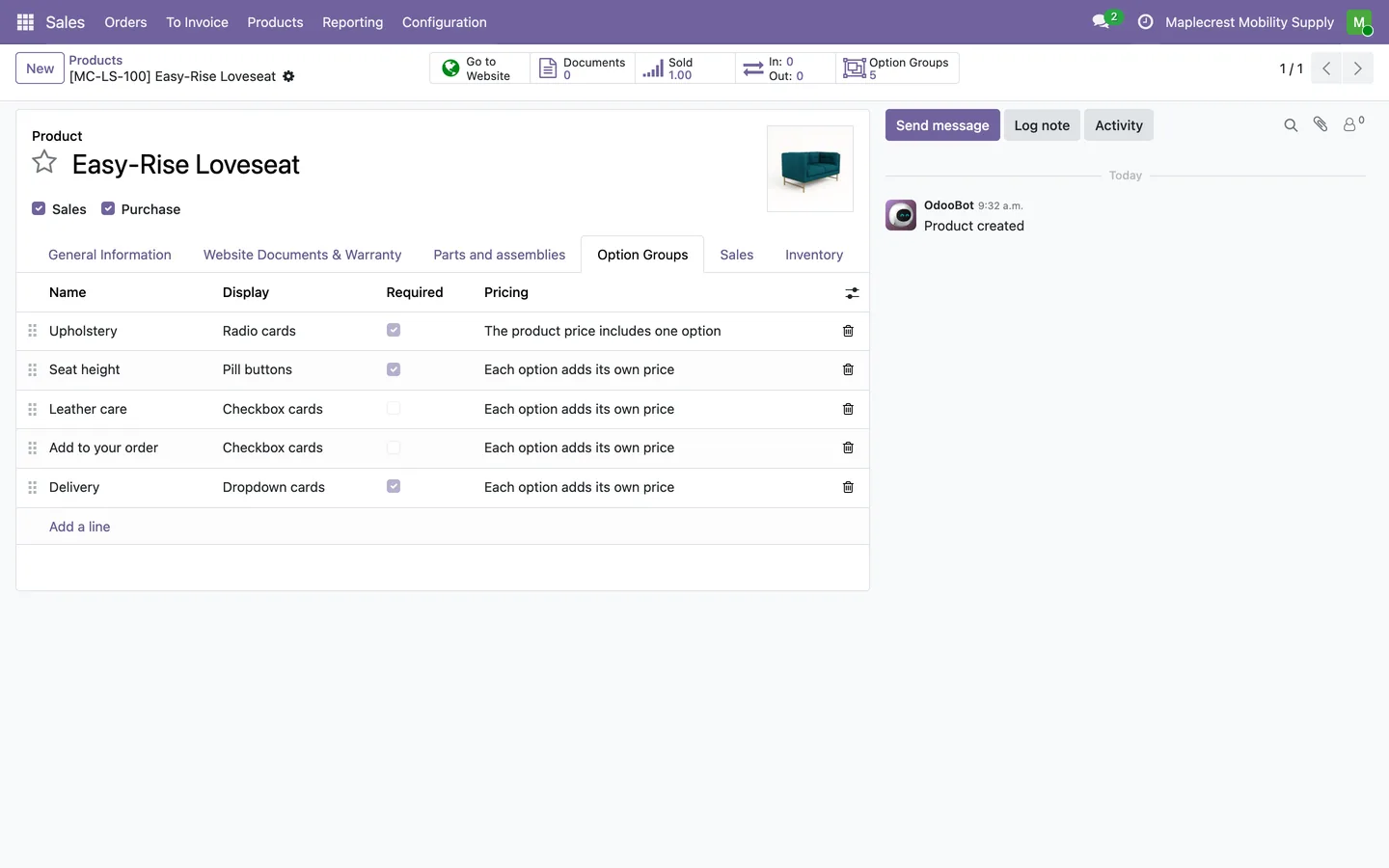
Open the Option Groups tab
The product form has an Option Groups tab listing each group with its display, whether a choice is required and how it is priced.
Sales > Products > Products > Option Groups
-
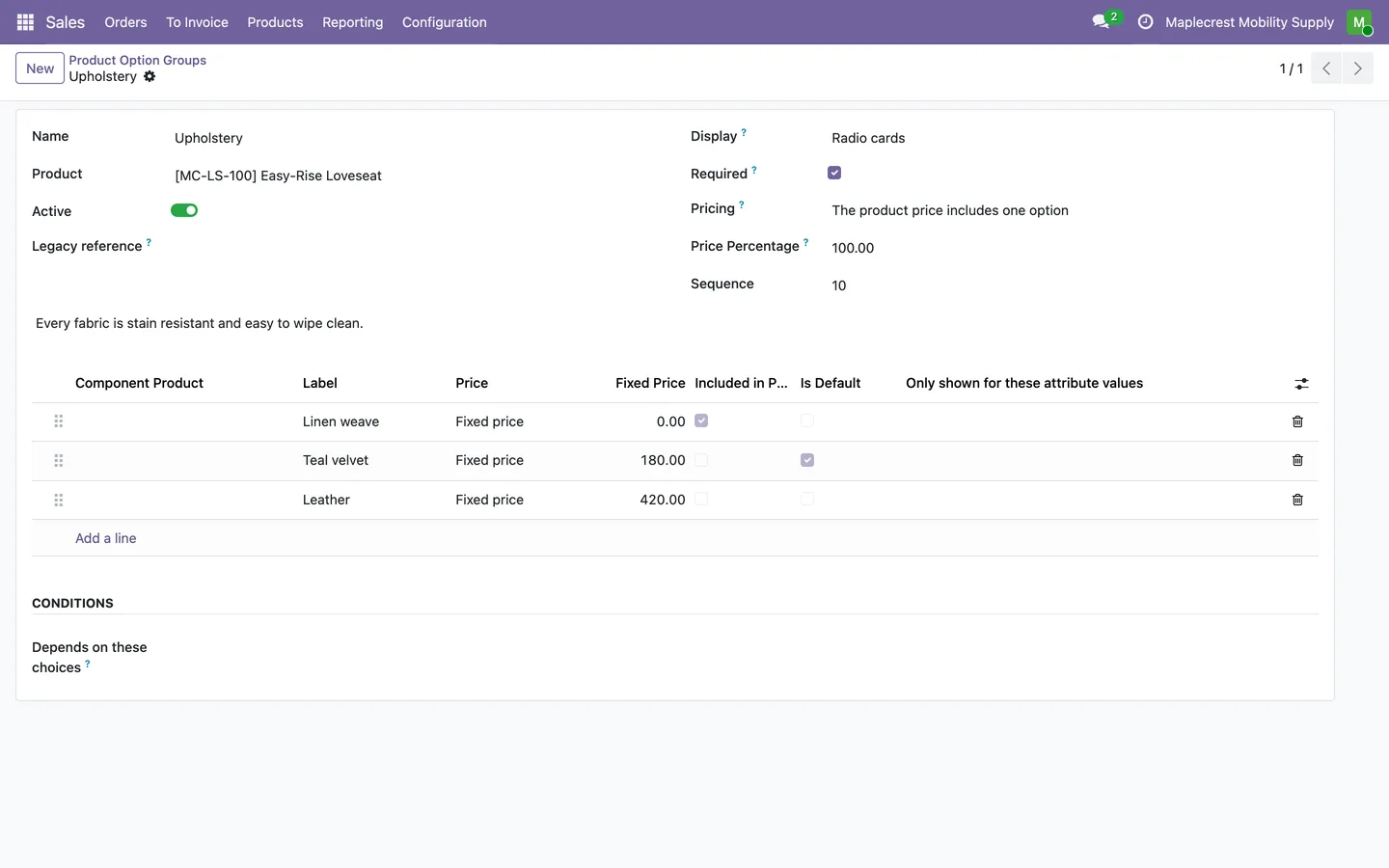
Build a group of choices
Pick radio cards, pill buttons, dropdown cards or checkbox cards. When the product price includes one option, the others are priced as the difference from it.
Sales > Configuration > Product Option Groups
-
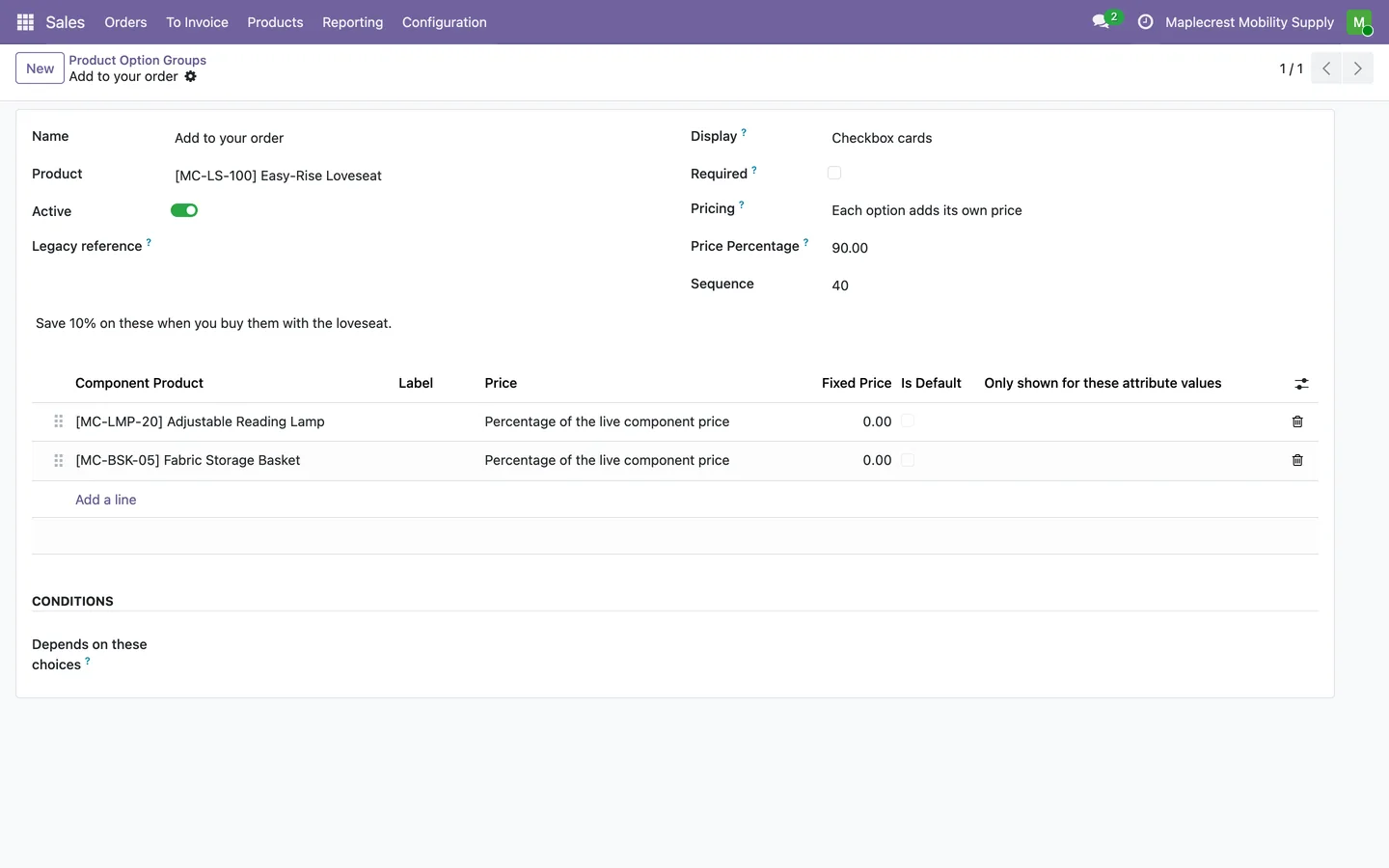
Sell real products as add-ons
An option can point at a real product, priced at a percentage of that product's live price, and it then sells on its own order line.
Sales > Configuration > Product Option Groups
-
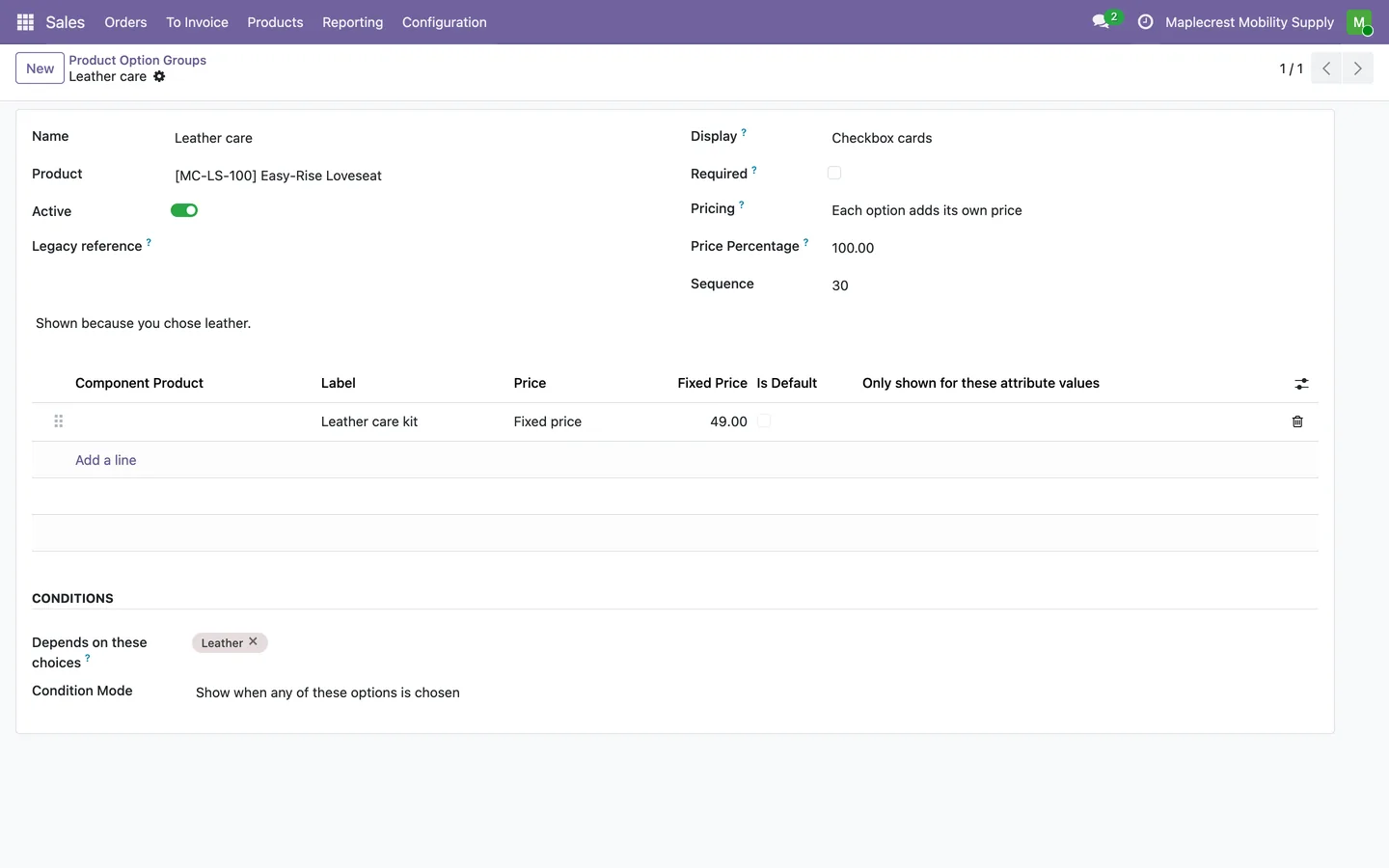
Show a group after a choice
Conditions show a group when any or all of the named earlier choices are picked, or hide it when any is picked.
Option group > Conditions
A shopper builds the order
On the website the choices sit above the cart button, the total keeps up, and every choice reaches the order as its own line.
-
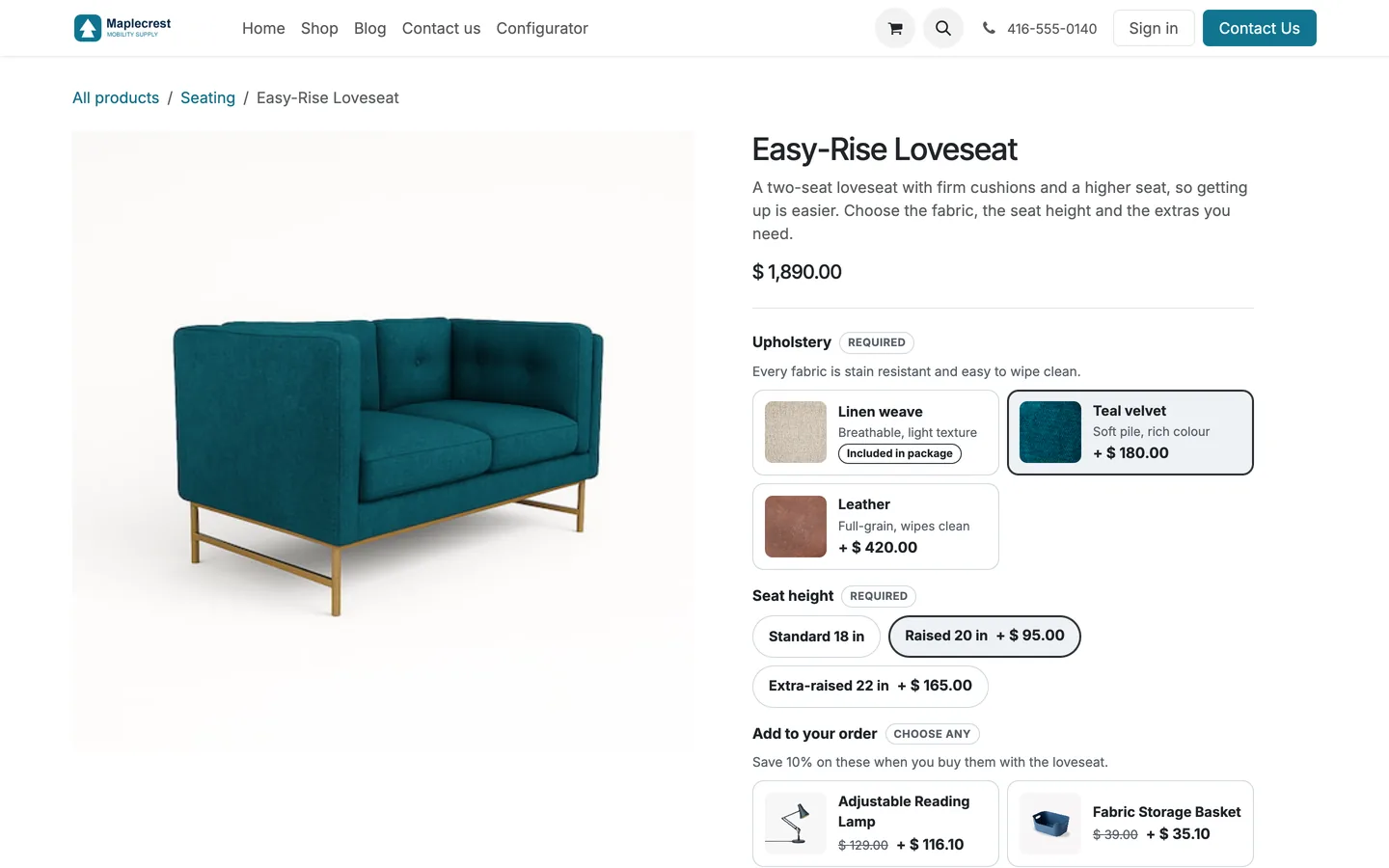
Choices on the product page
Each group shows as cards with a Required or Choose any label, the included option marked and the extra price on the others.
Website > Shop > product page
-
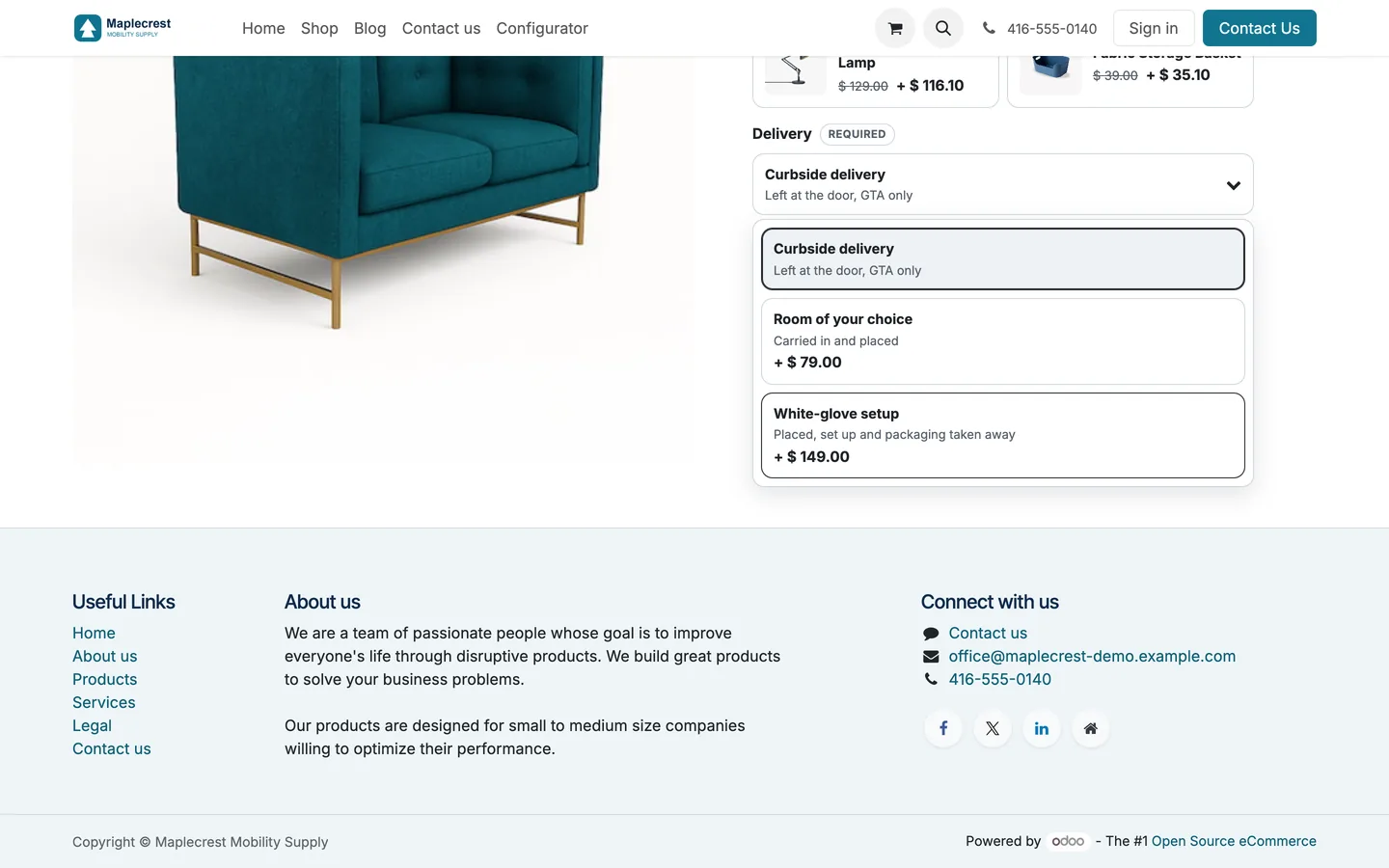
Pick from a dropdown
A dropdown group opens a panel of option cards, and the chosen card shows in the button.
-
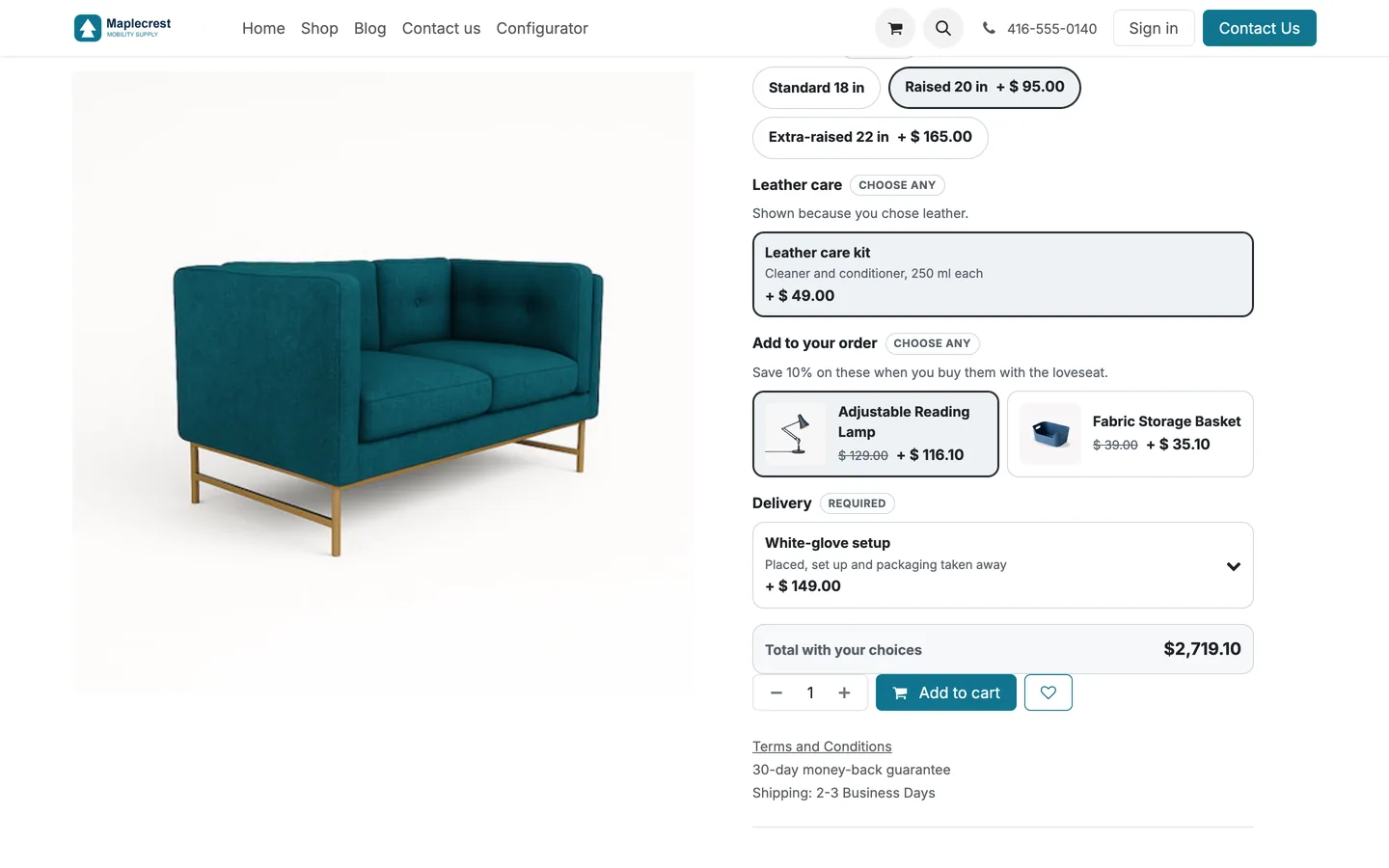
The total keeps up
Choosing leather reveals the Leather care group, add-ons show the regular price struck through, and "Total with your choices" adds everything up.
-
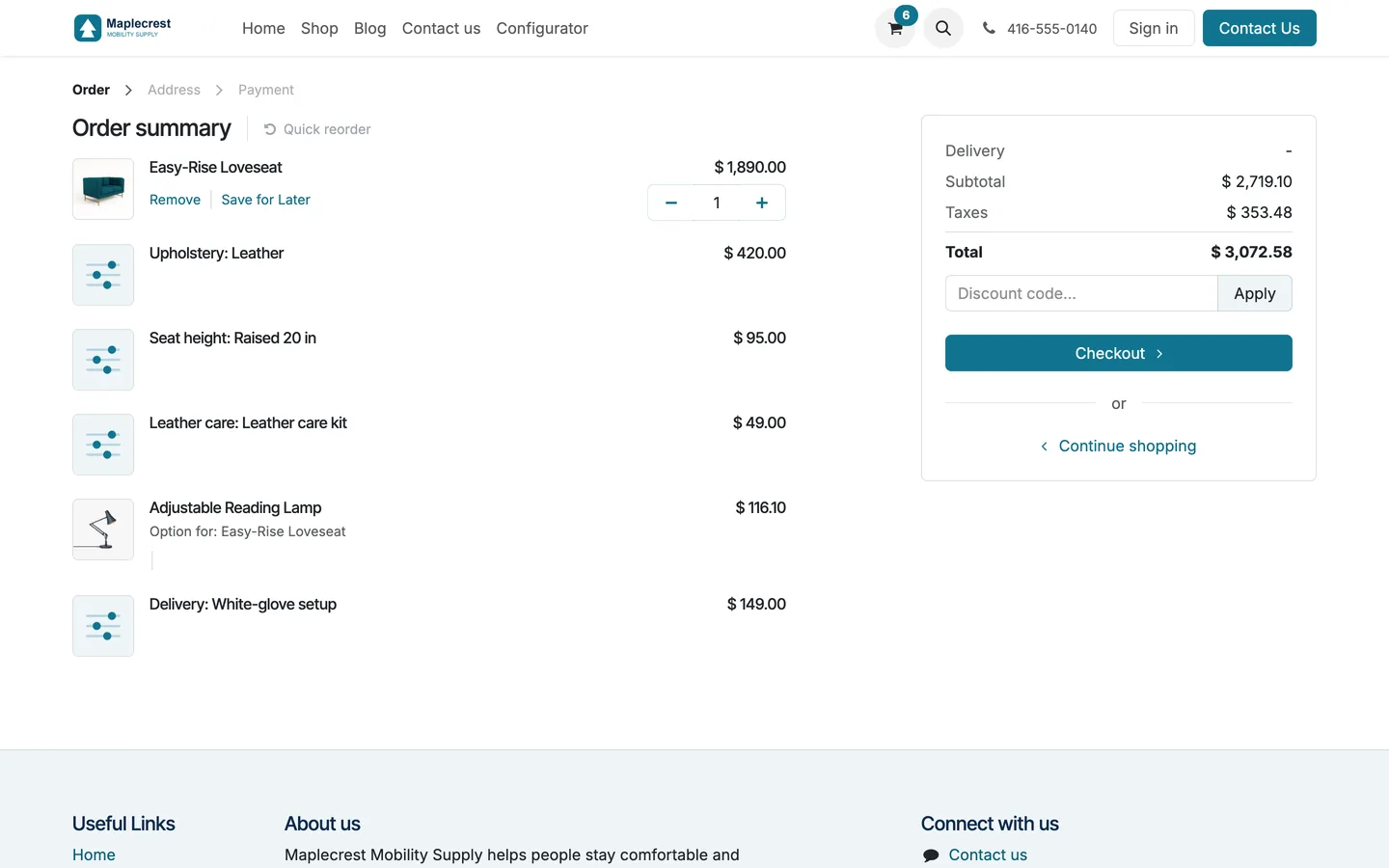
Each choice is a cart line
The server checks the choices again and adds each one as its own priced line linked to the product. Option lines go with their product.
Website > Cart
-
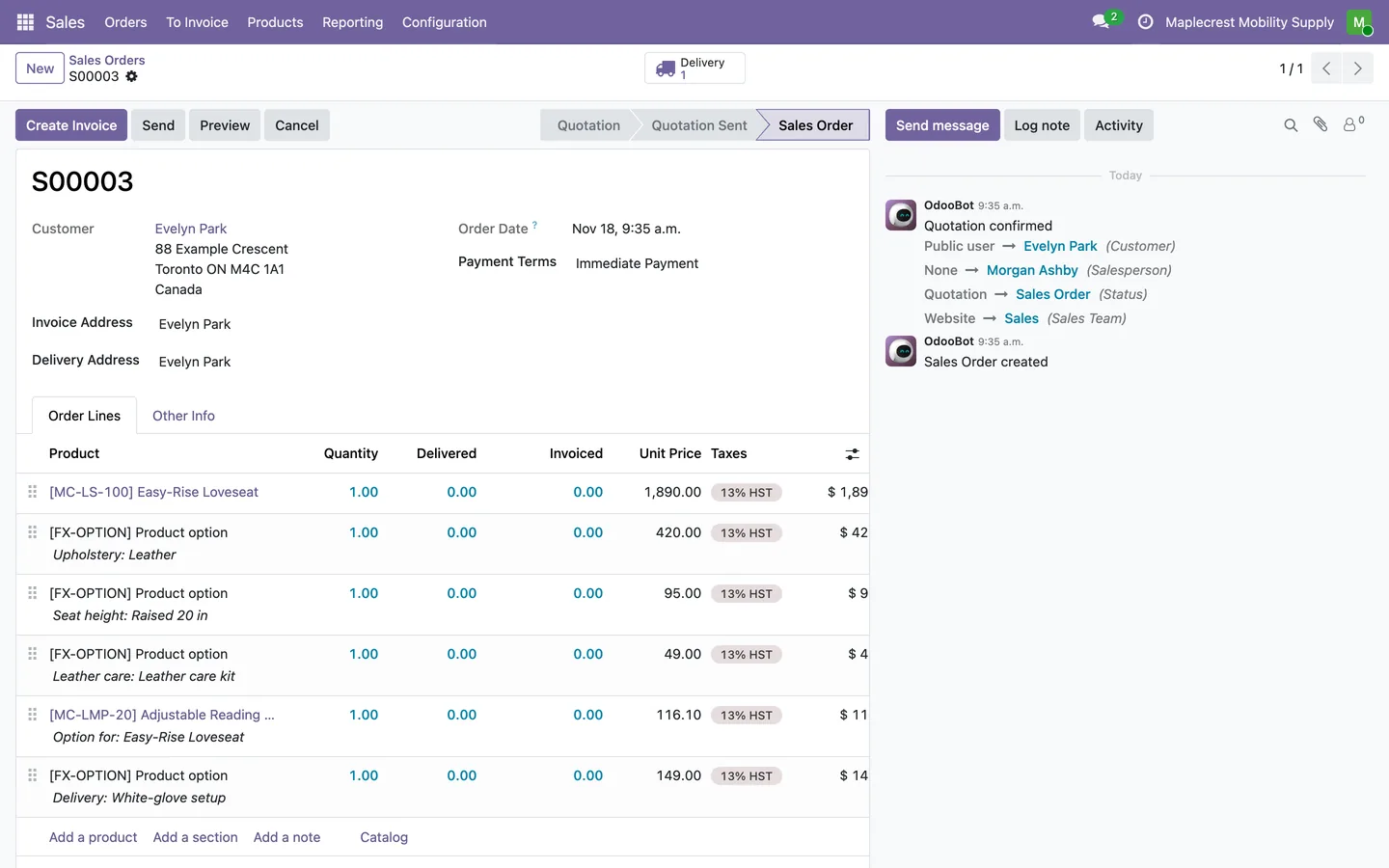
The order shows what was chosen
The sales order lists the product, each labelled choice as "Group: Label" and each add-on product, so the quotation and invoice match the cart.
Sales > Orders > Orders
What it does
 Choices on the product page
- Offer product choices as radio cards, pill buttons, dropdowns or checkboxes.
- Each option card shows a picture, a short description and the price difference, with the regular price struck through when a percentage price applies.
- Require a choice before the shopper can add the product to the cart.
- Show or hide later option groups according to earlier choices.
- Limit individual options to compatible product variants.
- A "Total with your choices" line on the product page keeps up as the shopper picks.
 Pricing
- Price options from a percentage of live component prices or a fixed add-on amount.
- Calculate upgrades as the difference from the package included option.
- Labelled add-ons sell on one shared "Product option" service product that is never offered on its own, where the shop can adjust the taxes and income account.
 Cart and orders
- Keep selected options as separate linked lines on carts, quotations and invoices.
- When the product goes in the cart, the server checks every choice again and prices each option line itself.
- Option lines follow their product: they cannot be changed on their own and are removed with it.
 Setting up
- Manage option groups from the product's Option Groups tab or from Sales > Configuration > Product Option Groups.
- Limit option groups to one website or share them across websites.
- Update imported option groups by their legacy reference without creating duplicates.
What's new
Recent changes to Fusion Bundles, newest first.
-
- Added pill-button selectors for short choices such as colour and seat size.
-
- First release as a Fusion module, adding labelled add-ons, checkbox groups, added pricing, conditional groups and an importer for option groups from another shop.
Related modules
 Fusion Configurator
New
Configurable products built from features, options, three price tiers and condition rules.
 Fusion Website Tools
New
Product finder, compare, calculators and a repair and claim tracker for your website.
 Fusion Product Documents
New
Brochures, manuals, order forms and warranty details on each product page.
See Fusion Bundles on your own Odoo.
Book a call and tell us how your team works today. We'll show you the module and what it would take to set it up. Prefer the phone? Call 905-792-0000.