
Fusion Inventory
Margins, brand pricing, a portal stock sheet for reps and stock shared between two Odoo databases.
Keeps cost, margin and sales price in step, starting from the latest vendor bill. Gives sales reps a stock sheet in the portal and moves stock between two Odoo databases with one transfer.
- Odoo 19
- Version 19.0.1.3.0
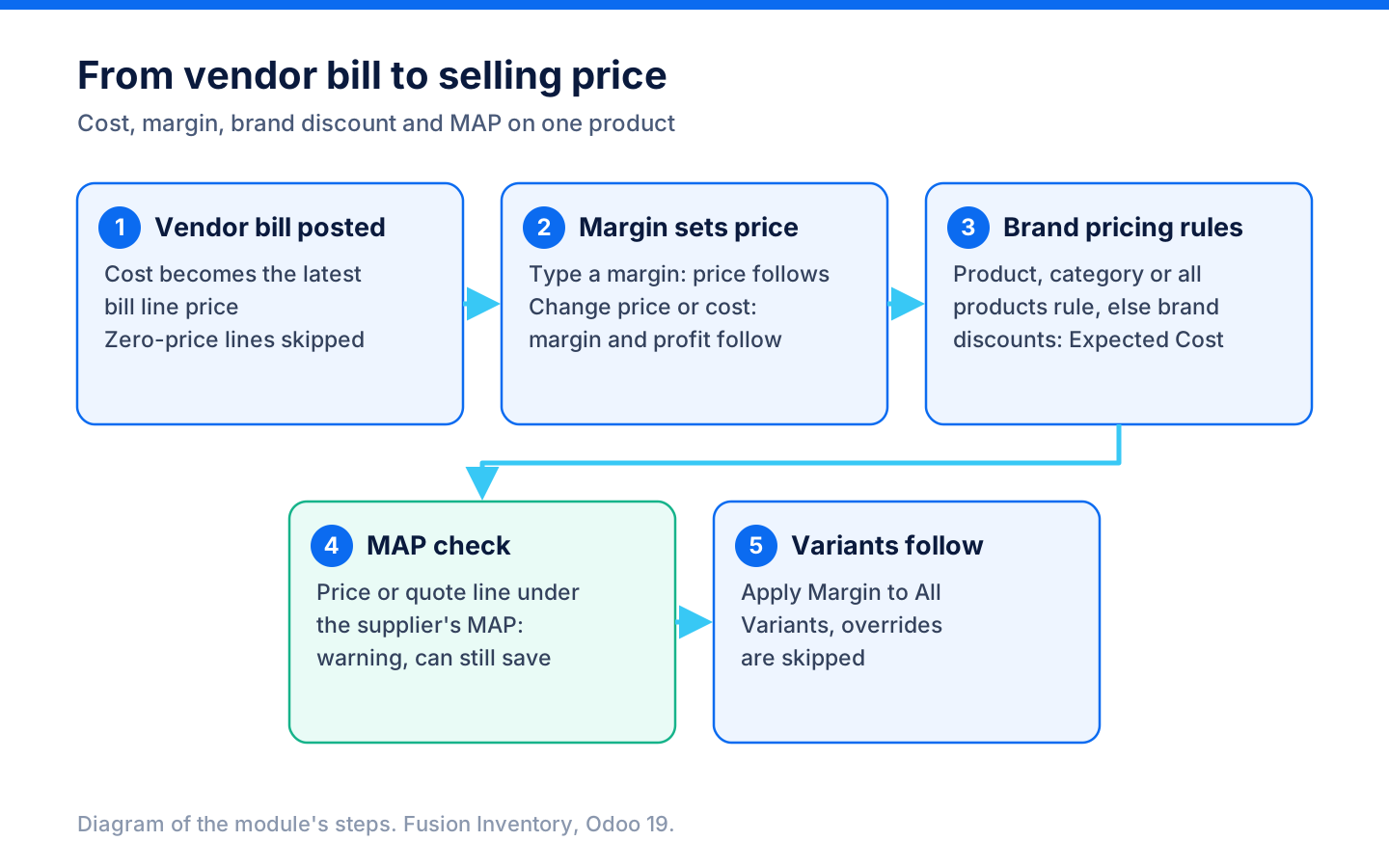
Fusion Inventory, step by step
4 workflows, 18 steps. Each picture is a diagram of how the step works.
Cost, margin and price
The latest vendor bill sets the cost, the margin sets the price, and the brand rules and the supplier's MAP check it.
-
Cost arrives on a bill
Posting a vendor bill sets each product's cost to the bill line price. Zero-price lines are skipped.
Purchase > Orders > Vendor Bills
-
Margin sets the price
Type a margin on the product and the sales price follows. Change the price or the cost and the margin and profit follow.
Inventory > Products > Products
-
Check the brand's discount
Expected Cost works out what the item should cost from its sales price and the brand's pricing rules.
Inventory > Fusion Inventory > Brands / Vendors
-
MAP warns, never blocks
A price or quote line under the supplier's MAP shows a Below MAP warning, and it can still be saved.
-
Variants follow
"Apply Margin to All Variants" reprices every variant that is not marked as an override.
Inventory sheet for reps
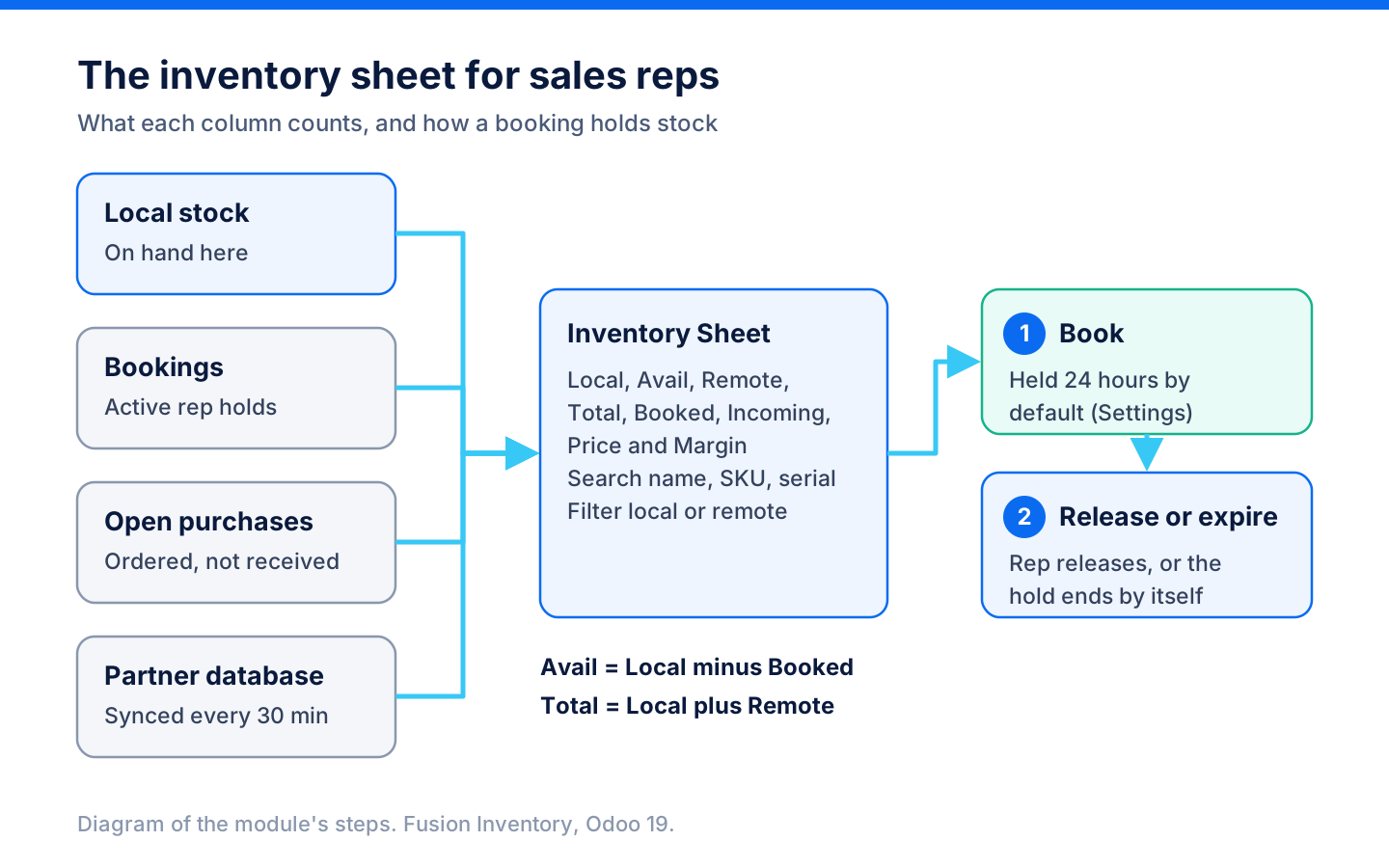
Sales reps see local, booked, incoming and partner stock on one portal page and hold an item for a customer.
-
Open the sheet
From the portal home, the Inventory Sheet lists products with local, available, remote, booked and incoming quantities, price and margin.
Portal > Inventory Sheet
-
Find the item
Search by name, SKU or serial, and filter by category or by local or remote stock.
-
Book it
Book holds the item for the rep, for 24 hours by default, and the available quantity drops by the booked amount.
-
Release or let it expire
The rep releases the booking, or it expires by itself once the hold ends.
Stock from a partner company
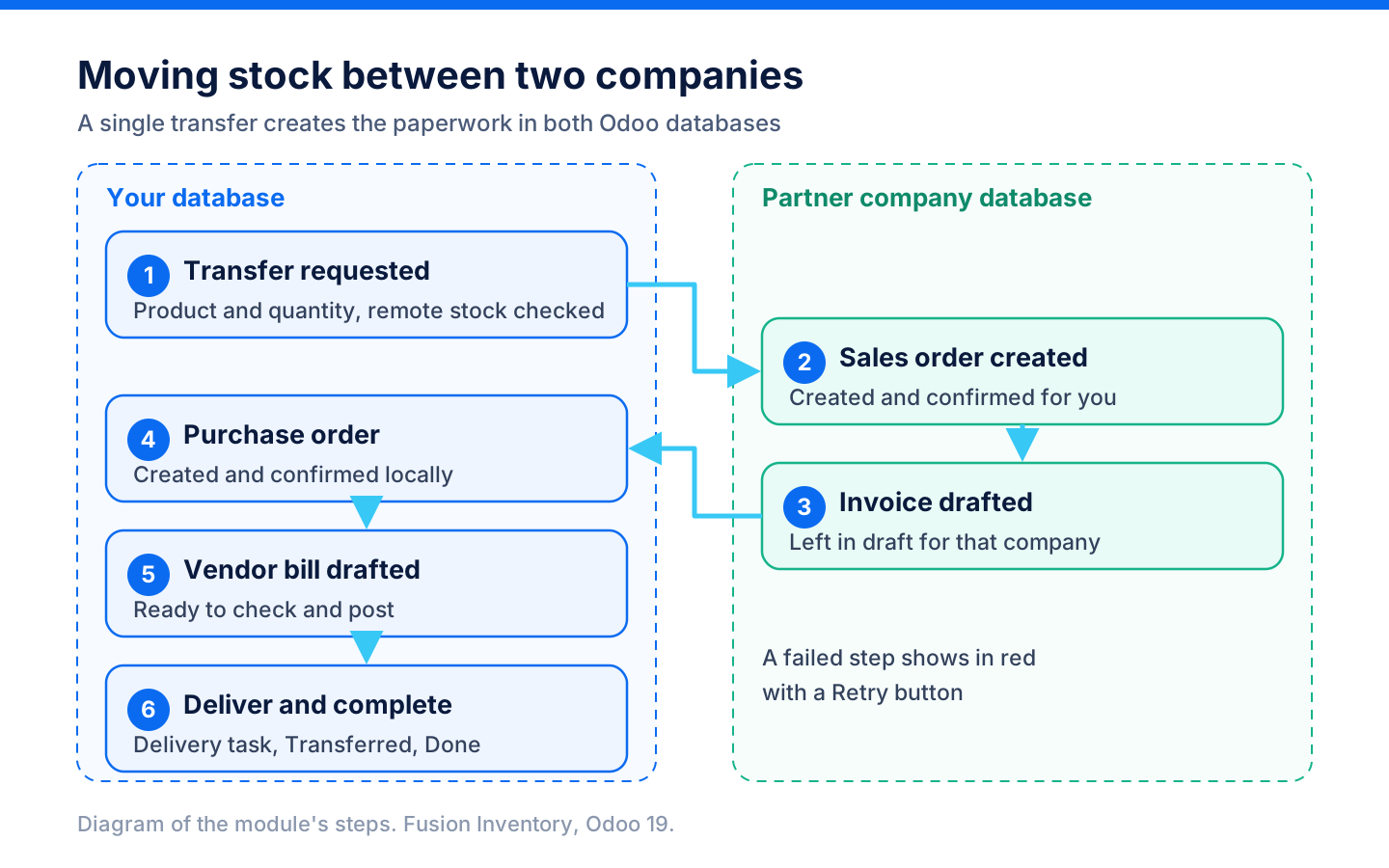
Two Odoo databases share stock, and one transfer creates the sales order, purchase order and both draft invoices.
-
Connect the other database
A remote connection stores the URL, database, user and API key. "Test Connection", then "Sync Now".
Inventory > Fusion Inventory > Inventory Sync > Remote Connections
-
Products line up
Remote products are matched by SKU, barcode, then name. Stock syncs every 30 minutes and after each completed stock move.
Inventory > Fusion Inventory > Inventory Sync > Product Mappings
-
Ask for a transfer
From the sheet's Transfer button or a new inter-company transfer, the product and quantity are checked against the partner's stock.
Inventory > Fusion Inventory > Shared Warehouse > Inter-Company Transfers
-
Execute in one step
The partner's sales order is created and confirmed and its invoice drafted, then a local purchase order is confirmed and the vendor bill drafted.
-
Deliver and close
"Create Delivery Task" adds a Fusion Tasks delivery, then "Mark Transferred" and "Complete". A failed step shows in red with Retry.
Deliveries and serial numbers
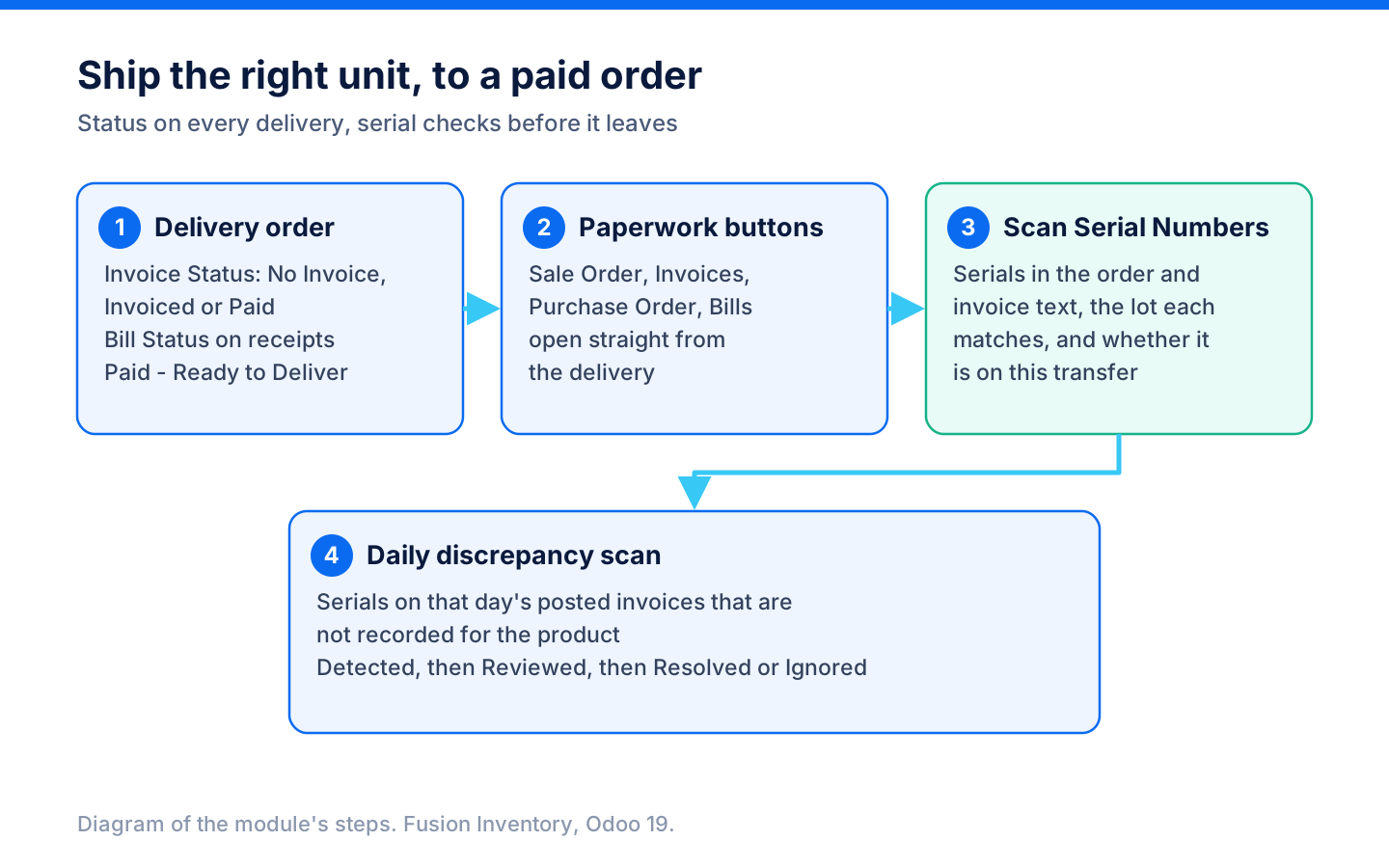
Every delivery shows whether the order is invoiced and paid, and serial numbers are checked before the unit leaves.
-
See what is paid
Delivery orders show Invoice Status and Bill Status badges, with filters such as "Paid - Ready to Deliver".
Inventory > Operations > Deliveries
-
Jump to the paperwork
Buttons on the delivery open its Sale Order, Invoices, Purchase Order and Bills.
-
Scan serial numbers
"Scan Serial Numbers" lists serials found in the order and invoice text, the lot each matches and whether it is on this transfer.
-
Review discrepancies
A daily scan lists serials on that day's posted invoices that are not recorded in Odoo. Staff mark each reviewed, resolved or ignored.
Inventory > Fusion Inventory > Reports > Discrepancies
What it does
 Costs, margins and MAP
- Product cost follows the latest posted vendor bill: confirming a bill sets each product's cost to the bill line price, skipping zero-price lines, and a setting turns this off.
- The product form shows Margin and Profit beside the cost, and typing a margin sets the sales price while changing the price or cost recalculates the margin.
- A Purchase History tab lists the posted vendor bill lines for the product with vendor, unit cost and a suggested price, with "Refresh Cost from Latest Bill" and "Open Full History".
- Variants carry their own shipping cost, attribute extra cost, margin and profit, and "Apply Margin to All Variants" reprices every variant that is not marked as an override.
- Each item can hold the supplier's minimum advertised price (MAP): a sales price, variant margin or quote line below it shows a "Below MAP" warning, and the price can still be saved.
 Brands and supplier discounts
- Brands link products to their manufacturer or vendor, with sub-brands under a parent brand, and a vendor contact shows its brands or a "Create Brand" button.
- A brand keeps a primary and secondary discount and shows the effective discount.
- Pricing rules on a brand apply to all products, a category or one product, as primary plus secondary percentage, a single discount, a fixed dollar rebate off MSRP or a flat cost price.
- Each product shows an Expected Cost worked out from its sales price and its first brand's rules, checking the product rule, then the category rule, then the all-products rule, then the brand's own discounts and then the parent brand.
 Clean product data
- A global setting or each product can convert product names to UPPERCASE, Sentence case, Capitalized Case or lowercase, and "Apply to All Existing Products" converts the catalogue at once.
- Capitalized Case keeps model codes and abbreviations such as ADP, HD, LED, iLevel and PowerPlus, and text in brackets, as written.
- A new product without a code or barcode is refused when an active uncoded product with the same name already exists in the same category and company.
 Stock sheet for sales reps
- Signed-in users open an "Inventory Sheet" from their portal home that lists stock by product, SKU and category, with Local, Avail, Remote, Total, Booked, Incoming, Price and Margin columns.
- The sheet searches by name, SKU or serial, filters by category and by local or remote stock, and lists items in stock here first.
- A rep can book a product, which holds it for 24 hours by default (set in hours in Settings), and a booking expires by itself or can be released.
- Incoming stock counts what is still to be received on confirmed purchase orders.
 Two companies, one stock picture
- A remote connection reaches another Odoo database by URL, database, user and API key, with "Test Connection" and "Sync Now", and syncs products and stock every 30 minutes.
- Remote products are matched to local ones by SKU, then barcode, then name, and the Product Mappings list shows remote on-hand and forecast quantities.
- "Execute Transfer" creates and confirms a sales order in the other database, drafts its invoice, creates and confirms a local purchase order and drafts the vendor bill.
- A transfer moves through Draft, Requested, Remote SO Created, Local PO Created, Invoiced, Transferred and Done, can create a delivery task, and shows the failed step with a Retry button when a step fails.
- Shared warehouse stock records which company owns each item, by lot and bin, as Available, Reserved, In Transit or Transferred.
 Deliveries and serial numbers
- Delivery orders show buttons for their Sale Order, Invoices, Purchase Order and Bills, and Invoice Status and Bill Status badges.
- Transfer filters include "Paid - Ready to Deliver", "Invoiced - Not Delivered", "Not Invoiced", "Bill Paid", "Billed - Not Paid" and "Not Billed".
- "Scan Serial Numbers" on a delivery reads the sale order lines, notes and invoices for serial numbers and shows whether each is a known lot and matches the transfer.
- A daily scan flags serial numbers written on posted invoice lines dated that day that are not recorded for the product, as Discrepancies to mark reviewed, resolve or ignore.
What's new
Recent changes to Fusion Inventory, newest first.
-
- Each item can carry the supplier's MAP, and a price or quote line below it shows a warning without blocking the sale.
-
- A neutralized copy of the database switches off the inventory sync connection and blanks its address and key.
-
- Blocks an uncoded duplicate product in the same category and company instead of silently creating another item.
- Capitalized Case keeps model codes, abbreviations and bracketed text as written.
-
- The brand's Manufacturer/Vendor picker lists companies only.
Related modules
 Fusion Shipping
Canada Post, UPS, FedEx and DHL Express set up in one Shipping app, with box-by-box Canada Post quotes.
 Fusion Labels
Free
Product labels with prices and barcodes, printed as PDF on A4 sheets or single labels.
 Fusion Loaners Management
Loaner and demo equipment tracked from checkout to return.
See Fusion Inventory on your own Odoo.
Book a call and tell us how your team works today. We'll show you the module and what it would take to set it up. Prefer the phone? Call 905-792-0000.