
Fusion Connect
A RingCentral phone inside Odoo, with call history, voicemail, recordings and transcripts.
Use an embedded RingCentral phone in Odoo. Keep call history linked to matching contacts.
- Odoo 19
- Version 19.0.1.11.0
Fusion Connect, step by step
4 workflows, 13 steps. Every screen is real, from a demo company with invented data.
Calls land in Odoo, matched to the customer
Every RingCentral call is logged in Odoo against the right contact, with the recording and transcript beside it.
-
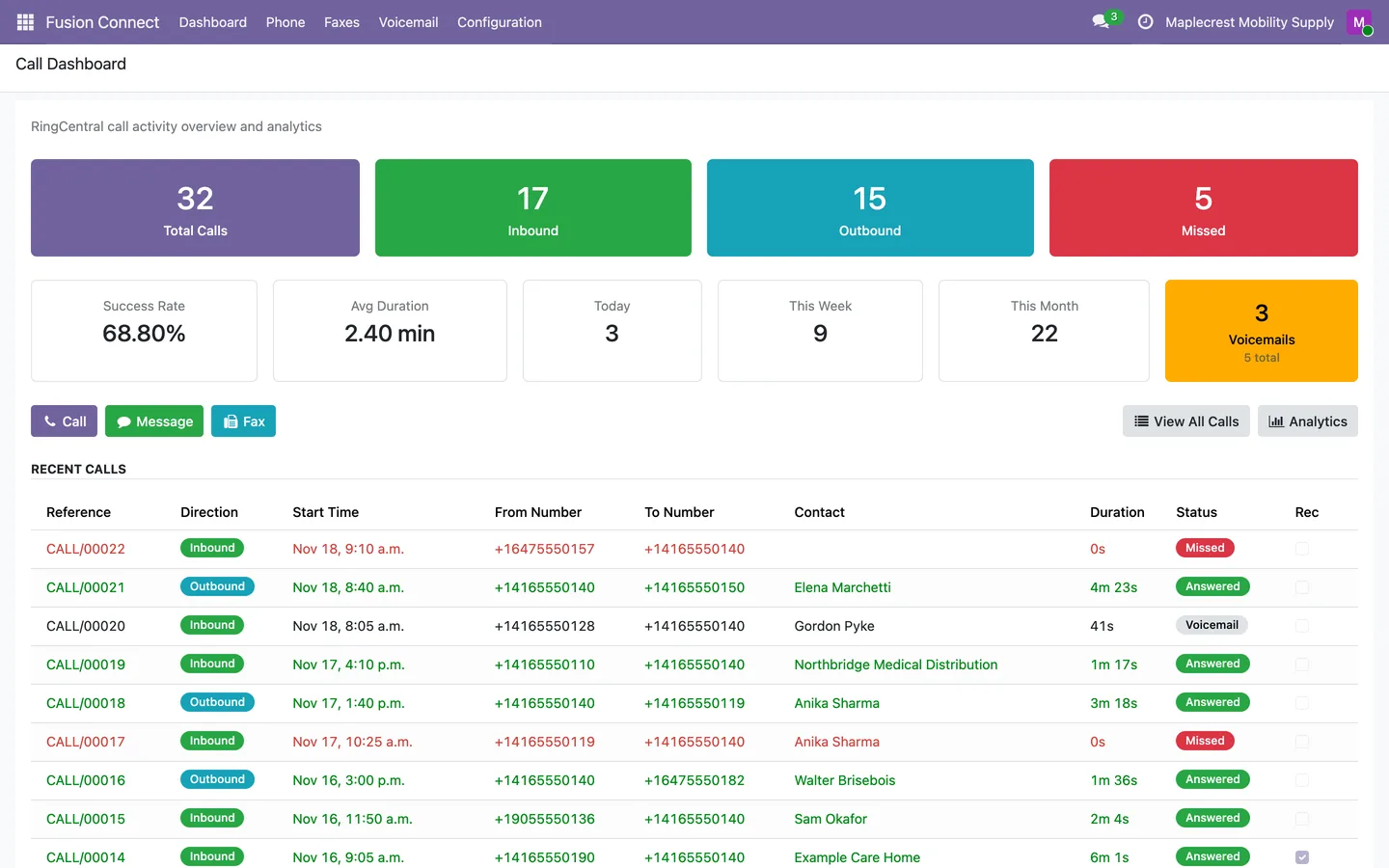
See the day at a glance
The dashboard counts total, inbound, outbound and missed calls, today, this week and this month, and unread voicemails, above the 20 latest calls.
Fusion Connect > Dashboard
-
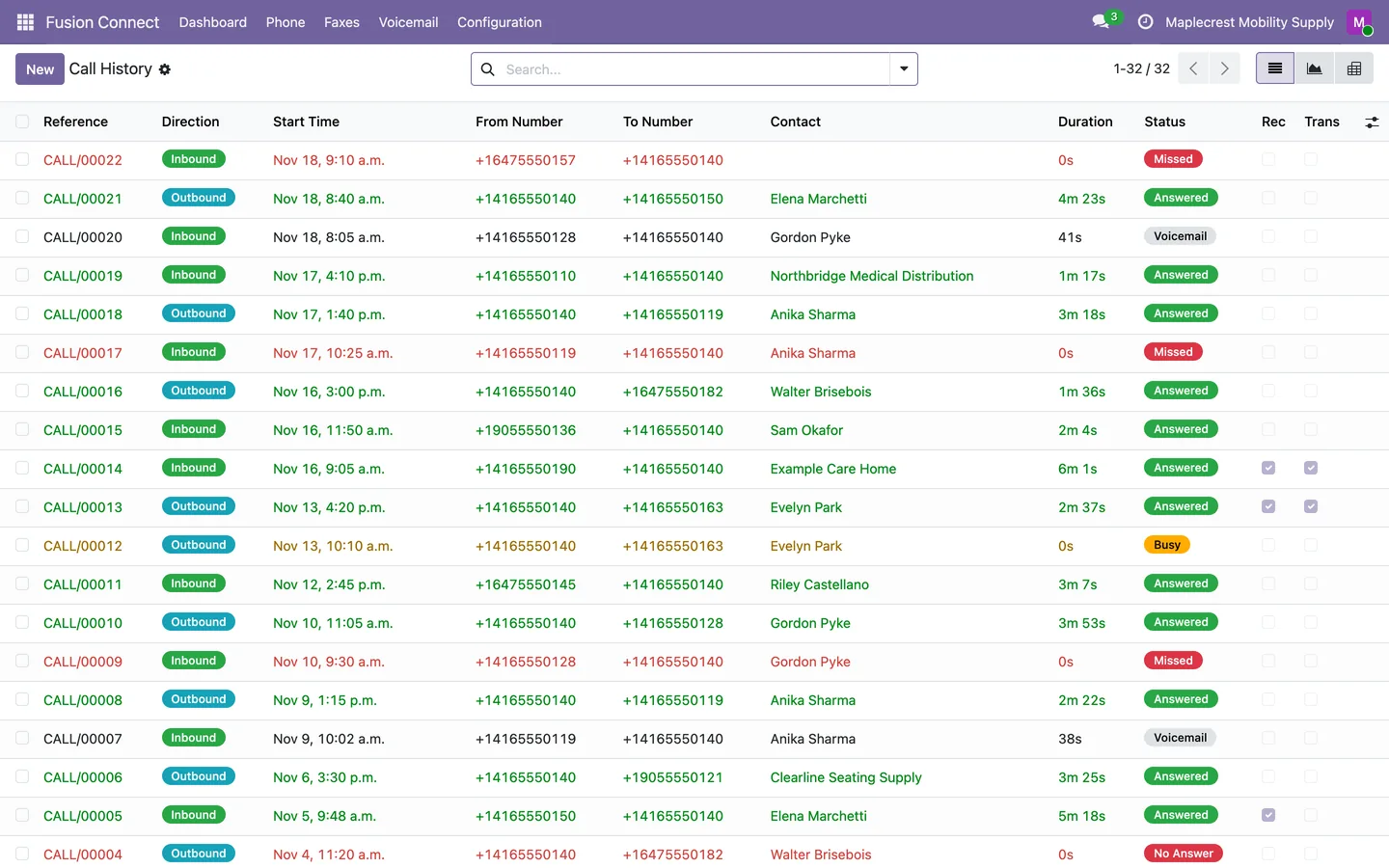
Calls arrive on their own
Every 5 minutes the RingCentral call log is read, with a daily catch-up and real-time call events. Each call gets a number, a status and the contact whose phone number matches.
Fusion Connect > Phone > Call History
-
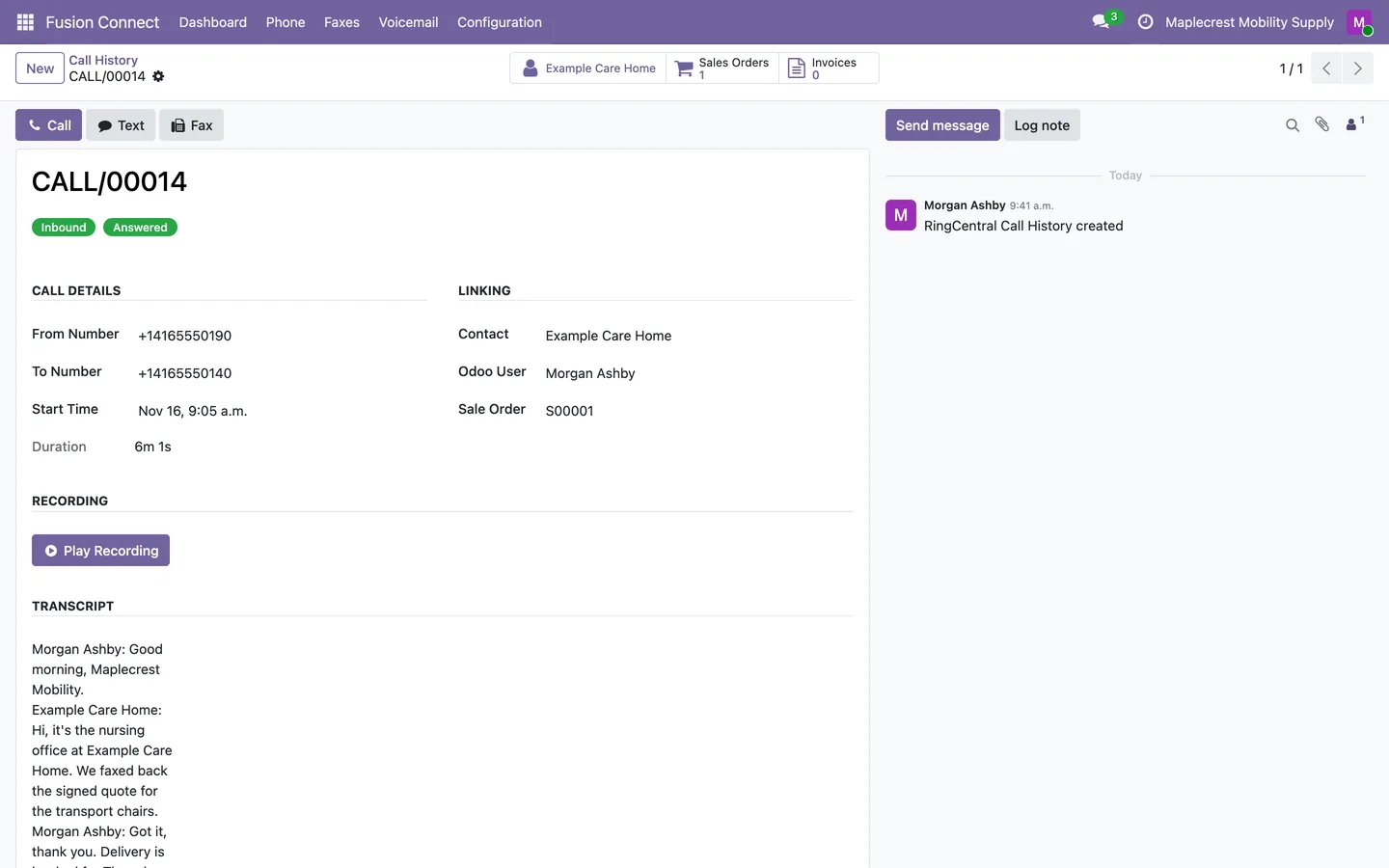
Open the call
The call shows its numbers, time and duration, the contact's sales orders and invoices, the recording and the transcript. Link it to a sales order and add notes.
-
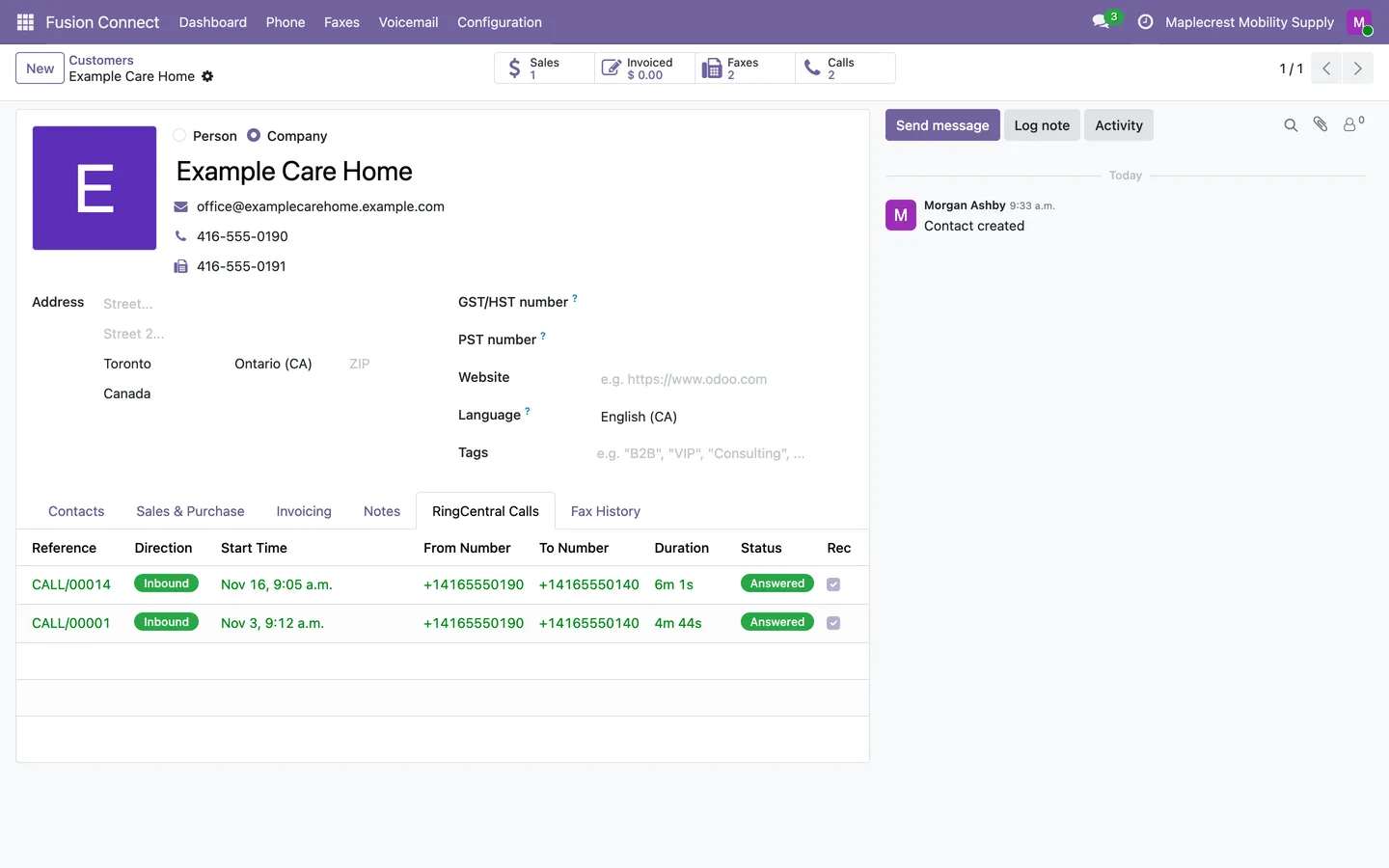
The customer's history
The contact gets a Calls button and a RingCentral Calls tab listing every call with its status.
Contacts
-
Return missed calls
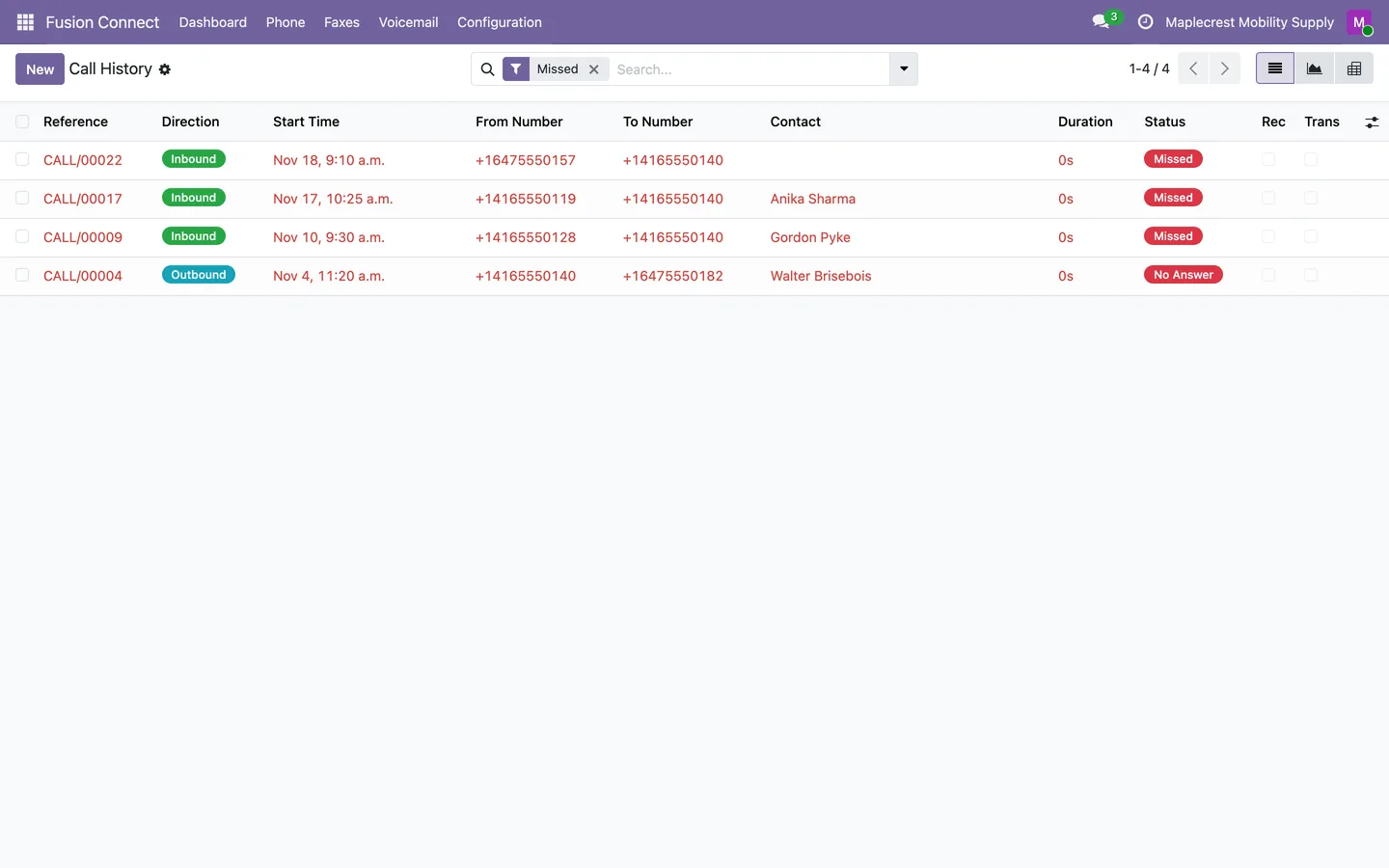
The Missed filter lists missed and unanswered calls to call back. A call picked up on another phone is stored as answered, not missed.
Voicemail you can read
Voicemails arrive with their audio and a written transcription, matched to the caller.
-
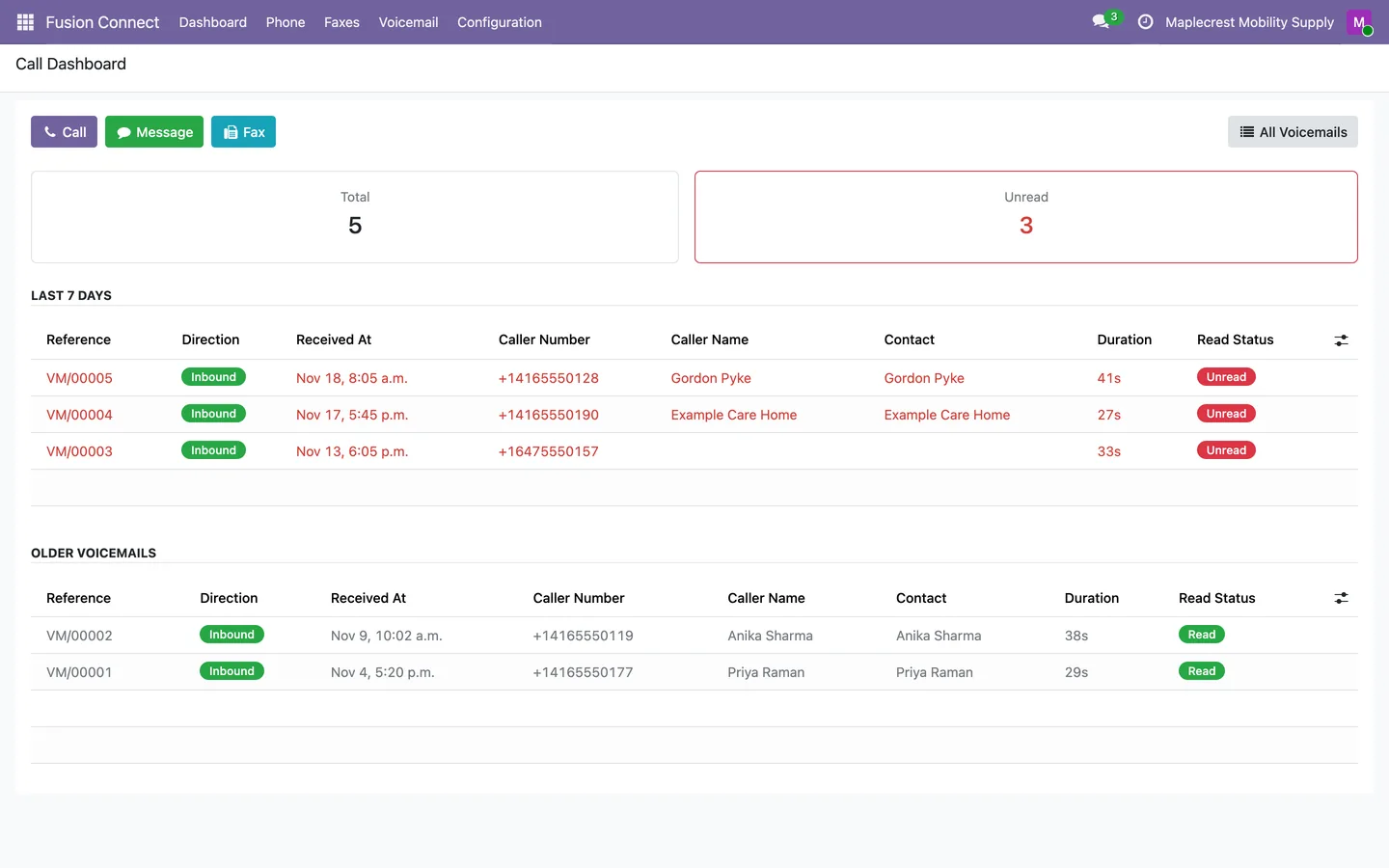
Voicemail dashboard
The total and unread count sit above the voicemails from the last 7 days, unread ones in red, and older ones below.
Fusion Connect > Voicemail > Dashboard
-
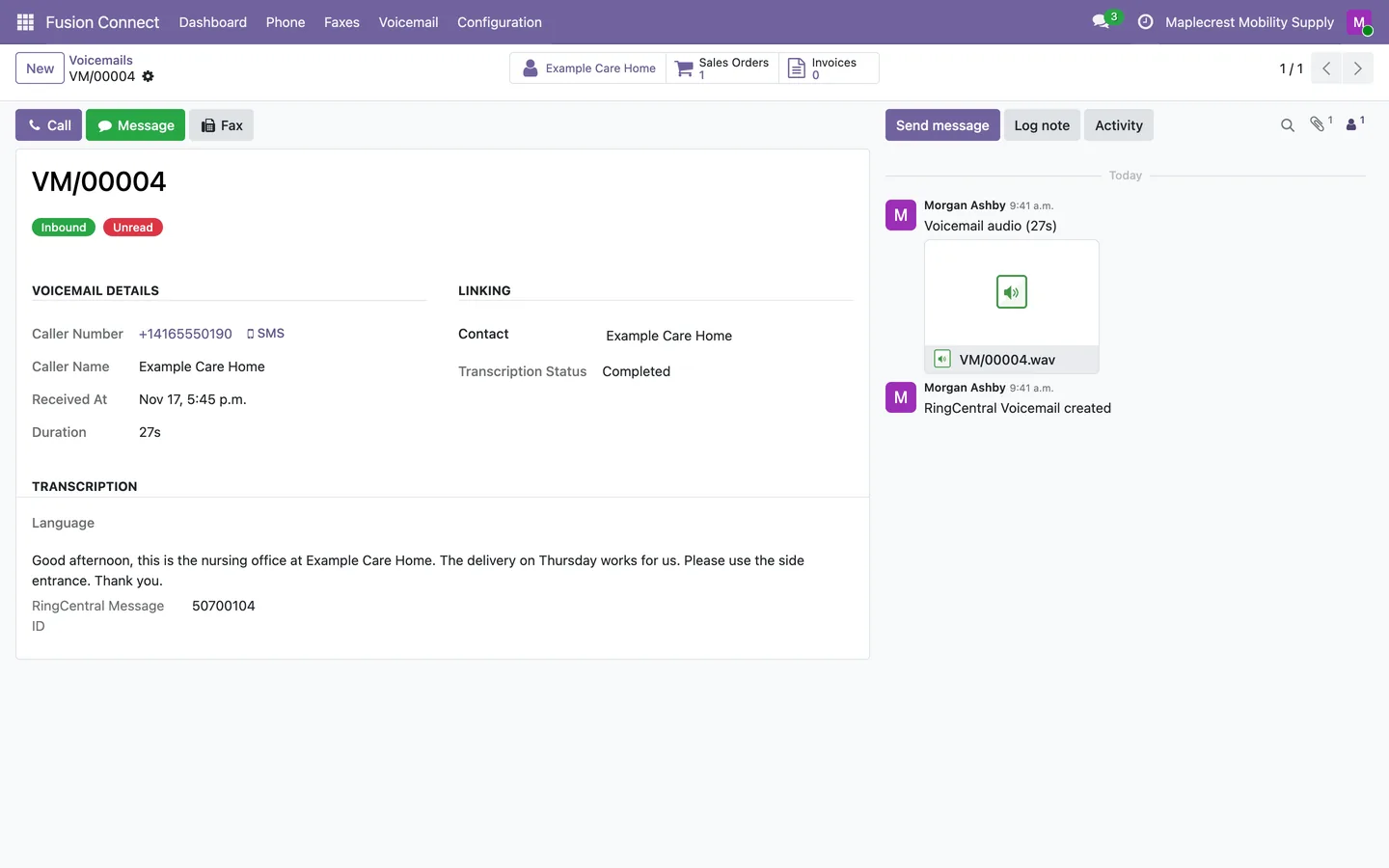
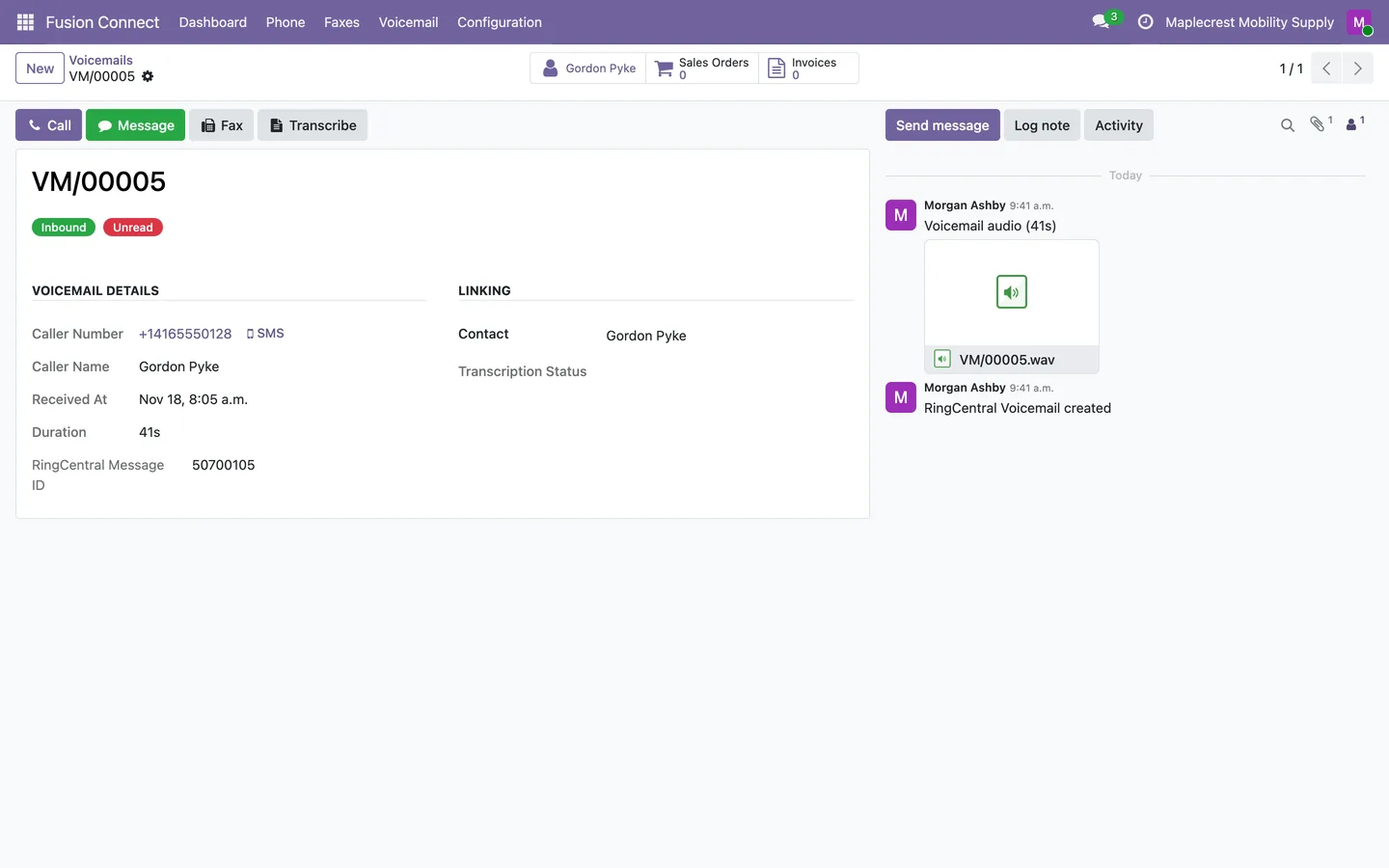
Read the voicemail
The voicemail shows the caller, time, duration, matched contact and the transcription, with the audio in the chatter.
-
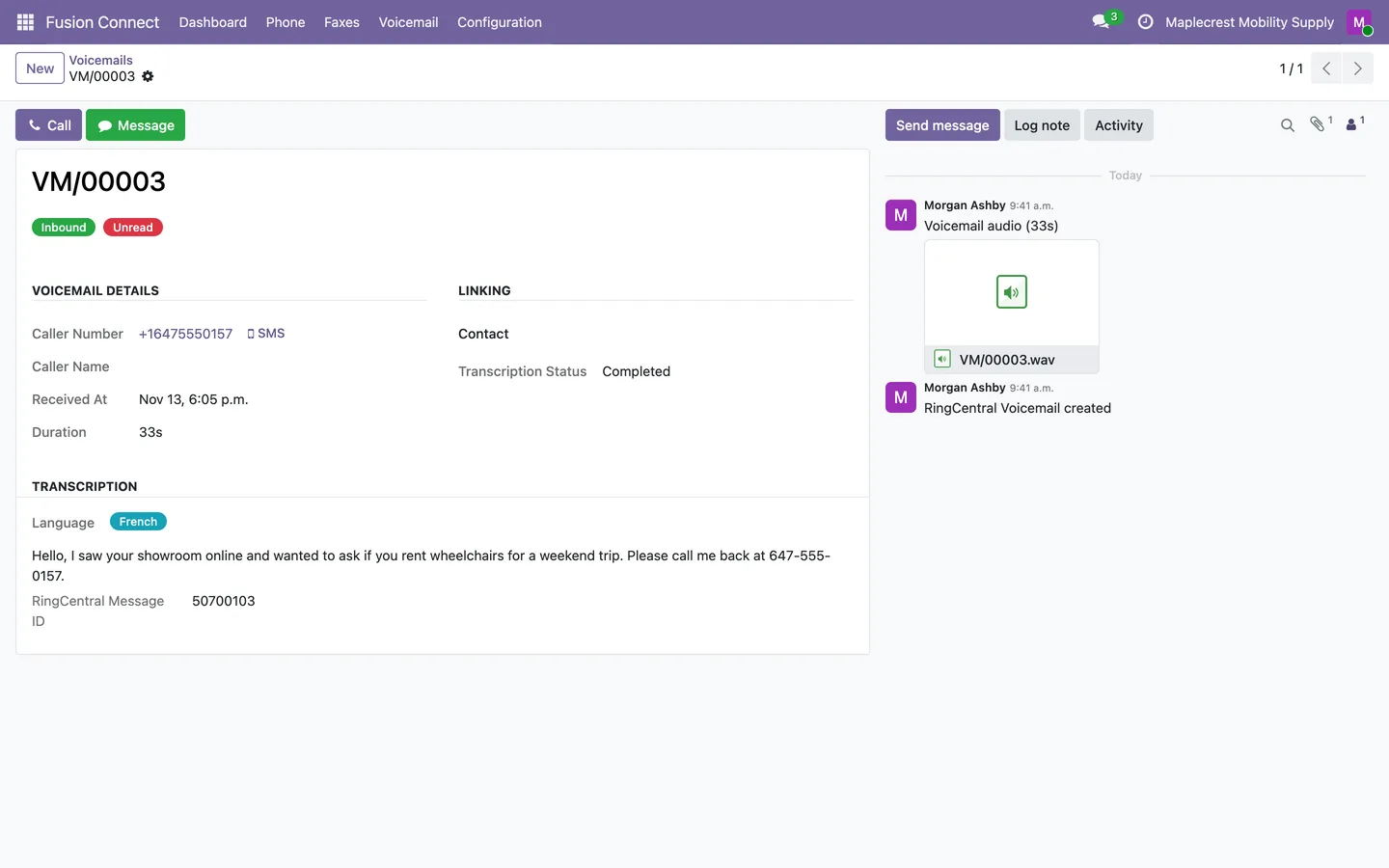
Another language
With an OpenAI key, Whisper transcribes the audio and translates a voicemail in another language into English.
-
Transcribe on demand
A voicemail with audio and no text shows "Transcribe", and waiting voicemails are also transcribed every 15 minutes.
See how the phones are doing
Graphs and pivot tables show call time by month, direction and customer.
-
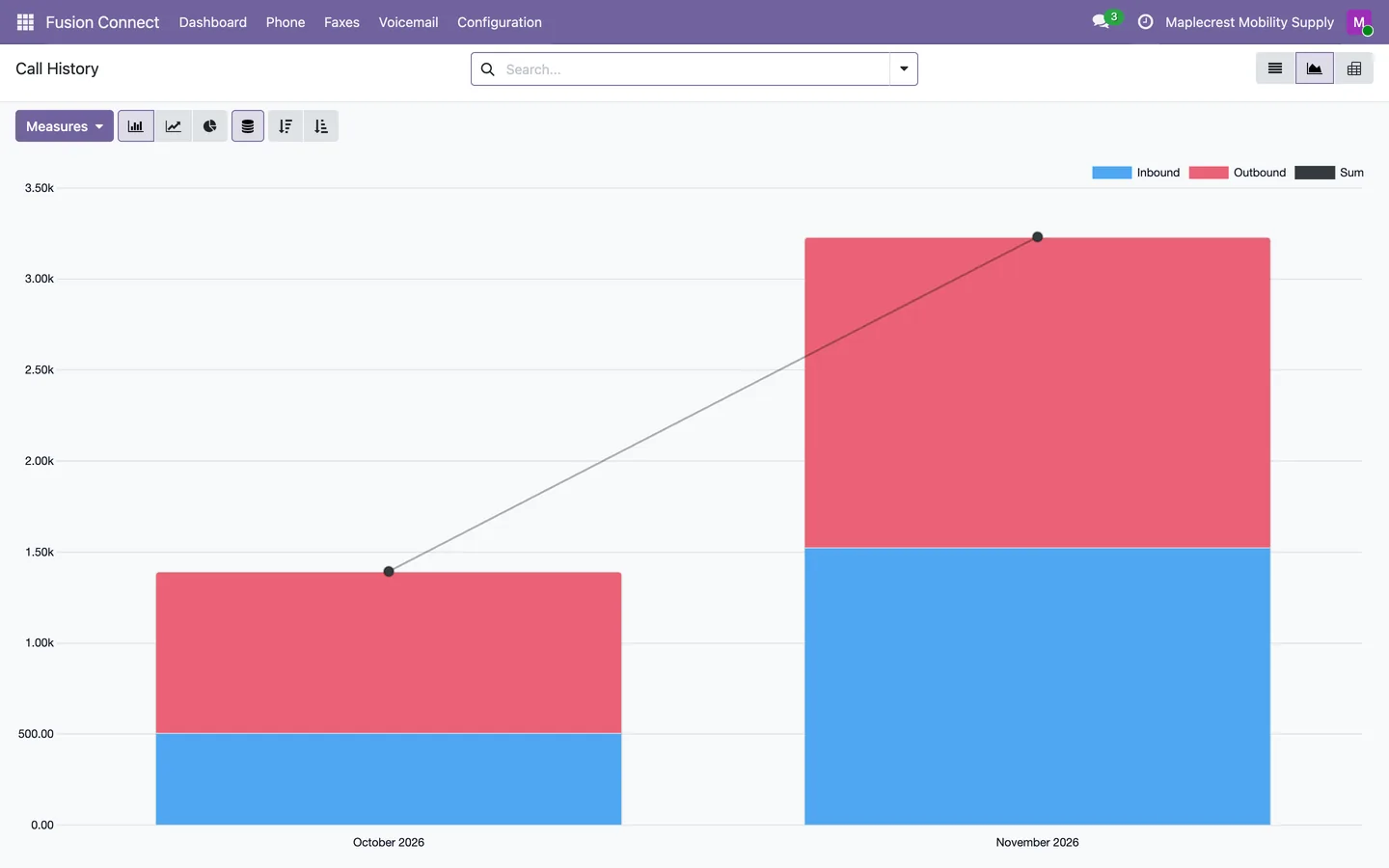
Call time by month
"Analytics" on the dashboard opens call duration by month, split into inbound and outbound.
-
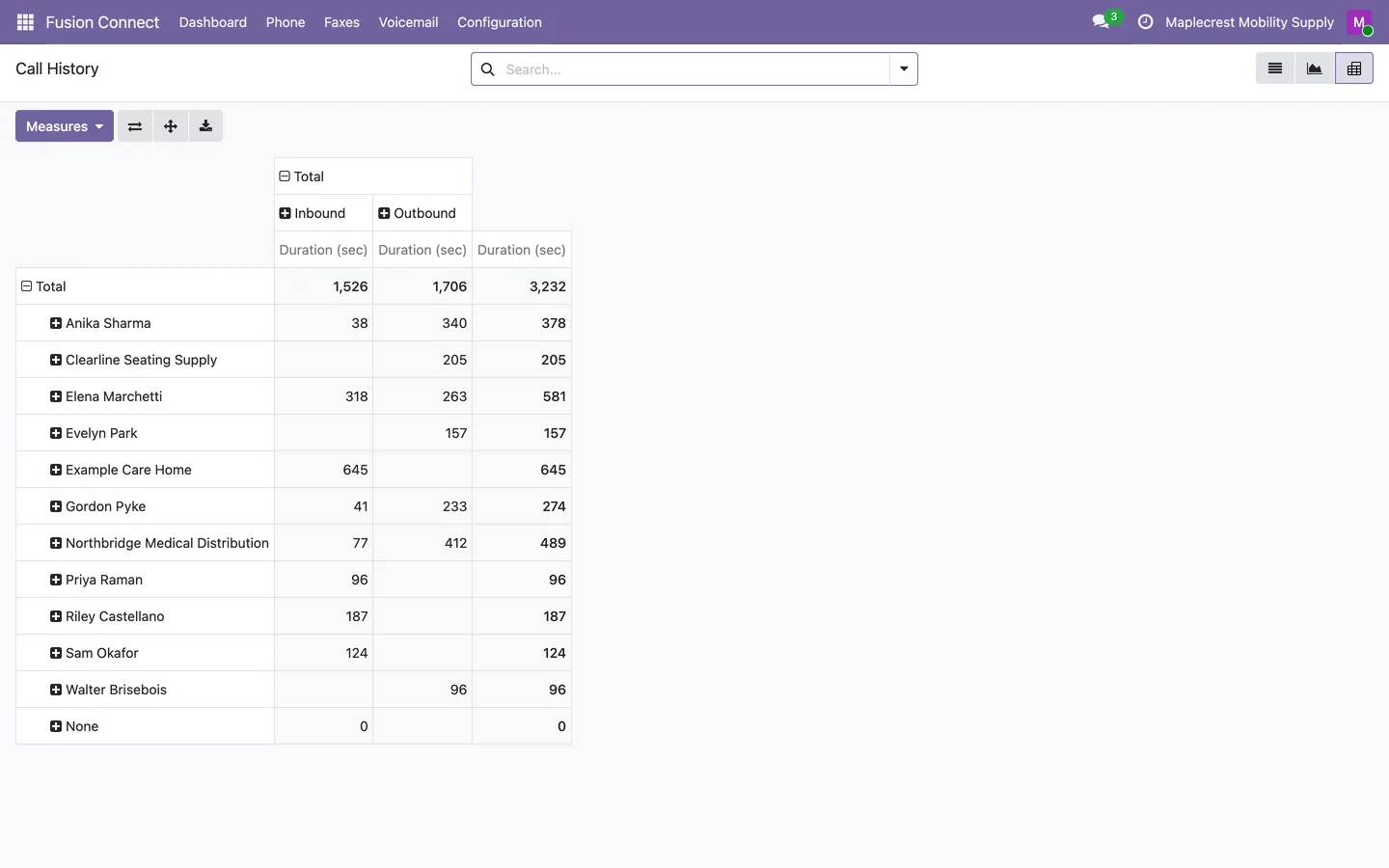
Call time by customer
The pivot table shows call duration for each contact, inbound and outbound.
Connect RingCentral, then faxes too
A manager connects RingCentral once, and Fusion Faxes moves into the same app.
-
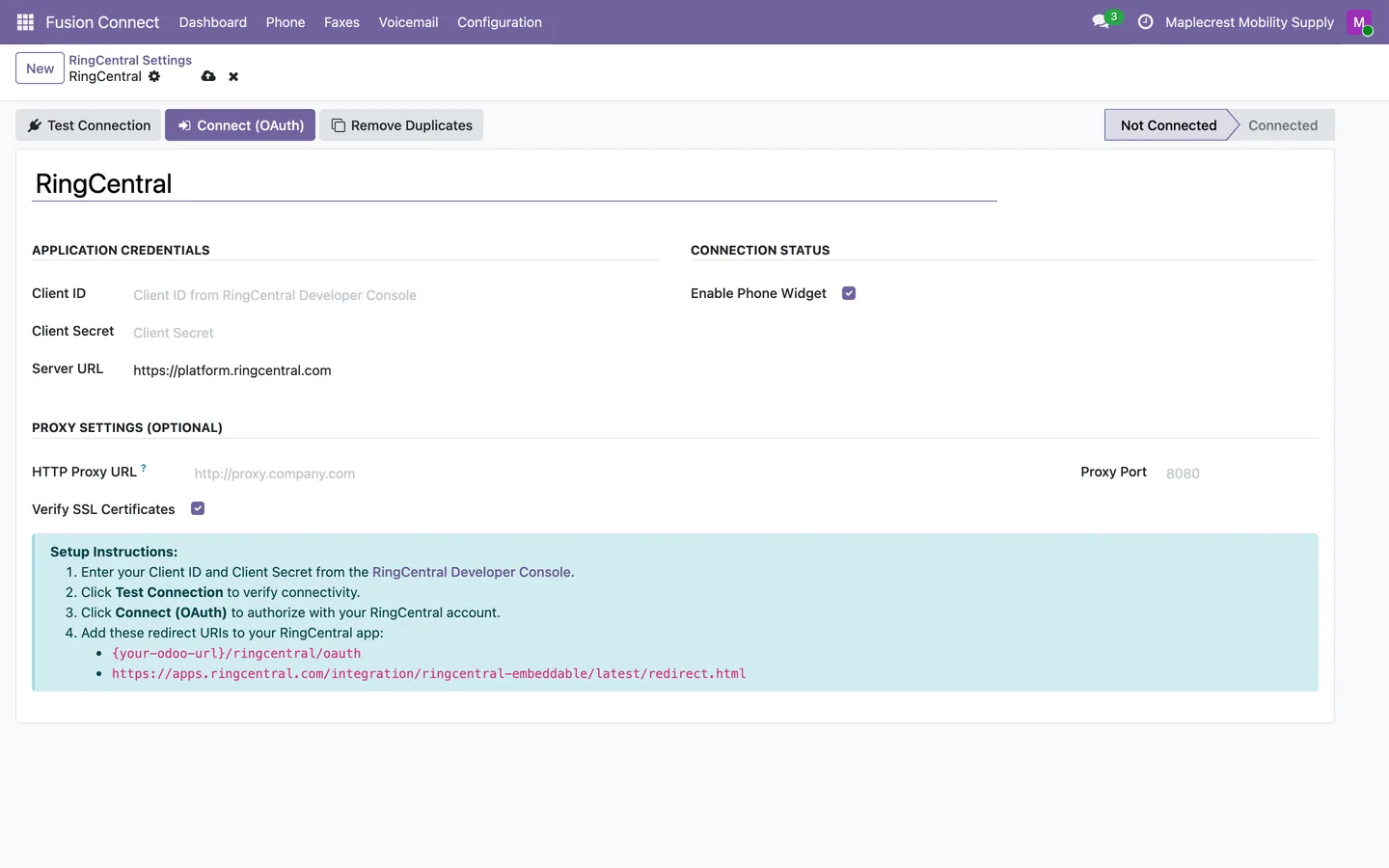
Connect RingCentral
Enter the RingCentral app keys, test the connection and connect with OAuth. Once connected, import up to 12 months of calls, voicemails and faxes.
Fusion Connect > Configuration > RingCentral Settings
-
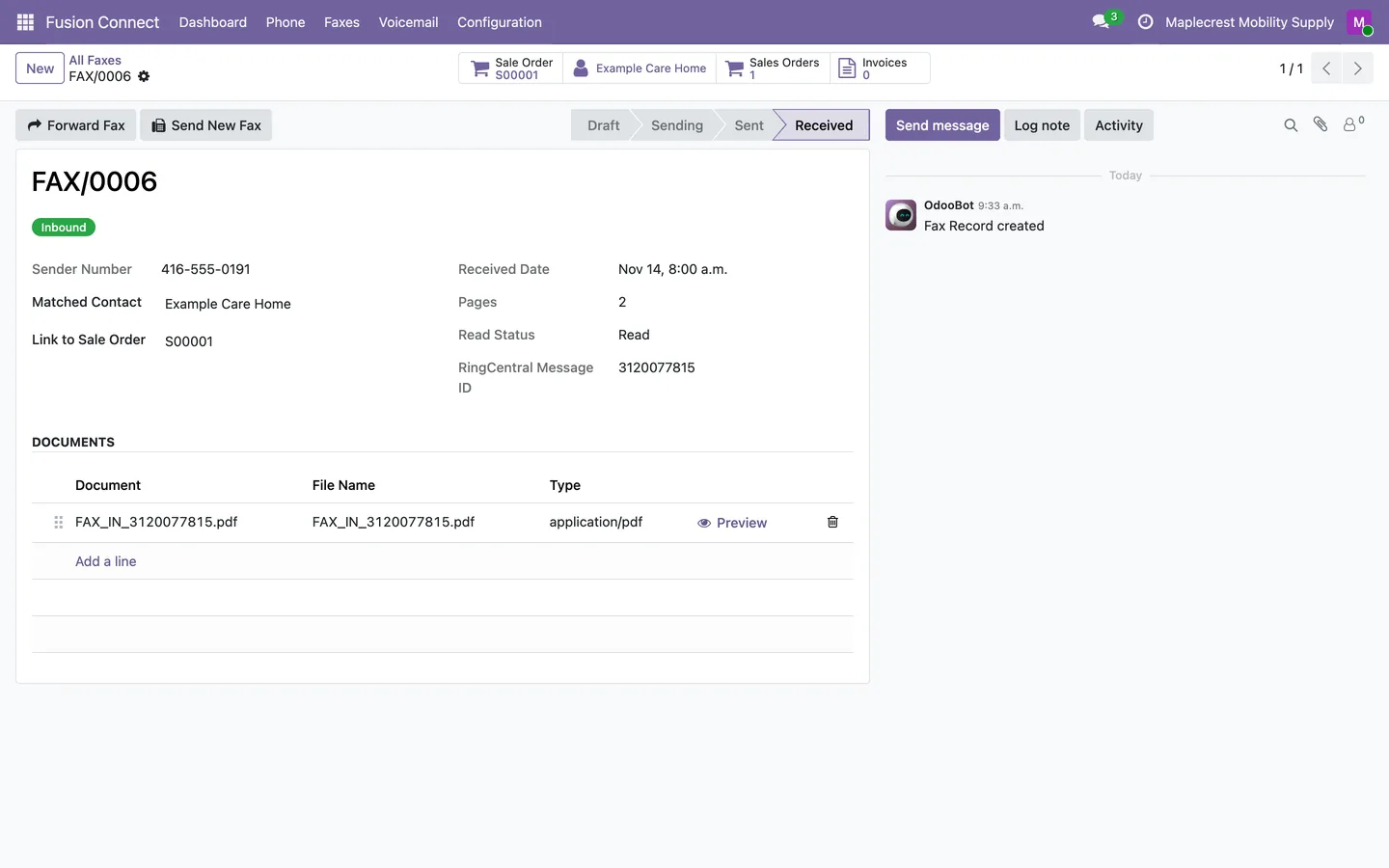
Faxes in the same app
Received faxes show the matched contact, their sales orders and invoices, and buttons to forward the fax or send a new one.
Fusion Connect > Faxes > All Faxes
What it does
 Calling
- Use an embedded RingCentral phone in Odoo.
- Dial a contact by clicking a phone field.
- Call, text or fax the other party from a call or voicemail record with one button each.
- A phone icon in the top bar shows your RingCentral presence and hides or shows the phone, and the choice is saved for each user.
 Call history
- Calls come in from RingCentral every 5 minutes, from a daily three-day catch-up and from real-time call events, and each call is saved once.
- Keep call history linked to matching contacts.
- Calls with recorded talk time are stored as answered even when RingCentral reports that line as missed, for example a call picked up on another phone.
- Each call shows the contact's sales orders and invoices, can be linked to a sales order, and has its own notes and chatter.
- Play call recordings through an authenticated proxy.
- Retrieve call transcripts through RingSense.
- Each contact gets a Calls button and a RingCentral Calls tab.
 Voicemail
- Voicemails come in every 5 minutes with their audio posted on the record and are matched to the caller's contact.
- Each voicemail keeps RingCentral's transcription, or with an OpenAI key is transcribed by Whisper and translated into English when spoken in another language.
- A Transcribe button transcribes one voicemail on demand, and a scheduled action transcribes waiting voicemails every 15 minutes.
- A voicemail dashboard shows the total and unread count, the last 7 days and older voicemails.
 Dashboard and analytics
- The call dashboard shows total, inbound, outbound and missed calls, the success rate, the average duration, calls today, this week and this month, unread voicemails and the 20 latest calls.
- Show call performance in dashboard graphs and pivot tables.
- Call history filters by direction, answered, missed, recording, transcript and date, and groups by direction, status, contact or month.
 Faxes in the same app
- Fusion Faxes moves under Fusion Connect, with Send Fax, All, Received and Sent Faxes and the Fax Dashboard.
- A received fax can be forwarded with its pages, or answered with a new fax to the same contact.
- Faxes are matched to a contact by fax number first, then by phone number, and show that contact's sales orders and invoices.
 Set-up
- Connect RingCentral with OAuth from a settings record that tests the connection, refreshes the login every 30 minutes and supports a proxy.
- Import up to 12 months of call history, voicemails and faxes in the background, download missing voicemail audio and re-match contacts from the settings record.
- A Remove Duplicates button deletes calls, voicemails and faxes that share a RingCentral identifier, keeping the most complete one.
- Only Fusion Connect managers see Configuration and the RingCentral settings.
What's new
Recent changes to Fusion Connect, newest first.
-
- Calls with recorded talk time are classified as answered even when an extension leg reports missed or unanswered.
-
- Calls, voicemails and faxes can no longer be saved twice for the same RingCentral record, and a Remove Duplicates button clears older duplicates.
- Matching calls, voicemails and faxes to contacts uses each contact's stored phone and fax number, so it no longer reads every contact.
- Hiding the phone from the top bar icon is saved for each user and stays hidden after a reload or on another device.


See Fusion Connect on your own Odoo.
Book a call and tell us how your team works today. We'll show you the module and what it would take to set it up. Prefer the phone? Call 905-792-0000.