
Fusion Chatter Enhance
A resizable chatter with filters, search, pins, ZIP downloads and email defaults.
Resize, collapse or reposition the chatter panel to suit the working screen. Pin messages on record chatter for later reference.
- Odoo 19
- Version 19.0.2.5.3
- Free
Fusion Chatter Enhance, step by step
3 workflows, 8 steps. Every screen is real, from a demo company with invented data.
Find the message you need
On a busy record, narrow the chatter down to the messages that matter and keep the important ones on top.
-
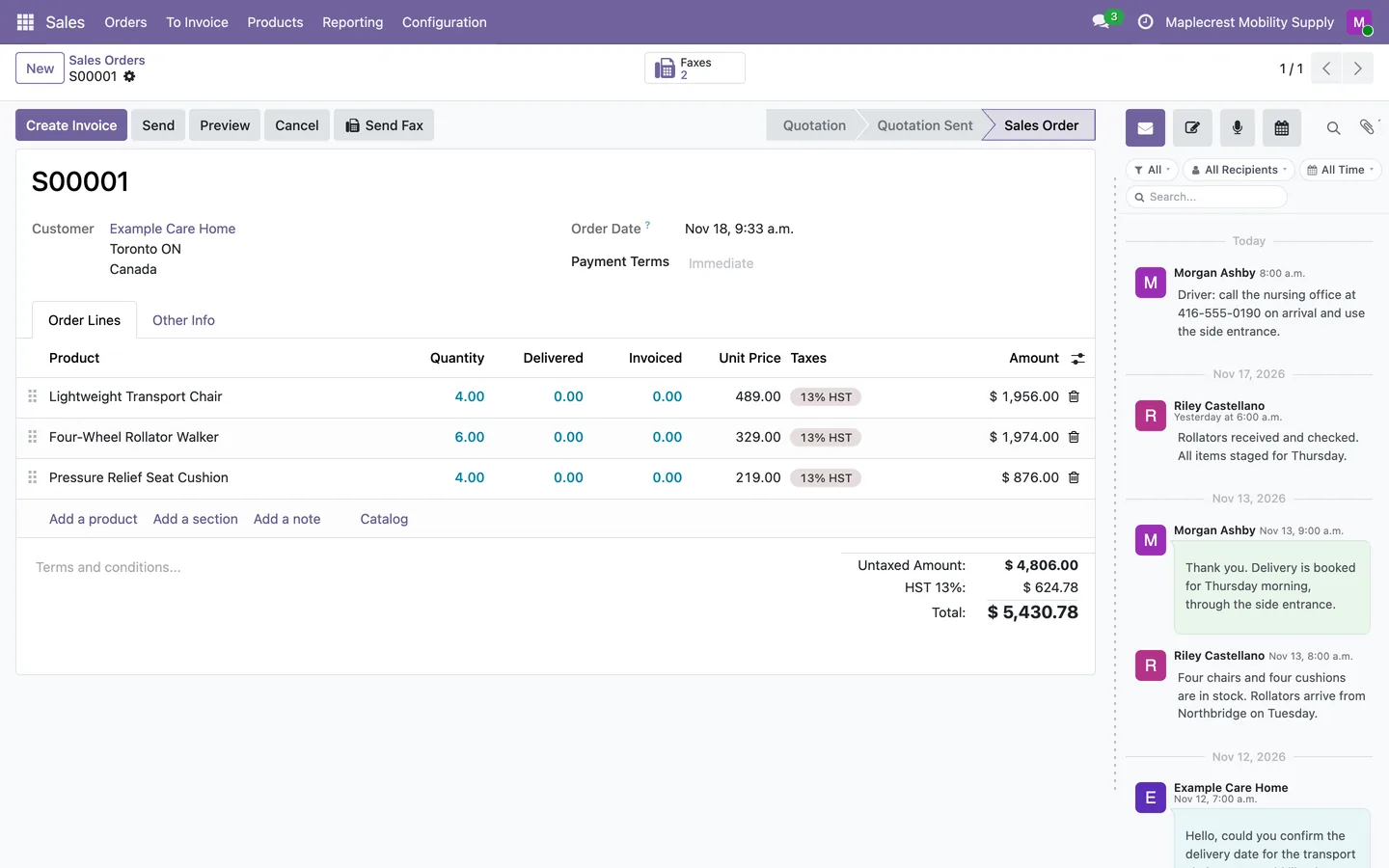
Filter bar
Chips for type, author and time and a search box sit under the chatter top bar on every form.
Any record > Chatter
-
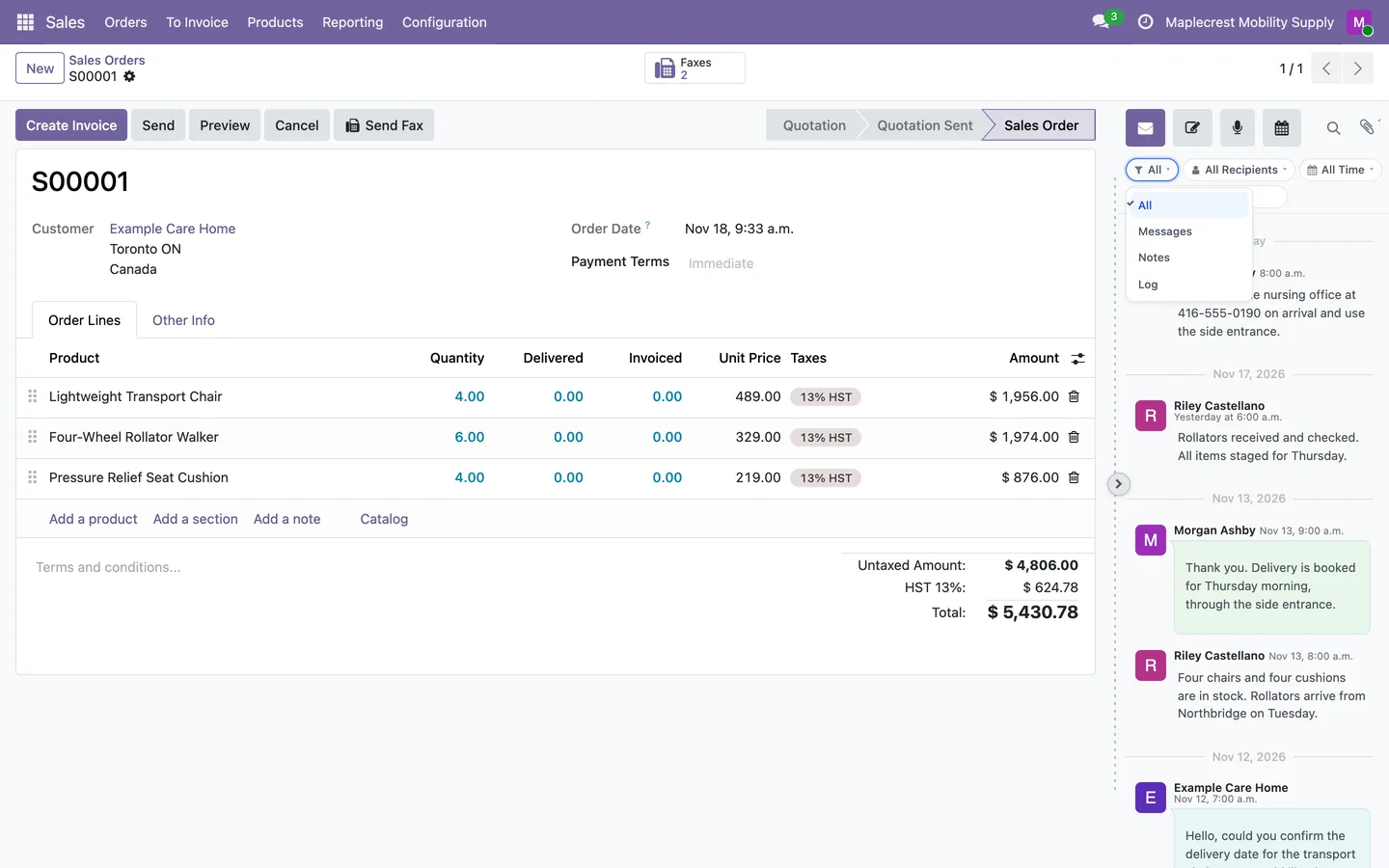
Pick a type
Show only messages, notes or log entries, and narrow to today, the last 7 days or the last 30 days.
-
Search and pins
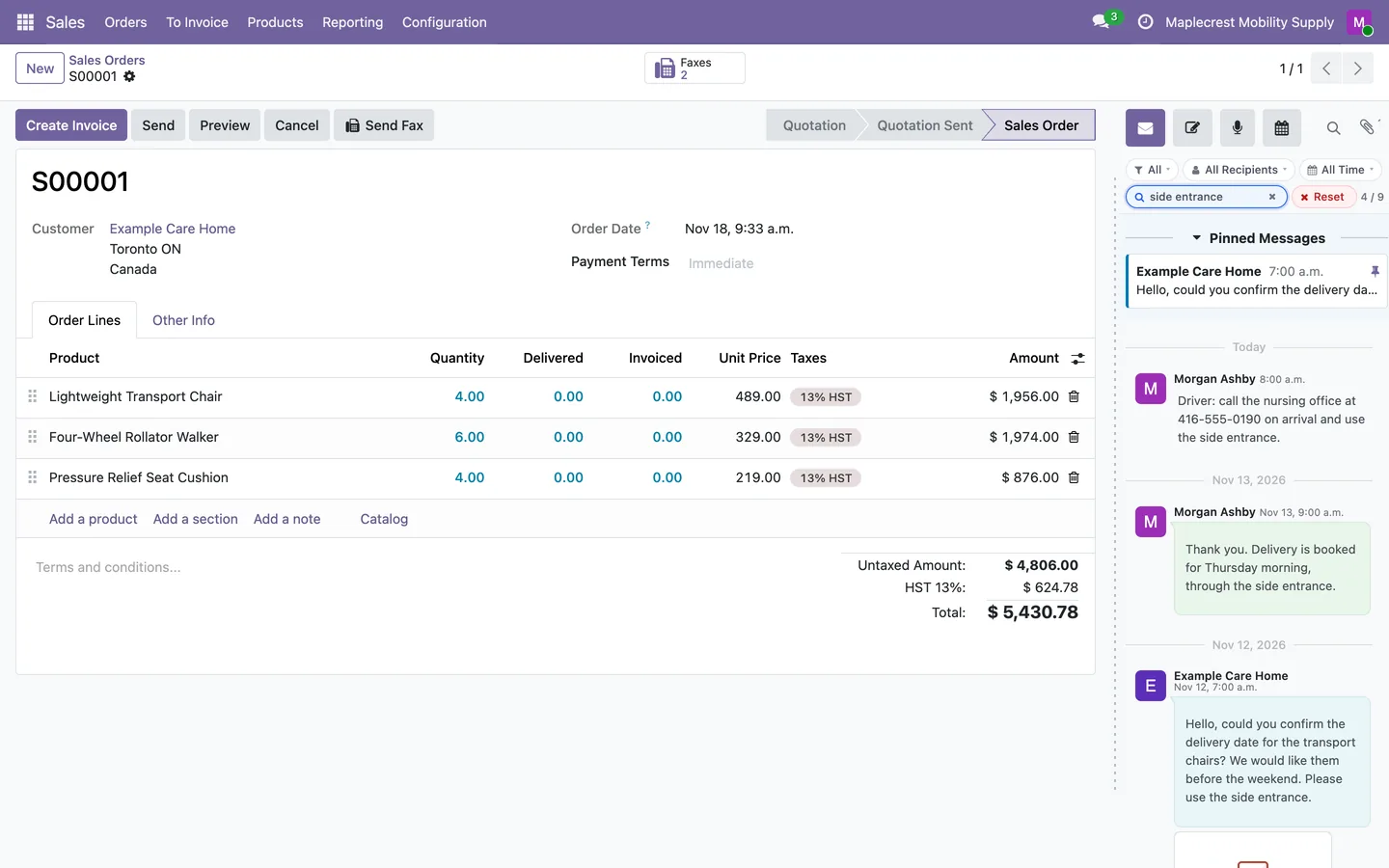
Type a few words to see only the matching messages, with a count and a Reset button. Pinned messages stay at the top.
Files and email
Take every file from a record in one download, and send email with the right people copied.
-
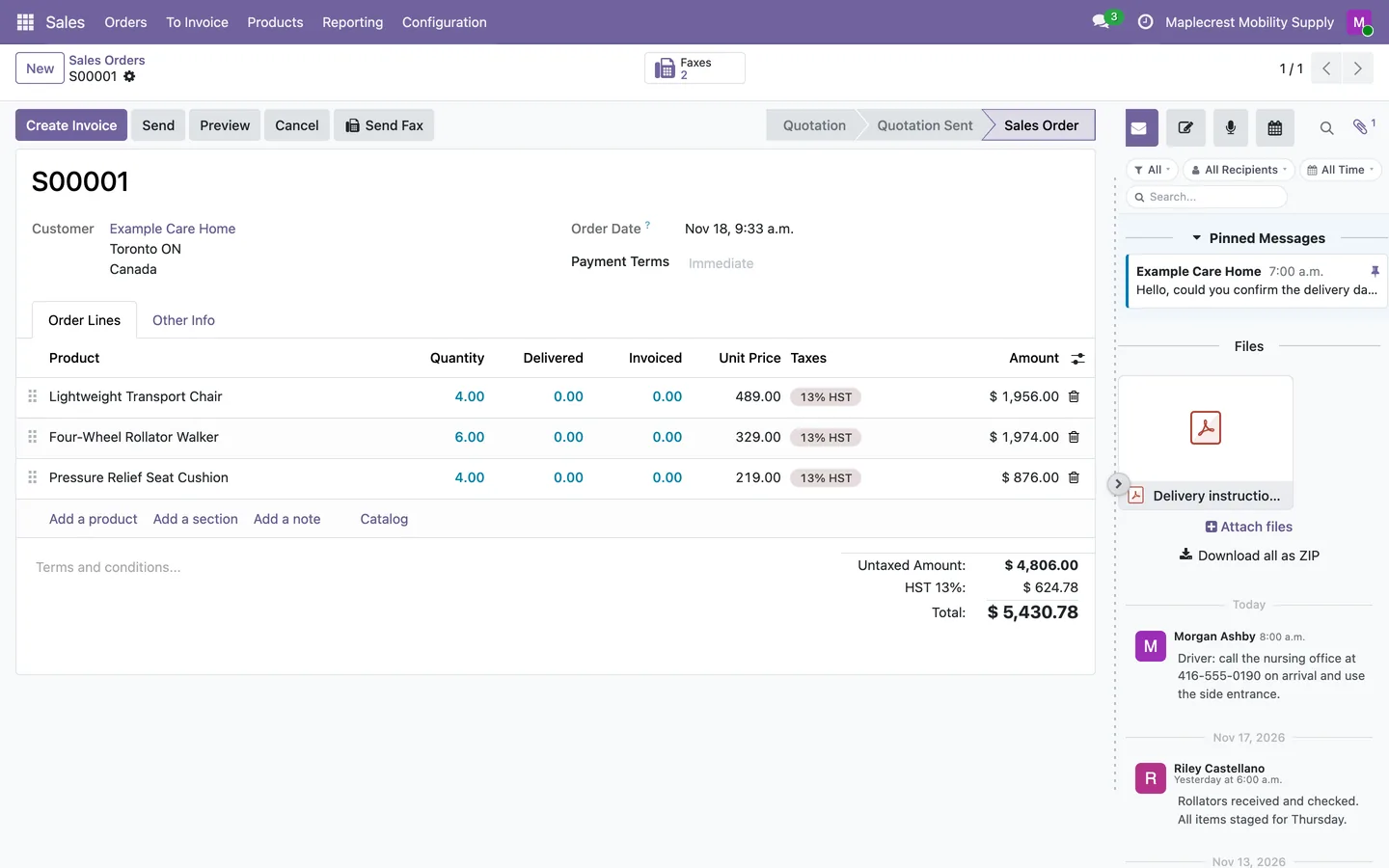
Download every file
The Files panel gets "Download all as ZIP", which holds only the files you are allowed to read.
-
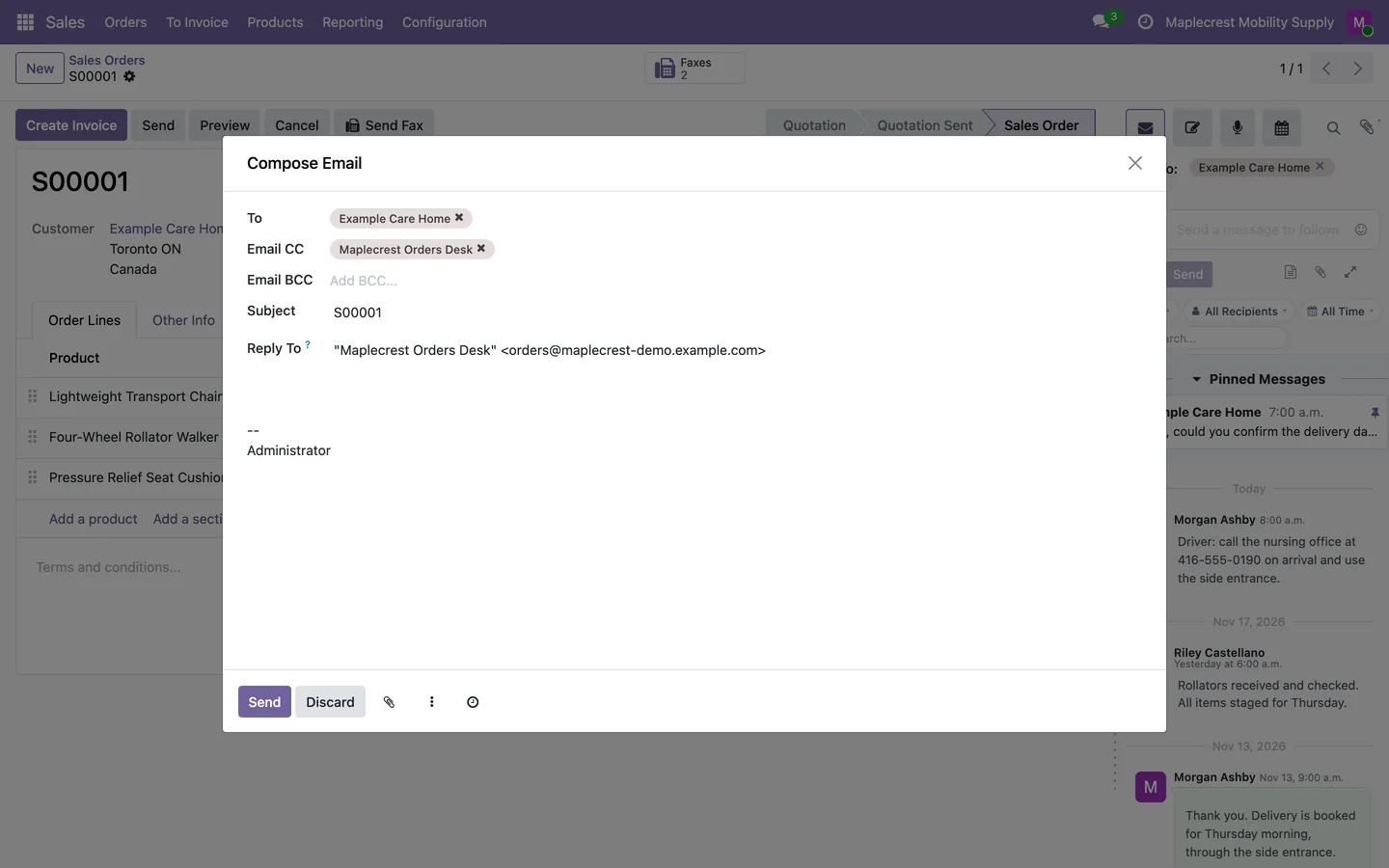
Email with the right people copied
The full composer fills Email CC, Email BCC and Reply-To from your defaults. Blind copies go out as separate emails, so they never show in the chatter.
Chatter > Send message > Open Full Composer
Lay it out your way
Each person decides where the chatter goes and how much room it takes.
-
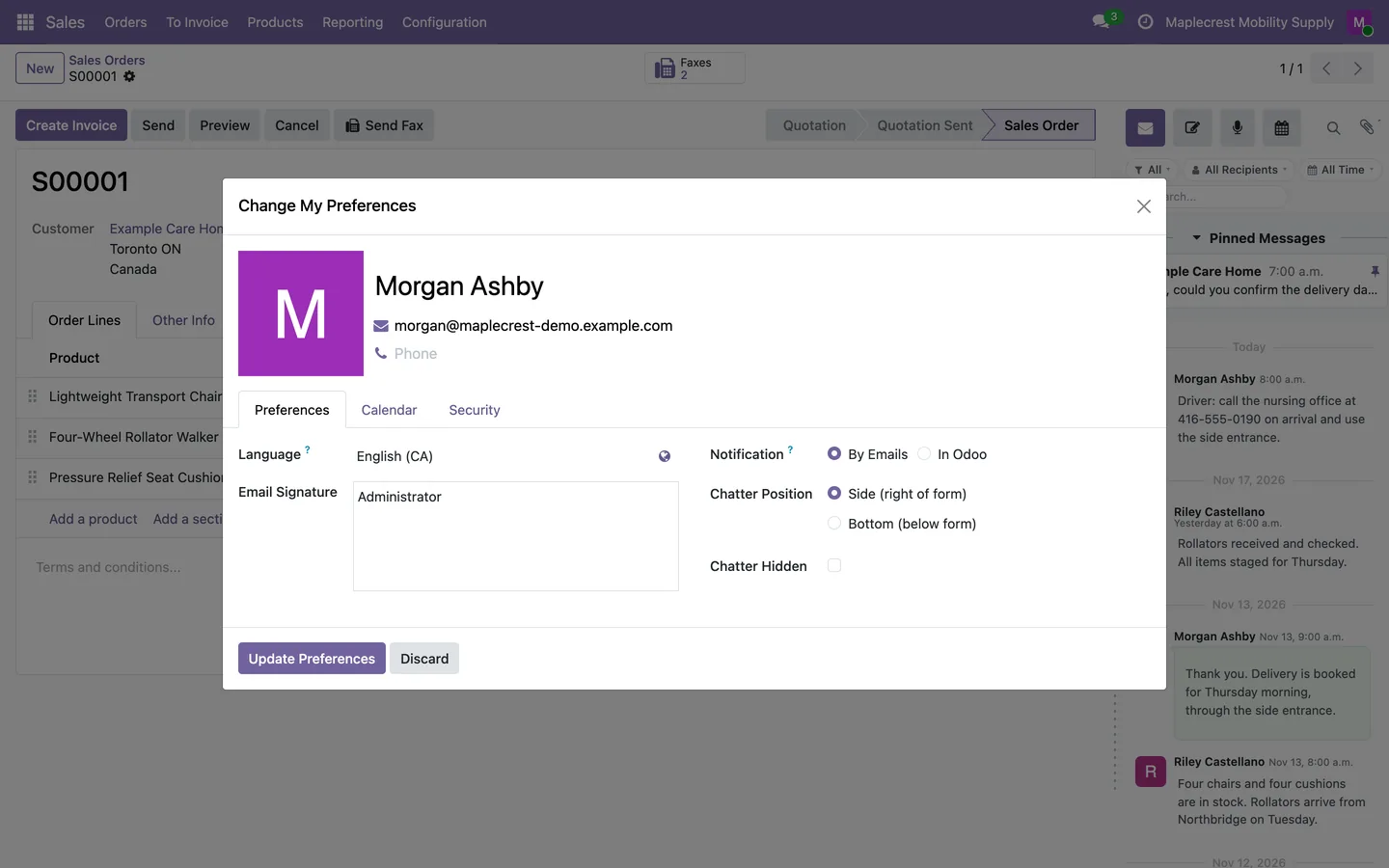
Beside or below
In their preferences each user puts the chatter beside the form or below it, or starts with it hidden.
User menu > Preferences
-
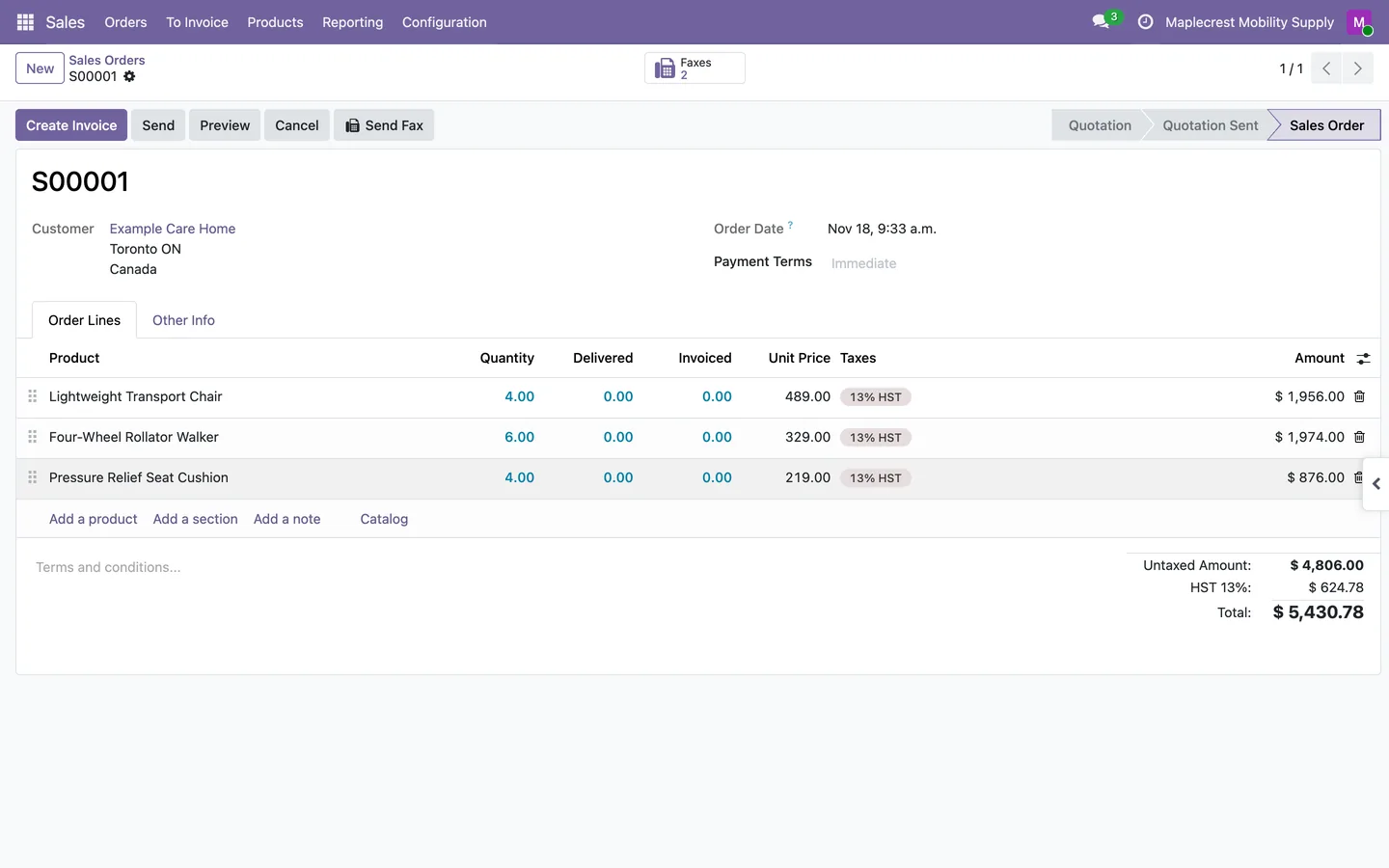
Resize or collapse
Drag the edge to resize the chatter, or collapse it with the arrow to give the form the full width. The tab on the right brings it back.
-
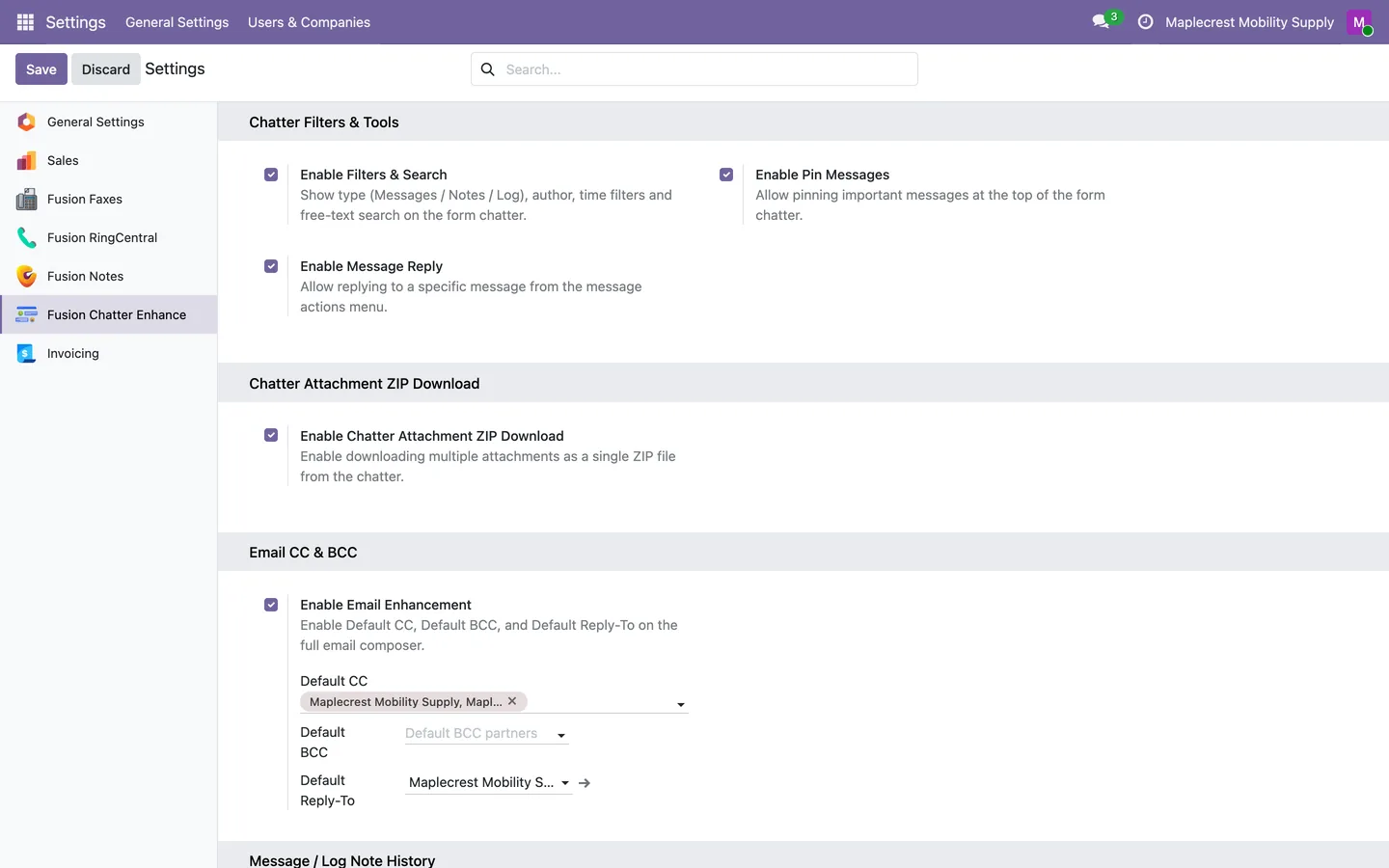
Turn features on
An administrator switches filters, pins, replies, ZIP downloads, email defaults and edit history on or off.
Settings > Fusion Chatter Enhance
What it does
 Layout
- Resize, collapse or reposition the chatter panel to suit the working screen.
- Drag the edge between the form and the chatter to make the chatter wider or narrower, and that browser remembers the width.
- Collapse the chatter with the arrow on its edge and bring it back with the tab on the right, and the choice is saved for each user.
- Each user chooses in their preferences whether the chatter sits beside the form or below it, and whether it starts hidden.
- The chatter top bar shows icons only and messages are more compact.
 Finding messages
- Filter the chatter by type (messages, notes or log), by author, by time (today, last 7 or last 30 days) and by search text, with a count of what is shown.
- "Reset" clears every filter at once.
- Pin messages on record chatter for later reference.
- Pinned messages stay in a strip at the top of the chatter, even while other filters are on.
 Email
- Set default CC, BCC and reply-to recipients for the full email composer.
- Blind copies go out as separate emails, so blind-copied people never show on the message in the chatter.
- Reply to a specific message using the full composer.
 Attachments and edits
- Download all chatter attachments as a ZIP archive.
- The ZIP holds only the files the person downloading it is allowed to read.
- With Manage History on, every edit to a message or log note is saved with the old text, the new text, who changed it and when.
 Settings
- Settings turn filters, pins, replies, ZIP downloads, email defaults and edit history on or off.
- Pinning or unpinning needs the pin setting on and permission to edit the record.
What's new
Recent changes to Fusion Chatter Enhance, newest first.
-
- Pinning and unpinning a message now needs the pin setting on and permission to edit the record.
- Chatters with many replies load faster because reply parents are no longer loaded twice.
-
- Chatters with many replies load faster because all reply parents are loaded in one batch.
-
- Default CC sends correctly from the full composer, and blind copies go out separately so blind-copied people are not shown in the chatter.
-
- Sales orders with long reply chains no longer hang or show a blank chatter.


See Fusion Chatter Enhance on your own Odoo.
Book a call and tell us how your team works today. We'll show you the module and what it would take to set it up. Prefer the phone? Call 905-792-0000.