
Fusion Labels
Product labels with prices and barcodes, printed as PDF on A4 sheets or single labels.
Print product labels with prices and barcodes from any selection of products. Choose 57 x 35 mm labels on A4 sheets or single 50 x 38 mm labels, then preview and print the PDF.
- Odoo 19
- Version 19.0.1.1.0
- Free
Fusion Labels, step by step
2 workflows, 6 steps. Every screen is real, from a demo company with invented data.
Print a batch of labels
Select products, choose a layout and how many of each, then preview and print the PDF.
-
Choose the products
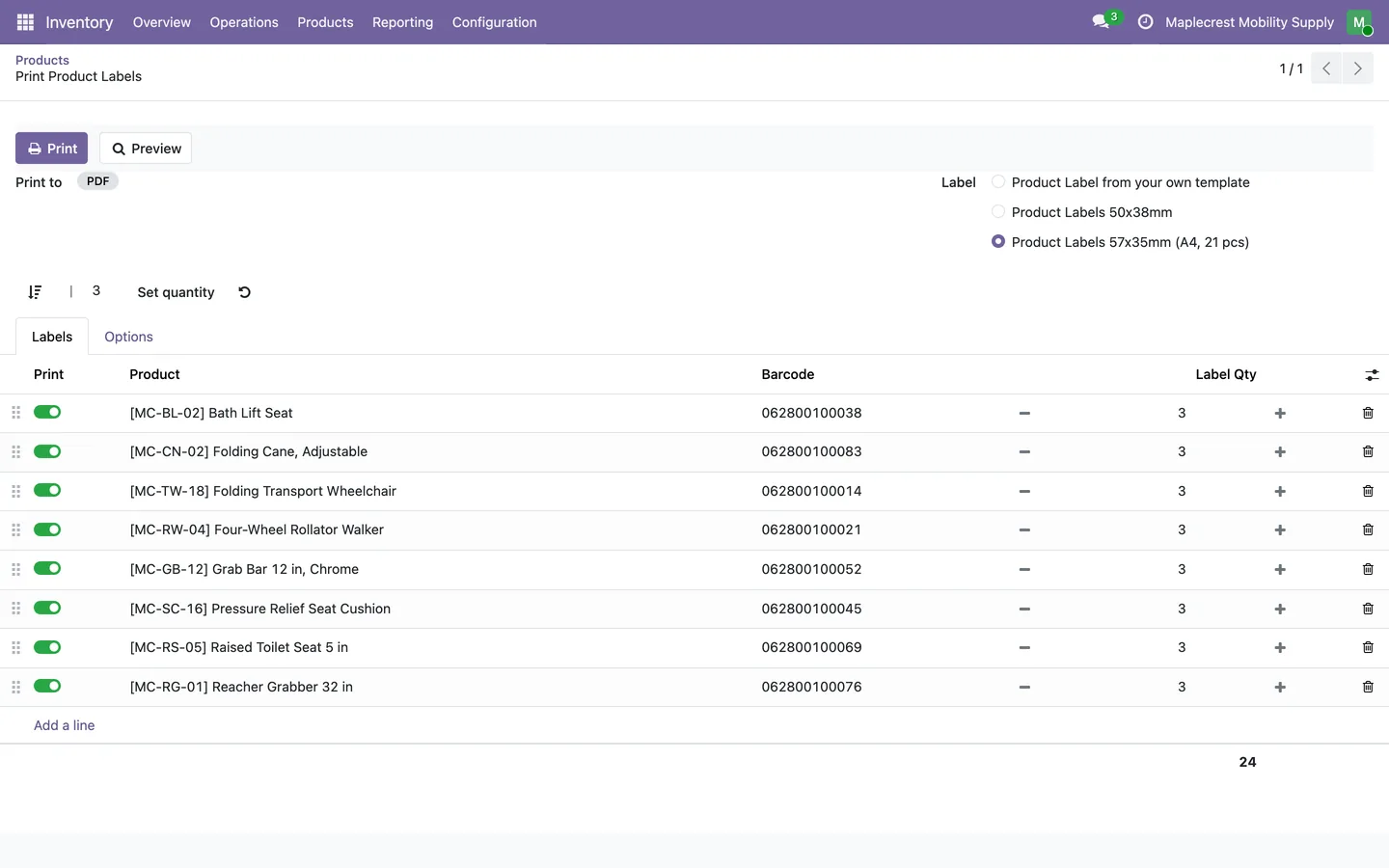
Select products in the list and choose Print > Custom Product Labels. Every selected product gets a line.
Inventory > Products > Products > Print > Custom Product Labels
-
Layout and quantities
Pick 57 x 35 mm labels, 21 to an A4 sheet, or single 50 x 38 mm labels. Give each line its own quantity, or use "Set quantity" for all of them.
-
Options
Choose the label language, whether the barcode digits print under the barcode, and a border width.
-
Preview and print
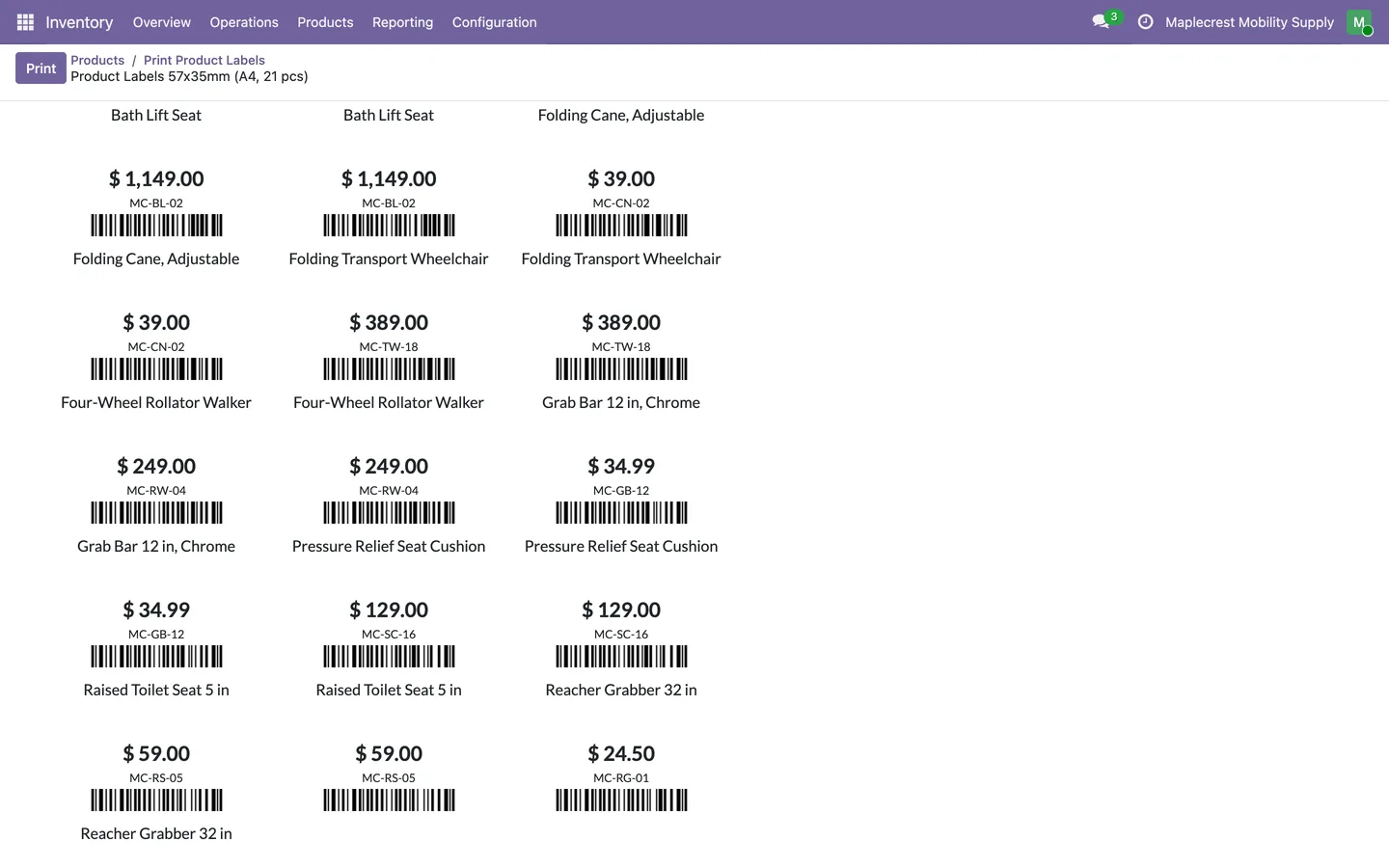
"Preview" shows the labels in the browser and "Print" makes the PDF. Each label carries the name, price, internal reference and barcode.
Use Odoo's Print Labels button
One setting makes Odoo's own Print Labels button on products open this screen.
-
Switch it on
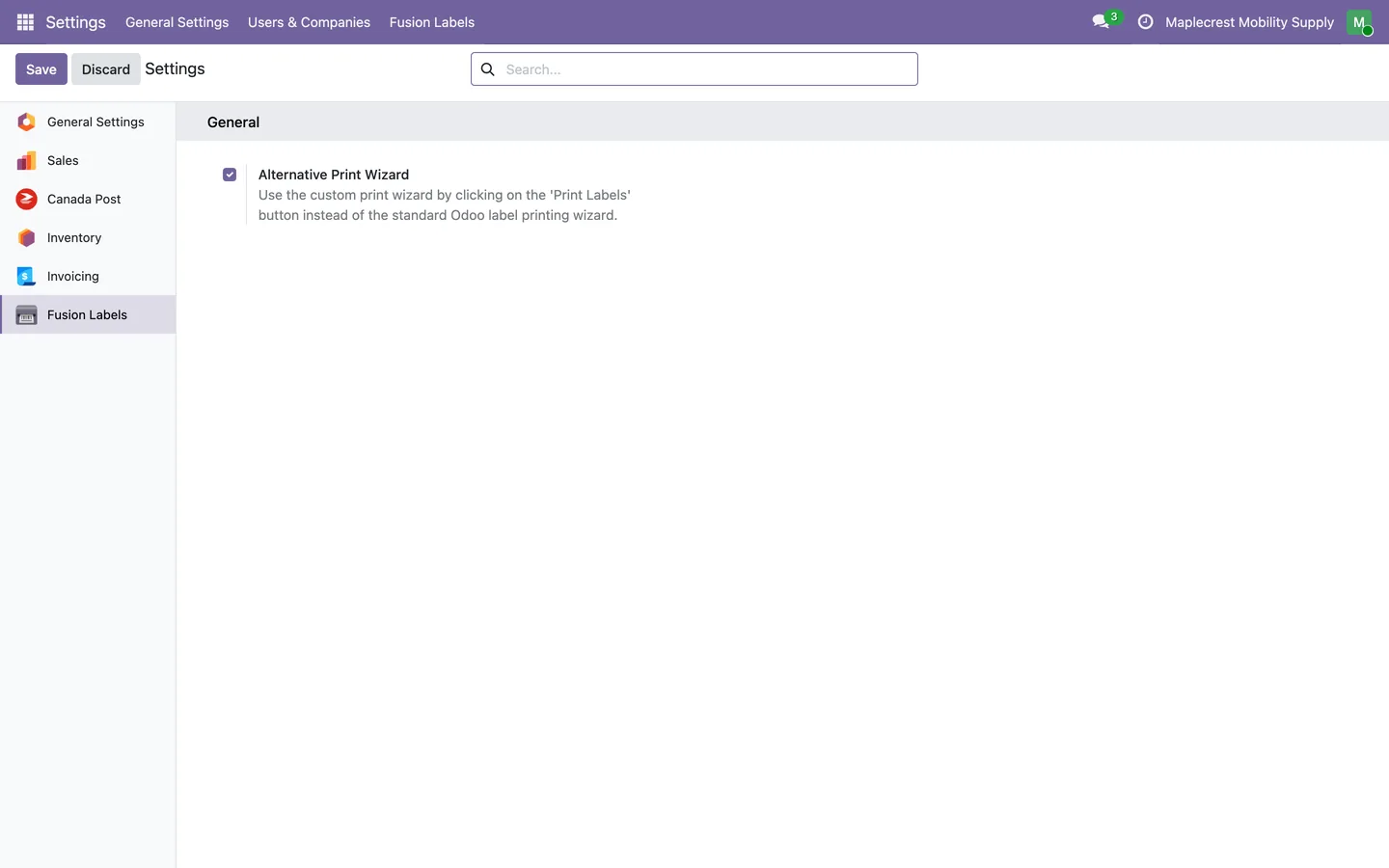
Turn on "Alternative Print Wizard" in Settings.
Settings > Fusion Labels
-
Print from a product
Odoo's Print Labels on a product or variant now opens the Fusion screen with that product ready.
What it does
 Print labels from products
- "Custom Product Labels" in the Print menu of products and product variants opens the Print Product Labels screen with the selected products.
- Two layouts come with the module: 57 x 35 mm labels, 21 to an A4 sheet, and single 50 x 38 mm labels.
- Each label shows the product name and attributes, the sales price, the internal reference and the barcode.
- Each product line can be switched on or off and given its own label quantity, and "Set quantity" applies one number to every line.
- Lines can be sorted by product, and a button restores their first quantities.
- Options set the label language, whether the barcode digits print under the barcode and a border width.
- "Preview" shows the labels in the browser and "Print" makes the PDF.
 Replace Odoo's label wizard
- A setting, "Alternative Print Wizard", makes Odoo's own Print Labels button on products open this screen instead of the standard label wizard.
What's new
Recent changes to Fusion Labels, newest first.
-
- Preview no longer changes the shared label report, so other users still print a PDF.
- Choosing a product with variants gives one label line per variant.
Related modules
 Fusion Labels Pro
A drag-and-drop label designer, a design gallery and a Print Labels screen with a live preview.
 Fusion Inventory
Margins, brand pricing, a portal stock sheet for reps and stock shared between two Odoo databases.
 Fusion PDF Preview
Free
Preview and print Odoo reports without downloading them first.
See Fusion Labels on your own Odoo.
Book a call and tell us how your team works today. We'll show you the module and what it would take to set it up. Prefer the phone? Call 905-792-0000.