
Fusion Schedule
Google and Outlook calendars synced, with buffered booking for staff.
Each person can connect several Google and Microsoft Outlook calendars from their My Schedule page and see each one's status and last sync time. Free slots follow the work day, lunch break and travel buffer each person sets on the page, or the company defaults, and time that is busy in any connected calendar is never offered.
- Odoo 19
- Version 19.0.2.2.0
Fusion Schedule, step by step
3 workflows, 13 steps. Every screen is real, from a demo company with invented data.
Connect calendars and keep them in sync
Each person connects their Google and Outlook calendars once, and events flow into Odoo every five minutes without any emails going out.
-
Set the sign-in keys
An administrator enters the Google and Microsoft sign-in keys, or leaves them empty to use Odoo's own, and the company's default work hours, break and travel buffer.
Settings > Fusion Schedule
-
Connect a calendar
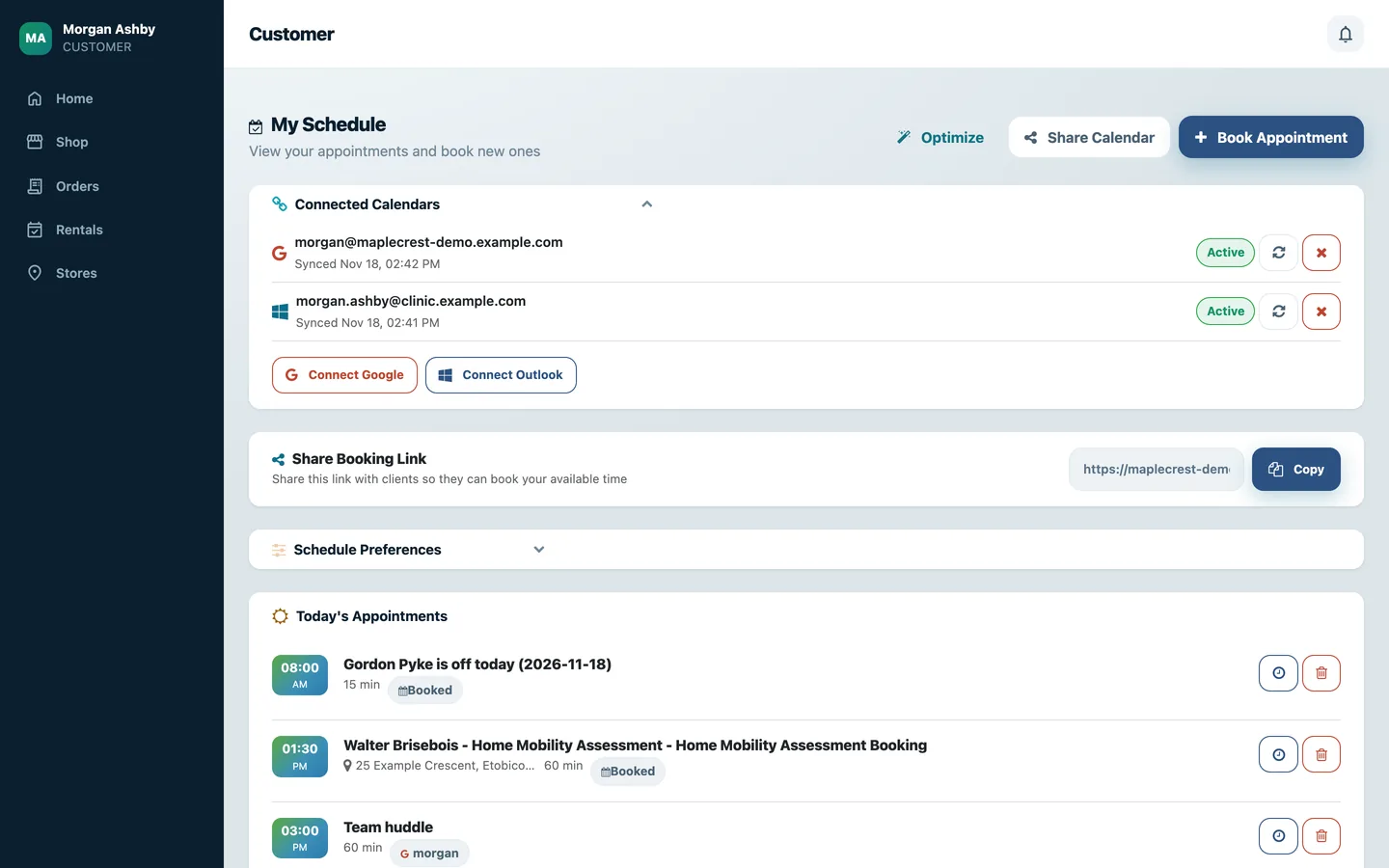
On My Schedule the person presses "Connect Google" or "Connect Outlook", signs in, and comes back with the calendar listed with its status and last sync time.
Portal > My Schedule > Connected Calendars
-
Events come in
Every five minutes new, changed and cancelled events are pulled in silently, and My Schedule shows each one with a badge for the calendar it came from. A meeting that reaches two of a person's calendars is kept as one event.
-
Choose where Odoo appointments go
An administrator picks one connected calendar per person, and appointments made in Odoo, with their later changes and cancellations, are sent there.
-
Watch it from the back office
The Calendar app shows a coloured tag for each connected calendar with its status, and one button syncs them all.
Calendar
Book a client visit from My Schedule
Staff book a visit in a free slot that respects their work day, lunch break and travel time, and the client is emailed a confirmation.
-
Set the work day
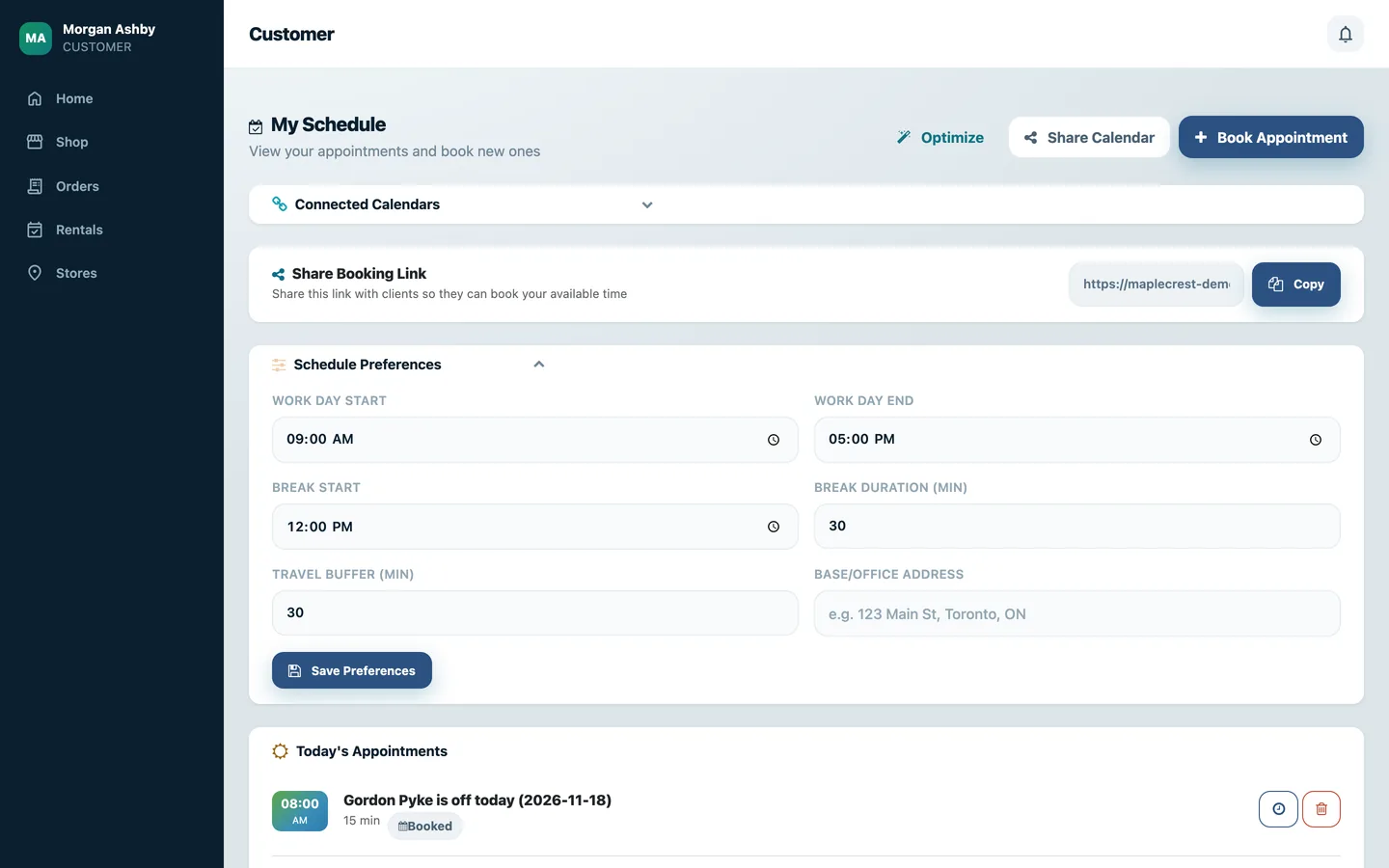
Each person sets their work day start and end, break and travel buffer, and empty values fall back to the company defaults.
Portal > My Schedule > Schedule Preferences
-
Pick a day
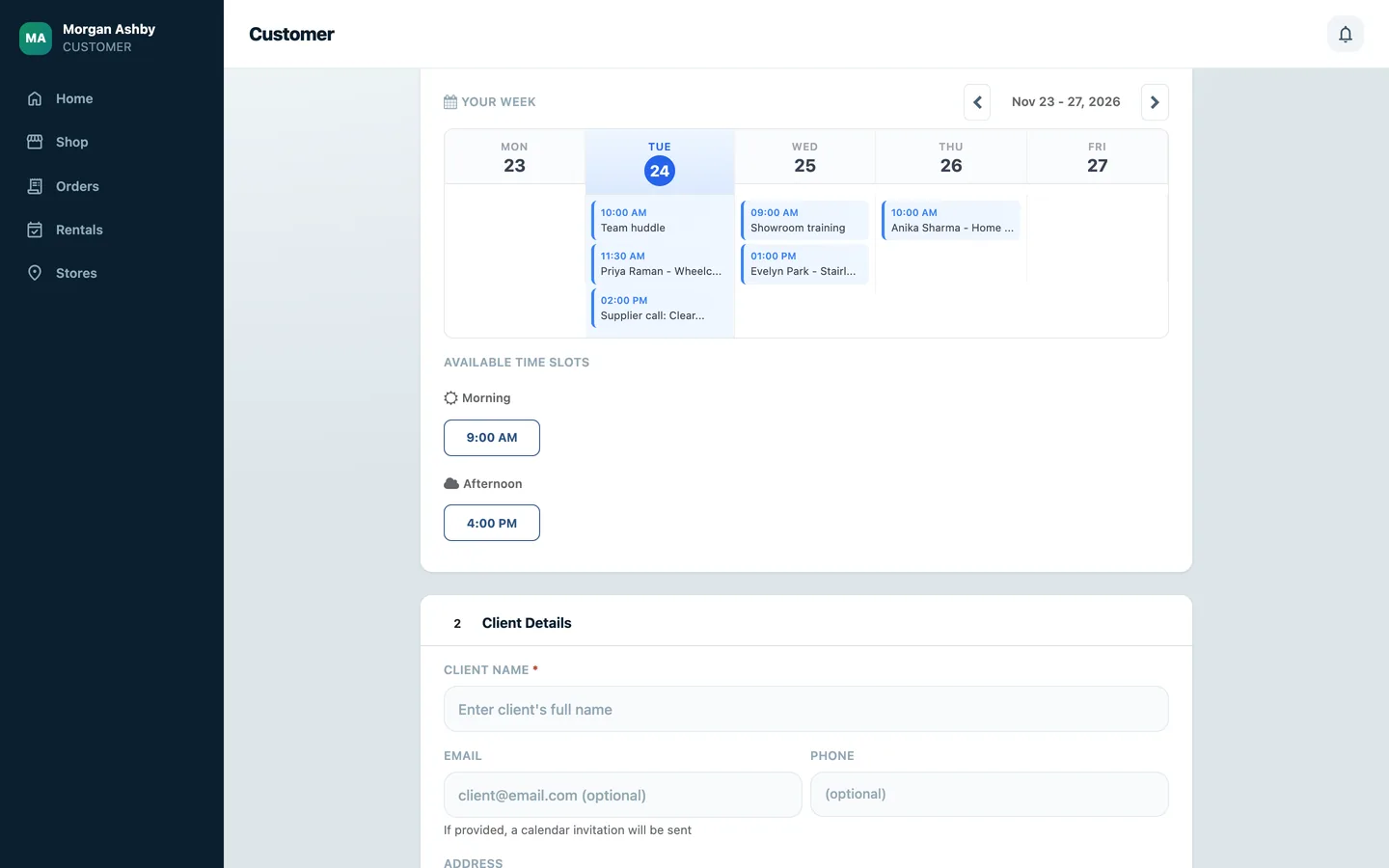
The booking form shows the appointment type, a date, a preview of the Monday to Friday week, and the free slots in morning and afternoon groups with a gap after each visit for travel.
Portal > My Schedule > Book Appointment
-
Enter the client and book
The client's name, contact details, address and notes go on the appointment. The slot is checked again on save, and a time taken in the meantime is refused.
-
The client is told
The client gets a confirmation email with the date, time, place and staff name and a Manage Appointment button.
-
Run the day
Today's Appointments lists the day with time, place, length and source. Cancelling one asks for confirmation and also removes it from the calendar it was sent to.
Share one person's busy time between two sites
When the same people work for two of your Odoo sites, time booked on one blocks the same time on the other.
-
Point each site at the other
On each site an administrator enters the other site's address, database, login, key and a label for each site.
Settings > Fusion Schedule > Calendar Mirror
-
Busy time arrives
Every five minutes the other site's busy times for the next 90 days arrive as Busy entries named after that site, and those slots are not offered. Only start and end times travel, never a title, place or attendee.
-
Busy entries stay locked
A busy entry from the other site cannot be moved or cancelled here, with a note to change it on the site that owns it.
What it does
 Connected calendars
- Each person can connect several Google and Microsoft Outlook calendars from their My Schedule page and see each one's status and last sync time.
- Every five minutes, new, changed and cancelled events are brought in from each connected calendar, and a refresh button next to each calendar syncs it right away.
- A meeting that reaches two of a person's calendars is kept as one event in Odoo, not two.
- Appointments made in Odoo are sent to the one connected calendar an administrator picks for each person, and later changes and cancellations follow them there.
- Syncing is silent: no invitation or change email goes to anyone when events come in or go out.
- Disconnecting a calendar stops its sync and removes the appointments Odoo had sent to it, while events already brought in stay in Odoo.
- In the back-office Calendar, a coloured tag for each connected calendar shows its status beside one button that syncs them all.
 Booking client visits
- My Schedule lists today's appointments and the next twenty upcoming ones with time, place, length and a badge showing which calendar each came from.
- Staff book a client visit on a form with the appointment type, a date picker, a preview of their Monday to Friday week and the free time slots split into morning and afternoon.
- Free slots follow the work day, lunch break and travel buffer each person sets on the page, or the company defaults, and time that is busy in any connected calendar is never offered.
- The chosen slot is checked again when the booking is saved, so a time taken in the meantime is refused with a request to pick another.
- The client's name, phone, address and notes go on the appointment, a contact is created from the client's email when none exists, and the client gets a confirmation email with a Manage Appointment button.
- Staff cancel an appointment from the list after confirming in a dialog, and the cancellation also reaches the calendar it was sent to.
 Two sites, one calendar
- When the same people work for two of your Odoo sites, time booked on one site shows on the other as a Busy entry named after the first site, and those slots are not offered.
- Only start and end times travel between the sites, never a title, description, place or attendee.
- Busy entries from the other site are never sent to Outlook or Google and cannot be moved or cancelled here, with a note to change them on the site that owns them.
What's new
Recent changes to Fusion Schedule, newest first.
-
- When the same people work for two of your Odoo sites, time booked on one site now blocks that time on the other, without the busy entry ever reaching their Outlook or Google calendar.
- Outlook syncing now looks 90 days ahead on a rolling window and removes an event from Odoo only after Microsoft confirms it was cancelled or deleted.
- Reschedules and cancellations made in other Fusion apps, such as field service tasks and meetings, now reach the linked Outlook or Google copy of the appointment.
- Appointments made in Odoo now go only to the connected calendar an administrator picks for each person, and a newly connected calendar receives nothing until it is picked.
-
- A copied or test database now disconnects every external calendar, so changes made on the copy never reach real Google or Outlook calendars.
Related modules


See Fusion Schedule on your own Odoo.
Book a call and tell us how your team works today. We'll show you the module and what it would take to set it up. Prefer the phone? Call 905-792-0000.