
Fusion Templates
Save a sales order as a quotation template, sections and notes included.
"Save as Template" in the gear menu of a sales order or quotation turns it into a reusable quotation template. Every product line, section and note is copied in its original order.
- Odoo 19
- Version 19.0.1.0.0
- Free
Fusion Templates, step by step
1 workflow, 5 steps. Every screen is real, from a demo company with invented data.
Save a sales order as a quotation template
Turn an order you quote often into a template in a few clicks, with its sections, products and notes in place.
-
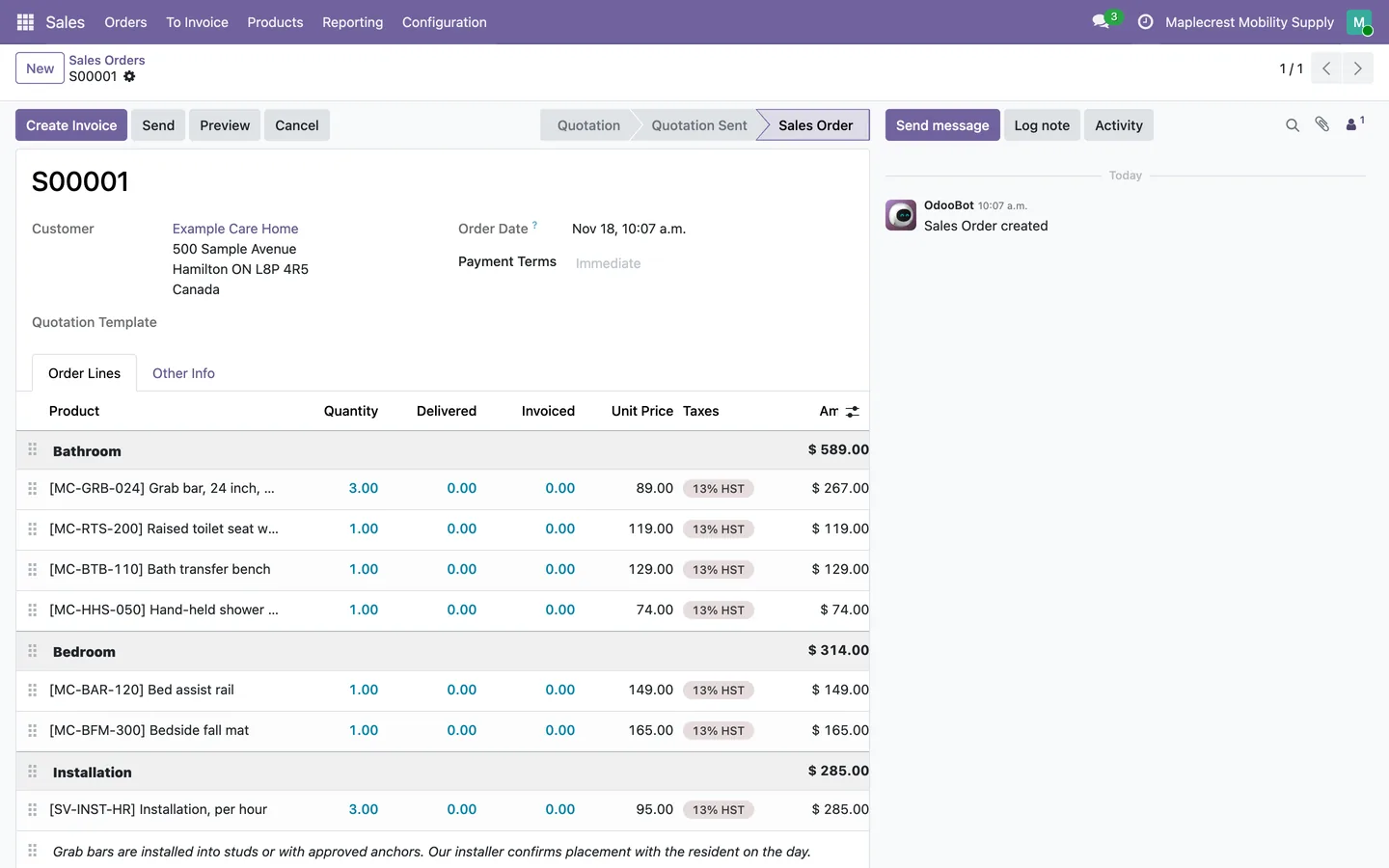
Start from a good order
Open an order that is laid out the way you want to quote it again, with its sections and notes.
Sales > Orders > Orders
-
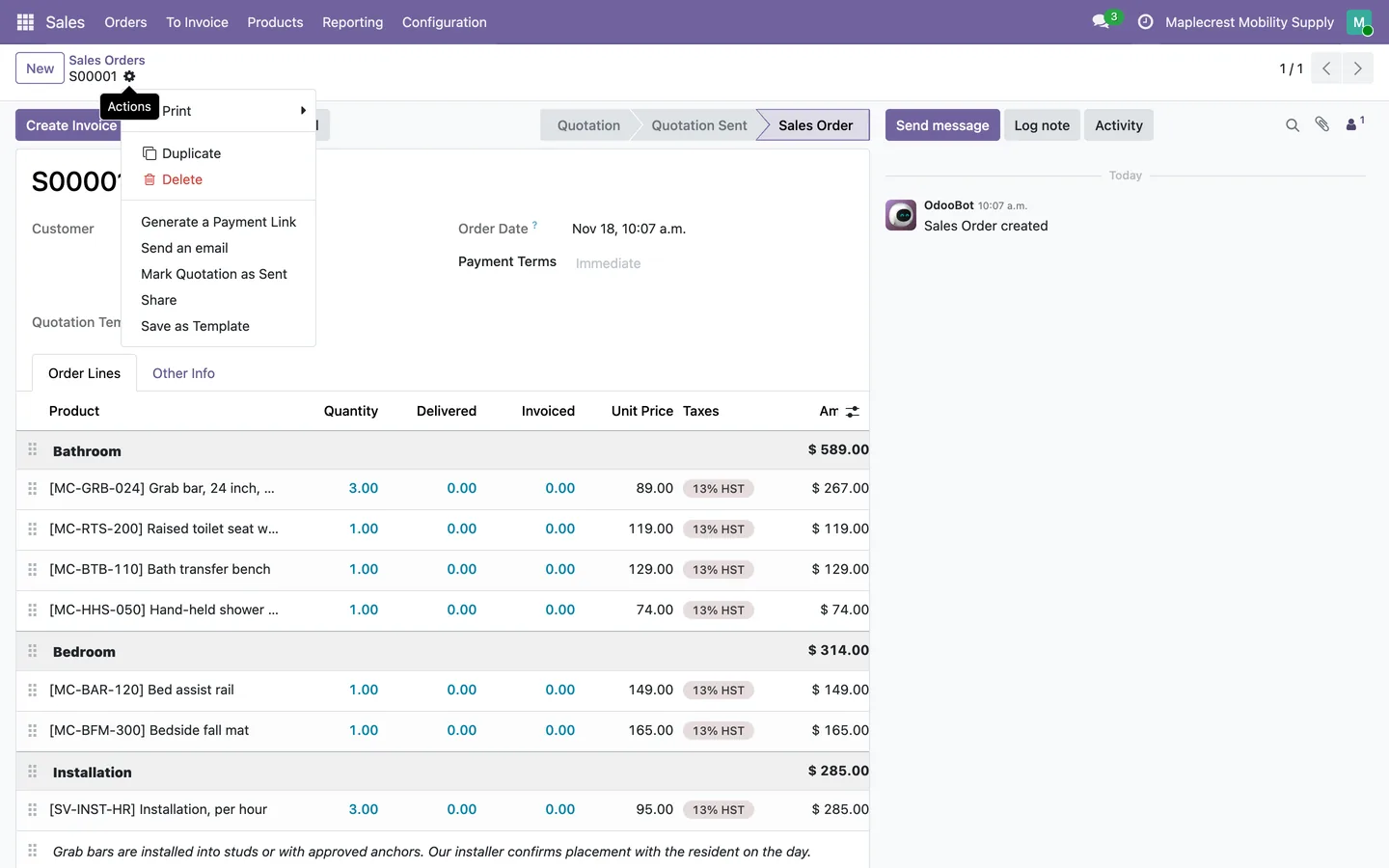
Save as Template
The gear menu next to the order number lists "Save as Template".
Sales order > gear menu
-
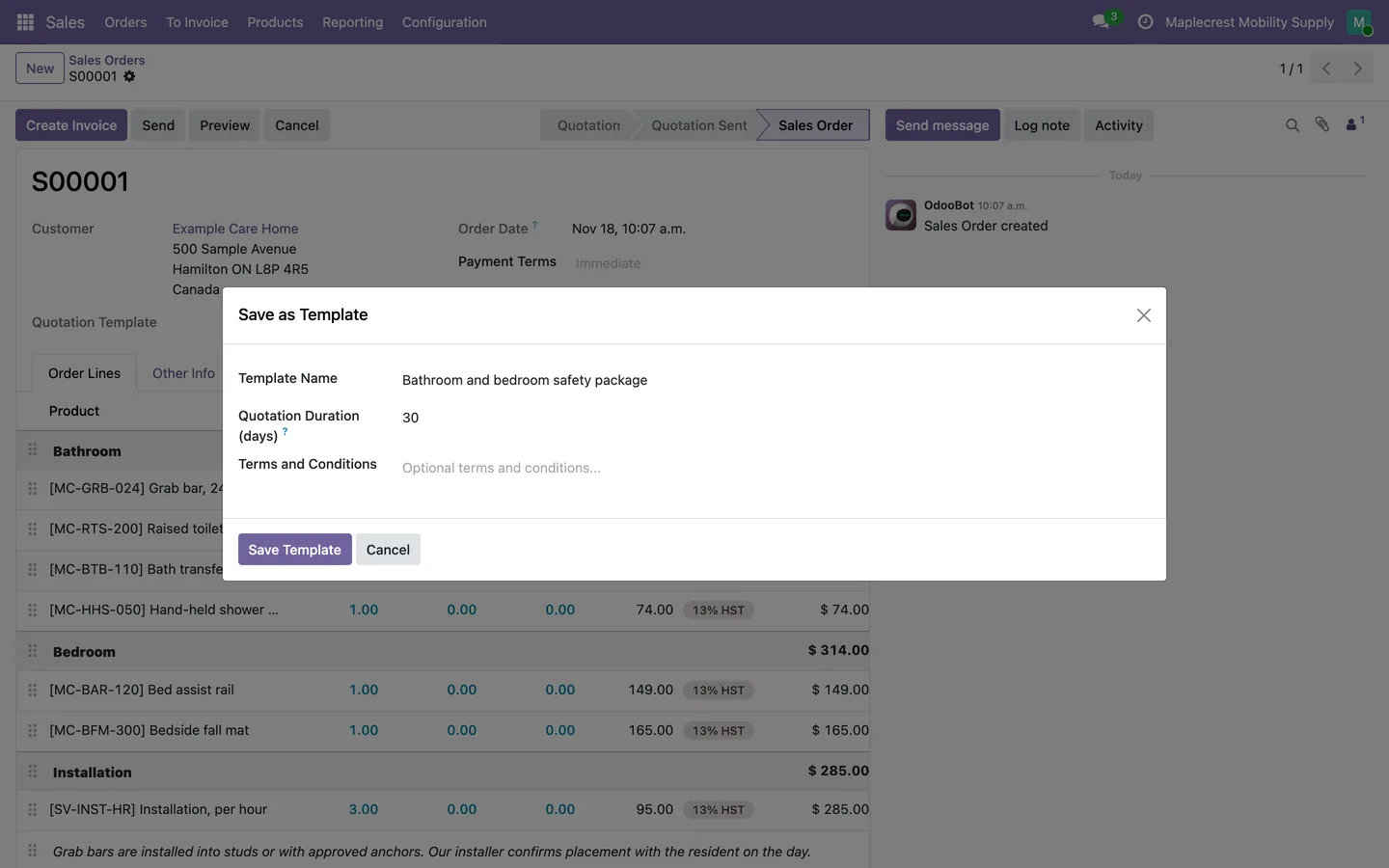
Name it
The window suggests a name such as "Template from S00001". Change it, set how many days quotations stay valid and add terms if you like.
Gear menu > Save as Template
-
The new template
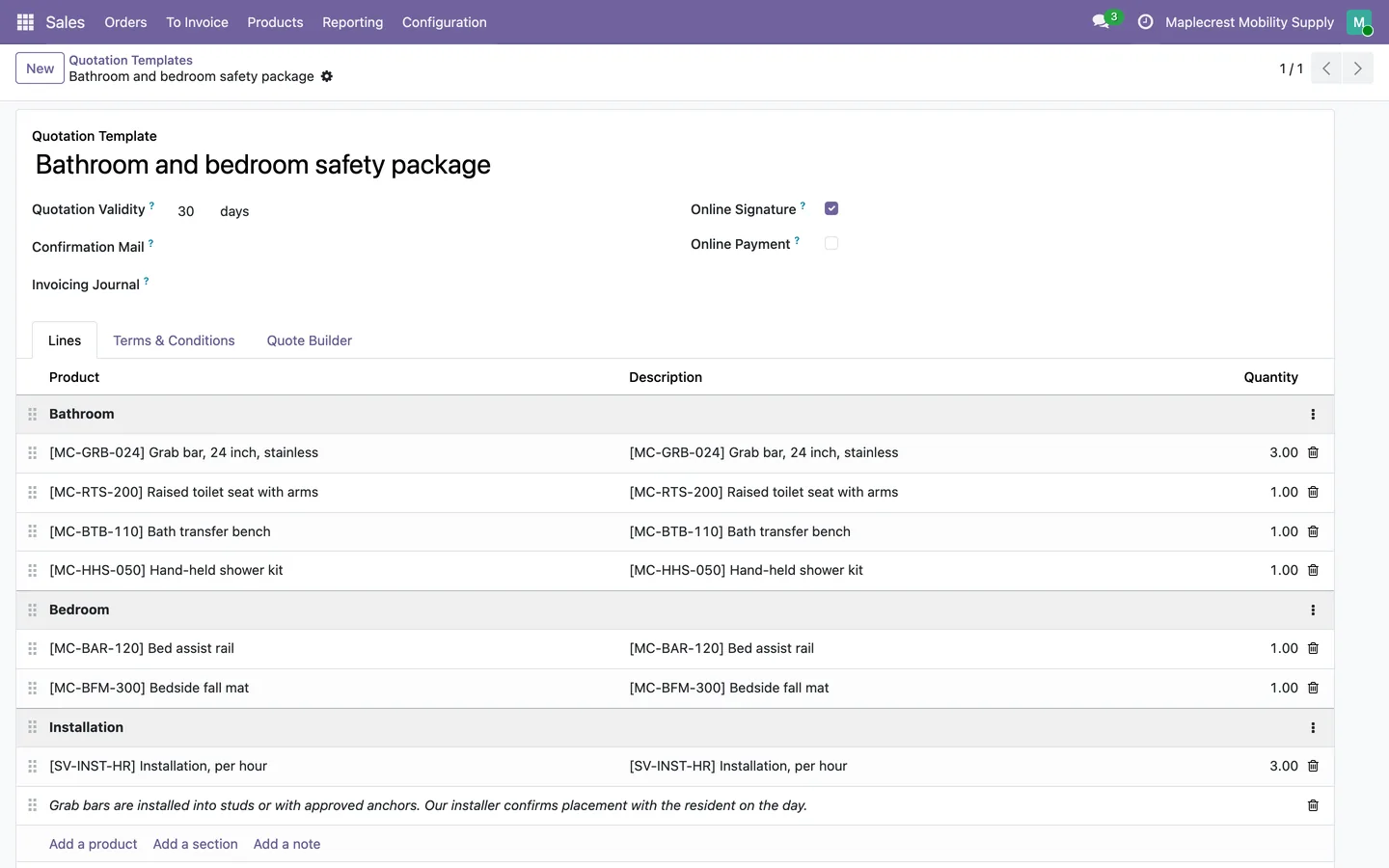
"Save Template" opens the new quotation template with every section, product, description, quantity and note in the original order. Prices are not copied.
Sales > Configuration > Quotation Templates
-
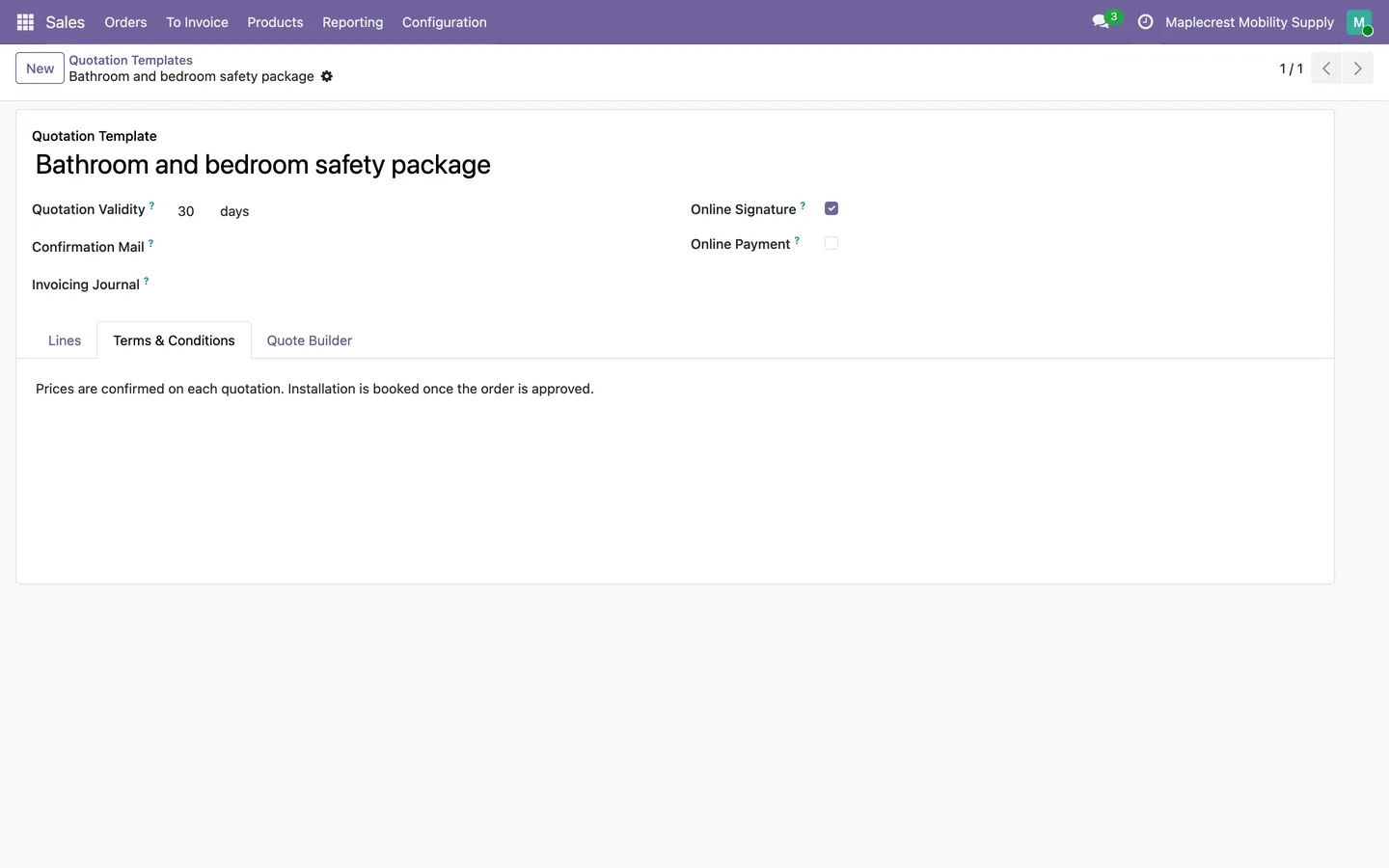
Terms carried over
The terms typed in the window are on the template's Terms & Conditions tab.
Quotation template > Terms & Conditions
What it does
 From order to template
- "Save as Template" in the gear menu of a sales order or quotation turns it into a reusable quotation template.
- The window suggests a name such as "Template from S00001", which you can change.
- You can set how many days quotations from the template stay valid and add terms and conditions.
- "Save Template" creates the template and opens it for review and editing.
 What the template keeps
- Every product line, section and note is copied in its original order.
- Product lines keep their product, description, quantity and unit of measure.
- Prices are not copied, so each new quotation from the template takes current product prices.
- An order with no lines cannot be saved as a template.
Related modules
 Fusion SO to PO
Free
Purchase orders for each vendor, raised straight from the sales order and linked back to it.
 Fusion Claims
ADP, March of Dimes and other funding claims from quote to payment inside Odoo.
 Fusion Configurator
New
Configurable products built from features, options, three price tiers and condition rules.
See Fusion Templates on your own Odoo.
Book a call and tell us how your team works today. We'll show you the module and what it would take to set it up. Prefer the phone? Call 905-792-0000.