
Fusion Parts Finder
Exploded parts drawings and a public parts finder for your store.
Organize replacement parts into assemblies and sub-assemblies for each machine. Publish a searchable parts catalogue and a detailed page for each machine.
- Odoo 19
- Version 19.0.1.1.2
- Newly listed
Fusion Parts Finder, step by step
2 workflows, 11 steps. Every screen is real, from a demo company with invented data.
Build the parts list for a machine
Each machine gets assemblies with an exploded drawing, numbered pins and a parts table, and every part learns which machines it fits.
-
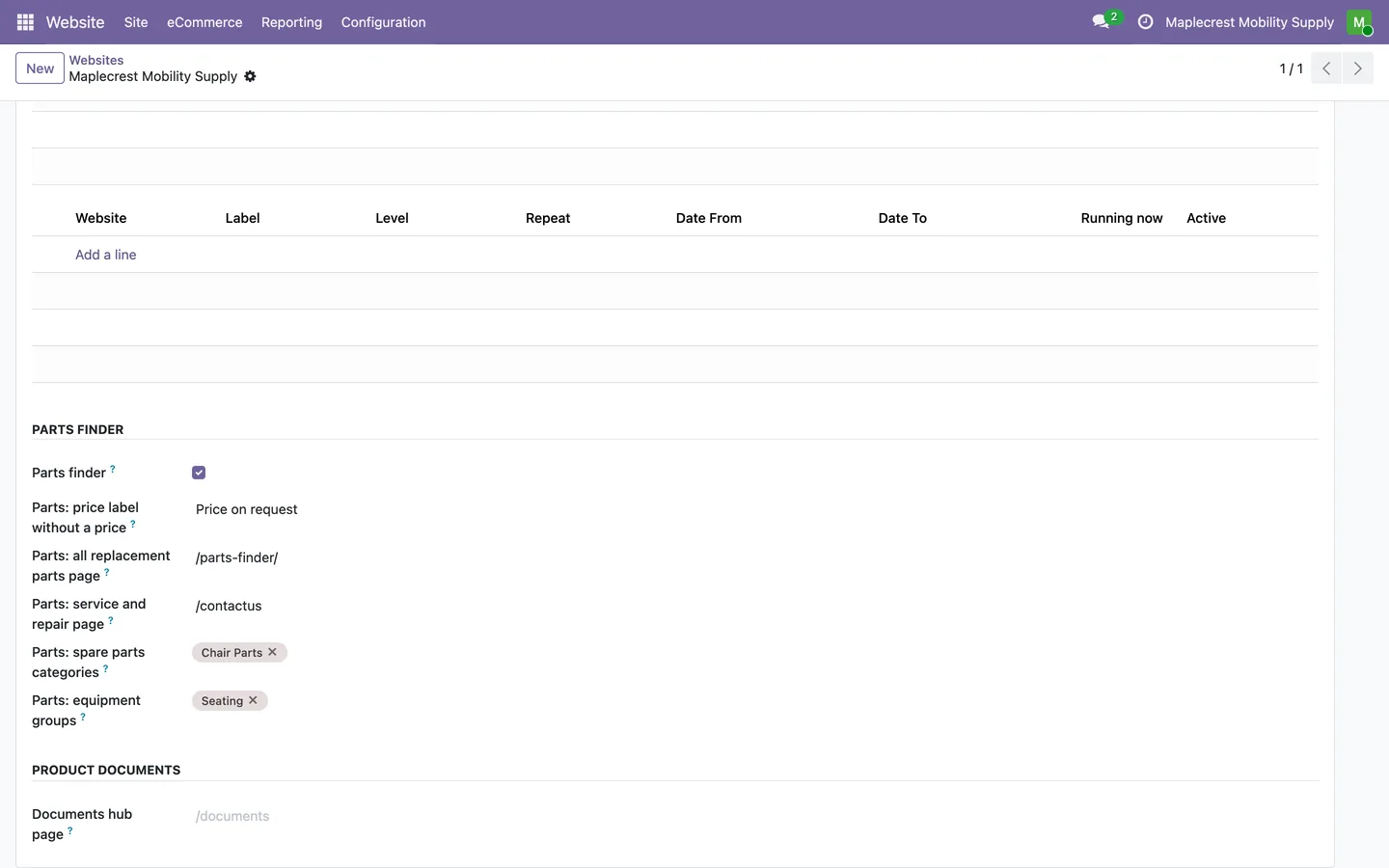
Turn it on for the website
The website form has a Parts finder group: on or off, the label shown instead of a price, the all-parts page, a service page, the spare parts categories and the equipment groups.
Website > Configuration > Websites
-
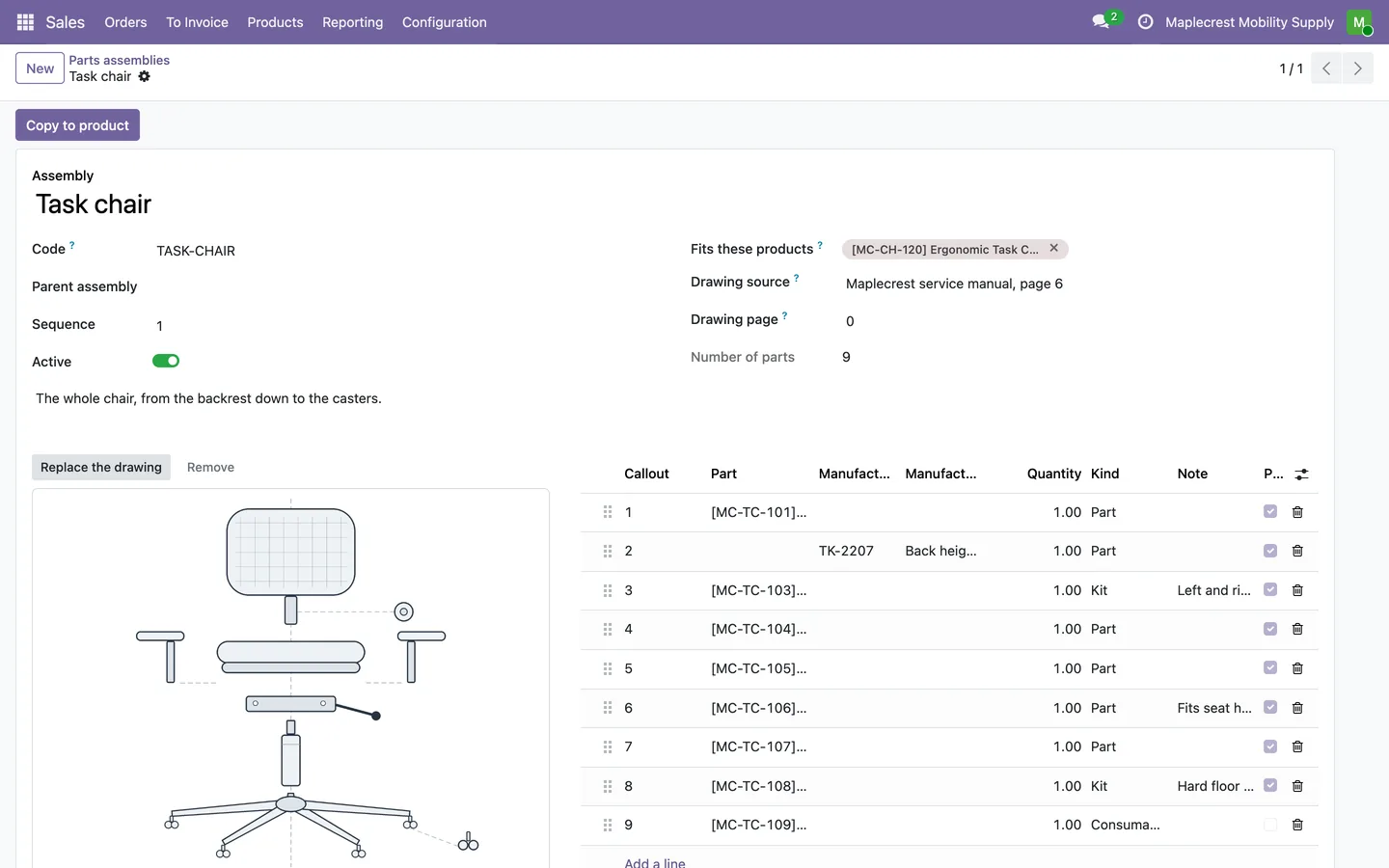
Create an assembly
An assembly is one exploded drawing of one machine: the products it fits, where the drawing came from, the drawing itself, its parts table and any sub-assemblies.
Sales > Products > Parts assemblies
-
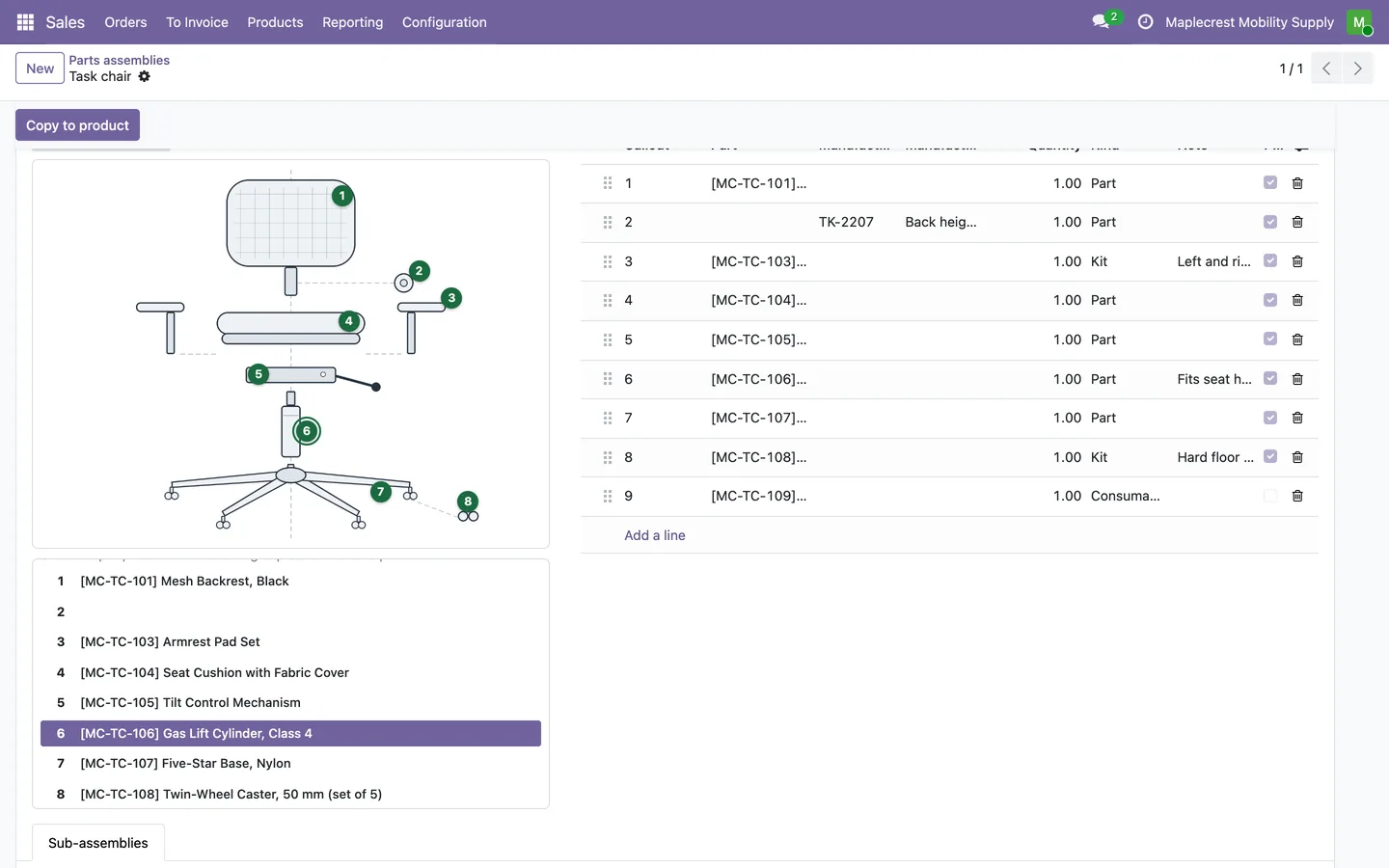
Place the numbered pins
Choose a part in the list under the drawing, then click the drawing to place or move its pin. The pin is saved at once.
Parts assembly > drawing
-
The machine is ready
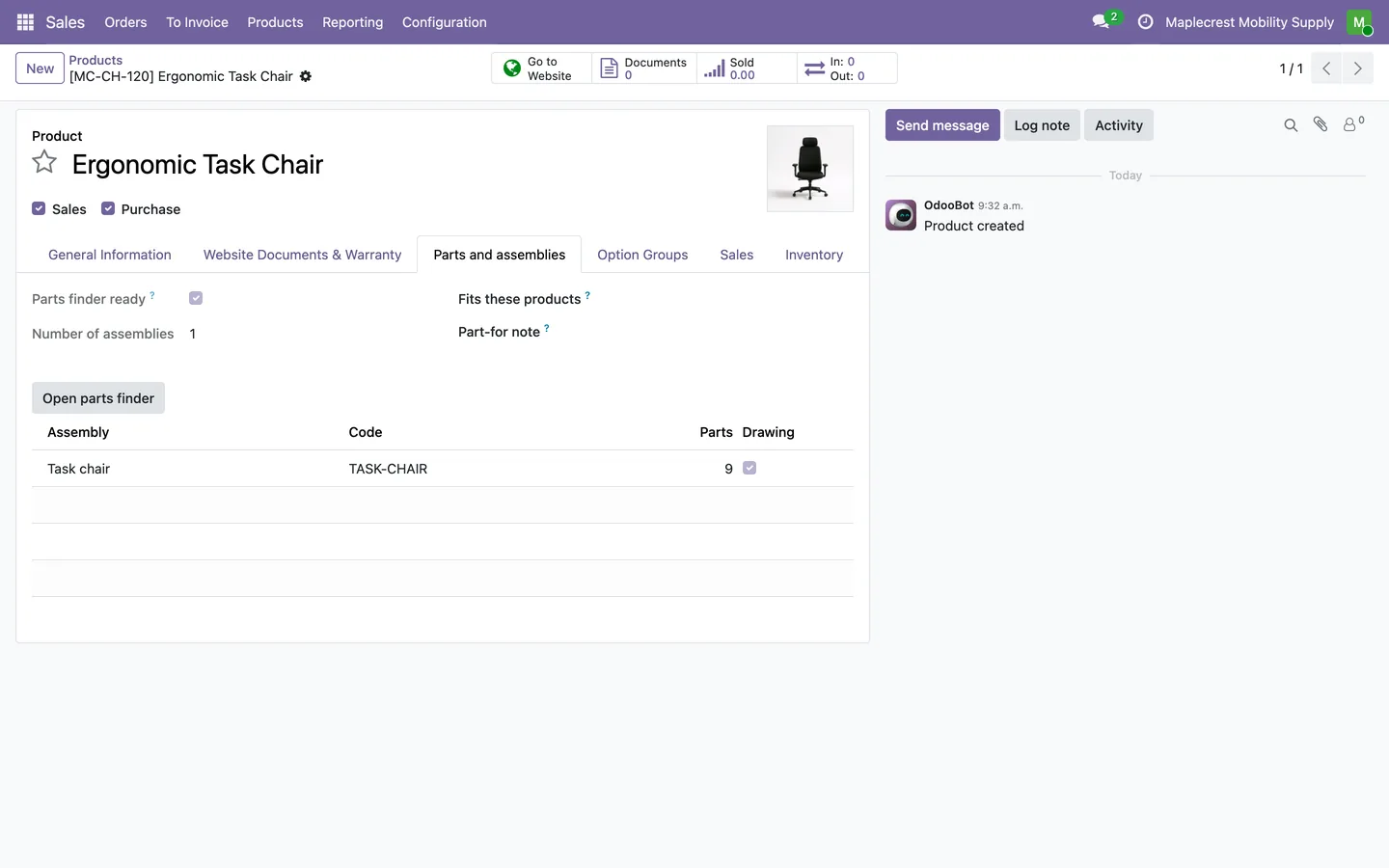
The machine's Parts and assemblies tab shows it is ready for the finder, lists its assemblies and opens its parts page.
Sales > Products > Products > Parts and assemblies
-
Fitment follows the assembly
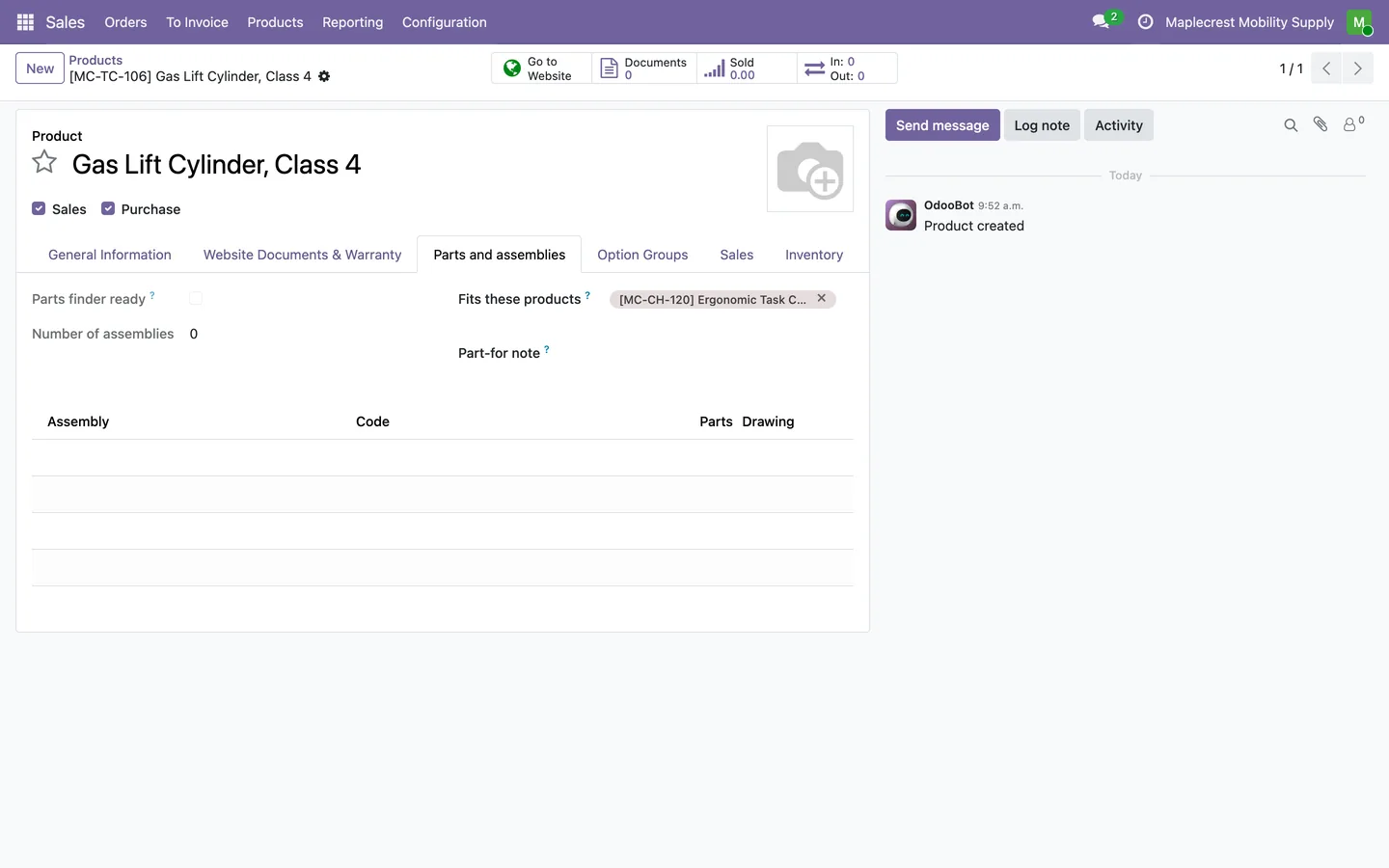
Every part on an assembly gets the machine in its "Fits these products" without anyone typing it.
-
Copy to another machine
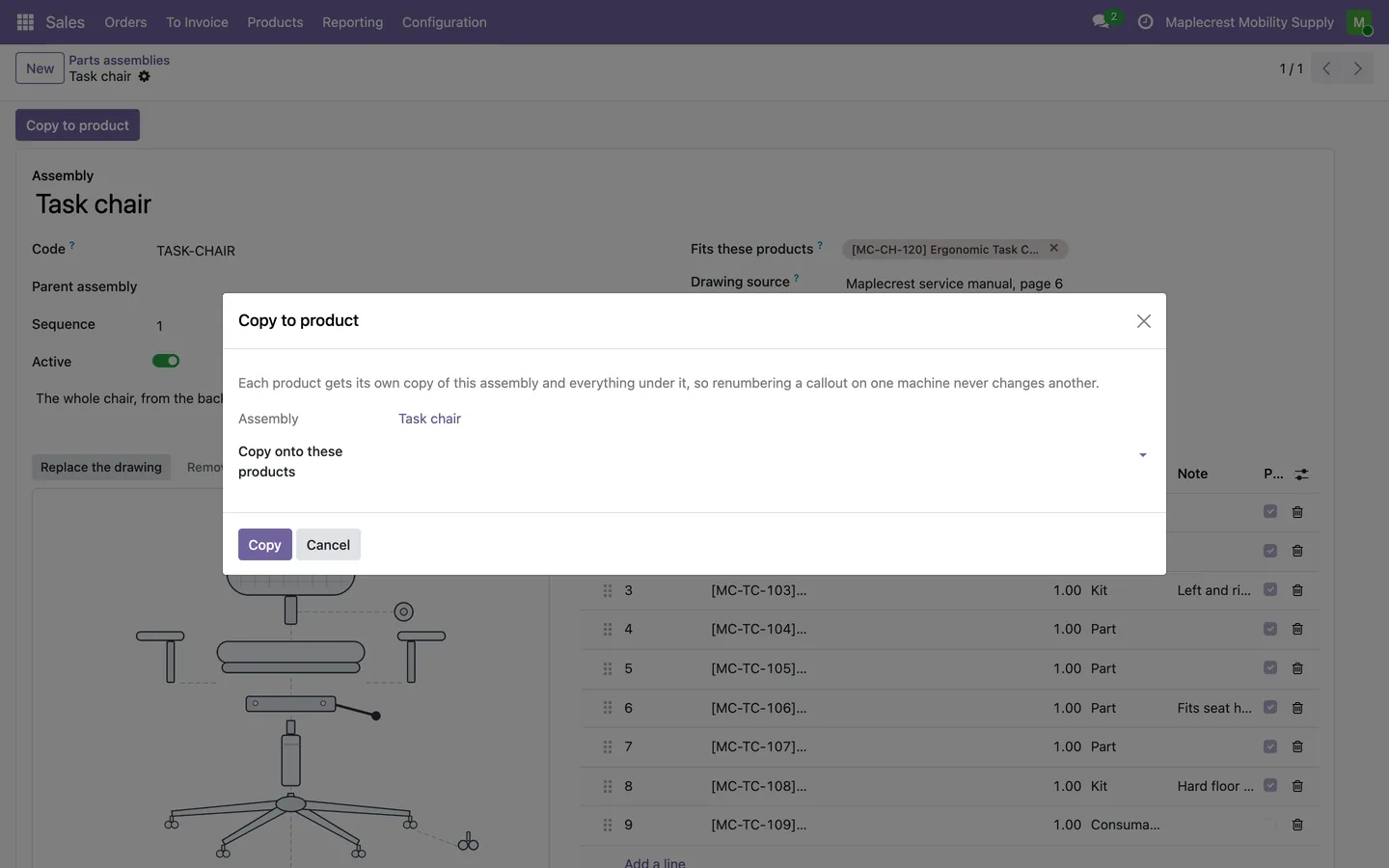
"Copy to product" gives other machines their own copy of the assembly, so renumbering a callout on one never changes another.
A customer finds and orders the part
On the website a customer picks their machine, finds the part on the drawing or by search, and orders it or asks about it.
-
The parts page
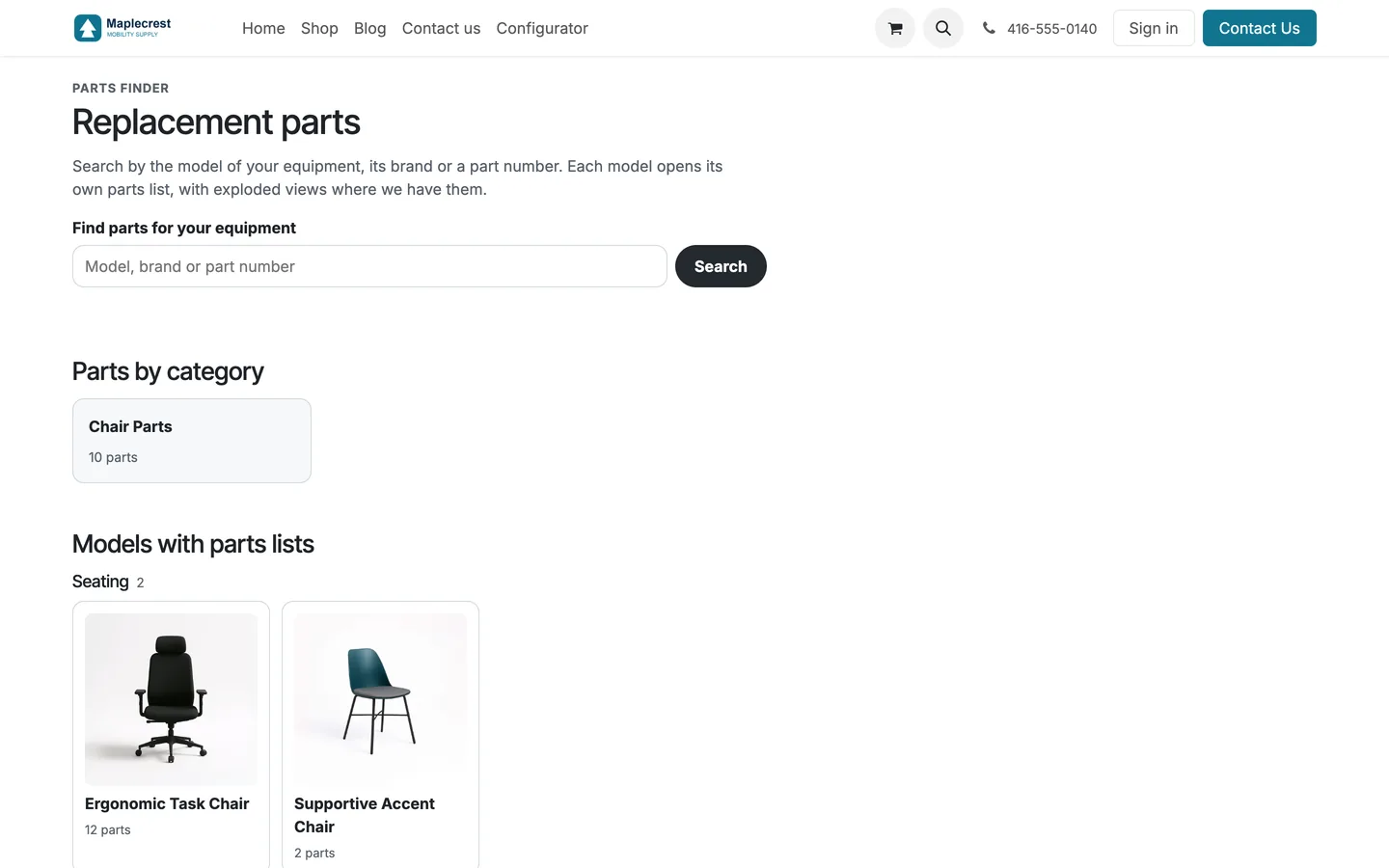
The parts page offers a search by model, brand or part number, spare parts categories and the models with parts lists, grouped by type.
Website > /parts-finder/
-
The machine's parts page
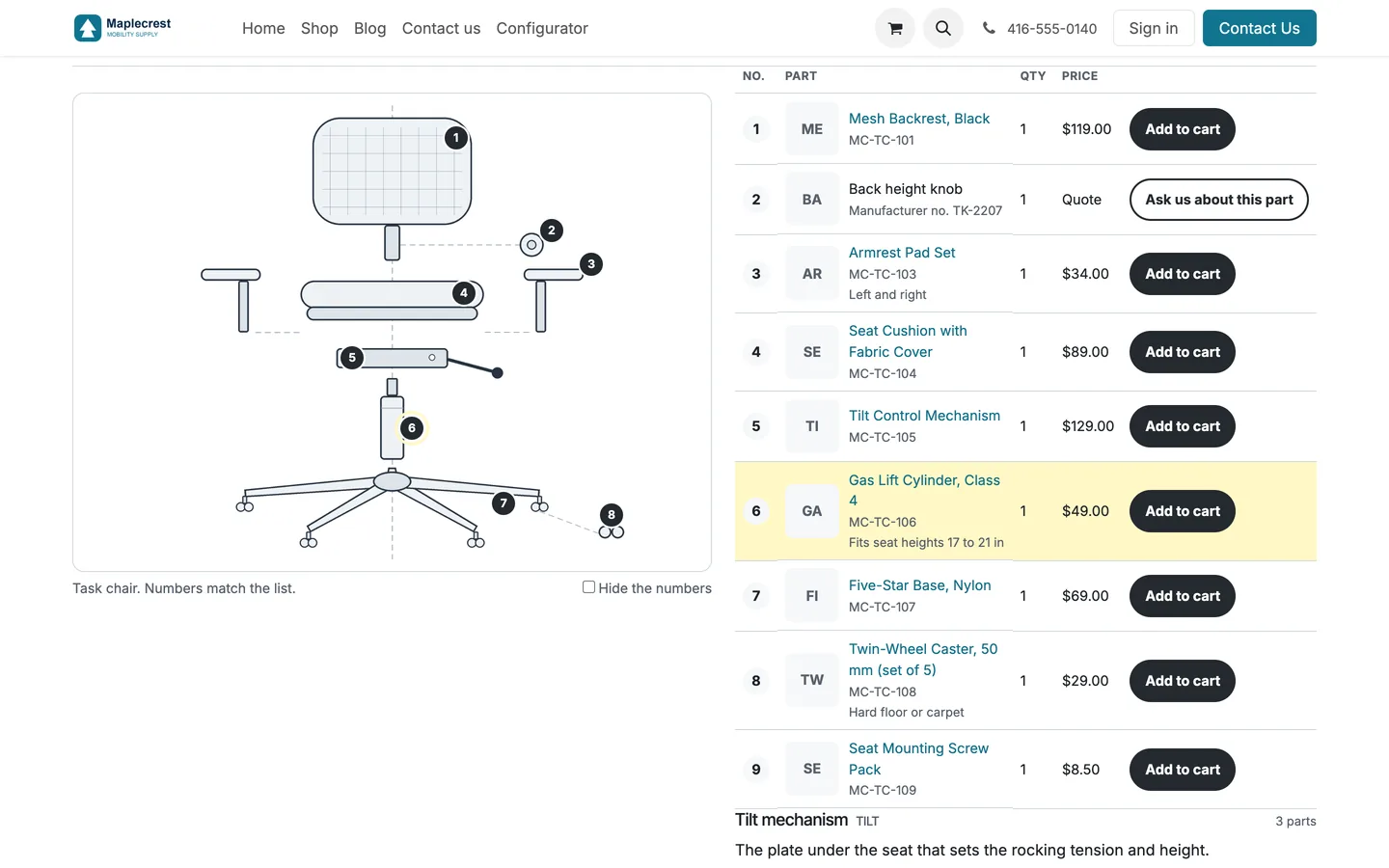
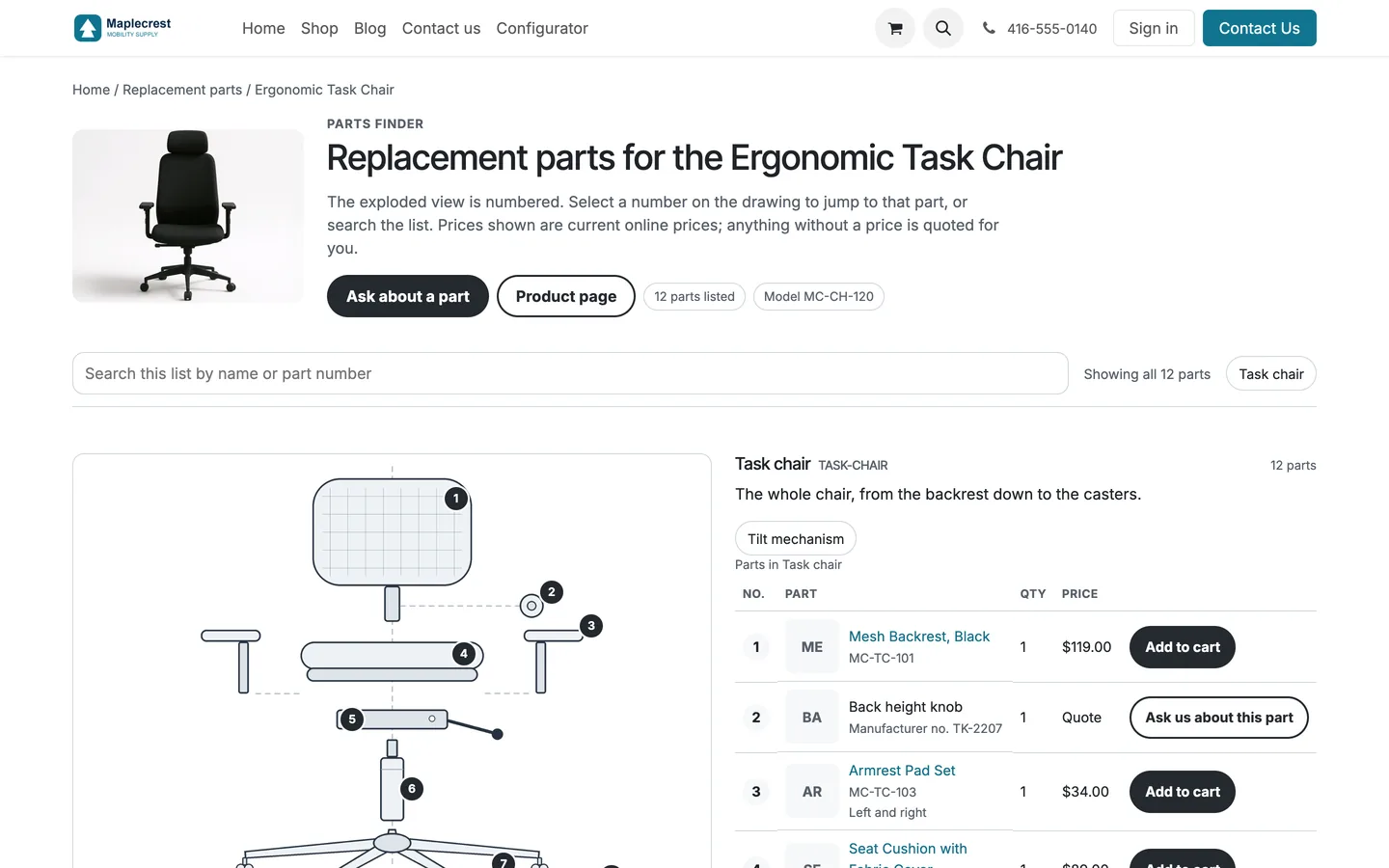
The page shows the machine, its parts count and model number, the numbered drawing and the parts table with prices, Add to cart and Ask us about this part.
-
Pick a number on the drawing
Selecting a number on the drawing highlights that part in the list, ready to add to the cart.
-
Search the list
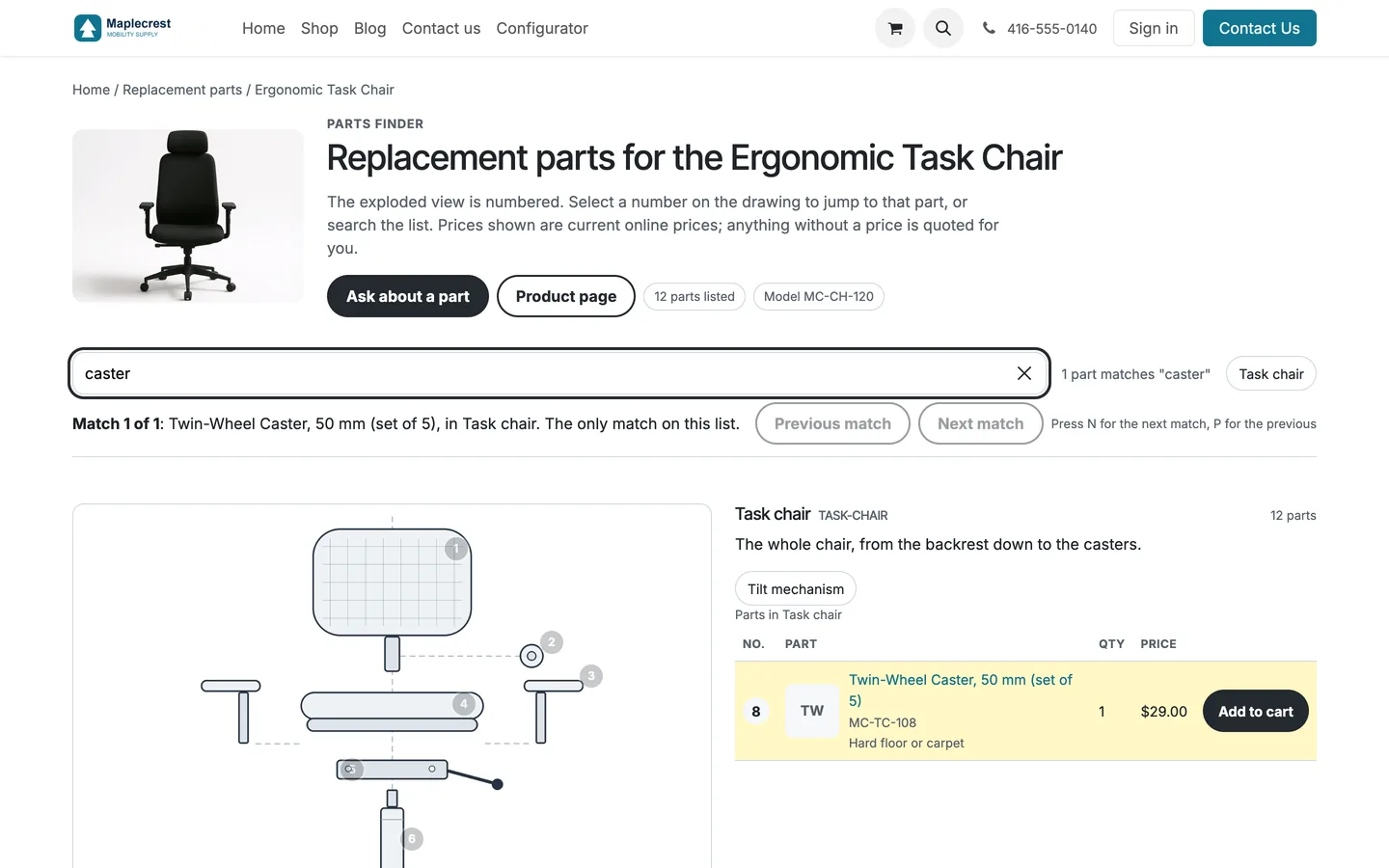
Typing filters the list and reports each match, with Previous match and Next match.
-
Ask about an unlisted part
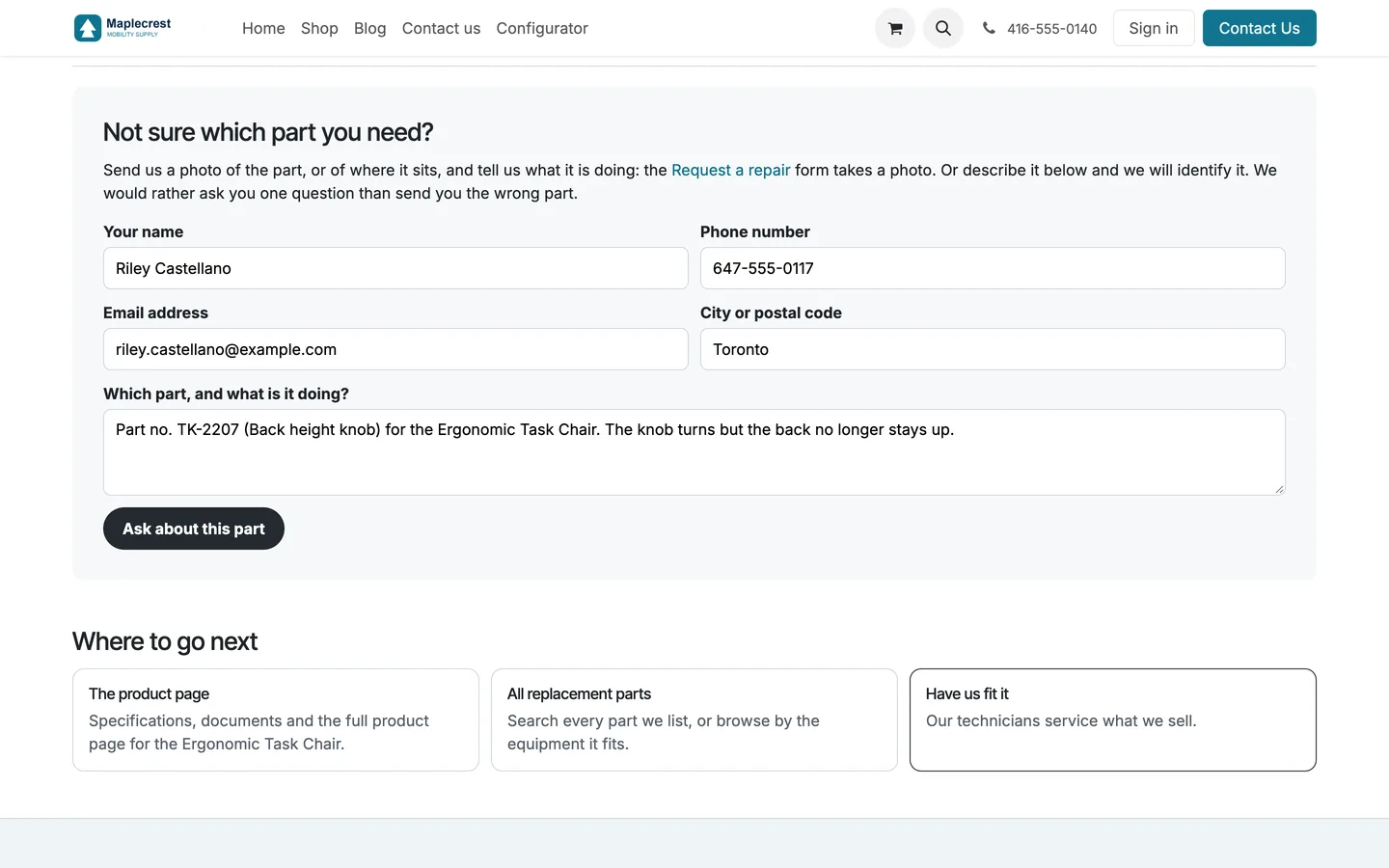
"Ask us about this part" fills the enquiry with the part number and the machine. The customer adds their details and sends it.
What it does
 Assemblies and drawings
- Organize replacement parts into assemblies and sub-assemblies for each machine.
- Place numbered part pins on exploded drawings in the backend.
- Pins are stored as a share of the drawing's width and height, so they land in the same place on a phone and a desktop and survive a sharper scan of the same drawing.
- Each parts line carries its callout number, the part or a manufacturer number and description the shop does not list, a quantity, a kind (part, kit or consumable) and a note.
- Keep machine fitment links in step with the parts added to assemblies.
- "Copy to product" gives other machines their own copy of an assembly and everything under it, so renumbering a callout on one machine never changes another.
 On the website
- Publish a searchable parts catalogue and a detailed page for each machine.
- Let visitors use drawings, parts tables and manuals to identify parts and add them to the cart.
- Selecting a number on the drawing jumps to that part in the list, and the list filter steps through matches with Previous match and Next match.
- Parts search finds a part by name, the shop's part number or a manufacturer number printed on a parts list.
- A part the shop does not list online reads "Ask us about this part", which fills the enquiry form with the part number and the machine.
- A machine with no drawing yet shows its parts grouped by assembly, and one with no parts list yet still offers the enquiry form.
- The website sitemap lists the parts page and every published machine page that has parts.
 Settings per website
- Set each website parts-finder availability, quotation label and service links.
- Spare parts categories decide which products count as parts, and equipment groups sort the machines on the parts page by type.
What's new
Recent changes to Fusion Parts Finder, newest first.
-
- One parts count on every page, empty groups hidden while filtering, and the enquiry points to the repair page for photos.
-
- The sitemap lists the parts page and every machine page with parts.
- Added part search by name, part number or manufacturer number, machines grouped by equipment type and spare parts category tiles.
-
- The parts catalogue and drawing-based finder were introduced as a generalized Fusion module with per-website settings.
Related modules
 Fusion Product Documents
New
Brochures, manuals, order forms and warranty details on each product page.
 Fusion Bundles
New
Product options on your online store: choices, priced add-ons and conditions.
 Fusion Website Tools
New
Product finder, compare, calculators and a repair and claim tracker for your website.
See Fusion Parts Finder on your own Odoo.
Book a call and tell us how your team works today. We'll show you the module and what it would take to set it up. Prefer the phone? Call 905-792-0000.