
Fusion QuickBooks Connector
Keep Odoo and QuickBooks Online in step, company by company.
Import and export sales orders, purchase orders, customer invoices, vendor bills, credit notes, vendor credits and payments, with QuickBooks estimates arriving as Odoo sales orders. Every linked pair is kept in a mapping table with its QuickBooks ID, its QuickBooks name, the Odoo record, the direction (Import or Export) and a status of Draft, Done or Cancelled.
- Odoo 19
- Version 19.0.1.67.0
- Newly listed
Fusion QuickBooks Connector, step by step
5 workflows, 21 steps. Every screen is real, from a demo company with invented data.
Connect a company
Each Odoo company connects to its own QuickBooks Online company with your Intuit app keys.
-
Create the QuickBooks account
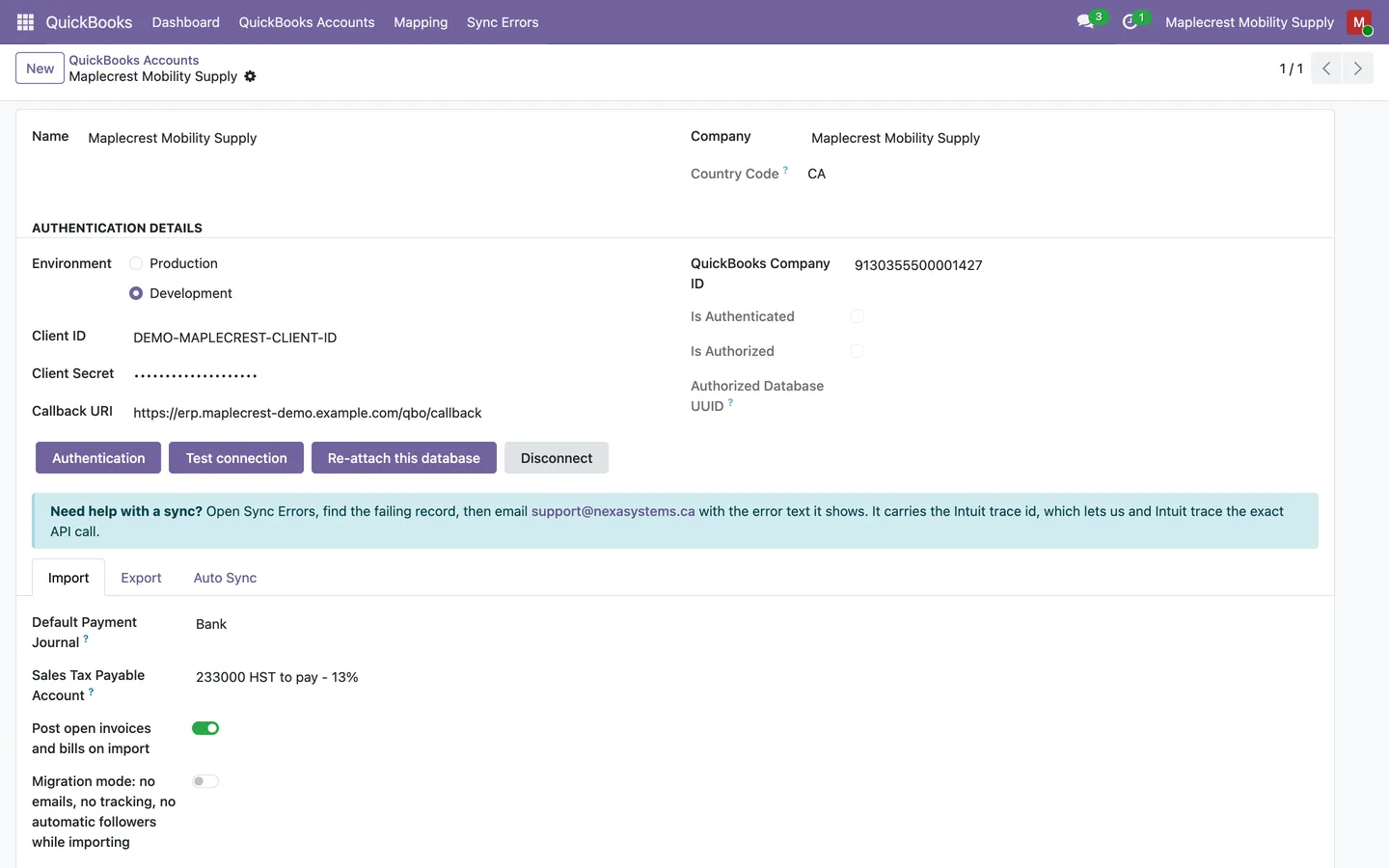
One record per Odoo company holds the environment, the Client ID and Client Secret of your Intuit app and the QuickBooks Company ID, and the callback address is filled in for you.
QuickBooks > QuickBooks Accounts
-
Approve access at Intuit
"Authentication" opens Intuit's approval page, and on your return the account is marked authenticated and authorized.
-
Check the connection
"Test connection" shows the name of the connected QuickBooks company, and "Disconnect" revokes access at Intuit and clears the stored tokens.
-
Choose what syncs on a schedule
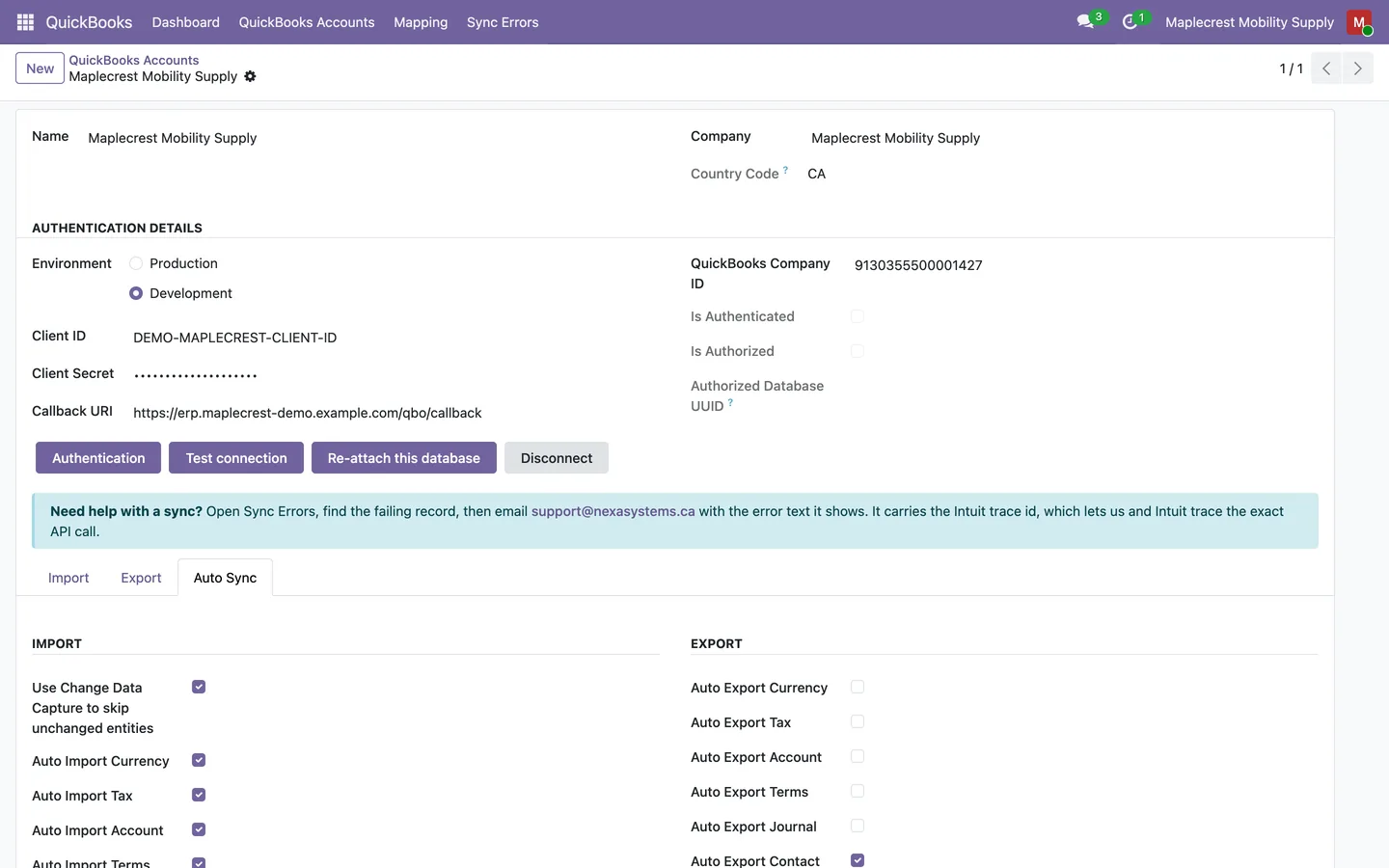
The Auto Sync tab switches scheduled imports and exports on per record type, with Change Data Capture first, and names the contacts who get failure alerts.
First load of QuickBooks history
Bring in the lists everything else depends on, link them to Odoo records, then import documents for the dates you choose.
-
Pull the base lists
Currencies, accounts, taxes, journals and payment terms are imported into mapping tables, and accounts are linked or created by name.
QuickBooks > QuickBooks Accounts > Import tab
-
Check accounts and taxes
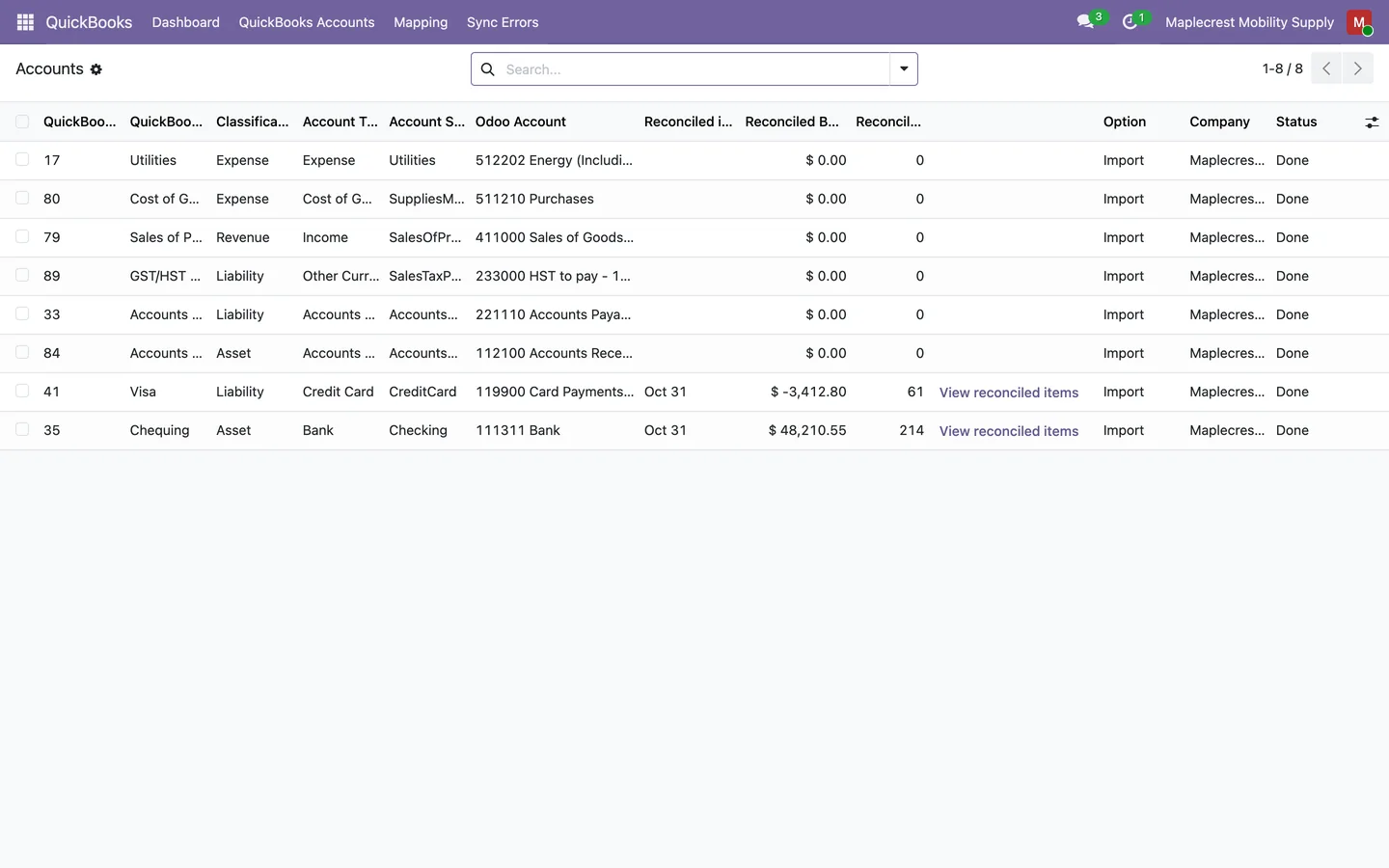
Each mapping list shows the QuickBooks record beside its Odoo record, and "Map/Create by Name" links or creates what is missing.
QuickBooks > Mapping > Accounts
-
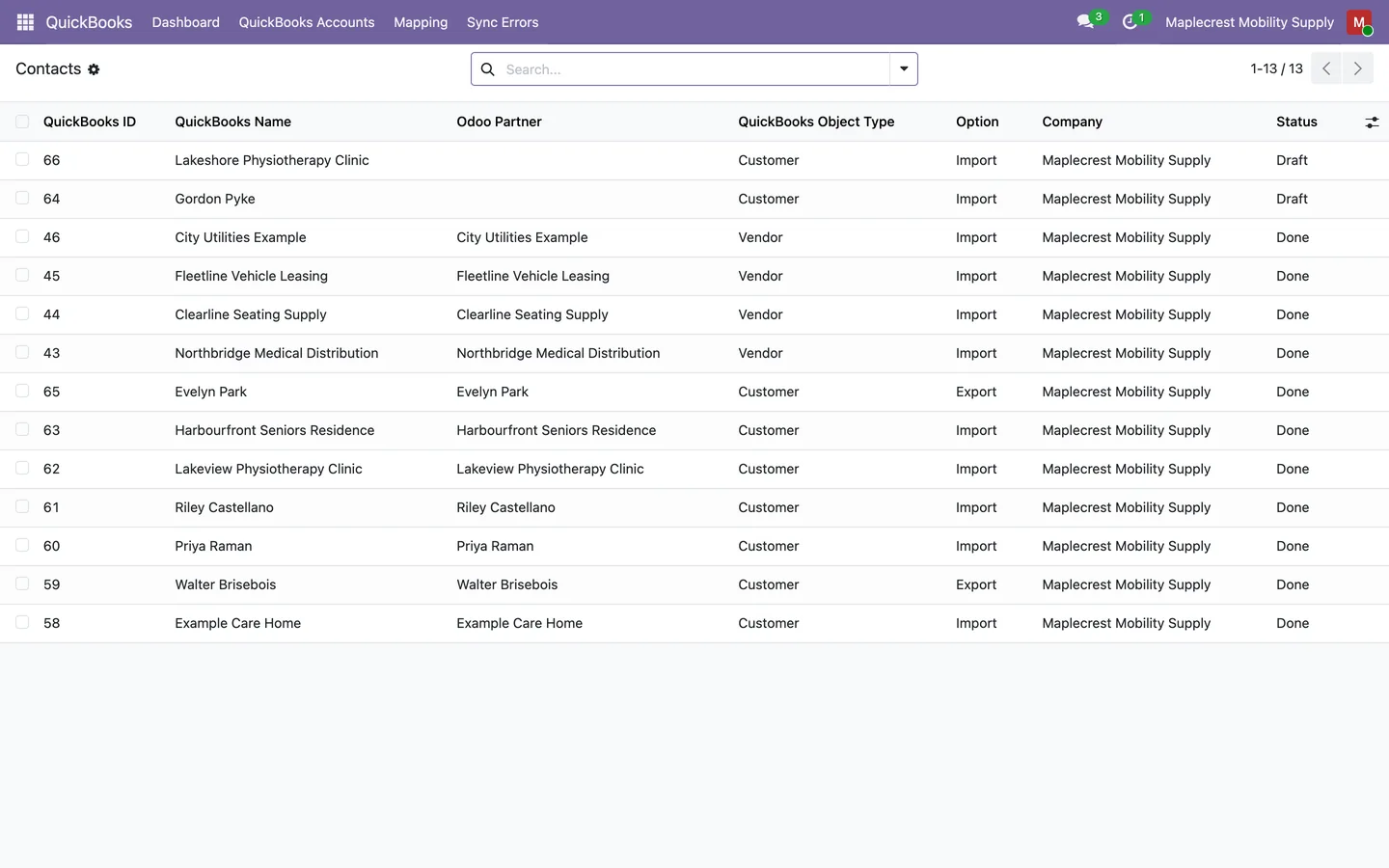
Link contacts
Imported contacts are matched to existing Odoo contacts by name, email or phone before anything new is created.
QuickBooks > Mapping > Contacts
-
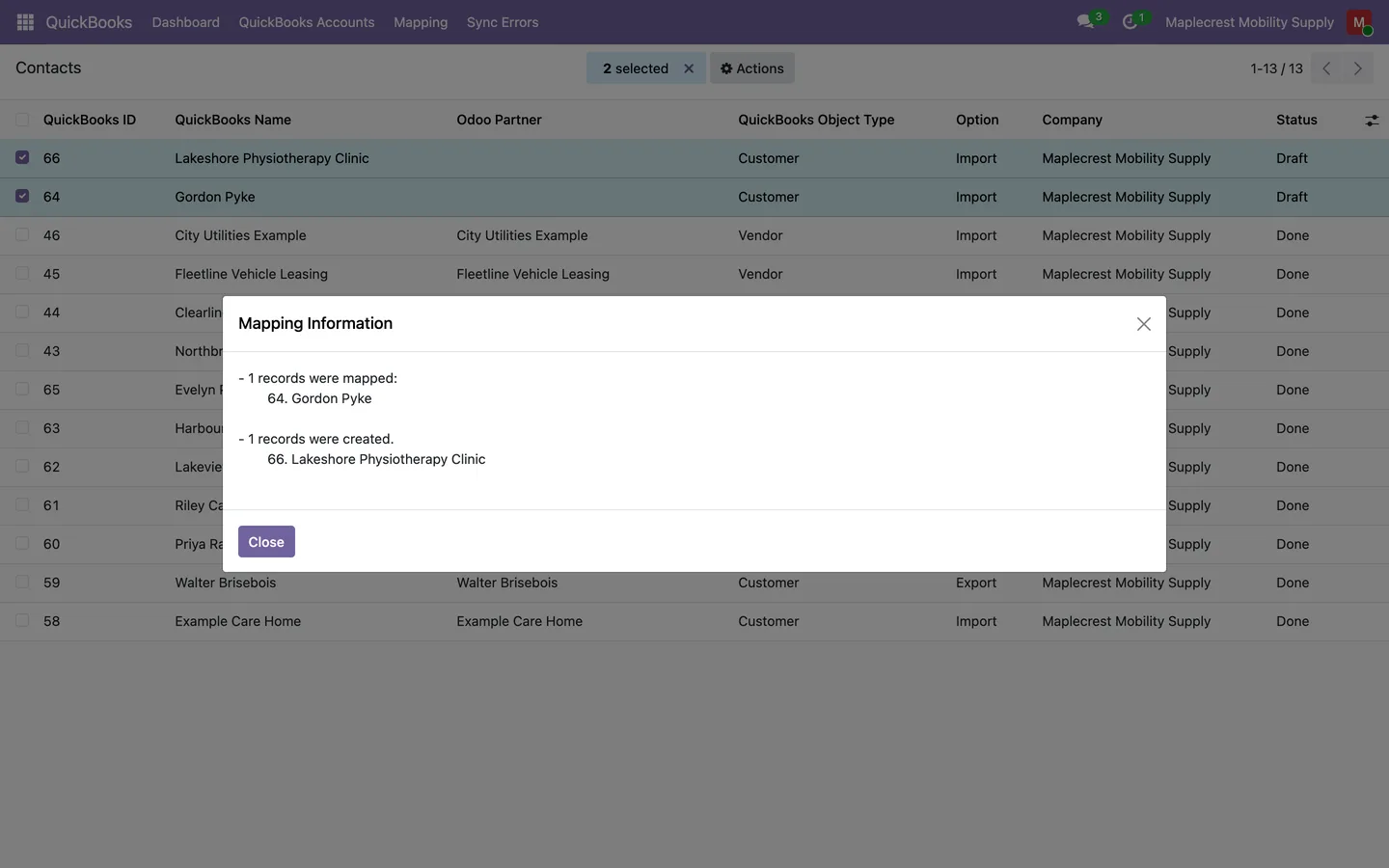
Map or create in one pass
"Map by Email/Name or Create" links the selected rows to matching Odoo contacts or creates them, then shows a summary of what was mapped and created.
-
Import a date range
With "Date Range Import" on, sales orders, purchase orders, invoices and bills, and payments are imported only for the dates you set.
-
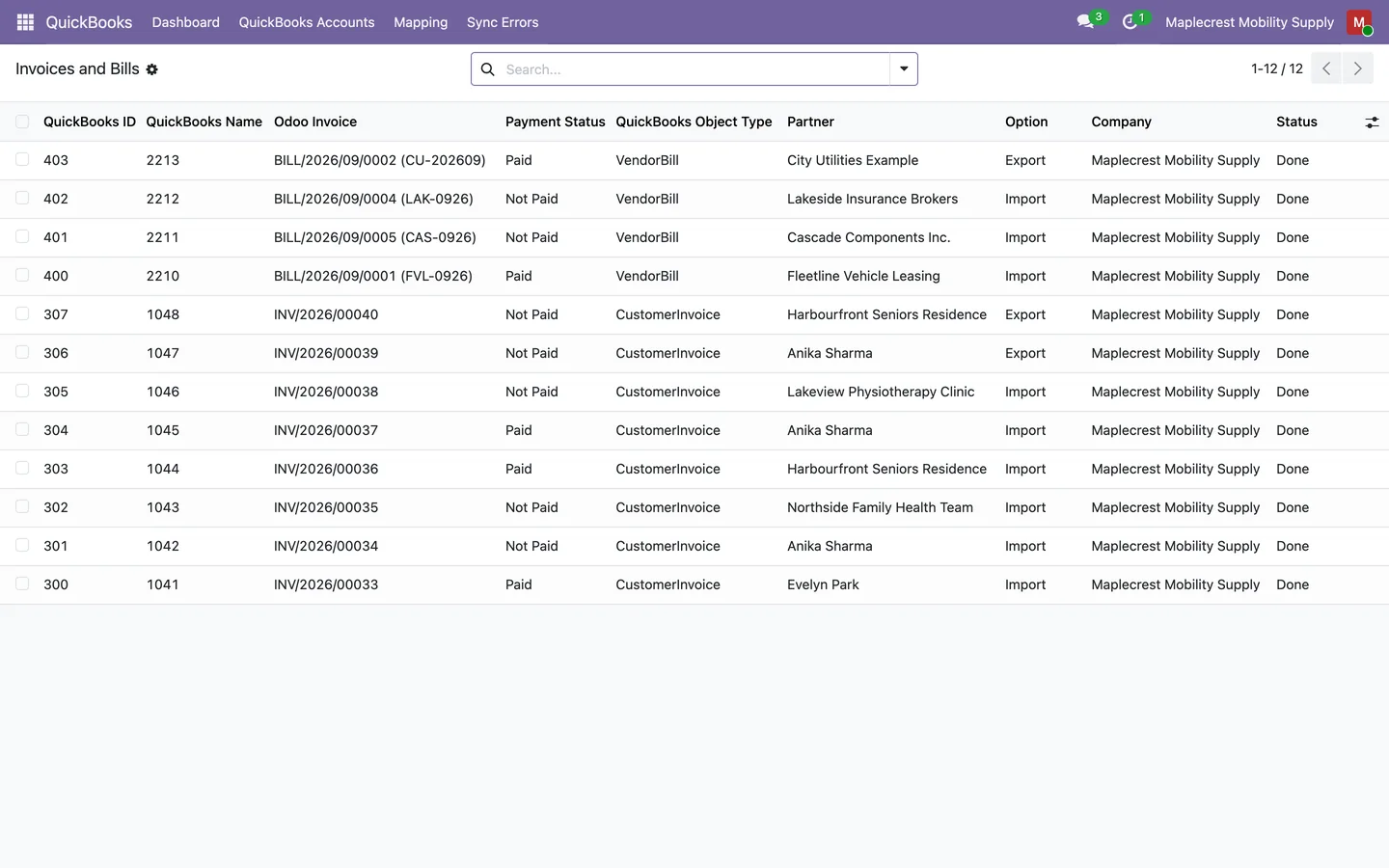
Review the linked documents
The Invoices and Bills list shows each QuickBooks document with its Odoo invoice, payment status, type and partner.
QuickBooks > Mapping > Invoices and Bills
Keep both sides in step
Scheduled runs and exports from Odoo's own lists keep the two systems matched, and the dashboard shows how the sync is going.
-
Let the schedule run
Each switched-on record type runs daily and bank reconciliation weekly. With Change Data Capture on, only imports with changes run.
-
Send Odoo records to QuickBooks
"Export to QuickBooks" in the Actions menu sends the selected contacts, products, orders, invoices or payments from their own lists.
-
QuickBooks edits follow
An invoice or bill edited or voided in QuickBooks after posting is rebuilt or cancelled in Odoo. A change on or before an Odoo lock date is refused and listed in Sync Errors.
-
Watch the dashboard
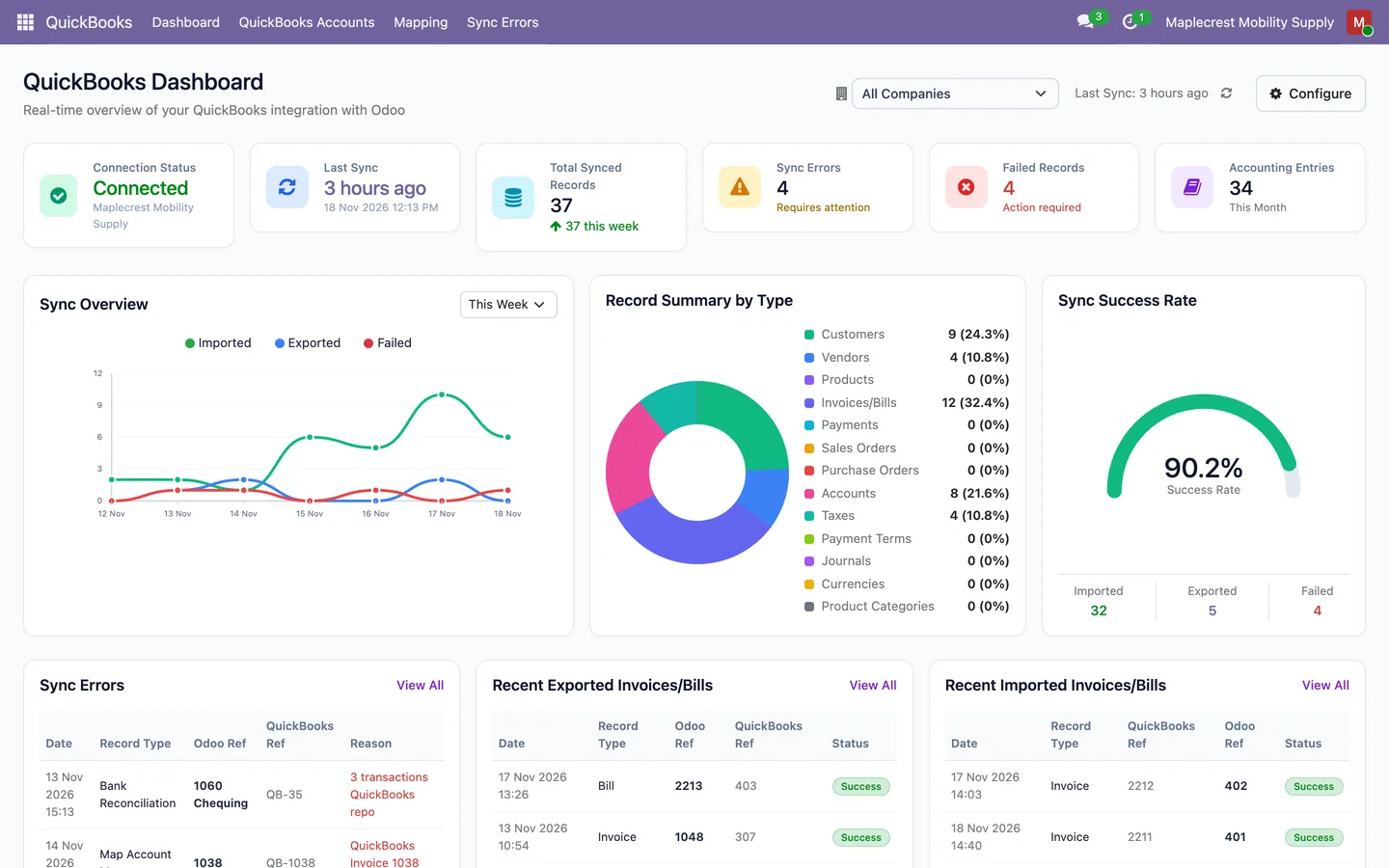
Cards show the connection, last sync, records synced, errors, failed records and this month's entries, beside a sync chart, a record summary and the latest documents.
QuickBooks > Dashboard
Fix a failed sync
A failure never stops the rest of the import: it is written to Sync Errors with a reason you can act on.
-
The alert arrives
After a scheduled run that records errors, each contact under "Sync Failure Alerts" gets one summary email.
-
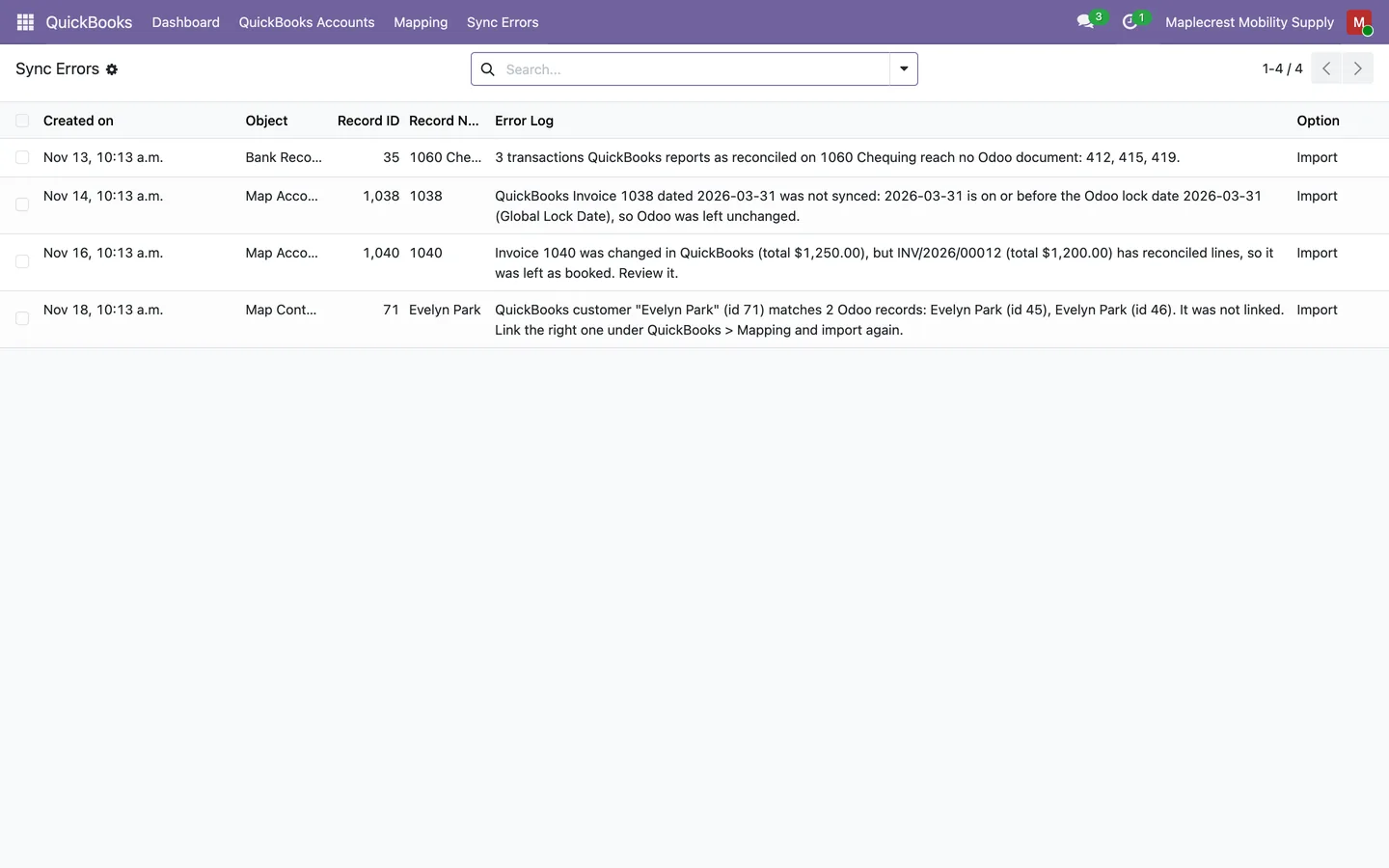
Find the error
Sync Errors lists the object, the record, the direction and the reason, newest first.
QuickBooks > Sync Errors
-
Fix and retry
Link the right record in the mapping table, then select the errors and press "Retry Failed". Any error it cannot retry is named.
See QuickBooks bank reconciliation in Odoo
Bring over which transactions QuickBooks marks as reconciled, without creating, posting or changing any entry.
-
Import the reconciled flags
"Import Bank Reconciliation" flags the Odoo journal items behind every bank and credit card transaction QuickBooks marks as reconciled.
QuickBooks > QuickBooks Accounts > Import tab
-
See where each account stands
Each mapped bank or card account shows the date it is reconciled through in QuickBooks, the reconciled balance and the number of rows.
QuickBooks > Mapping > Accounts
-
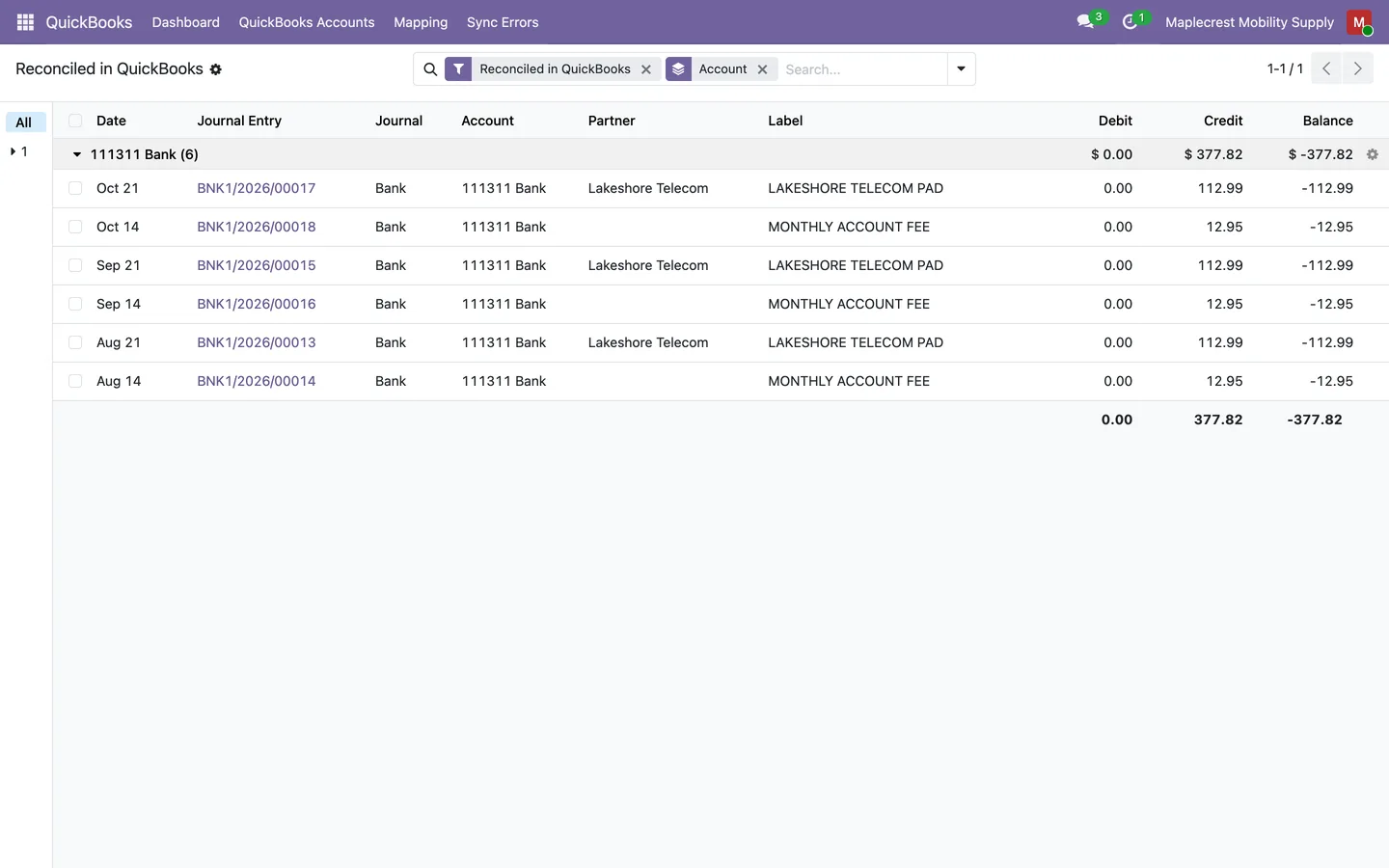
Review the reconciled items
The flagged journal items are listed by account with debit, credit and balance totals.
QuickBooks > Mapping > Bank Reconciliation
-
Follow up what did not match
Reconciled transactions that reach no Odoo document are counted in one Sync Error per account, which clears itself on the next clean run.
What it does
 Connect each company
- Each Odoo company connects to its own QuickBooks Online company, and a second QuickBooks account for the same Odoo company is refused.
- The connection form takes the environment (Development or Production), the Client ID and Client Secret of your Intuit app and the QuickBooks Company ID, and fills in the callback address for you.
- "Authentication" sends you to Intuit to approve access, and on your return the account is marked authenticated and authorized.
- Only accounting administrators see the QuickBooks menu, read the client secret and tokens, or run a sync.
- A restored copy of the database cannot reach QuickBooks until an administrator presses "Re-attach this database" or authorizes again, so a test copy never syncs by accident.
 Match records both ways
- Every linked pair is kept in a mapping table with its QuickBooks ID, its QuickBooks name, the Odoo record, the direction (Import or Export) and a status of Draft, Done or Cancelled.
- Imported contacts are matched to existing Odoo contacts by name, email or phone, archived contacts included, before anything new is created.
- "Map by Email/Name or Create", "Map by Name or Create" and "Map/Create by Name" link the selected rows to matching Odoo records or create them, then show a "Mapping Information" summary of what was mapped, skipped, updated, created or left for you.
- When a QuickBooks name matches more than one Odoo record during an unattended import, the row is left unlinked and a Sync Error names every candidate so you can link the right one.
- Currencies are matched by their ISO code and switched on in Odoo when needed, and a currency Odoo does not have is reported instead of created.
- QuickBooks payment methods map to Odoo bank or cash journals, and QuickBooks classes and locations become analytic accounts under the "QuickBooks Classes" and "QuickBooks Locations" plans.
 Documents and payments
- Imported invoices and bills arrive as drafts unless "Post open invoices and bills on import" is on, and a document that already has a QuickBooks payment applied is posted.
- Imported payments are matched to the invoices and bills they pay, with credits and journal entries applied first and one payment booked for the rest.
- Foreign currency invoices, bills and payments are booked at the exchange rate QuickBooks used, and exports send the exchange rate to QuickBooks.
- "Export to QuickBooks" in the Actions menu sends the selected contacts, products, sales orders, purchase orders, invoices or payments straight from their own lists.
- United States companies send taxable or non-taxable flags and leave the tax to QuickBooks, while companies in other countries exchange QuickBooks tax codes and rates.
- Invoices and bills edited or voided in QuickBooks after Odoo posted them are rebuilt or cancelled in Odoo, unless they are reconciled or fall in a locked period, which is reported in Sync Errors instead.
 Ledger and bank history
- Journal entries are imported, entries edited in QuickBooks are rebooked, and entries deleted in QuickBooks are reversed in Odoo when the last import ran within 30 days.
- Paycheques, tax payments, expenses, cheques, deposits, transfers, credit card payments, sales tax payments and adjustments, sales receipts, refund receipts and inventory adjustments are read from the QuickBooks General Ledger report and booked once each as posted entries.
- "Import Bank Reconciliation" flags the Odoo journal items behind every bank and credit card transaction QuickBooks marks as reconciled, without creating, posting or changing any entry.
- Each mapped bank or credit card account shows the date it is reconciled through in QuickBooks, the reconciled balance and the number of reconciled rows, with a "View reconciled items" button.
- Receipts, images and notes attached in QuickBooks are added to the matching Odoo record, files as attachments and notes as messages.
- QuickBooks employees are matched by name or email or created, and their time activities become timesheet entries in a "QuickBooks Time" project when Timesheets is installed.
 Schedule, errors and dashboard
- "Date Range Import" and "Date Range Export" limit sales orders, purchase orders, invoices and bills, and payments to the start and end dates you set, without moving the last sync date.
- The Auto Sync tab switches scheduled imports and exports on per record type, and Odoo runs them daily, with bank reconciliation weekly.
- With "Use Change Data Capture to skip unchanged entities" on, the daily run first asks QuickBooks what changed and runs only the imports that have new data.
- Every failure is written to Sync Errors with the object, the record, the direction and the reason, including the Intuit trace id when QuickBooks returns one, and one failed record never stops the rest of the import.
- "Retry Failed" re-runs the selected failed imports of invoices, bills, journal entries, ledger transactions, payments, sales orders and purchase orders, and names any selected error it cannot retry.
- The QuickBooks Dashboard opens on a row of cards for connection status, last sync, total synced records, sync errors, failed records and this month's accounting entries.
- Contacts listed under "Sync Failure Alerts" get one summary email after a scheduled run that records errors, a lost connection is emailed at most once a day, and manual syncs never send email.
What's new
Recent changes to Fusion QuickBooks Connector, newest first.
-
- A manual import started while a scheduled sync of the same company is running now says so and asks you to try again in a few minutes.
- Invoices, bills and credits deleted or re-dated in QuickBooks now follow in Odoo.
-
- QuickBooks changes dated on or before an Odoo lock date are no longer booked and are listed in Sync Errors instead.
- Invoices and bills edited or voided in QuickBooks after Odoo posted them are now rebuilt or cancelled in Odoo.
-
- QuickBooks bank reconciliation flags are now imported, with a Bank Reconciliation list and reconciled-through dates on mapped bank accounts.
-
- Chosen contacts now receive a summary email when a scheduled sync records errors.
Related modules
 Fusion Bank Statements
Free
OFX, QFX and QBO bank files imported with duplicates caught and balances carried forward.
 Fusion CRA Account Ledger
New
Your CRA payroll, GST/HST and corporate accounts, line by line, matched to your bank and your books.
 Fusion Accounting
New
Accounting for Odoo Community: bills, bank, invoicing, reports, Canadian tax and assets in one suite.
See Fusion QuickBooks Connector on your own Odoo.
Book a call and tell us how your team works today. We'll show you the module and what it would take to set it up. Prefer the phone? Call 905-792-0000.