Plant Overview
On this page
- What the Plant Overview shows
- The screen
- Step 1: Read the board
- Step 2: Reassign a WO to a different work centre
- Step 3: Open a work order for detail
- Step 4: Filter down
- Step 5: The auto-refresh
- Typical daily routine
- What can go wrong
- I can't see any cards
- I dragged a card and it snapped back
- Cards are stacked three rows deep — I can't see the bottom
- An operator says "my WO vanished"
What the Plant Overview shows
The plant overview is the single screen the shop supervisor opens first thing in the morning. It's a kanban board grouped by work centre — every column is a physical work centre (Masking, Racking, EN Plating, De-Masking, Oven, Packing...), every card is an active work order.
When to use it:
- Morning stand-up: "what's running where right now?"
- Mid-shift check-in: which station is running light? Heavy?
- End of shift: what didn't finish that should have?
- Anytime a customer calls asking about a specific job.
The screen
Menu: Plating → Shop Floor → Plant Overview.
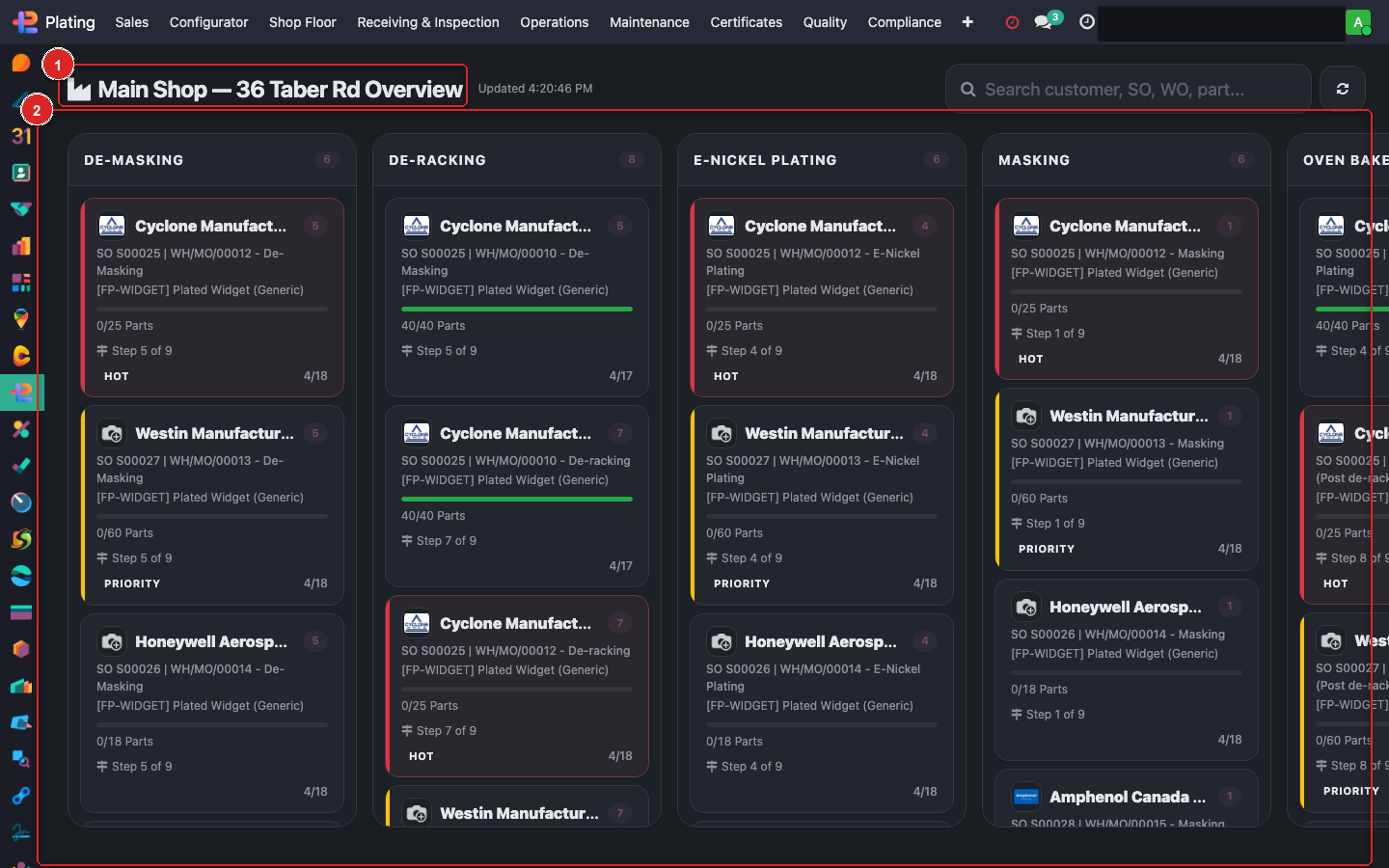
Numbered regions:
- Box ① — facility + shop name header.
- Box ② — one column per work centre (here: DE-MASKING). Column header shows the WC name.
- Box ③ — a work order card. Shows: customer name, part number, quantity, current state.
- Box ④ — another work centre column. Cards can be dragged between columns to reassign the WO to a different work centre.
Step 1: Read the board
Every column represents a station. Every card represents a WO that's currently either ready to start at that station, in progress at it, or finished there and about to move to the next.
Card colour / pip tells you state:
- Green dot / outline — WO is running (an operator has clocked in).
- Grey / neutral — WO is ready but idle.
- Red — WO is blocked (quality hold, missing material, missing certification).
- Yellow — WO is approaching a deadline.
Card content (box ③):
- Customer name + logo (if set).
- Sale Order / MO reference — click to open the parent SO or MO.
- Part number + revision.
- Qty.
- Work centre it was originally assigned to.
- Current state (Ready / In Progress / On Hold / Done).
Step 2: Reassign a WO to a different work centre
Sometimes Masking Station 2 is backed up and Station 3 is idle. To move a WO:
- Click and hold on the WO card.
- Drag across to the destination column (box ④ style).
- Release.
Behind the scenes, the system:
- Updates
x_fc_workcenter_idon the WO record. - Posts a message in the MO's chatter: "Work order moved from Masking-2 to Masking-3 by Chris at 10:15 AM."
- Recomputes the plant capacity view.
There's no dialog, no confirmation — the drag is the decision. If you need an audit trail, the chatter log has it.
Step 3: Open a work order for detail
Click the card. A panel opens on the right with:
- Full instructions (the recipe steps for this operation).
- Operator assignment.
- Duration (estimated vs. actual).
- Quality checks required.
- Parent SO / customer.
- Chatter — past messages, holds, decisions.
From this panel you can:
- Assign or reassign the operator.
- Mark as Ready / In Progress / Blocked / Done.
- Attach a photo or note.
- Jump to the recipe tree.
Step 4: Filter down
The board shows everything by default. Use the search bar / filter dropdowns (top of the screen) to narrow down:
- By customer — useful when a customer calls asking "where are our parts?"
- By assigned operator — at shift start, show "my WOs only".
- By state — show only "On Hold" to see everything blocked.
- By facility — if your shop has multiple sites, switch to one site's view.
Step 5: The auto-refresh
The board auto-refreshes every 30 seconds. You don't need to reload manually. If another planner moves a card, your view updates within half a minute.
To force an instant refresh, hit the circular arrow icon at the top of the screen or press F5.
Typical daily routine
08:00 — Morning stand-up: Open Plant Overview. Scan each column for red / blocked WOs. List them. Walk the floor.
11:00 — Pre-lunch sanity check: Any cards that still haven't moved to "In Progress"? Drag to wherever capacity exists.
15:00 — Afternoon push: Identify WOs with a Customer Deadline of today or tomorrow. Reassign or escalate.
17:30 — End-of-shift log: Cards still in "In Progress" after the floor goes home get a chatter entry — why did it not finish? That becomes tomorrow's first action.
What can go wrong
I can't see any cards
Either (a) no WOs are active (nothing has been generated yet from a confirmed SO), or (b) the facility filter is set to a site with nothing running. Check the filter dropdown.
I dragged a card and it snapped back
The destination work centre probably doesn't accept the operation. E.g. you can't drag a "Plating" card to the "Packing" column — the recipe step isn't compatible. Odoo rejects the move and reverts.
Cards are stacked three rows deep — I can't see the bottom
The column is scrollable. Hover inside the column and scroll. For the really busy shops, use the state filter to hide "Done" cards (they clog columns once a WO finishes).
An operator says "my WO vanished"
Check the Archived filter — someone may have archived a WO. Also check the MO — if the MO got cancelled, its WOs disappear from the board.