Portal Quote Requests
On this page
What portal quote requests are
Customers with portal access can submit RFQs via the self-service wizard. They land here as new records for your team to triage.
Menu: Plating → Sales → Quote Requests.
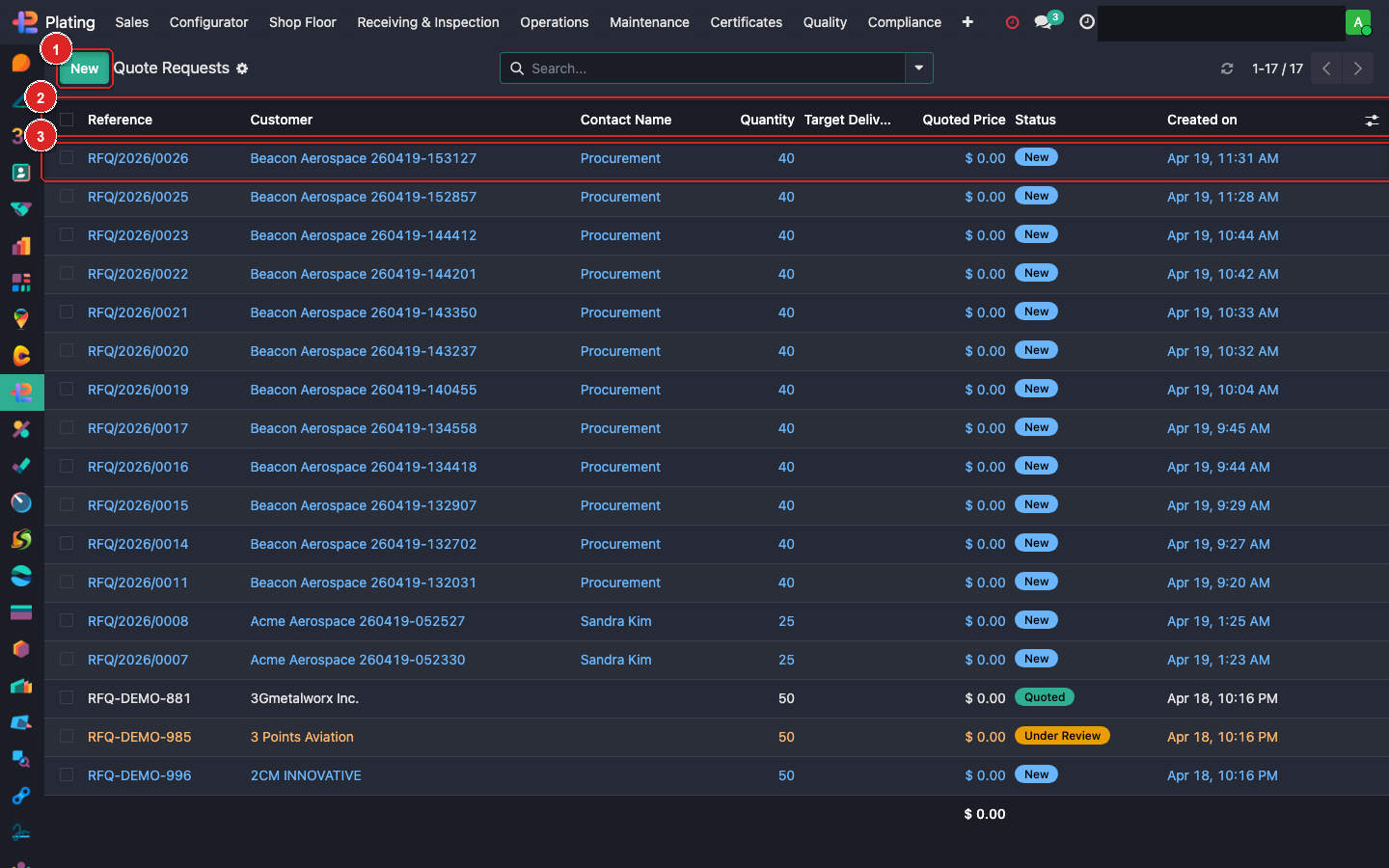
Box ① — + New (rarely used; requests come in via portal). Box ② — the column header with filters. Box ③ — a data row to click into.
States
- New — just submitted, no one has looked yet.
- Under Review — estimator is analyzing.
- Quoted — a quotation has been generated from this request.
- Rejected — we decided not to bid.
Open a request
Click into the row. You'll see:
- Customer details + contact.
- Parts the customer described (part number, quantity, optional drawings).
- Requested coating + thickness.
- Notes + attachments.
Convert to a quote
When the request has enough info:
- Open it.
- Click Create Quotation.
- The system opens the Quote Configurator pre-filled with the customer + parts + coating.
- Complete any missing data (surface area if not provided, exact part catalog entry).
- Save & send.
- The request's state flips to Quoted and links to the new quote.
Rejecting a request
If we don't bid — capacity, material we don't process, customer on hold:
- Open the request.
- Click Reject.
- Enter a reason.
- An email auto-fires back to the customer via the
FP: Quote Rejectedtemplate.
Common triage signals
- Missing surface area / drawings → reply asking for drawings before quoting.
- Part not in catalog → create the part first, then quote.
- Customer on account hold → reject + escalate to accounting.
What can go wrong
Portal request shows no attachments
Customer uploaded files but they didn't transfer. Check the portal session log; manually ask customer to resend via email.
Multiple requests from the same customer for the same part
Merge them: open one, link the others via the Related Requests field, process as a single quote.