
Fusion Accounting
Accounting for Odoo Community: bills, bank, invoicing, reports, Canadian tax and assets in one suite.
One install brings in bank reconciliation, financial reports, fixed assets, customer follow-ups, Canadian tax returns, invoice OCR and a store cash drawer.
- Odoo 19
- Version 19.0.1.3.2
- Newly listed
Made for the way Canadian businesses file, pay and close the year
GST/HST, PST and QST returns, CRA deadlines, pre-authorized debits, Canadian cheques, information slips and the corporate year-end, in the same system as your books.
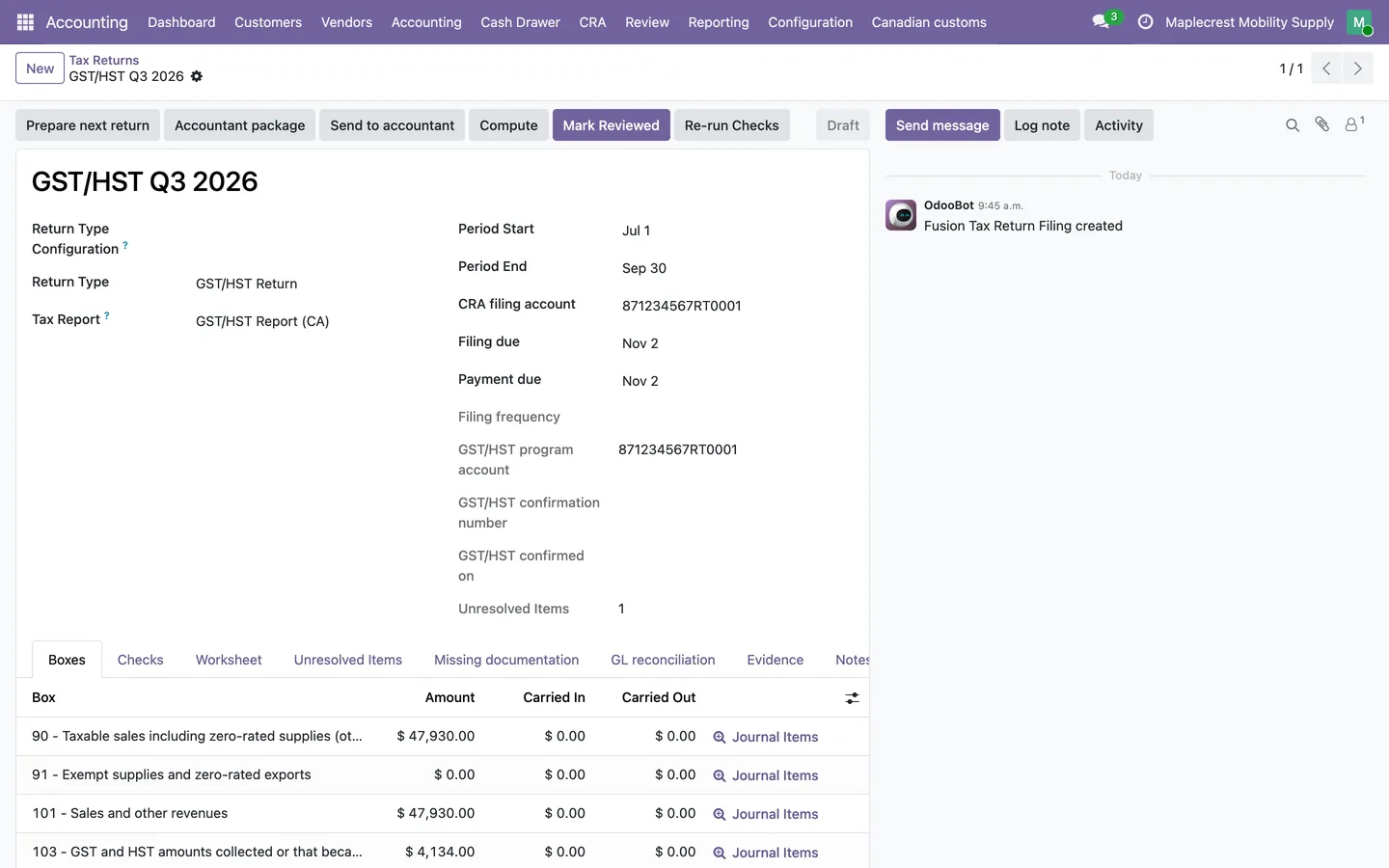 GST/HST returns
Boxes computed from your books, with the journal items behind every amount.
See the steps
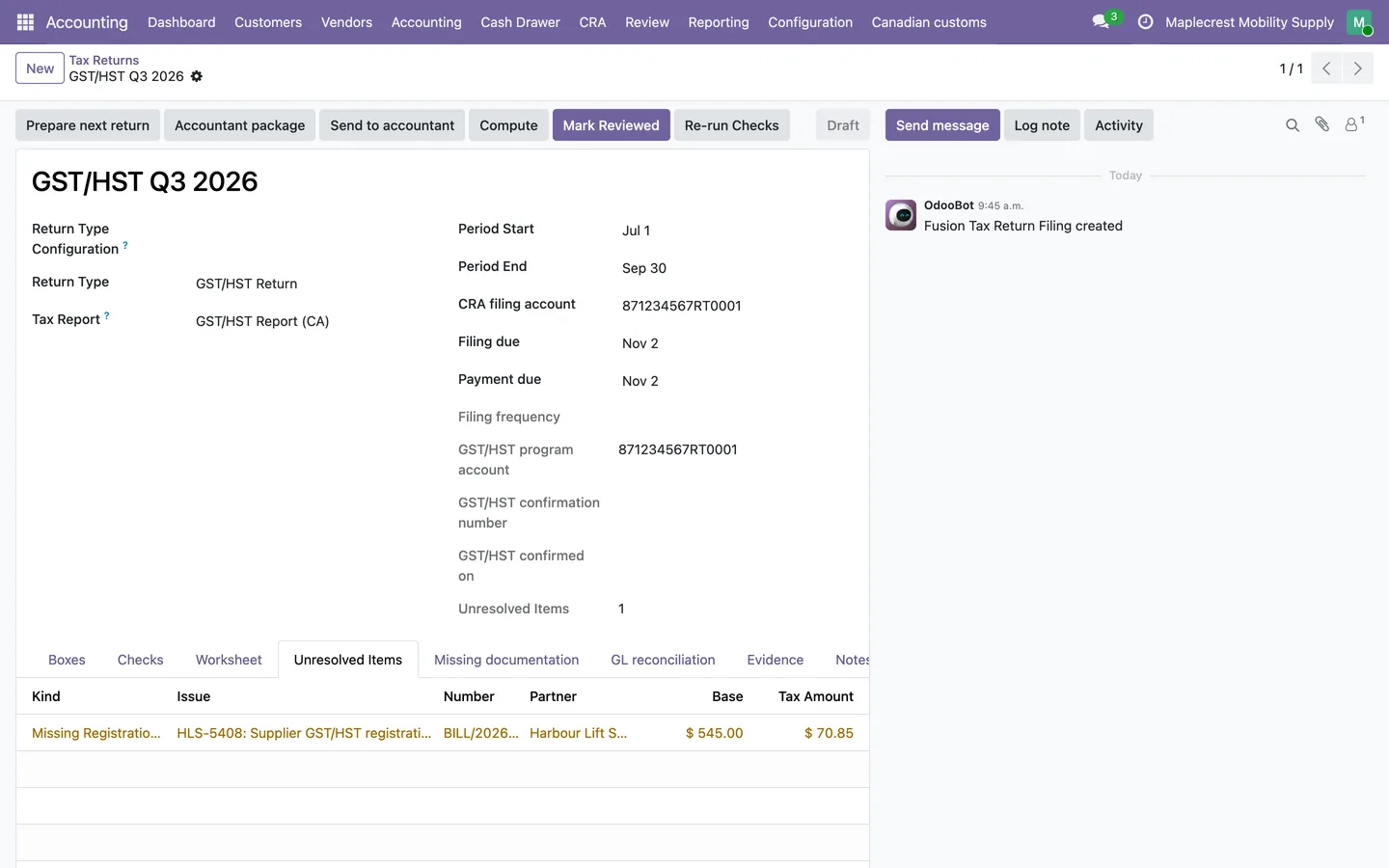 Input tax credits checked
Claims of $100 or more without a supplier registration number are flagged before review.
See the steps
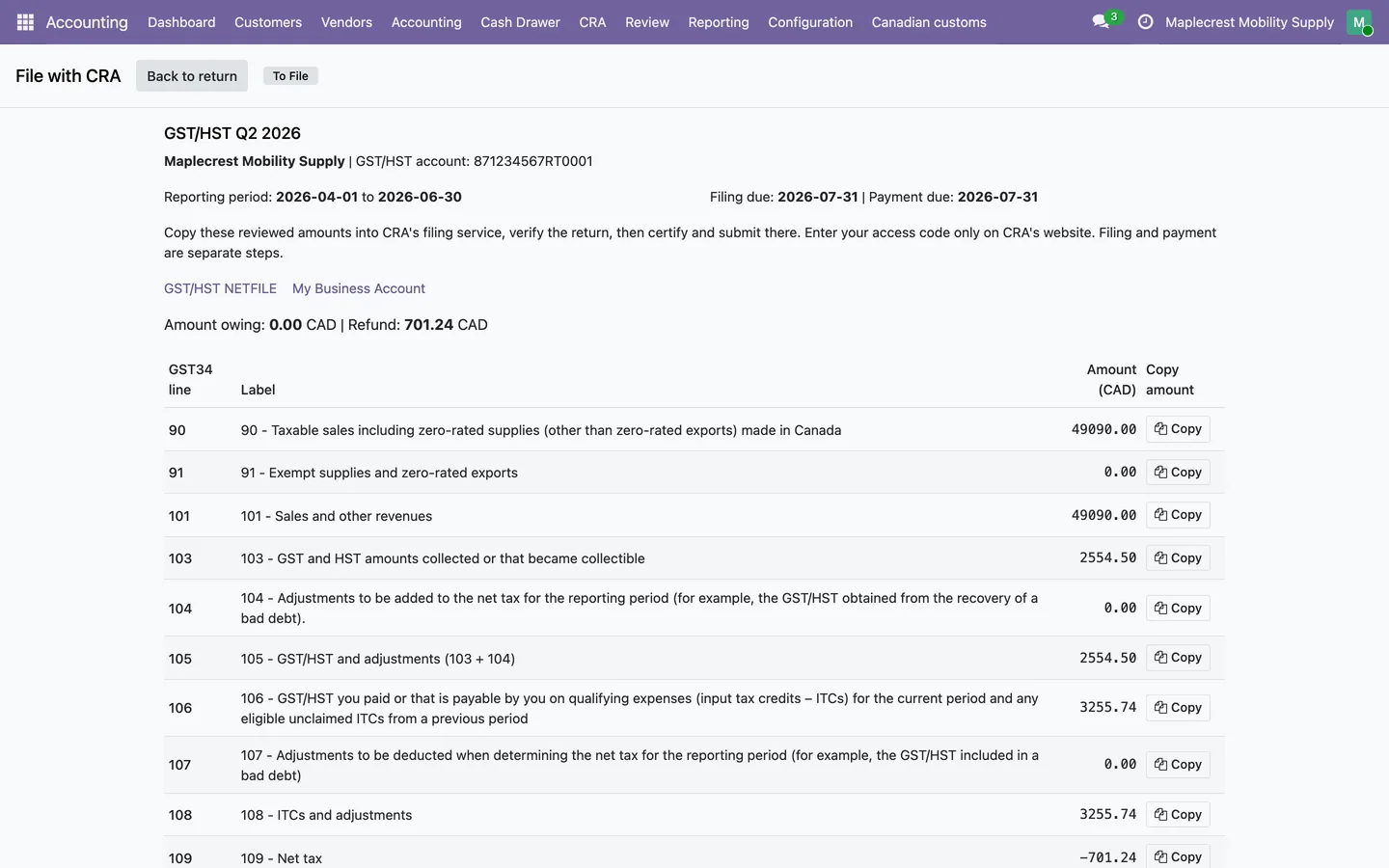 File with CRA
Every GST34 line ready to copy into NETFILE, and the confirmation kept on the return.
See the steps
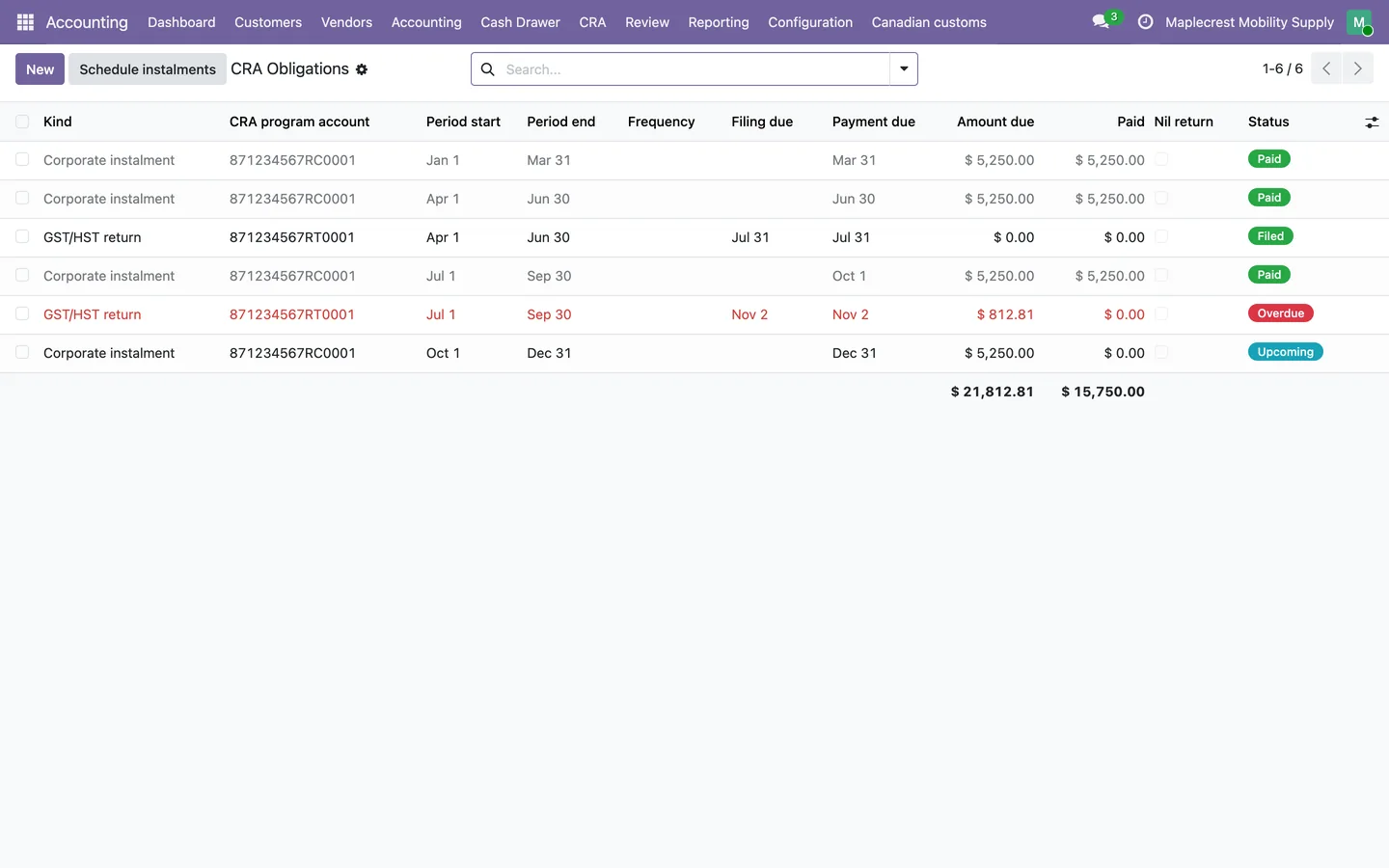 CRA deadlines
Returns and instalments with their due dates, paid, filed or upcoming.
See the steps
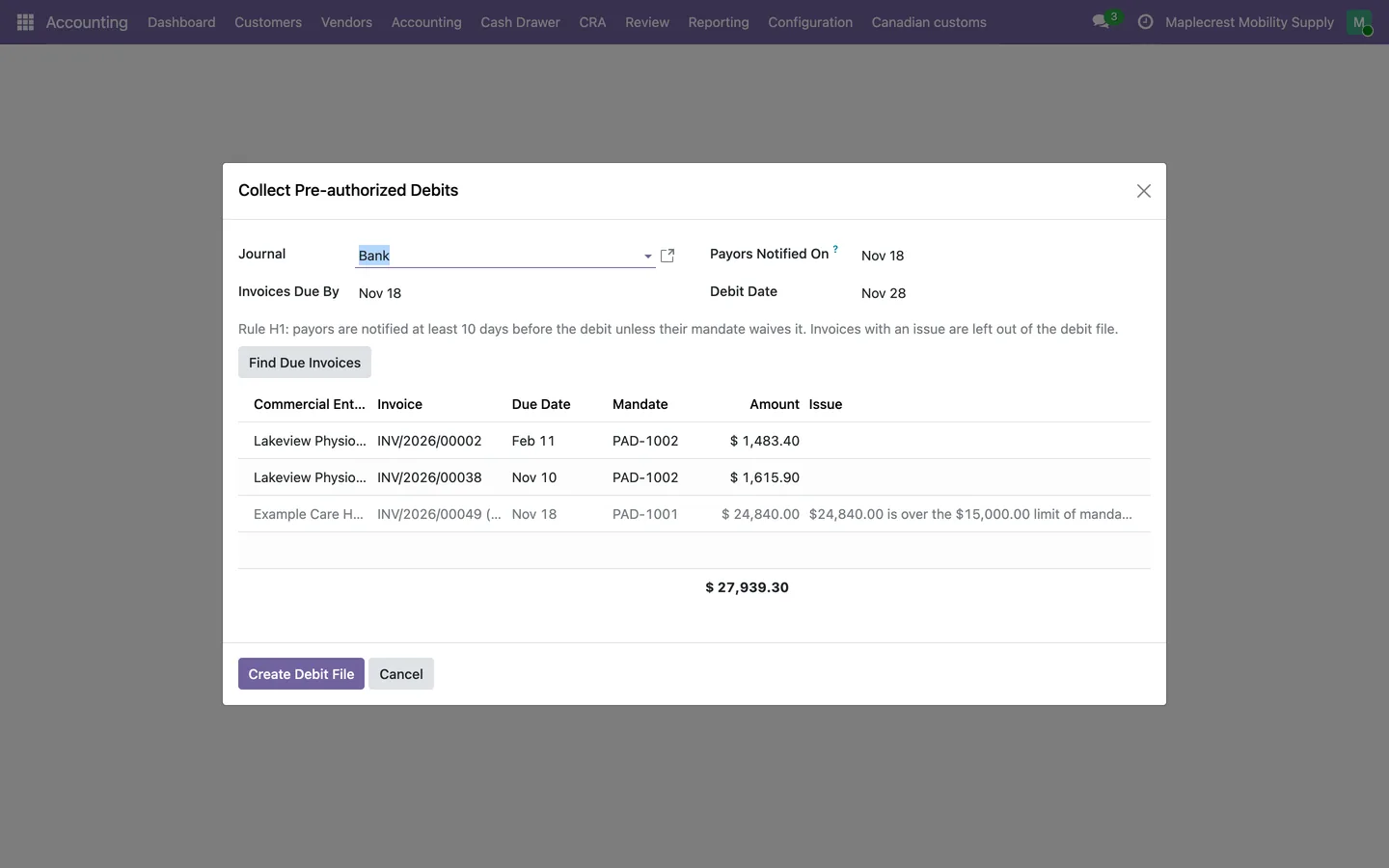 PAD and CPA005
Pre-authorized debits collected in one CPA005 batch, within each mandate.
See the steps
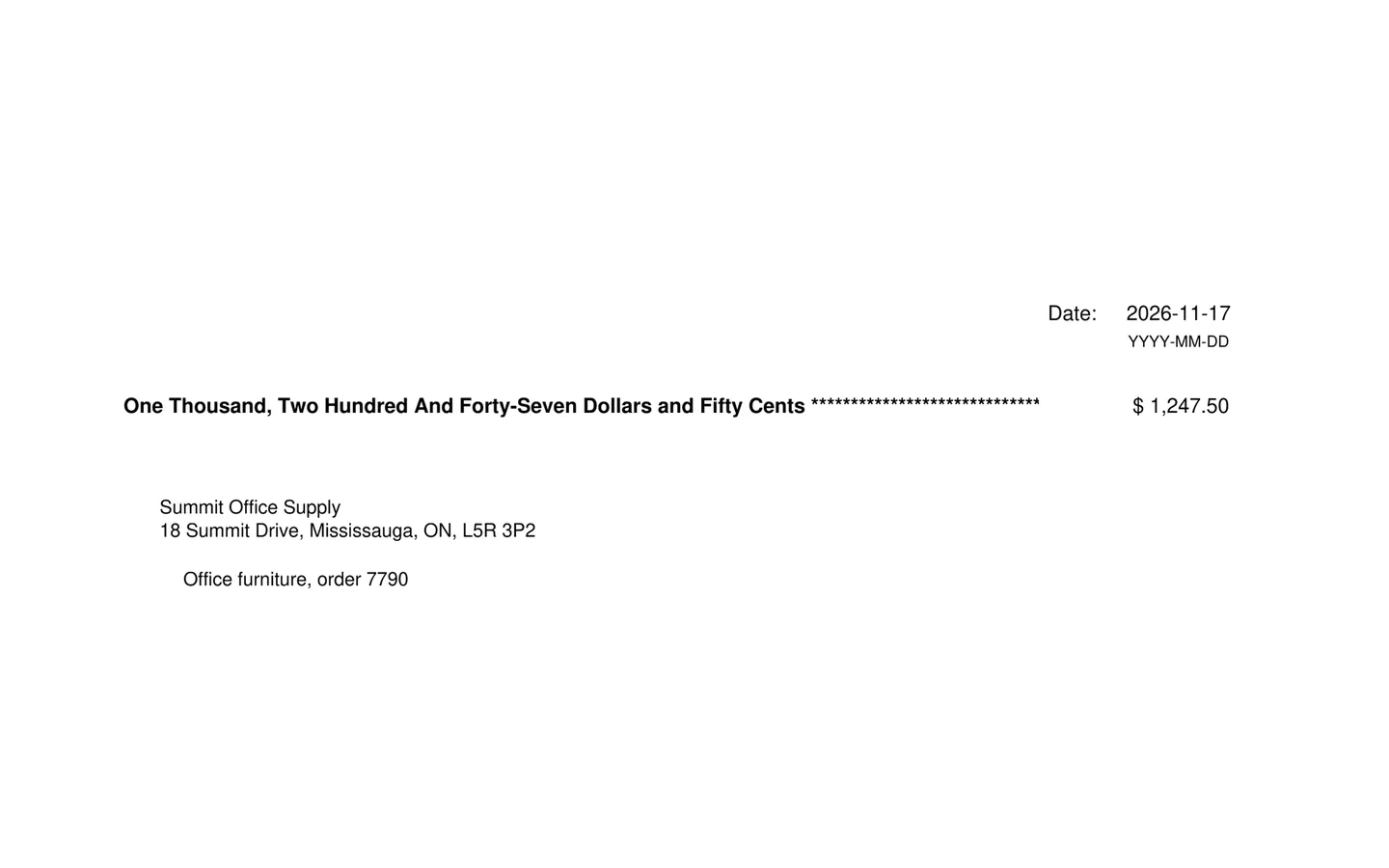 Canadian cheques
Top, middle and bottom layouts, dated YYYY-MM-DD.
See the steps
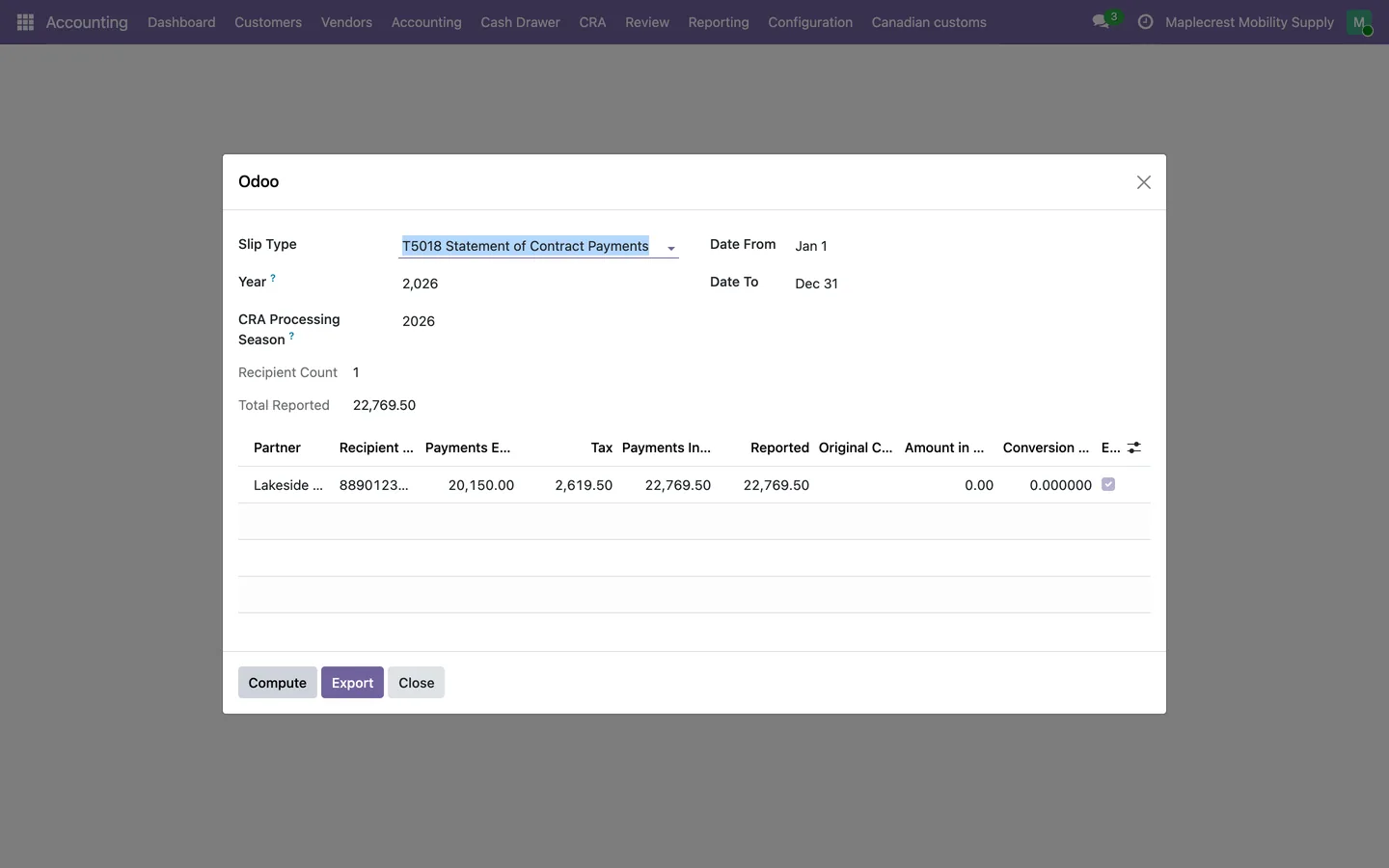 T5018 and T4A slips
Contractor payments turned into reviewed slips and CRA XML.
See the steps
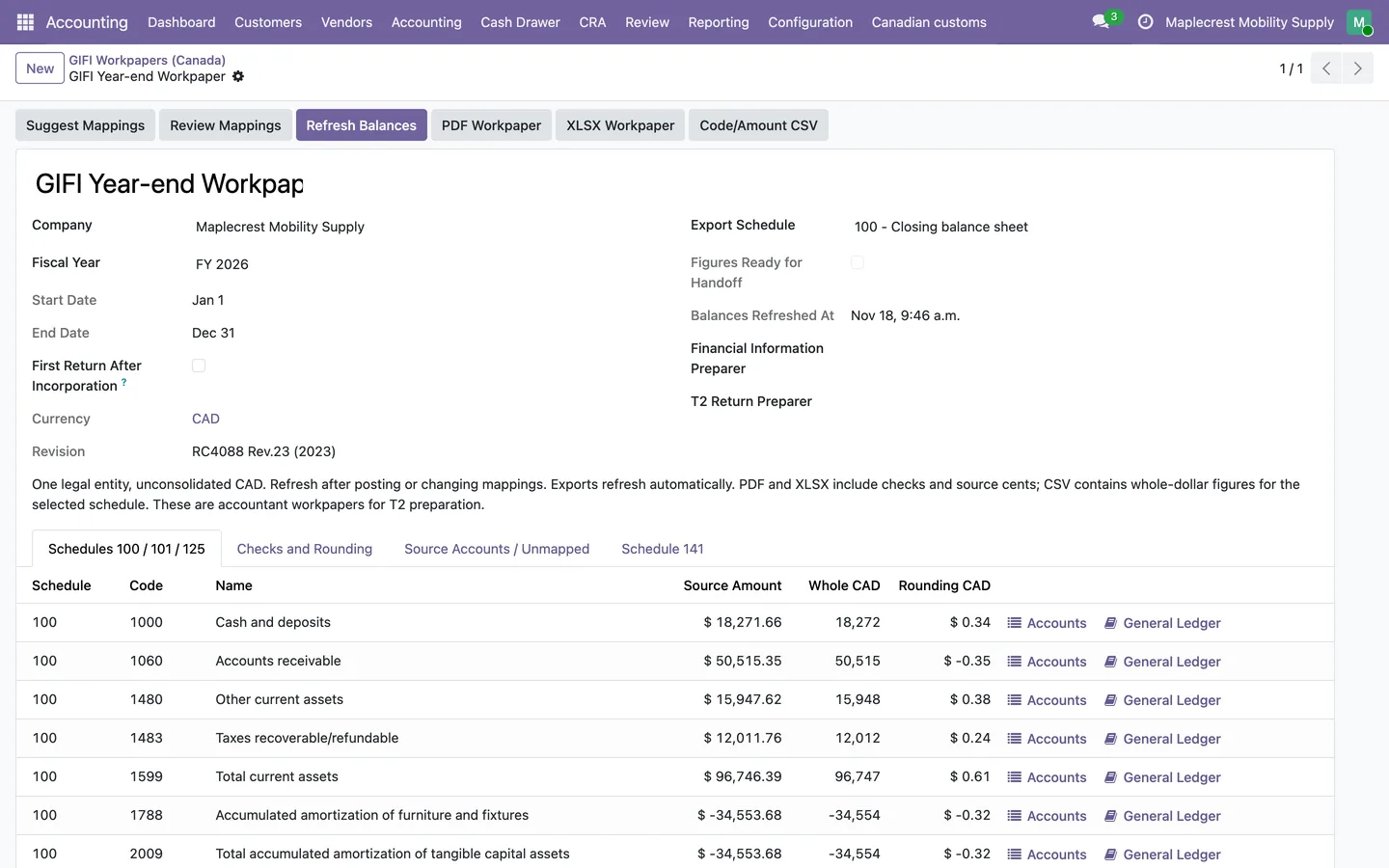 GIFI, T2 and CCA
GIFI workpapers, Schedule 1, Schedule 8 and a T2 handoff for your accountant.
See the steps
Fusion Accounting, step by step
13 workflows, 69 steps. Every screen is real, from a demo company with invented data.
Supplier bills
A bill arrives by email or upload, is read on your own server, checked, matched to the purchase order and released to pay.
-
Bill arrives
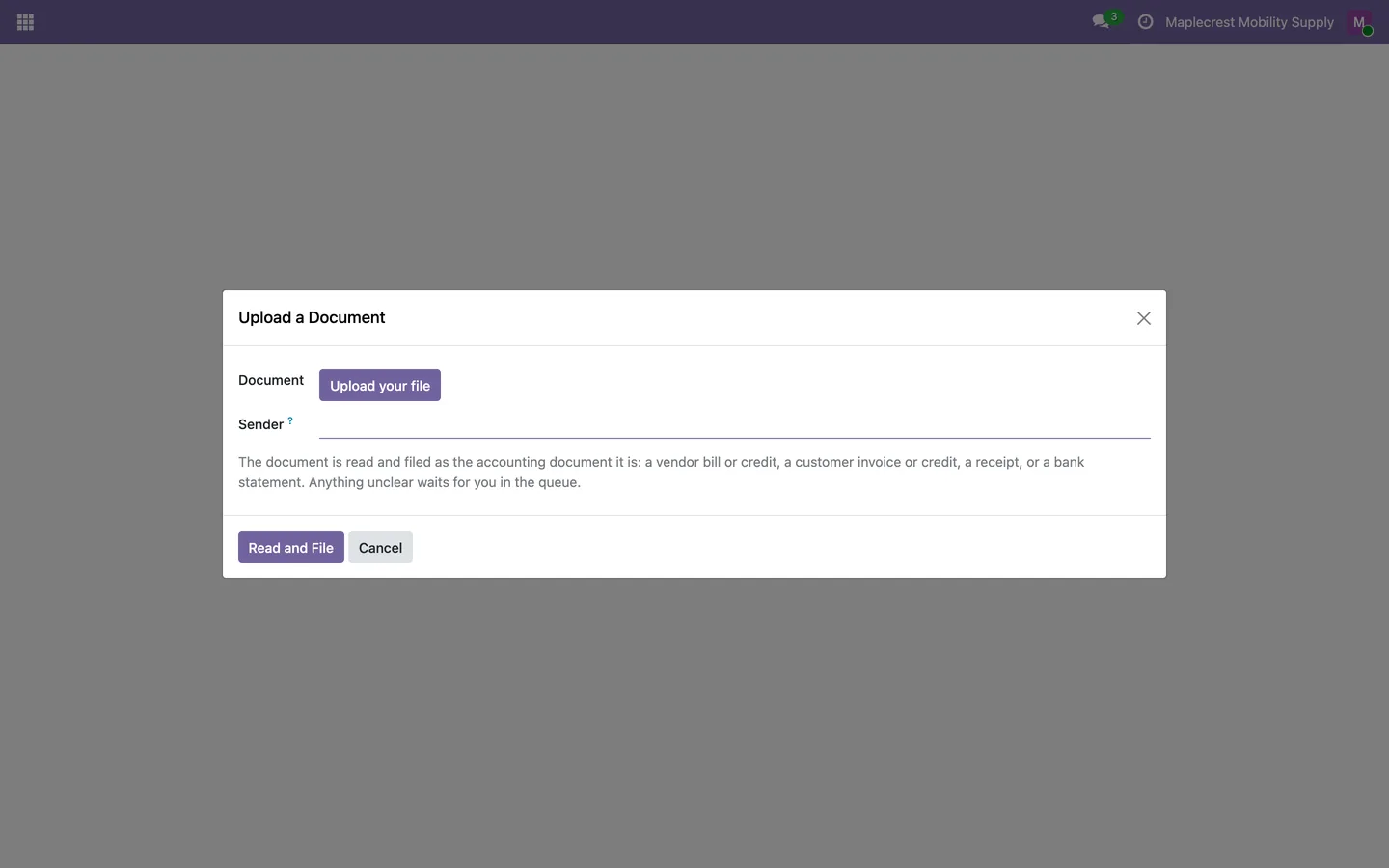
A bill reaches the accounting mailbox by email, or someone uploads it with "Upload a Document" and "Read and File", and the routing sorts it as a vendor bill.
Accounting > Accounting > OCR Inbox > Upload a Document
-
Decide the routing
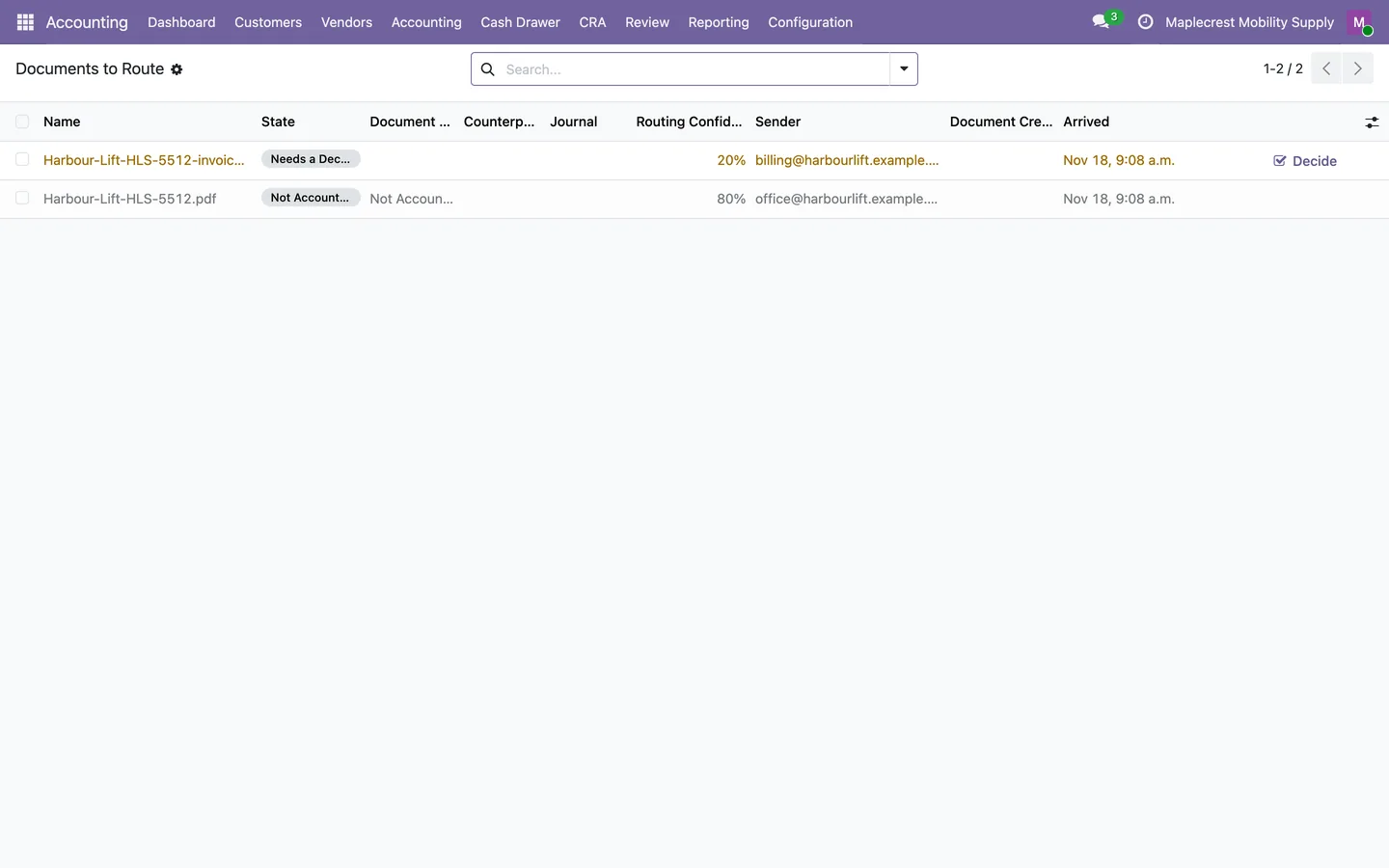
A document the routing is unsure of waits in "Documents to Route". "Decide" lets a person pick its type, counterparty and journal, then "Create the Document" makes the draft bill.
Accounting > Accounting > OCR Inbox > Documents to Route
-
OCR reads the bill
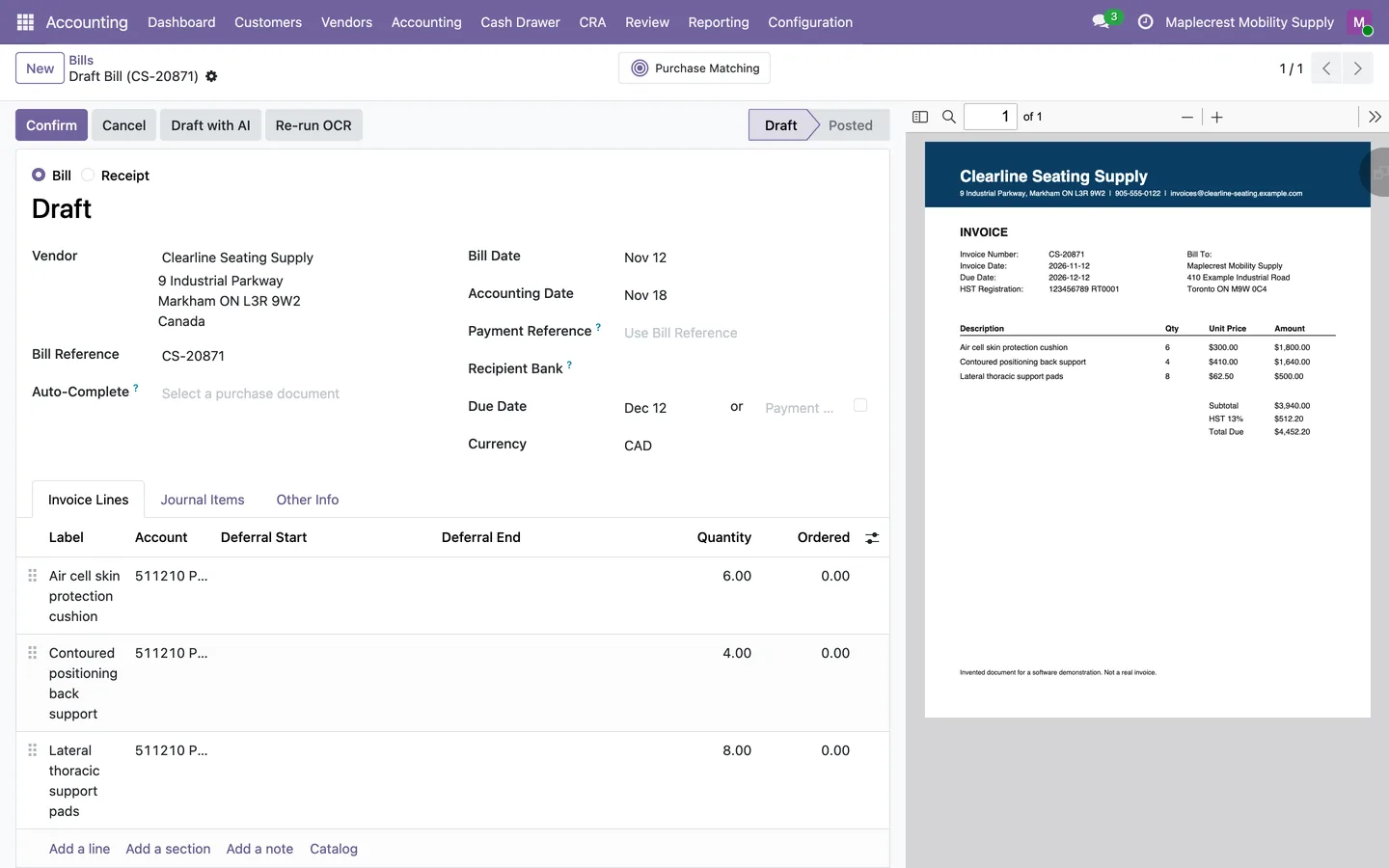
OCR fills the draft bill's vendor, reference, dates, lines, taxes and currency, and the Fusion OCR box shows the state, backend, confidence and raw text.
Accounting > Vendors > Bills
-
Check the fields
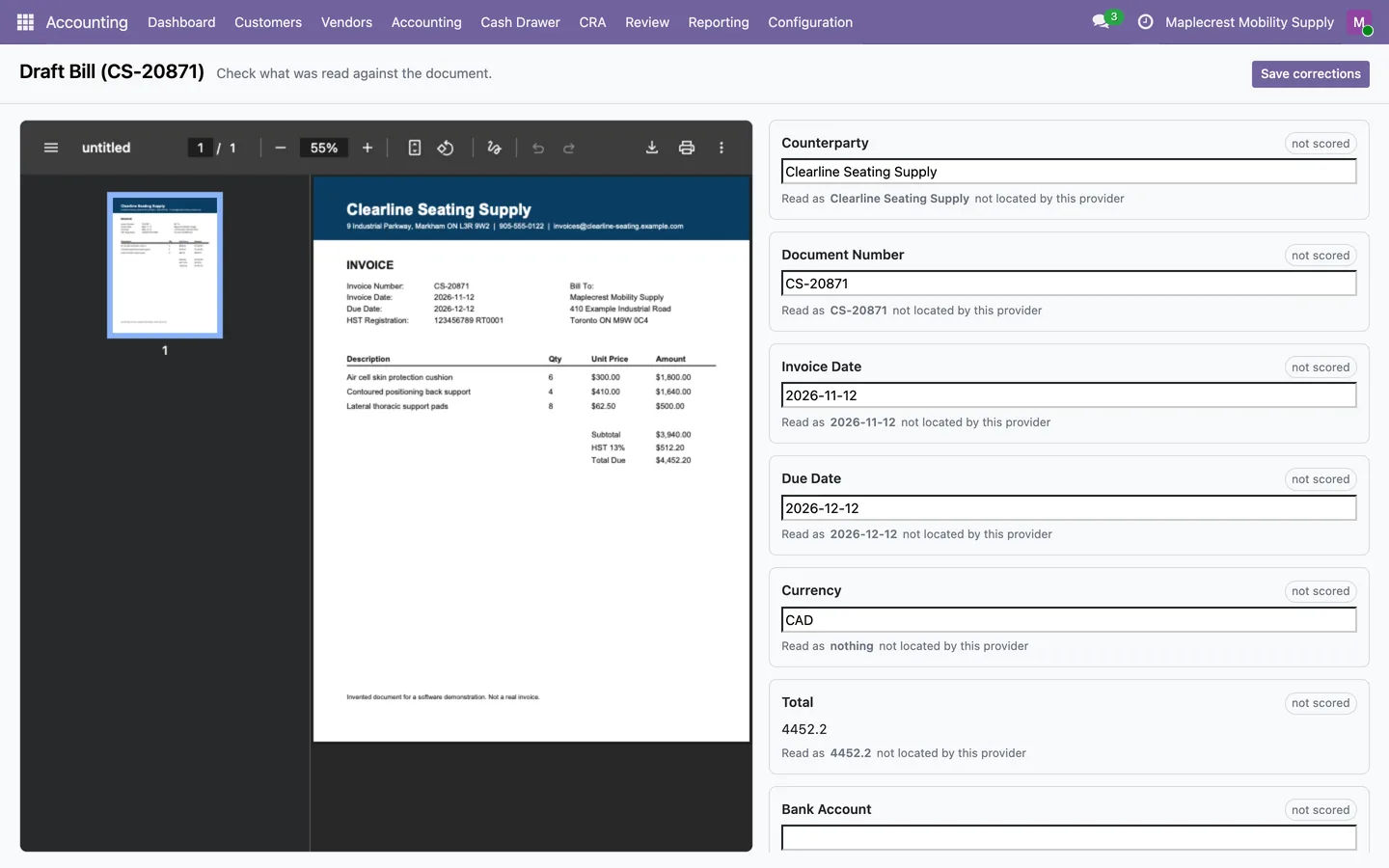
The review screen shows each value it read next to the document with a confidence label. You correct a value and save.
Bill > Review the Fields
-
Three-way match
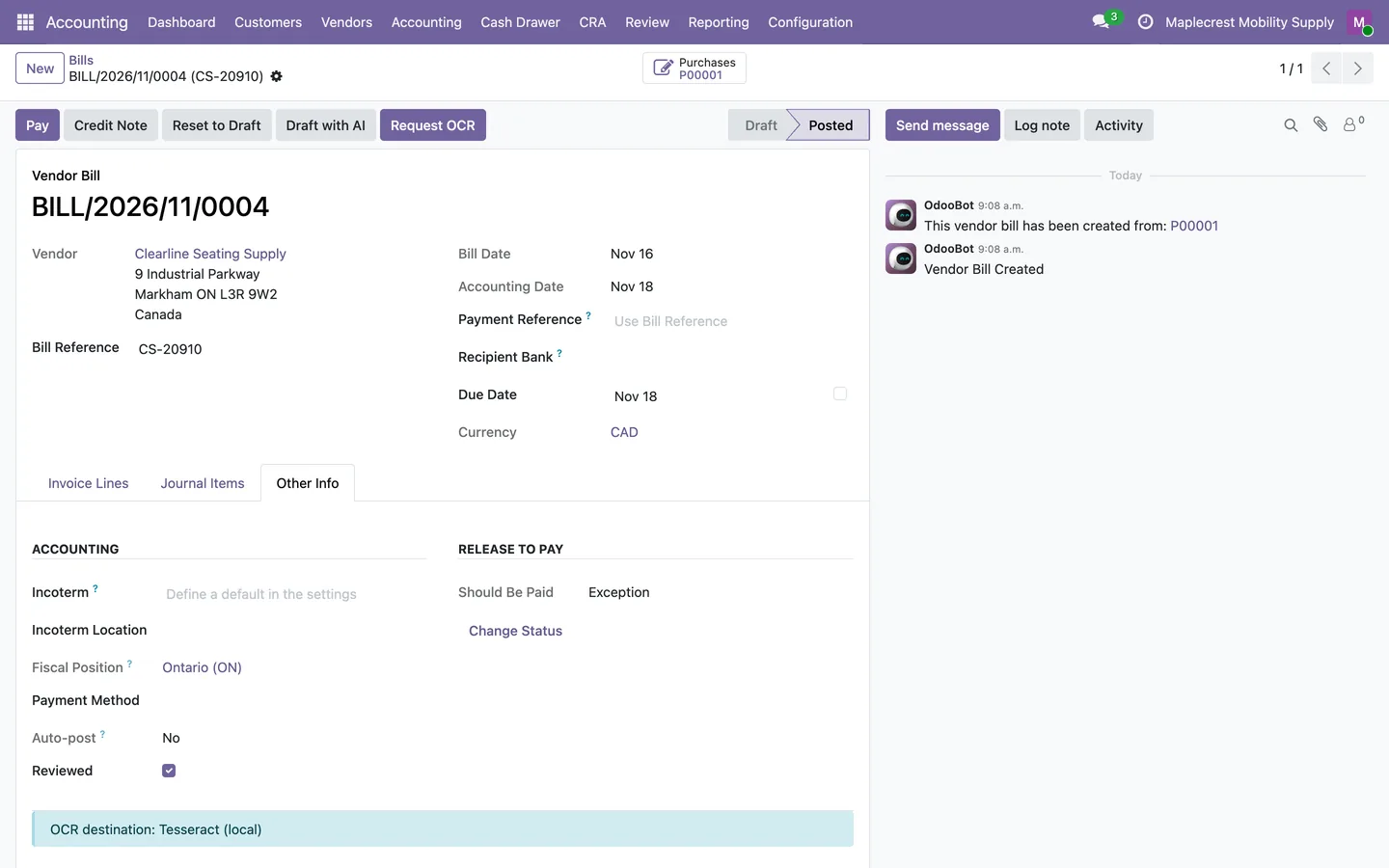
Each bill line linked to a purchase order line shows Ordered, Received, Billed Elsewhere and Release. The bill gets a "Should Be Paid" status, and an exception can be overridden only with a reason.
Bill > Other Info > Release to Pay
-
Post and release to pay
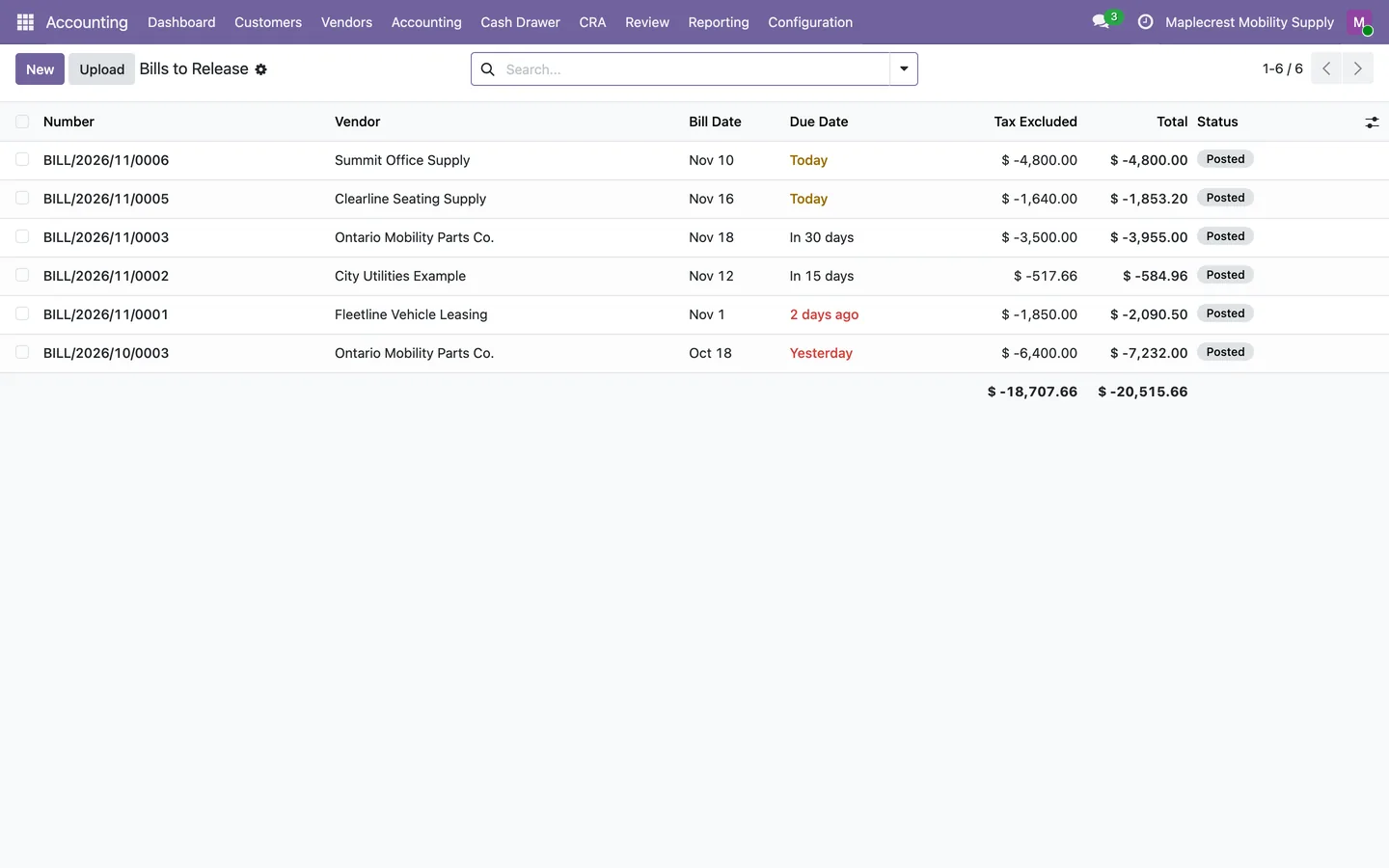
Posted unpaid bills that should be paid appear in "Bills to Release", and paying a bill that is not released warns or is blocked.
Accounting > Vendors > Bills to Release
Bank reconciliation
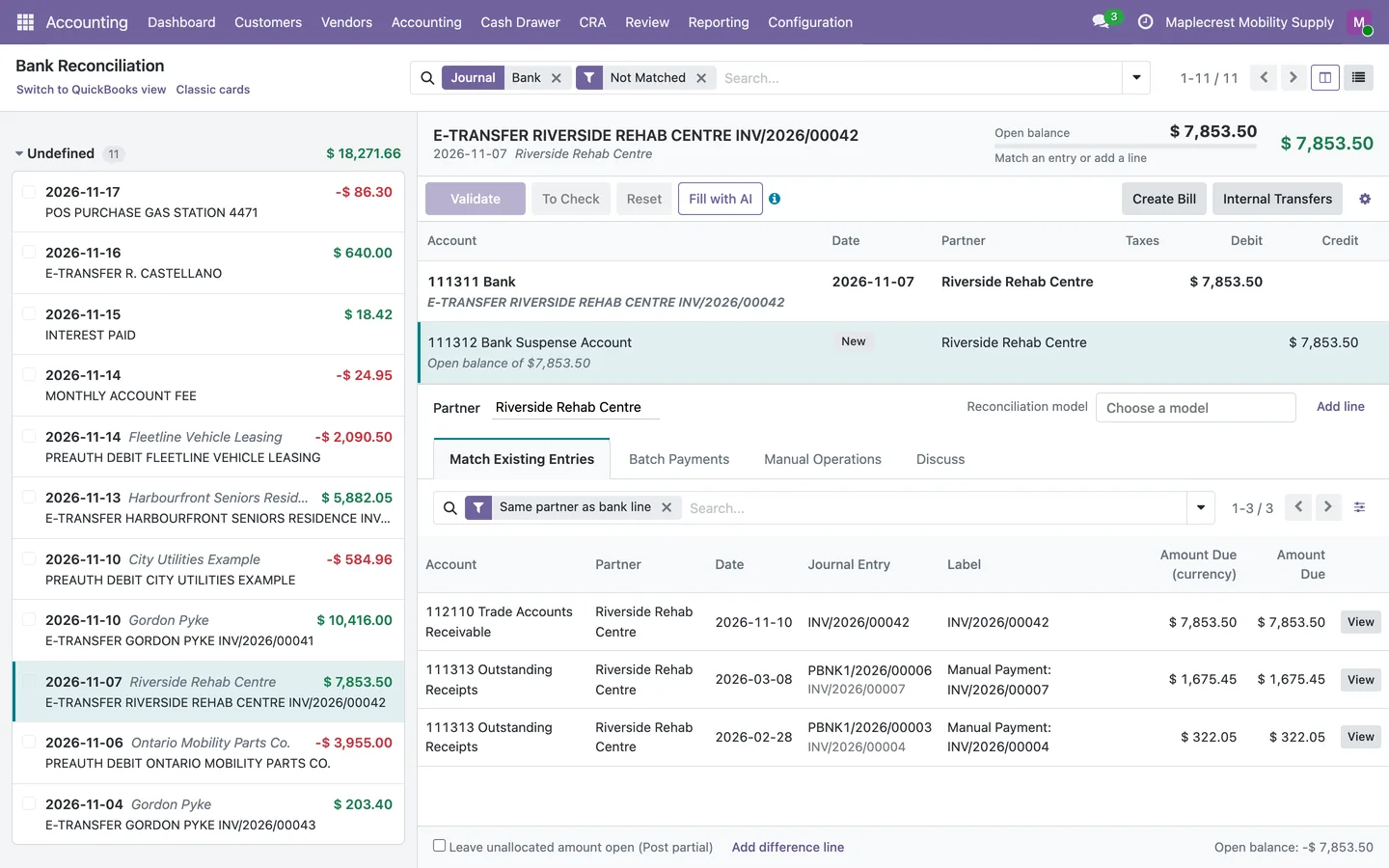
Bank lines come in from a file, a scanned statement or a bank feed, and are matched with suggestions you accept, change or undo.
-
Bring in transactions
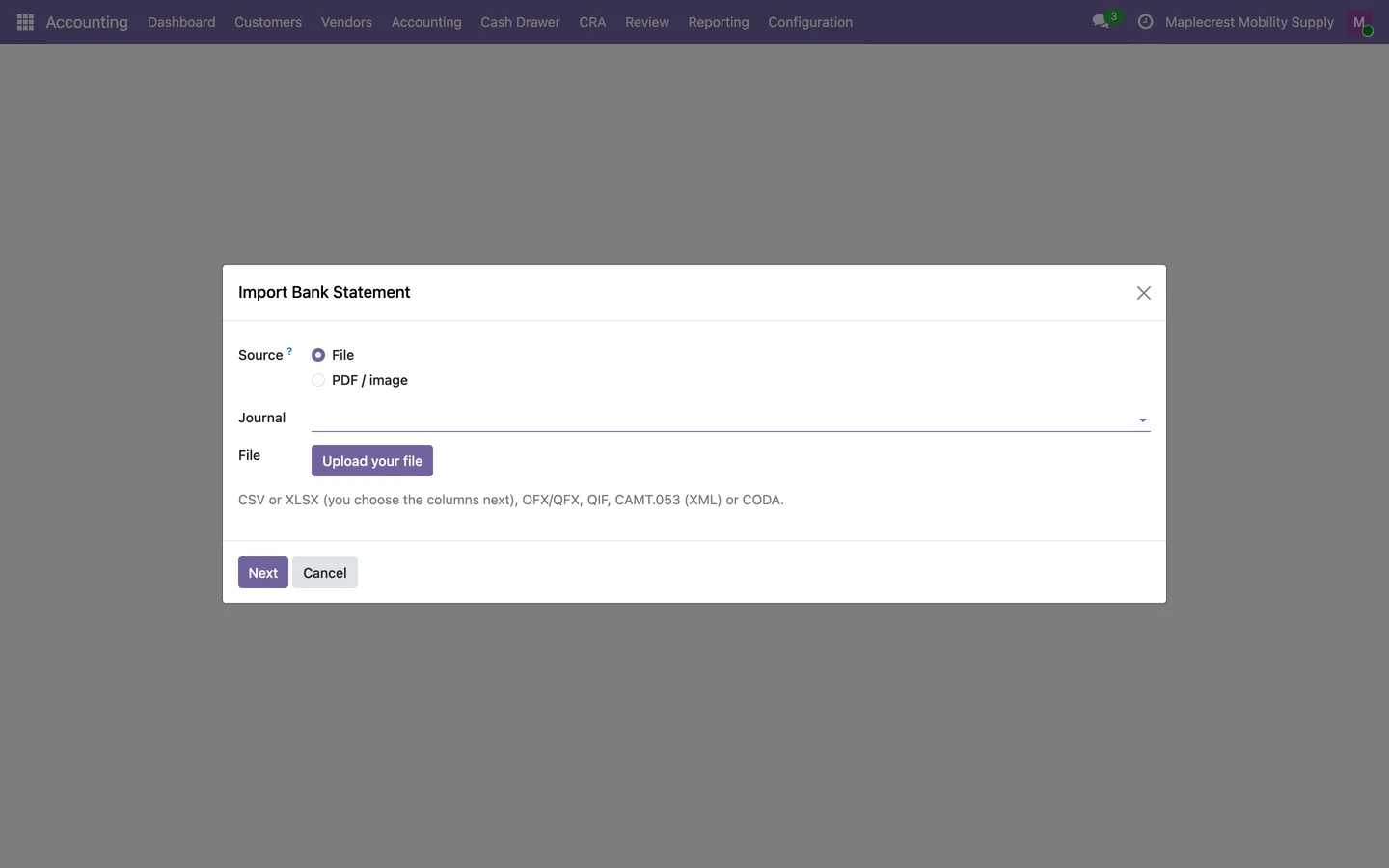
Upload a CSV, XLSX, OFX, QIF or CAMT.053 statement, or choose "PDF / image" to scan a paper statement. A Plaid bank feed can bring the lines in instead.
Accounting > Accounting > Bank Reconciliation > Import Bank Statement
-
Check the preview
The preview shows each row with opening and closing balances. Possible duplicates and, for a scan, rows to check are reviewed and cleared before import.
-
Open the reconciliation screen
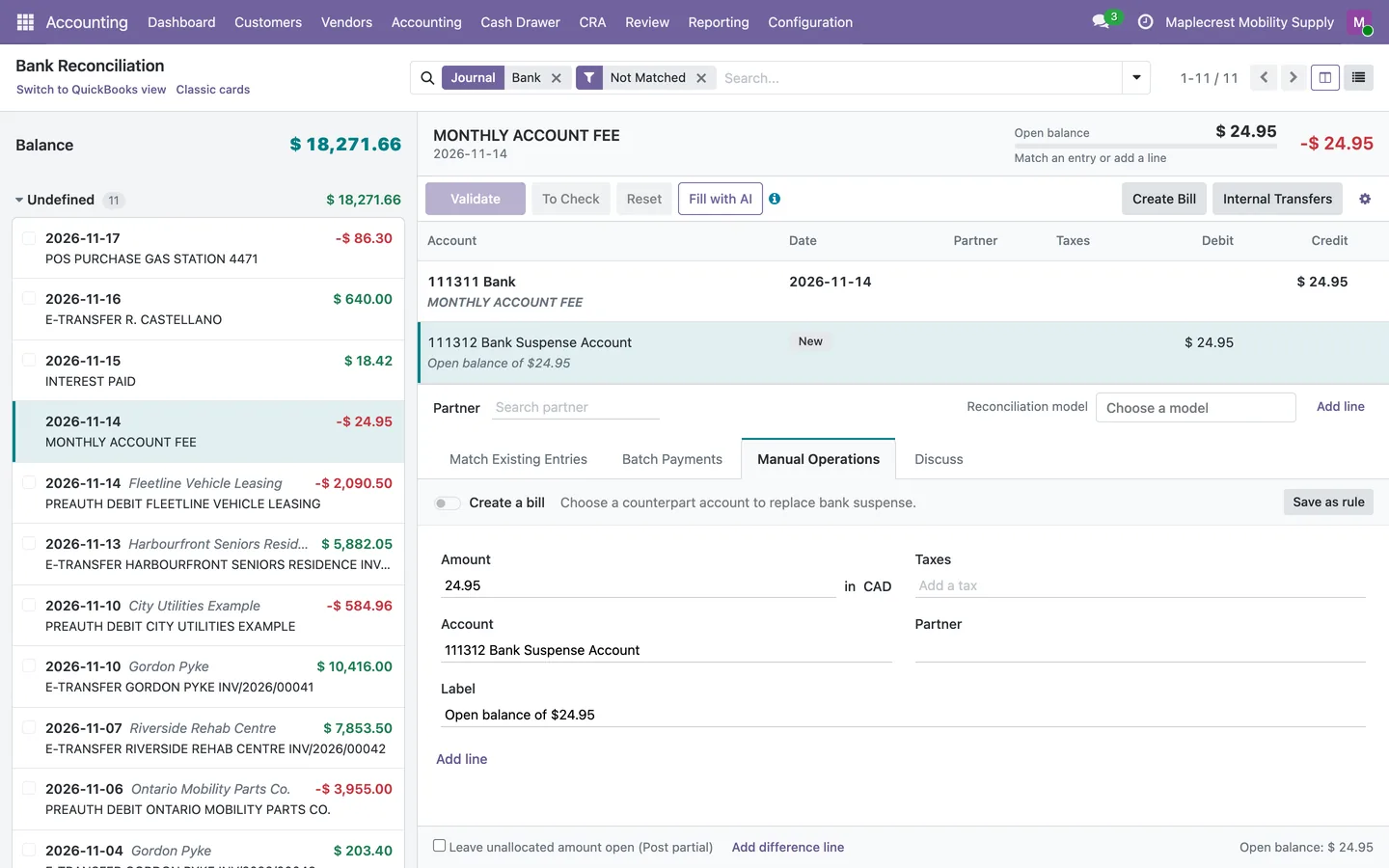
Open bank lines appear with suggested matches, each with a confidence, an explanation and evidence. Nothing is matched until you accept.
Accounting > Accounting > Bank Reconciliation > Reconcile Bank Lines
-
Accept, write off, undo
Accept the suggestion or pick another item. A reconcile model books a fee or small difference to an account, an internal transfer is one action, and a wrong match is undone from the card.
-
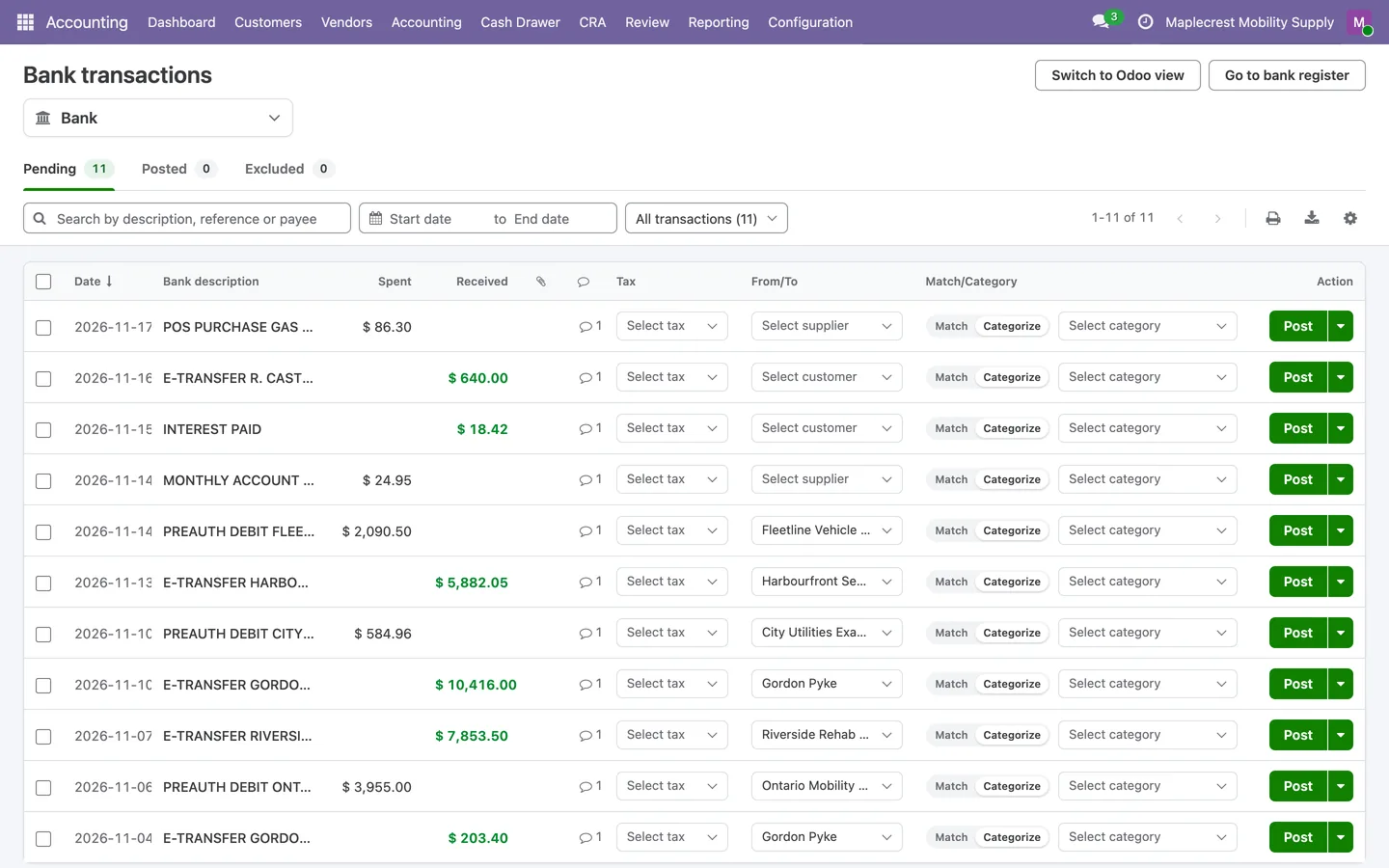
Work the way you know
Each user chooses the "Odoo 18 view" or the "QuickBooks view" of bank reconciliation.
Bank Reconciliation > Switch to QuickBooks view
-
Review the trail
Automatic reconciliations, write-offs and models applied by themselves are logged, and "Recover" returns eligible lines to suspense.
Accounting > Configuration > Automation Activity
Invoice and get paid
Batch the month's sales orders into invoices, send them with a pay link, and let customers pay online.
-
Batch the month's orders
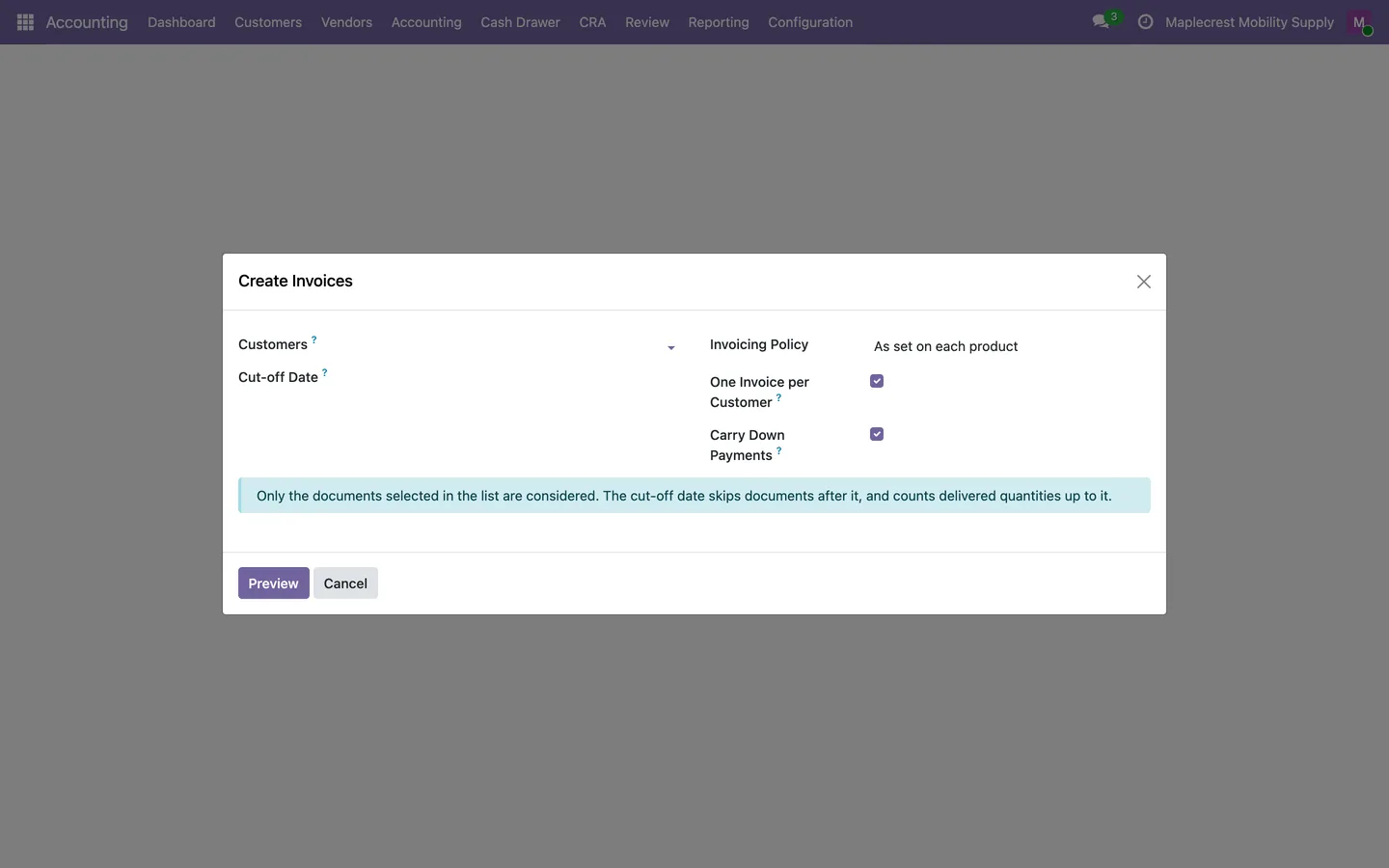
Open the batch for confirmed sales orders and set the customers, cut-off date, invoicing policy, one invoice per customer and down payments.
Sales > Orders > Create Invoices
-
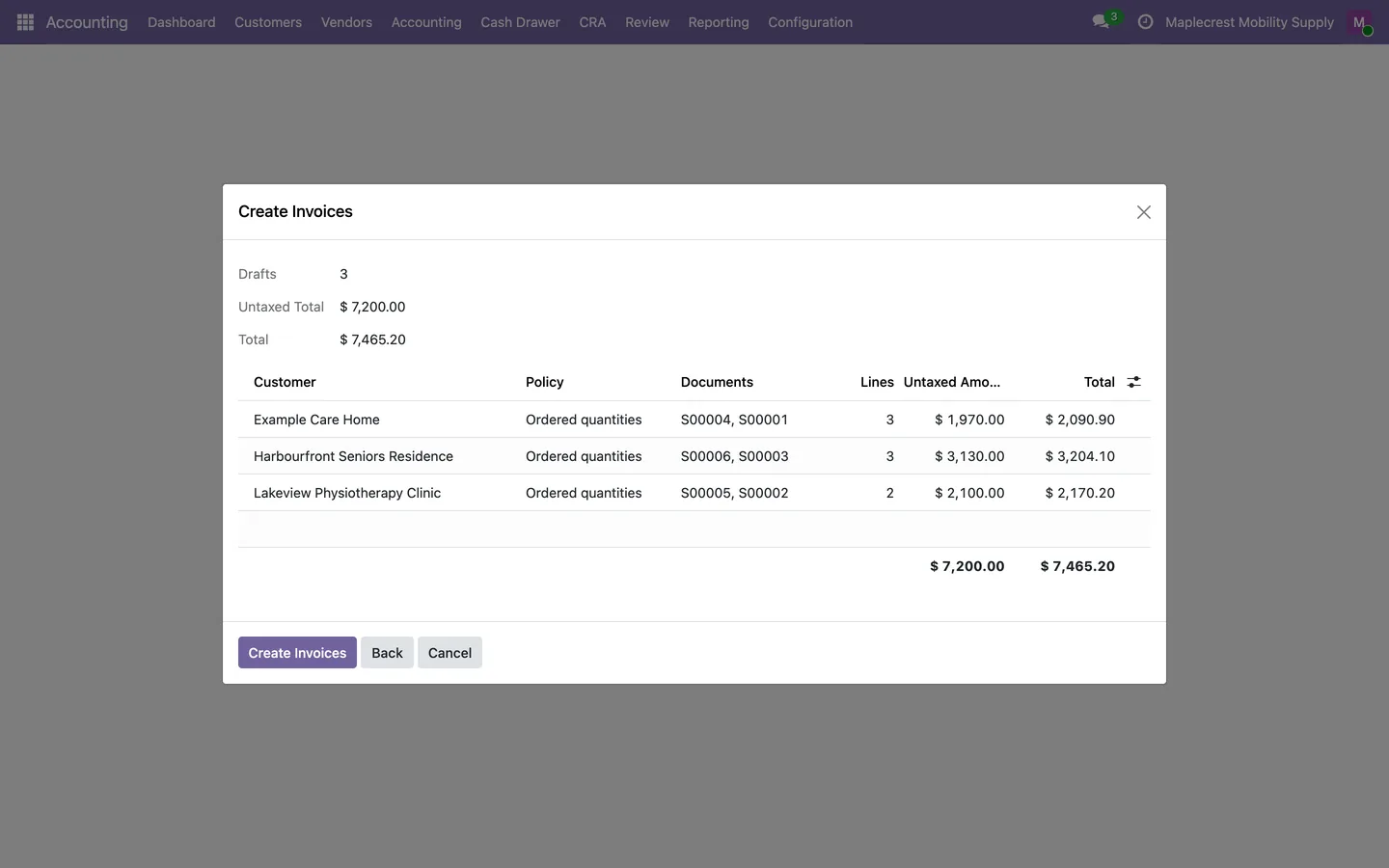
Preview and create drafts
The preview lists each draft with its customer, policy, orders covered, line count and untaxed and total amounts. Creating them opens the drafts.
-
Post and send
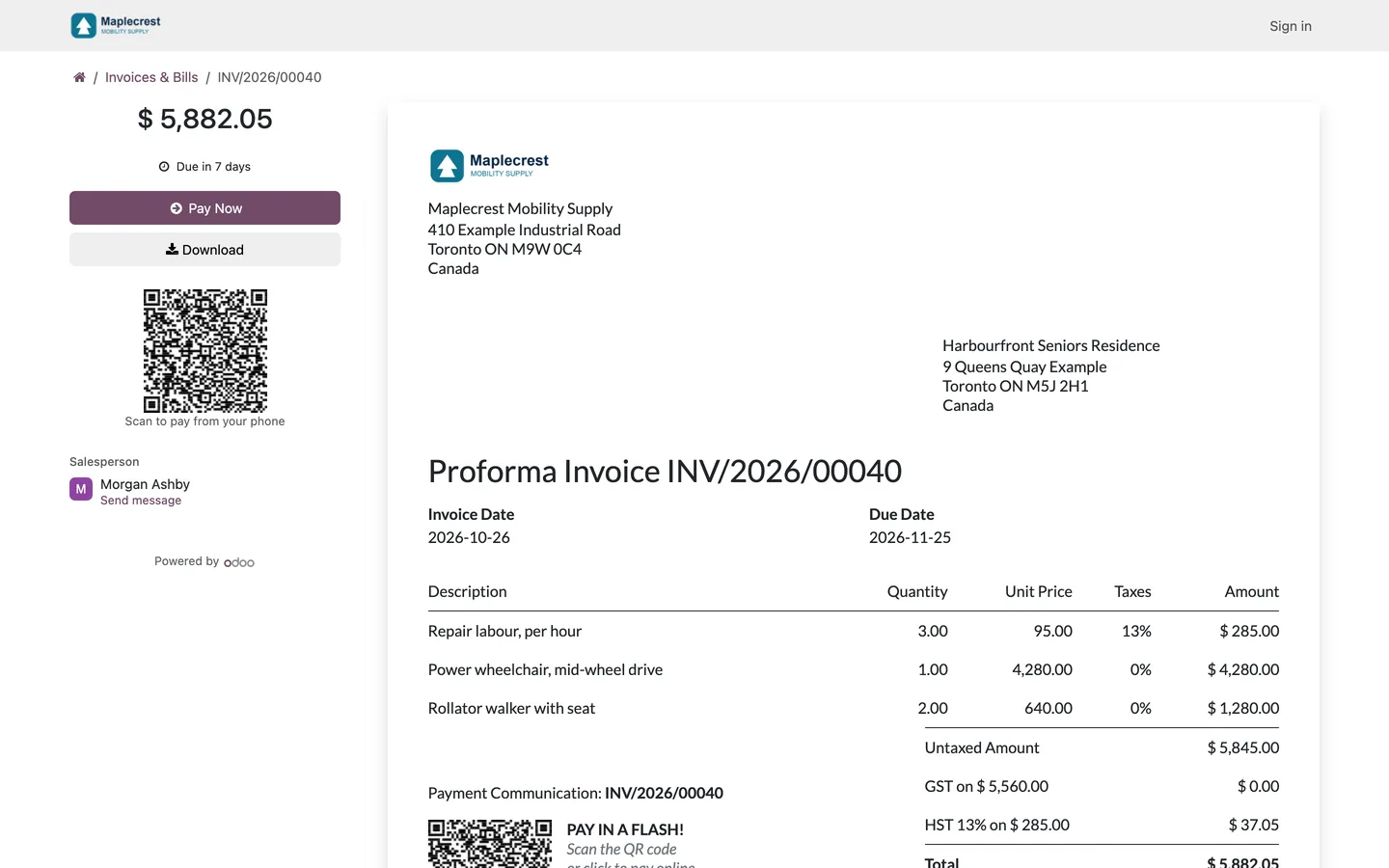
Post the invoice and send it. The email carries a "Pay online" button and a QR code to pay from a phone.
-
Customer pays online
The customer opens the link or scans the QR code and pays through the provider's form on the invoice's page. Partial payments and early payment discounts follow the payment terms.
Customer portal > Invoices
-
Payment lands on the invoice
A confirmed transaction creates, posts and reconciles the payment and notes it on the invoice. A failed or cancelled one leaves the invoice open with a note.
-
Match the deposit
When the provider's deposit appears on the bank statement, it is matched in the reconciliation screen like any other line.
Overdue invoices
Set your reminder levels once, then work the customers worth chasing from one screen.
-
Set the levels
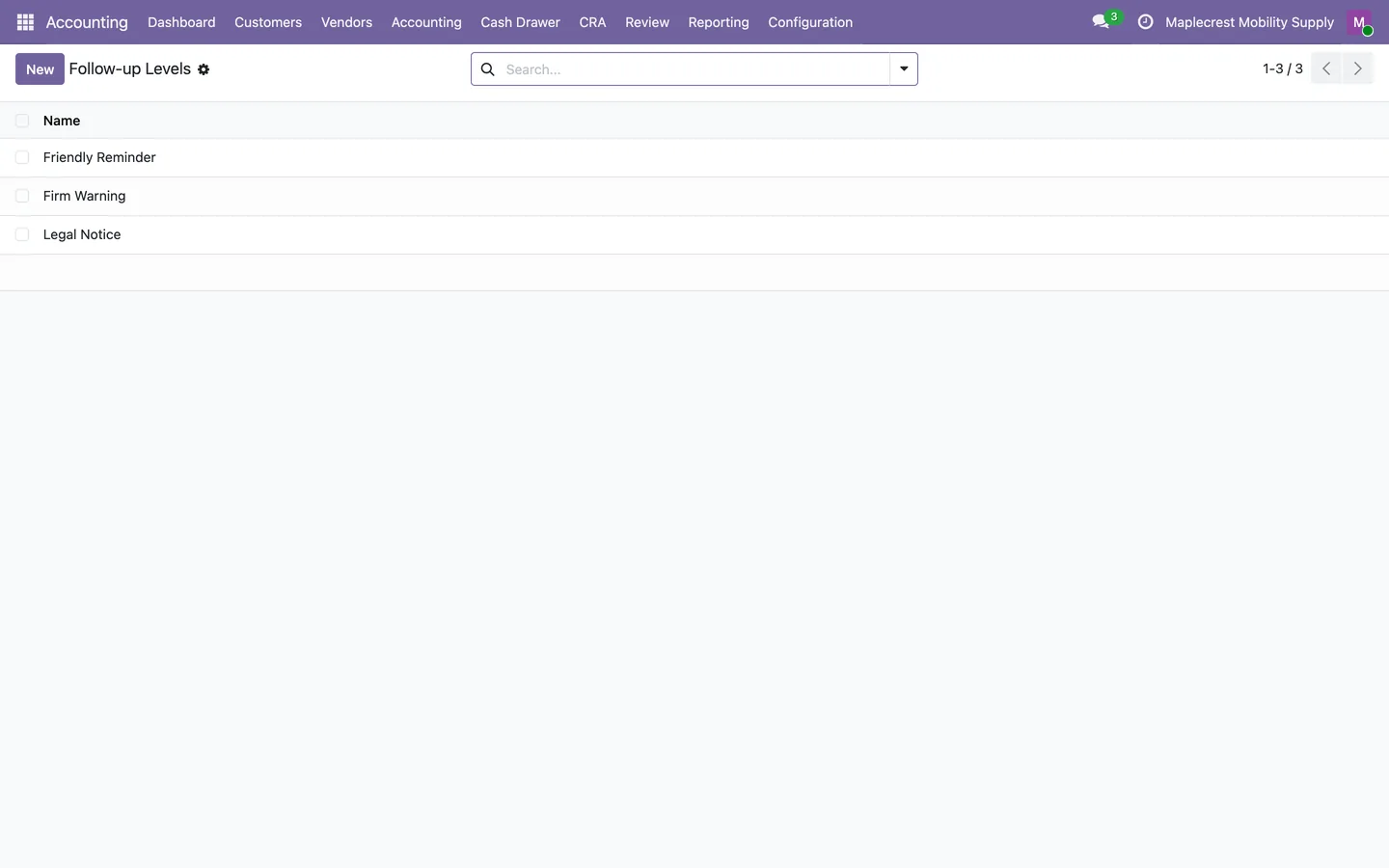
Each level sets its delay days, repeat days, email template, invoice attachments, SMS text and activity. Three levels come preset: Friendly Reminder, Firm Warning and Legal Notice.
Accounting > Customers > Follow-ups > Levels
-
Find who to chase
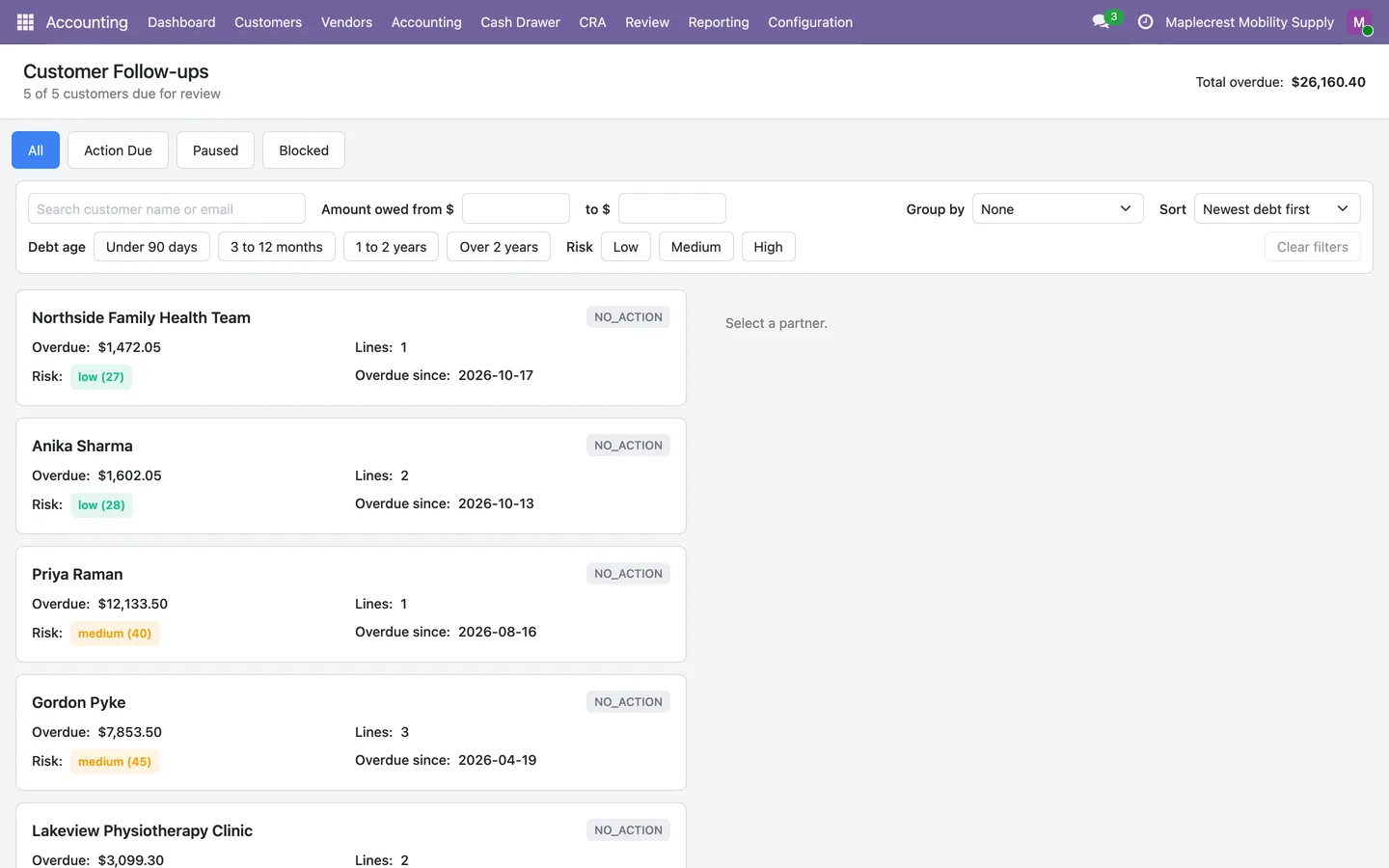
The follow-up screen lists customers due for review with their overdue total. Filters by amount owed and debt age, grouping and sorting narrow it down, and the screen remembers the choices.
Accounting > Customers > Follow-ups > Overdue Customers
-
Review and send one
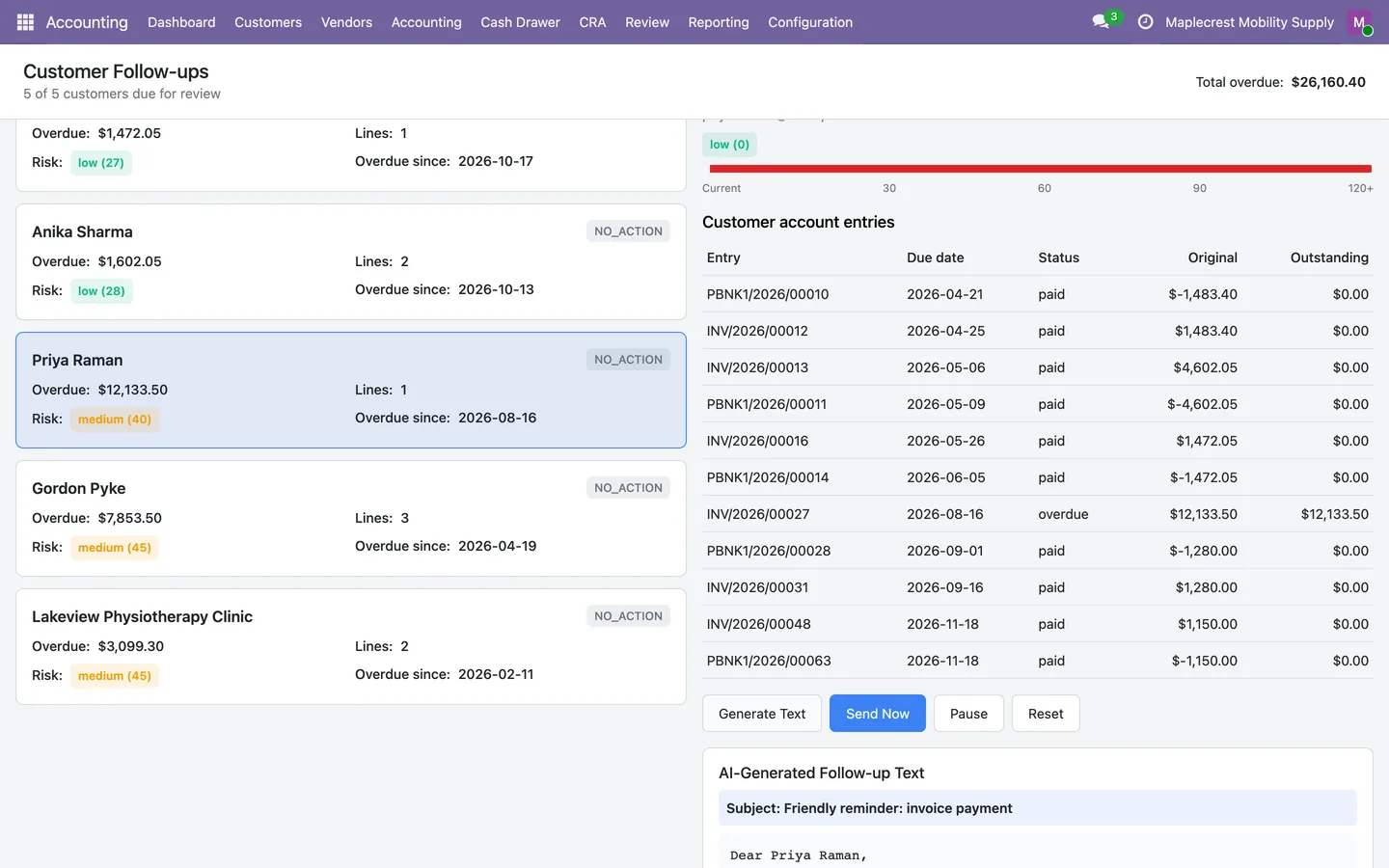
The card shows the customer's open items, "Overdue since" and risk. "Generate Text" drafts the reminder for review, then "Send Now" sends it or "Pause" holds it.
-
Send a batch
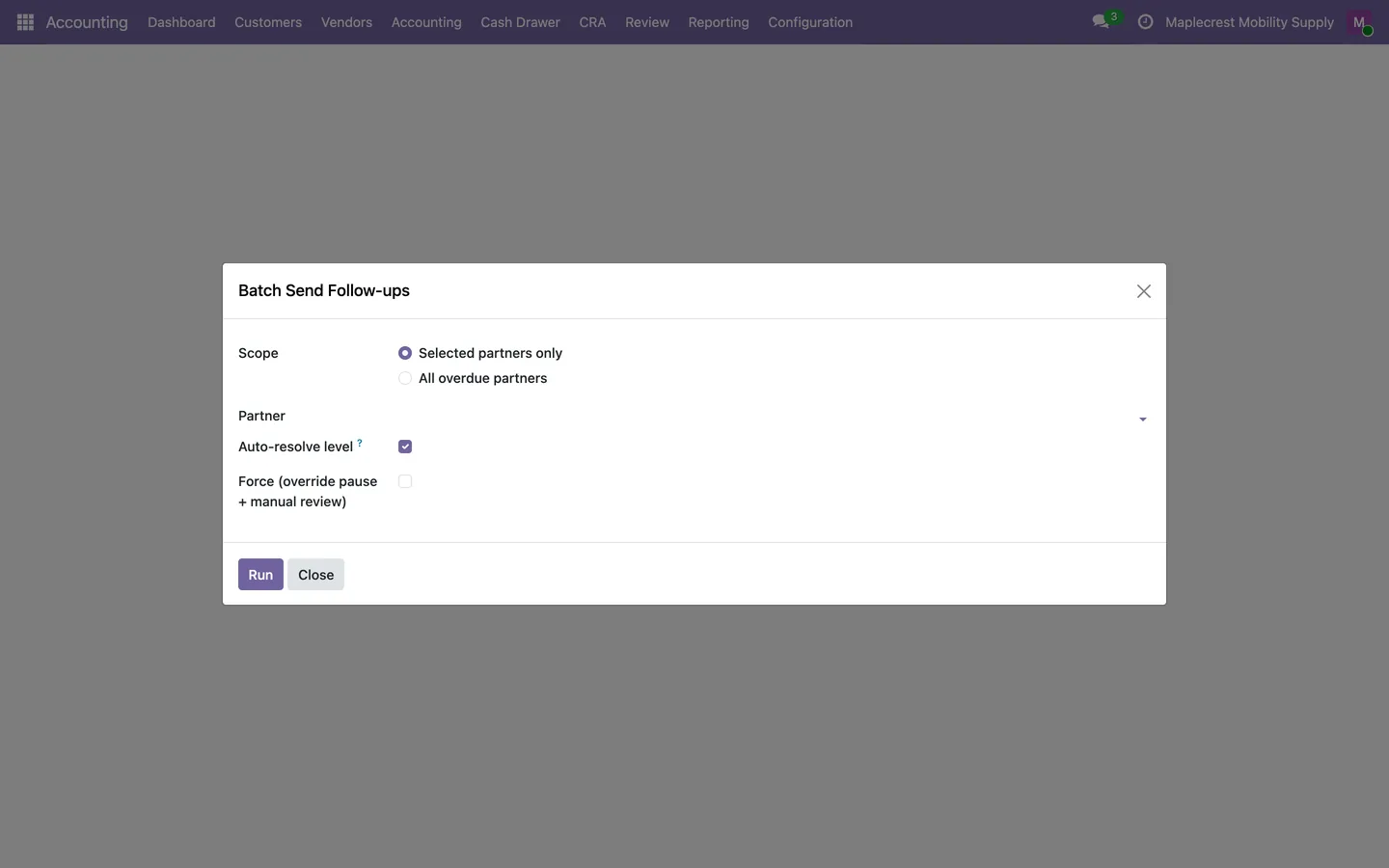
"Batch Send" runs follow-ups for all due customers, a selection or one level, and reports how many were sent, skipped or failed.
Accounting > Customers > Follow-ups > Batch Send...
-
Letters and statements
The customer's "Payment Follow-up" tab sets pause, contact and channel and prints or emails a statement. A letter can be printed, and the optional bridges send it by Snail Mail or WhatsApp.
-
Check the history
History shows each run's delivery result, recipient and attached invoices, and a customer can be paused or set to manual with a next reminder date.
Accounting > Customers > Follow-ups > History
Month-end and year-end
Close the month from a checklist, run the reports, lock the period and roll the year forward.
-
Open the close checklist
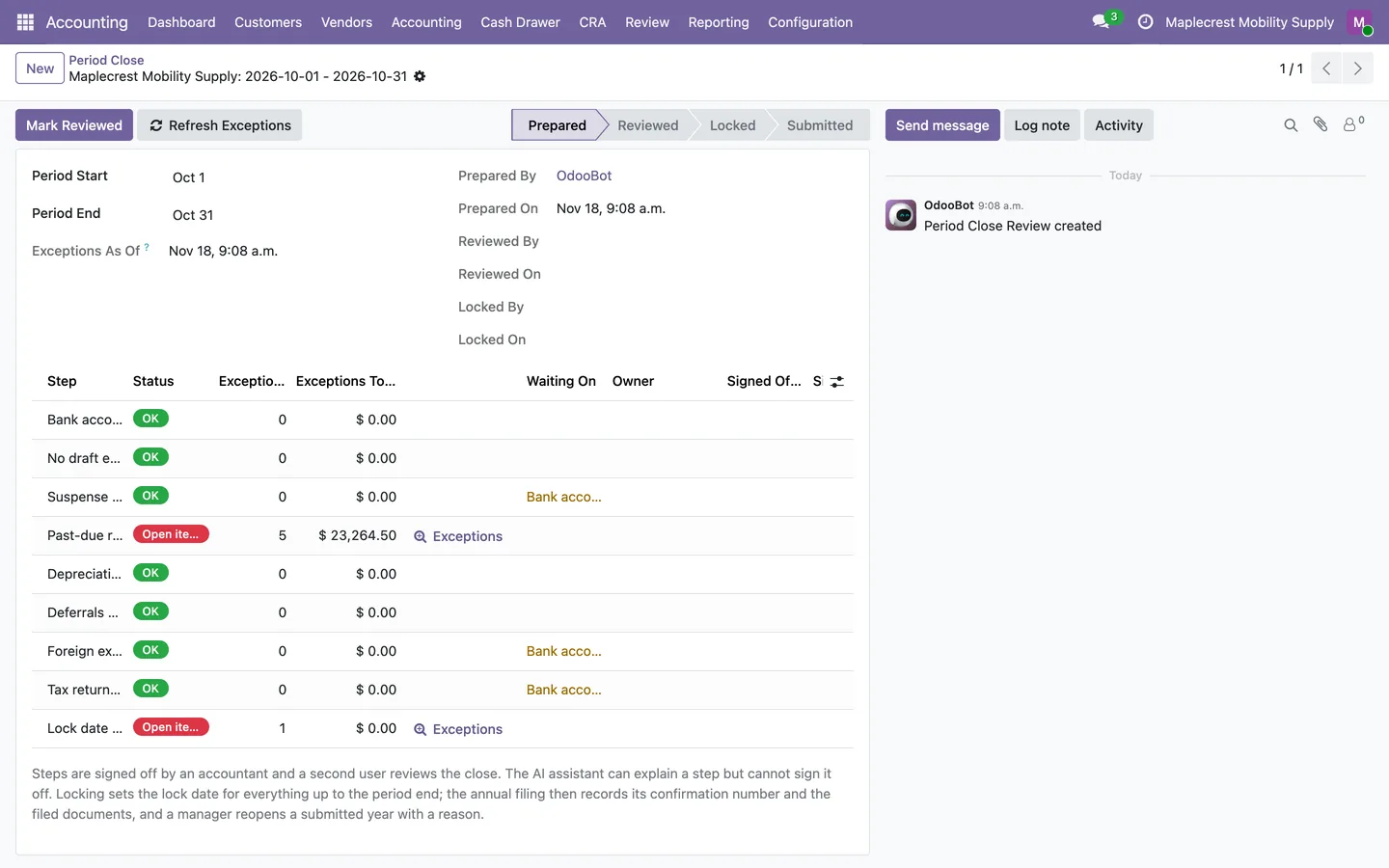
A close record for one company and period builds its steps. "Refresh Exceptions" lists open bank lines, suspense items, draft entries, depreciation, ageing and tax work per step, with owners and dependencies.
Accounting > Accounting > Closing > Period Close
-
Run the reports
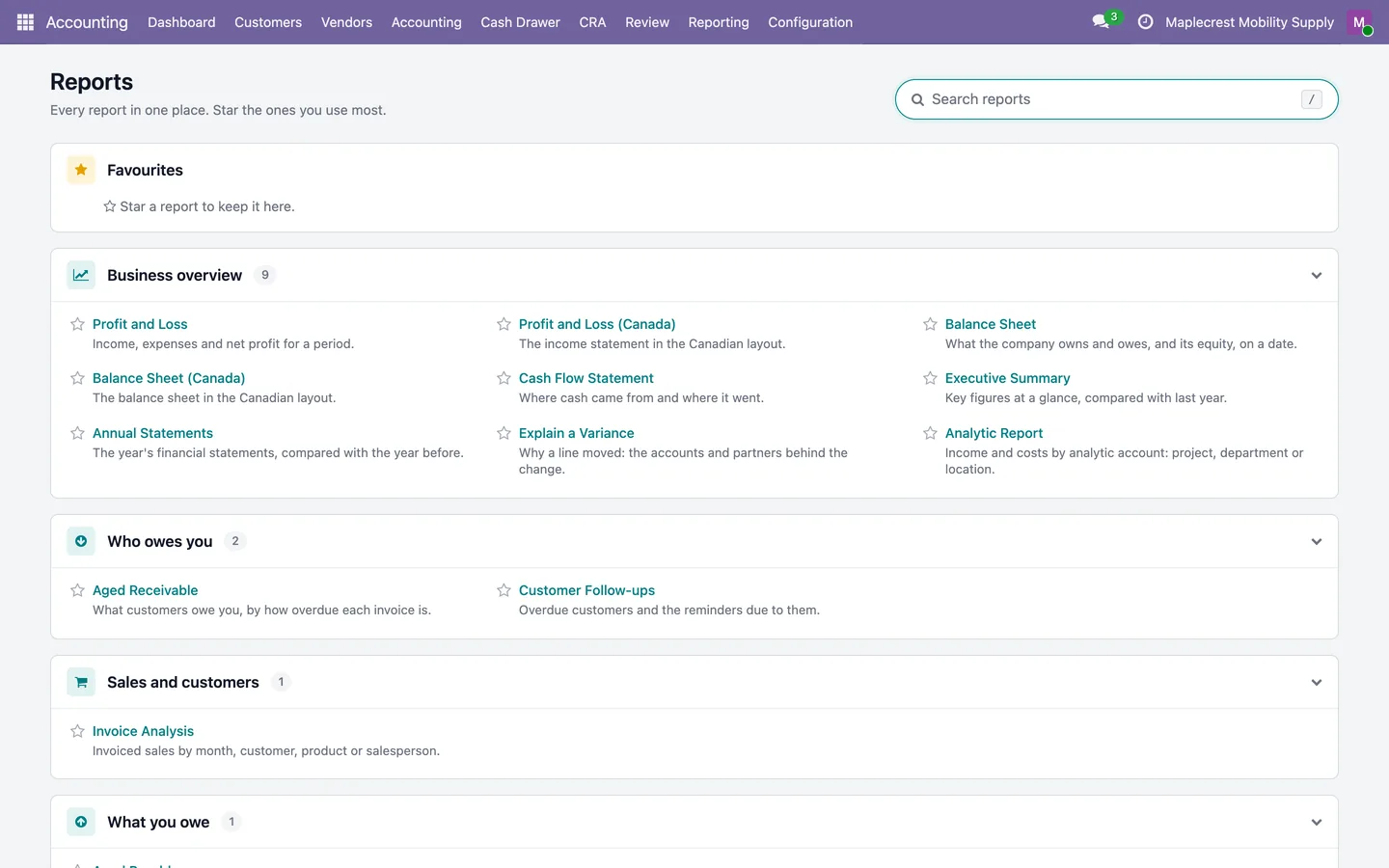
Open any report from the Reports page, set dates and a comparison, drill into journal items, and export the main statements to PDF or XLSX.
Accounting > Reporting > Management > Reports
-
Review and lock
A different accounting manager marks the close reviewed, then locks the period.
-
Year-end allocation
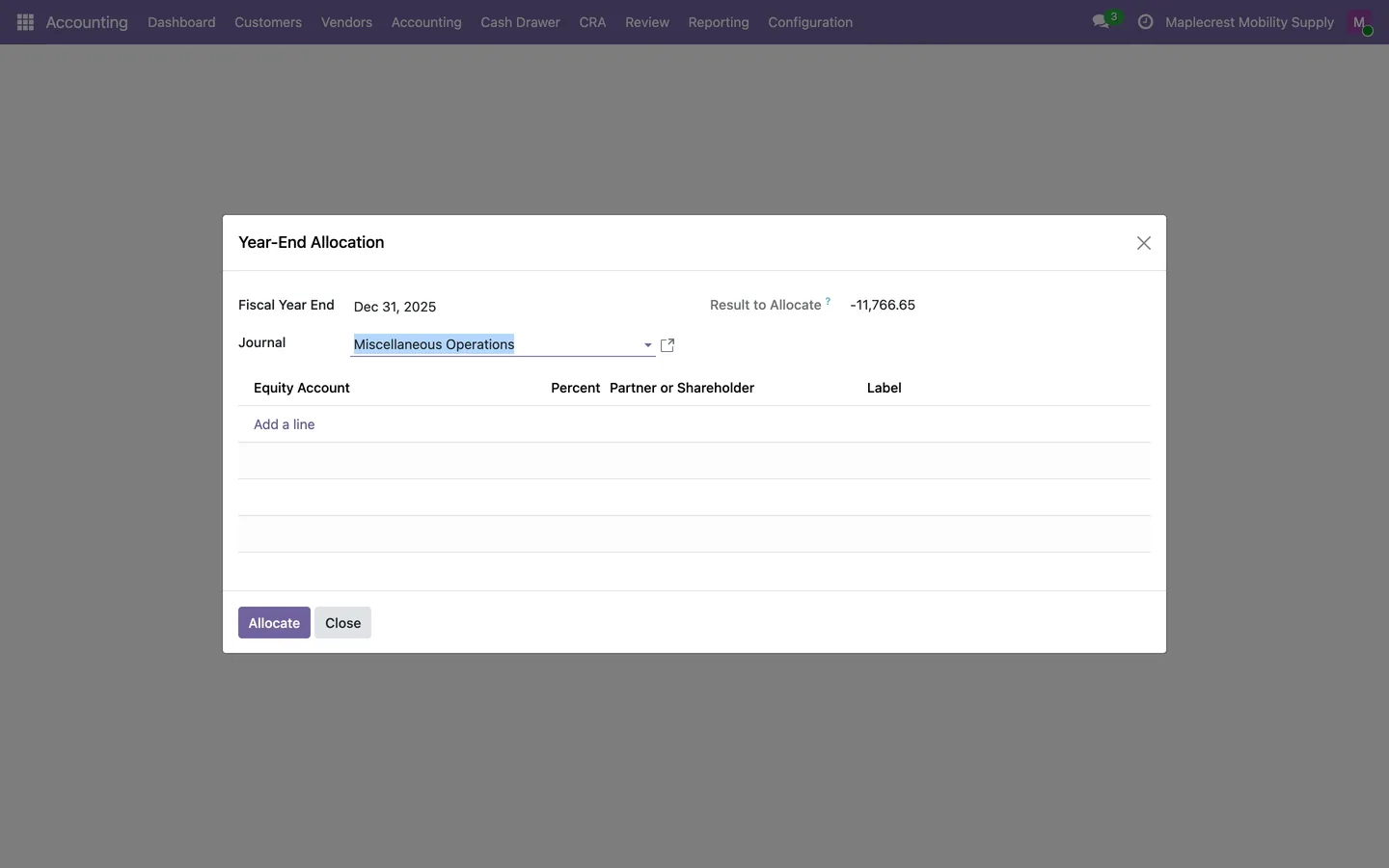
Choose the fiscal year end, a general journal and equity lines. "Allocate" posts one entry dated the first day of the next year that moves the result between equity accounts only.
Accounting > Accounting > Closing > Year-End Allocation
Fixed assets
From the bill that buys it to the day it is sold, every asset depreciates on schedule and is checked against the ledger.
-
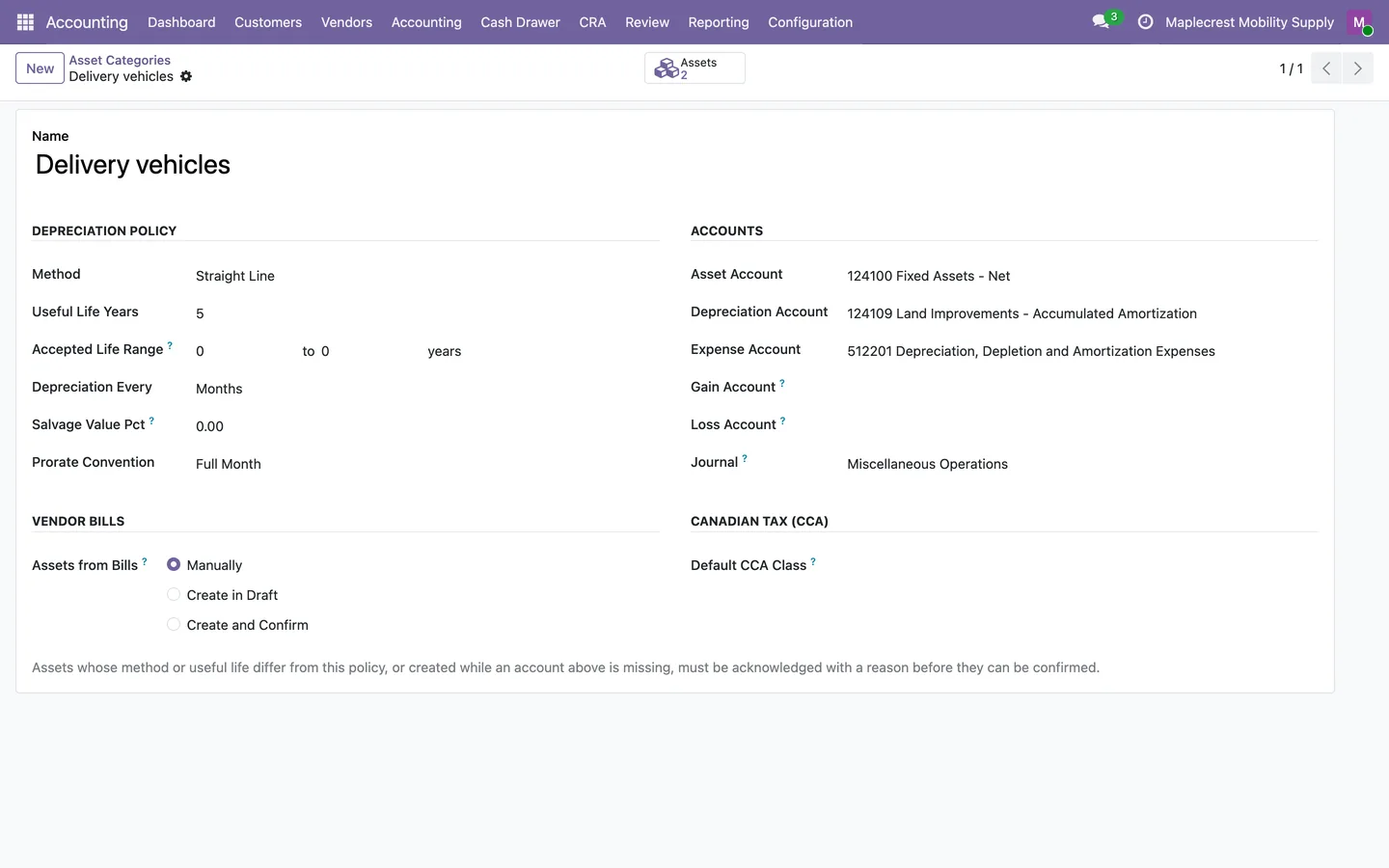
Set up the category
A category holds the asset, accumulated depreciation and expense accounts, the method, the useful life and how assets are created from bills: manually, in draft or confirmed.
Accounting > Accounting > Asset Management > Categories
-
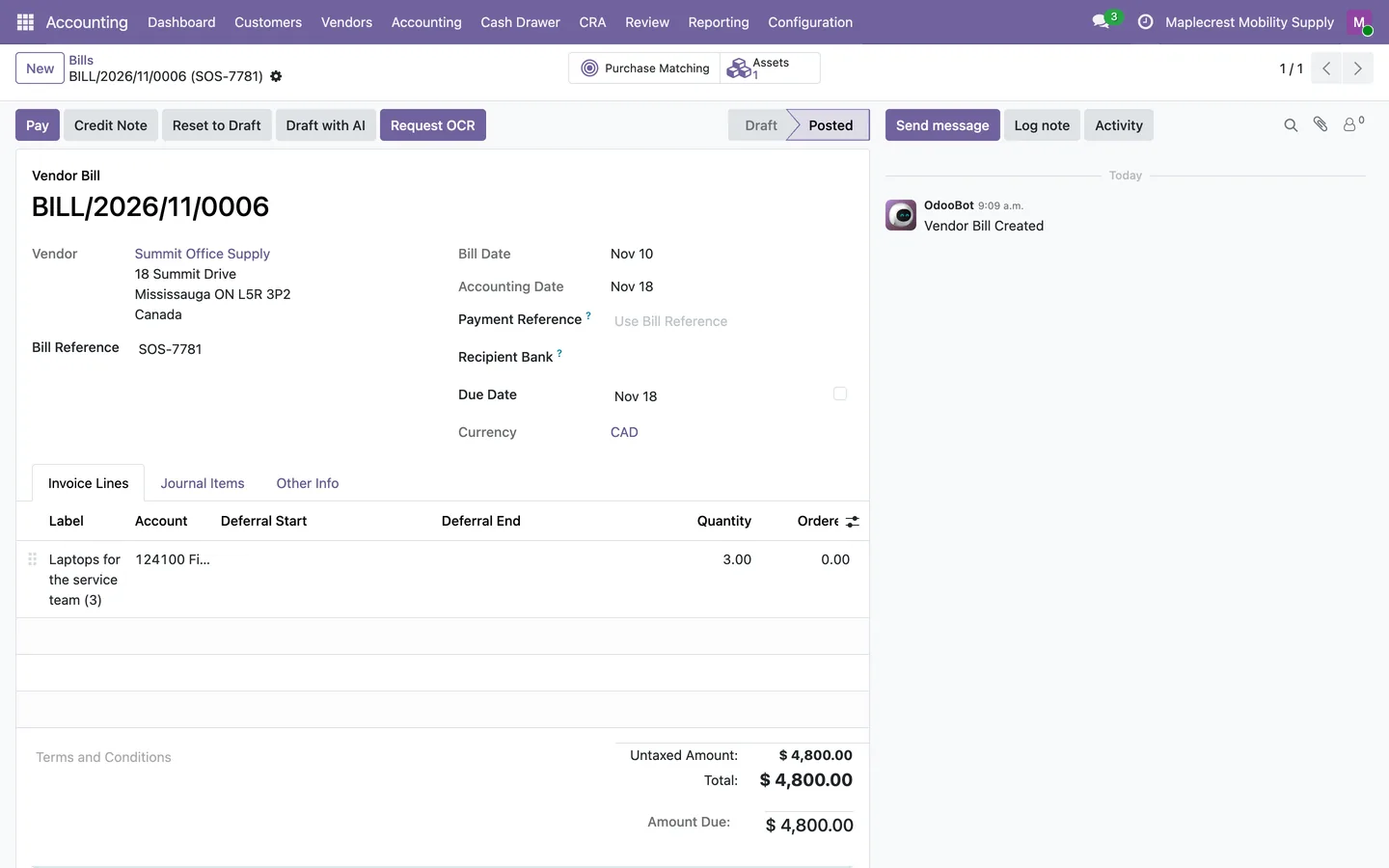
Bill creates the asset
Posting a vendor bill line on the category's asset account creates the asset, and the bill shows an "Assets" button.
Accounting > Vendors > Bills
-
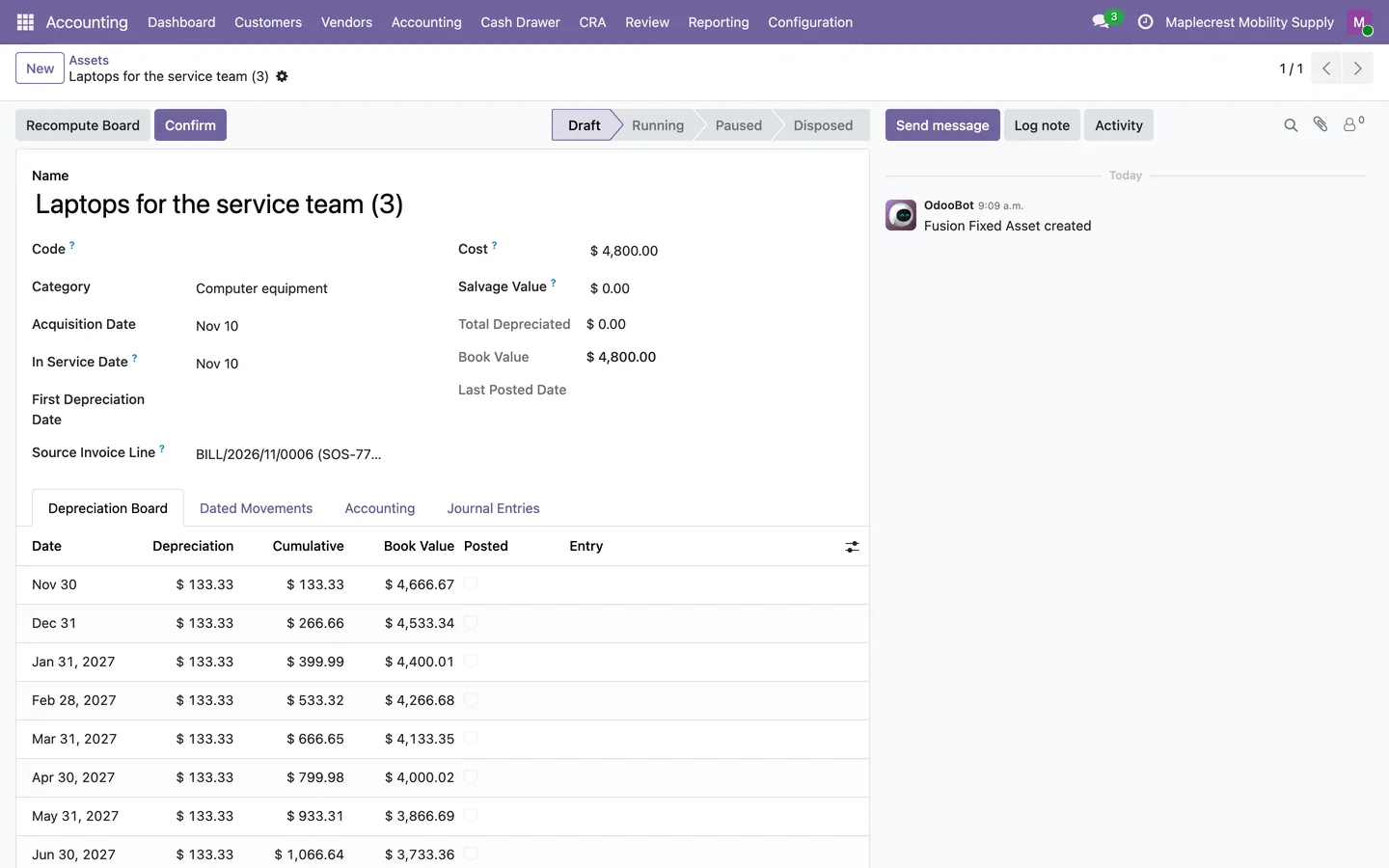
Check policy and confirm
If the asset differs from its category or similar approved assets, a banner lists the flags and an accounting manager acknowledges them with a reason. Otherwise "Confirm" starts depreciation.
-
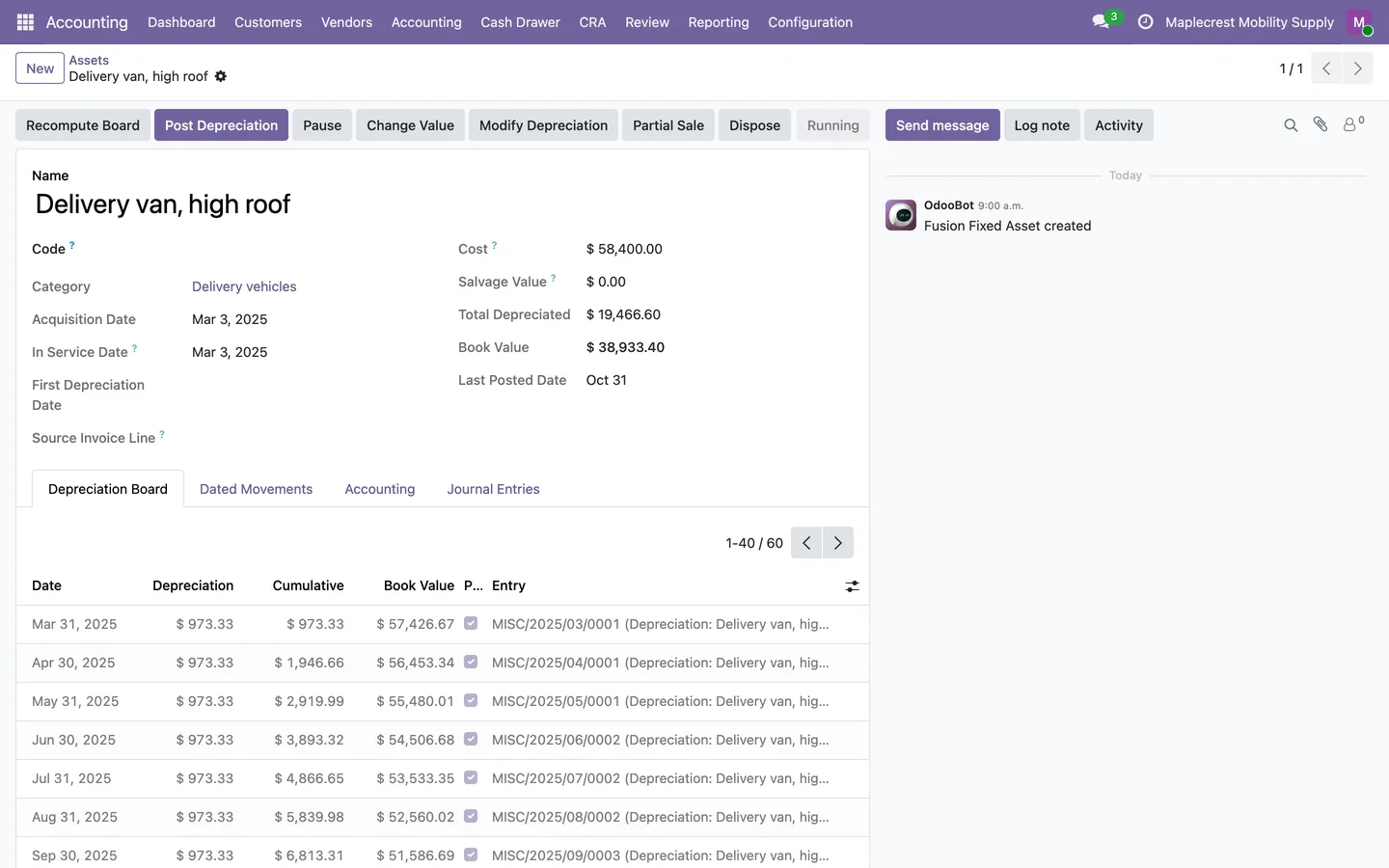
Depreciate
The depreciation board lists each period. Due lines post from the board or from "Run Depreciation", and a daily scheduled action posts due depreciation.
Accounting > Accounting > Asset Management > Assets
-
Schedule against the ledger
The schedule shows each period's opening, additions, depreciation and closing values and says whether every period's closing value matches the ledger.
Accounting > Reporting > Management > Assets and Loans > Depreciation Schedule
-
Sell or scrap
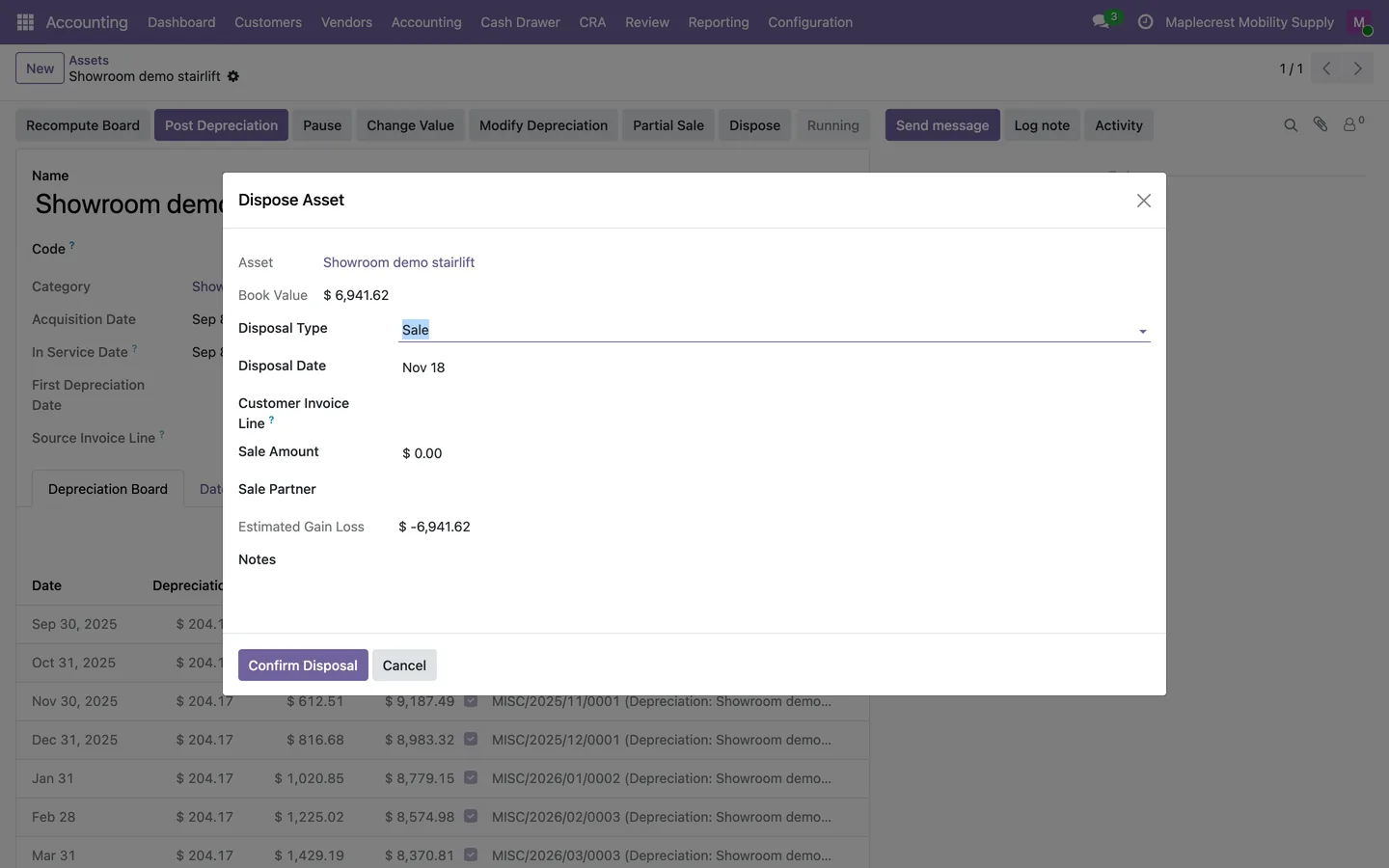
"Dispose" records a sale, scrap or donation with its entry, and "Partial Sale" sells part of an asset carrying its accumulated depreciation.
Store cash drawer
Count the till by bill and coin, compare the card terminal, and close the day with the deposit ready for the bank.
-
Set up the drawer
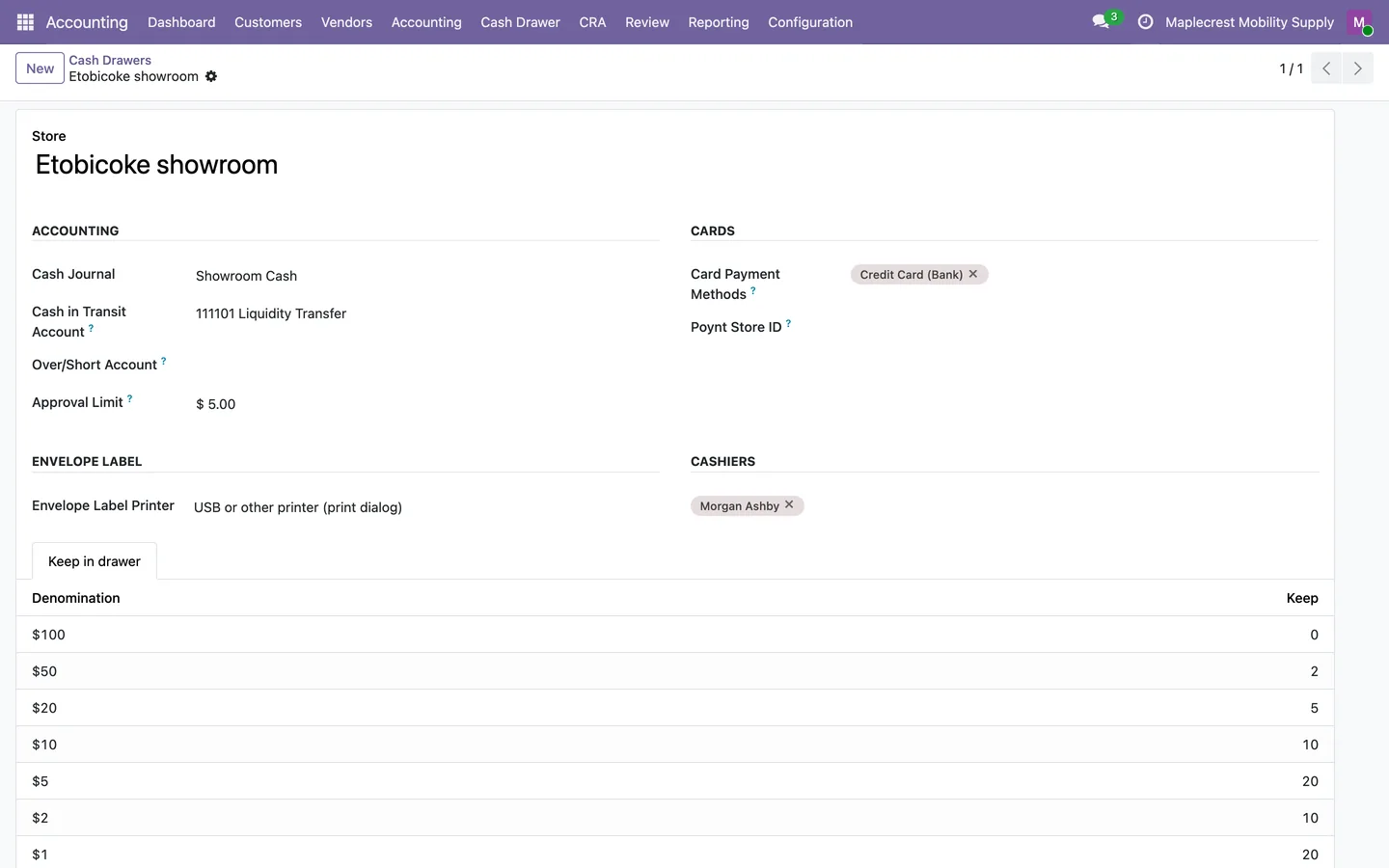
One drawer per store holds its cash journal, cashiers, cash in transit account, over/short account, approval limit, card payment methods and how many of each bill and coin stay in the drawer.
Accounting > Cash Drawer > Configuration > Cash Drawers
-
The day's sales
The day's cash payments make the expected cash, together with the float the last closed day left, and card payments make the recorded card total.
-
Count the drawer
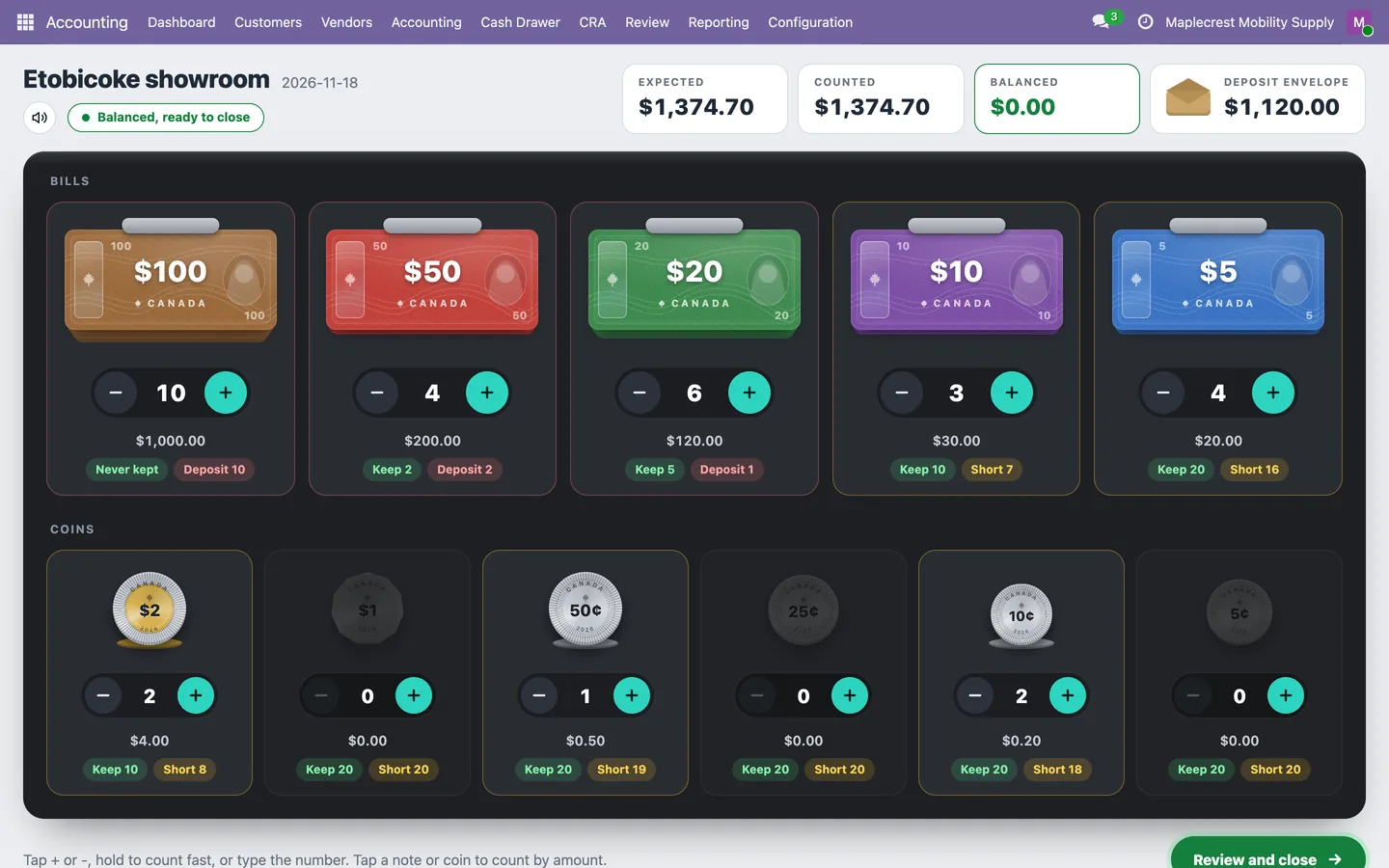
The cashier taps plus or minus on each bill and coin, or types a number, and the screen shows Expected, Counted and the deposit envelope, with "Balanced, ready to close" when they agree.
Accounting > Cash Drawer > Count Drawer
-
Card terminal total
The cashier types the terminal's batch total, or it is pulled from Poynt when that module is installed, and the screen compares it with the card payments recorded in Odoo.
-
Close or send for approval
Closing posts the over/short and moves the deposit to cash in transit. A difference above the store's limit waits for a store manager to approve.
-
Label and day report
The deposit envelope label prints on a network Zebra or through the print dialog, and the Day Close report lists the day's invoices, refunds, bills and other payment methods.
GST/HST to the CRA
From the way each product is taxed to the confirmation number the CRA gives you, every GST/HST return is prepared, checked and kept in one place.
-
Classify what you sell
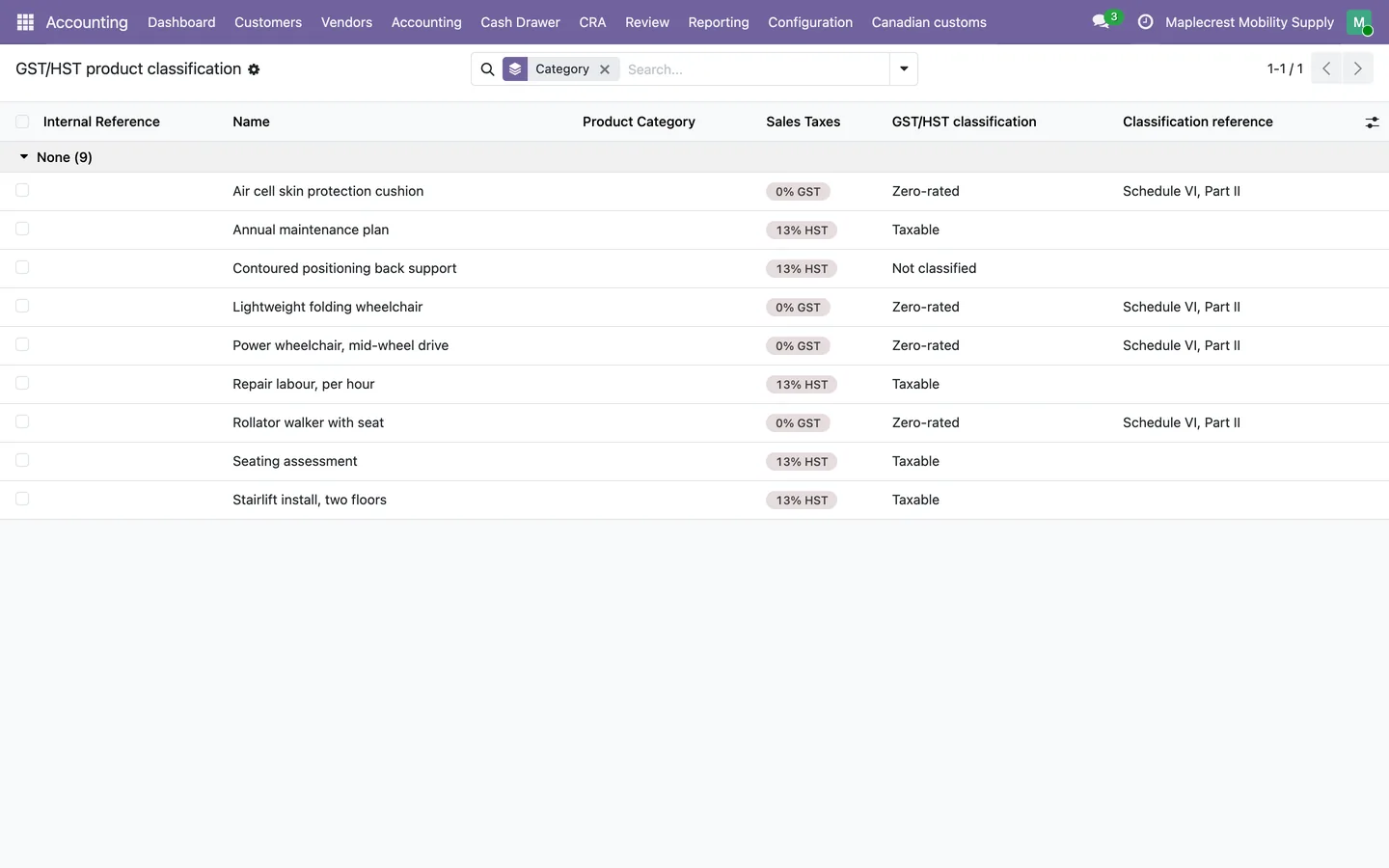
Each product carries a GST/HST classification: taxable, zero-rated, conditionally zero-rated, exempt or not a supply.
Accounting > Reporting > Taxes & Fiscal > Tax Filings > GST/HST Product Classification
-
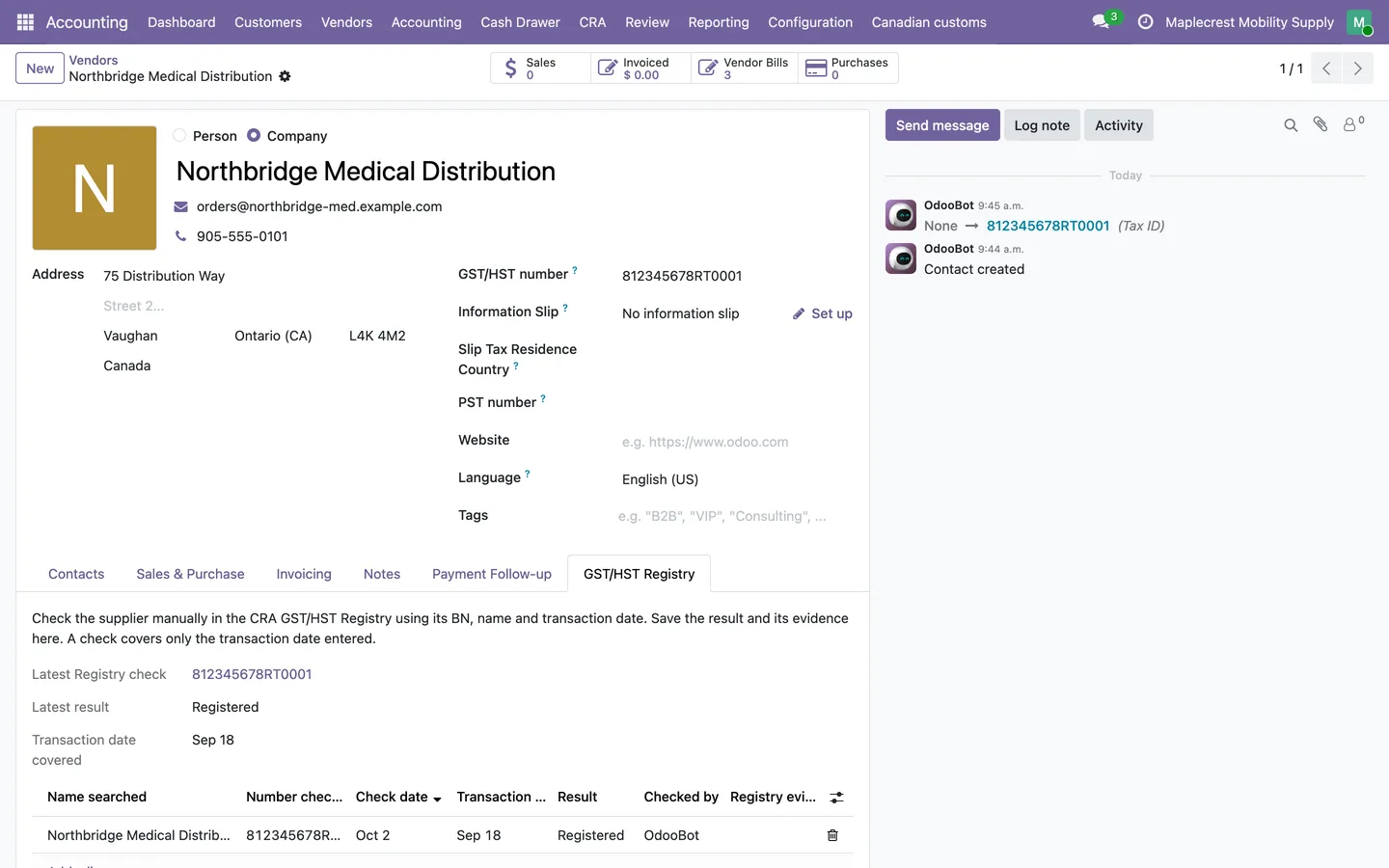
Check supplier registrations
GST/HST registry checks are kept on each supplier, with the number checked, the date and the result.
Supplier > GST/HST Registry
-
Compute the boxes
A Canadian tax return collects posted tax-grid amounts into reviewable boxes for the period, ready for review.
Accounting > Reporting > Taxes & Fiscal > Tax Filings > Tax Returns (CA)
-
Clear unresolved items
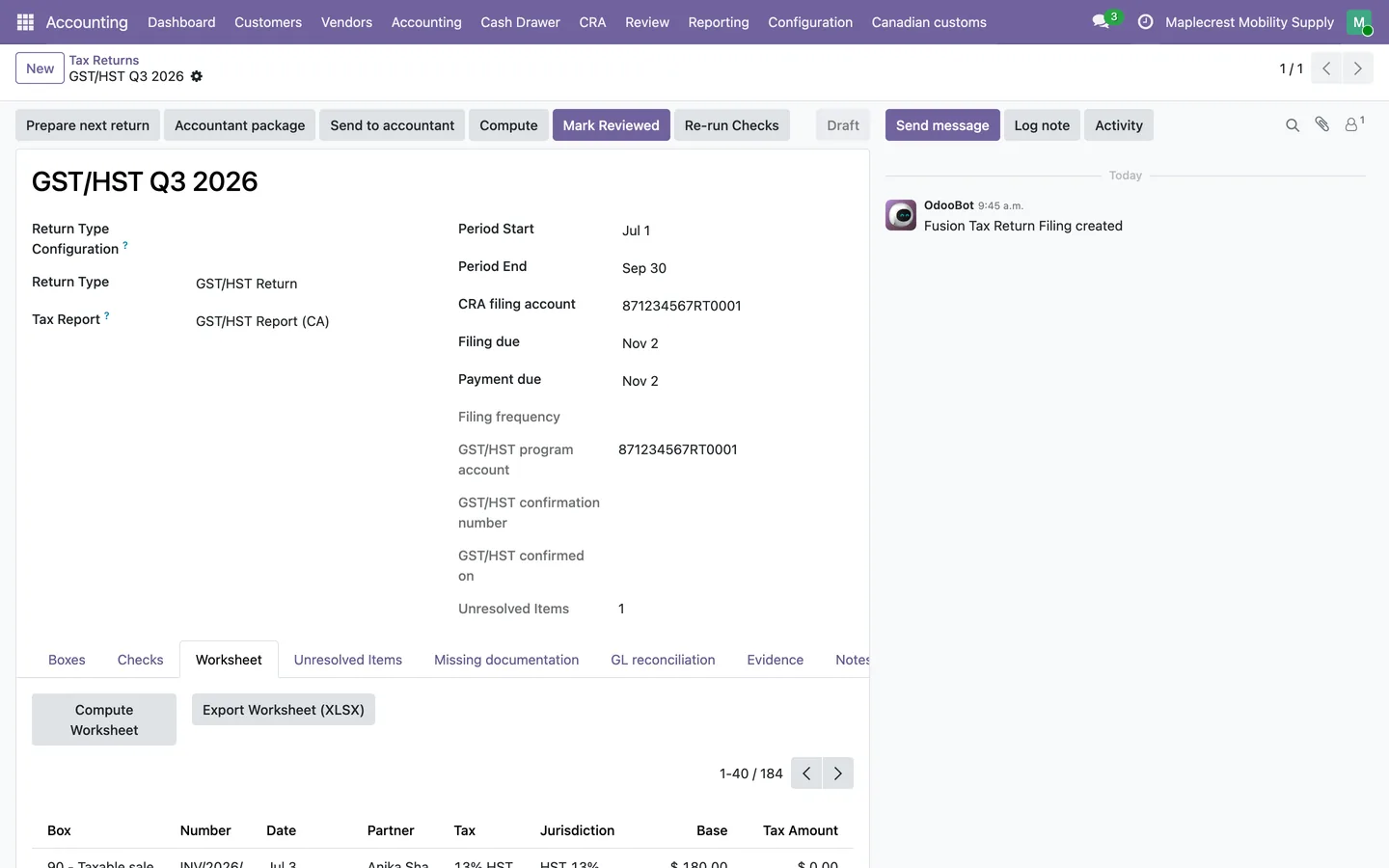
Unresolved items include purchase claims of $100 or more without a supplier registration number and tax that differs from rate times base by more than a cent.
-
Review the worksheet
The worksheet shows the journal items behind each box. "Mark Reviewed" recomputes the boxes and refuses to go on while unresolved items remain.
-
Close and lock
"Post Closing Entry and Lock" posts the closing entry and advances the tax lock date, and a negative net tax at line 109 is carried to the next return.
-
File with CRA
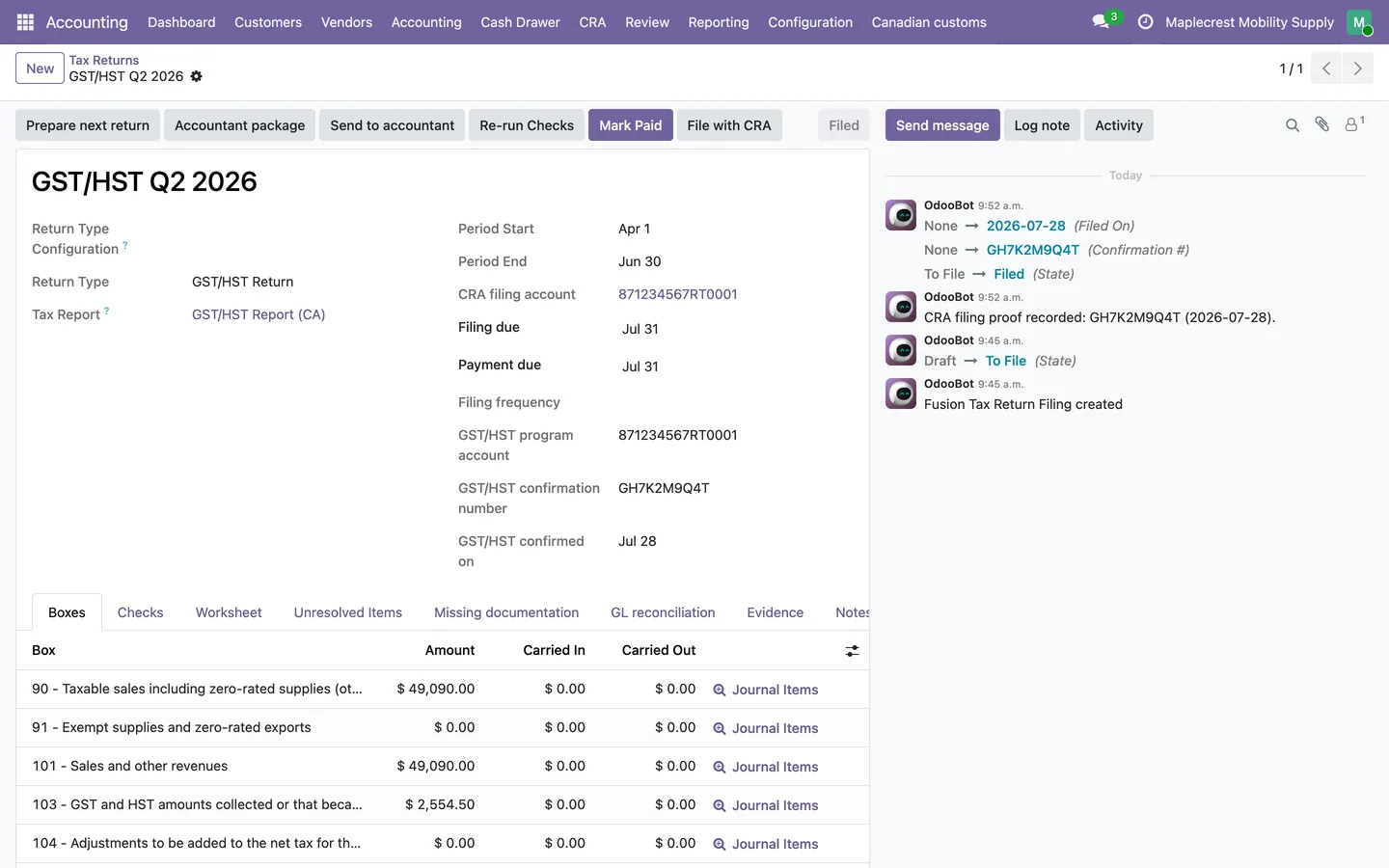
"File with CRA" opens each GST34 line with a copy button and links to GST/HST NETFILE and My Business Account. Odoo does not transmit the return; you file it with the CRA yourself.
-
Keep the proof
The CRA confirmation number is saved on the return before "Mark Filed", and the return keeps its history.
CRA deadlines and instalments
Every return and instalment the CRA expects, with its due date and whether it is paid.
-
See every obligation
CRA obligations track GST/HST periods and instalments.
Accounting > Reporting > Taxes & Fiscal > Tax Filings > CRA Obligations
-
Schedule instalments
GST/HST annual filers pay quarterly instalments one month after each fiscal quarter, and corporations pay monthly or quarterly on the last day of each complete month or quarter.
CRA Obligations > Schedule Instalments
-
Weekends and holidays
When a due date falls on a weekend or a public holiday recognised by the CRA, the next business day counts, and the CRA holiday list is kept in Odoo.
Accounting > Reporting > Taxes & Fiscal > Tax Filings > CRA Public Holidays
Canadian payments
Pre-authorized debits, CPA005 files and cheques laid out for Canadian banks and cheque stock.
-
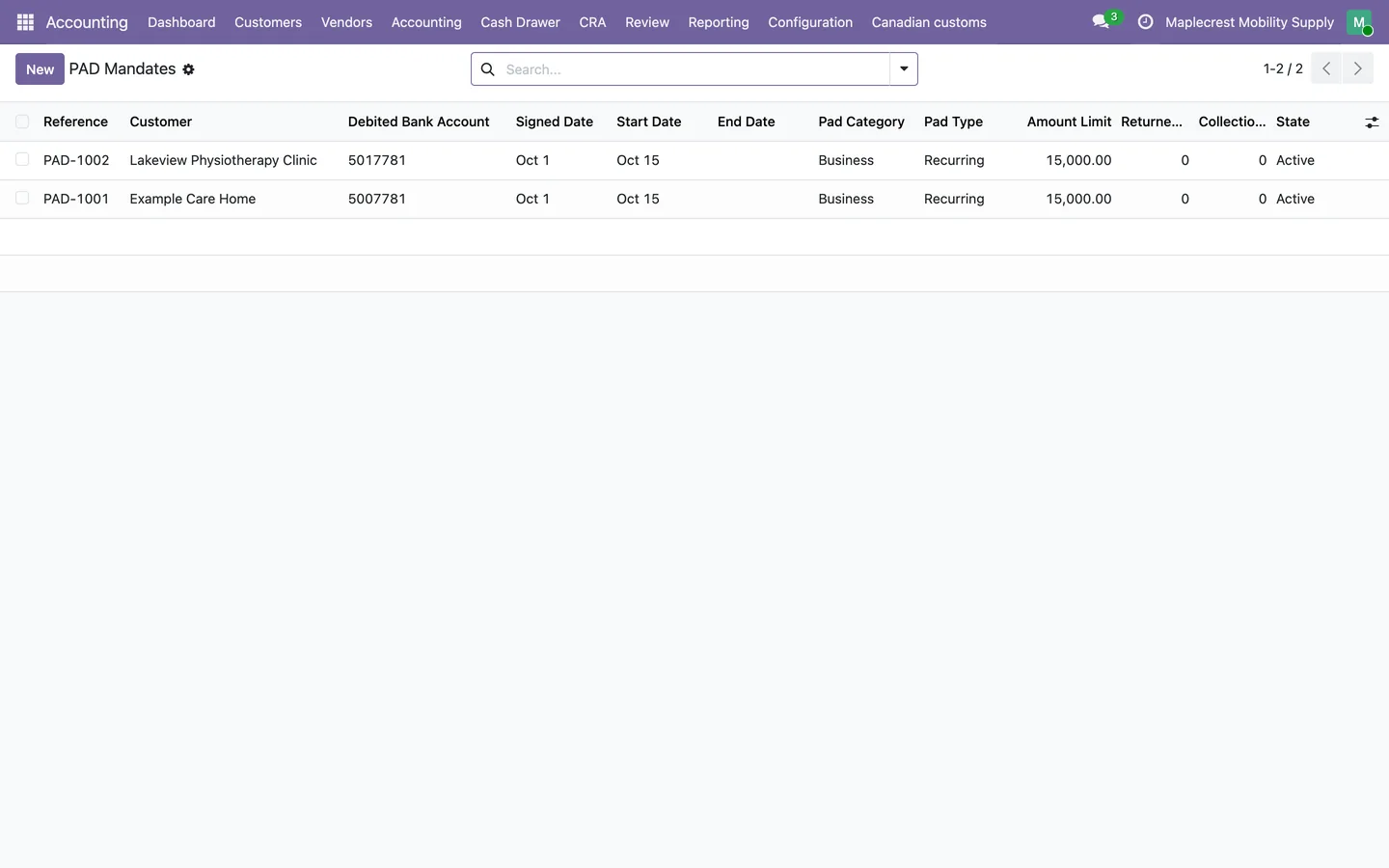
Set up PAD mandates
Each customer's pre-authorized debit mandate records the bank account, the signed and start dates and the amount limit.
Accounting > Customers > PAD Mandates
-
Collect PAD debits
A PAD collection run finds due invoices with usable mandates, then creates and reconciles the payments in one CPA005 debit batch. Without a waiver, the run needs at least 10 calendar days between notification and debit.
Accounting > Customers > Collect PAD Debits
-
Handle returned debits
A returned debit reverses the payment and reopens the invoice, with an optional NSF fee, and repeated returns can suspend the mandate.
Accounting > Customers > Returned PAD Debits
-
Pay suppliers by EFT
Outgoing EFT payee bank accounts must be trusted by an accounting manager before a batch is posted, and the CPA005 file is created for you to submit to the bank.
Accounting > Vendors > Batch Payments
-
Print Canadian cheques
Canadian top, middle and bottom cheque layouts are supported, with the date printed as YYYY-MM-DD.
T5018 and T4A slips
Contractor payments become reviewed information slips, ready to file with the CRA.
-
Flag your contractors
T5018 covers payments to vendors flagged as subcontractors, and T4A box 048 covers fees for services.
Vendor > Information Slip
-
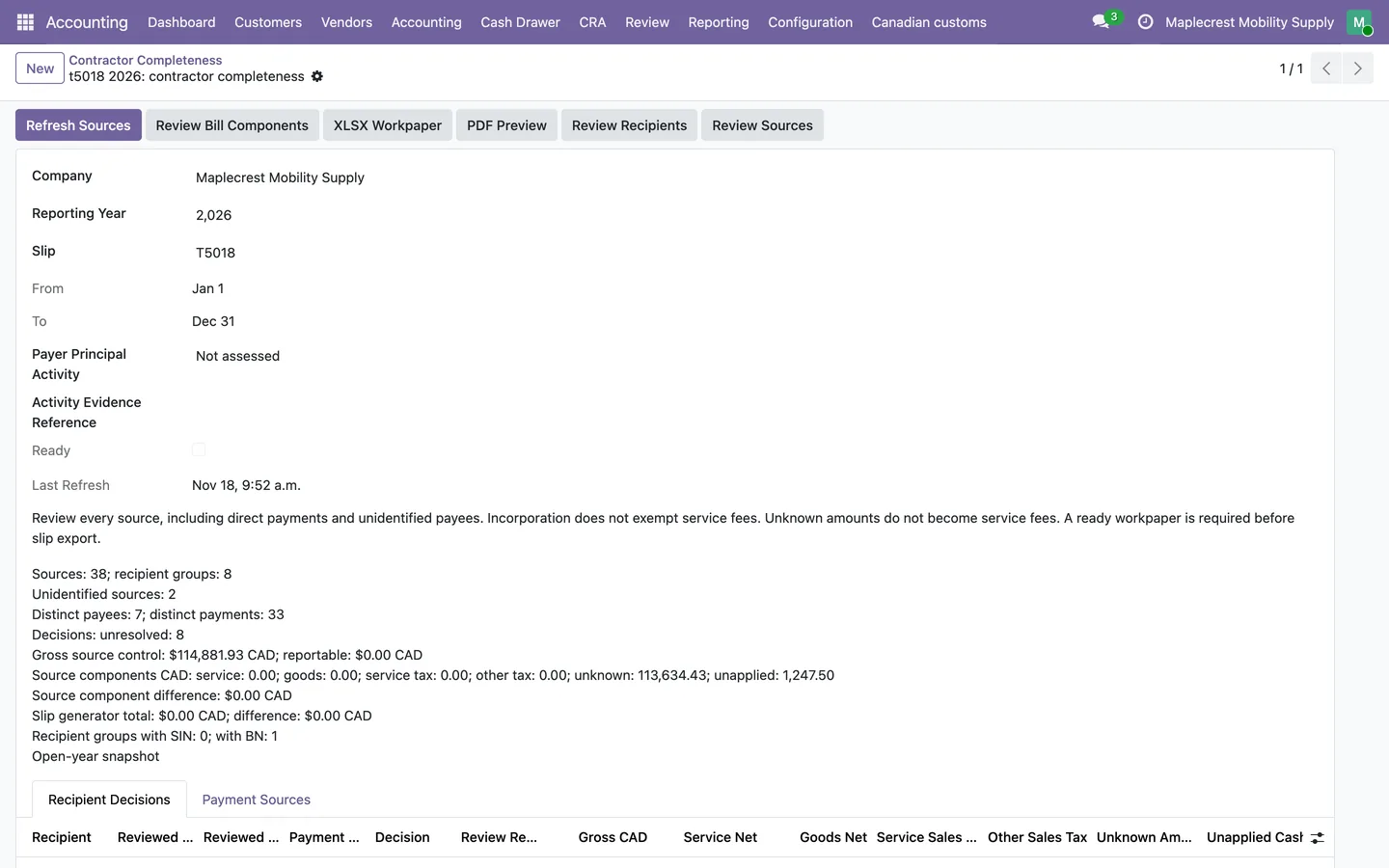
Review completeness
Contractor Completeness reads every payment source for the year without changing the books, and approves a recipient only with its legal form, residence, role and an evidence reference.
Accounting > Reporting > Taxes & Fiscal > Information Returns > Contractor Completeness
-
Compute the slips
Amounts come from posted vendor payments reconciled to bills. T5018 includes GST/HST, while the $500 threshold is measured without tax, and only recipients above it get a slip.
Information Returns > Generate Information Slips
-
Export the CRA XML
Slips export in the CRA's electronic filing XML, built to the CRA's published schemas, and each filing keeps its file and totals. The file is not sent to the CRA by Odoo.
Corporate year-end
GIFI, the T2 schedules, capital cost allowance and shareholder loans, prepared for the accountant who files your T2.
-
Map to GIFI
GIFI workpapers suggest and review RC4088 mappings and build T2 Schedules 100, 101, 125 and 141.
Accounting > Reporting > Taxes & Fiscal > Corporate Year-End (GIFI) > GIFI Workpapers (Canada)
-
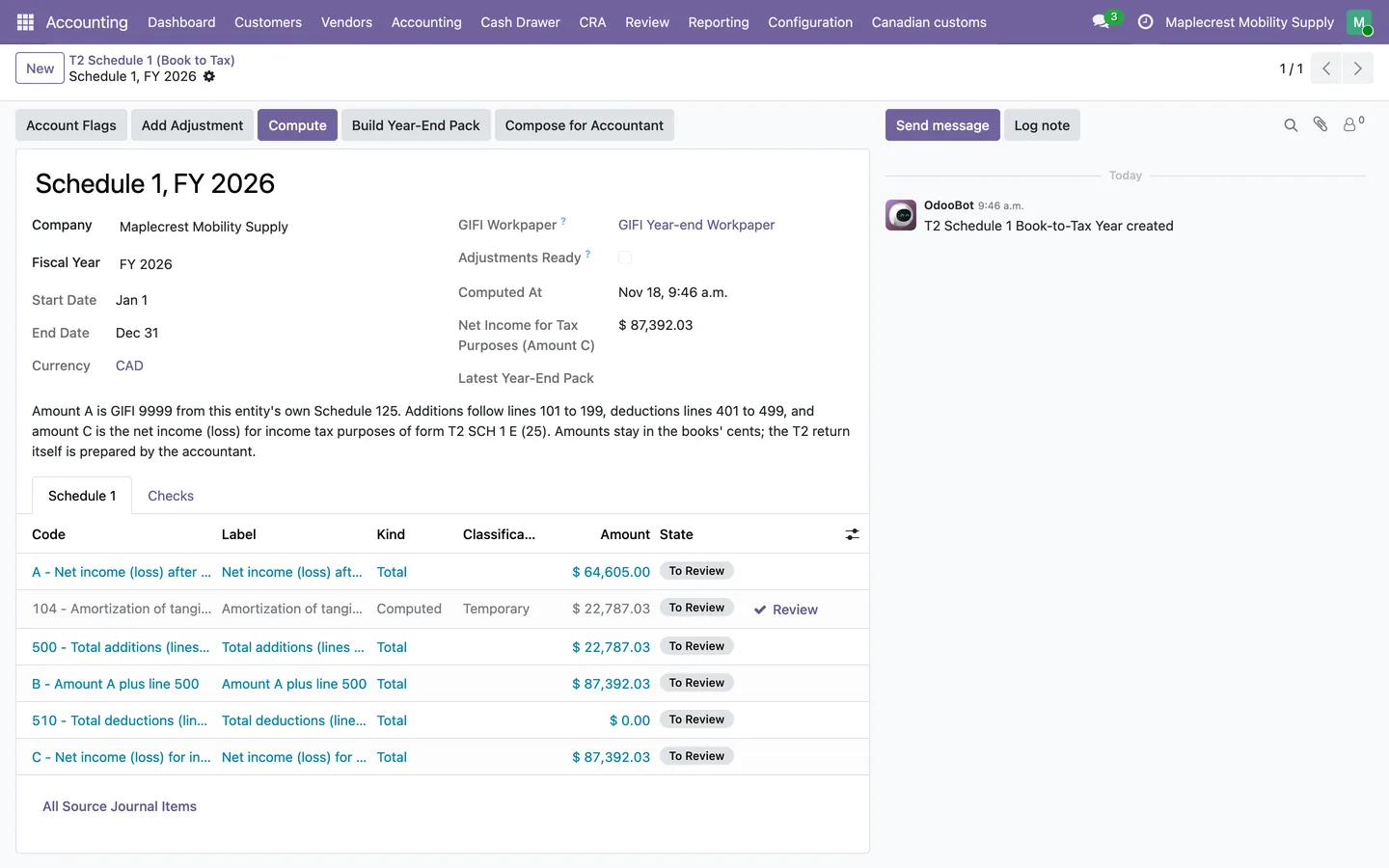
Book to tax
Schedule 1 reconciles book income to net income for tax, as part of the year-end pack.
Corporate Year-End (GIFI) > T2 Schedule 1 (Book to Tax)
-
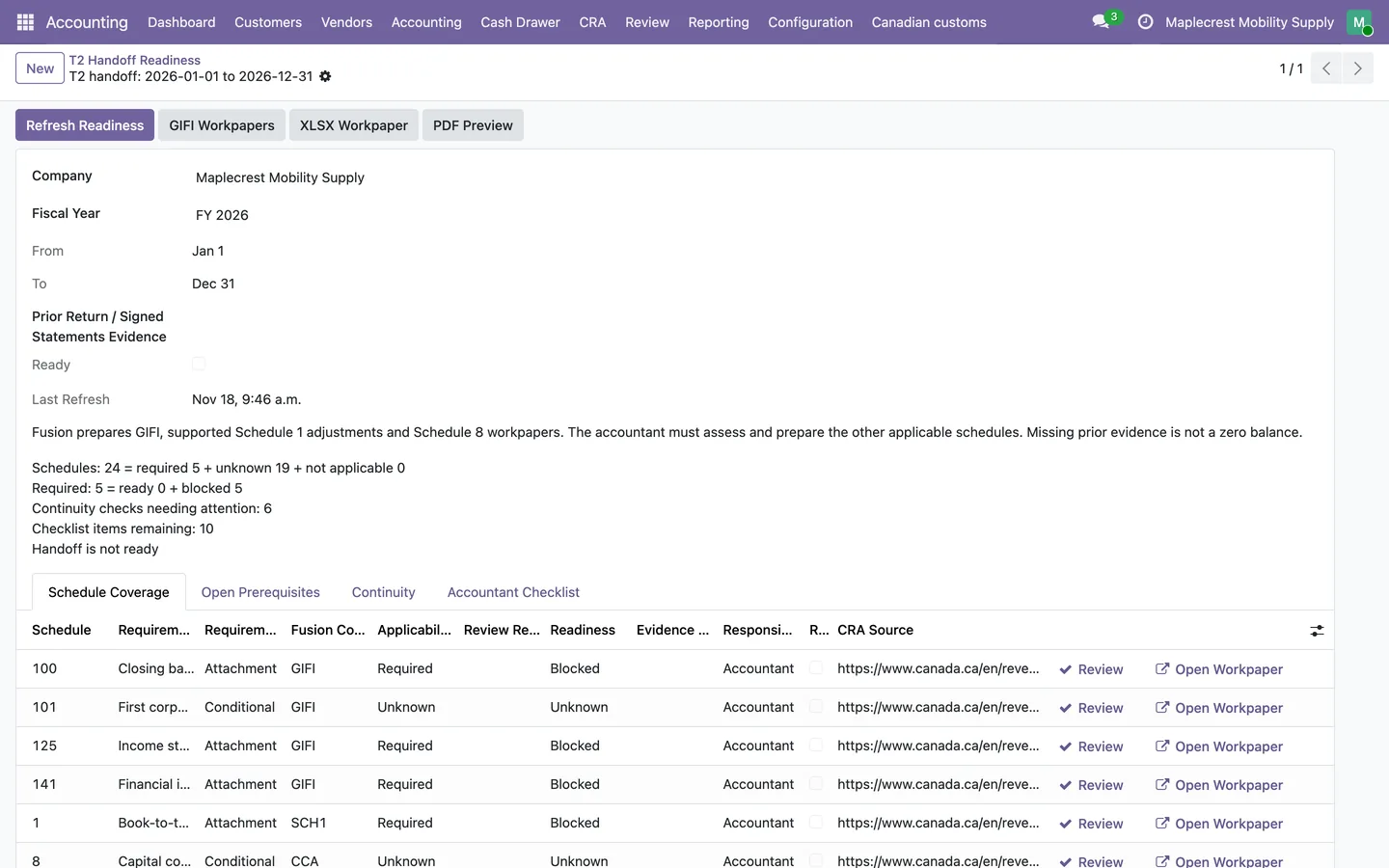
Ready the T2 handoff
The T2 handoff readiness check lists each schedule with its status, so the accountant knows what is complete.
Corporate Year-End (GIFI) > T2 Handoff Readiness
-
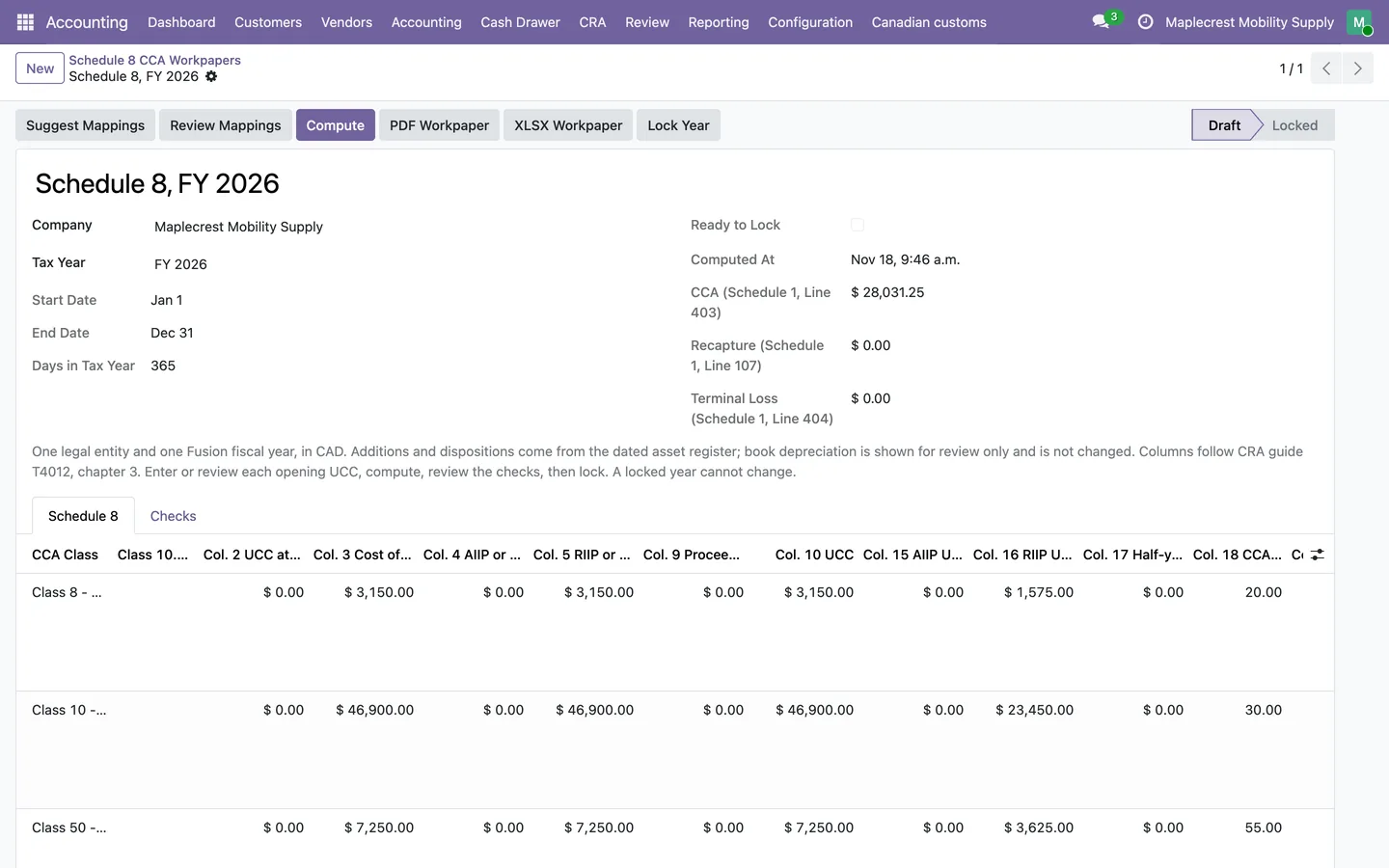
Capital cost allowance
Capital cost allowance class pools feed reviewed T2 Schedule 8 workpapers.
Accounting > Reporting > Taxes & Fiscal > Capital Cost Allowance (CCA) > Schedule 8 Workpapers
-
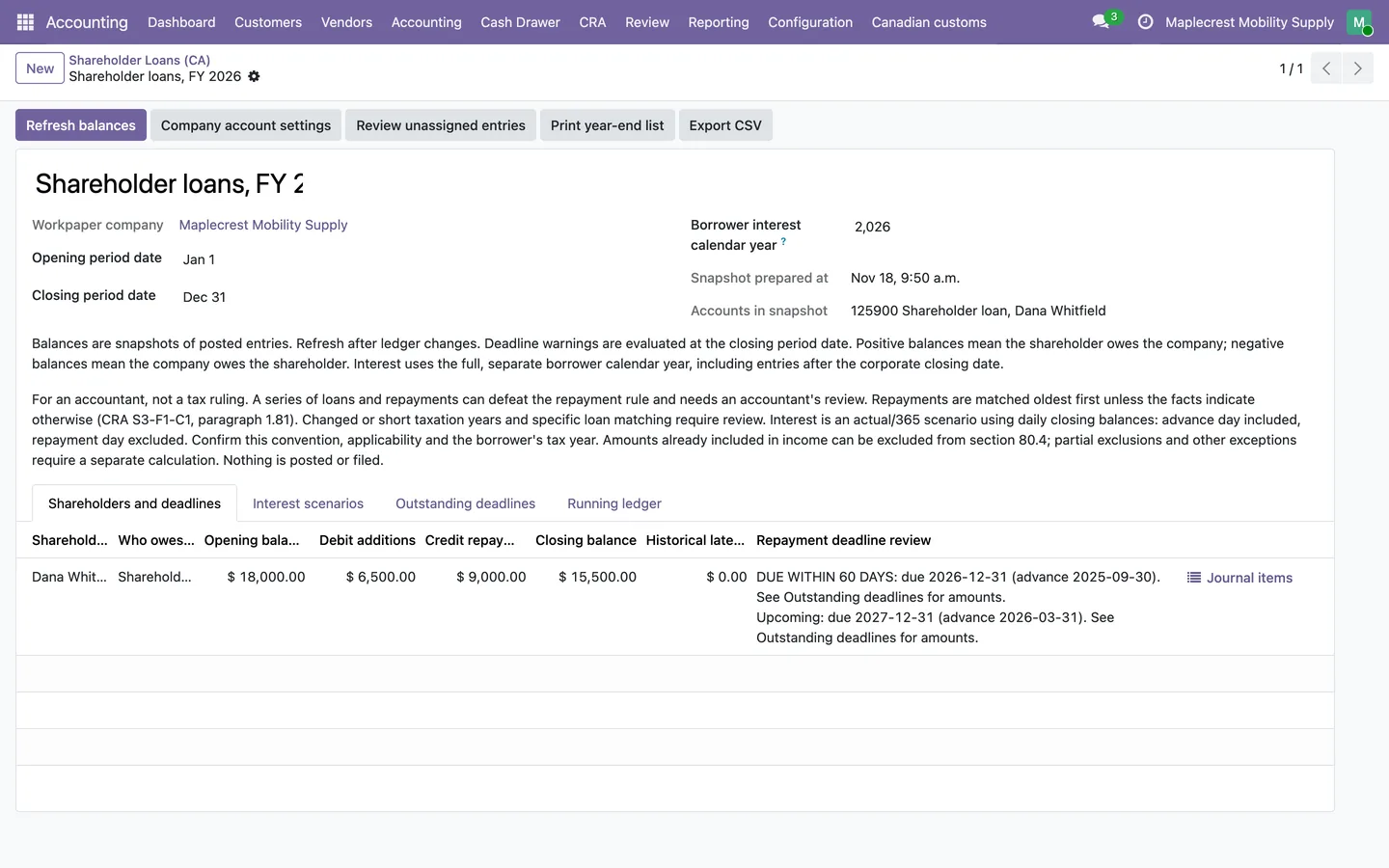
Shareholder loans
Shareholder balances get a repayment deadline review and interest scenarios.
Accounting > Reporting > Shareholder Loans (CA)
-
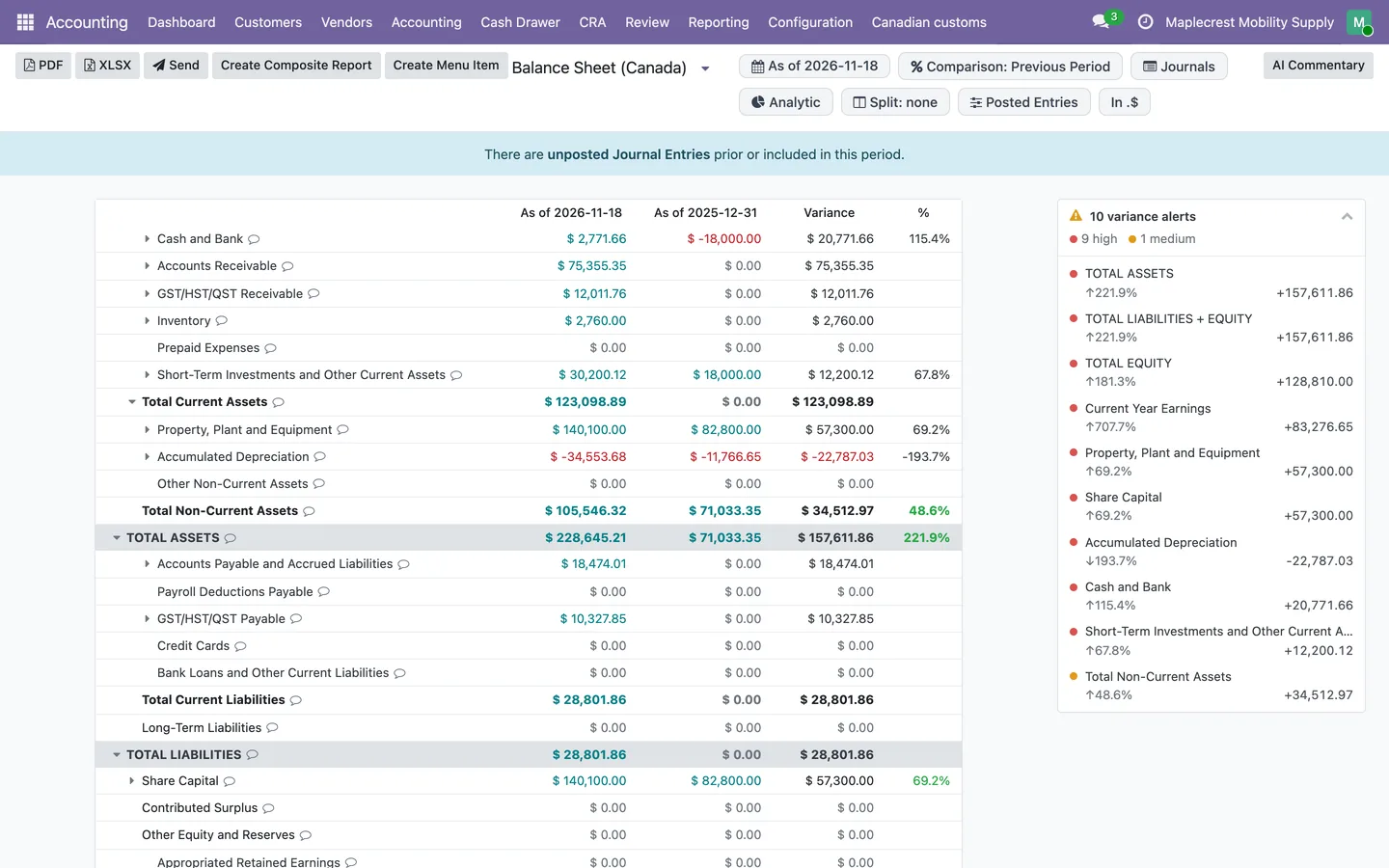
Canadian statements
Reports include Canadian Profit and Loss and Balance Sheet versions, compared with the previous period.
Accounting > Reporting > Statement Reports > Balance Sheet (Canada)
Construction, imports and the CRA ledger
For contractors, importers and anyone who wants their books to match what the CRA shows.
-
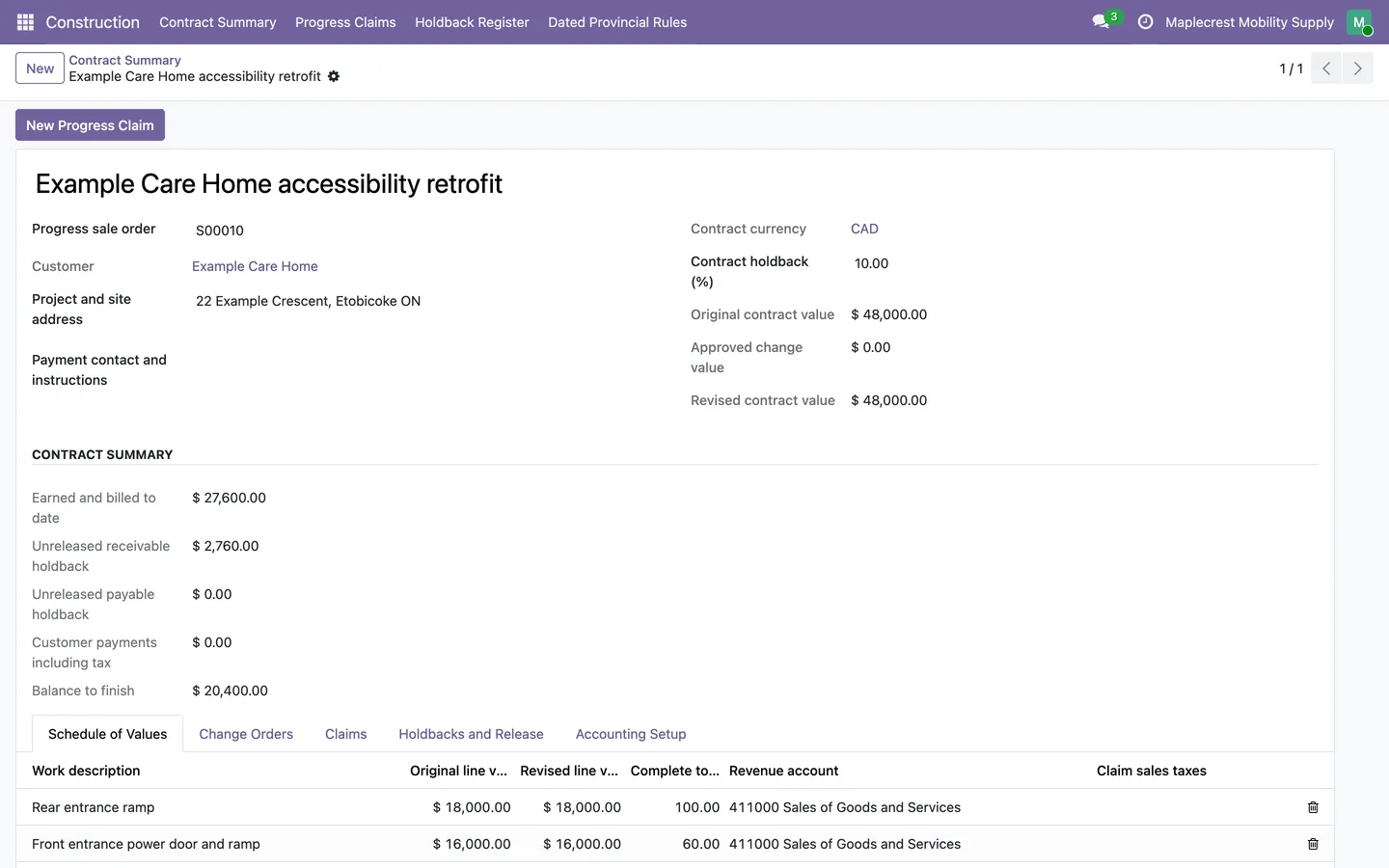
Progress claims and holdbacks
Construction contracts get Canadian progress claims and holdbacks.
Construction > Contract Summary
-
Imports and CBSA
Import costs, GST credits and monthly CBSA statements are reviewed in Canadian dollars.
Accounting > Canadian customs > Monthly CBSA statements
-
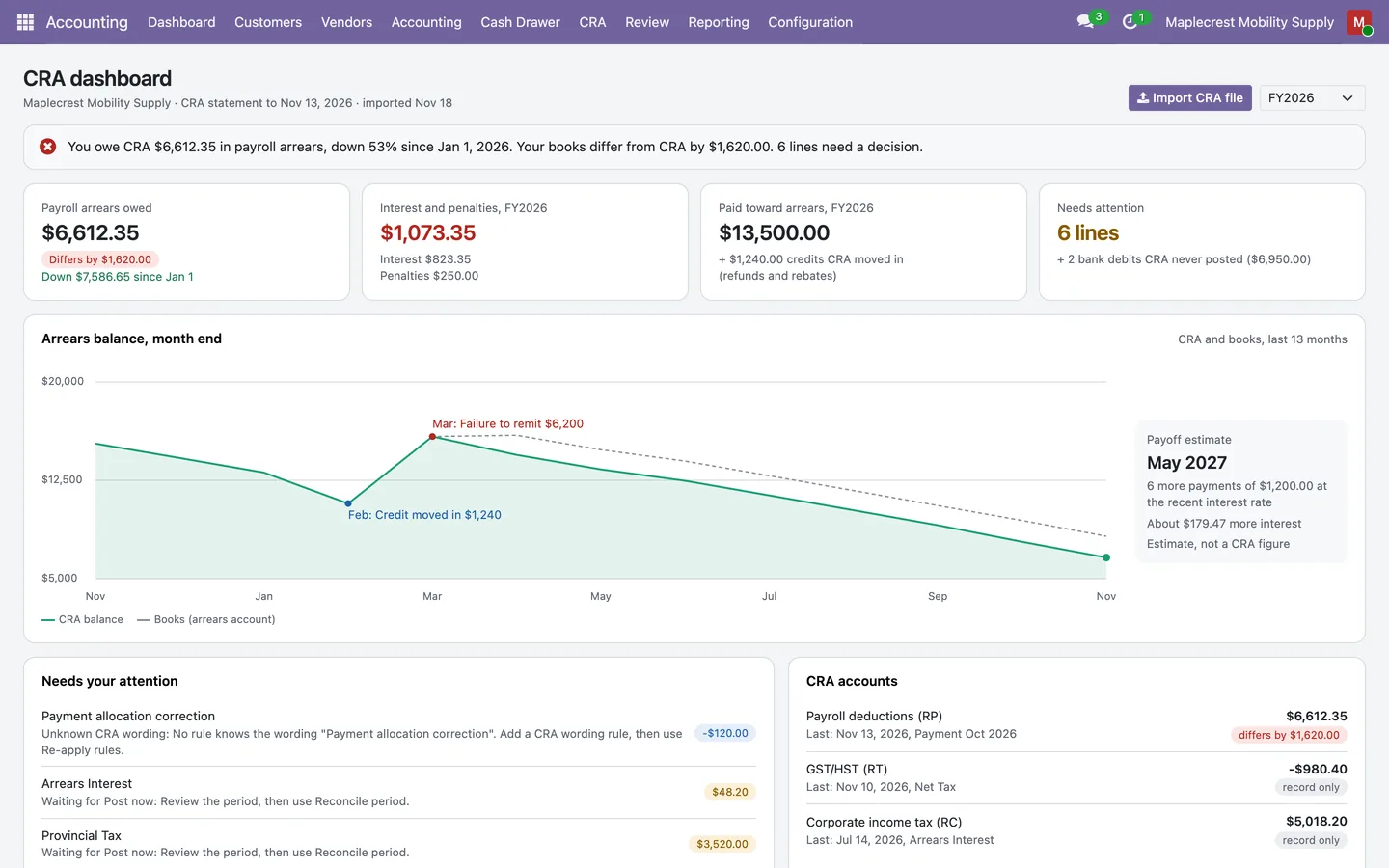
CRA account ledger
The CRA account ledger imports My Business Account transaction files for payroll, GST/HST and corporate accounts, matches CRA payments to bank lines and keeps the arrears account equal to the CRA balance.
Accounting > CRA > Dashboard
What it does
 Bills and receipts coming in
- Attach a PDF or photo to a bill, credit note, customer invoice or draft loan and OCR reads it into draft details for you to check, with a manual fallback when it cannot read the document.
- Without an AI service, a built-in pattern reader picks up dates, references, totals, printed GST/HST/QST/PST lines and simple quantity times price lines, and applies the company's matching tax.
- The "Review the OCR Fields" screen shows each value it read beside the document, with a confidence label, a "Where?" button and a "Save corrections" button.
- An uploaded or emailed document is sorted as a vendor bill, vendor credit note, customer invoice, customer credit note, receipt, bank statement, card settlement report, payroll report or not accounting, and anything uncertain waits in "Documents to Route" for a person to decide.
- Each vendor can be set to post its OCR bills automatically, only when nothing needs review and the total agrees with the lines, and optionally only after a set number of clean bills; by default every bill stays in draft.
- Optional add-on: an accounting mailbox per company reads bills sent by email, including invoices written in the message body and bills forwarded by staff, learns each vendor's usual accounts and taxes, refuses duplicates and sends a daily digest.
- Optional add-on: three-way matching compares each bill line with the quantity ordered, received and already billed, gives the bill a "Should Be Paid" status of Yes, No or Exception, and can warn or block payment of bills that are not released.
- Optional add-on: expense receipts by email or upload become a reimbursement entry with the tax printed on the receipt, and payroll summaries from ADP, Wagepoint, Payworks, Ceridian Dayforce or QuickBooks Payroll become a balanced payroll journal entry.
 Bank feeds and reconciliation
- Import bank statements from CSV, XLSX, OFX, QIF or CAMT.053 files, map spreadsheet columns, and review rows marked "Possible Duplicate" and balance warnings before anything is imported; CODA files are also read.
- Optional add-on: a PDF or photo of a bank statement can be read into the same preview, which flags low-confidence lines and running balances that do not add up.
- Optional add-on: a bank feed links one bank or credit card journal to an online account through Plaid, brings in transactions on a schedule and shows the last sync, consent expiry and both balances.
- The reconciliation screen shows suggested matches with a confidence, an explanation and the evidence behind it, and nothing is matched until you accept.
- From the same screen you can match by reference or early payment discount, apply reconciliation model buttons, book what is left to an account, record an internal transfer and undo a match.
- Each user chooses the "Odoo 18 view" or the "QuickBooks view" of bank reconciliation.
- Optional add-on: aI Reconcile puts open bank lines beside an assistant that proposes matches, card processor splits, write-offs and transfers as cards you confirm, edit or reject, one at a time or as a batch.
- Optional add-on: card processor settlement reports from Moneris, Stripe, Square, Global Payments, PayPal and Clover can be imported so a net deposit is split across the invoices and the fee.
 Invoicing, payments and the cash drawer
- Optional add-on: "Create Invoices in Batch" turns a selection of confirmed sales orders into draft invoices in one pass, with a preview of every draft before anything is created.
- The batch can follow each product's invoicing policy, ordered quantities or delivered quantities, stop at a cut-off date, group one invoice per customer and carry down payments; bridges add delivered stock and recorded timesheet hours.
- Optional add-on: unpaid customer invoices carry a "Pay online" link and QR code in the email, the PDF and the customer portal; when the payment goes through, the payment is created, posted, reconciled and noted on the invoice.
- Optional add-on: "Send by Post" queues a posted invoice or credit note with Odoo's Snail Mail service, shows the letter's state and offers "Retry Post" after an error.
- Batch payments group posted payments, Canadian EFT and pre-authorized debit (PAD) batches export CPA005 files, and customer PAD mandates and collection runs live under Customers.
- Canadian cheques print where Canadian top-cheque stock expects them, with the date as YYYY-MM-DD and a setting to leave the cheque number off pre-numbered stock.
- A new or changed vendor bank account stays untrusted until a different accounting manager trusts it, and payment files refuse untrusted accounts.
- At day end the cashier taps each stack of bills and coins on a drawer screen; the day close compares the count with expected cash and the card terminal total, fills a deposit envelope, posts any over or short, and needs a store manager when the difference is above the store's limit.
 Customer follow-ups
- Follow-up levels set the delay, repeat days, email template, invoice attachments, SMS text and the activity for each reminder, and a negative delay sends a reminder before the due date.
- Three levels come ready to use: Friendly Reminder at 7 days, Firm Warning at 30 days and Legal Notice at 60 days.
- Reminders can go by email, optional SMS, a printable letter, an activity for the person responsible, attached invoice PDFs and a customer statement, in Canadian English or French from the customer's language.
- The Customer Follow-ups screen filters by name or email, amount owed and debt age, groups by the year or month the debt started, by risk or status, and sorts by newest debt, largest amount, lowest risk or name.
- Each customer card shows "Overdue since" and a risk label, and the screen can draft the reminder text for review with "Generate Text" before "Send Now" or "Pause".
- The "Payment Follow-up" tab on a customer holds pause, contact, channel and statement options, with "Customer Statement PDF", "Customer Statement XLSX", "Email Statement" and "Send and Print".
- Optional add-on: whatsApp reminders send one approved template to customers who opted in, record delivery, and opt a customer out at once when they reply STOP or ARRET.
- Optional add-on: with the Snail Mail bridge, the follow-up letter is queued for printing and posting and its delivery state shows in the follow-up history.
 Month-end, year-end and reports
- Reports include Profit and Loss, Balance Sheet, Trial Balance, General Ledger, Cash Flow Statement, Executive Summary, Annual Statements, Aged Receivable, Aged Payable, Partner Ledger and Tax Summary, with Canadian Profit and Loss and Balance Sheet versions.
- A "Reports" page lists every report in sections with a search that filters as you type.
- Reports compare with the previous period or previous year, drill down to the journal items behind a line, hide zero lines, show amounts in thousands or millions and split by company or month; Profit and Loss, Balance Sheet, Trial Balance and General Ledger export to PDF or XLSX from the viewer.
- Optional add-on: a Cash Basis switch shows Profit and Loss, Balance Sheet, Trial Balance, General Ledger and Partner Ledger by payment date, without changing the posted ledger.
- Optional add-on: extra reports add Journal Audit, Check Register, Product Margin, Disallowed Expenses (Canada) and Deferred Revenue and Expenses.
- Period Close builds a checklist for a company and date range, lists open exceptions per step with owners and dependencies, and moves through Prepared, Reviewed, Locked and Submitted, with review by a different accounting manager.
- The Year-End Allocation moves the year's result between equity accounts only, dated the first day of the next year, so the profit and loss history stays intact, and can be reversed on its own.
- Invoice and bill lines can be deferred over a start and end date, and loans keep computed, manual or imported schedules with linked postings.
 Canadian tax and compliance
- GST/HST, PST and QST returns are computed from the Canadian tax grids, with review, a closing entry, a tax lock and filing and payment tracking.
- A return moves through Draft, Reviewed, To File, Filed and Paid using "Compute", "Mark Reviewed", "Post Closing Entry and Lock", "Mark Filed" and "Mark Paid".
- The worksheet lists unresolved items before review: items without a tax grid, documents posted outside their period, purchase claims of $100 or more without a supplier registration number, and tax that differs from rate times base by more than a cent.
- "File with CRA" opens a screen with each GST34 line and a copy button, links to GST/HST NETFILE and My Business Account, and a place to save the CRA confirmation number before "Mark Filed".
- Optional add-on: gIFI workpapers suggest and review RC4088 code mappings, build T2 Schedules 100, 101, 125 and 141, and export a PDF, XLSX or code and amount CSV; a year-end pack zips the files for the outside accountant.
- Optional add-on: information slips cover T5018 and T4A box 048 from posted vendor payments, exported as CRA XML built to the CRA's published schemas, with optional T5 and NR4 slips.
- Optional add-on: the CRA account ledger imports the transaction files My Business Account exports for payroll, GST/HST and corporate accounts, matches CRA payments to bank lines and keeps the arrears account equal to CRA's balance.
- Optional add-on: further Canadian add-ons cover capital cost allowance class pools with Schedule 8 workpapers, shareholder loan balances and repayment deadlines, customs import costs with monthly CBSA statements, and construction progress claims with holdbacks.
 Fixed assets
- Assets depreciate by straight-line, declining balance or units of production and move through Draft, Running, Paused and Disposed.
- An asset category can create assets from posted vendor bill lines on its asset account, either manually, in draft or confirmed, and the bill shows an "Assets" button.
- A new asset is checked against its category policy and similar approved assets; flags must be acknowledged with a reason by an accounting manager, and "Explain" describes them without changing them.
- The asset form has a depreciation board, "Post Depreciation", "Change Value", "Modify Depreciation", "Partial Sale", "Pause" and "Dispose", where disposal is a sale, scrap or donation.
- A period-by-period depreciation schedule is tied to the ledger and says whether every period's closing value matches it, with an XLSX export.
- "Assets vs Ledger" compares the asset register with the ledger, and a monthly scan lists depreciation anomalies.
- Optional add-on: optional add-ons add approval thresholds for acquisitions, disposals and write-downs, custody with locations, custodians, QR labels and verification rounds, insurance and warranty, maintenance requests and project links.
 Budgets, cash forecast and loans
- Budgets compare planned amounts with posted actuals, confirmed purchase orders not yet billed and a time-based theoretical amount, for profit and loss accounts or analytic accounts.
- A budget is confirmed, refreshed, split into periods, revised as a new version and closed, and exports budget against actual to XLSX.
- With Purchase installed, a purchase order that pushes a budget line past its plan carries a warning naming the budget lines, and can still be confirmed.
- Cash Forecast projects weekly or monthly cash in and out from open receivables and payables, unpaid tax returns, loan schedules and recurring transfers, and shows the posted bank balance separately.
- Forecast scenarios are Base, Late Payment and Custom, where Custom takes your own collection rate and extra days.
- Loans record principal, interest and payment schedules computed as monthly fixed-rate payments, entered by hand or imported from CSV, with linked journal entries.
- Optional add-on: the Executive Summary adds forecast indicators for revenue and expense to the fiscal year end, cash in 90 days, cash runway and forecast against budget, each showing its method.
 Audit trail and AI co-pilot
- Automation Activity records who or what ran each automated job, its source document, the records it touched, its state, an input fingerprint, attempts and errors, with a badge that says Recoverable, By Reversal Only or Not Recoverable before you act.
- "Recover" undoes what an automation created where that is still safe, and "Recover by Reversal" reverses posted entries with a dated reversal, so a posted entry is never deleted.
- The log covers imports, statement import and reconciliation, OCR, Canadian tax returns, bank feeds and approved AI actions through bridges that install with their modules.
- Fusion AI offers a conversation dashboard, AI sessions, match history, company knowledge, rules, vendor tax profiles and recurring patterns.
- When the assistant would write accounting data, it shows an exact proposal with previewed journal lines for a person to approve or reject, and a proposal whose source changed after preview is refused.
- The assistant works with Anthropic Claude, OpenAI GPT or DeepSeek, or with a local model server that speaks the OpenAI format such as Ollama or LM Studio.
- A fresh install sends nothing to an outside AI service until an administrator lists it, and without one, documents are read by pattern on the server and other features fall back to their non-AI result.
- "Draft with AI" is offered on invoices, bills and journal entries, and the assistant can explain a period close step but cannot sign it off.
What's new
Recent changes to Fusion Accounting, newest first.
-
Version 19.0.2.5.0
- Customer Follow-ups can be filtered by name or email, amount owed and debt age, grouped by when the debt started, risk or status, and sorted by newest debt, largest amount, lowest risk or name.
-
Version 19.0.1.8.1
- The Depreciation Schedule screen has its own web address, so Fusion Accounting can be installed while Enterprise assets is still present.
-
Version 19.0.1.13.1
- Canadian cheques print where Canadian top-cheque stock expects them, with the date as YYYY-MM-DD and a setting to leave the cheque number off pre-numbered stock.
Related modules
 Fusion Accounting AI
An accounting co-pilot that proposes and waits for your approval.
 Fusion CRA Account Ledger
New
Your CRA payroll, GST/HST and corporate accounts, line by line, matched to your bank and your books.
 Fusion QuickBooks Connector
New
Keep Odoo and QuickBooks Online in step, company by company.
See Fusion Accounting on your own Odoo.
Book a call and tell us how your team works today. We'll show you the module and what it would take to set it up. Prefer the phone? Call 905-792-0000.