
Payment Provider: Clover
Clover card payments on the terminal, keyed in or online, with refunds and receipts.
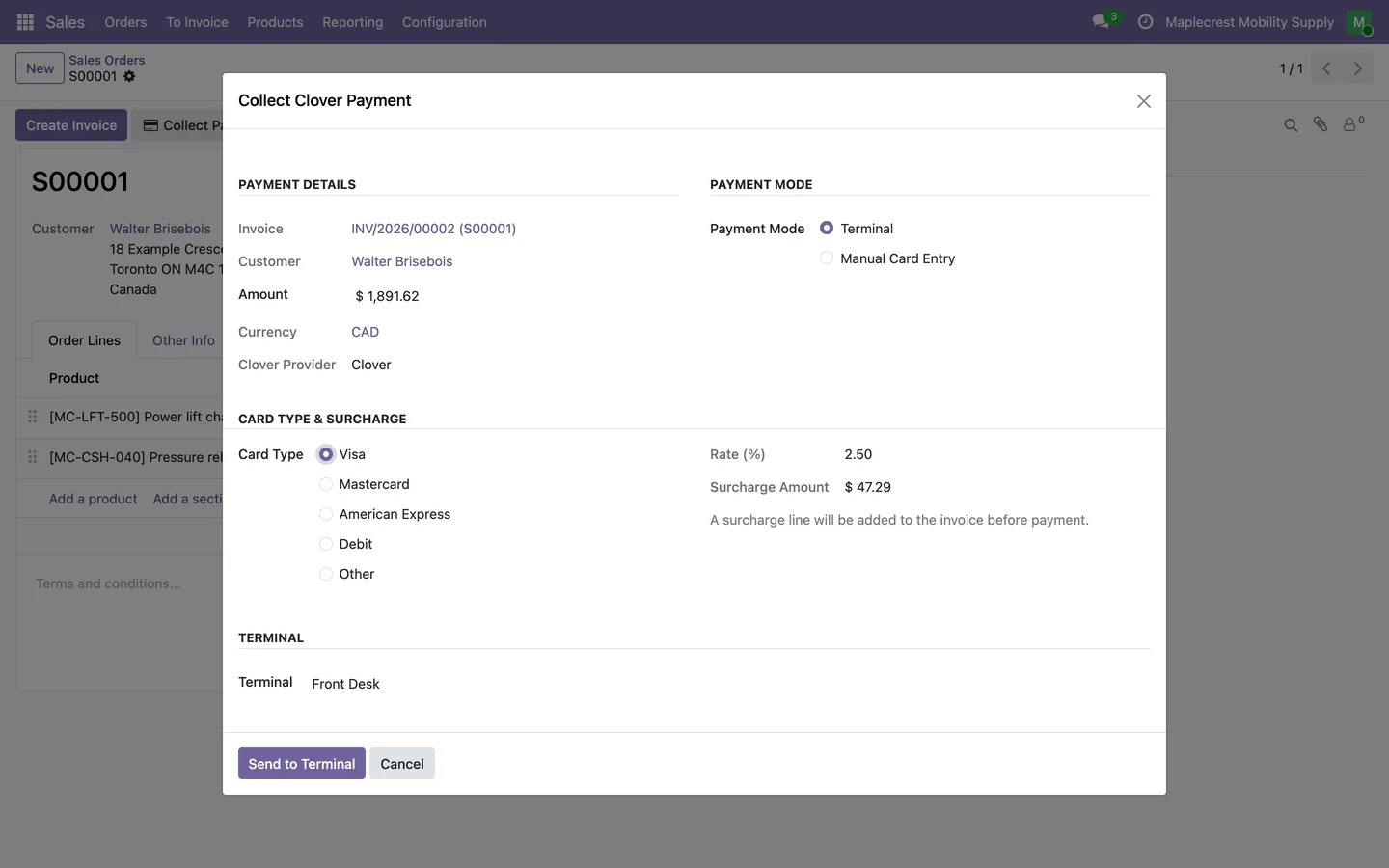
Staff send the amount to a Clover terminal with "Send to Terminal", or key in a card the customer reads out with "Manual Card Entry". Customers pay online in card fields hosted by Clover, so the card details go to Clover and not through Odoo.
- Odoo 19
- Version 19.0.1.12.1
Payment Provider: Clover, step by step
3 workflows, 14 steps. Every screen is real, from a demo company with invented data.
Set up Clover
Enter the merchant details once, bring in the terminals and decide whether card payments carry a surcharge.
-
Enter the merchant details
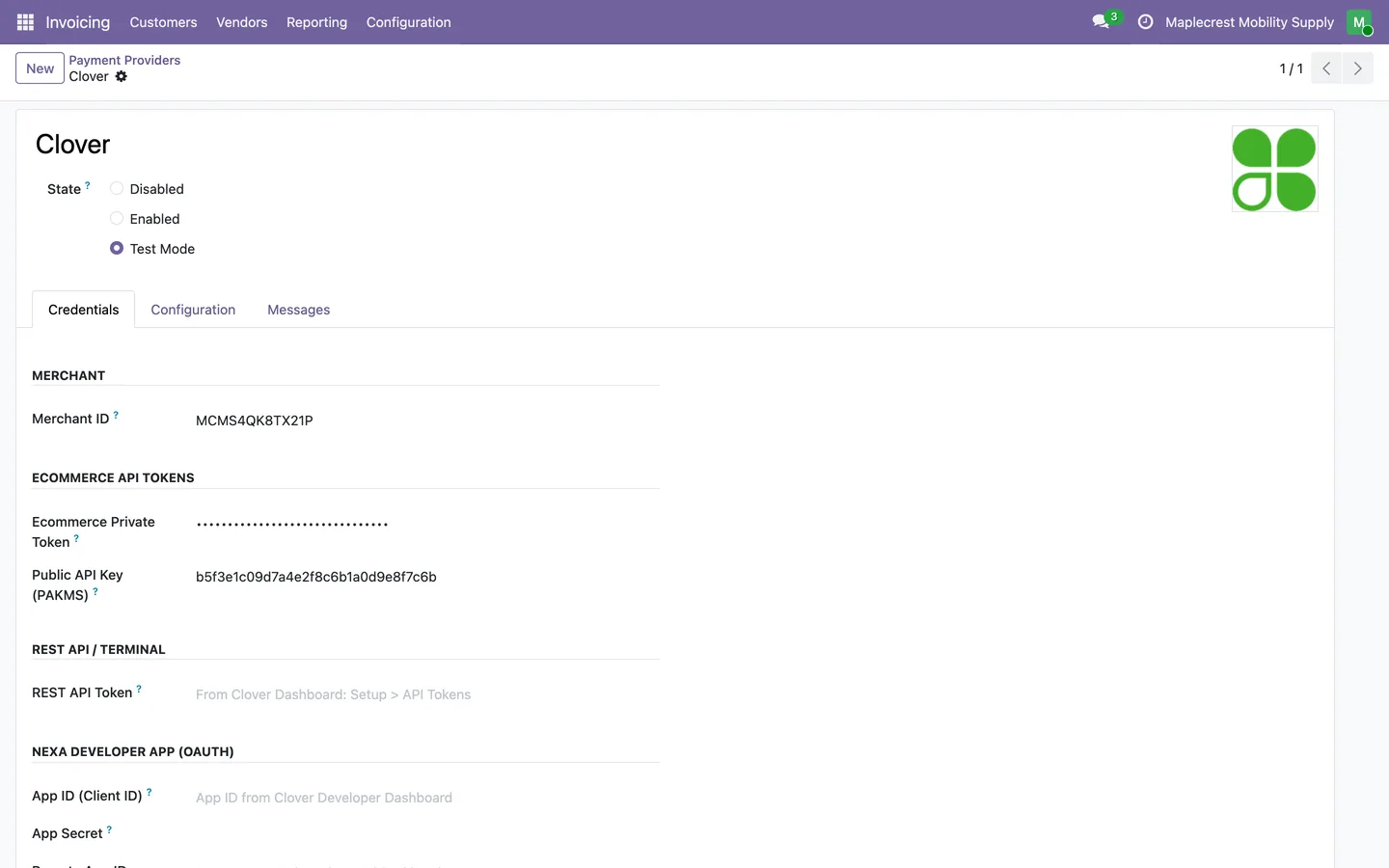
An administrator opens the Clover provider, sets it to Test Mode or Enabled and fills in the merchant ID and the Ecommerce tokens.
Invoicing > Configuration > Online Payments > Payment Providers > Clover
-
Connect and sync terminals
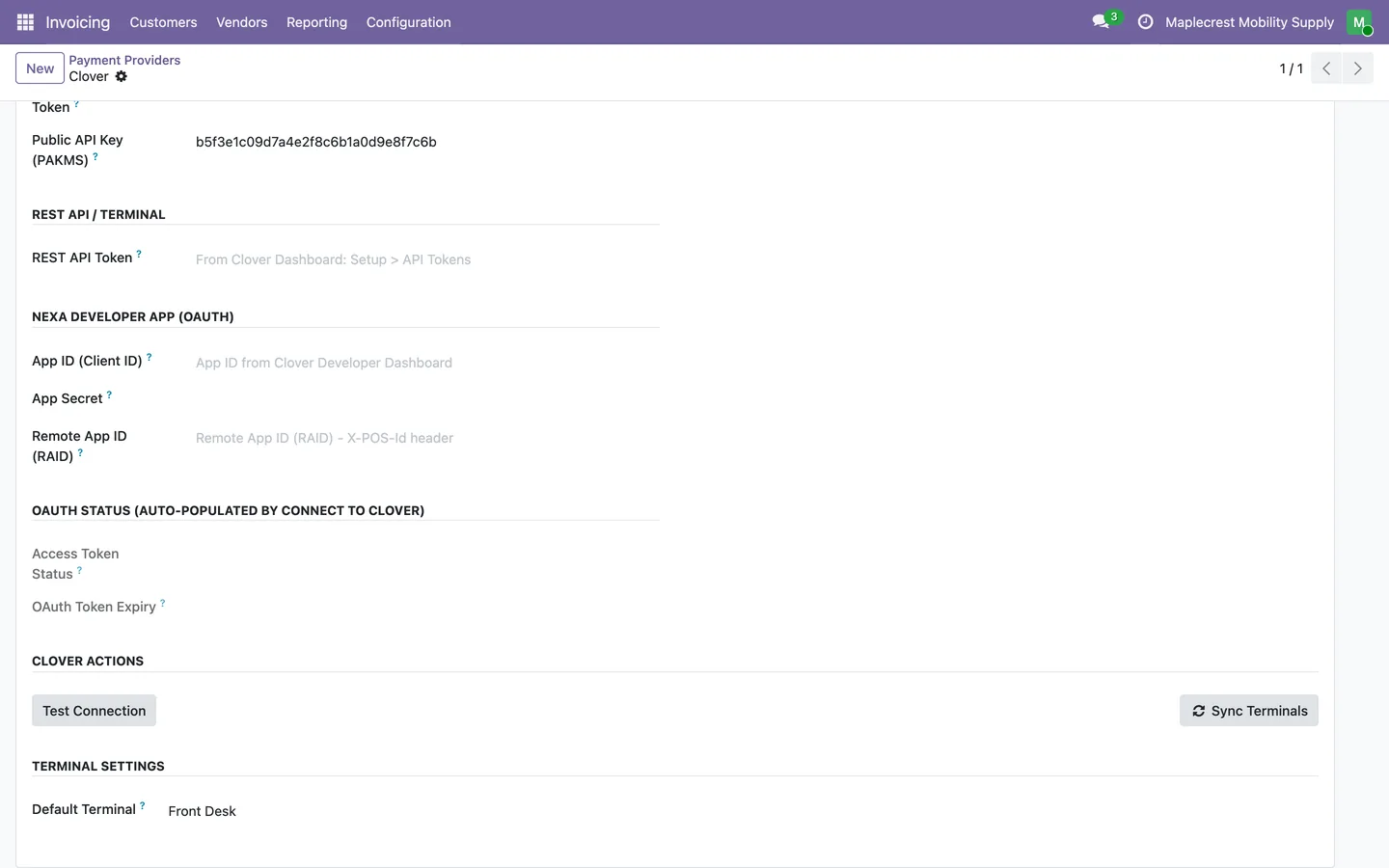
"Connect to Clover" authorizes Odoo with Clover, "Test Connection" confirms the details work and "Sync Terminals" brings in the merchant's devices. A default terminal is chosen for the counter.
Clover provider > Clover Actions
-
Name each terminal
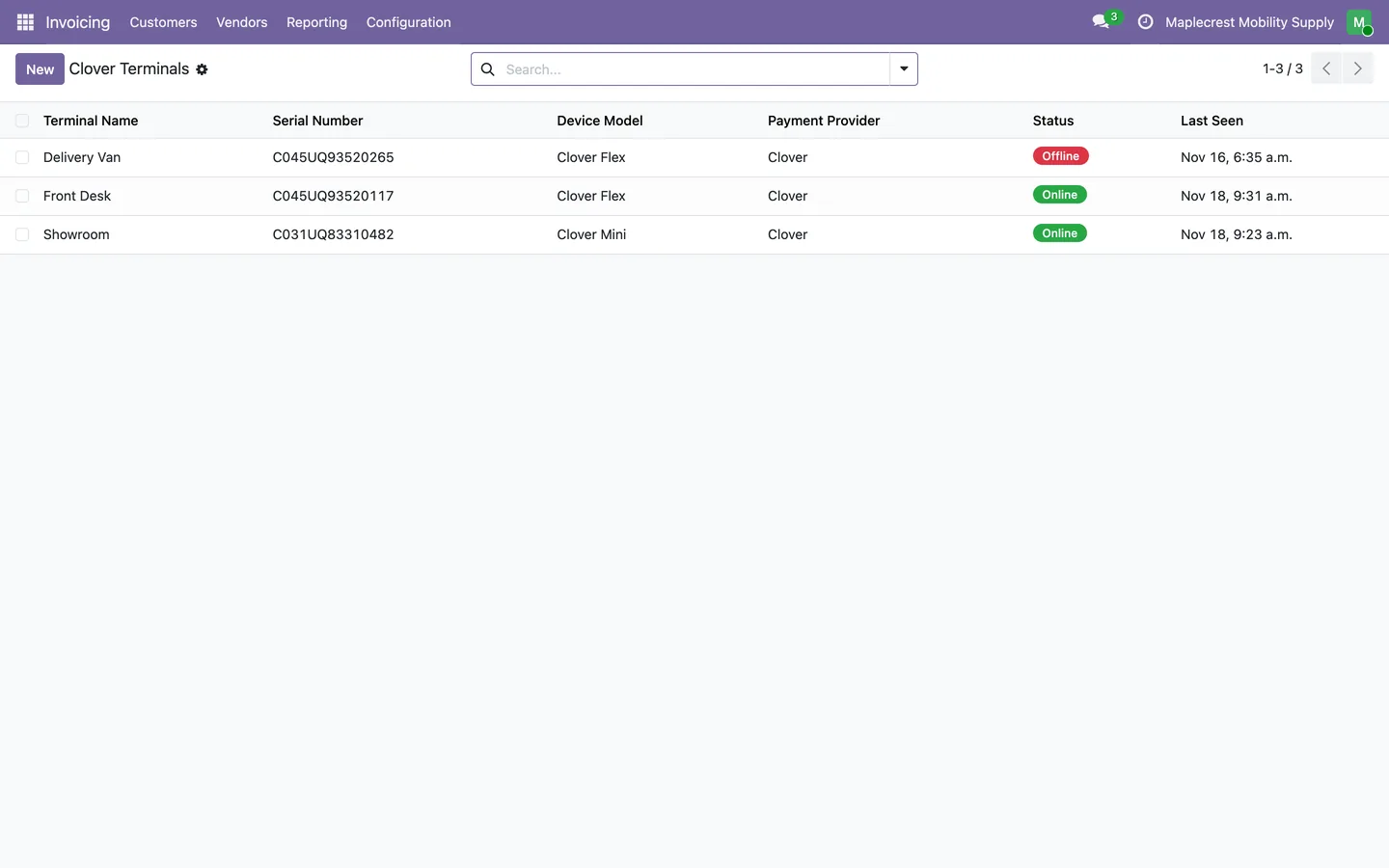
Synced terminals are listed with serial number, model, status and last seen, and you rename each one for where it sits.
Invoicing > Configuration > Clover Terminals
-
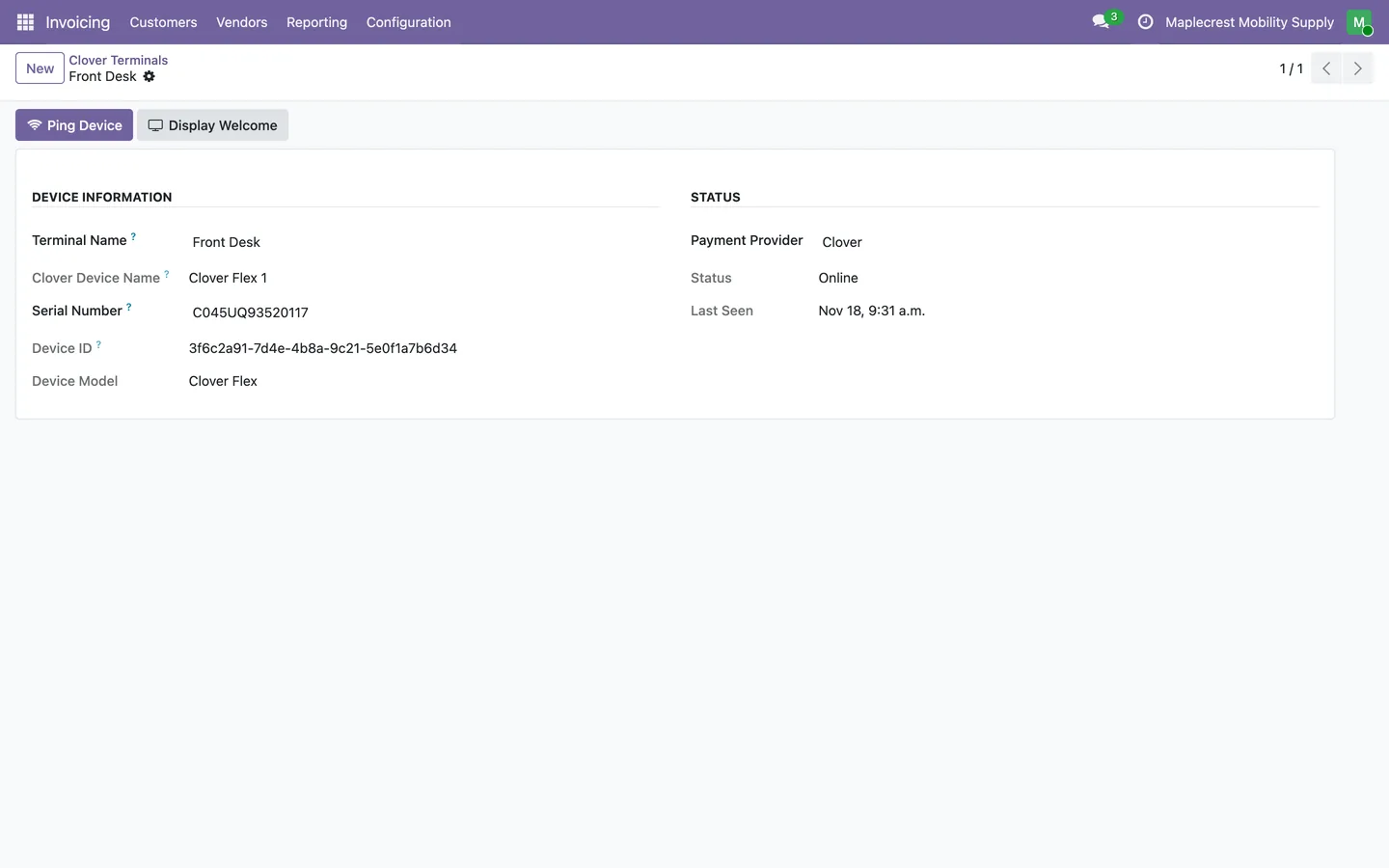
Check a terminal
"Ping Device" checks that a terminal can be reached, and "Display Welcome" resets its screen.
Clover Terminals > Front Desk
-
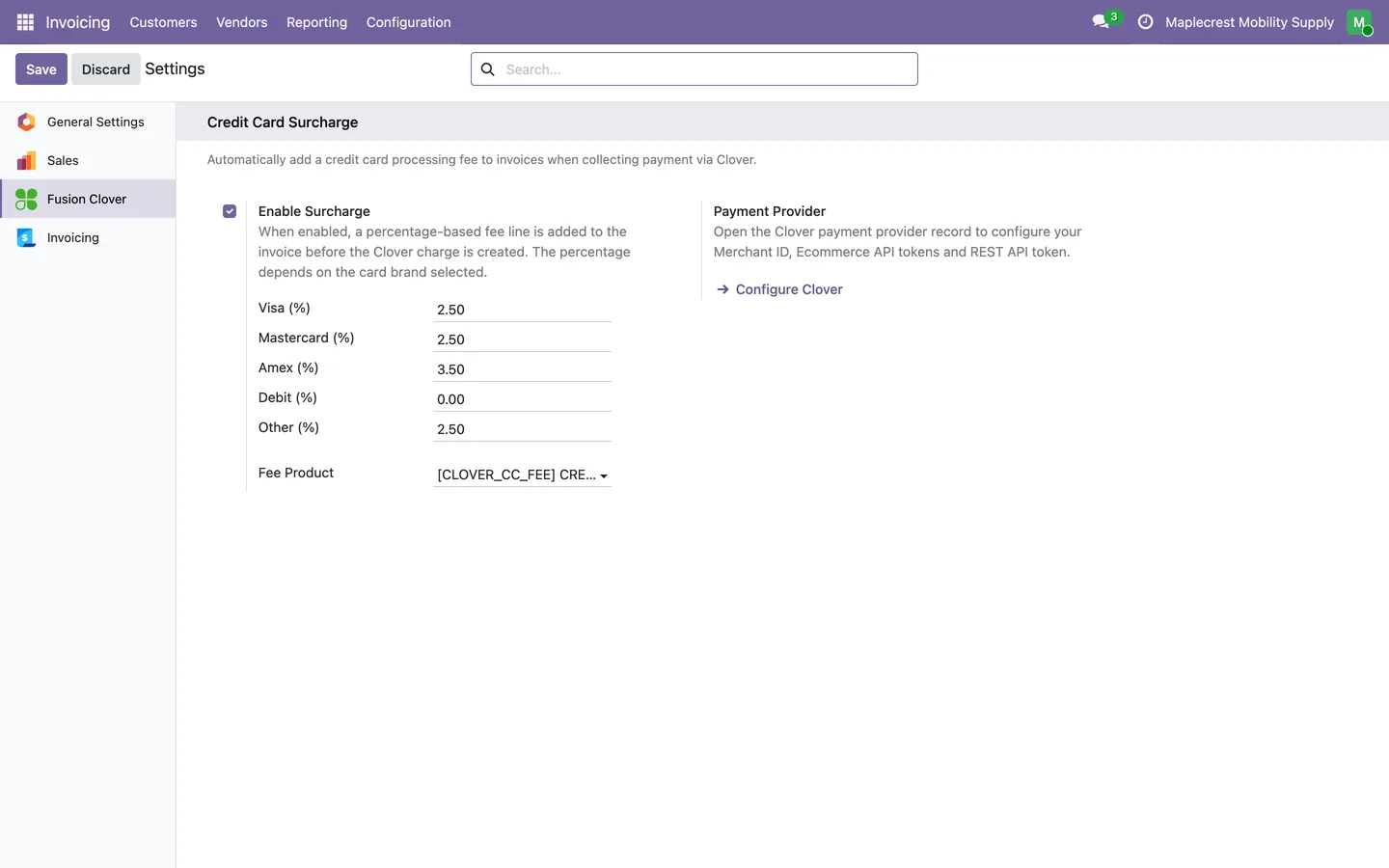
Set the card surcharge
Turn on the surcharge and set a rate for Visa, Mastercard, Amex, Debit and other cards, and the fee product.
Settings > Fusion Clover
Take a card payment at the counter
Staff collect payment for a sales order or invoice on a Clover terminal or by keying in the card, and the receipt follows.
-
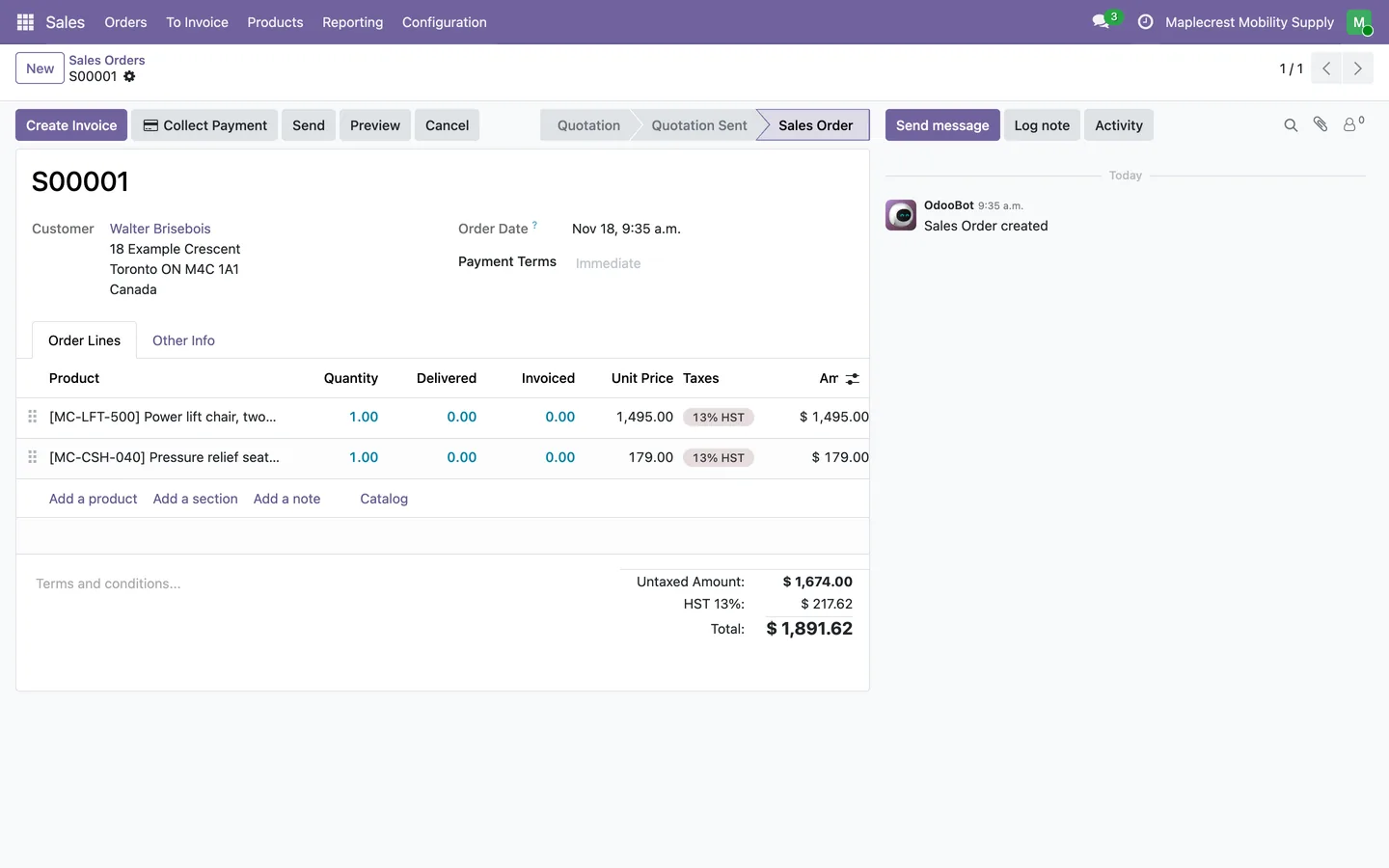
Start from the order
"Collect Payment" on a confirmed sales order creates and posts the invoice if there is none, then opens the Clover payment window.
Sales > Orders > Orders
-
Send it to the terminal
The window shows the invoice, customer and amount. Picking the card type shows the surcharge rate and fee, and "Send to Terminal" sends the amount to the default terminal.
Sales order > Collect Payment
-
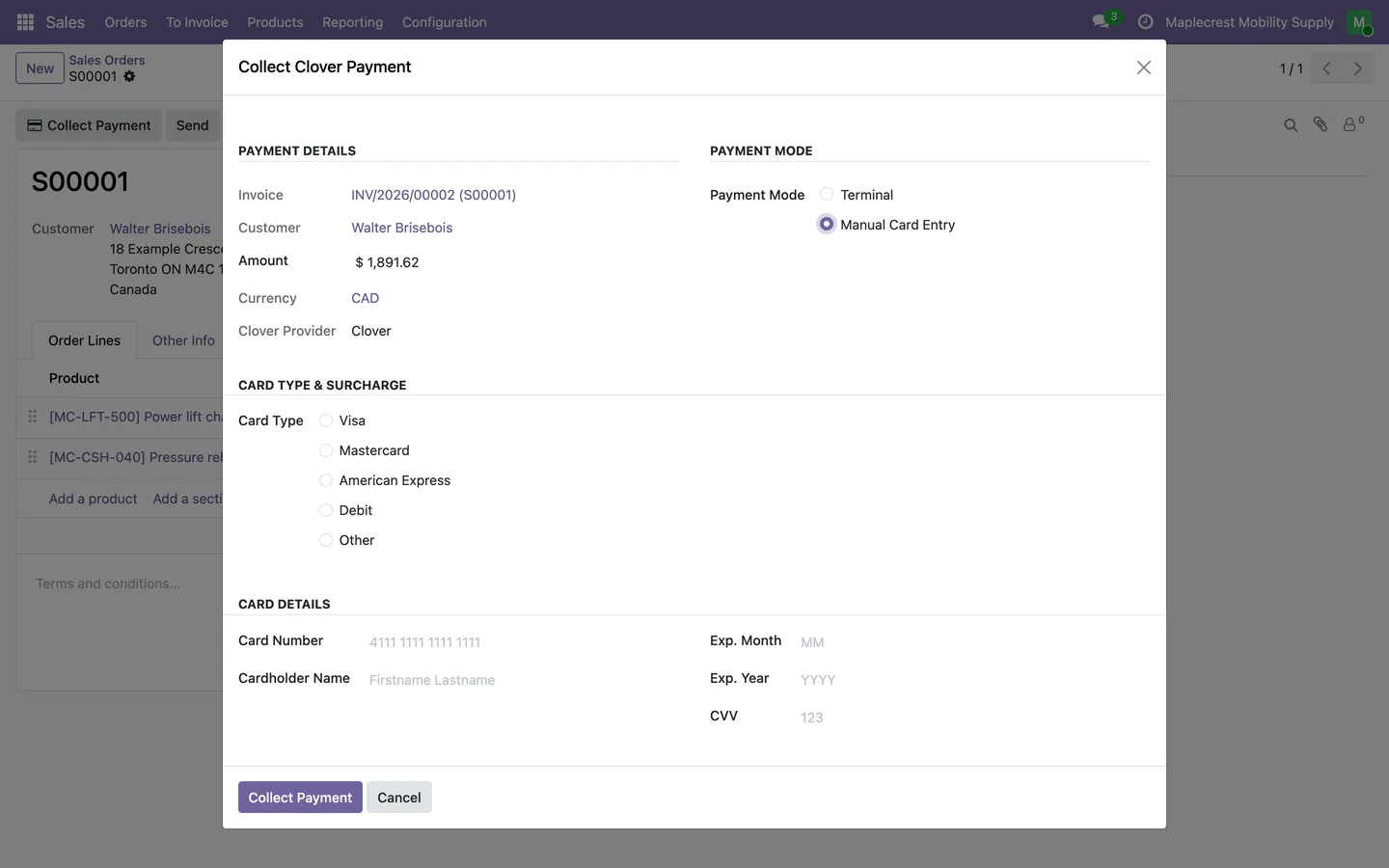
Or key in the card
"Manual Card Entry" takes the card the customer reads out. The card is turned into a Clover token before the charge, and the number is not stored.
Collect Clover Payment > Manual Card Entry
-
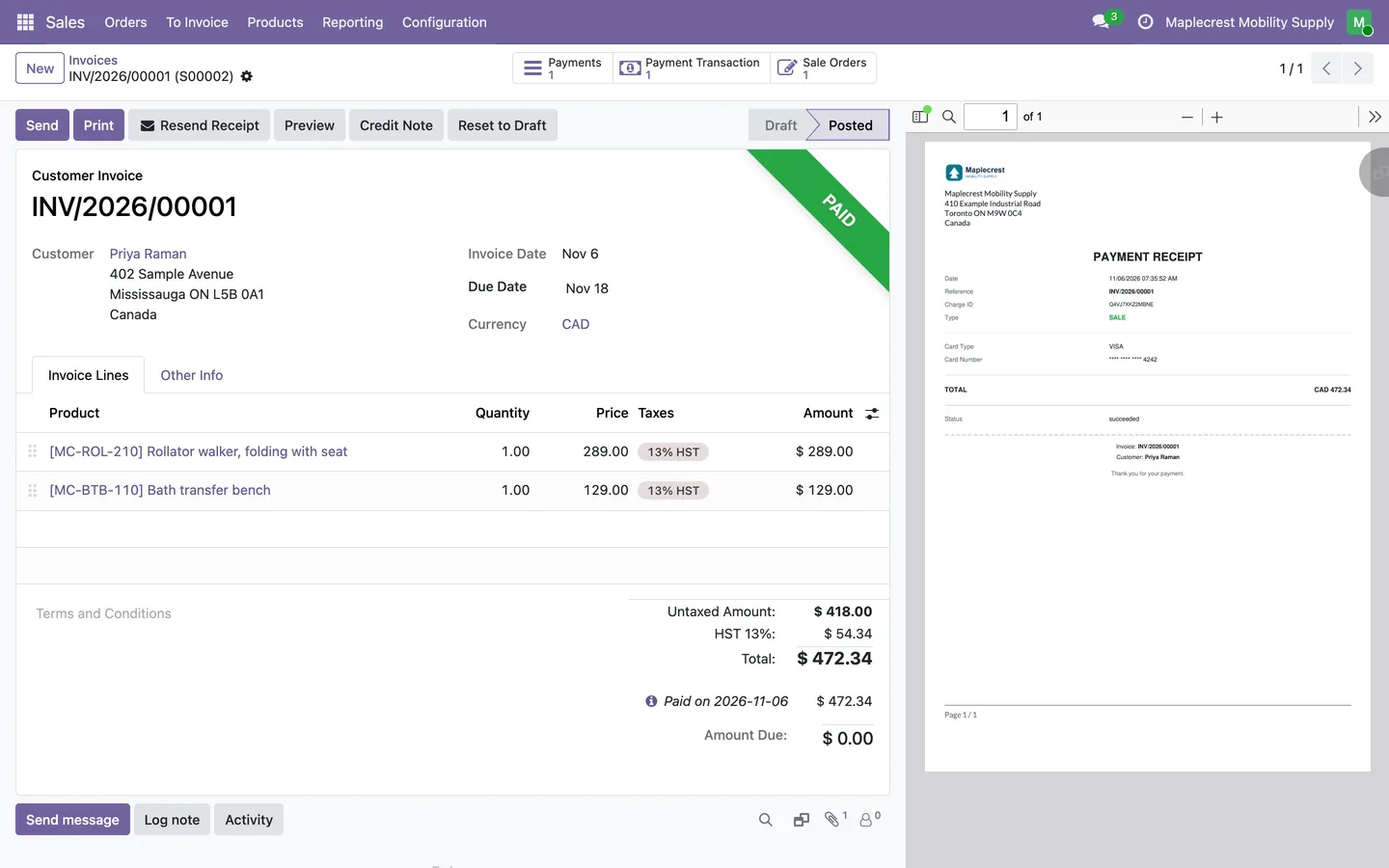
Payment recorded
When the card is approved, the payment is posted to the provider's journal and matched with the invoice, and a payment receipt is attached.
Invoicing > Customers > Invoices
-
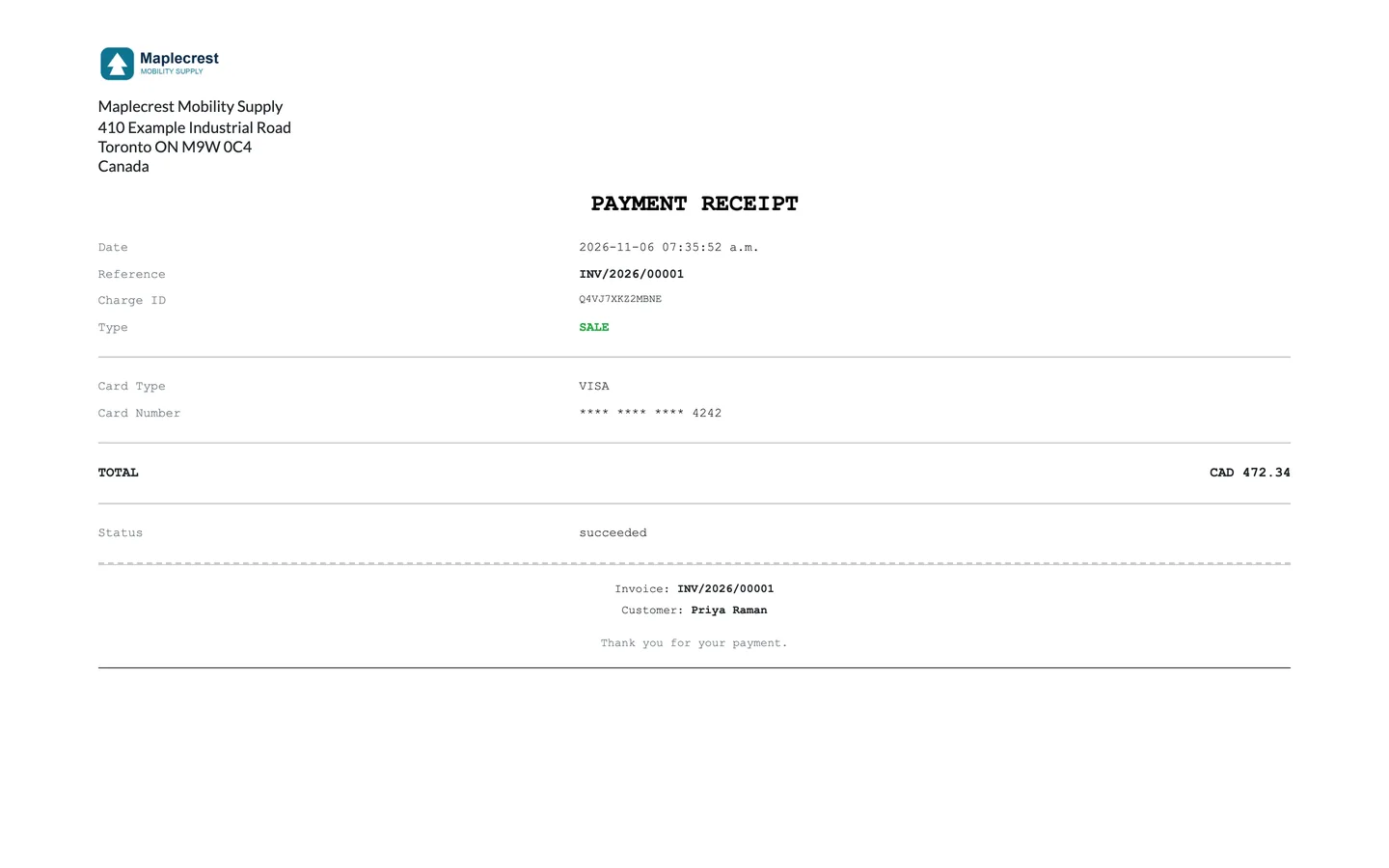
The receipt
The receipt shows the date, reference, charge, card type, masked card number and total, and "Send Receipt" or "Resend Receipt" emails it to the customer.
Refund or void a payment
A credit note sends the money back to the card the customer used, and a same-day mistake can be voided.
-
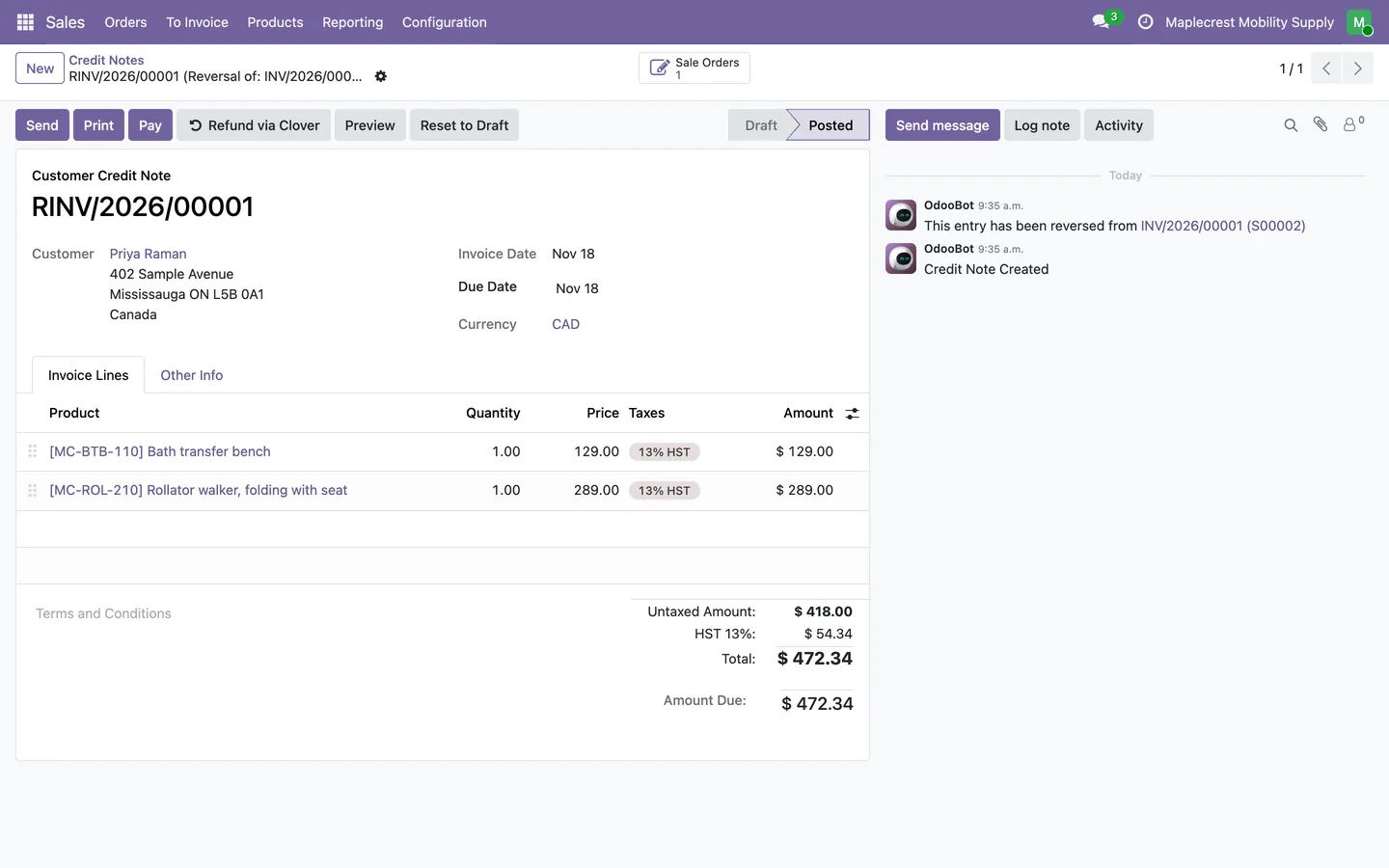
Credit note ready
A posted credit note whose invoice was paid through Clover shows "Refund via Clover".
Invoicing > Customers > Credit Notes
-
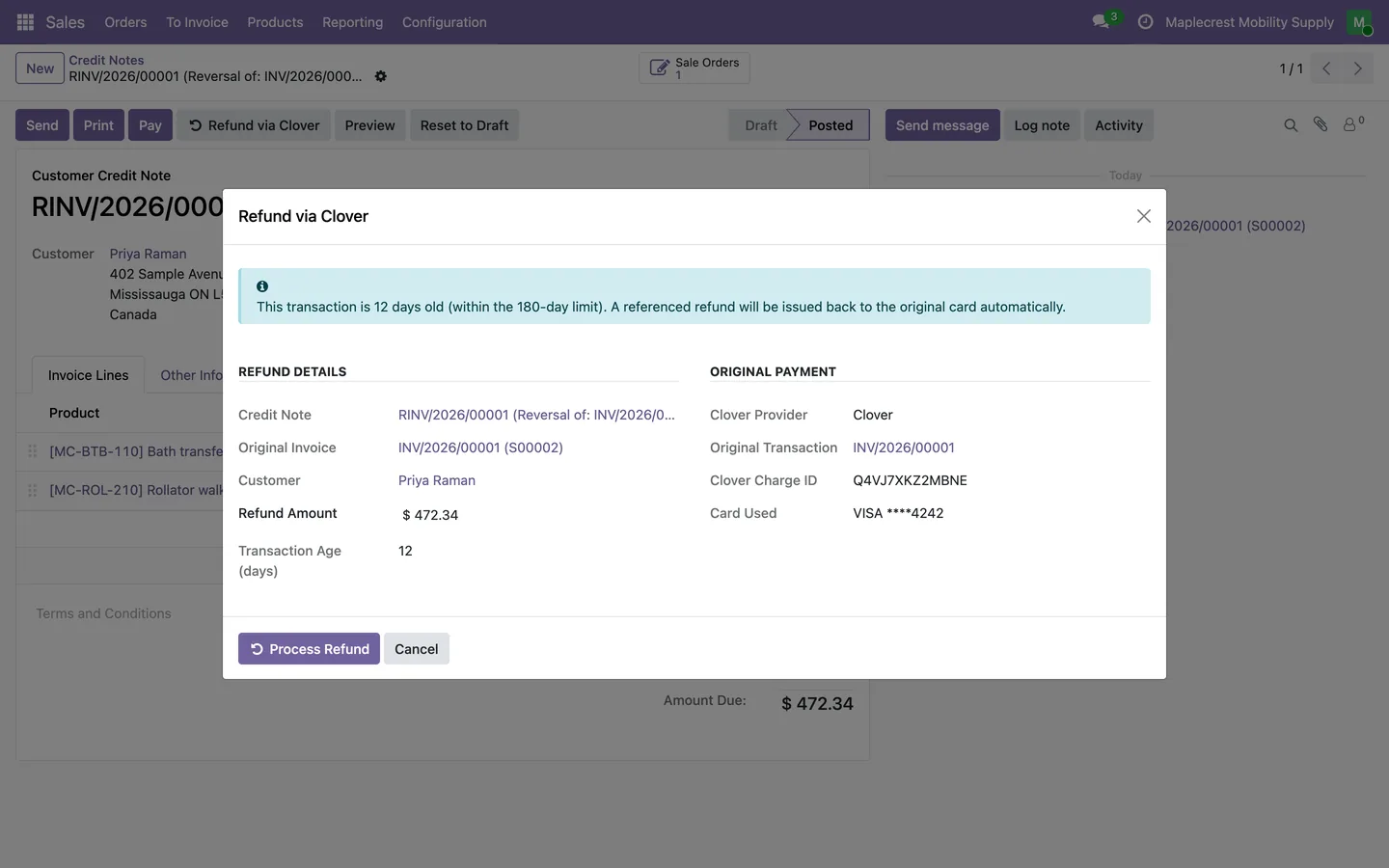
Check and refund
The refund window shows the original charge, the card used and how old the payment is. Within 180 days the money goes back to the original card, after a check that the charge was not already reversed.
Credit note > Refund via Clover
-
Older payments
Past 180 days the window issues a non-referenced credit instead, on a terminal with the card present or through Clover.
-
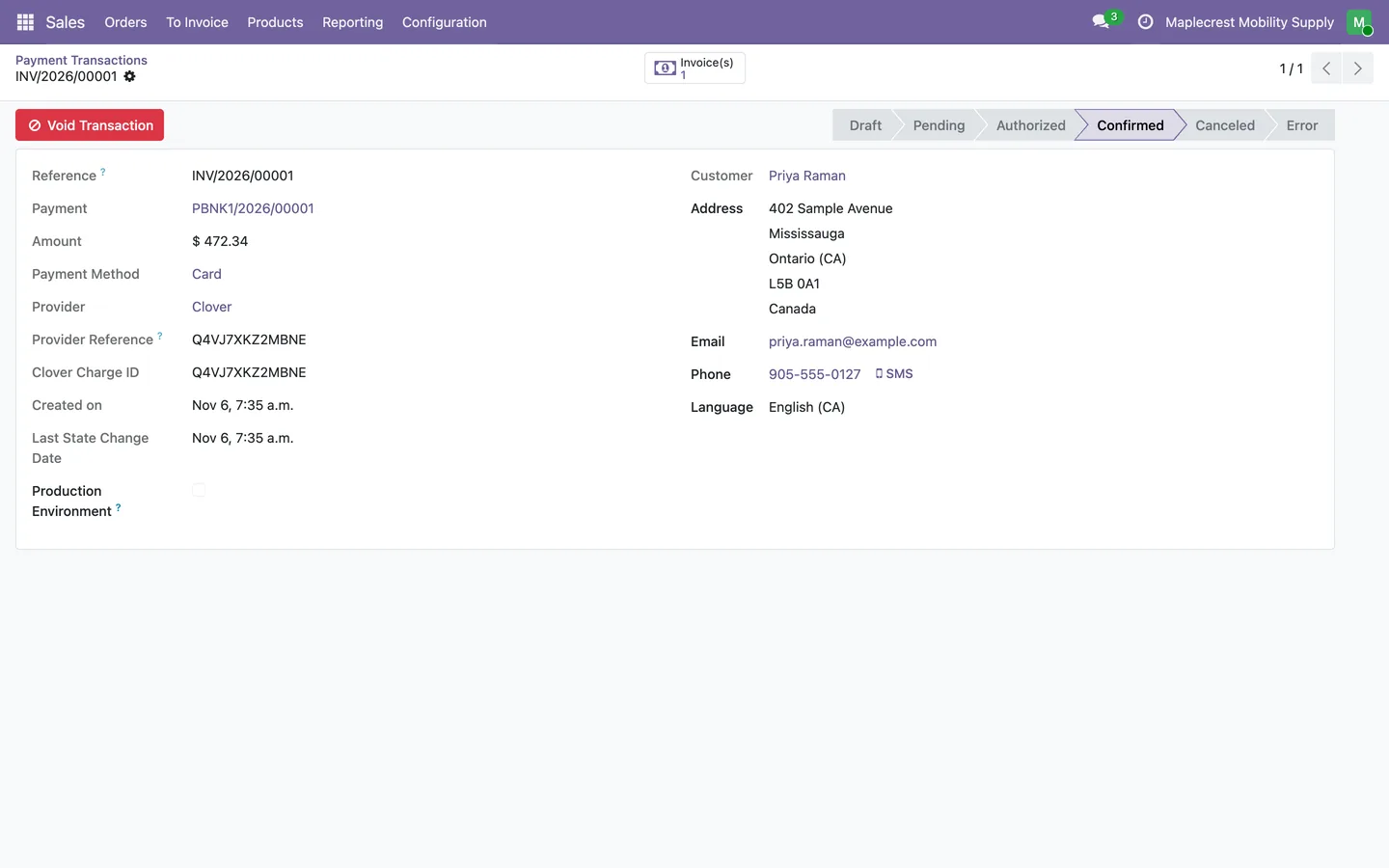
Void the same day
A Clover administrator can void a confirmed transaction before the charge settles. A settled charge is refunded from a credit note instead.
Invoicing > Configuration > Online Payments > Payment Transactions
What it does
 Connect Clover and its terminals
- The Clover provider holds the merchant ID, the Ecommerce private and public tokens, a REST API token for terminals, and the App ID, App Secret and Remote App ID of the Clover developer app.
- "Connect to Clover" sends you to Clover to authorize Odoo for the merchant, and the access token is renewed shortly before it expires.
- "Test Connection" asks Clover for the merchant's name to confirm the credentials work.
- "Sync Terminals" brings in the merchant's Clover devices and keeps any name you already gave a terminal.
- Each terminal shows its name, serial number, device model, status and last seen time, with "Ping Device" to check it and "Display Welcome" to reset its screen.
- A default terminal on the provider is picked for you each time staff collect a payment.
 Payments in the office
- "Collect Payment" on a confirmed sales order creates and posts the invoice if there is none, then opens the Clover payment window.
- "Collect Clover Payment" opens the same window from a posted customer invoice that is not fully paid.
- Staff send the amount to a Clover terminal with "Send to Terminal", or key in a card the customer reads out with "Manual Card Entry".
- While the terminal waits for the customer, "Check Status" asks it whether the card was approved or declined.
- A keyed-in card is turned into a Clover token before the charge, so the card number is never saved in Odoo.
- When the charge goes through, the payment is posted to the provider's journal and matched with the invoice.
 Card surcharge
- A credit card surcharge can be turned on in Settings, with its own rate for Visa, Mastercard, Amex, Debit and other cards, and a fee product.
- When staff choose the card type, the payment window shows the rate and the fee before the card is charged.
- The fee is added to the invoice as an untaxed "Credit Card Processing Fee" line, and taken off again if the payment fails or is cancelled.
- Online card payments and payments with a saved card use the same surcharge rates.
 Online card payments
- Customers pay online in card fields hosted by Clover, so the card details go to Clover and not through Odoo.
- The online card form follows the customer's language in Canadian English or French.
- Customers can save a card for later payments.
- A confirmed sales order with money still owing opens in the customer portal with the outstanding amount ready to pay.
- Payment updates sent by Clover are checked against an HMAC-SHA256 signature once an App Secret is set.
 Refunds, voids and receipts
- "Refund via Clover" on a posted credit note refunds the original Clover charge.
- The refund window shows the original charge, the card used and the age of the payment, and refunds to the original card for payments up to 180 days old.
- Older payments get a non-referenced credit instead, through Clover or on a terminal with the customer's card present.
- Before refunding, it checks with Clover that the charge was not already refunded or voided.
- A refunded credit note shows a "Refunded via Clover" banner, and the invoice gets a "Clover Refunds" button.
- A Clover administrator can void a confirmed transaction the same day, before the charge settles.
- Each Clover payment gets a PDF receipt attached to the invoice, and "Send Receipt" or "Resend Receipt" emails it to the customer.
- A refund receipt carries the original sale receipt as its second page.
Related modules
 Payment Provider: Poynt
GoDaddy Poynt card payments at the counter and online, with fraud review built in.
 Fusion Accounts
Vendor bill emails turned into draft bills, with the sender matched to a vendor.
 Fusion Bank Statements
Free
OFX, QFX and QBO bank files imported with duplicates caught and balances carried forward.
See Payment Provider: Clover on your own Odoo.
Book a call and tell us how your team works today. We'll show you the module and what it would take to set it up. Prefer the phone? Call 905-792-0000.