
Fusion Configurator
Configurable products built from features, options, three price tiers and condition rules.
Build product configurations from hierarchical features, option groups and selectable options. Maintain retail, customer and dealer pricing tiers.
- Odoo 19
- Version 19.0.1.0.0
- Newly listed
Fusion Configurator, step by step
2 workflows, 8 steps. Every screen is real, from a demo company with invented data.
Build a configurable product
A configurable product is a tree of features, option groups and options, each option priced three ways.
-
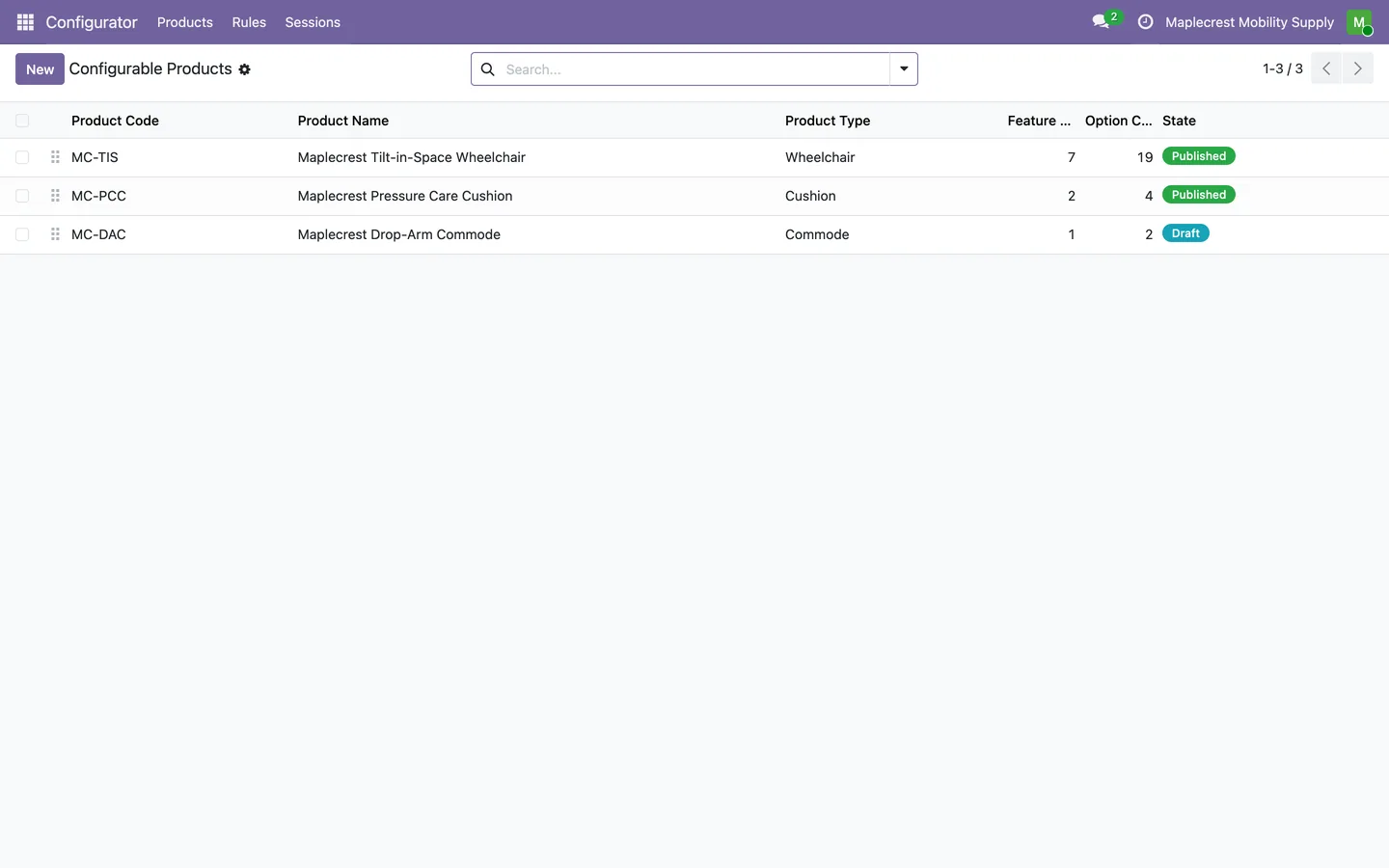
Start from the product list
Configurable Products lists each product with its code, type, feature and option counts and a Draft or Published badge.
Configurator > Products > Configurable Products
-
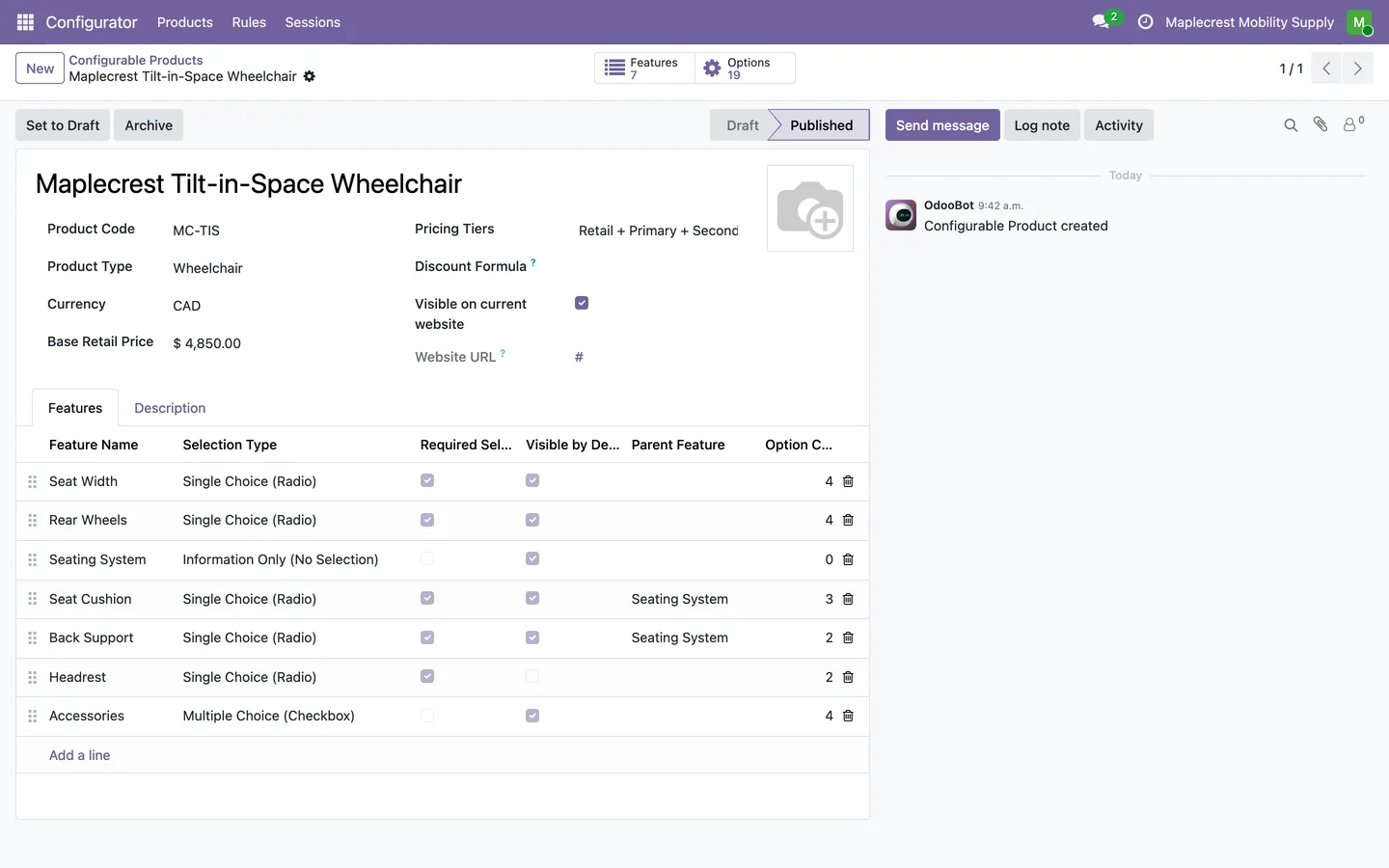
Lay out the features
The product form holds the code, type and base retail price. Features are added in order, each with its selection type, whether a choice is required, whether it shows at first and an optional parent feature.
Configurator > Products > Configurable Products
-
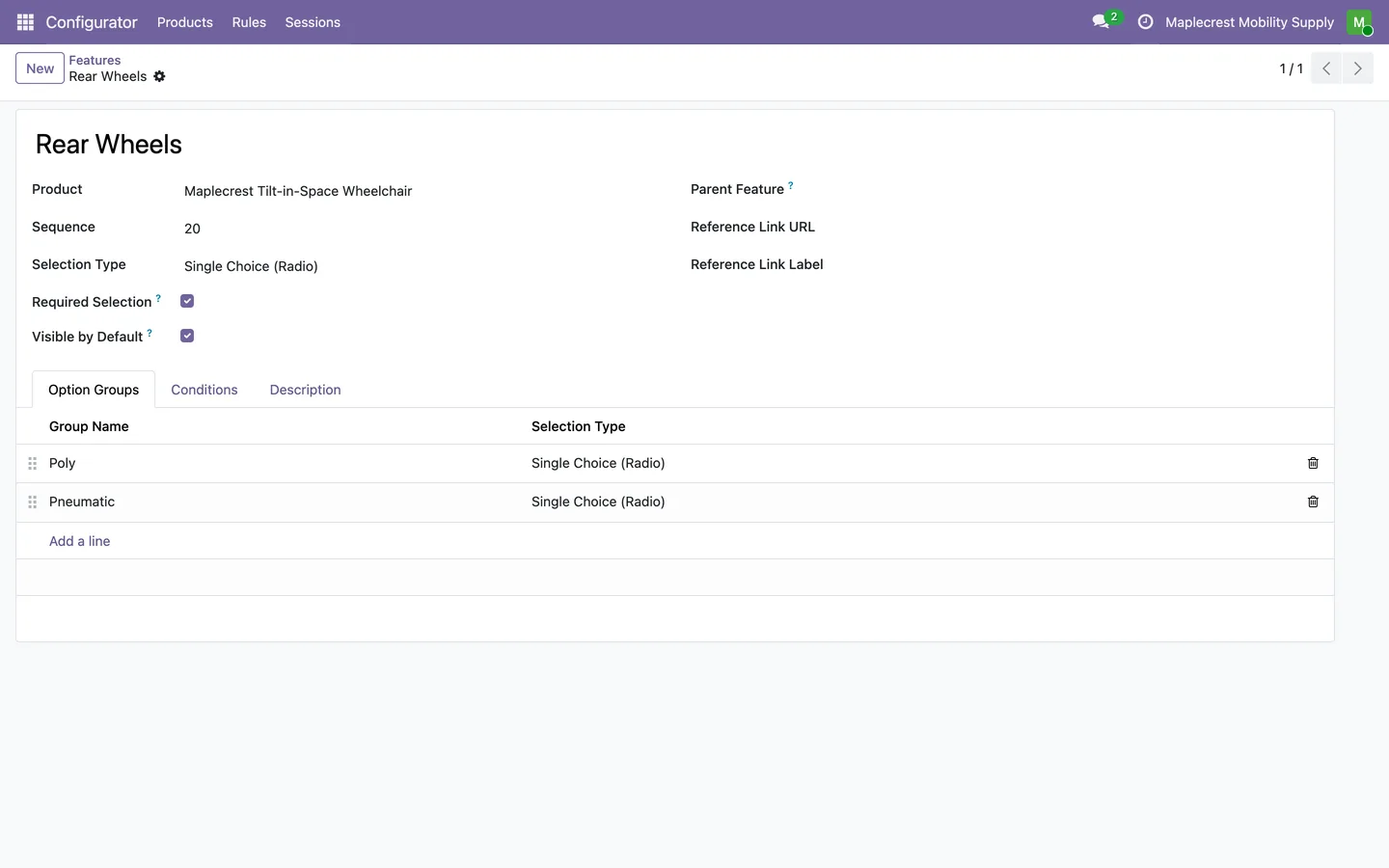
Split a feature into groups
A feature's Option Groups tab holds sets of options, for example Poly and Pneumatic under Rear Wheels.
Configurator > Products > Features
-
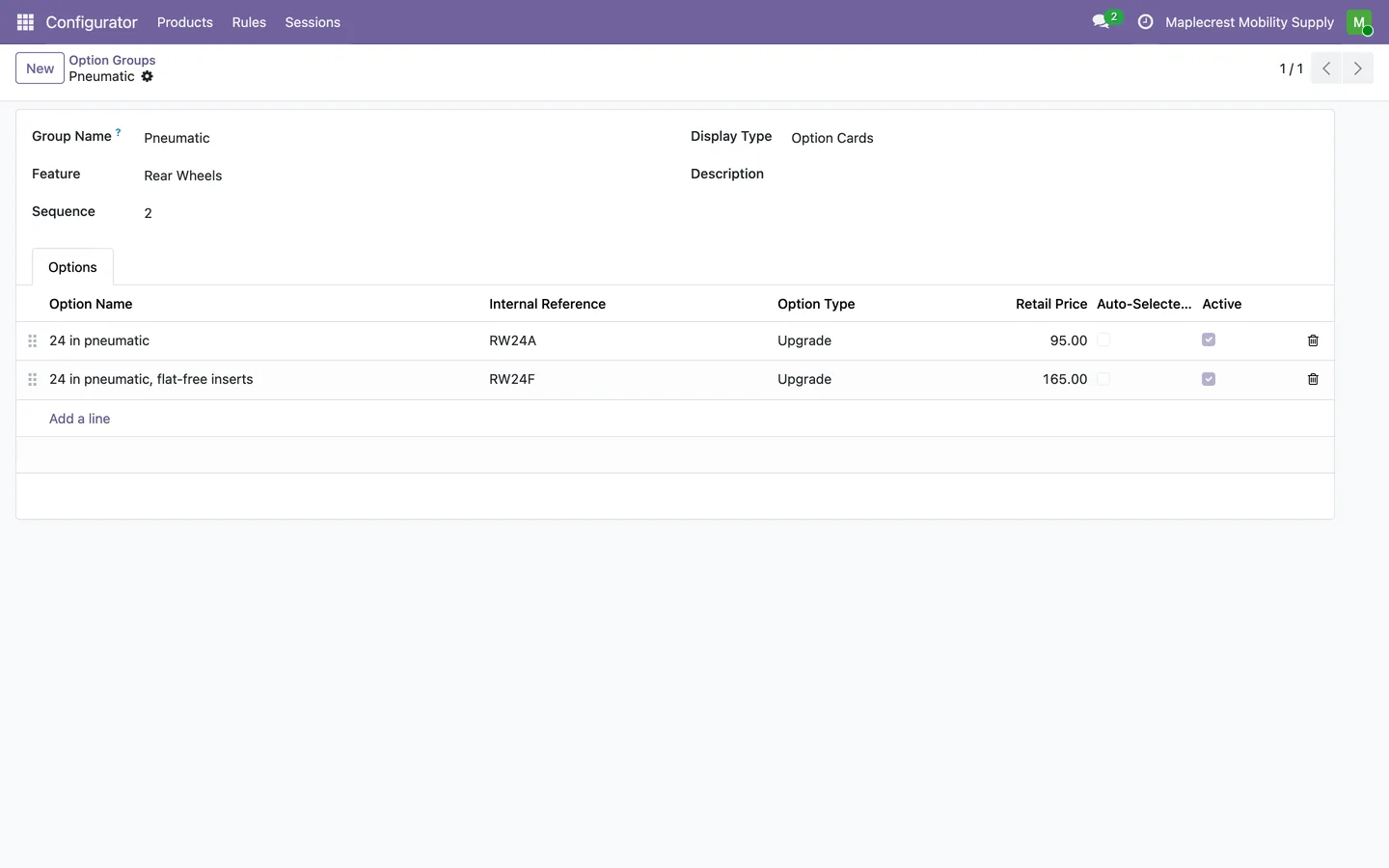
Add the options
An option group lists its options with internal reference, type, retail price and whether each is selected by default, edited in place.
Configurator > Products > Option Groups
-
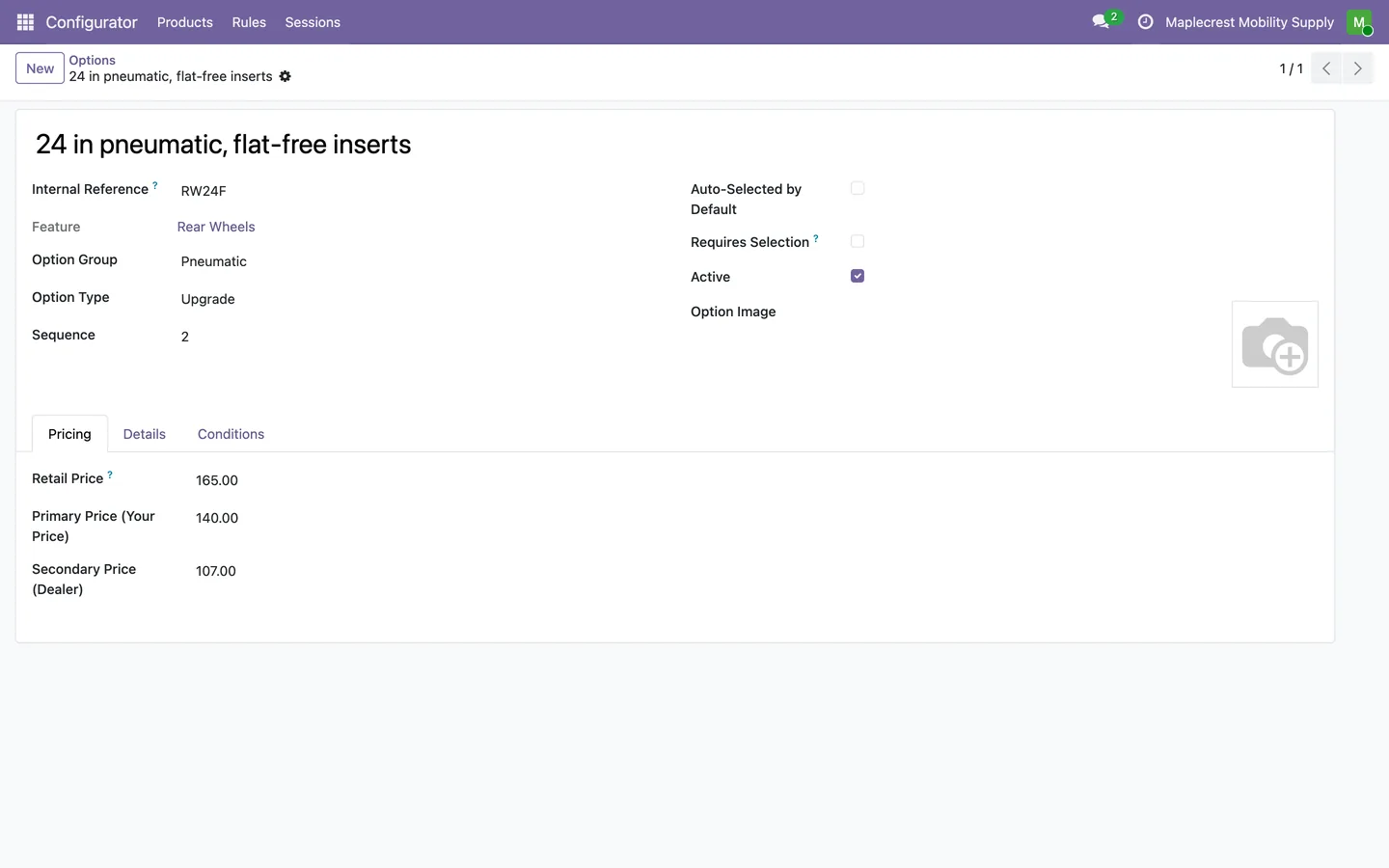
Price each option three ways
The option's Pricing tab holds the retail price, your price and the dealer price. Publish on the product then marks it ready.
Configurator > Products > Options
Write the rules between options
Condition rules record what should follow a choice: show a feature, pick a matching part or rule out one that does not fit.
-
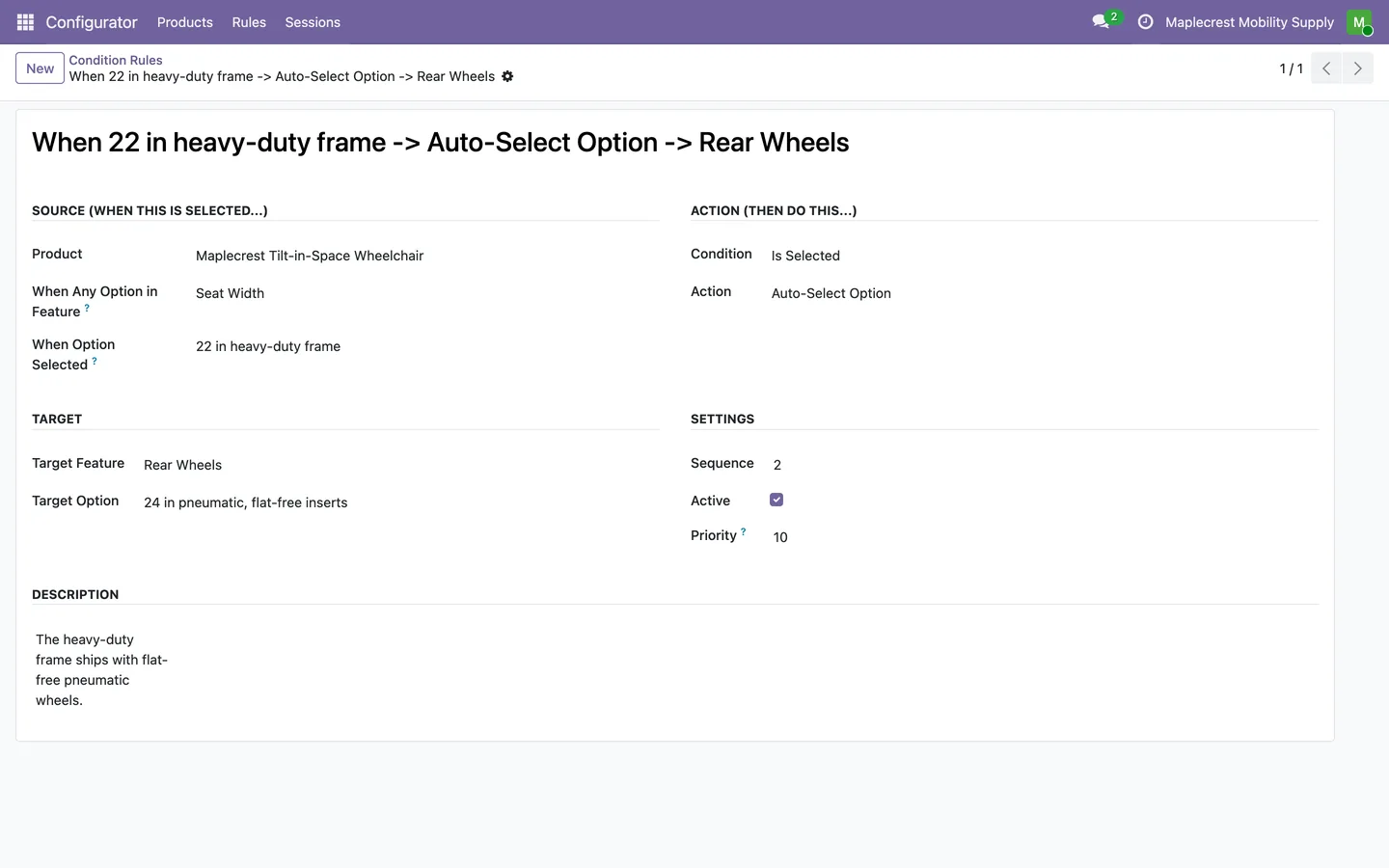
Write a condition rule
The rule form reads as a sentence: when this option is or is not selected, do this action to that feature, option or group. The rule names itself from those choices.
Configurator > Rules > Condition Rules
-
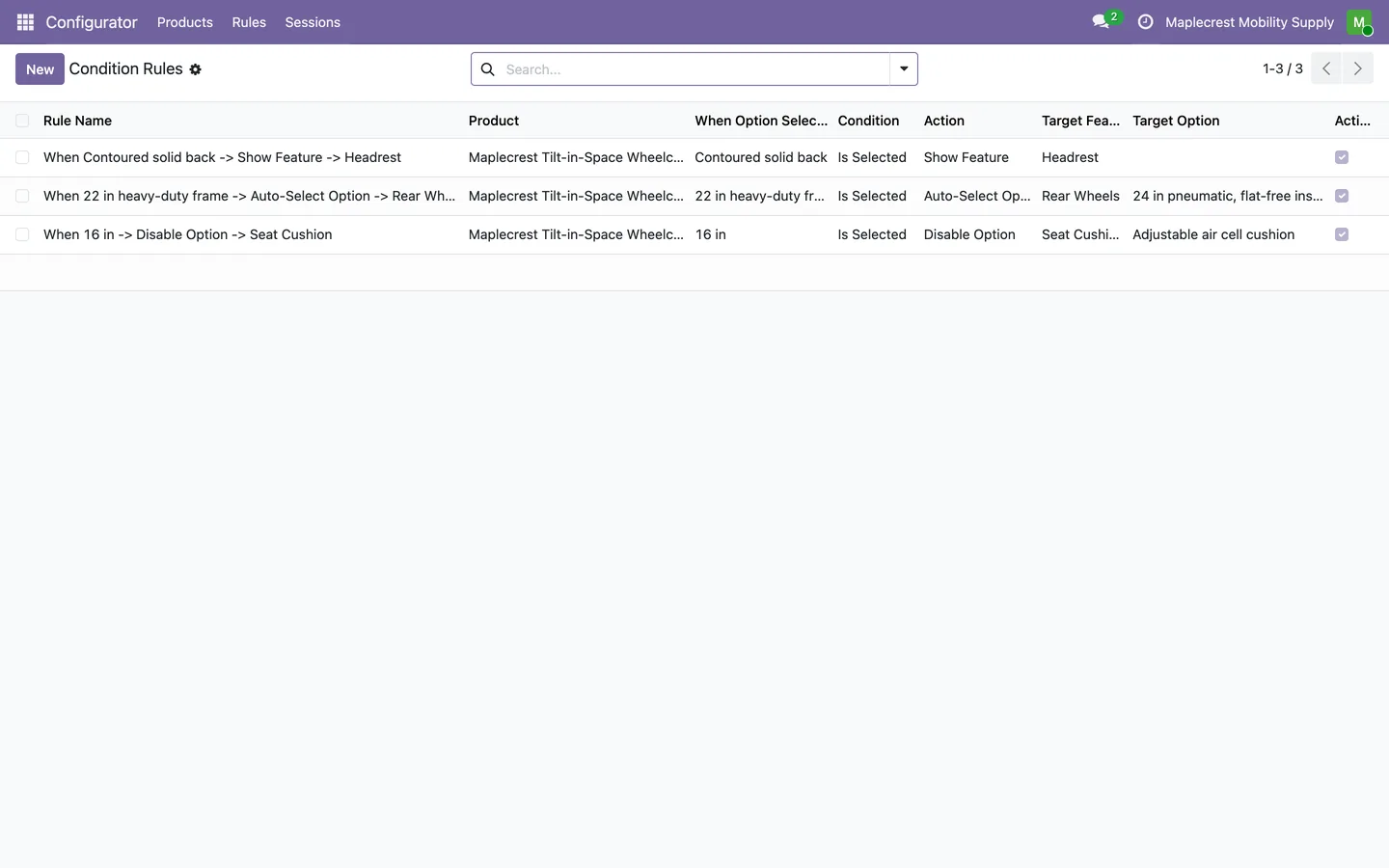
Read the rules at a glance
The rules list shows each rule's name, product, triggering option, condition, action and targets.
Configurator > Rules > Condition Rules
-
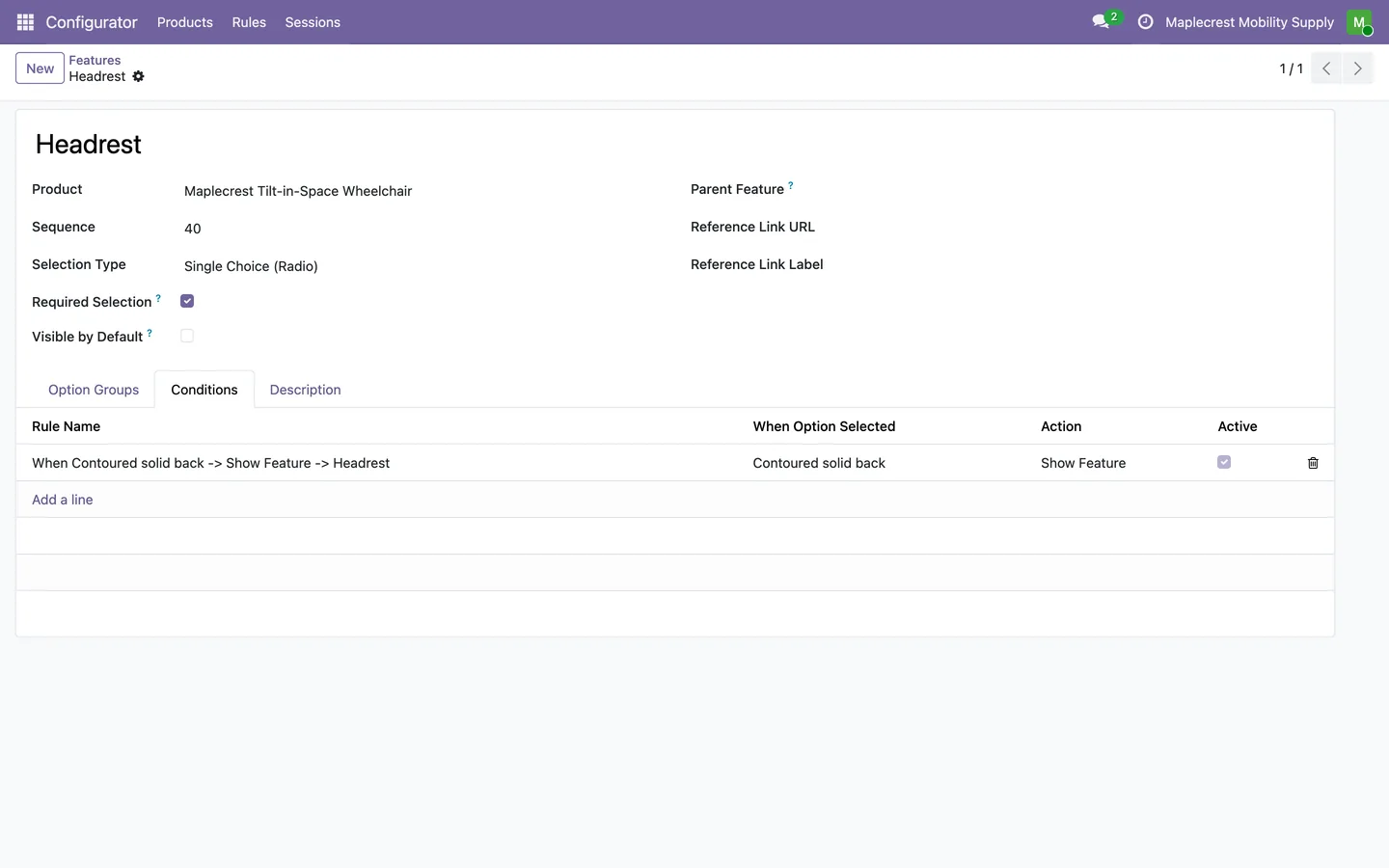
A feature that waits for a rule
A feature that does not show at first lists, on its Conditions tab, the rule that shows it.
Configurator > Products > Features
What it does
 Building a configurable product
- Build product configurations from hierarchical features, option groups and selectable options.
- Each configurable product has a code, a type (wheelchair, cushion, backrest, commode or other), a currency and a base retail price.
- Each feature can require a choice, take one option or several, or only show information, and can start hidden.
- Option groups split a feature into sets such as poly and pneumatic wheels, shown as option cards, a simple list or a dropdown.
- Each option has an internal reference, a type (standard, upgrade, accessory or omit) and can be selected by default.
 Pricing
- Maintain retail, customer and dealer pricing tiers.
- An option priced at zero is included, and a negative price is a credit.
 Condition rules
- Set up condition rules: when an option is or is not selected, show or hide a feature or option group, enable or disable an option, select an option automatically, or make a feature required or optional.
- Each rule names itself in plain words, for example "When 22 in heavy-duty frame -> Auto-Select Option -> Rear Wheels".
- A feature lists the rules that show or hide it on its Conditions tab, and an option lists the rules it triggers.
 Publishing and access
- Publish, Set to Draft and Archive buttons move a product between Draft, Published and Archived, and publishing marks it visible on the website.
- Products, features, option groups, options and condition rules each have their own list under the Configurator menu.
- Configurator Access has a User level that can read the catalogue and a Manager level that can change it.
Related modules
 Fusion Bundles
New
Product options on your online store: choices, priced add-ons and conditions.
 Fusion Templates
Free
Save a sales order as a quotation template, sections and notes included.
 Fusion Website Tools
New
Product finder, compare, calculators and a repair and claim tracker for your website.
See Fusion Configurator on your own Odoo.
Book a call and tell us how your team works today. We'll show you the module and what it would take to set it up. Prefer the phone? Call 905-792-0000.