
Fusion Bank Statements
OFX, QFX and QBO bank files imported with duplicates caught and balances carried forward.
Upload an OFX, QFX or QBO file exported from your bank and turn it into bank statement lines on a bank journal. Transactions already imported into the same bank journal are recognized by the bank's transaction ID and left unticked.
- Odoo 19
- Version 19.0.1.1.3
- Free
Fusion Bank Statements, step by step
2 workflows, 7 steps. Every screen is real, from a demo company with invented data.
Import a month of bank transactions
Upload the OFX, QFX or QBO file from your bank, check what is new and what was already imported, and create the statement.
-
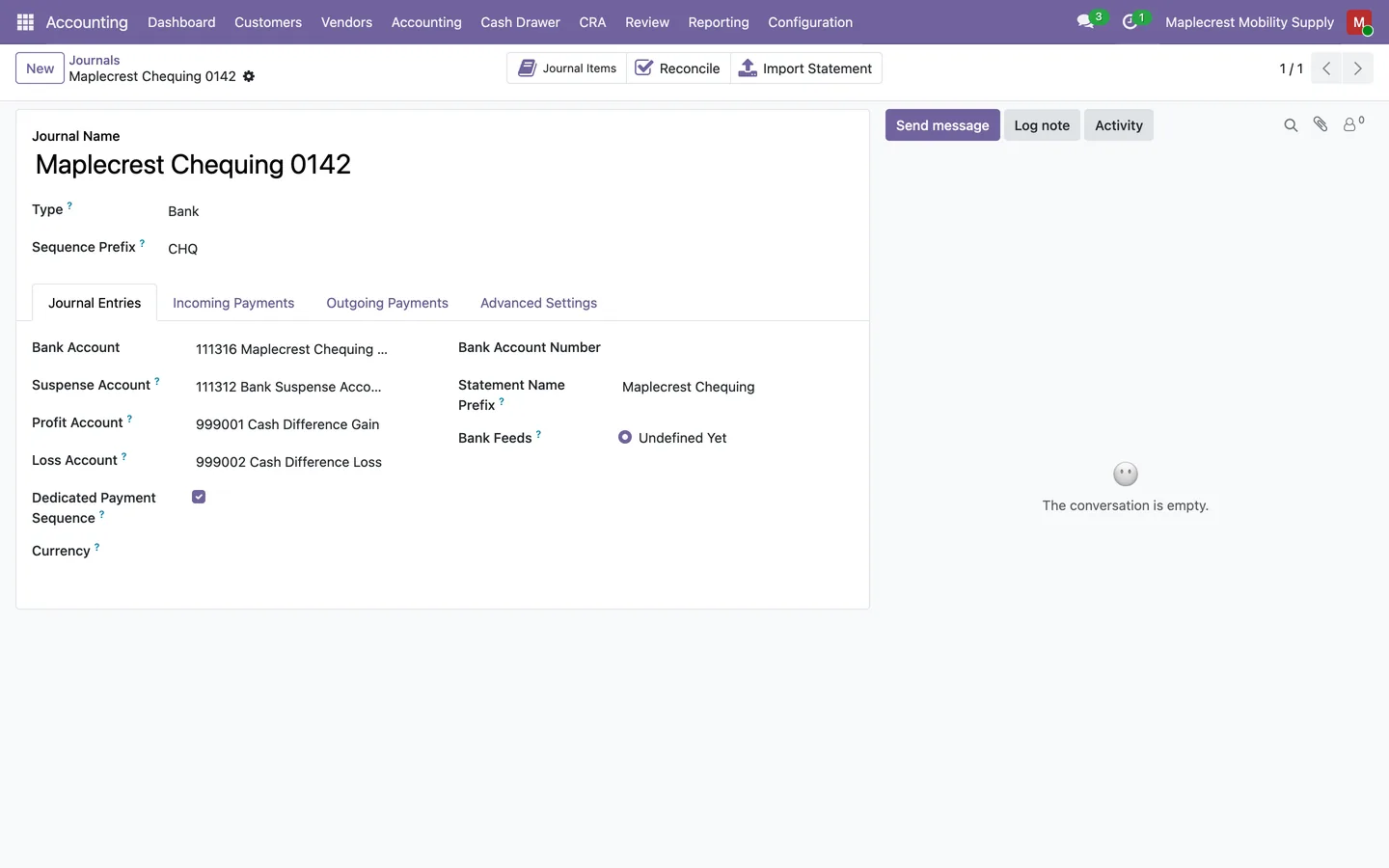
Get the journal ready
The statement name prefix starts every imported statement name, and the "Import Statement" button on the bank journal opens the import with that journal filled in.
Invoicing > Configuration > Journals > bank journal
-
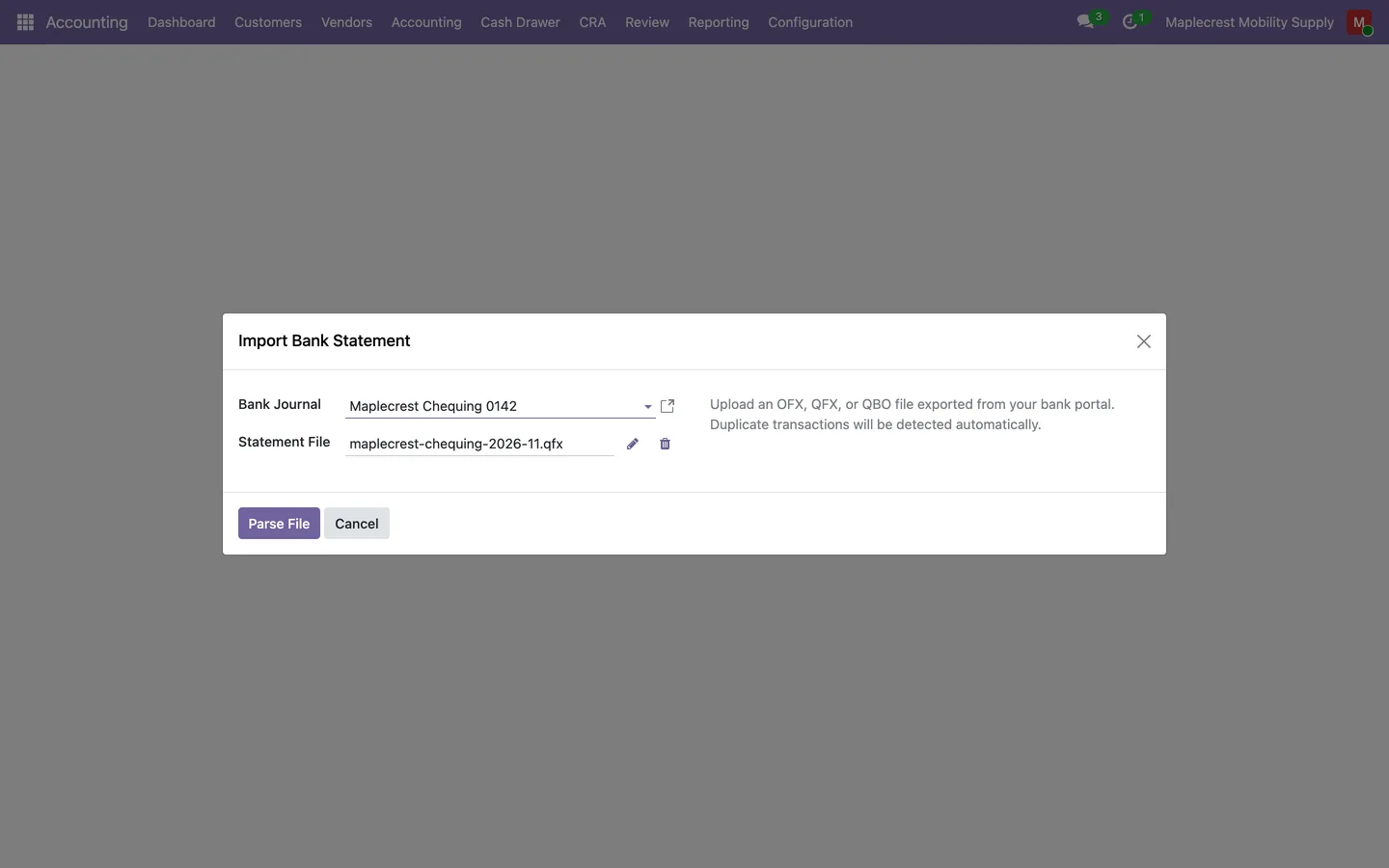
Upload the file
Choose the bank journal and the file exported from your bank. The file is read on your own Odoo server.
Invoicing > Accounting > Transactions > Import Bank Statement (OFX)
-
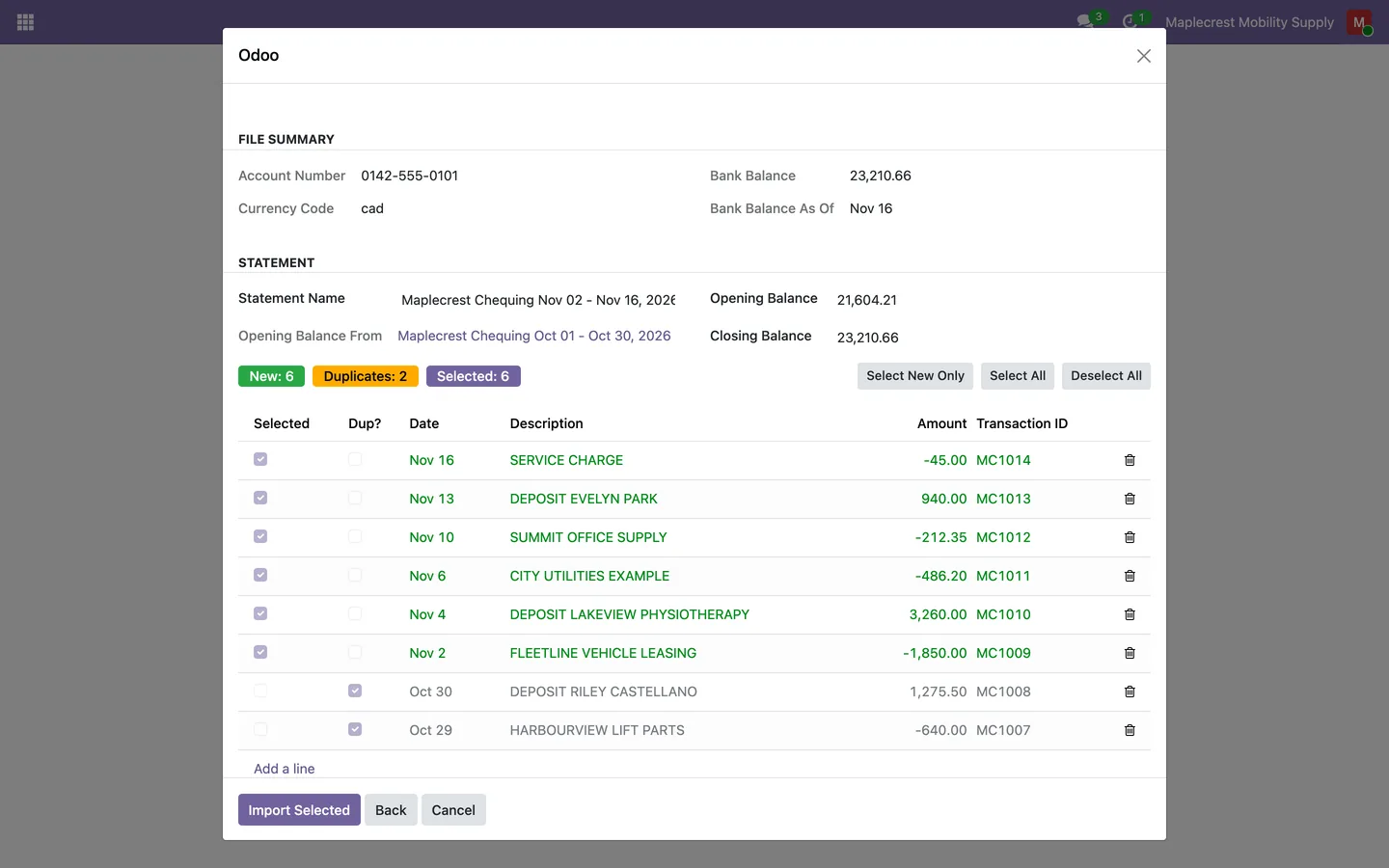
Review new lines and duplicates
Transactions already imported into this journal are recognized by the bank's transaction ID and left unticked. The counters show New, Duplicates and Selected, and the statement is named from the prefix and the first and last dates.
-
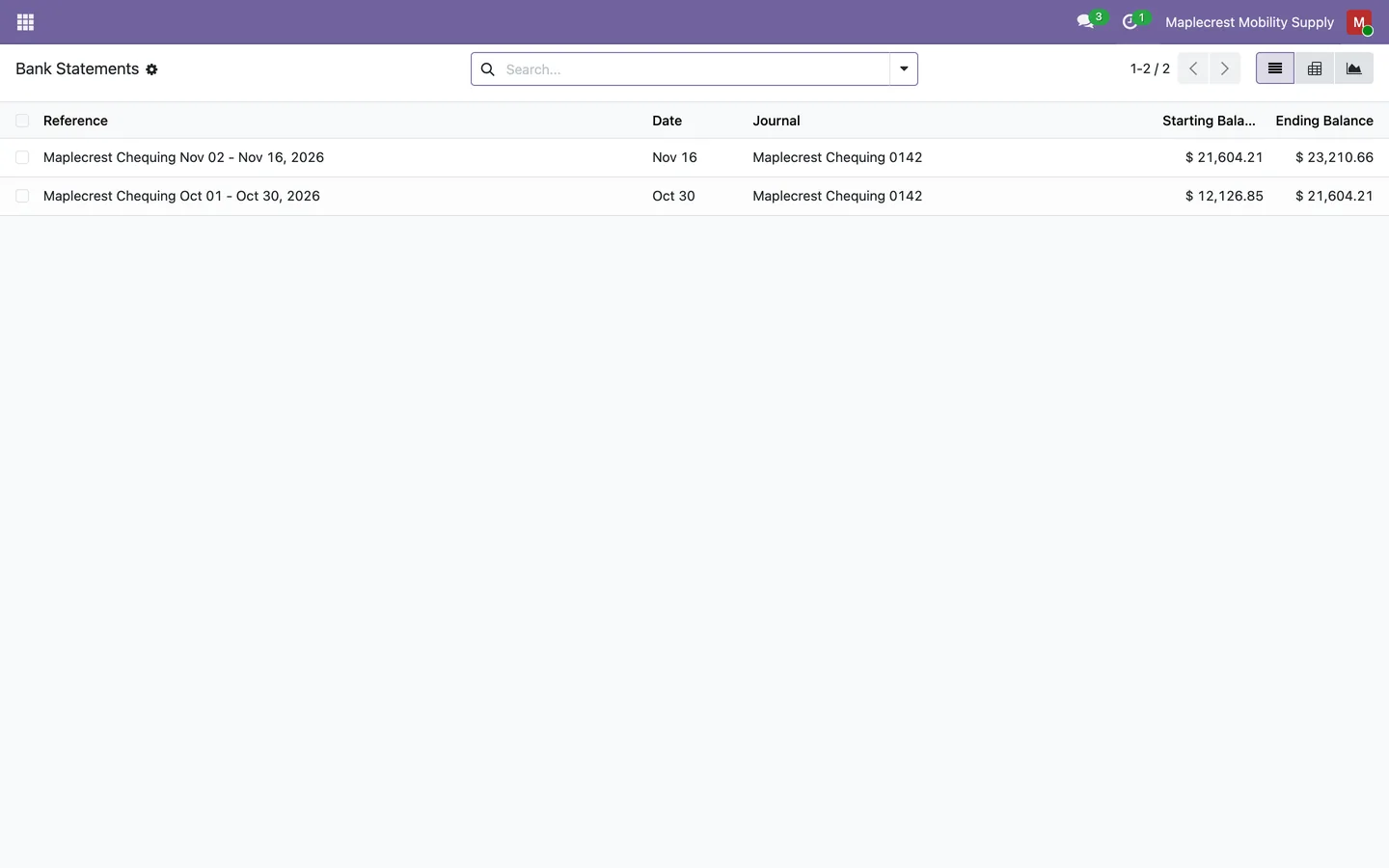
Import and open the statement
One bank statement is created with its name and balances, each transaction is remembered for next time, and a notice opens the new statement.
Invoicing > Dashboard > bank journal > Statements
Balances that carry forward
Each new statement starts where the last one ended, and the bank's own balance is used only when it can be trusted.
-
Opening balance from the last statement
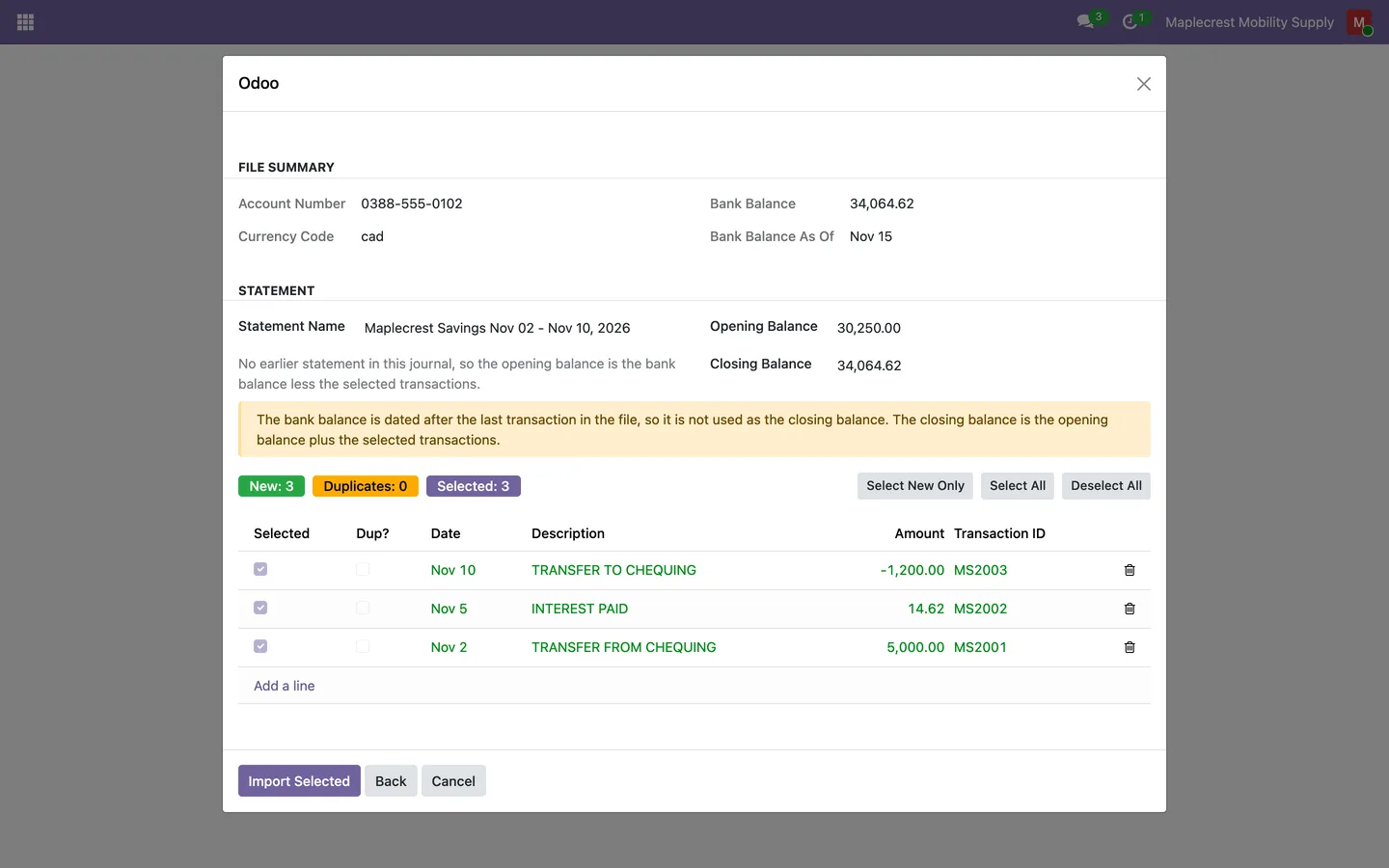
The opening balance carries forward from the closing balance of the journal's previous statement, and the review step names that statement.
-
A bank balance dated later
When the bank's balance is dated after the last transaction in the file, it is not used as the closing balance and a warning explains why.
-
Check the difference
If the opening balance plus the selected lines does not reach the closing balance, a notice shows the difference before you import, and both balances can be adjusted.
What it does
 Importing bank files
- Upload an OFX, QFX or QBO file exported from your bank and turn it into bank statement lines on a bank journal.
- An "Import Statement" button on each bank journal opens the import with that journal already chosen.
- The review step shows the account number, currency, bank balance and the date of that balance read from the file.
- Files are read on your own Odoo server, and nothing is sent to an outside service.
- After the import, a notice counts the lines imported, duplicates found and lines left out, gives the date range and opens the new statement.
 Duplicates and line selection
- Transactions already imported into the same bank journal are recognized by the bank's transaction ID and left unticked.
- New, Duplicates and Selected counters sit above the preview, and "Select New Only", "Select All" and "Deselect All" change the selection in one go.
- Each preview row has its own tick box, and rows are coloured green for new, red for a duplicate you chose to import and grey for a skipped duplicate.
- When a bank sends a blank or placeholder transaction ID, a stable ID is built from the date, amount and description, so the same file is still caught the second time.
- Each imported transaction is remembered per bank journal with its bank ID, date, amount, description and the statement line it created.
 Statement names and balances
- Each statement is named from the journal's prefix and the first and last transaction dates, for example "Maplecrest Chequing Oct 01 - Oct 30, 2026", and the name can be edited before importing.
- The opening balance carries forward from the closing balance of the journal's previous statement, and the screen names that statement.
- The bank's balance becomes the closing balance only when it is dated on or before the last transaction, and a warning explains when it is not used.
- If the opening balance plus the selected lines does not reach the closing balance, a red notice shows the difference before you import.
- Opening and closing balances can be adjusted on the review screen, and the file name is kept as the statement reference.
What's new
Recent changes to Fusion Bank Statements, newest first.
-
- Imported statements are now named from the journal prefix and the first and last transaction dates, and the opening balance carries forward from the previous statement.
- The bank's balance becomes the closing balance only when it is dated on or before the last transaction, and the review screen warns when it is not used.
- Transactions that arrive with a blank or placeholder bank ID now get a stable ID, so a re-imported file is still recognized.
- Re-importing a transaction on purpose now updates its import record instead of failing.
- A file without a balance date gets its own warning, and the statement name is filled in even when every line is a duplicate.
Related modules
 Fusion Accounting
New
Accounting for Odoo Community: bills, bank, invoicing, reports, Canadian tax and assets in one suite.
 Fusion CRA Account Ledger
New
Your CRA payroll, GST/HST and corporate accounts, line by line, matched to your bank and your books.
 Fusion QuickBooks Connector
New
Keep Odoo and QuickBooks Online in step, company by company.
See Fusion Bank Statements on your own Odoo.
Book a call and tell us how your team works today. We'll show you the module and what it would take to set it up. Prefer the phone? Call 905-792-0000.