
Fusion Accounts
Vendor bill emails turned into draft bills, with the sender matched to a vendor.
An invoice email sent to your vendor bill address becomes a draft vendor bill, with the email and its PDF attached to the bill. Each sender is matched to a vendor by exact email address, then by company email domain or website, then by sender name when only one contact has that name, and the match level is recorded.
- Odoo 19
- Version 19.0.1.0.1
Fusion Accounts, step by step
3 workflows, 11 steps. Every screen is real, from a demo company with invented data.
A vendor emails a bill
Invoice emails sent to your vendor bill address become draft bills with the email and PDF attached, and the sender is matched to a vendor.
-
Add the vendor
A vendor contact with the address it bills from is what lets an email match at the exact email level.
Fusion Accounts > Vendors > All Vendors
-
Send bill email to Odoo
Mail sent to the vendor bills journal's email alias, or to an incoming mail server that creates journal entries, reaches Fusion Accounts.
Invoicing > Configuration > Journals > Vendor Bills > Email Alias
-
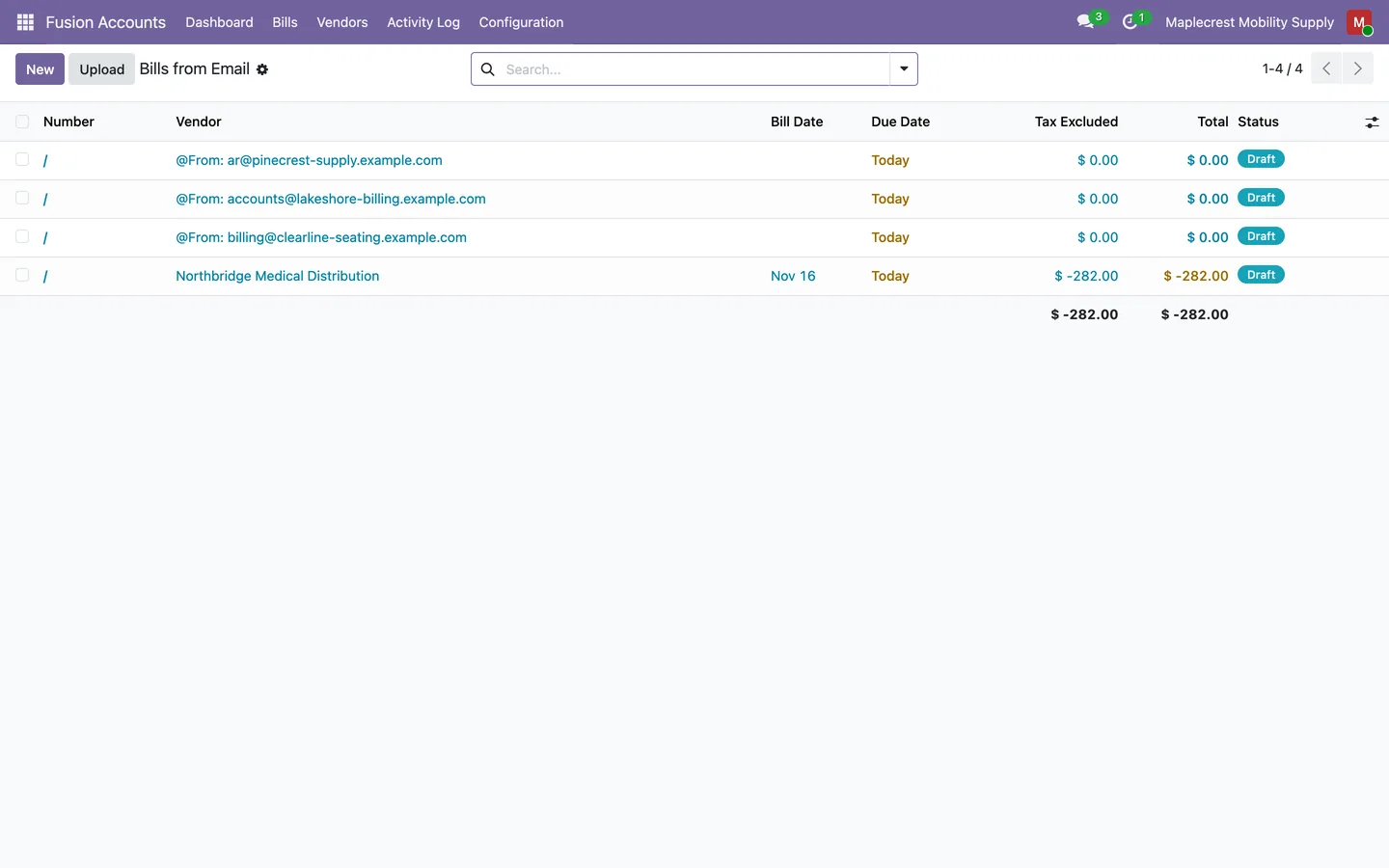
The email arrives
The sender is matched, a draft vendor bill is created with the email and its PDF on it, and a "Bill Created" entry is logged.
Fusion Accounts > Bills > Bills from Email
-
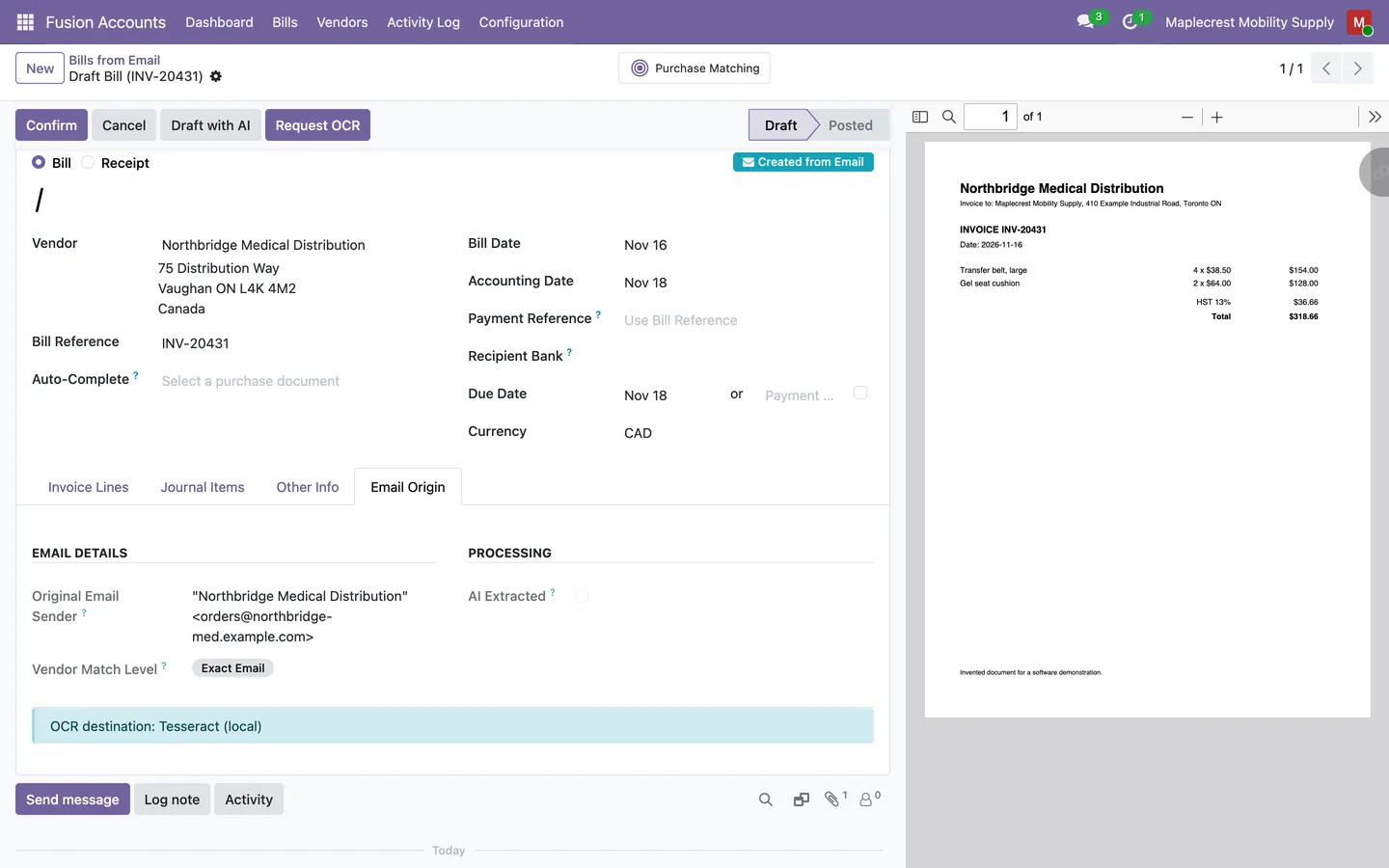
Review the draft bill
The bill carries a "Created from Email" badge and an "Email Origin" tab with the original sender and how the vendor was matched, beside the PDF.
Keep purchase order vendors out
Vendors whose bills should come from purchase orders are blocked from email billing, and their emails are kept as notes instead.
-
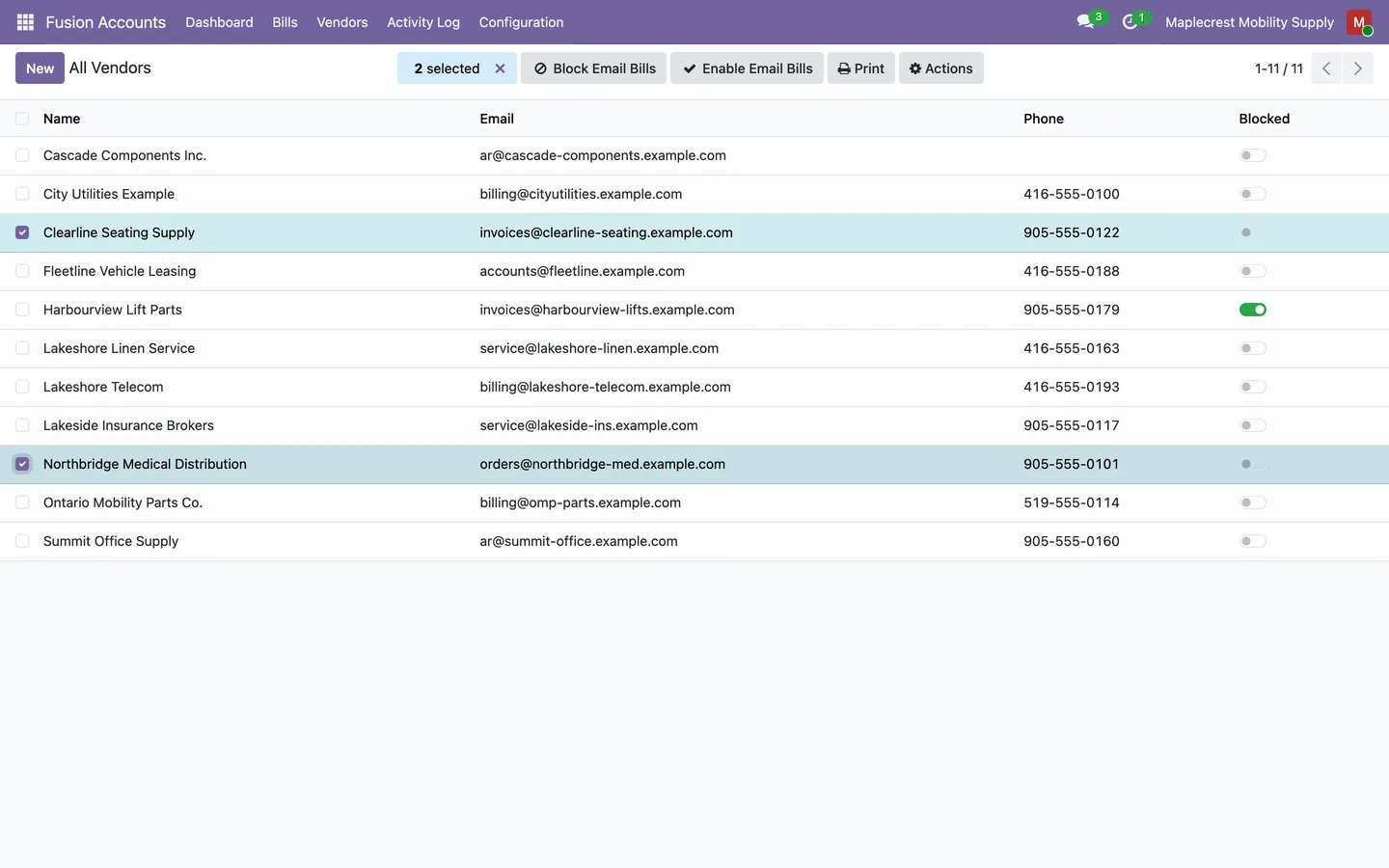
Block vendors in bulk
Select vendors in the list and use "Block Email Bills" or "Enable Email Bills". The Blocked column shows who is on hold.
Fusion Accounts > Vendors > All Vendors
-
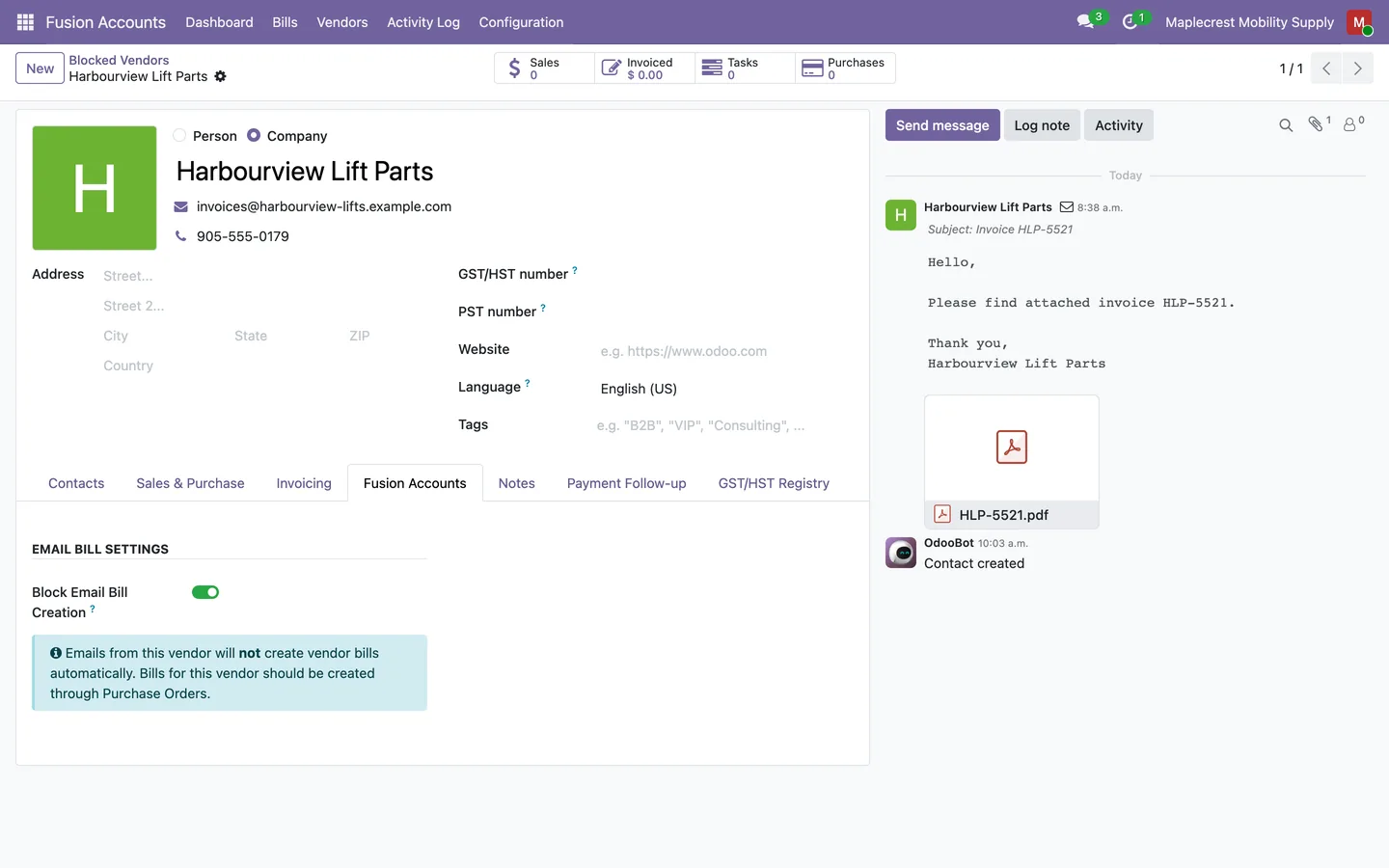
Block one vendor
The vendor's "Fusion Accounts" tab holds the "Block Email Bill Creation" toggle and a note that its bills should come through purchase orders.
Vendor > Fusion Accounts tab
-
A blocked email arrives
No bill is created. The email and its PDF are kept as an internal note on the vendor, a "Blocked (Vendor)" entry is logged, and nothing is sent back to the sender.
-
Lift a block
Blocked vendors are listed together and can be enabled again in bulk, or from the log entry with "Enable Vendor".
Fusion Accounts > Vendors > Blocked Vendors
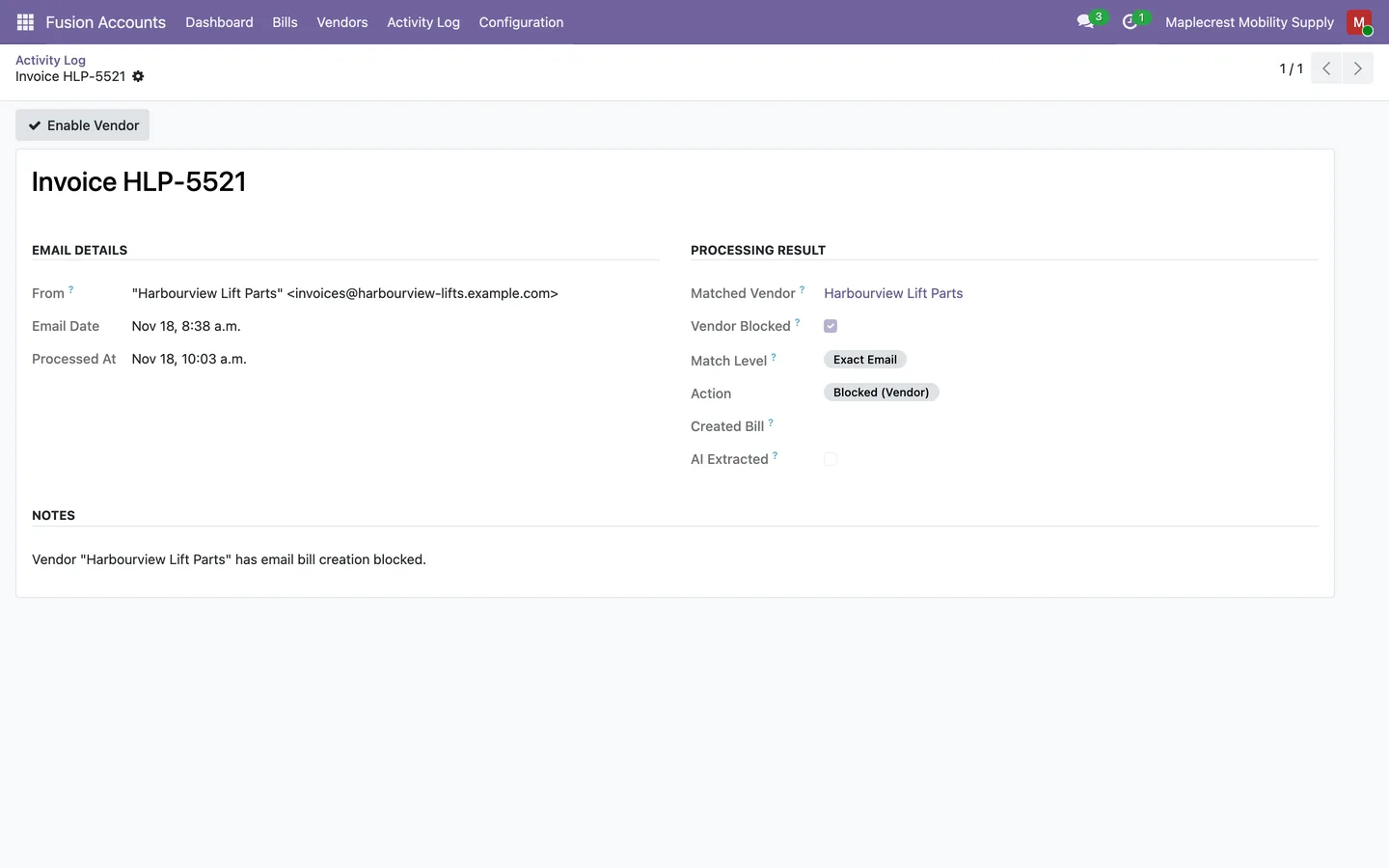
Check what the mailbox did
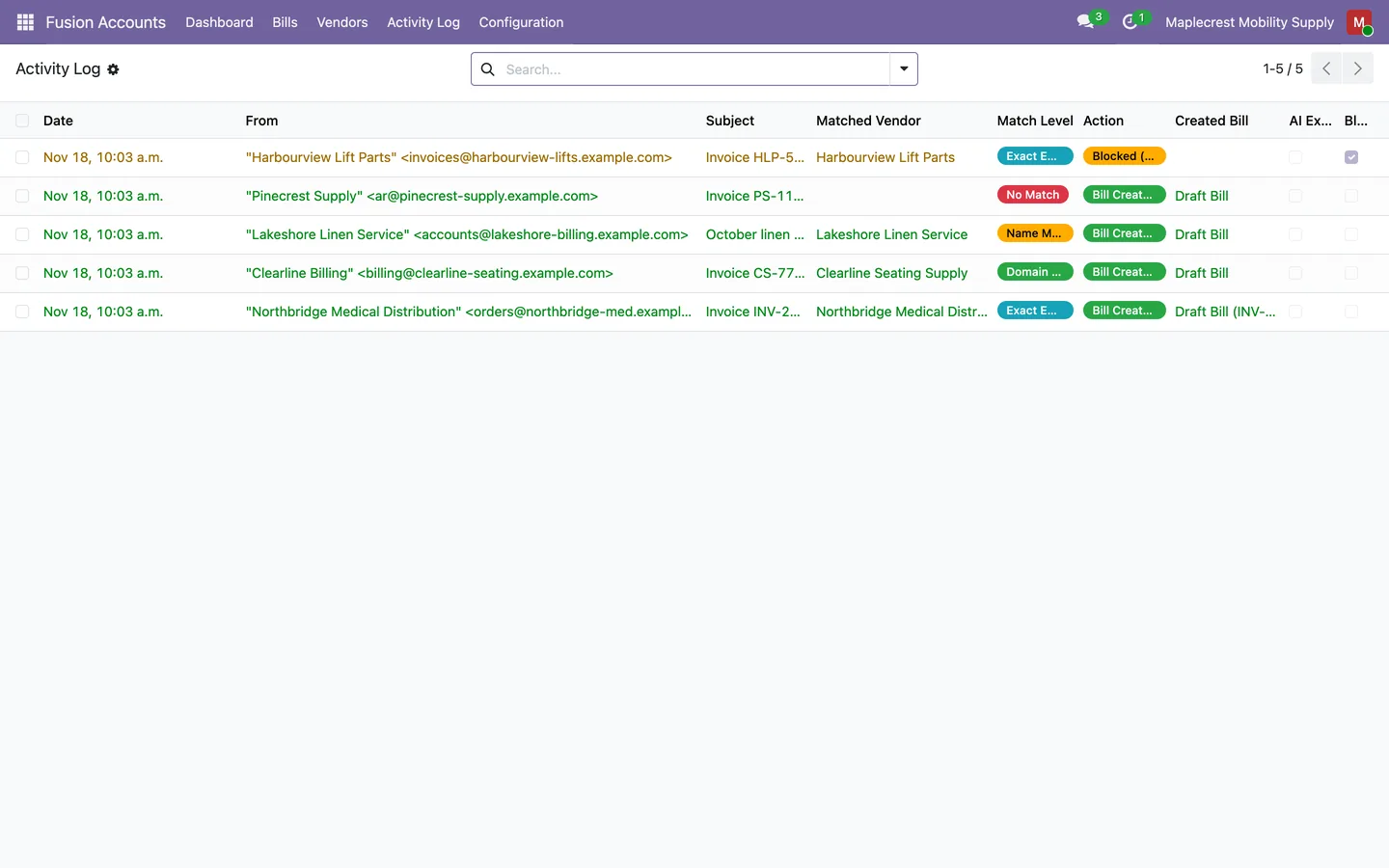
Every processed email is logged with its sender, match level, the action taken and the bill it created.
-
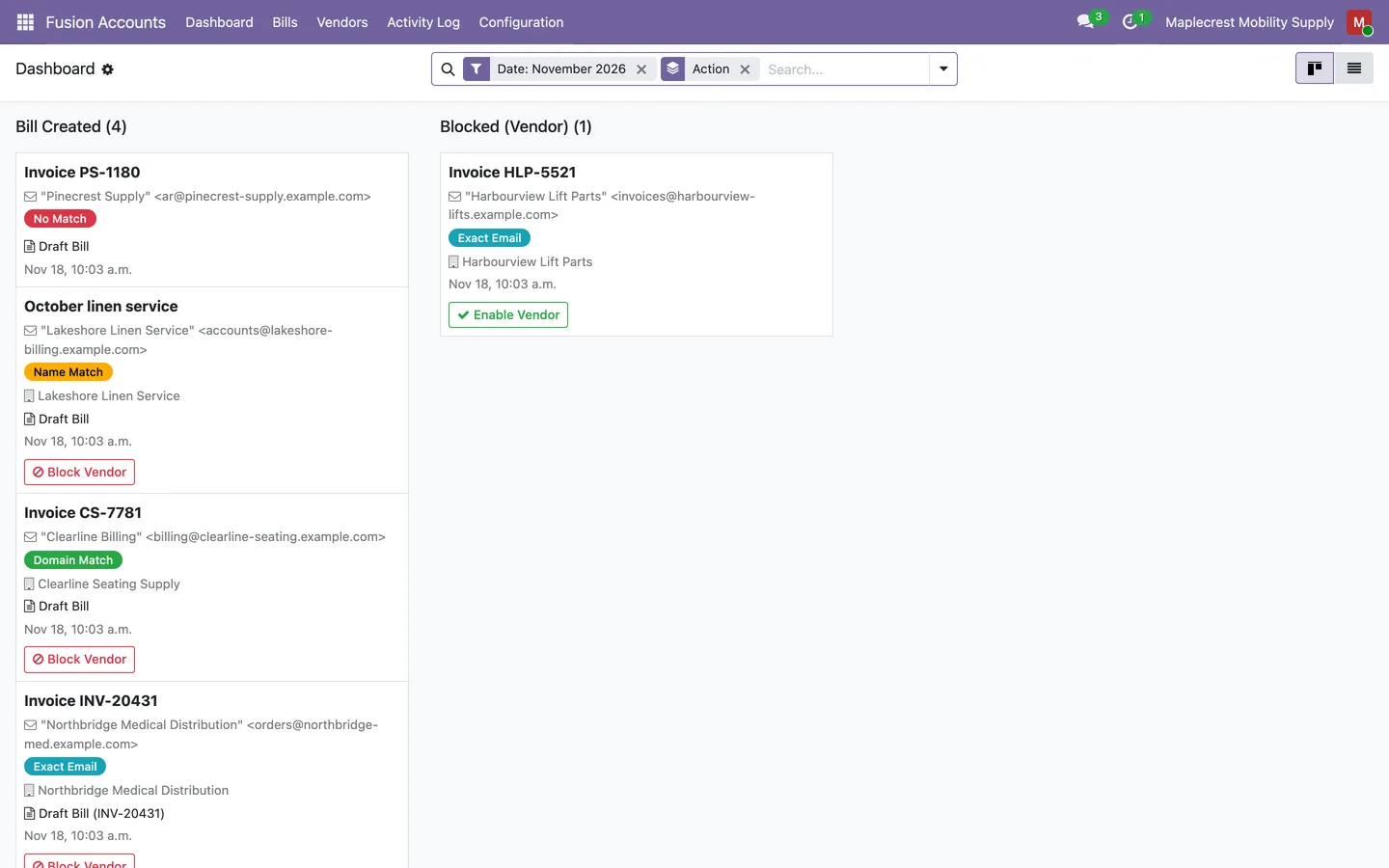
Open the dashboard
Processed emails appear as cards grouped by the action taken, each with a colour badge for the match level and "Block Vendor" or "Enable Vendor".
Fusion Accounts > Dashboard
-
Filter the activity log
The log filters by bills created, blocked, exact email, domain, name or no match, and groups by action, match level, vendor or date.
Fusion Accounts > Activity Log
-
Tune the matching
An administrator can switch domain matching and name matching off in the settings.
Fusion Accounts > Configuration > Settings
What it does
 From email to draft bill
- An invoice email sent to your vendor bill address becomes a draft vendor bill, with the email and its PDF attached to the bill.
- Each sender is matched to a vendor by exact email address, then by company email domain or website, then by sender name when only one contact has that name, and the match level is recorded.
- Free mail domains such as gmail.com, outlook.com and icloud.com are never used for domain matching.
- A bill made from an email carries a "Created from Email" badge and an "Email Origin" tab showing the original sender and how the vendor was matched.
- A "Bills from Email" list and a "From Email" filter show every bill that came in by email.
- With an OpenAI API key, the vendor, bill reference, bill date, due date and up to 20 lines are read from the attached PDF or from the email text. (needs an OpenAI API key)
- Domain matching and name matching can each be switched off in the settings.
 Vendors billed through purchase orders
- Turning on "Block Email Bill Creation" for a vendor stops its emails from creating bills, for vendors whose bills should come from purchase orders.
- An email from a blocked vendor is kept as an internal note on that vendor, with its attachments, and nothing is sent back to the sender.
- Vendors are blocked or enabled in bulk from the vendor list with "Block Email Bills" and "Enable Email Bills".
- "Blocked Vendors" lists every vendor on hold, and "Vendors with Active POs" lists vendors with purchase order lines so you can choose whom to block.
- "Block Vendor" and "Enable Vendor" buttons sit on each dashboard card and log entry.
 Dashboard and activity log
- Every processed email is logged with its sender, subject, date, matched vendor, match level, the action taken and the bill it created.
- The Dashboard shows processed emails as cards grouped by the action taken, each with a colour badge for the match level.
- The Activity Log filters by bills created, blocked, exact email, domain, name or no match, and groups by action, match level, vendor, day, week, month or year.
- Log entries are read-only for users, and only Fusion Accounts administrators see the settings.
What's new
Recent changes to Fusion Accounts, newest first.
-
- Emails from a blocked vendor are now kept as an internal note on the vendor and logged as blocked, instead of bouncing back to the sender.
Related modules
 Fusion Digitize
Odoo document digitization answered by your own OpenAI key instead of Odoo credits.
 Fusion Accounting
New
Accounting for Odoo Community: bills, bank, invoicing, reports, Canadian tax and assets in one suite.
 Fusion Accounting AI
An accounting co-pilot that proposes and waits for your approval.
See Fusion Accounts on your own Odoo.
Book a call and tell us how your team works today. We'll show you the module and what it would take to set it up. Prefer the phone? Call 905-792-0000.