
Fusion Clock AI
Plain-English attendance answers on top of Fusion Clock, using your own OpenAI key.
An AI Assistant button in the back-office top bar opens a chat panel where a Fusion Clock manager asks about the team's attendance in plain English. The OpenAI key, the model (GPT-4o, GPT-4o Mini or GPT-3.5 Turbo) and the maximum answer length are set on the Fusion Clock settings page.
- Odoo 19
- Version 19.0.1.0.0
Fusion Clock AI, step by step
4 workflows, 15 steps. Each picture is a diagram of how the step works.
Set up the assistant and keep its cost in check
You bring your own OpenAI account, set a monthly budget and choose which assistants are on.
-
Enter the key and model
A manager pastes the OpenAI key and picks the model on the Fusion Clock settings page.
Fusion Clock > Configuration > Settings
-
Set the monthly budget
A monthly budget caps the month's estimated spend, and AI requests stop once it is reached.
-
Choose the assistants
Manager chat, the employee assistant, report narratives and correction advice each have their own switch.
-
Adjust the wording
Every instruction the assistant uses is an editable template, grouped by feature.
Fusion Clock > AI > Prompt Templates
-
Watch the spend
Every AI call adds its tokens and estimated cost to the Usage Dashboard by day, feature and model.
Fusion Clock > AI > Usage Dashboard
A manager asks about the team
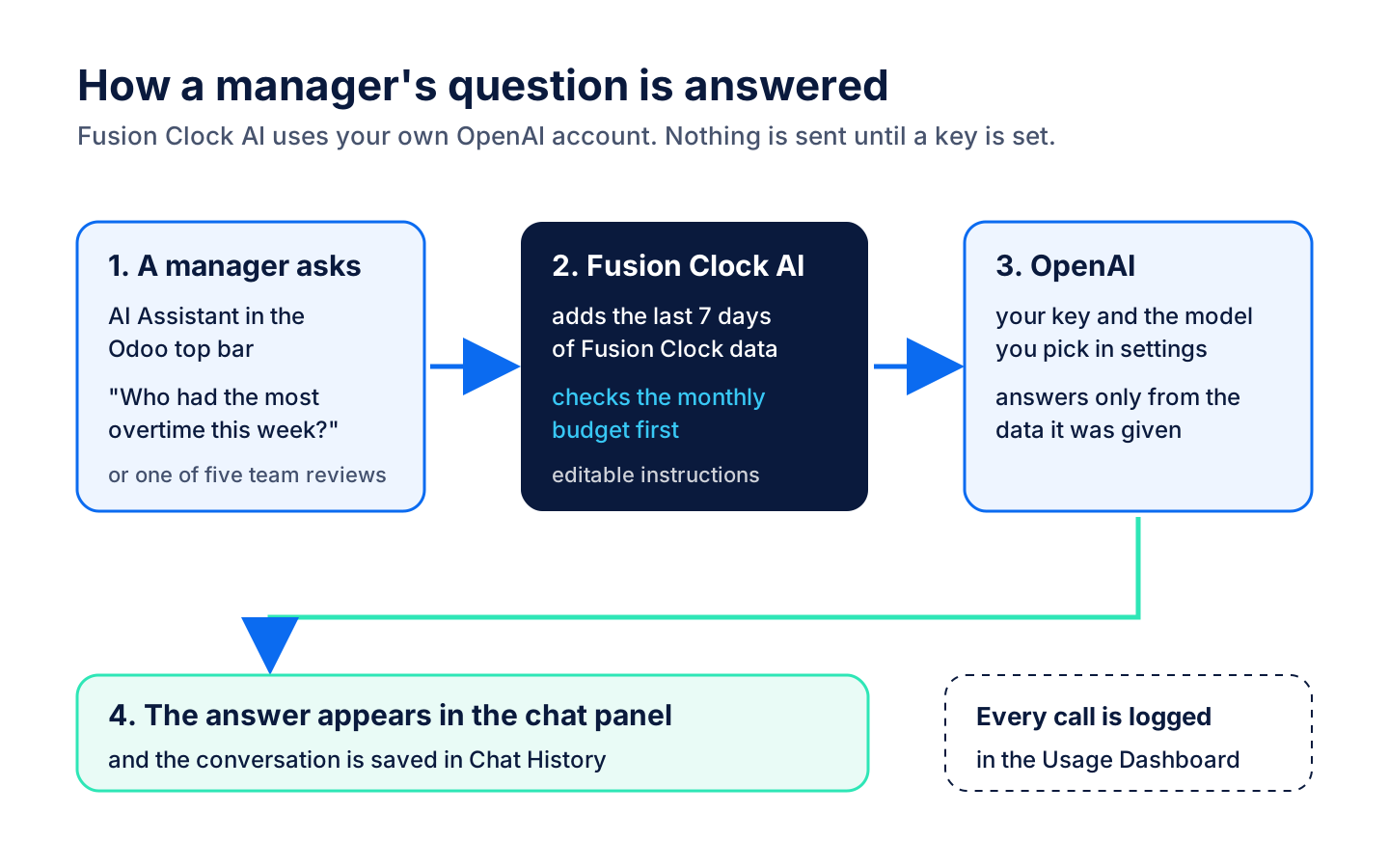
A chat panel in the Odoo top bar answers attendance questions from the last seven days of Fusion Clock data.
-
Open the assistant
The AI Assistant button in the top bar opens a panel with Chat and Tools tabs.
-
Ask a question
The question goes with seven days of team totals, such as net hours, overtime, penalties and absences, and the answer appears in the panel. The assistant is told to answer only from that data.
-
Run a team review
The Tools tab runs Anomaly Scan, Staffing Forecast, Shift Optimizer, Compliance Check and Geofence Tuning on the same seven days, and a repeat within 15 minutes is not paid twice.
-
Review past conversations
Managers can read every saved conversation.
Fusion Clock > AI > Chat History
AI notes on reports, corrections and employee files
Buttons on existing Fusion Clock screens add a short written summary or a suggestion.
-
Narrative on a report
"Generate AI Narrative" on a pay-period report writes a short paragraph about the hours, overtime and notable events.
Fusion Clock > Reports > All Reports
-
Advice on a correction
"Get AI Advice" weighs the requested times and reason against the last 30 days and suggests approving, reviewing further or discussing it with the employee.
Fusion Clock > Attendance > Correction Requests
-
Summary and coaching tip
The employee form's AI Insights tab holds a 30-day attendance summary and a personal coaching tip, each made with one button, and a weekly job refreshes the tips.
Fusion Clock > Employees > AI Insights
An employee asks the portal assistant
A chat bubble on the Fusion Clock page answers questions about the employee's own records only.
-
Open the assistant
A chat bubble on the Clock page opens the AI Assistant with quick buttons.
Portal > Clock
-
Ask about hours
"My hours this week" or a typed question is answered from the employee's own last 30 days, never a co-worker's records.
-
Polish a reason
"Polish my reason" rewrites a rough leave or absence note into a short, clear message without changing its facts.
What it does
 For managers
- An AI Assistant button in the back-office top bar opens a chat panel where a Fusion Clock manager asks about the team's attendance in plain English.
- Each answer is built from the last seven days for every clock-enabled employee in the company: days worked, net hours, overtime, penalties, late arrivals, absences and on-time streak.
- Four suggested questions, such as who had the most overtime this week, start a conversation with one click.
- A Tools tab runs five one-click reviews of the same seven days: Anomaly Scan, Staffing Forecast, Shift Optimizer, Compliance Check and Geofence Tuning.
- The assistant is instructed to answer only from the attendance data it is given and to say so when that data does not hold the answer.
 For employees
- A chat bubble on the employee's Fusion Clock portal page opens an AI Assistant for questions about their own hours, overtime, absences, penalties and assigned shift over the last 30 days.
- Quick buttons ask for "My hours this week" or a "Coach tip" in one tap.
- "Polish my reason" rewrites a rough leave or absence note into a short, clear message for the manager without changing its facts.
- The assistant receives only the signed-in employee's own records, never a co-worker's.
 Notes on reports and corrections
- On a pay-period attendance report, "Generate AI Narrative" writes a short paragraph about the period's hours, overtime and notable events and shows it on an AI Narrative tab.
- On a pending correction request, "Get AI Advice" weighs the requested times and reason against the employee's last 30 days and ends with a suggestion to approve, review further or discuss it with the employee.
- The employee form gains an AI Insights tab for managers and team leads, with a 30-day attendance summary and a personal coaching tip, each generated with one button.
 Cost control and set-up
- The OpenAI key, the model (GPT-4o, GPT-4o Mini or GPT-3.5 Turbo) and the maximum answer length are set on the Fusion Clock settings page.
- A monthly budget, $50 US by default, stops AI requests once the month's estimated spend reaches it.
- A Usage Dashboard shows requests, tokens and estimated cost by day, week, feature and model as a graph, pivot table or list.
- Every instruction the assistant uses is an editable template, grouped by feature, so the wording can be changed without a developer.


See Fusion Clock AI on your own Odoo.
Book a call and tell us how your team works today. We'll show you the module and what it would take to set it up. Prefer the phone? Call 905-792-0000.