
Fusion Planning
Faster shift entry and role set-up for Odoo Planning.
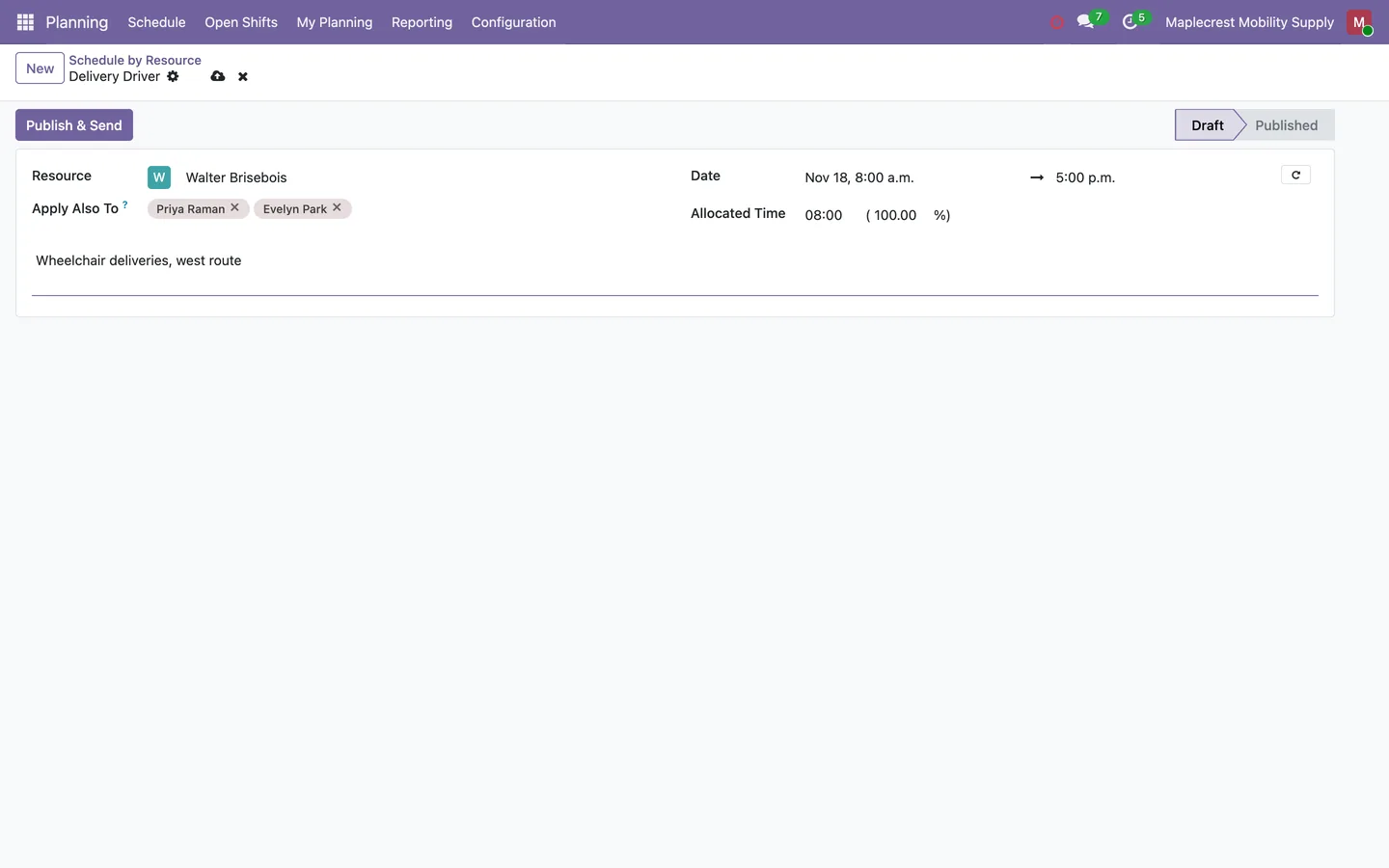
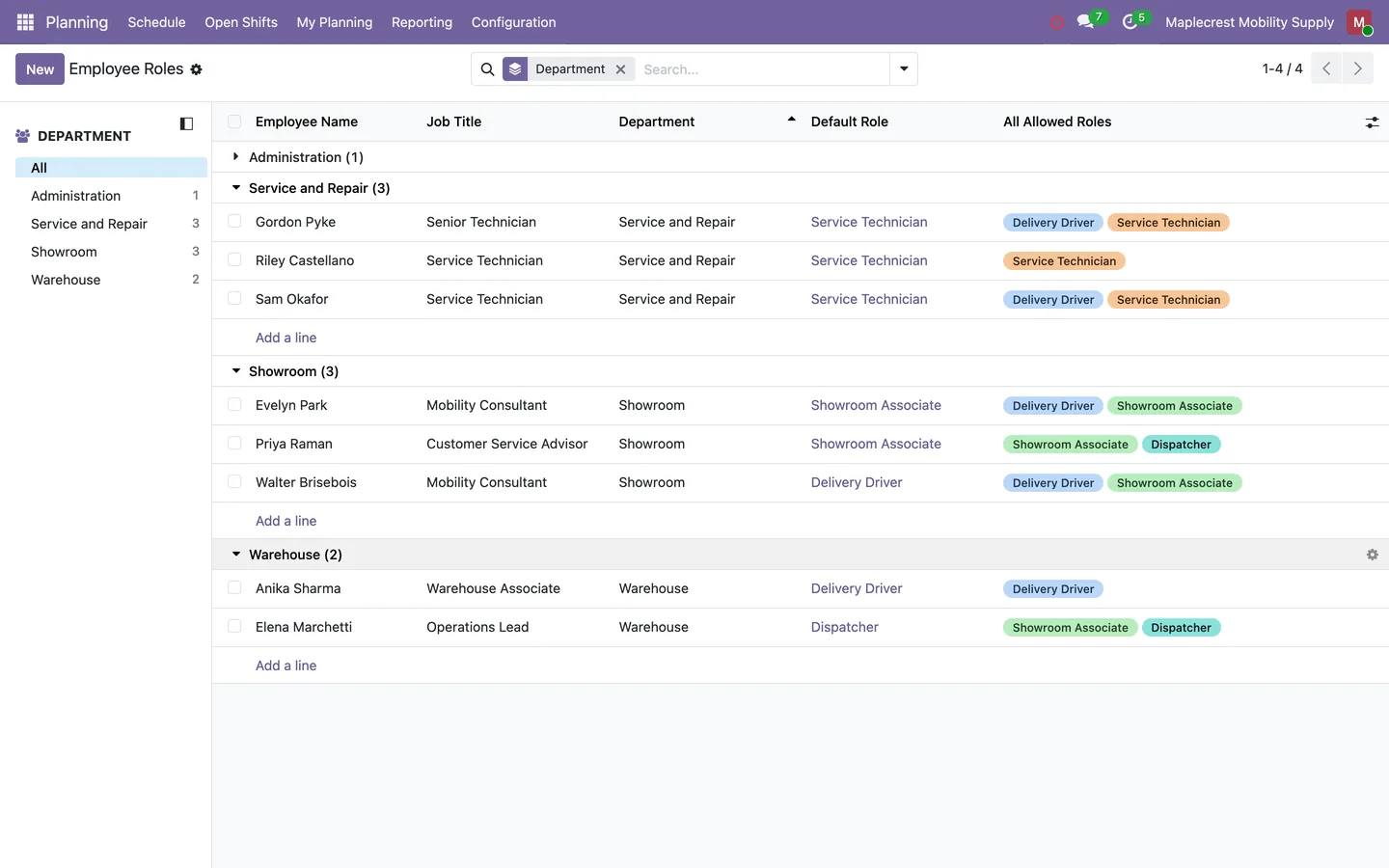
An "Apply Also To" field on the new-shift form lets a planning manager pick more employees and get the same shift for each of them in one save. An Employee Roles list in Planning's configuration shows every active employee grouped by department, with their default role and allowed roles editable right in the list.
- Odoo 19
- Version 19.0.1.5.0
- Newly listed
Fusion Planning, step by step
1 workflow, 4 steps. Every screen is real, from a demo company with invented data.
Schedule the same shift for several employees
Roles are set once in a single list, then one save in Odoo Planning makes the same published shift for several people.
-
Give each employee a role
One list, grouped by department, shows every active employee with their default role and allowed roles, and both can be changed right in the list. Several employees can be ticked and given the same role in one edit.
Planning > Configuration > Employee Roles
-
Open the schedule
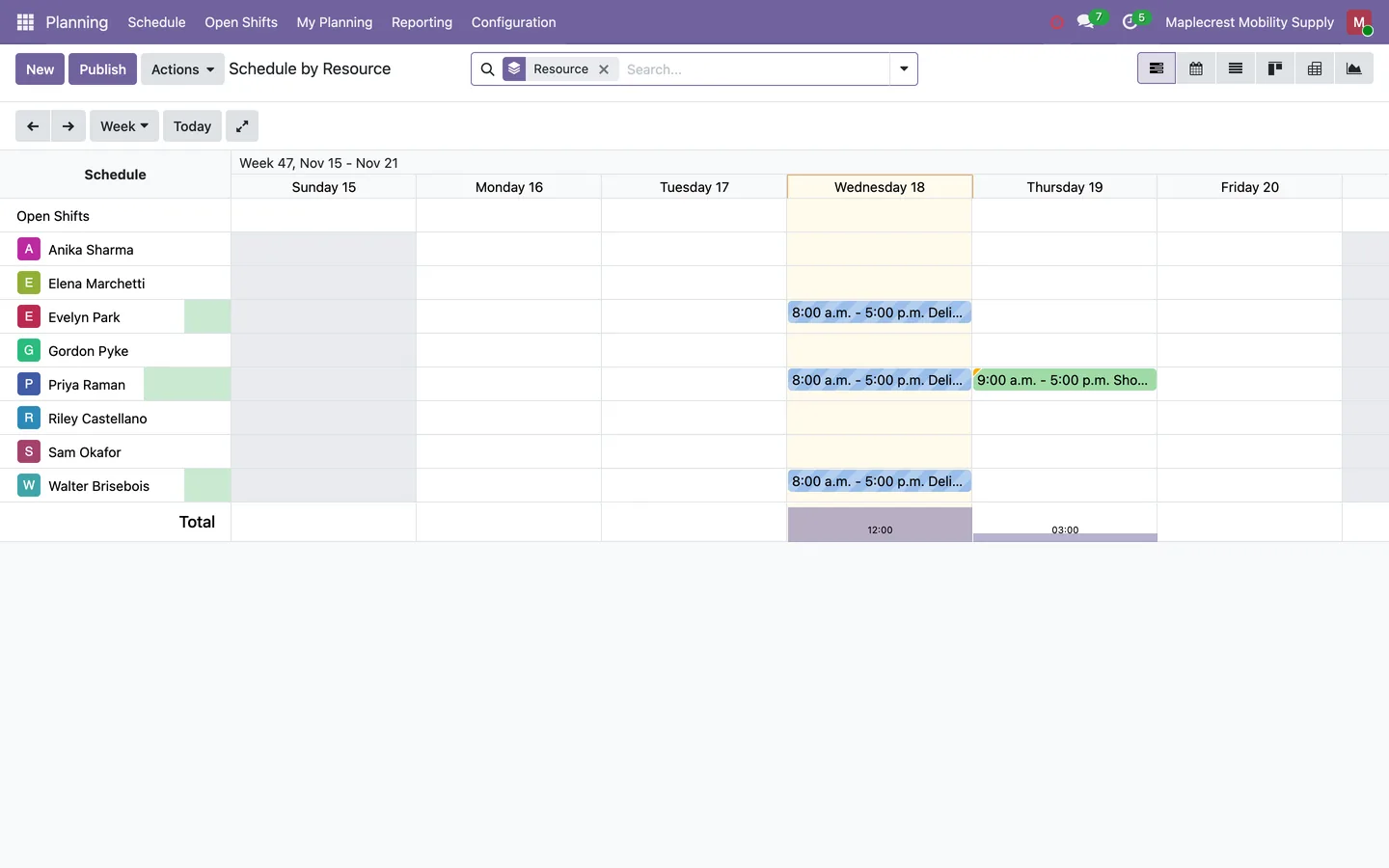
Odoo Planning's own schedule shows shifts by employee, and its New button opens the shift form.
Planning > Schedule > By Resource
-
Add more employees to the shift
The manager picks the employee, date and hours and adds more people in "Apply Also To". Each copy gets the same date, hours, note and repeat settings.
-
Published in one save
The save makes one shift per person, each already published, so they show on the schedule without a separate publish step.
What it does
 Faster shift entry
- An "Apply Also To" field on the new-shift form lets a planning manager pick more employees and get the same shift for each of them in one save.
- Each copy carries the same date, hours, note and repeat settings as the shift it was made from.
- New shifts are published as soon as they are saved, so employees see them without a separate publish step.
 Employee roles
- An Employee Roles list in Planning's configuration shows every active employee grouped by department, with their default role and allowed roles editable right in the list.
- Several employees can be selected and given the same role in one edit.
- Allowed roles show as tags in each role's colour.


See Fusion Planning on your own Odoo.
Book a call and tell us how your team works today. We'll show you the module and what it would take to set it up. Prefer the phone? Call 905-792-0000.