
Fusion Faxes
Fax sales orders and invoices through RingCentral and keep every fax on file.
Send faxes from sales orders and invoices through RingCentral. Keep fax history against each contact and related document.
- Odoo 19
- Version 19.0.2.1.1
Fusion Faxes, step by step
3 workflows, 10 steps. Every screen is real, from a demo company with invented data.
Fax an order or invoice
Fax a sales order or invoice to the customer from the record itself, and keep the fax with it.
-
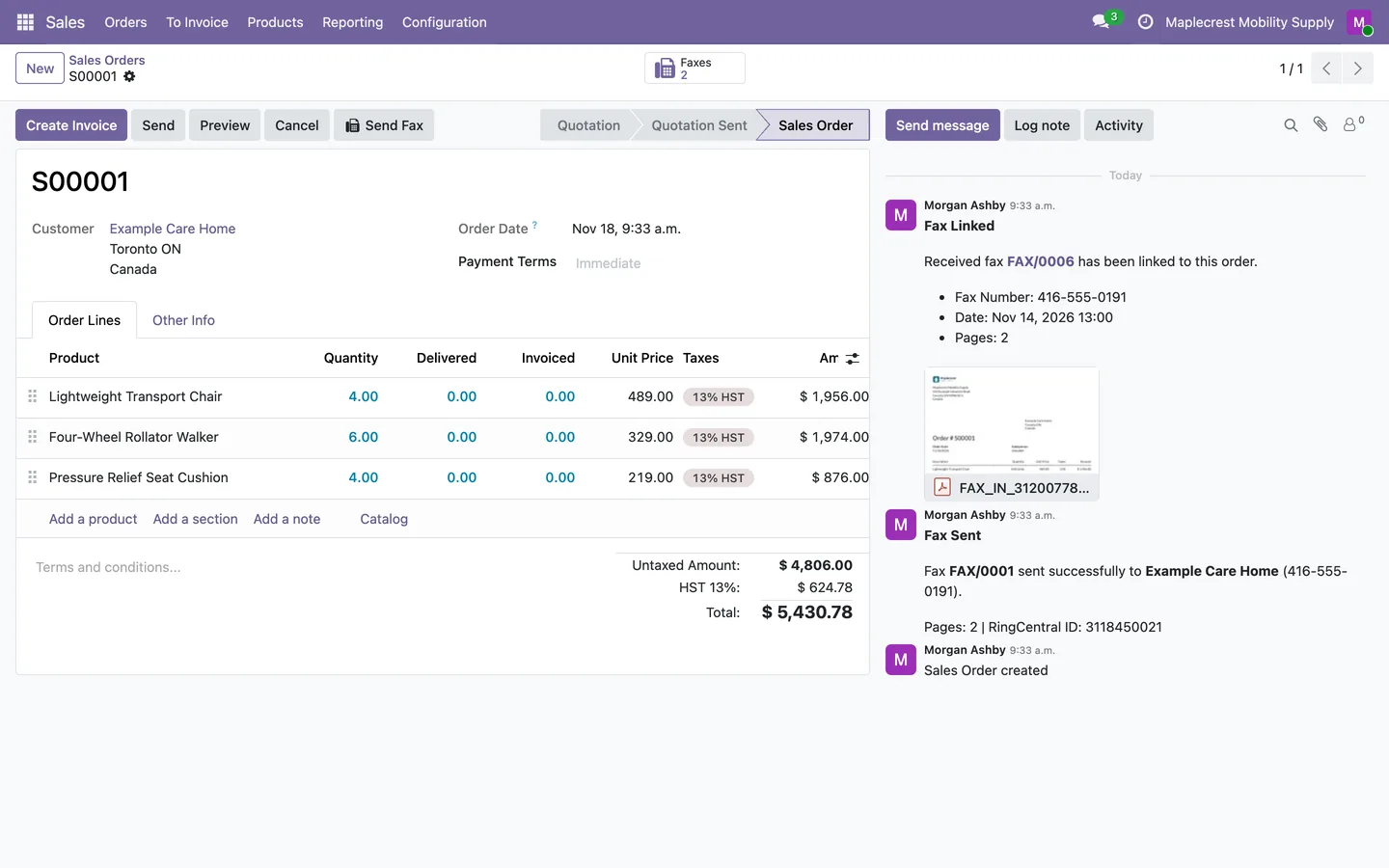
Send Fax from the order
A confirmed order shows "Send Fax" in its header and a Faxes button counting the faxes linked to it.
Sales > Orders > Orders
-
Choose the pages
The dialog fills the fax number from the contact and attaches a PDF of the order. Add cover page text and extra files, drag them into order, then "Send Fax".
-
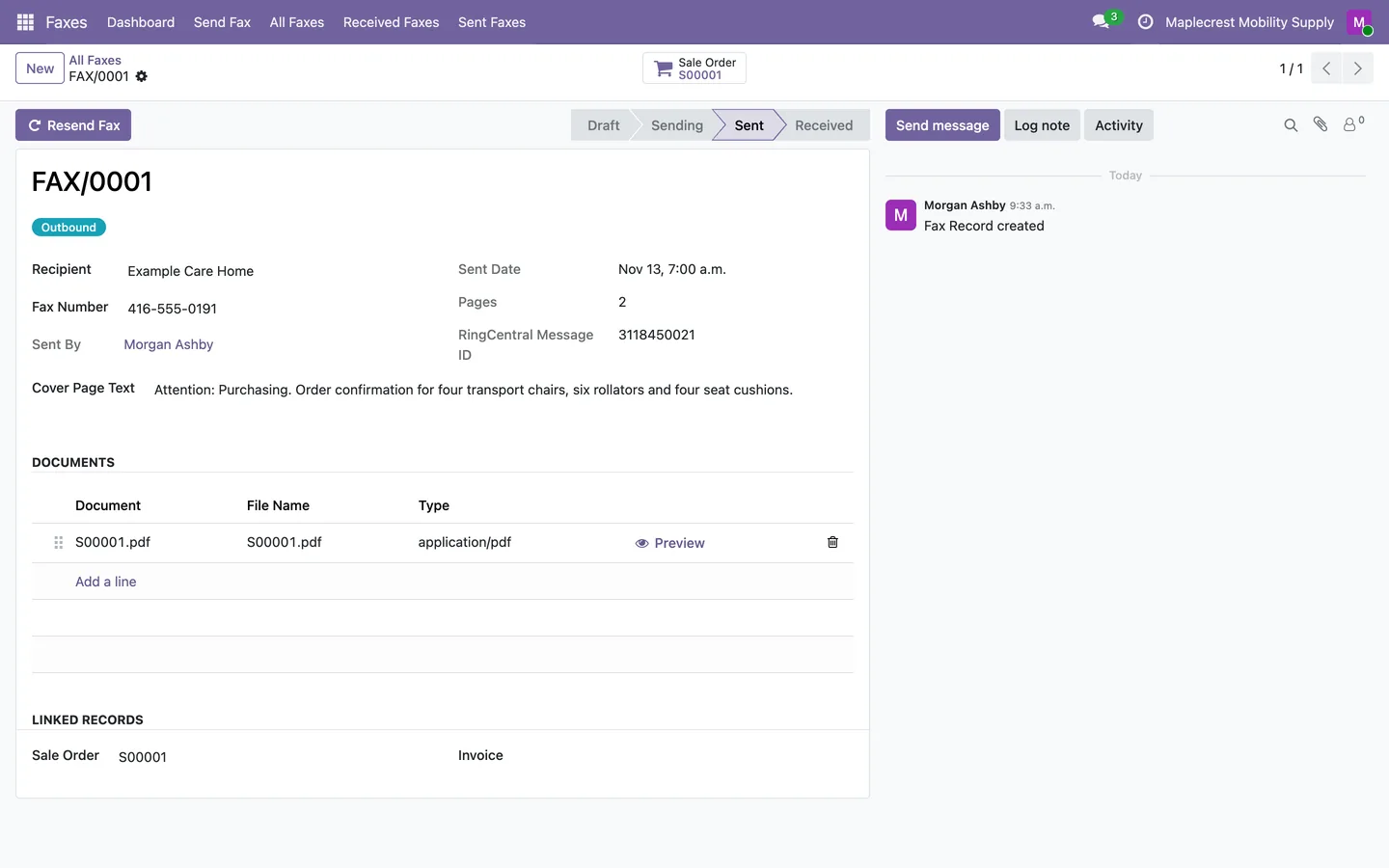
The fax record
The fax keeps the recipient, fax number, sent date, pages, cover page text, the documents in order and the linked order. A sent fax can be resent and a failed one retried.
Faxes > All Faxes
-
Invoices too
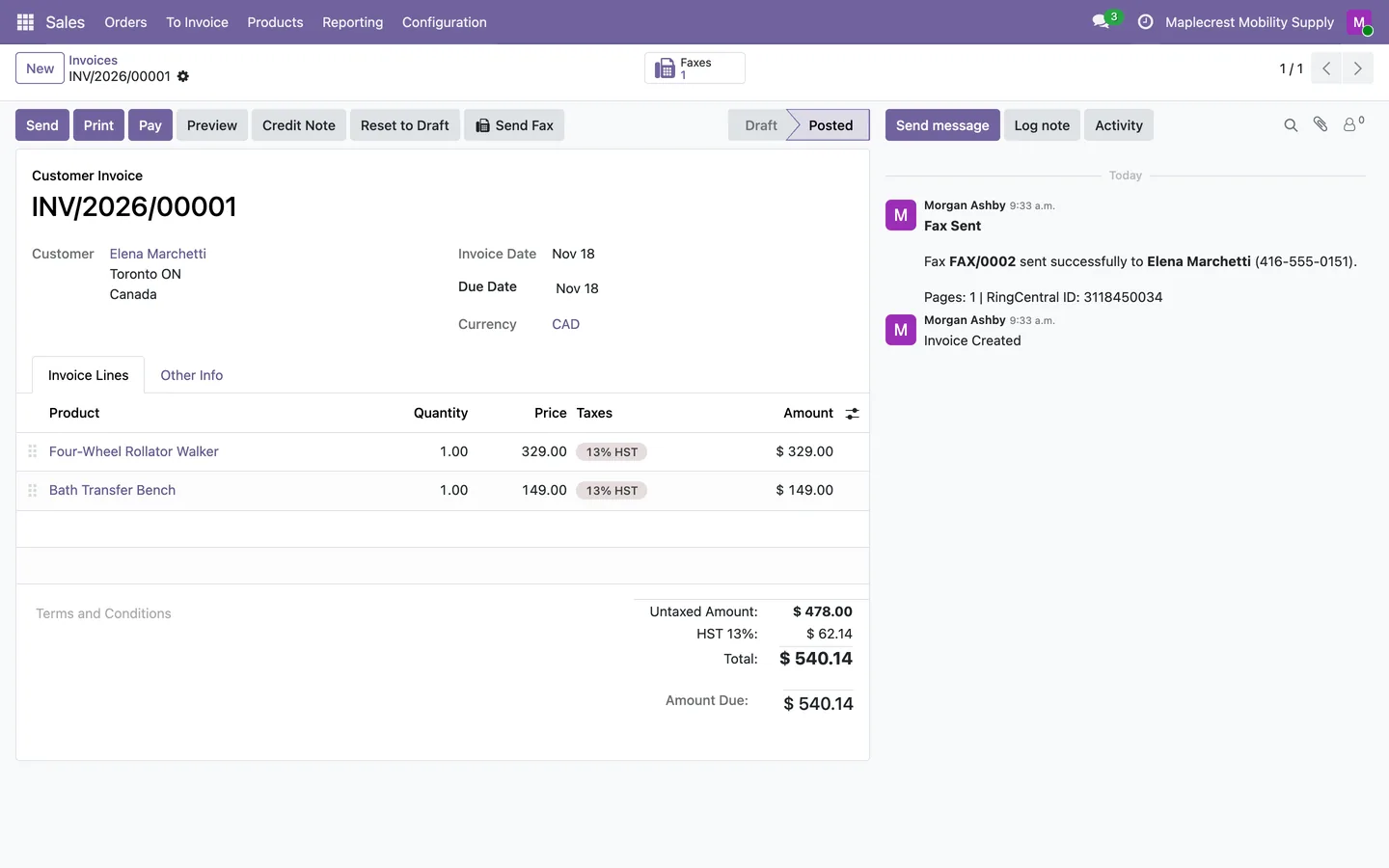
A posted customer invoice has the same Send Fax and Faxes buttons, and a "Fax Sent" note lands in its chatter.
Invoicing > Customers > Invoices
Receive a fax and file it
With Fusion Connect connected to RingCentral, incoming faxes land in Odoo and are filed against the order they belong to.
-
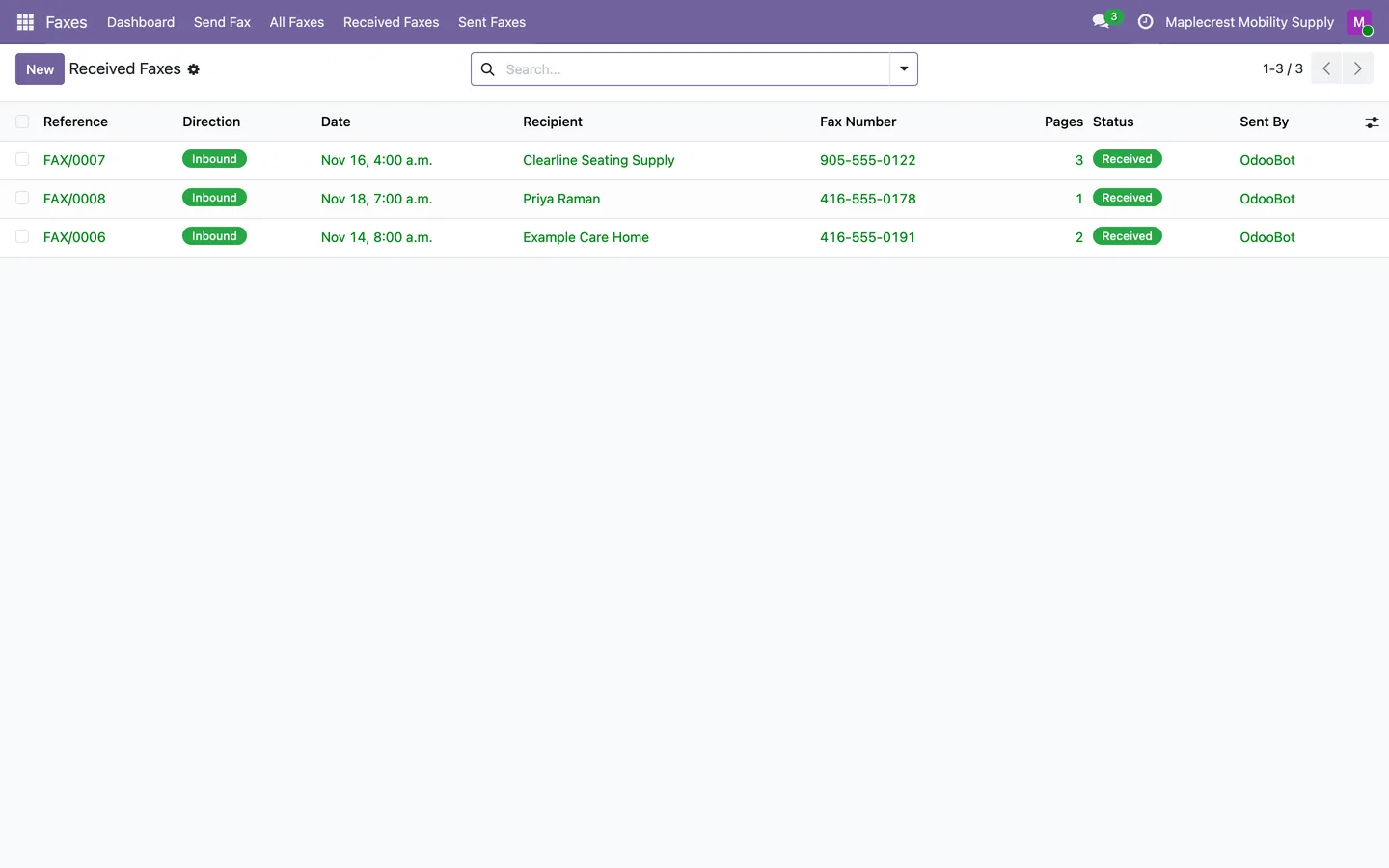
Faxes arrive
Every 5 minutes new faxes are fetched with their pages and matched to the contact whose fax number sent them.
Faxes > Received Faxes
-
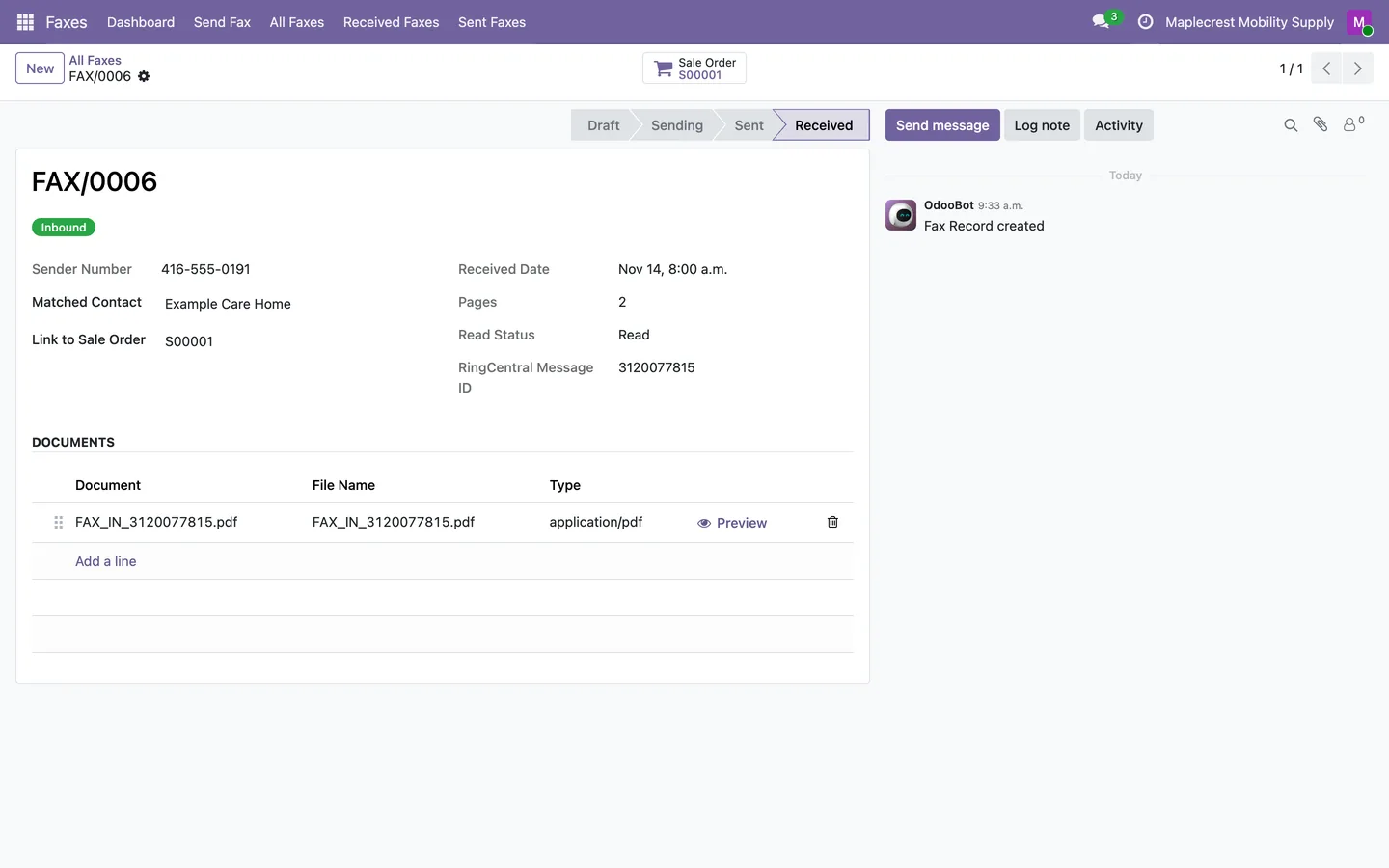
Open the fax
The fax shows the sender number, matched contact, received date, pages, read status and the PDF pages.
-
Link it to the order
Choosing the sales order posts "Fax Linked" on the order with the fax number, date, pages and the PDF attached.
Keep track of every fax
See every fax at a glance, by status and by contact, and set up the RingCentral login once.
-
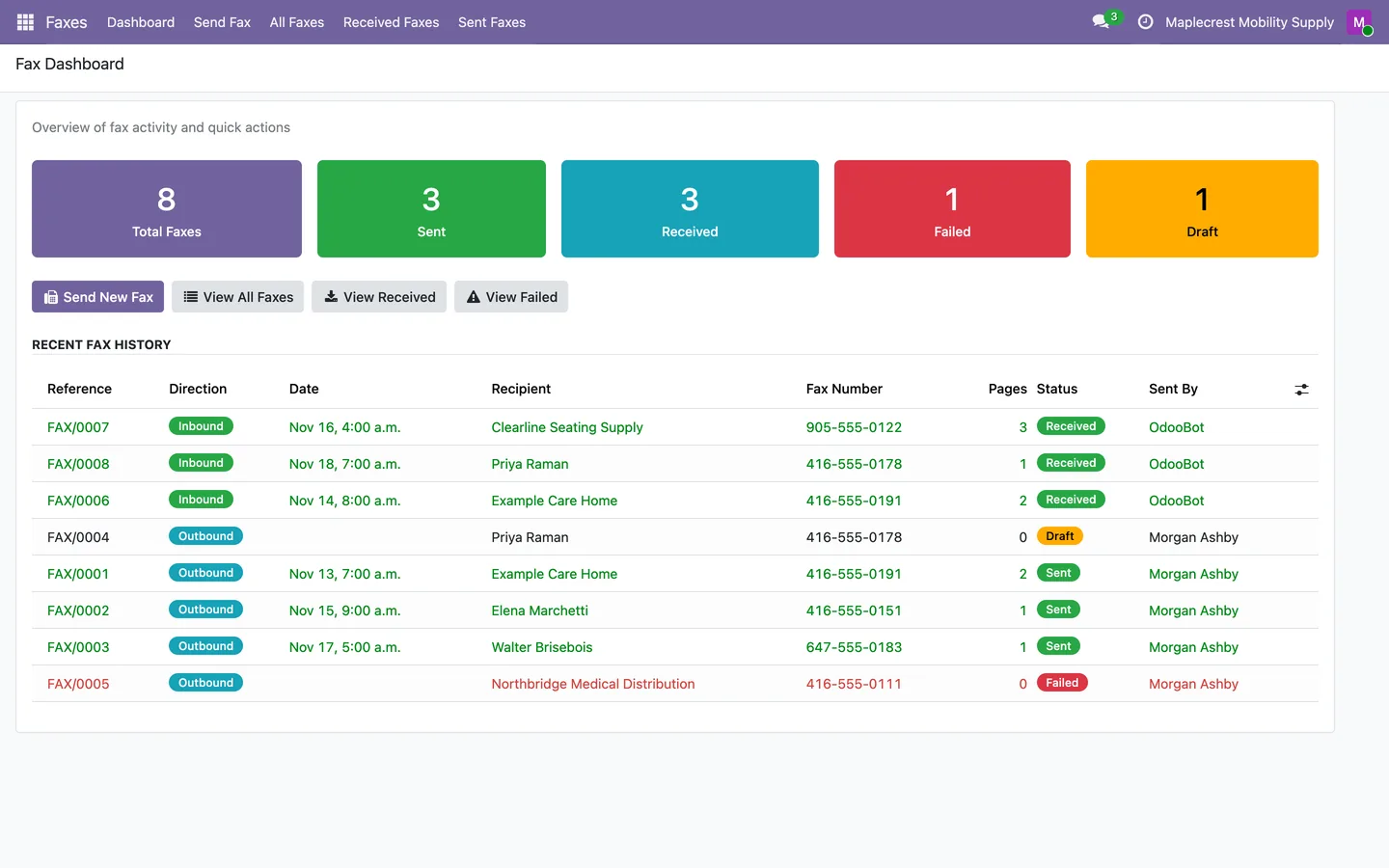
Fax dashboard
Counts of total, sent, received, failed and draft faxes open the matching lists, above the 20 most recent faxes.
Faxes > Dashboard
-
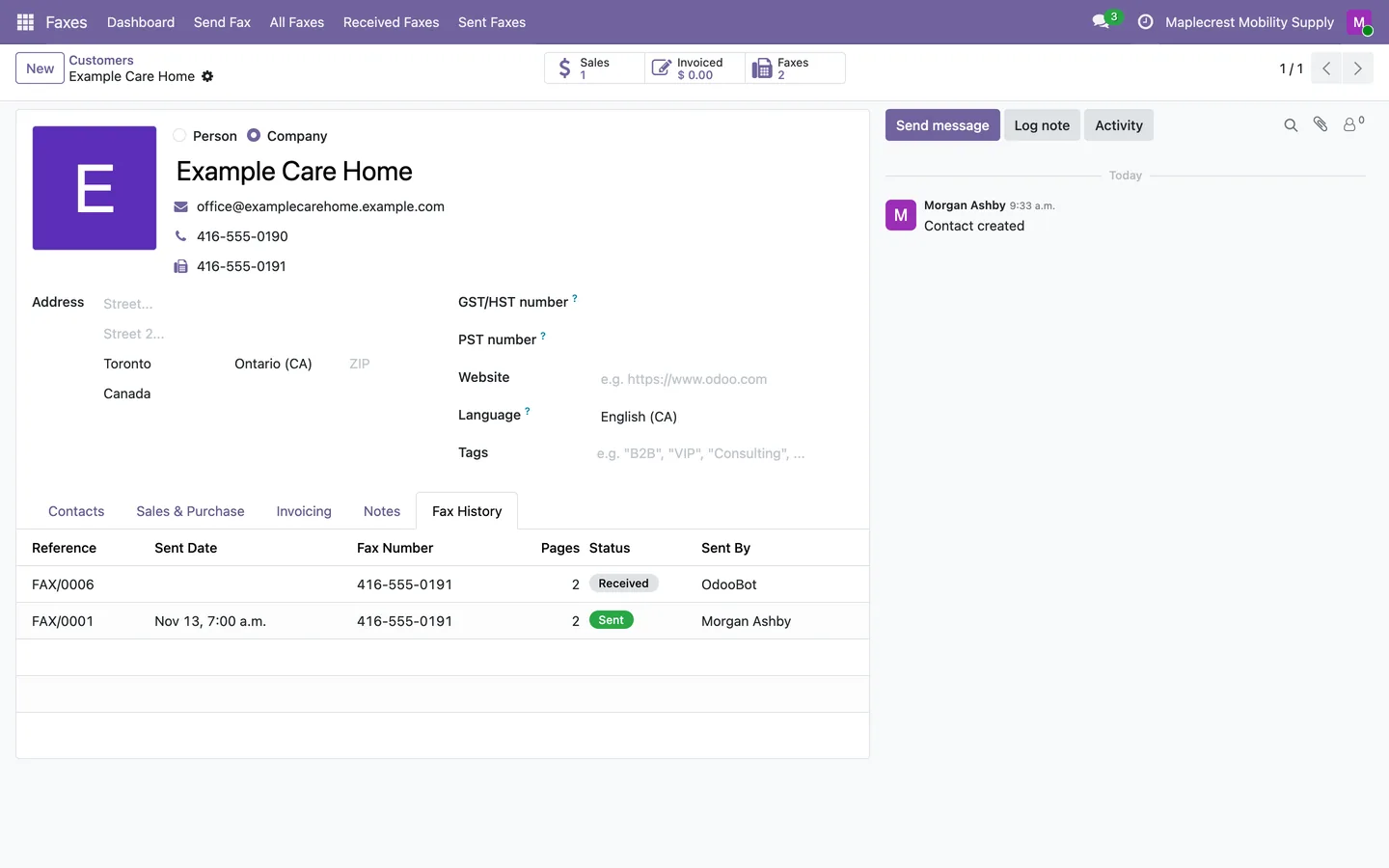
Contact history
Each contact shows its fax number under the phone, a Faxes button and a Fax History tab.
Sales > Orders > Customers
-
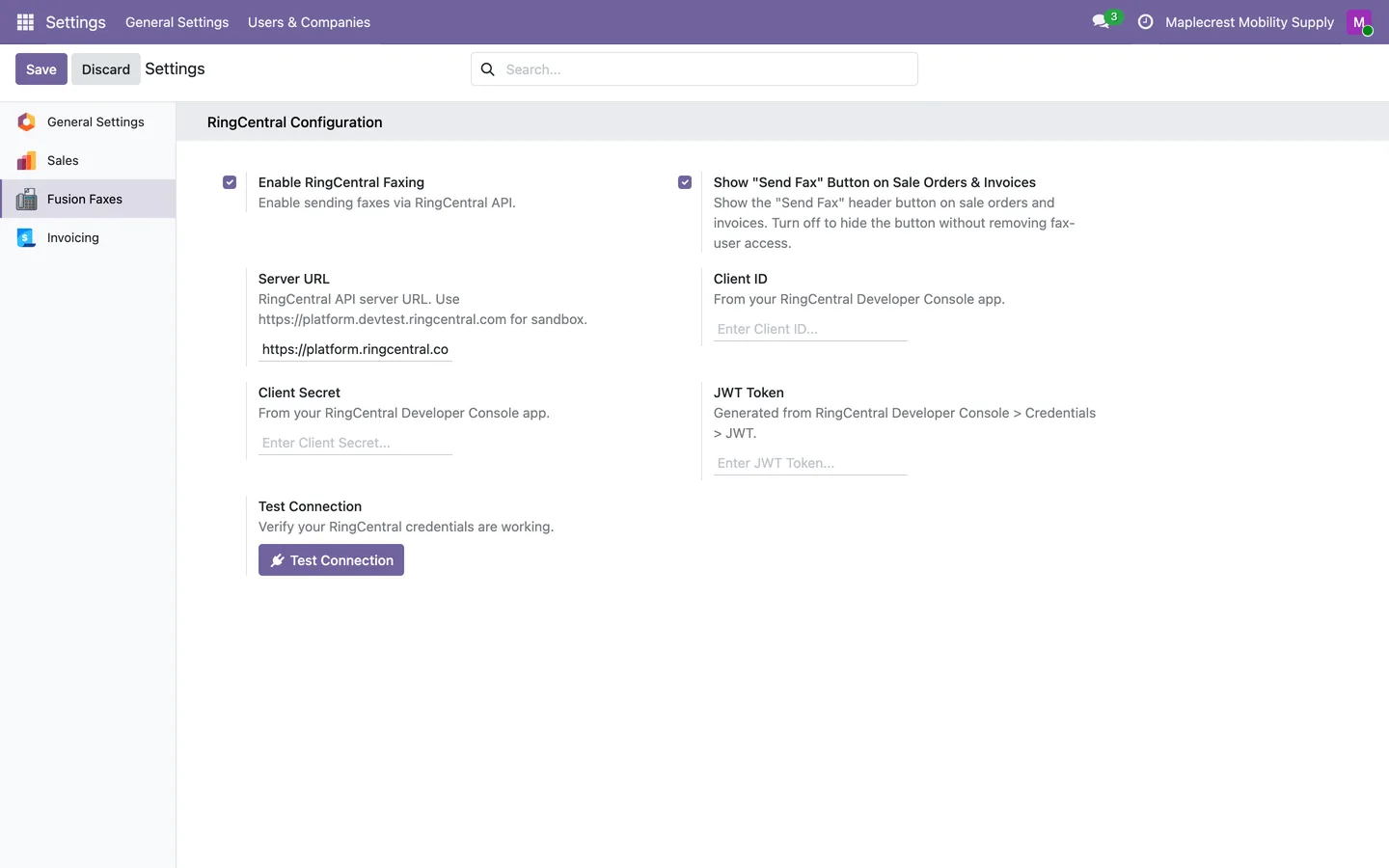
Set up RingCentral
A manager turns on RingCentral faxing, enters the server URL, client ID, client secret and JWT token, tests the connection, and can hide the Send Fax button.
Settings > Fusion Faxes
What it does
 Sending
- Send faxes from sales orders and invoices through RingCentral.
- Send a fax from a sales order or customer invoice with the "Send Fax" button, which a manager can hide in Settings.
- The Send Fax dialog fills the fax number from the contact, attaches a PDF of the order or invoice by default, and takes cover page text and extra documents in the order you drag them.
- Faxes go out through RingCentral with a JWT login saved in Settings, or through the RingCentral connection from Fusion Connect.
- A sent or failed fax posts a note on the linked sales order or invoice.
- Retry failed transmissions or resend a sent fax with its original attachments.
 Receiving
- With Fusion Connect's RingCentral connection, incoming faxes are fetched every 5 minutes with their pages and matched to the contact whose fax number sent them.
- Linking a received fax to a sales order posts it on the order's chatter with the fax pages attached.
- Each received fax keeps the sender number, received date, page count and RingCentral read status.
 History and dashboard
- Keep fax history against each contact and related document.
- Each contact has a fax number field, a Faxes button and a Fax History tab.
- Sales orders and invoices show a Faxes button that opens the faxes linked to them.
- Track draft, sending, sent and failed fax statuses.
- A fax dashboard counts total, sent, received, failed and draft faxes and lists the 20 most recent.
- Include cover-page text and multiple attachments in a fax.
 Access and set-up
- Fax users change the faxes they sent, fax managers change all of them, and other internal users can only read them.
- Settings hold the RingCentral server URL, client ID, client secret and JWT token, with a Test Connection button.
Related modules


See Fusion Faxes on your own Odoo.
Book a call and tell us how your team works today. We'll show you the module and what it would take to set it up. Prefer the phone? Call 905-792-0000.