
Phone - RingCentral
RingCentral as the phone provider for Odoo Phone, set up from one button.
Connects RingCentral to the Odoo Phone application for calling. Provisions SIP connection settings through a single action.
- Odoo 19
- Version 19.0.1.0.0
Phone - RingCentral, step by step
1 workflow, 3 steps. Each picture is a diagram of how the step works.
Connect RingCentral to Odoo Phone
An administrator adds the RingCentral keys once, then one button fetches the phone connection.
-
Add the RingCentral keys
On the Odoo Phone provider, enter the RingCentral client ID, client secret, JWT token and server URL.
Phone > Configuration > Providers
-
Provision
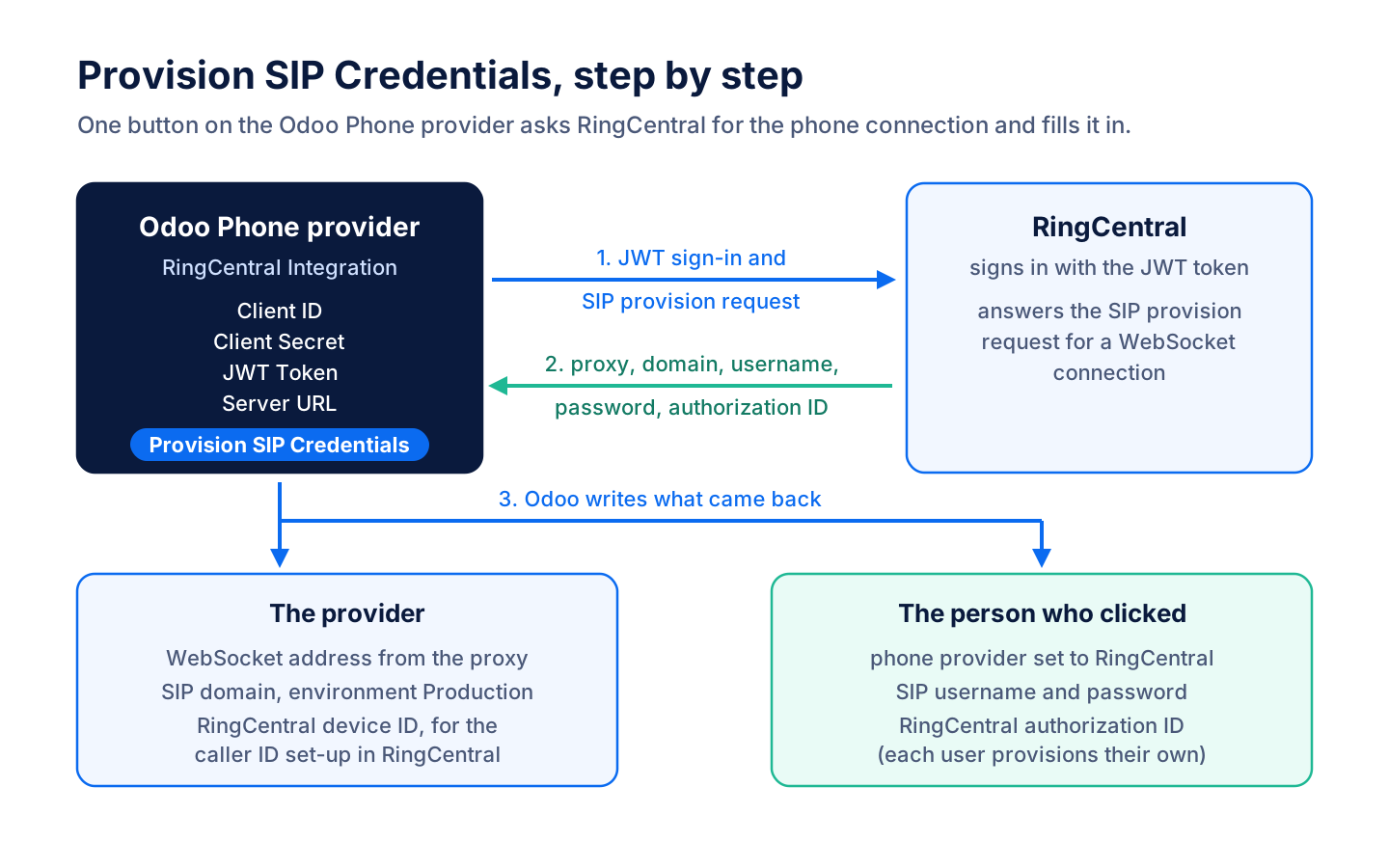
"Provision SIP Credentials" signs in to RingCentral and writes the WebSocket address, SIP domain and device ID on the provider.
-
Your phone is set
The same click sets your SIP username, password and RingCentral authorization ID. Each person provisions their own phone.
What it does
 Set-up
- Connects RingCentral to the Odoo Phone application for calling.
- The Odoo Phone provider form gets a RingCentral section for the client ID, client secret, JWT token and server URL.
- Provisions SIP connection settings through a single action.
- "Provision SIP Credentials" signs in to RingCentral with the JWT token and fills in the provider's WebSocket address and SIP domain, set to production.
- Configures the current user with the provisioned phone connection.
- Records the assigned RingCentral device for administration.
- Only system administrators can see the RingCentral client ID, secret, JWT token and device ID.


See Phone - RingCentral on your own Odoo.
Book a call and tell us how your team works today. We'll show you the module and what it would take to set it up. Prefer the phone? Call 905-792-0000.