
Fusion Theme Switcher
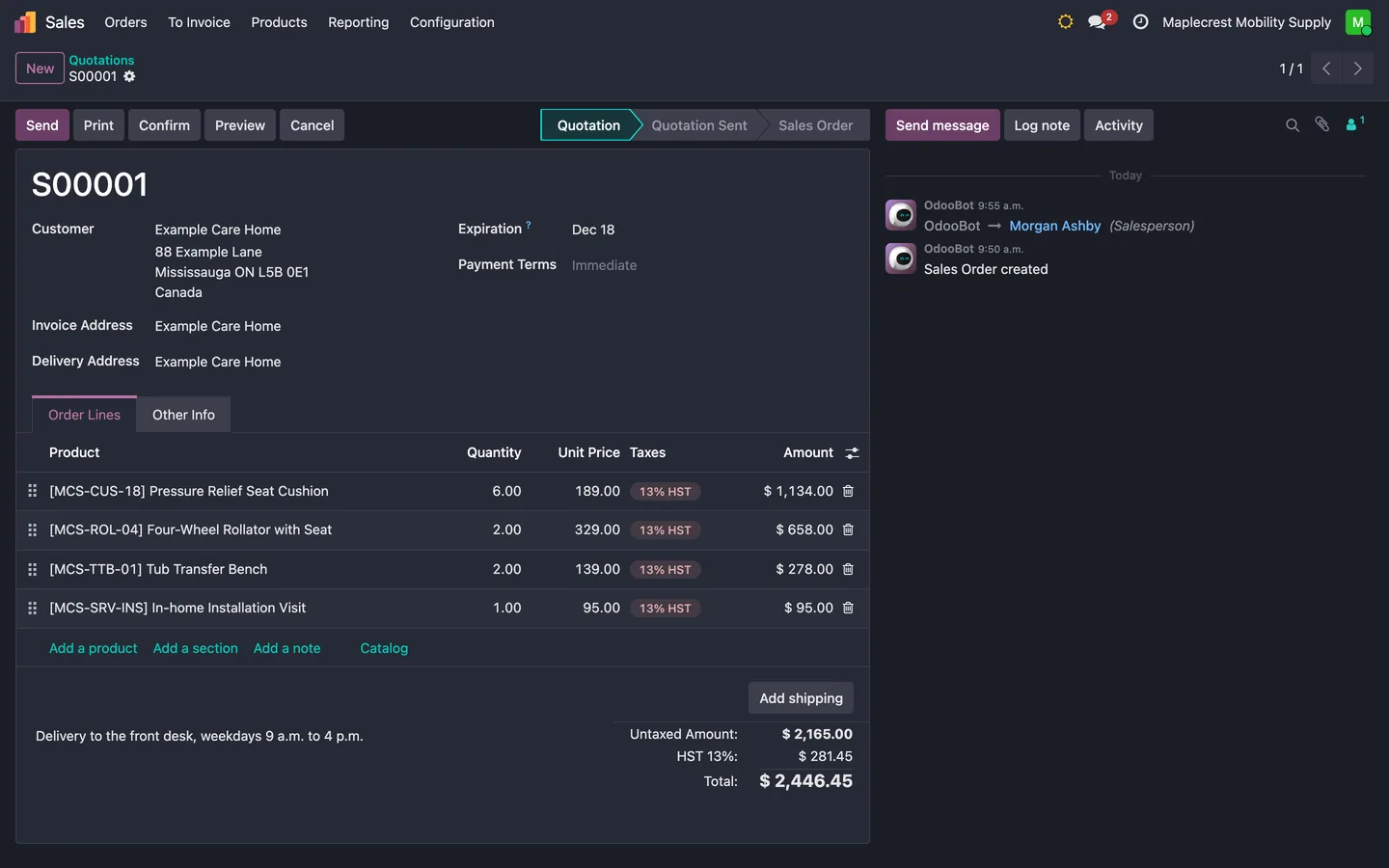
A light and dark mode switch in the Odoo Enterprise header.
Adds a light and dark mode button to the backend header, beside the other header icons. The choice is saved in the user's settings and in the browser, so it stays on the next visit.
- Odoo 19
- Version 19.0.1.1.0
- Newly listed
Fusion Theme Switcher, step by step
2 workflows, 7 steps. Every screen is real, from a demo company with invented data.
Switch between light and dark
A button in the header changes the whole backend between light and dark mode, without opening the preferences.
-
The button in the header
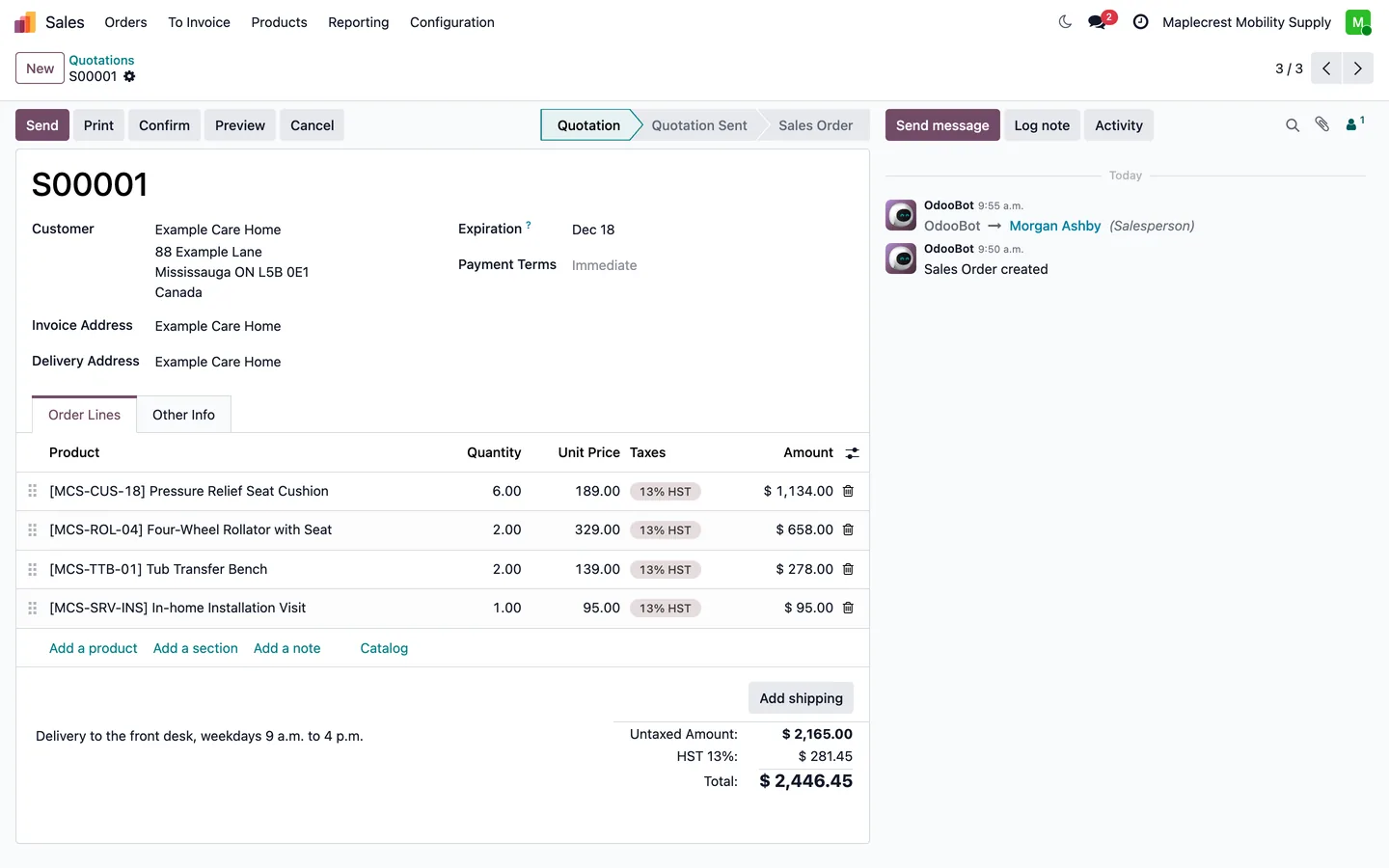
Internal users see a moon button in the header, beside the chat and activity icons. Its tooltip reads "Switch to dark mode".
Any backend screen, header
-
Click for dark mode
The click saves dark mode to the person's settings and to the browser, and the page reloads in dark mode.
-
Remembered next time
The next time the page loads, the chosen mode is still there.
-
Back to light
In dark mode the button shows a sun and switches back to light the same way.
Users and defaults
The button uses the same colour scheme setting Odoo Enterprise already keeps for each person.
-
Internal users only
The button appears for signed-in staff, not for portal users.
-
Same setting as the preferences
It changes Odoo's own colour scheme setting, the one Enterprise also shows in each person's preferences.
-
New users save cleanly
Creating or saving a user with no colour scheme picked falls back to the system default instead of stopping with a "Missing required value" error.
What it does
 Switching
- Adds a light and dark mode button to the backend header, beside the other header icons.
- A single click switches the backend between light and dark mode and reloads the page in the new mode.
- The button shows a moon in light mode and a sun in dark mode, with a tooltip saying which mode it switches to.
- The choice is saved in the user's settings and in the browser, so it stays on the next visit.
 Users
- The button shows only for signed-in internal users, not portal users.
- If the switch fails, a message says so and the page stays as it was.
- A user saved without a colour scheme gets the system default instead of a "Missing required value" error.


See Fusion Theme Switcher on your own Odoo.
Book a call and tell us how your team works today. We'll show you the module and what it would take to set it up. Prefer the phone? Call 905-792-0000.