
Network Traffic Logger
A log of the outbound calls Odoo makes through Requests.
Records the outbound calls Odoo makes through the Requests library's get, post, put, delete, patch, head and options functions. Flags calls to Odoo's own services, such as odoo.com, odoo.sh, IAP, the app store and partner autocomplete.
- Odoo 19
- Version 19.0.1.0.0
- Free
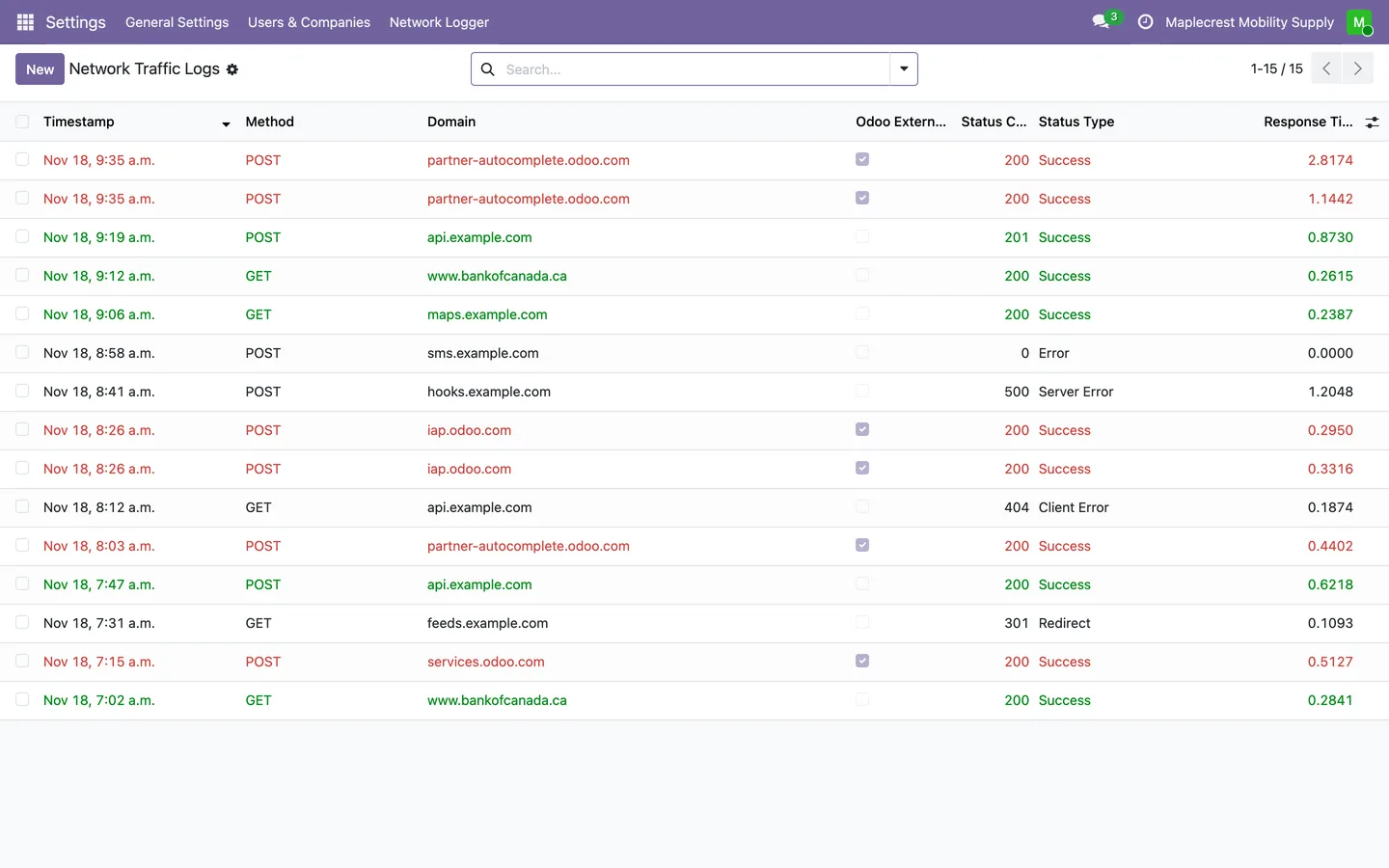
Network Traffic Logger, step by step
2 workflows, 8 steps. Screens are real, from a demo company with invented data, and diagrams show the steps that have no screen.
How a call is logged
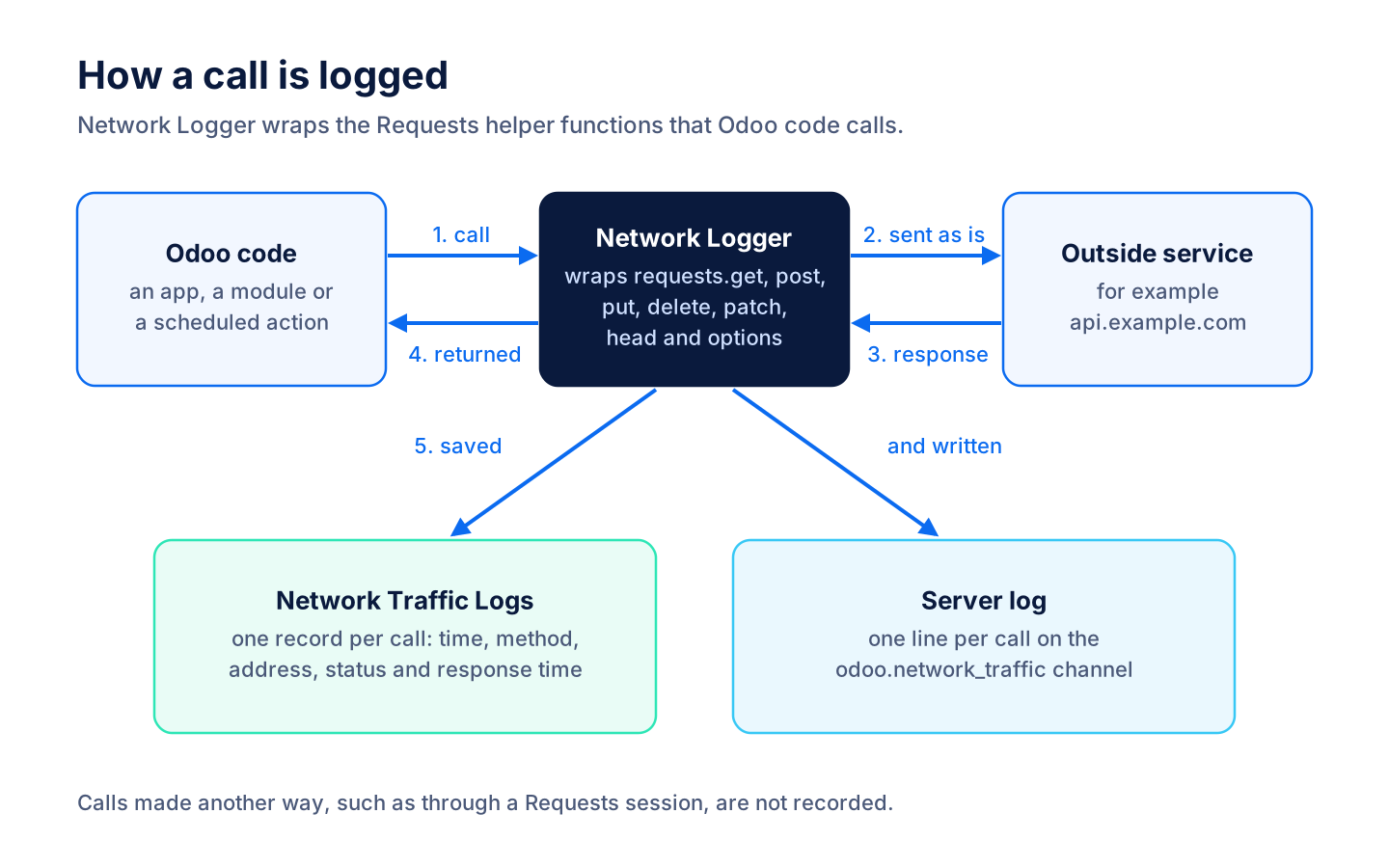
Once installed, the logger sits between Odoo code and the Requests library and keeps a record of each call.
-
Logger wraps Requests
When the module loads, it puts a wrapper in front of the Requests helper functions get, post, put, delete, patch, head and options.
-
The call goes out
Odoo code calls an outside service as usual. The call is sent unchanged and the response is handed back, and a failed call has its error recorded and raised again.
-
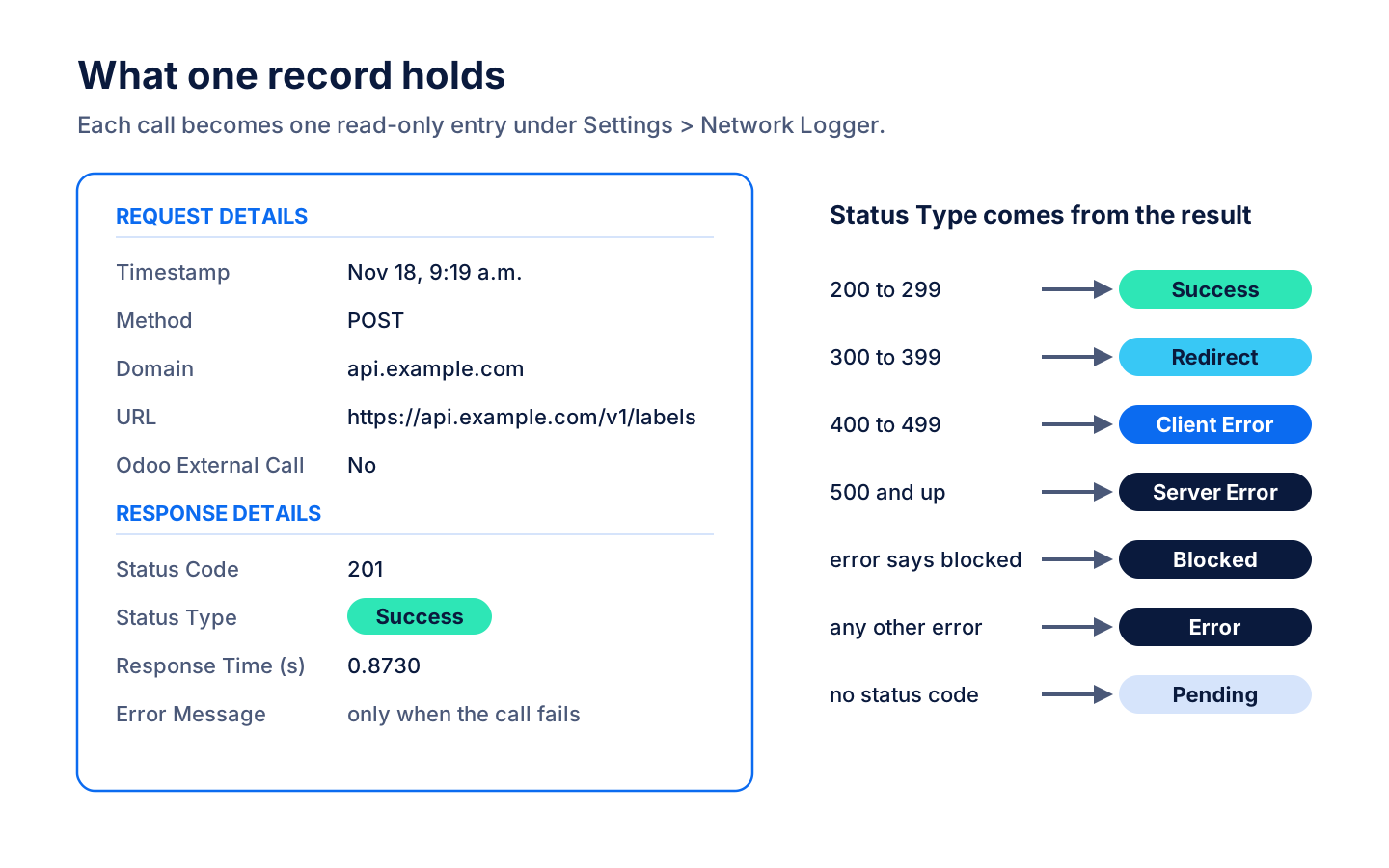
One record per call
The record keeps the time, method, address, domain, status code, response time and any error, and the status type is worked out from the result.
-
Saved on its own
The record is saved in its own database transaction straight away, and a line goes to the odoo.network_traffic server log.
-
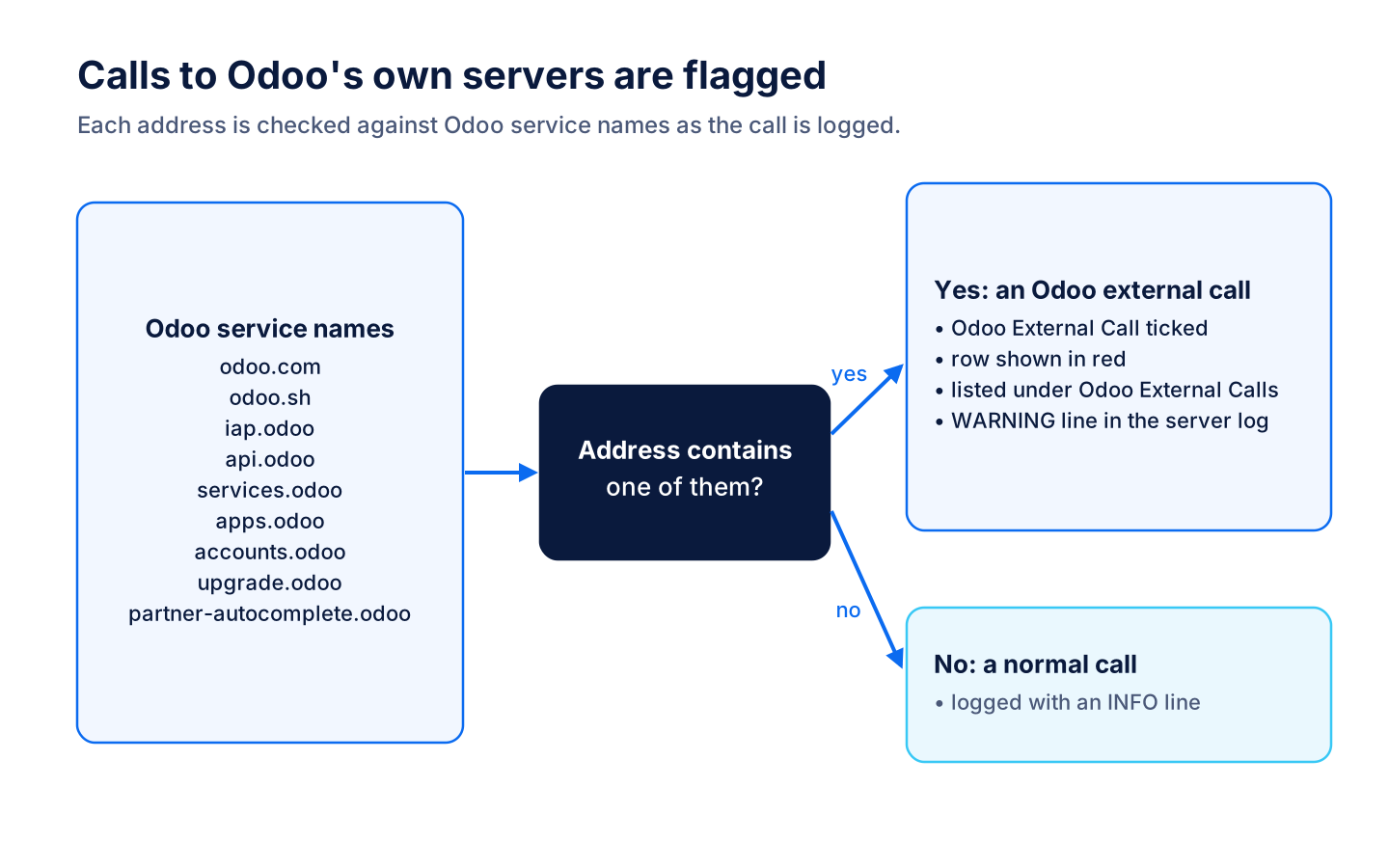
Odoo calls flagged
An address that contains an Odoo service name, such as iap.odoo or partner-autocomplete.odoo, is marked as an Odoo external call and logged as a warning.
Review the traffic
Administrators read the log in Settings to see which outside services Odoo talks to and how they answered.
-
All traffic
Every logged call in one list, newest first, with method, domain, the Odoo flag, status code, status type and response time. Successful calls show in green and Odoo calls in red.
Settings > Network Logger > All Traffic
-
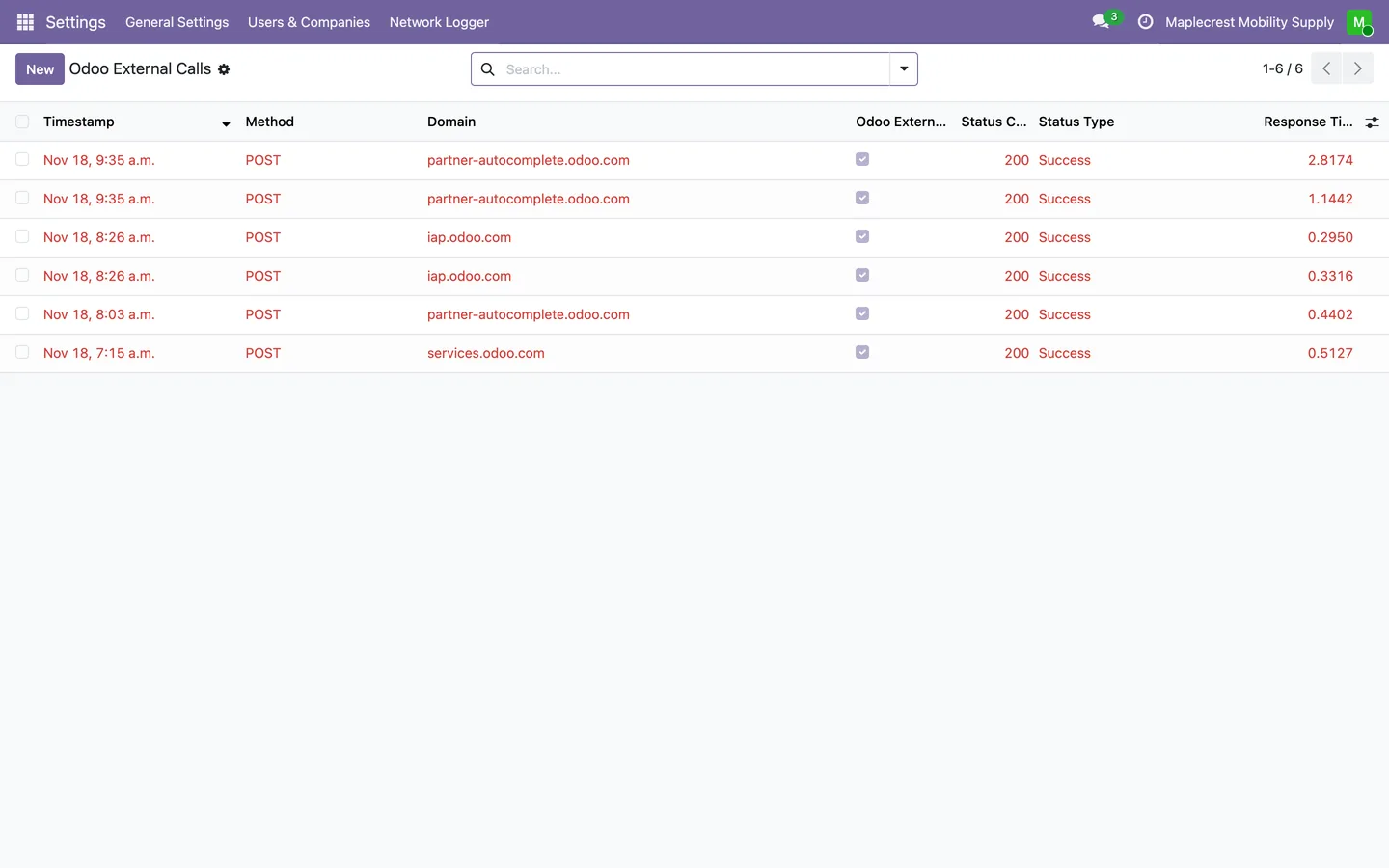
Only Odoo calls
The Odoo External Calls list shows only the calls that went to Odoo's own services.
Settings > Network Logger > Odoo External Calls
-
Open a call
Each entry opens read-only with its request details, response details and, for a failed call, the error message.
Settings > Network Logger > All Traffic
What it does
 What it records
- Records the outbound calls Odoo makes through the Requests library's get, post, put, delete, patch, head and options functions.
- Each record keeps the time, method, address, domain, status code, status type and response time, and the error message when a call fails.
- Sorts each result into Success, Redirect, Client Error, Server Error, Blocked, Error or Pending.
- The call itself goes through unchanged: the logger hands back the response, or records the error and raises it again.
 Calls to Odoo
- Flags calls to Odoo's own services, such as odoo.com, odoo.sh, IAP, the app store and partner autocomplete.
- Flagged calls show in red in the log and have their own Odoo External Calls menu.
- Writes each call to the server log on its own odoo.network_traffic channel, as a warning when it goes to Odoo.
 Reading the log
- Administrators have full access to the log and other internal users can read it.
- Log entries open read-only, and the log can be searched by address or domain.
Related modules


See Network Traffic Logger on your own Odoo.
Book a call and tell us how your team works today. We'll show you the module and what it would take to set it up. Prefer the phone? Call 905-792-0000.