
Fusion Helpdesk Reporter
Report an issue or request a feature from inside Odoo, and follow it to the fix.
Let backend users report an issue or request a feature from the top toolbar. Create support tickets on a central Odoo Helpdesk instance.
- Odoo 19
- Version 19.0.3.0.0
- Newly listed
Fusion Helpdesk Reporter, step by step
3 workflows, 9 steps. Every screen is real, from a demo company with invented data.
Report a problem from the screen you are on
Anyone in Odoo can send a bug report or feature request to support without leaving the screen.
-
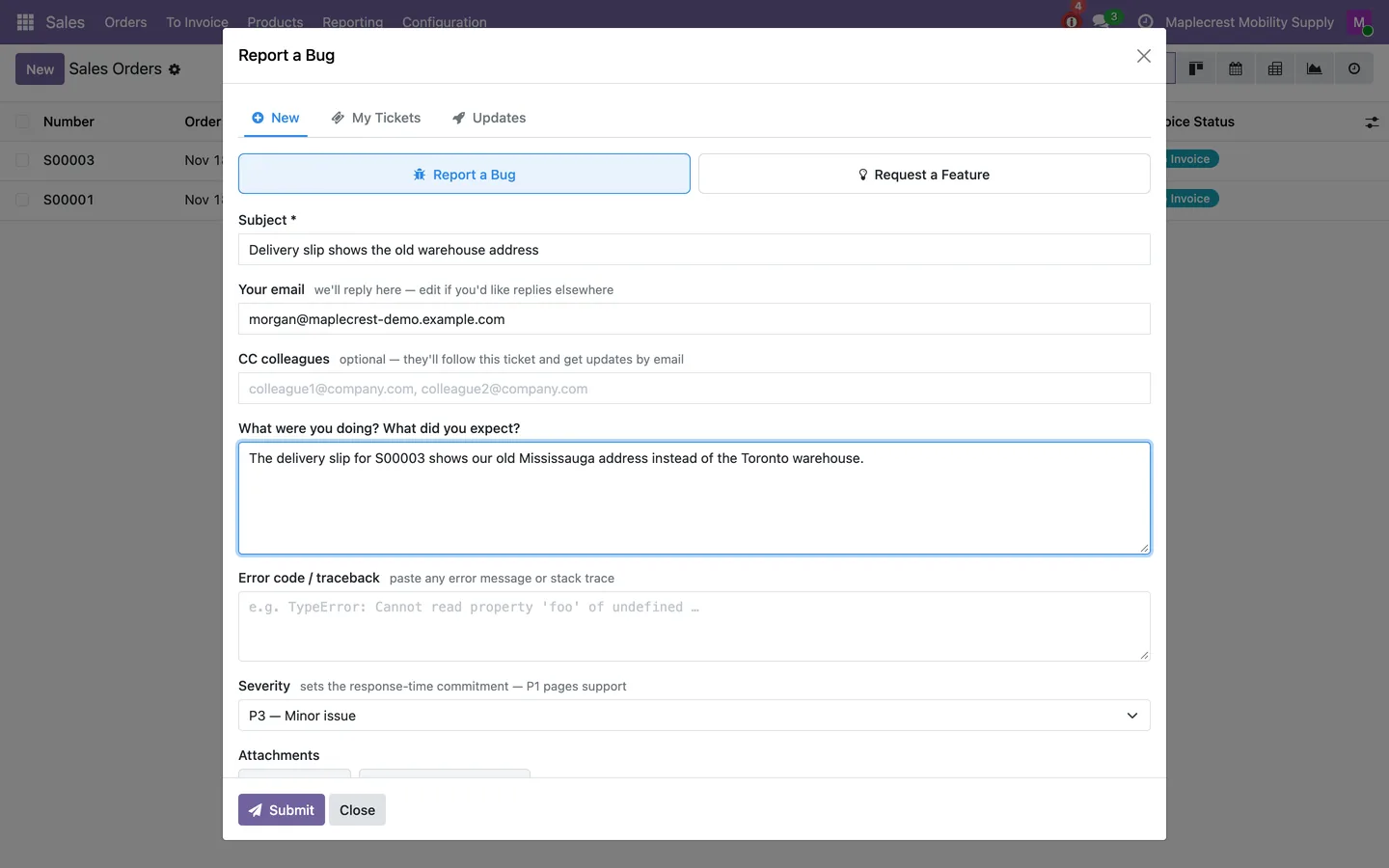
Fill in the report
The help icon in the top bar opens the report. Choose bug or feature, give a subject, a description, any error and the severity, and attach files or a screenshot.
Top bar > Help icon
-
Answer support's questions
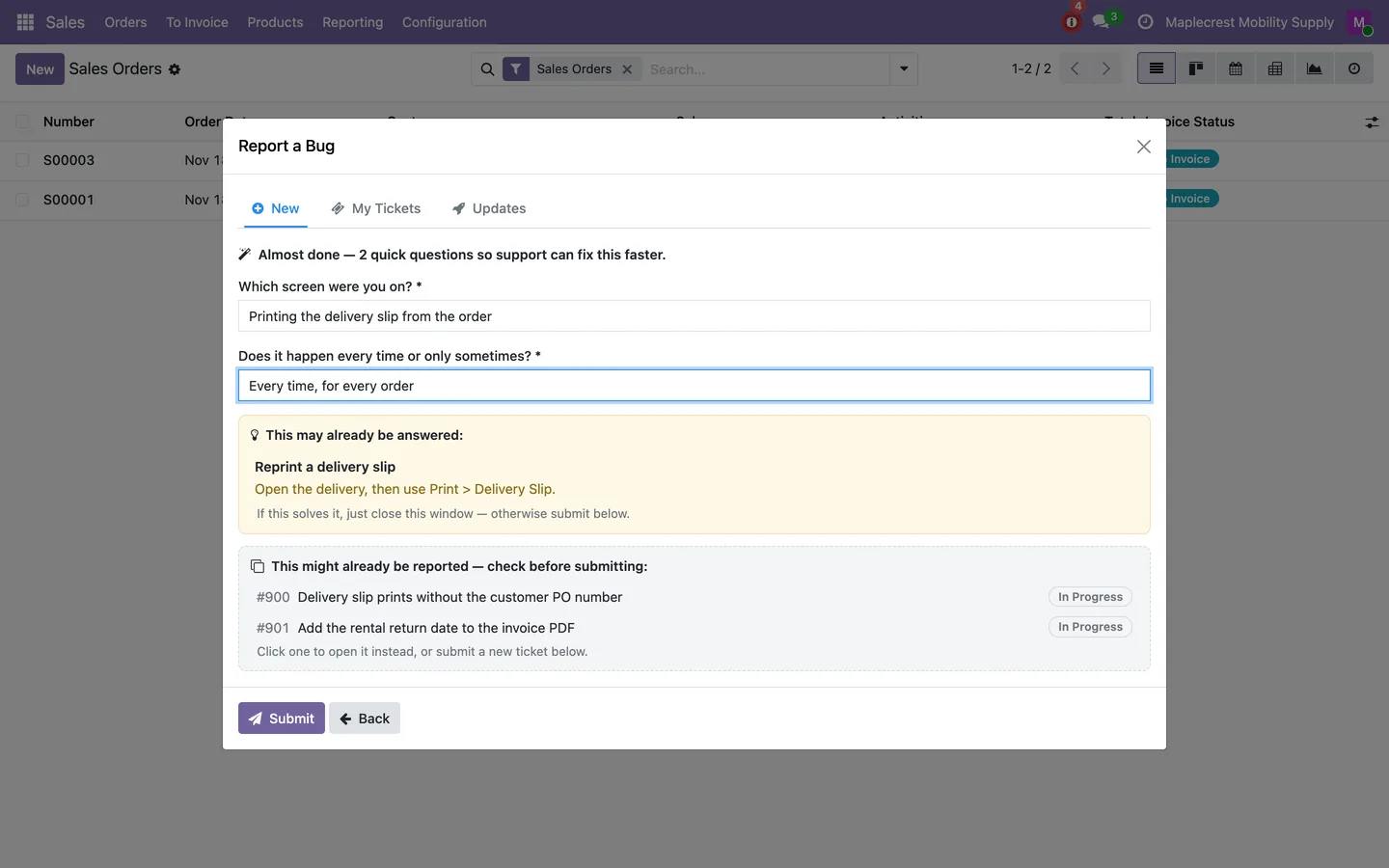
The central helpdesk can ask up to three quick questions and point to a known answer or a similar open ticket before the report is sent.
-
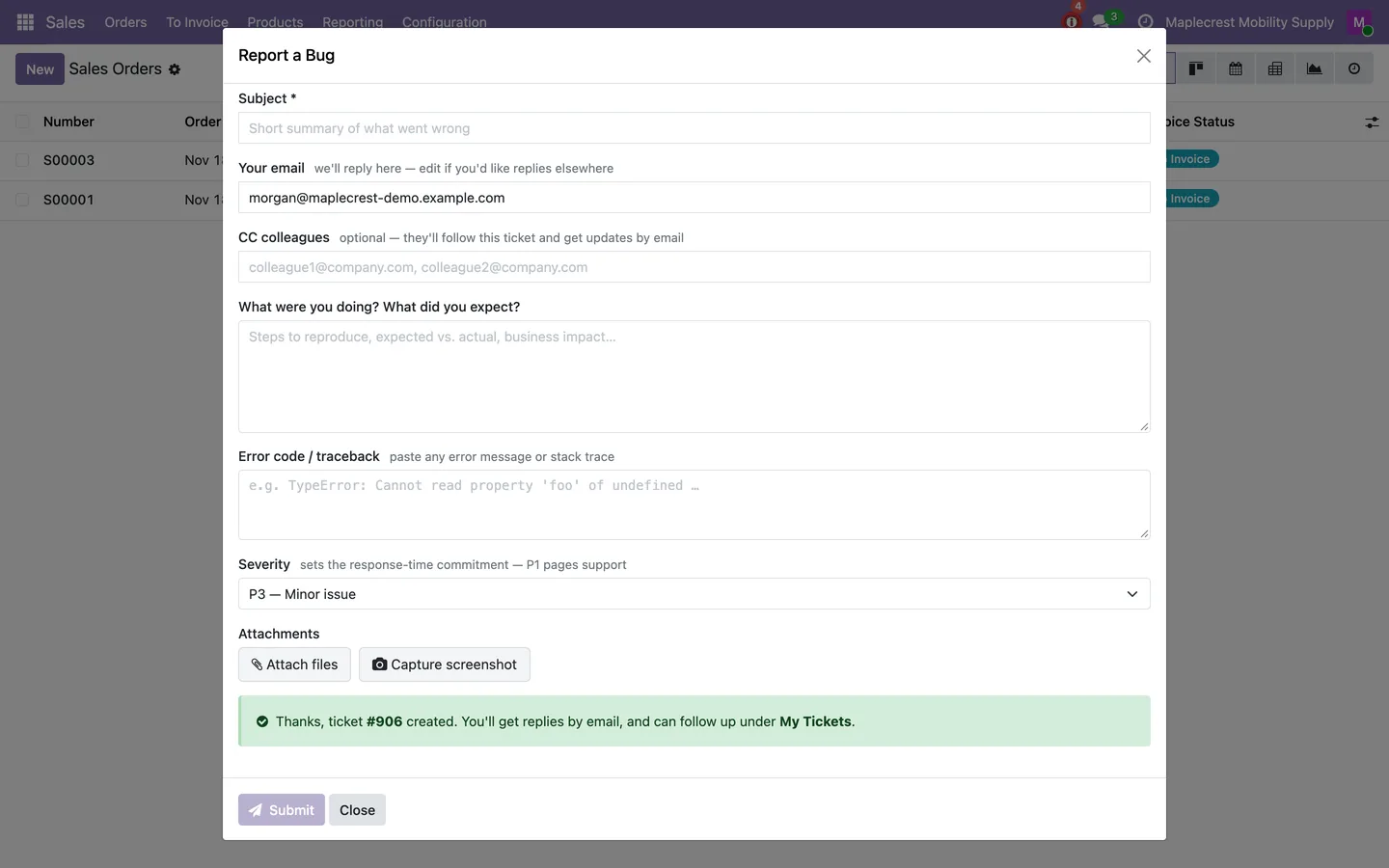
Ticket created
The report becomes a ticket on the central helpdesk and the number is shown. If central cannot be reached, the report is saved and sent automatically.
Follow up without leaving Odoo
Replies, escalations, fix confirmations and release notes all stay in the same window.
-
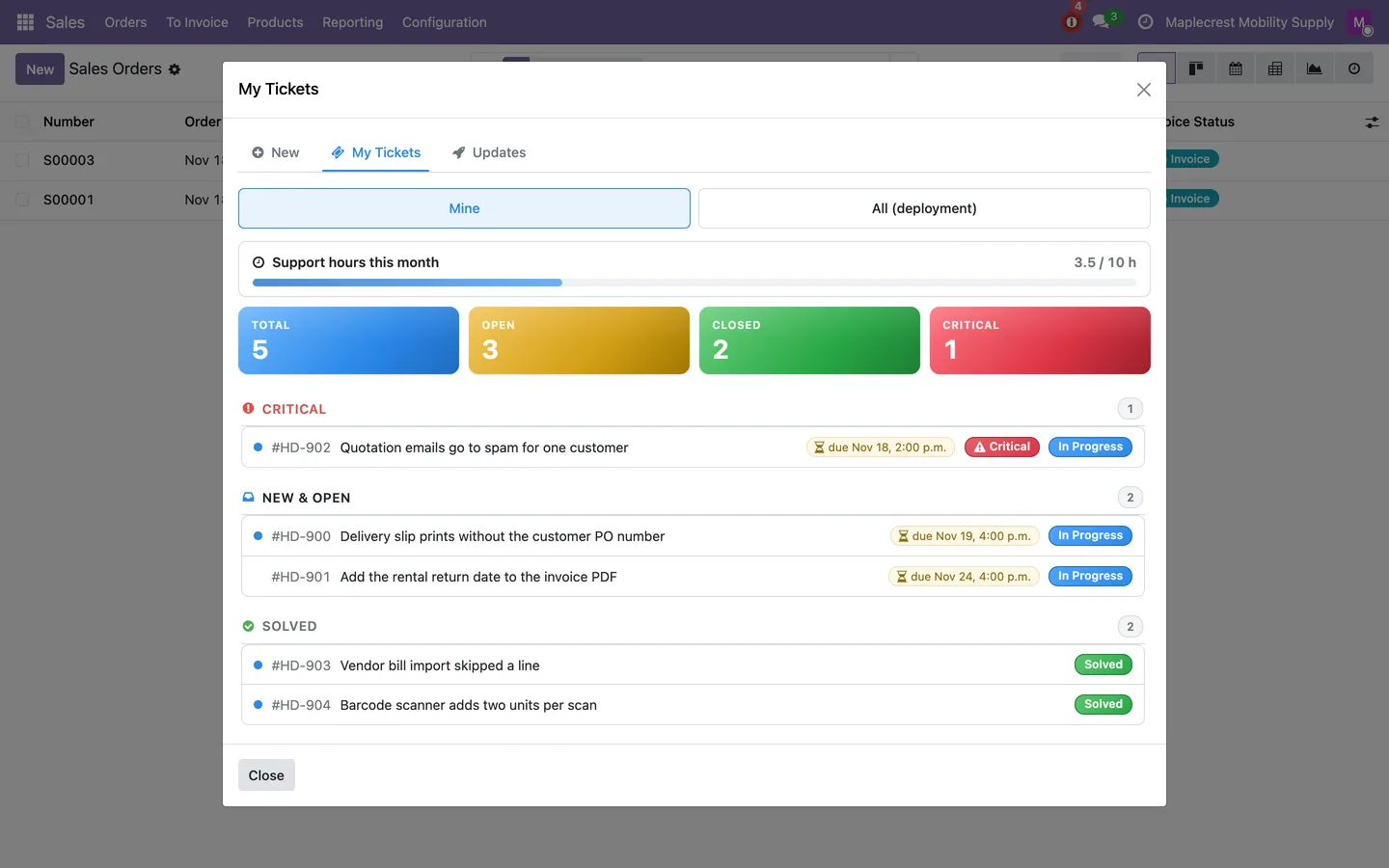
My Tickets
A badge counts tickets with new replies. My Tickets shows support hours used this month, the ticket counts and each ticket by group with its response deadline.
-
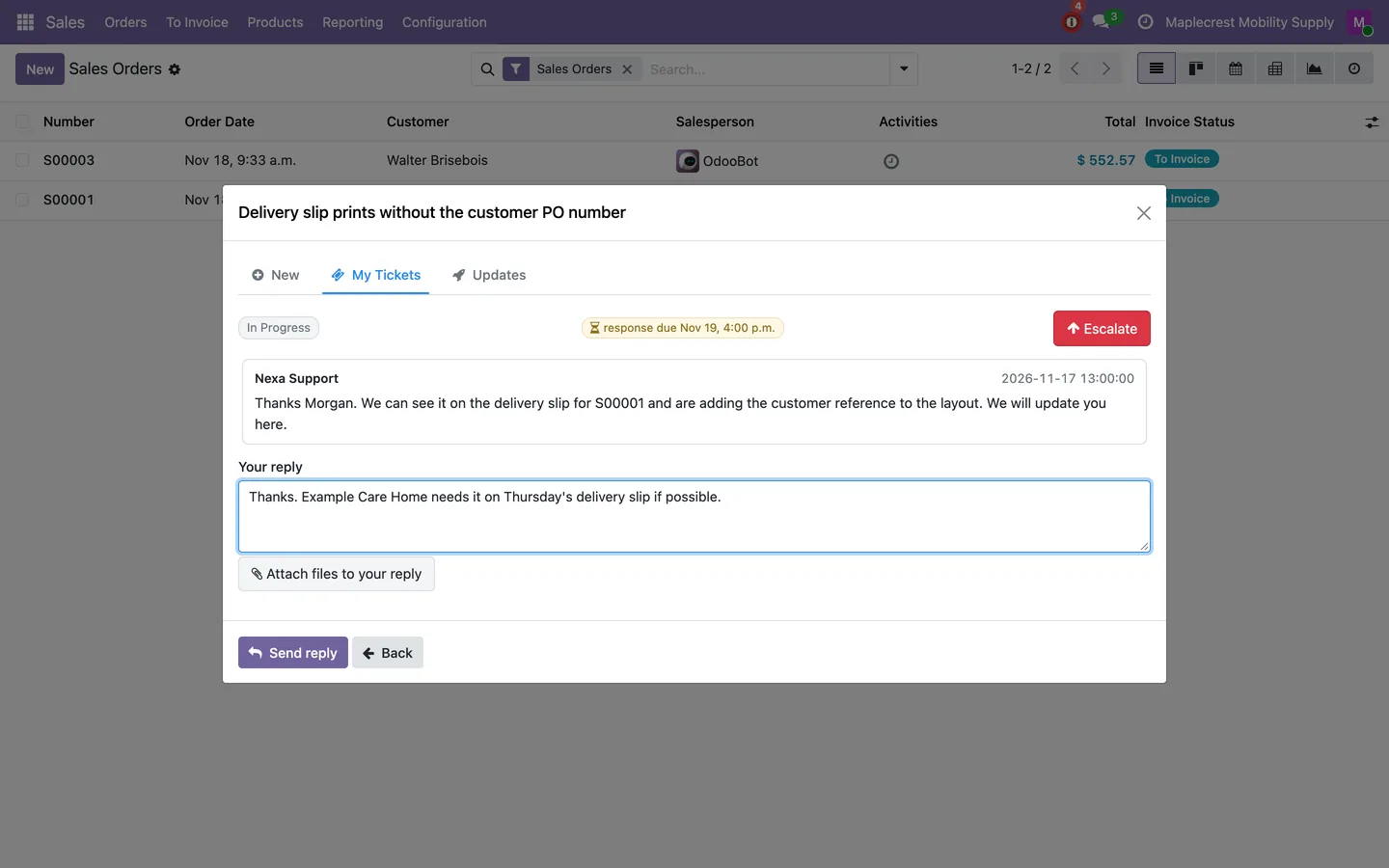
Reply
Open a ticket to read support's replies, answer with files attached and download the ticket's files.
-
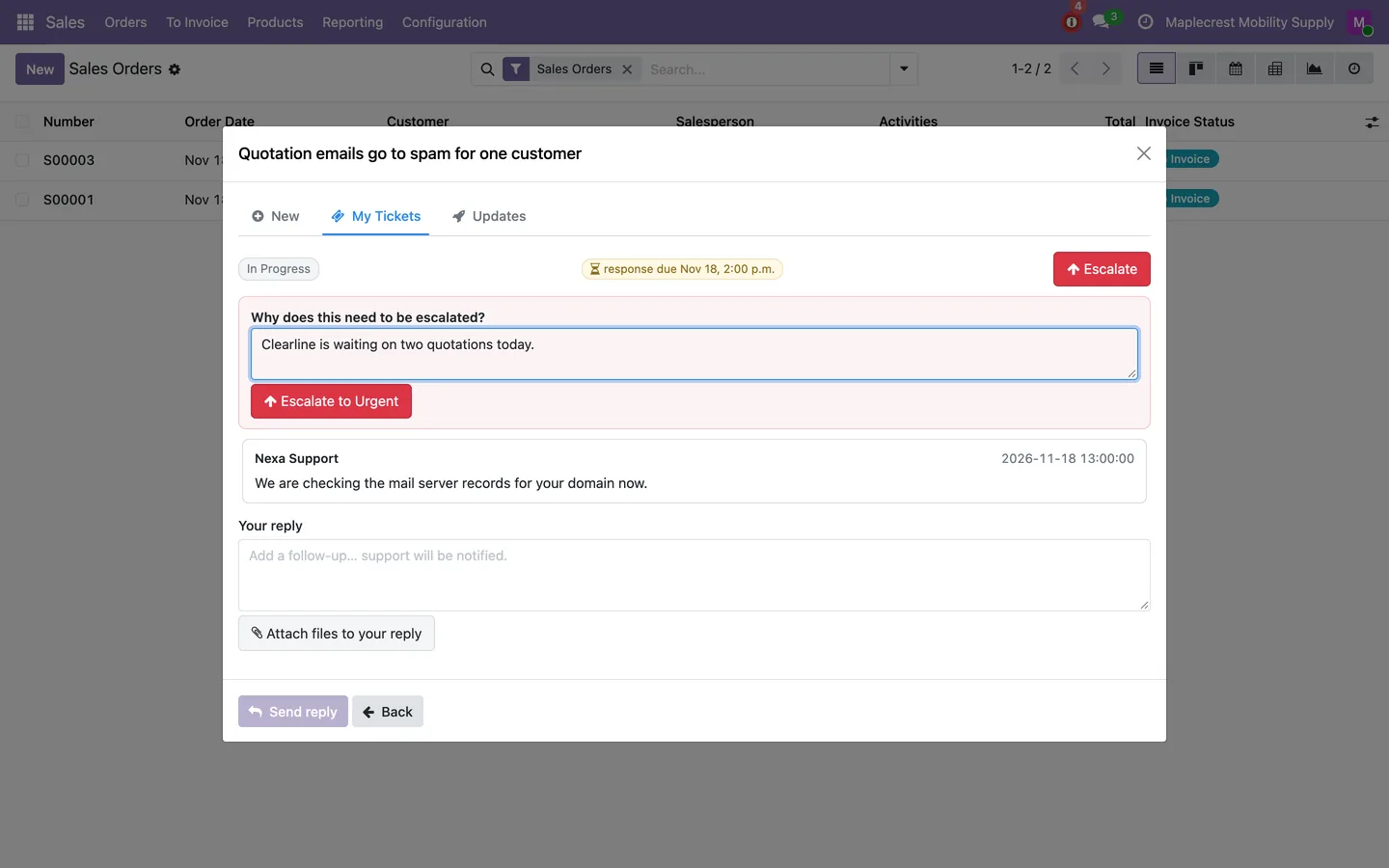
Escalate
"Escalate" asks why, and "Escalate to Urgent" sends the reason to support.
-
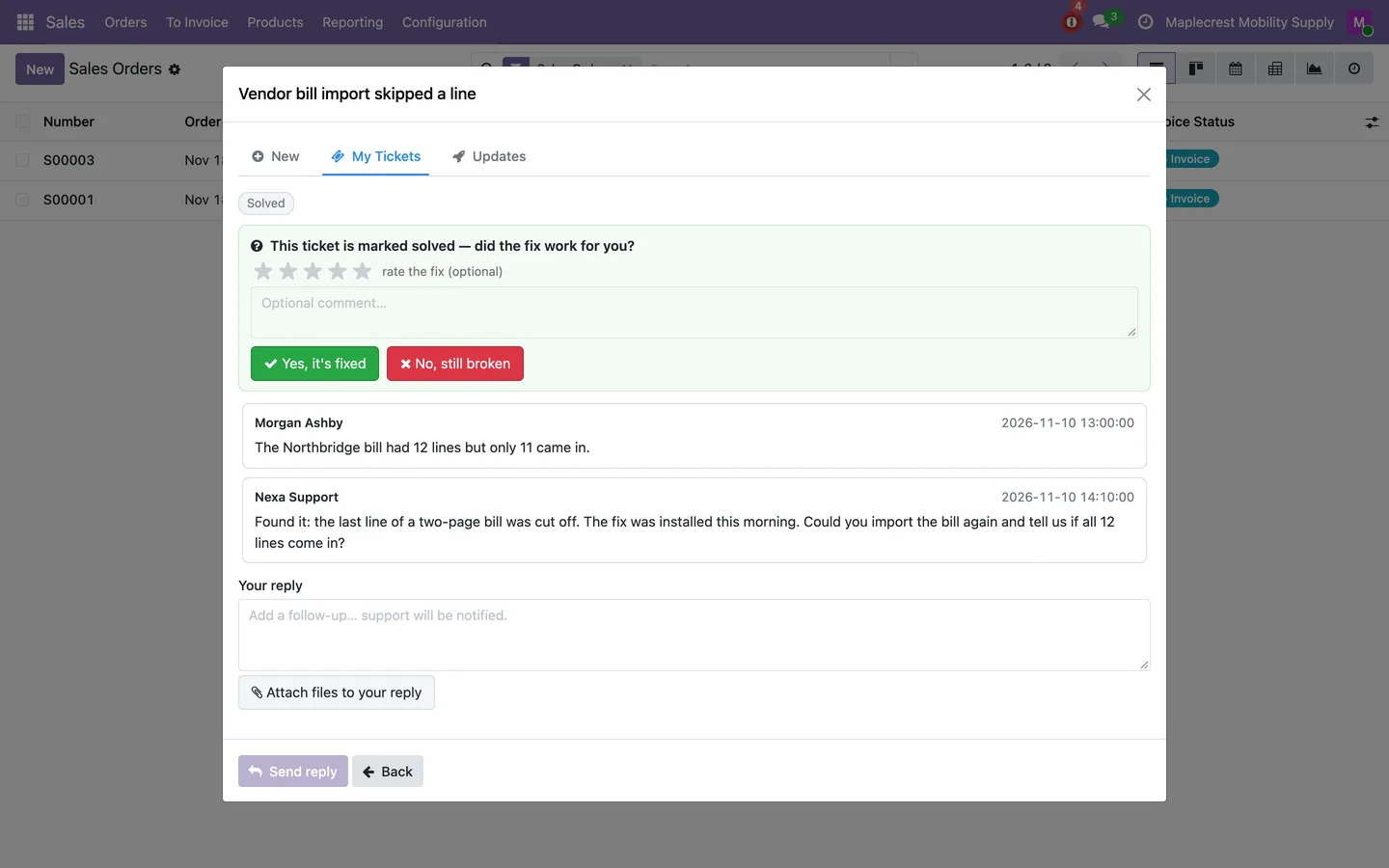
Confirm the fix
When a ticket is solved, rate the fix and answer "Yes, it's fixed" or "No, still broken".
-
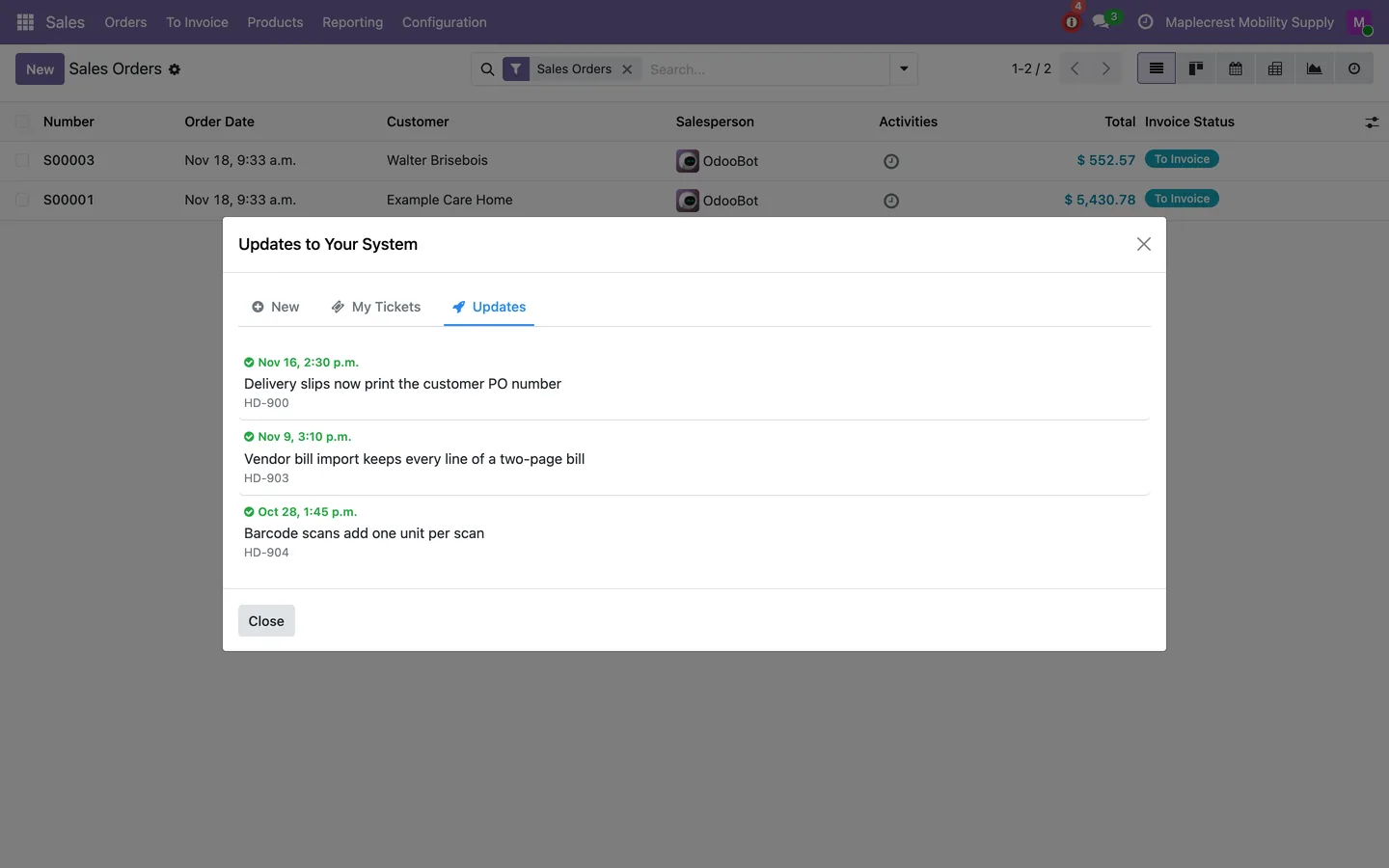
See what was deployed
The Updates tab lists the fixes and changes deployed to your system, with the ticket each came from.
Set up once
An administrator connects this Odoo to the central helpdesk.
-
Connect to support
Enter the central address, this deployment's own service login and key, the client label and the owner contact, and check each user's reporter address.
Settings > Fusion Helpdesk
What it does
 Reporting
- Let backend users report an issue or request a feature from the top toolbar.
- The report takes a subject, the email for replies, colleagues to copy, a description, any error message and a severity from P1 (system down) to P4 (question or cosmetic).
- Include screenshots and file attachments with support reports.
- "Capture screenshot" hides the report window, takes a picture of the screen and lets you crop it before it is attached.
- The page address, the browser and the company name go with every report.
- Before sending, the central helpdesk can ask up to three follow-up questions and point to known answers and similar open tickets, and if it has not answered within 5 seconds the report goes straight through.
- Up to 10 files and 20 MB in all can be attached, with images up to 5 MB and PDF or text files up to 10 MB.
 Following up
- Create support tickets on a central Odoo Helpdesk instance.
- A badge on the toolbar icon counts tickets with new replies from support, and clicking it opens My Tickets.
- My Tickets groups tickets into Critical, New and Open, and Solved, shows each response deadline, and counts total, open, closed and critical tickets.
- Open a ticket to read support's replies, answer with files attached, download the ticket's files or escalate it to urgent with a reason.
- When support marks a ticket solved, you rate the fix and say whether it worked.
- When your plan includes support hours, My Tickets shows the hours used this month.
- The Updates tab lists the fixes and changes deployed to your system, with the ticket each one came from.
- Administrators can switch between their own tickets and every ticket from their company's Odoo.
 Reliability and control
- A report that cannot reach the central helpdesk is saved in an outbox and sent automatically, with a scheduled action every 5 minutes.
- Each user's reporter address is set by an administrator and decides which tickets that user sees.
- The central service key is write-only, so once saved it is never shown again.
- Portal, public, system and bridge users never reach the central helpdesk.
- Settings hold the central address and database, this deployment's own service login and key, an optional team, the client label and the owner contact.
What's new
Recent changes to Fusion Helpdesk Reporter, newest first.
-
- Each deployment now connects to the central helpdesk with its own service login and key, and reaches only its own tickets.
- Each user's reporter address is set by an administrator, and the service key is write-only.
- Files on a ticket download inside Odoo from My Tickets.
- If central refuses the service login or key, queued reports wait until an administrator saves a new key.
-
- A neutralized copy of the database drops the central helpdesk connection.
-
- Inbox summary counts now cover all permitted tickets instead of the current page of tickets.


See Fusion Helpdesk Reporter on your own Odoo.
Book a call and tell us how your team works today. We'll show you the module and what it would take to set it up. Prefer the phone? Call 905-792-0000.