
Fusion Tasks
Technician visits from booking to signed proof of delivery.
Picking a technician and a date fills in the first free start time that still leaves room to drive from the previous visit. Visits move from Scheduled to En Route, In Progress and Completed, and every change is noted on the visit with the name of the person who made it.
- Odoo 19
- Version 19.0.1.12.6
Fusion Tasks, step by step
4 workflows, 18 steps. Every screen is real, from a demo company with invented data.
Book a visit and plan the week
The office books a visit in a free slot that leaves room to drive, and the week shows on a calendar and a status board.
-
Mark the field staff
A user becomes bookable as a technician by ticking Field Staff on their user record, which also takes a personal start location.
Settings > Users & Companies > Users
-
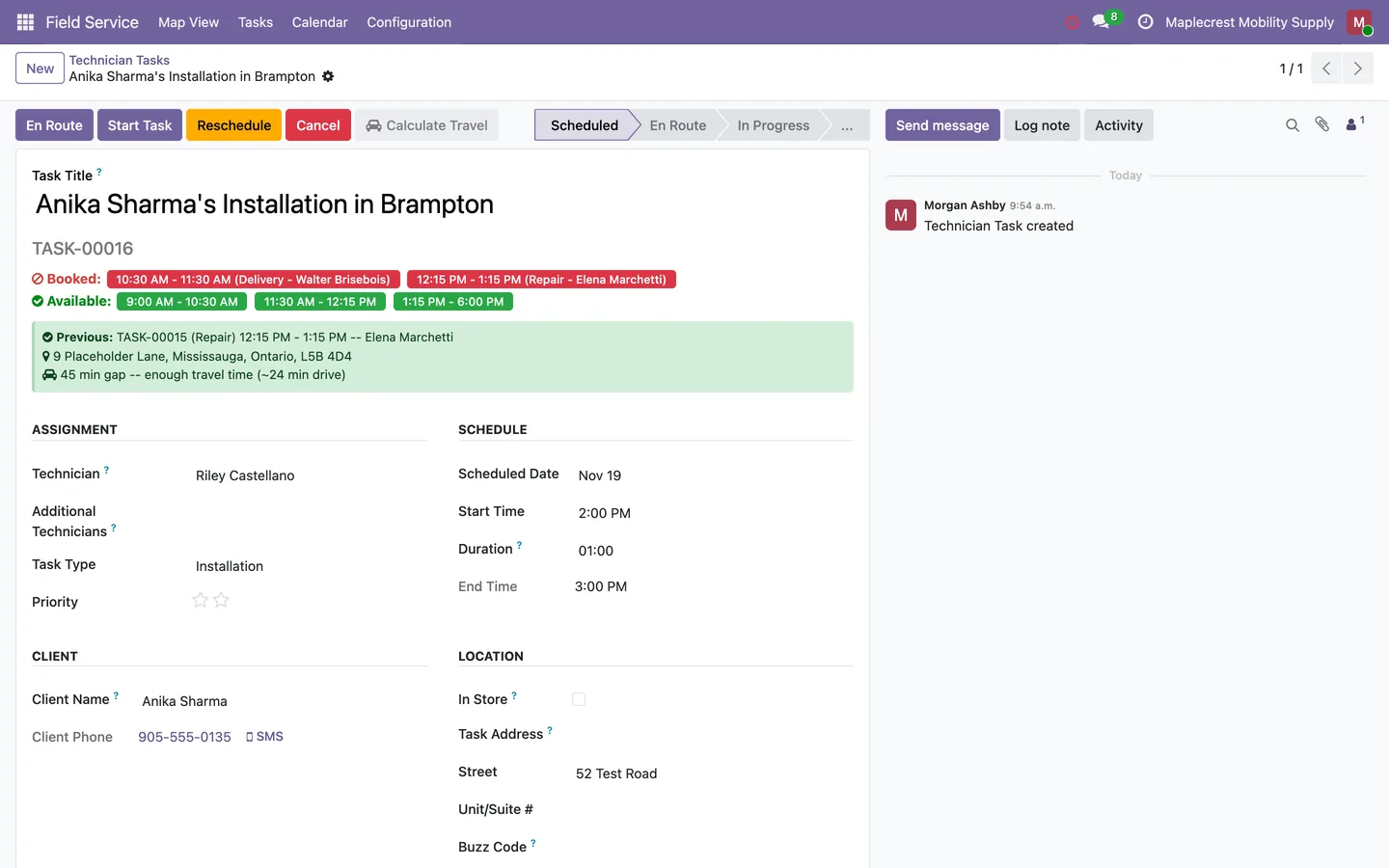
Create the visit
Choosing the visit type sets its length, and choosing the technician and date fills in the first free start time. The visit shows that technician's booked times, open gaps and whether there is enough time to drive from the previous stop.
Field Service > Tasks > New
-
The booking is checked
On save the visit is refused if it falls outside store hours, overlaps another booking for the lead or a helper, clashes with a calendar meeting or leaves too little drive time. A good visit gets its task number, a plain-language title and a meeting in the technicians' calendars.
-
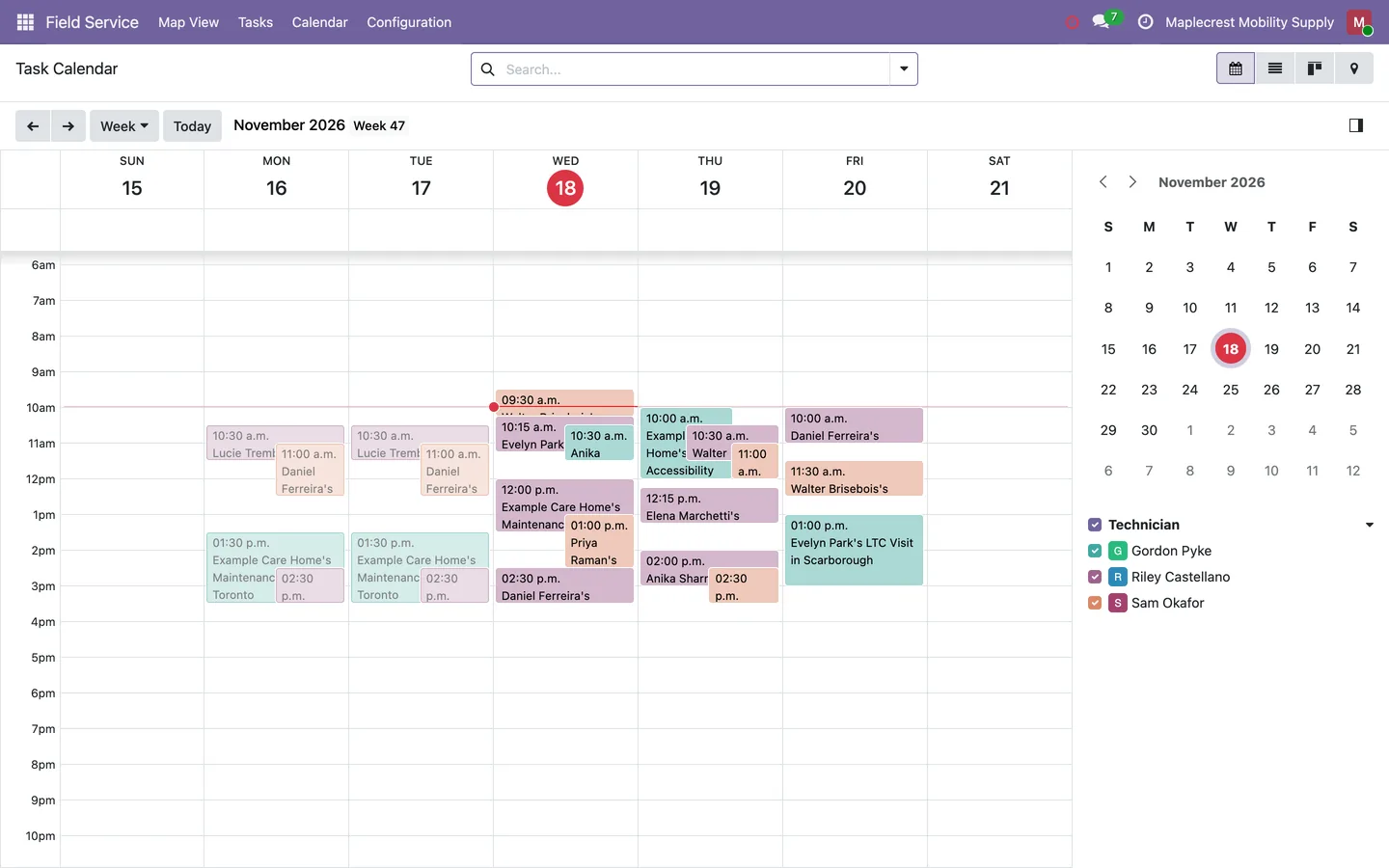
Review the week
The week shows on a calendar coloured by technician, and selecting a time range on it opens a new visit with the date and times filled in.
Field Service > Calendar
-
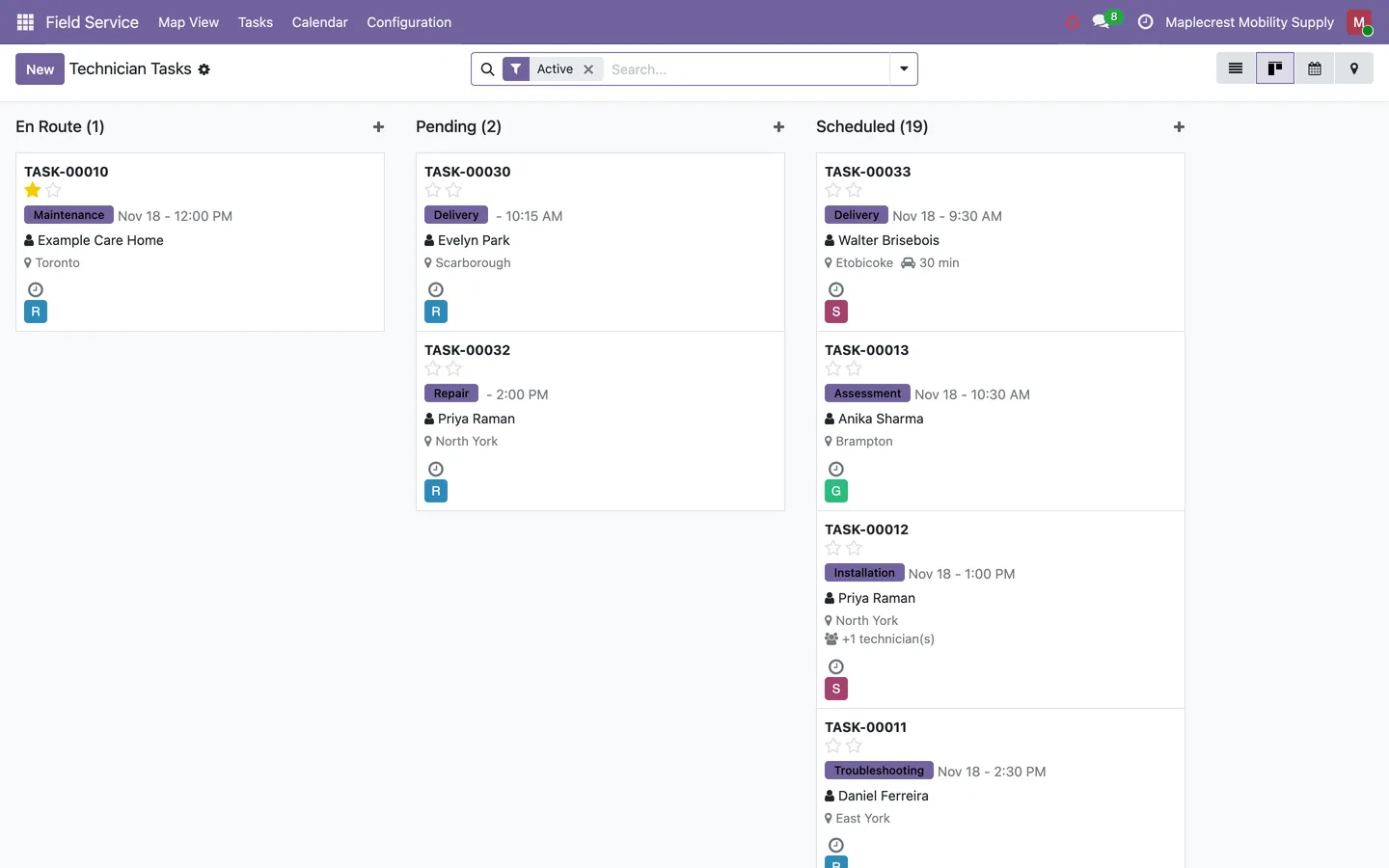
Work the board
The same visits show on a board grouped by status, with the visit type, date and time, client, city and drive minutes on each card.
Field Service > Tasks
Run the visit
The visit moves from Scheduled to En Route, In Progress and Completed, with the client kept informed and a signed proof of delivery on file.
-
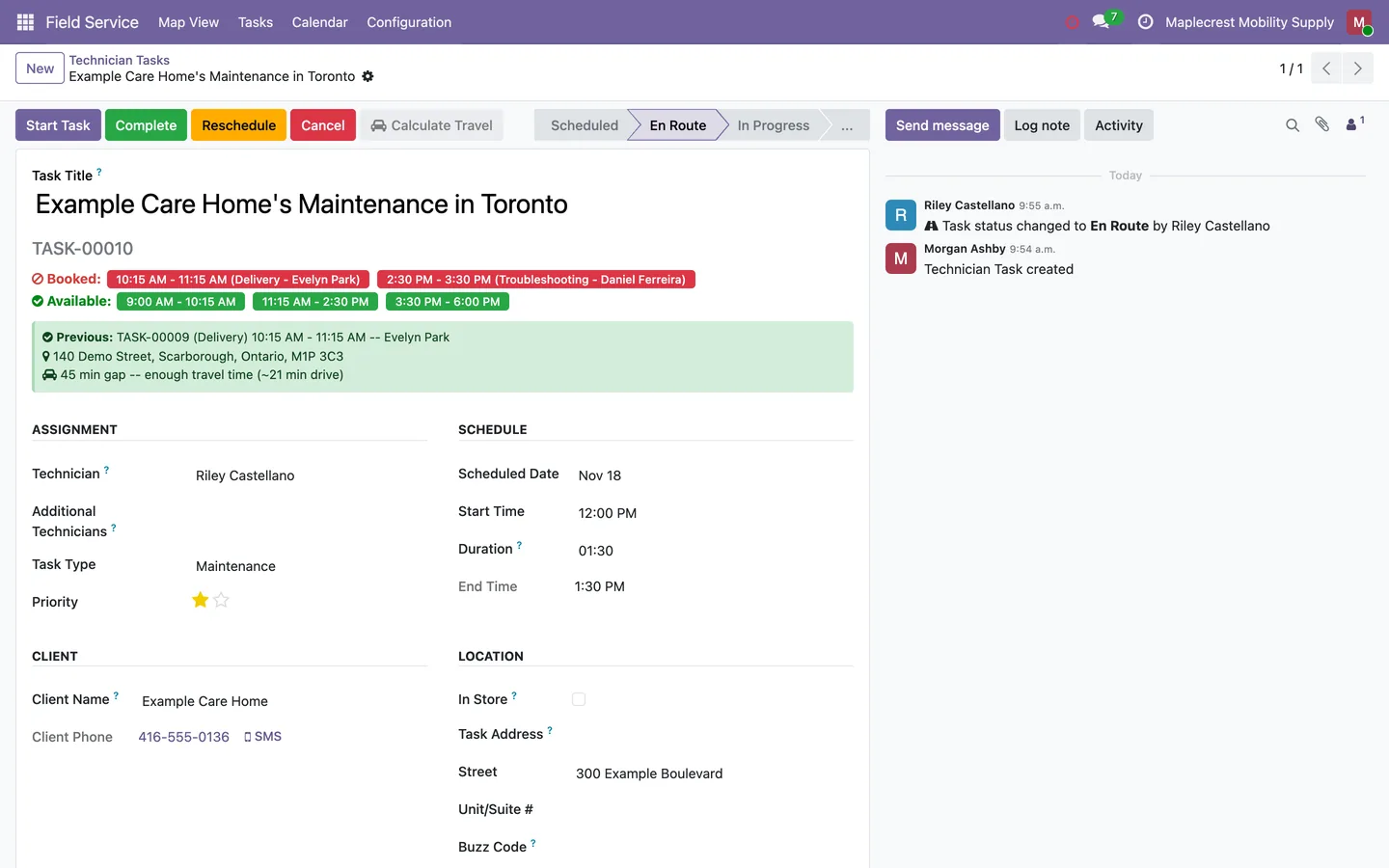
Technician heads out
"En Route" sets the status, notes it on the visit and emails the client that the technician is on the way, with the visit details and a short checklist to prepare.
Field Service > Tasks
-
Work starts
"Start Task" sets the visit In Progress. It is refused while the same technician still has an earlier visit open that day.
-
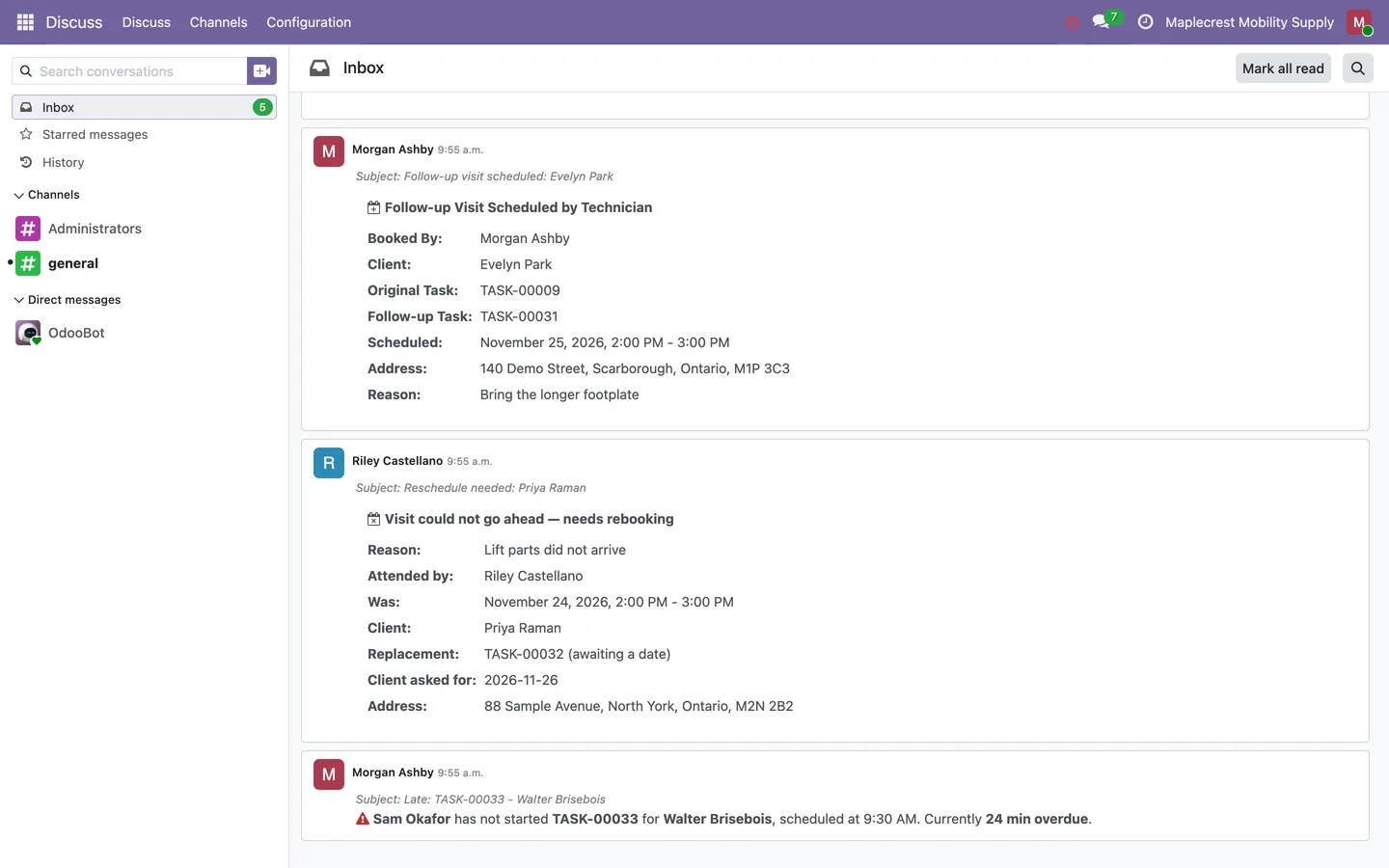
Running late
The office can email the client a delay notice with the new expected arrival time without changing the schedule. A visit not started five minutes after its start time sends the person who booked it one alert in Discuss and by email.
Discuss > Inbox
-
Visit completed
"Complete" closes the visit and emails the client a thank-you, which can include a Leave a Review button for your Google Business page. Whoever booked the visit is notified in Discuss.
-
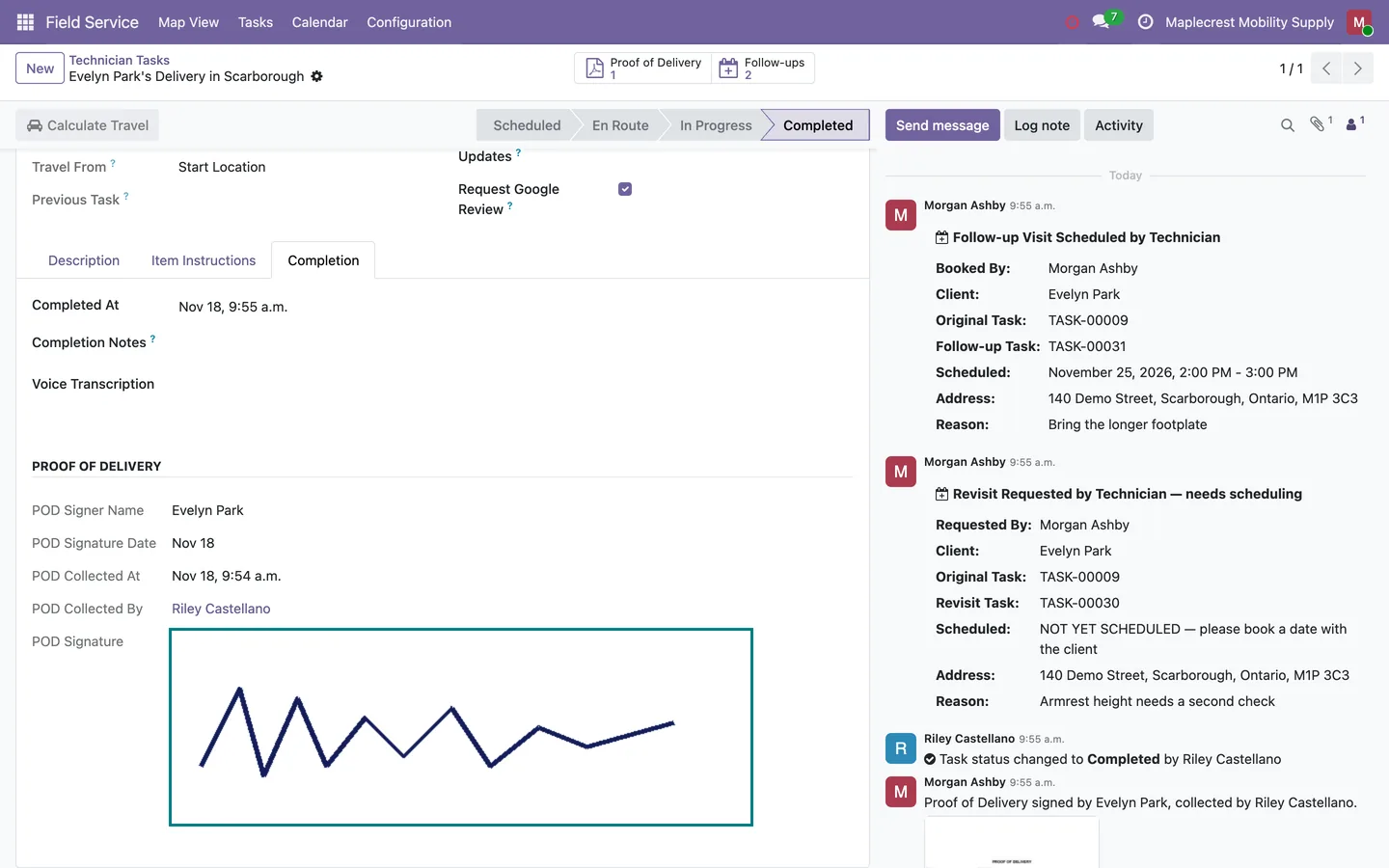
Proof of delivery
The signed proof of delivery is saved as a PDF on the visit. The Completion tab shows who signed, when, who collected it and the signature, and it prints from the Print menu.
Visit > Completion
Change the plan
Visits are moved or cancelled with a reason, and visits that still need a date wait as pending until the office books them.
-
Move a visit
The office gives a new date and start time and the length stays the same. The visit is checked again, and its calendar meeting moves with a note of the old and new times.
-
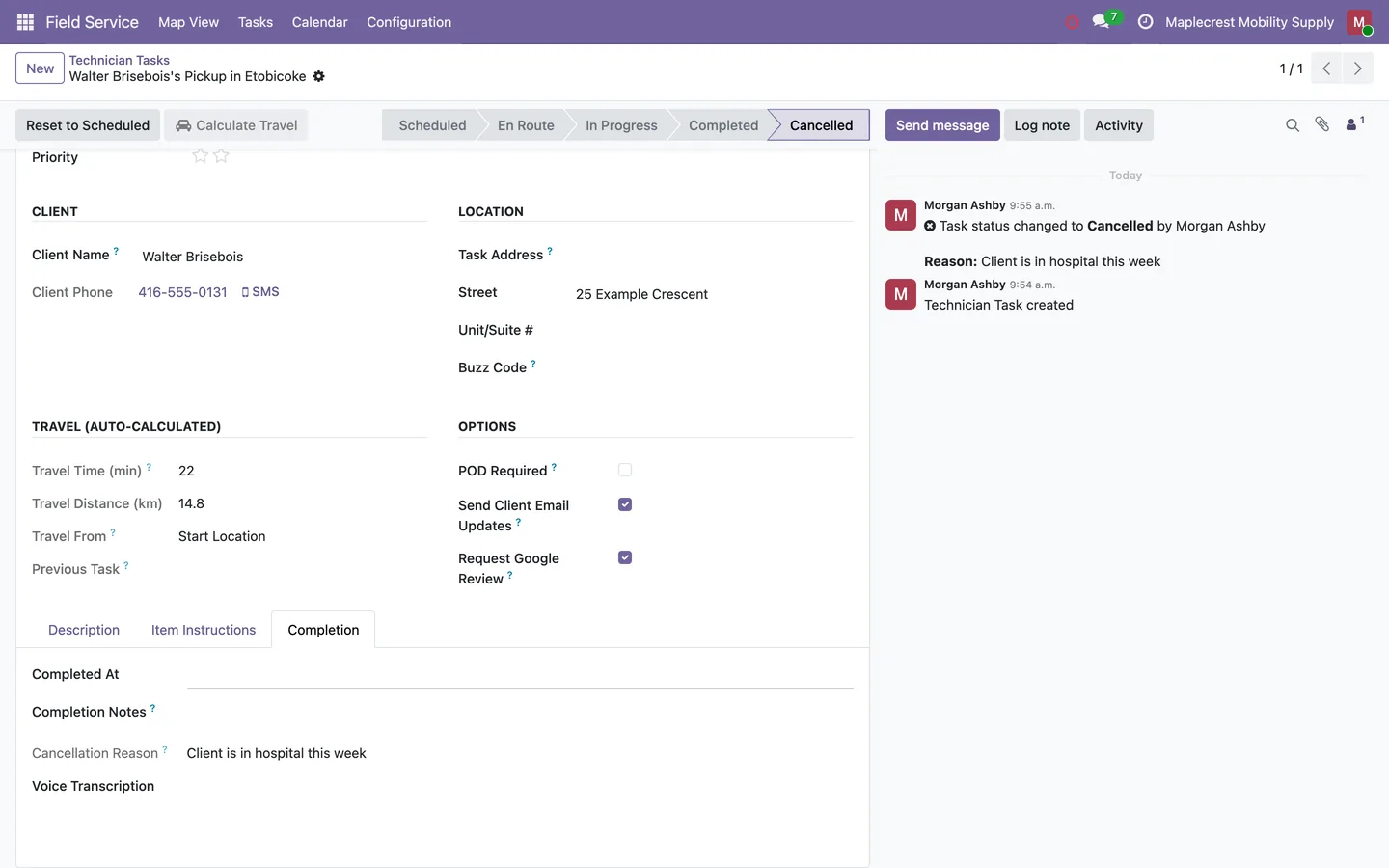
Cancel with a reason
A cancellation from the map needs a reason, which is stored on the visit and noted in its history, and the calendar meeting is removed. "Reset to Scheduled" brings a cancelled visit back.
-
A visit needs a new date
When a technician reports from the technician portal that a visit cannot go ahead, it is closed as rescheduled, a replacement waits for the office to book, and the client is emailed the reason.
-
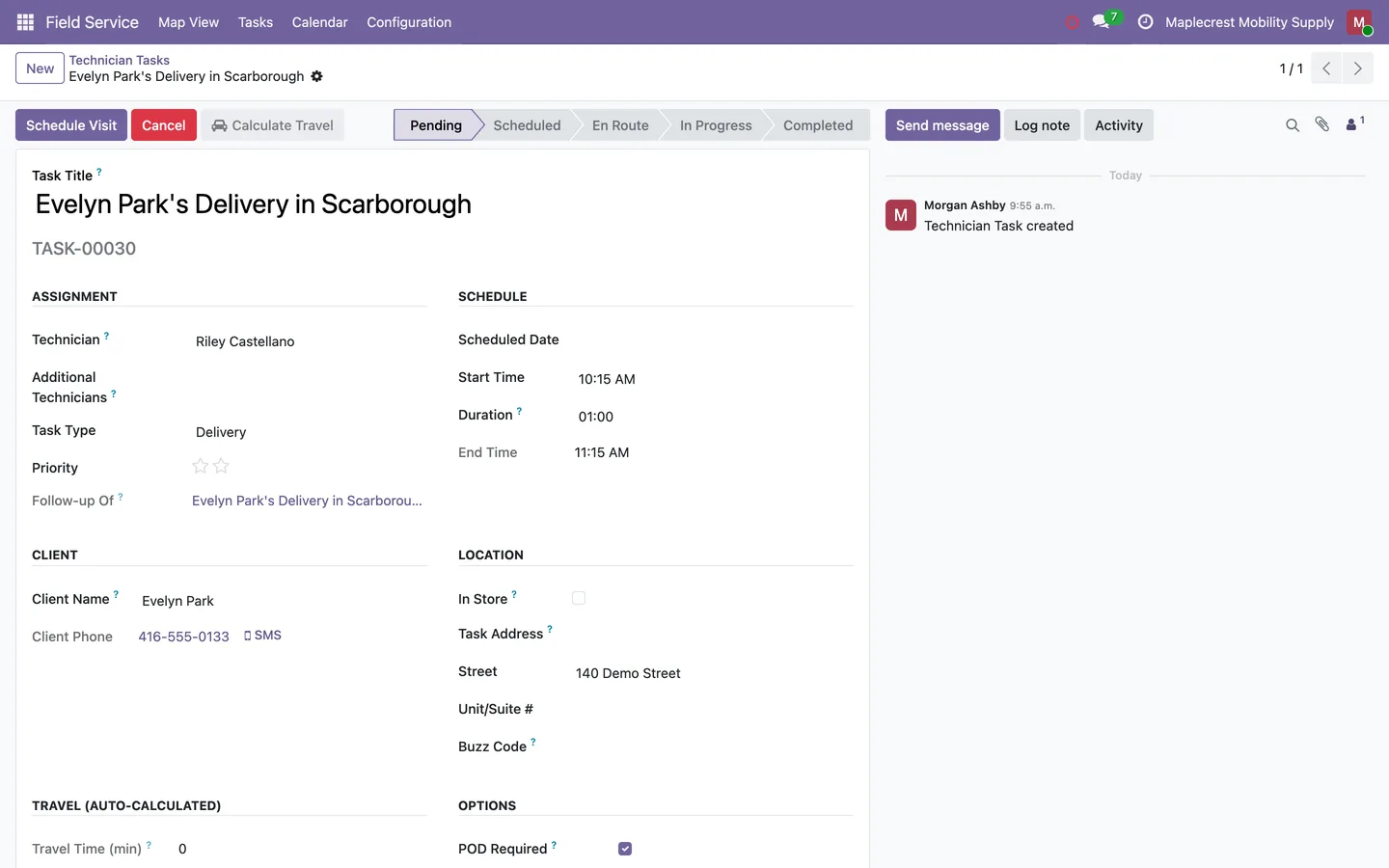
Book the pending visit
The office sets a date and start time on the pending visit and presses "Schedule Visit". The slot is checked like any new booking and the visit becomes Scheduled.
Field Service > Tasks, filter Pending
-
Follow-ups on the original
The original visit counts and lists every follow-up made from it.
Share technicians with a second site
Two Odoo databases that share technicians see each other's bookings, so neither site double-books a technician.
-
Match the technicians
The same Tech Sync ID on both sites marks the same person, and a duplicate ID gets a warning.
Settings > Users & Companies > Users
-
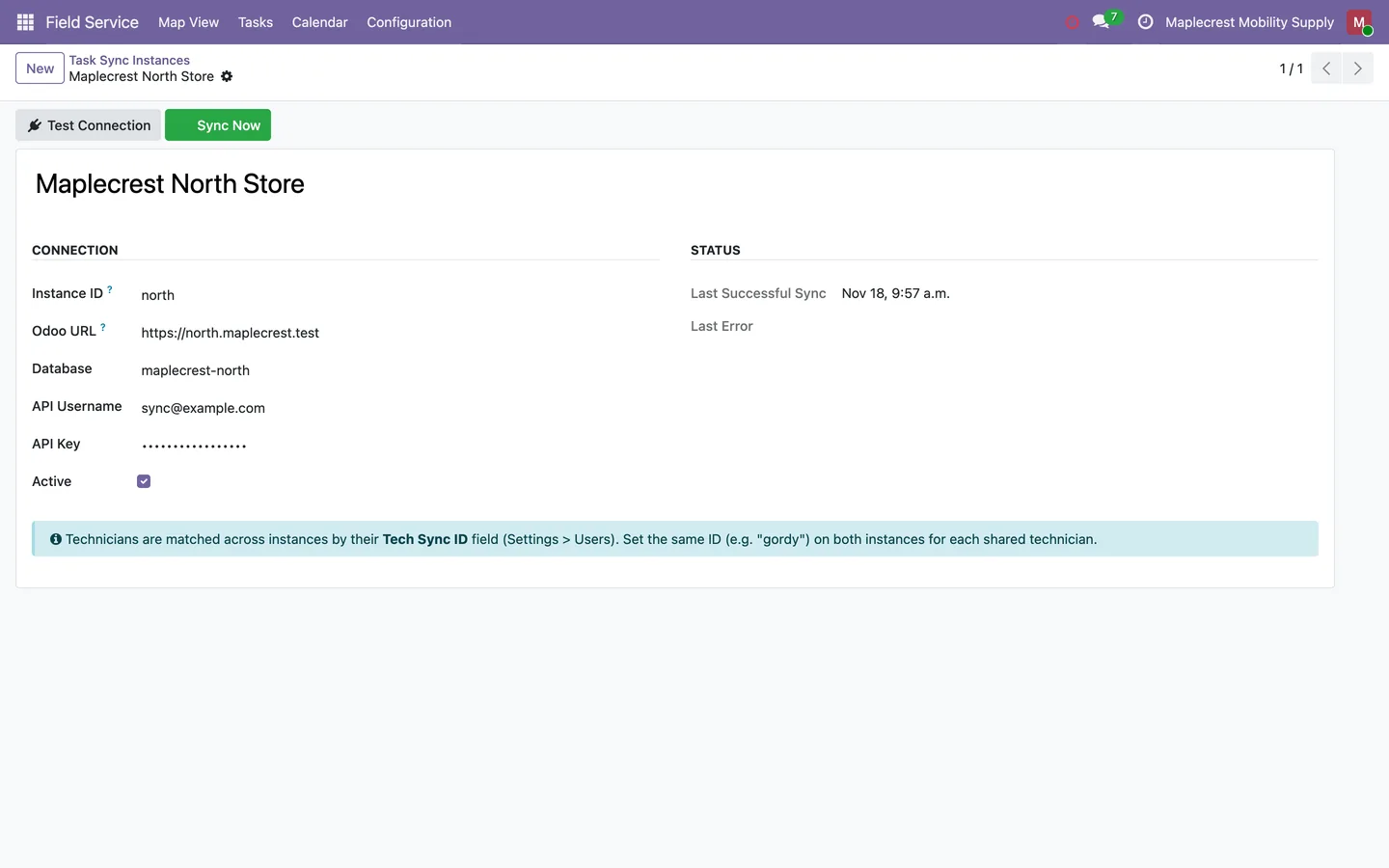
Connect the other site
The link stores the other site's name, address, database, user and masked API key. "Test Connection" reports how many technicians matched and "Sync Now" pulls visits and positions.
Field Service > Configuration > Task Sync
-
Work with shared visits
Visits from the other site arrive every two minutes as read-only copies marked Synced. Status changes on a copy go back to the site that owns it, and only that site emails the client.
What it does
 Booking visits
- Book deliveries, repairs, pickups, troubleshooting calls, assessments, installations, maintenance work, long-term care visits and other visits, each with its own default length.
- Picking a technician and a date fills in the first free start time that still leaves room to drive from the previous visit.
- While you book, the visit shows that technician's booked times and open gaps for the day, and whether there is enough time to drive from the previous stop.
- A visit cannot be saved outside store hours, in the past, on top of another booking for the lead or a helper technician, over the technician's other calendar meetings, or with too little drive time between stops.
- Each visit gets a task number, a plain-language title built from the client, visit type and city, and a meeting in the assigned technicians' calendars.
- Add helper technicians, a priority, the equipment to bring and item-by-item instructions for the technician.
 Seeing the schedule
- See visits as a list, a status board, a weekly calendar coloured by technician or a map, with quick filters for today, tomorrow, this week, each status, deliveries, repairs and your own visits.
- Selecting a time range on the calendar opens a new visit with the date and times already filled in, rounded to the quarter hour.
- Technicians can open only the visits they are assigned to, as lead or helper, while office staff can open every visit.
 Running the visit
- Visits move from Scheduled to En Route, In Progress and Completed, and every change is noted on the visit with the name of the person who made it.
- A visit cannot be started or completed while the same technician still has an earlier visit open that day.
- When the technician sets off, the client is emailed that the technician is on the way, with the visit details and a short checklist to prepare, unless client emails are switched off for that visit.
- When the visit is completed, the client gets a thank-you email that can include a Leave a Review button for your Google Business page, and the person who booked it is notified in Discuss.
- The office can email a client that the technician is running late, with the new expected arrival time, without changing the schedule.
- If a visit has not started five minutes after its start time, the person who booked it gets one alert in Discuss and by email.
- A signed proof of delivery is saved as a PDF on the visit, shown on its Completion tab and printable from the Print menu.
 Changes and follow-ups
- Visits that still need a date wait as pending, and Schedule Visit books them only after the slot passes the usual checks.
- The office can move a visit from the map or the visit itself, and its calendar meeting moves with a note of the old and new times.
- Cancelling from the map asks for a reason, which is recorded on the visit, the calendar meeting is removed, and a cancelled visit can be reset to scheduled.
 Travel times
- Drive time and distance from the previous stop, or from the technician's start location, are worked out for each visit and recalculated when the day changes.
- Drive times and address lookups can use your own self-hosted map servers instead of paid Google calls, and a daily cap stops Google calls once it is reached.
- Routes already looked up are remembered, and lookups pause by themselves when the map service is down.
- Technician positions are kept as a location history for the number of days you choose and then removed automatically.
 Two sites, one team
- Two Odoo databases that share technicians can see each other's bookings, so neither site double-books a technician.
- Visits from the other site are read-only, marked Synced with their source, and status changes made on them are sent back to the site that owns them.
- Only the site that owns a visit emails the client, so a shared visit never sends two emails.
What's new
Recent changes to Fusion Tasks, newest first.
-
- On the service map, technicians now see only their own visits and their own location, while office staff keep the full view.
-
- A visit shared from your other location no longer shows twice in the technician's calendar.
-
- A test copy of your database now switches off task sync, so it cannot change bookings at your other location.
-
- When a delay notice cannot be sent, the message now says exactly why, such as no client email on file or client emails turned off for that visit.
-
- Drive times between the same two places are now remembered, and map lookups pause by themselves when the map service is down.
-
- When a technician has to reschedule a visit, the client now gets an email with the reason, and the office books the new date.


See Fusion Tasks on your own Odoo.
Book a call and tell us how your team works today. We'll show you the module and what it would take to set it up. Prefer the phone? Call 905-792-0000.