Generating a Certificate of Compliance
On this page
What the CoC is
The Certificate of Compliance (CoC) is the paper that goes in the customer's box saying "these parts meet the spec". It lists:
- Customer + PO
- Parts + quantities
- Coating performed + recipe reference
- Thickness readings
- Any applicable spec citations (AMS, MIL, customer internal)
- Inspector signature + date
No CoC = no shipment, for aerospace customers.
Menu: Plating → Certificates → Certificates of Conformance.
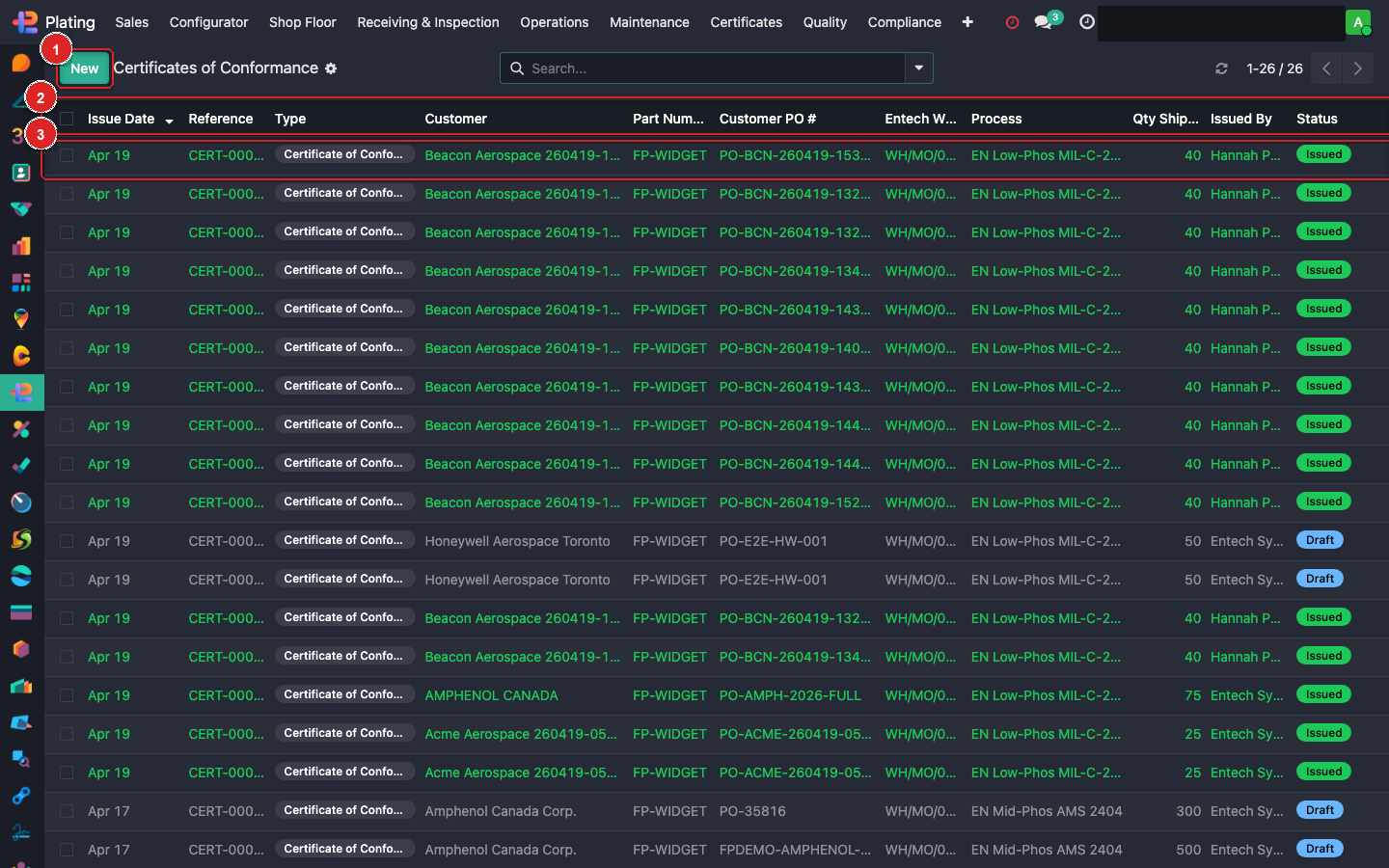
Box ① + New. Box ② column header. Box ③ open a row.
Creating a CoC
Click + New:
| Field | How it's filled |
|---|---|
| Sale Order | Pick the SO (required) |
| Customer / PO # | Auto-fill from SO |
| Parts + Qty | Auto-populated from the SO lines that are Done |
| Coating + Recipe | Auto from coating config |
| Thickness Readings | Pulled from the Thickness Report linked to the MO |
| Spec Citations | Part-catalog specs reference |
| Inspector | You |
Most of the form auto-populates from the linked SO + MO + thickness report. You review, adjust if needed, sign.
Reviewing before signing
- Part + qty match the delivery? (Sometimes short-ship scenarios need manual reduction.)
- Thickness readings all in spec? Fail reads trigger NCR, not CoC.
- Recipe version matches what was run? System pins; rarely wrong.
- Customer-specific spec cited? Some customers require AMS or their internal spec number printed.
Digital signature
- Click Sign.
- Draw your signature on the canvas (or upload a PNG).
- Date auto-fills.
- State flips to Signed.
- A PDF is auto-rendered via
fusion_plating_reports.report_coc. - PDF is attached to the linked Delivery record and the SO.
Send with the shipment
The PDF travels with the parts:
- Print + include in the box.
- Email attachment fires automatically to the customer on delivery completion.
Unsigning / revising
Corrections after signing:
- Click Reset to Draft.
- Make changes.
- Re-sign.
- The PDF re-renders with a Revision marker.
History is preserved in the chatter.
What can go wrong
Thickness readings don't appear on the CoC
The thickness report wasn't linked to the MO, or no readings were entered. Generate/enter the thickness report first, then the CoC.
CoC rejects signing — "outstanding NCR"
There's an open NCR on the linked MO. Resolve the NCR before signing.
Wrong parts/qty on the CoC
Check the SO lines — only Done lines show. If a line is still in Progress, it won't appear. Finish the MO first.